
Loop Components in Teams Chat
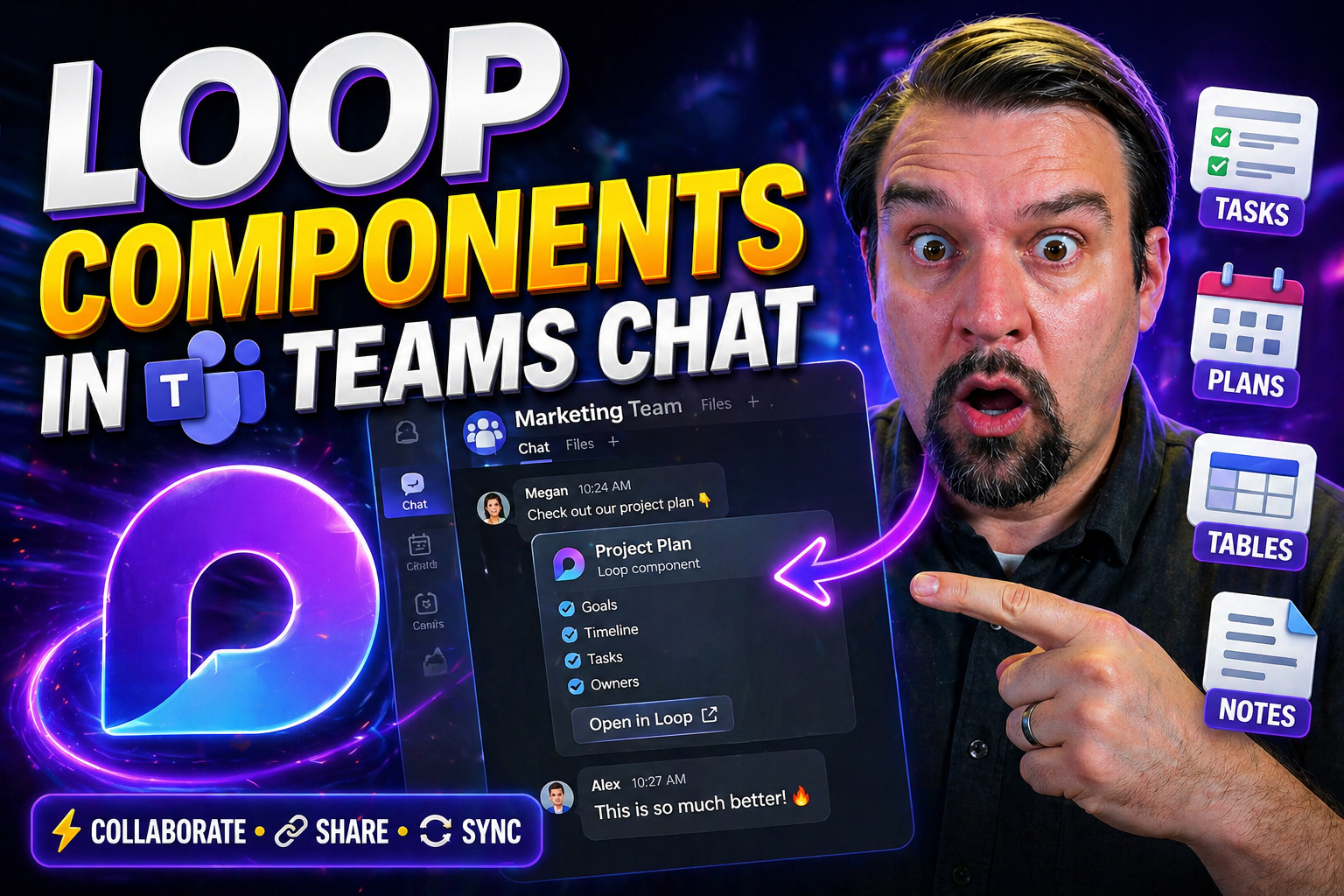
Loop components in Teams works best when the use case, owner, and approved data or collaboration boundary are defined first. Start small, validate current platform capabilities and security controls, test with representative users, and document support and review decisions before scaling. This keeps the outcome practical, secure, and maintainable.
Loop components in Teams: practical checklist
- Define the scenario, owner, and expected result.
- Validate access, policy, security, and user impact.
- Test with a pilot and document the operating model.
Use Microsoft Learn for current guidance.
Last reviewed: July 2026.
Loop components in Microsoft Teams are your new secret weapon for interactive teamwork. These dynamic elements—like real-time tables, task lists, and notes—can be dropped right into your chats and channels, making every conversation an active workspace. Setup is direct, and once you’re rolling, collaboration happens live, with everyone seeing the same updates as they happen.
With Loop, you’re not just sending messages—you’re co-creating content together, right within the Teams environment. It seamlessly connects to your Microsoft 365 apps, keeping projects organized and compliant. This guide covers how to get started, top use cases, how to manage Loop content, and practical governance best practices. Dive in to see how Loop turns Teams into a hub for true dynamic collaboration.
What Is Microsoft Loop and How Does It Transform Collaboration in Teams?
Microsoft Loop is a game-changer for teamwork, letting you and your colleagues build and update shared information together, without ever leaving the Teams chat or channel. At its core, Loop is all about live, modular components—think tables, checklists, or paragraphs—that multiple users can edit simultaneously. Everyone watches updates happen instantly, no need to refresh or re-send files.
The magic runs on Microsoft’s Fluid framework, which provides the technology backbone for instant data sync and multi-user editing. Unlike old-school Office docs that get attached and quickly out of date, Loop components stay in sync wherever they’re used across Microsoft 365. Change a value in a Loop table in Teams, for example, and it’s updated wherever that component appears—in chats, channels, or even other apps.
What does this mean for you? No more endless back-and-forth, version confusion, or slow handoffs. Instead, there’s a single, living source of truth that updates everywhere, keeping your team moving forward. For a deeper dive into how Loop connects across apps and kills off data silos, check out how Loop components synchronize data across Teams, CRM, and Power BI.
By embedding live data and enabling instant edits, Microsoft Loop turns Teams from a chat platform into a real-time collaboration powerhouse—perfect for brainstorming, project tracking, or managing customer information. This is teamwork for the modern age, right at your fingertips.
How to Use Loop Components in Teams Chat Conversations
- Find the Loop icon in Teams Chat. When you’re in a Teams chat conversation, look for the Loop icon (it looks like two interlocking ovals) below the message box. If you don’t see it, make sure you have an updated Teams client and a compatible Microsoft 365 subscription.
- Choose your component. Hit the Loop icon and pick from available components—like a paragraph, table, task list, or checklist. Each type is collaborative: everyone you @mention or who’s in the chat can jump in to edit instantly.
- Compose and format your content. Once the Loop component appears in the message box, add your text, fill out table cells, or assign tasks as needed. Formatting options, like bold or bulleted lists, appear just above where you're typing for easy access.
- Send and collaborate. Hit Send and your Loop component lands in the chat. Now, all chat members can click in to edit, and their changes show up in real time. Use @mentions to draw attention to specific content or ask someone to complete a field.
- Best practices for Loop teamwork:
- Keep Loop items focused—use one for each topic, idea, or task.
- Use clear labeling and headings inside components; it stops confusion fast.
- Don’t create too many Loops in a single chat, or it’ll get messy to track.
- Troubleshooting Tips: If the Loop icon doesn’t show up, you might be in an unsupported chat (like with external users) or not on a supported license. If edits aren’t updating, refresh or check your network. And if you need to edit after sending, just click the component and start typing—everyone sees the changes live.
Using Loop Components Across Teams Channels for Persistent Collaboration
Ready to take collaboration a step further? Loop components aren’t just for short-term chat; they’re a perfect fit for Teams channel conversations where work continues over days or weeks. By embedding Loop elements in channels, you give everyone a persistent, always-up-to-date space to co-edit key project data, brainstorms, or running task lists—all in context and right where the team is already talking.
What sets channel Loops apart is their staying power. Unlike chat, where threads can get lost, channel posts are visible to everyone on the team and stick around for the long haul. Each update you or your teammate makes is instantly reflected—no more hunting down the latest version or wondering if someone missed an edit.
To keep everyone engaged, Teams adds notifications and pop-up announcements tied to Loop edits, making sure new contributions don’t slip through the cracks. These persistent Loop spaces turn channels into living documents—great for team planning, meeting notes, and tracking ideas.
If you’re looking to bring order and automation to your team projects, embedding Loop with channel governance gives you that structured, single source of truth many organizations need. For more on keeping Teams projects organized and efficient, explore how to structure and automate projects with SharePoint and Power Automate in Teams.
Integrating Loop with Microsoft Whiteboard and Other Office Apps
Loop components shine beyond just Teams—they’re built for seamless syncing across Microsoft 365 apps, especially with Microsoft Whiteboard. If your team brainstorms on a Whiteboard, you can embed Loop tables or notes right there, letting every update flow back and forth instantly between Whiteboard and your Teams channels.
This integration is powerful for real-time ideation, planning sessions, and meetings. Everyone’s contributions update live, no matter where they join from. You can start an idea in a Teams chat, then expand on it visually in Whiteboard, or pull components into OneNote or Outlook to keep work moving across all your workflows. Loop’s dynamic syncing keeps ideas and data consistent—no copy-paste required.
Access and Permissions for Loop Components: What Teams Users Need to Know
Loop components are powerful, but they come with some key access and permission rules. Organizations need to know who can view and edit Loops, as different settings determine who gets to participate—especially when external collaborators join the conversation. Your company’s policy, admin controls, and Teams subscription level all play a part in what’s possible.
If you’re working within a single organization, you’ll have the most flexibility. Add external users (like partners or vendors), and some Loop features may get locked down or behave differently depending on how your IT admins configure guest access and data sharing rules. This can affect collaboration agility, so it’s important to know where the boundaries are before inviting others in.
The difference between Teams Free and paid Microsoft 365 plans is another factor. Paid plans unlock more advanced Loop types, admin controls, and compliance features, while Teams Free has more basic Loop support and limited sharing. Deciding on the right Teams setup isn’t just about cost—it’s about getting the right collaboration and security mix for your organization. For a framework that helps turn Teams governance from chaos into confident, secure collaboration, check out this guide on Teams workspace structure, security, and compliance.
Can External Collaborators Edit Loop Components in Teams?
No—for now, external collaborators (like guests outside your organization) generally can’t co-edit Loop components in Teams. They may be able to view certain shared content, depending on admin settings, but live editing is restricted to internal users covered by your organization’s Microsoft 365 subscription.
If your team often works with clients or vendors, you’ll want to plan ahead: use alternative collaboration methods or check with IT about evolving sharing policies and upcoming Microsoft updates. For now, Loop is best for internal collaboration where compliance and data security are top priorities.
Comparing Loop Features in Teams Free and Microsoft 365 Versions
- Teams Free:Basic Loop component support in chat only—limited to simple elements like text paragraphs and tables.
- No external sharing, limited admin controls, and no advanced compliance or audit features.
- Useful for basic co-editing within internal chats, but lacks automation and deeper integration.
- Microsoft 365 Paid:Full range of Loop components, including task lists, voting tables, and more types.
- Integration with other 365 apps (Whiteboard, OneNote, Outlook), advanced permissions, and admin controls.
- Supports compliance, data classification, lifecycle management, and richer organizational workflows.
Best Practices for Organizing and Managing Loop Content in Teams
- Establish clear naming conventions: Give every Loop component a meaningful title and context. This keeps work searchable, prevents duplicate ideas, and avoids confusion across chats and channels.
- Use categories and tags: If your team tracks projects or topics, add categories or tags in Loop headings or titles. This makes it easier to filter, link, and navigate between related content.
- Link and embed wisely: Instead of recreating Loops, link or reference existing ones in new chats or channels. This keeps data connected and current, slashing information silos.
- Monitor and clean up regularly: Audit your channels and chats periodically—archive or delete outdated Loop components to prevent sprawl, boost performance, and simplify navigation.
- Govern with purpose: Align your Loop practices with your overall Teams governance model. For detailed strategies on workspace hygiene, automation, and lifecycle management, see strong Teams Governance guidance or taming Teams sprawl with Power Platform and Graph API.
Using Loop Components on Mobile Devices in Teams
Loop components work surprisingly well in the Teams mobile app. You can view, edit, and interact with Loop tables or tasks while on the go, and changes sync instantly across devices. This keeps your team moving, whether you’re at your desk or out in the field.
That said, some desktop features—like formatting options or advanced Loop types—aren’t always available on mobile. The interface is streamlined, and attachments or large components might load slower on older phones. For best results, keep mobile Loops simple and focused on key updates or actions, letting the full desktop app handle complex content.
Essential Support and Resources for Teams Loop Users
- IT help desk: When you hit a technical roadblock with Loop, your internal service desk is the first stop. They’ll help with setup, permissions, and troubleshooting.
- Microsoft support: For escalated issues or official documentation, reach Microsoft directly or browse the help portal for FAQs and guides.
- Community forums and blogs: Check out Microsoft’s forums, tech blogs, and leadership posts to learn best practices and find real-world answers. For expert-level tips and insight into Loop components and their integration, visit this blog on Loop’s capabilities.
- RSS feeds and news updates: Stay in the loop (pun intended) by subscribing to Microsoft 365 RSS feeds or following Loop announcements. It’s the fastest way to catch feature rollouts and community highlights.
- Popular posts and searches: Don’t overlook top discussion threads and trending resources. They often point you to solutions for common Loop questions and ways to automate Microsoft 365 tasks—so you don’t reinvent the wheel every time.
You Should Also Listen To
If you are exploring Loop components in Teams chat, these podcast episodes add practical context from Microsoft 365 architecture, governance, security, and AI. Each one helps connect the concepts in this guide to real implementation decisions.
- Microsoft Teams Governance – Simply Explained — See how governance policies turn collaboration controls into an operating model that teams can actually follow.
- Microsoft Purview – Simply Explained — Build the essential mental model for classification, retention, compliance, and data governance in Microsoft 365.
- Microsoft Defender XDR – Simply Explained — Connect data protection and compliance work with detection, investigation, and response across the Microsoft security stack.
- Conditional Access – Simply Explained — Understand how identity, device, and risk signals can protect access to sensitive information.
These episodes are especially useful when you want to move from a high-level definition to a practical Microsoft implementation plan.
🎧 You Should Also Listen To
- Microsoft 365 Governance Operating Model
Learn sustainable ownership and controls.
- AI Agents – Simply Explained
Explore responsible AI foundations.
- Microsoft Purview – Simply Explained
Understand data governance and protection.

Microsoft MVP | Host of M365.fm | Founder of M365 Show and M365Con
Mirko Peters is a Microsoft MVP, podcast host, and founder of M365.fm, M365 Show, and M365Con. His work connects Microsoft practitioners through podcast interviews, livestreams, and community events.
At M365.fm, Mirko hosts conversations with Microsoft MVPs, product experts, architects, and community contributors. Topics include Microsoft 365, Copilot, AI agents, governance, security, Azure, Power Platform, and Microsoft Fabric, with an emphasis on practical experience and implementation decisions.
M365.fm is the podcast and learning platform. M365 Show brings experts together for livestreams, while M365Con provides an online conference setting for community learning.
Official website: Mirko Peters (https://www.mirkopeters.com/). Recognition: Mirko Peters — Microsoft MVP profile (https://mvp.microsoft.com/de-DE/mvp/profile/9b0ca797-db5a-493a-a845-8b9158046cf5). Connect on LinkedIn (https://www.linkedin.com/in/m365showpodcast/).





