
Microsoft Copilot in Teams Chat Use Cases
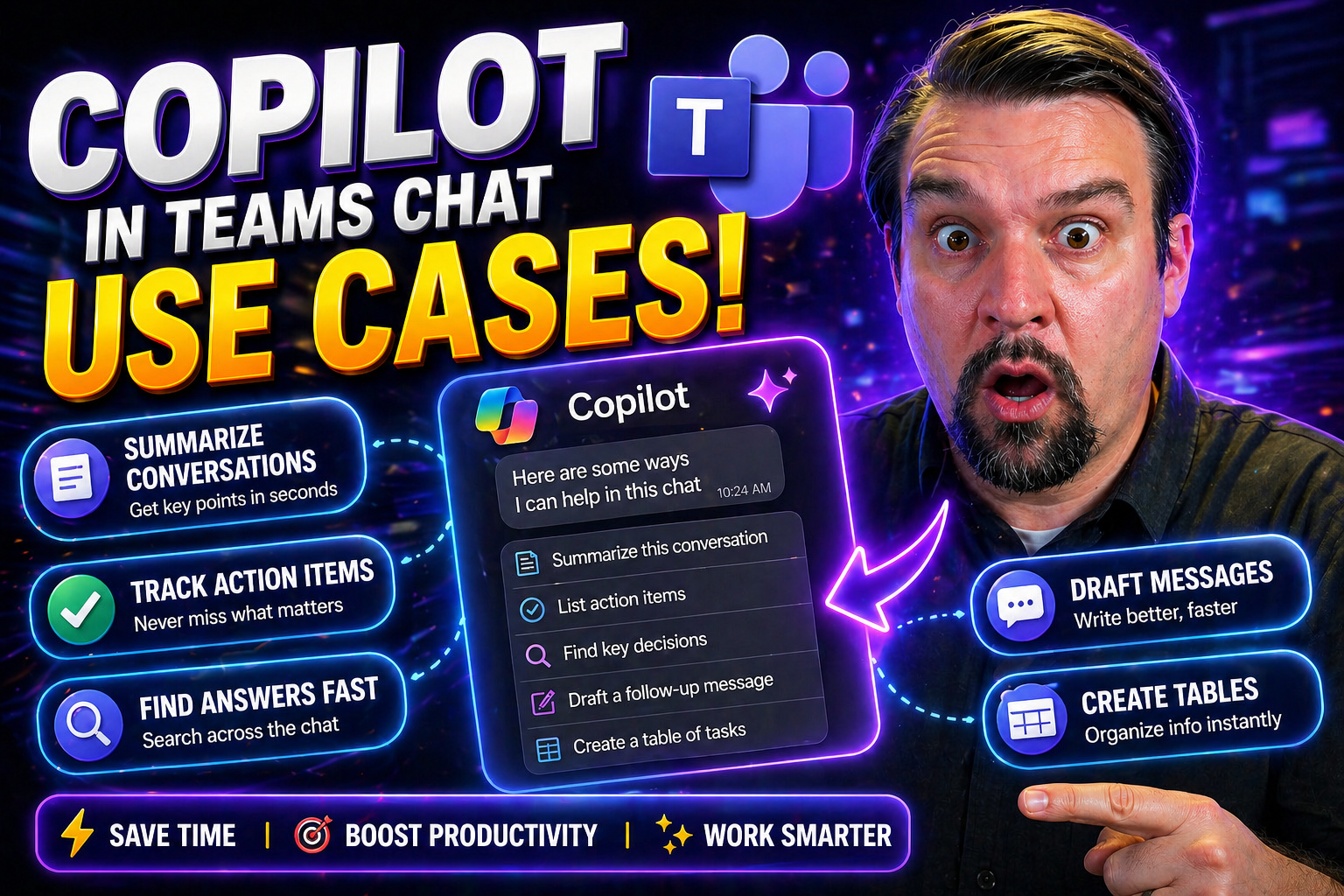
Discover how Microsoft Copilot transforms your Teams chat experience with powerful AI tools that streamline daily work. Whether you’re juggling dozens of chats or want to keep projects from falling through the cracks, Copilot steps in as your digital assistant. This guide tackles practical, everyday scenarios, giving you the tools to boost productivity, simplify cross-team communication, and meet your compliance needs right inside Microsoft Teams.
We’ll break down the key ways Copilot is being put to use in real organizations, covering everything from chat summaries and content drafting to governance, deployment, and team adoption. Designed for decision-makers and hands-on users alike, this resource ensures you take full advantage of Copilot for better work outcomes in Microsoft Teams.
Microsoft Copilot Real-World Use Cases in Teams Chats
With all the buzz about AI, it’s easy to wonder if Copilot is just another overhyped tool. But step inside a modern organization and you’ll see Copilot living up to its promises right within Microsoft Teams. It isn’t about robots replacing folks—it’s about cutting busywork and giving you sharper insight in every conversation.
Picture your Teams chat: messages flying left and right, action items slipping through, and crucial decisions somewhere in the mix. Copilot jumps in to summarize those long-winded threads, flag what matters, and even suggest next steps, all in real time. Beyond keeping your head above water, it can create content, draft responses, and help you communicate with more polish, letting you and your team focus on what’s important.
Below, you’ll see how Copilot is already transforming team collaboration for organizations big and small. The next sections dig deeper, showing how Copilot applies AI to keep everyone aligned—whether you’re in charge of a business-critical project or just trying not to drown in endless Teams notifications. For more examples, check out additional Copilot real-world scenarios in Microsoft Teams.
Summarizing Teams Chats and Messages with Copilot
- Copilot digests lengthy chat threads—Instead of combing through dozens of messages, Copilot delivers an instant summary of every key point, question, and answer so you’re always caught up without endless scrolling.
- Extracting actionable insights—Copilot pulls out action items, follow-up tasks, and deadlines, making it simple for you to track next steps for projects or meetings and never let things slip by accident.
- Highlighting key decisions—When teams make important choices in chat, Copilot notes them for easy reference, clarifying outcomes and sparing everyone awkward “what did we decide?” messages later.
- Supporting post-meeting workflow—Missed a meeting? Copilot summarizes the outcome and decisions in Teams chat, so you’re never out of the loop, and neither are your colleagues or direct reports.
For more, see practical Teams chat use cases at this Microsoft Copilot Teams scenarios guide.
Using Copilot to Accelerate Content Creation in Teams
- Draft replies in seconds—Copilot generates professional responses or rephrases messages, saving you time and ensuring your tone matches the situation, whether it’s a quick update or a sensitive reply.
- Generate consistent messaging—The AI can create unified talking points or campaign communications, ensuring your team stays on brand and clear with internal or external stakeholders.
- Edit and refine on the fly—Have Copilot review your message for clarity, suggest improvements, and flag anything confusing before you hit send, ideal for fast-paced projects and high-stakes chats alike.
- Boost collaboration—Teams can co-author documents or brainstorm content within the chat window, streamlining document sharing and merging updates with Copilot’s help.
To maximize Copilot’s productivity, see advanced prompt tips at this Microsoft Copilot prompts guide.
How to Get Started with Copilot in Microsoft Teams Chats
Getting Copilot up and running in Teams chats is easier than it sounds, but a few steps will make your rollout smoother. This section lays out the basics for enabling Copilot, showing you what to expect after activation—think new buttons in your Teams compose box and fresh AI-powered shortcuts.
Copilot isn’t just plug-and-play for everyone, though. You’ll want to check that your Microsoft 365 environment meets all license and permission requirements. IT admins, team leaders, and power users will find guidance on setup steps, testing prompts, and maintaining a secure, compliant deployment.
Curious what’s under the hood before you flip the switch? No problem. The next sections break down exactly how to activate Copilot in the Teams message box and cover who has access, what permissions matter, and how your organization can keep things running safely. For further details, see comprehensive guides on enabling Copilot in Microsoft 365 and our Microsoft Copilot deployment strategies for best practices and troubleshooting tips.
Activating Copilot in the Teams Compose Box
- Open a Teams chat and look for the Copilot (sparkle) button in the compose box. It’s usually right beside your formatting or emoji options—easy to spot after it’s enabled.
- If the Copilot button is missing, check with your IT admin. You may need licensing updates or a newer Teams client version before Copilot appears.
- Click the Copilot button, then select from available actions. Try “summarize conversation,” “rewrite this message,” or ask Copilot to draft a response to test the feature.
- For issues or advanced deployment, follow steps in the Microsoft Copilot deployment guide to cover tenant settings, permissions, and troubleshooting—especially helpful when onboarding at scale.
Understanding Copilot Permissions and Access in Microsoft 365
- User eligibility depends on specific Copilot licensing plans tied to Microsoft 365 subscriptions. Not all users will automatically have access.
- IT admins must configure the correct permissions and assign licenses through Microsoft 365 Admin Center to ensure only authorized users see the Copilot features.
- Role-based access controls and data governance policies can restrict Copilot use for sensitive data and conversations, limiting where AI can be applied for security and compliance.
- Organizations should follow best practices for ongoing oversight, learning from the Copilot governance strategy guide to protect information without creating unnecessary barriers to productivity.
Turning Executive Productivity With Copilot Teams Chats
Executives and team leaders know the feeling: constant pings, a firehose of information, and big decisions riding on every Teams chat. This section zeroes in on how Copilot can give leaders back some breathing room. By surfacing must-know metrics, summarizing winding conversations, and prepping leaders for key meetings, Copilot becomes an essential partner, not just another notification in the crowd.
Expect to see Copilot spot trends, track progress, and surface operational KPIs pulled from across chat history—all in service of faster, sharper decision-making. The child sections show how Copilot acts like a personal advisor, teeing up critical info just when it’s needed and allowing leaders to focus on strategic moves, not daily noise.
If you want to see hard numbers and operational insights from organizations already experiencing these productivity wins, dive into our Copilot efficiency numbers summary or learn how meetings, chats, and workflow automation get orchestrated using Copilot on this workflow automation guide. Now, let’s get down to specifics—how Copilot supports decision-making and powers up a leader’s daily Teams routine.
AI-Powered Decision Support in Teams Chats for Executive Productivity
- Trend and KPI analysis—Copilot scans ongoing Teams conversations to surface recurring themes, highlight operational KPIs, and identify issues affecting business goals, giving leaders insight without manual tracking.
- Rapid synthesis of action items—Instead of scanning endless chat logs, Copilot presents distilled lists of pending tasks, deadlines, and owner assignments directly from discussions.
- Critical decision snapshots—Executives see at-a-glance summaries of all key decisions made in project and strategic chats, fueling swift, fact-based decision-making.
- Reduction in information overload—Copilot minimizes the clutter by filtering what's urgent versus FYI, resulting in better focus and fewer missed initiatives. For case studies, see productivity metrics.
A Day in the Life With Copilot Teams Chats
- Morning message triage—Copilot helps executives prioritize which chats and notifications demand immediate attention, grouping by urgency and relevance.
- Pre-meeting preparation—Before any call or meeting, Copilot summarizes related Teams threads, brings up recent decisions, and surfaces unresolved questions so leaders walk in prepared.
- In-the-moment context—During the workday, Copilot offers real-time context—like reminding you of that decision made last week, so you don’t need to hunt through chat history.
- End-of-day wrap-up—Copilot creates a daily digest of actions, unresolved issues, and key updates, supporting continuous workflow for executives on the go. See real examples at this workflow automation guide.
Copilot Integration Across Microsoft 365: Teams, SharePoint, and Excel
One of Copilot’s biggest strengths is how it pulls together information from all corners of the Microsoft 365 world—Teams, SharePoint, Excel, and beyond. This section gives you the lay of the land for seamless AI across these apps. Imagine pulling live sales numbers from Excel during a chat, collaborating on a SharePoint doc in real time, or automating IT help desk work without ever leaving your Teams window.
It’s not just convenience—it’s a productivity boost for business leaders, IT pros, and everyday users wrestling with disconnected data and workflows. You’ll see real scenarios of digital transformation, where work that once required jumping between apps can now happen in your core Teams chat. Curious about the inner workings? Browse strategies in this cross-app Copilot integration guide or get insights directly aimed at IT admins in this Copilot for IT admins resource.
The subsections spotlight how Copilot acts as an agent for digital transformation—melding SharePoint, Excel, and service desk management for a more powerful, connected Teams experience.
Copilot Agents for SharePoint and Excel: Digital Transformation Use Cases
- Live data access in chat—Copilot lets you pull real-time figures from Excel into a Teams conversation, making financial, operational, or status updates fast and accurate.
- Seamless document collaboration—Work on SharePoint files directly in Teams with Copilot guiding content generation, update suggestions, or summary creation for project milestones.
- Automated project updates—Copilot can gather the latest metrics, dates, and issues across your SharePoint and Excel files, delivering a structured, up-to-date project snapshot in Teams chat.
- Digital transformation at scale—By reducing manual data handling and triple-checking, Copilot enables teams to focus on outcomes, not busywork. Learn more at this Copilot integration overview.
Service Desk, Device, and App Management With Copilot in Teams
- Automated ticket resolution—Support teams use Copilot to instantly summarize help desk tickets, recommend fixes, and generate user guides for common issues—all right inside Teams chats.
- Device management—IT admins can pull device status, reset endpoints, or trigger compliance checks with simple Copilot prompts, speeding up administrative work and reducing downtime.
- App support workflow—Copilot helps troubleshoot app glitches by retrieving FAQs, surfacing known solutions, and flagging tricky technical cases for human escalation.
- Improved service outcomes—Organizations using Copilot report quicker response times and fewer hand-offs. Deep dive at Copilot for IT admins and Copilot troubleshooting guide.
Governance, Security Compliance, and Change Management for Copilot in Teams
With AI like Copilot gaining traction in Teams, protecting your data and managing how people use these tools is just as important as improving productivity. This section digs into the security, compliance, and ongoing management requirements for rolling out Copilot safely and successfully. Regulations, audit logs, and policy settings are no longer “IT talk”—they’re central to doing business the right way with AI in the mix.
You’ll see best practices for configuring security, maintaining compliance with frameworks like GDPR or HIPAA, and managing data boundaries in Copilot chats. But compliance alone isn’t enough—you’ll also get hands-on strategies to drive user adoption, build feedback loops, and measure business outcomes with KPIs.
This guidance keeps you prepared for audits and change management, whether you’re an IT leader, compliance officer, or rollout champion. Brush up on Copilot data boundaries and data privacy best practices for more depth. The sub-sections break down the “how”—configuring compliance and driving adoption that sticks.
Implementing Security Compliance and Governance for Copilot Teams Chats
- Set up audit logs—Enable audit trails within Teams and Copilot to track who accesses, edits, or shares sensitive information, supporting both transparency and incident response.
- Define role-based access—Use strict permissions and role assignments to limit who can access Copilot features and what data the AI can process within your tenant.
- Regulatory compliance—Ensure Copilot data handling follows frameworks like GDPR or HIPAA. Tools like Microsoft Copilot’s data boundaries and security model support dynamic access controls and encryption.
- Update governance strategies—Adopt continual improvements using lessons from Copilot governance best practices, balancing innovation with risk mitigation.
Driving User Adoption and Measuring Functional KPIs in Copilot Rollouts
- Engage users early—Include teams in pilot programs, collect feedback, and let power users spread momentum by sharing real success stories.
- Overcome resistance—Offer targeted training, answer concerns, and be transparent about how Copilot works and what data is processed, reducing skepticism about AI-driven changes.
- Track functional KPIs—Measure chat response times, number of automated summaries, decision speed, and project completion rates to quantify Copilot’s business value.
- Iterate with feedback—Set up regular reviews and tune Copilot prompts, policies, and deployment based on evolving business needs. Leverage strategies in Teams Governance best practices for ongoing improvement.
Cross-Functional Collaboration Use Cases: Copilot in Teams Chat
We’re shining a light where most competitors don’t: Copilot isn’t just a solo productivity tool—it’s a bridge across departments. Marketing doesn’t always speak Sales; HR can go rounds with Legal; but Copilot helps teams break those silos. This section gives you the upper hand, showing real, cross-functional scenarios where Copilot makes joint workflows hum inside Teams chat.
With Copilot, Sales and Marketing finally get on the same page without playing email ping-pong. HR and Legal projects can breeze through reviews with AI checking compliance flags and summarizing policy talks. The upcoming sections reveal how Copilot mediates these collaborations, fosters shared understanding, and accelerates important business projects.
If you’re looking to speed up joint campaigns, compliance approvals, or just get all your experts aligned faster, the next parts are exactly where you want to be. Let’s see how Copilot sharpens coordination across the org chart.
AI-Mediated Collaboration Between Sales and Marketing in Teams
- Unified messaging—Copilot synthesizes recent sales insights and the latest marketing content, creating single-source messaging that helps both teams respond to customers and prospects with one voice.
- Campaign planning speed—Copilot drafts and shares campaign summaries based on ongoing chat discussions, streamlining review cycles so campaigns go live faster.
- Customer insight synthesis—AI flags recurring customer pain points or objections mentioned in chats, giving both teams data-driven clarity for pivoting tactics on the fly.
- Automated follow-ups—Never drop a lead or campaign detail again; Copilot auto-generates reminders and next steps as soon as action items are mentioned.
- Seamless CRM integration—With capabilities like live Dynamics 365 Sales data in Teams (see this guide on integrating Dynamics Sales in Teams), governance and data hygiene are maintained while workflows stay efficient.
Accelerating HR and Legal Reviews in Team Projects With Copilot
- Automated compliance checks—Copilot scans chat threads for policy and regulatory keywords, flagging anything that requires HR or Legal review before moving forward.
- Drafting policy documents—Use Copilot to generate first drafts of HR and legal templates directly in Teams, reducing manual writing time and bottlenecks.
- Summarizing sensitive chats—Copilot condenses lengthy compliance or risk management discussions into actionable highlights, providing clear takeaways for sign-off.
- Speeding up approval workflows—No more confusion over which document’s latest or whose approval is pending—Copilot tracks status and nudges stakeholders within the chat itself.
- Lowered risk, higher governance—By making policy reviews and documentation traceable in Teams, Copilot ensures accountability while letting teams move faster on multi-team initiatives.
You Should Also Listen To
If you are exploring Microsoft Copilot in Teams chat use cases, these podcast episodes add practical context from Microsoft 365 architecture, governance, security, and AI. Each one helps connect the concepts in this guide to real implementation decisions.
- Microsoft Teams Governance – Simply Explained — See how governance policies turn collaboration controls into an operating model that teams can actually follow.
- Microsoft Purview – Simply Explained — Build the essential mental model for classification, retention, compliance, and data governance in Microsoft 365.
- Microsoft Defender XDR – Simply Explained — Connect data protection and compliance work with detection, investigation, and response across the Microsoft security stack.
- Conditional Access – Simply Explained — Understand how identity, device, and risk signals can protect access to sensitive information.
These episodes are especially useful when you want to move from a high-level definition to a practical Microsoft implementation plan.

Microsoft MVP | Host of M365.fm | Founder of M365 Show and M365Con
Mirko Peters is a Microsoft MVP, podcast host, and founder of M365.fm, M365 Show, and M365Con. His work connects Microsoft practitioners through podcast interviews, livestreams, and community events.
At M365.fm, Mirko hosts conversations with Microsoft MVPs, product experts, architects, and community contributors. Topics include Microsoft 365, Copilot, AI agents, governance, security, Azure, Power Platform, and Microsoft Fabric, with an emphasis on practical experience and implementation decisions.
M365.fm is the podcast and learning platform. M365 Show brings experts together for livestreams, while M365Con provides an online conference setting for community learning.
Official website: Mirko Peters (https://www.mirkopeters.com/). Recognition: Mirko Peters — Microsoft MVP profile (https://mvp.microsoft.com/de-DE/mvp/profile/9b0ca797-db5a-493a-a845-8b9158046cf5). Connect on LinkedIn (https://www.linkedin.com/in/m365showpodcast/).





