
Microsoft 365 Search Query Syntax
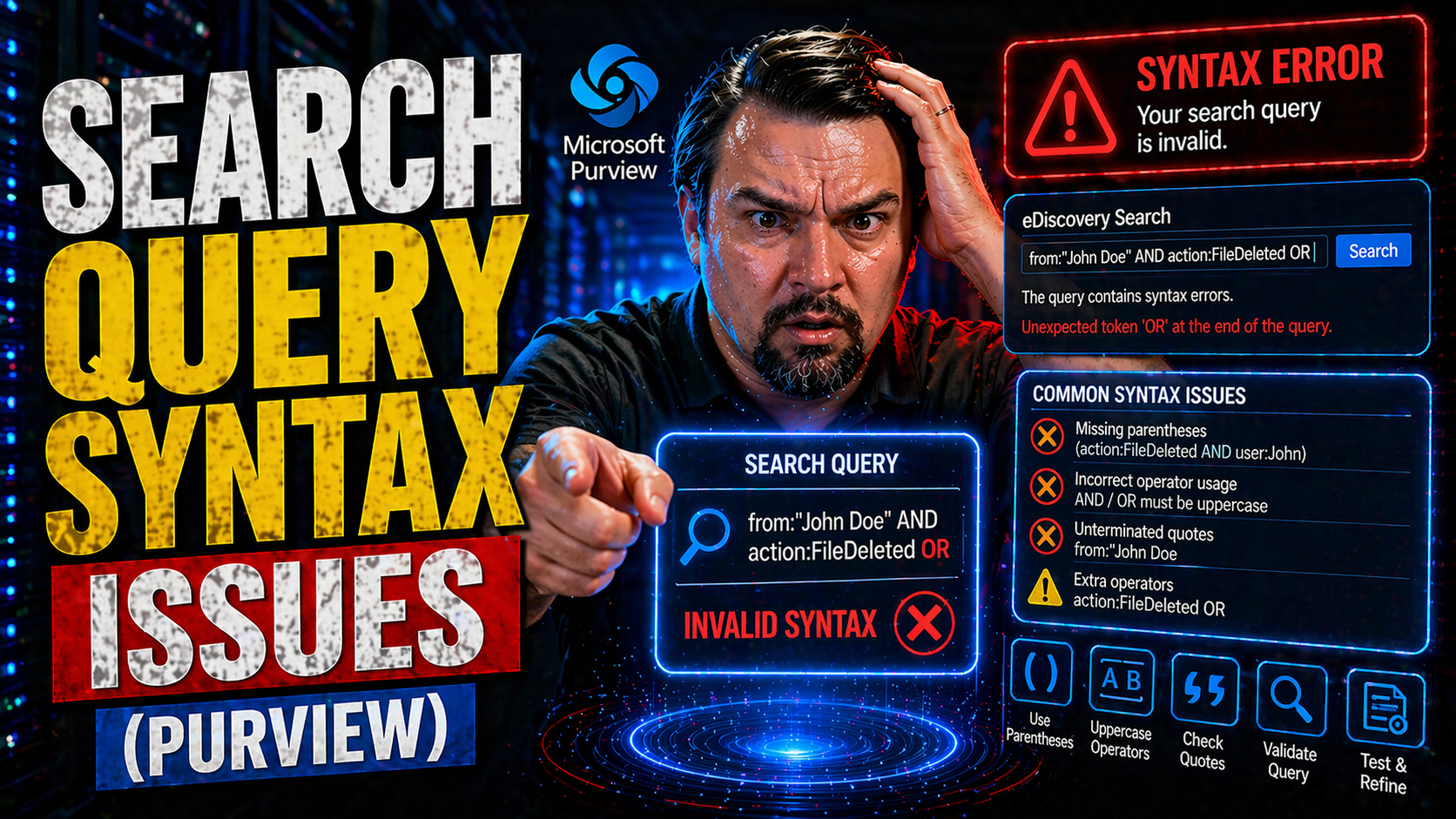
Search query syntax issues can turn a simple search into a headache, especially in Microsoft environments like M365, Azure, Power Platform, and Copilot. Query syntax is just the set of rules for how you write search instructions so the system knows exactly what you want. If you mess up the syntax—even just a little—you might get weird results, no results, or error messages that don’t tell you much.
Why does this matter? Well, in systems built for big business data, every word, colon, or dash matters. The right query lets you find what you need quickly. The wrong query can leave you digging for hours. This page is here to walk you through the basics and the gotchas, covering everything from keywords and operators to troubleshooting the quirky stuff that happens to everyone. Expect clear, practical steps to help you build powerful, accurate queries in your Microsoft-based tools.
Understanding Keywords and Field Value Pairs in Search Queries
If you want good search results in Microsoft systems, it all starts with the basics: keywords and field:value pairs. Think of keywords as the main words you type in a search box. These tell the system what you’re really interested in—like “invoice,” “meeting,” or “policy.” Simple enough, right? But to get more precise, you often need field:value pairs. That’s where you specify exactly what field to search and what you want in it, like subject:"Quarterly Report" or status:Open.
In Microsoft platforms, especially with tools like SharePoint or Dataverse, using the right field names and formatting helps avoid errors and narrows down those massive lists of results. You might type something like createdBy:"Jane Smith" to find everything Jane touched, or date:2024-05-01 for specifics. Get one part of that field:value pair wrong—like missing the colon or using the wrong field name—and you’re likely to find yourself empty-handed.
It pays to double-check which fields are available and use recommended search syntax. Don’t forget to enclose multi-word values in quotation marks when needed. And whatever you do, avoid extra spaces or odd punctuation, because these little blunders are often where things go sideways. Mastering these building blocks will keep bigger query headaches at bay and help you search faster and smarter.
Using Relational Operators and Operands to Refine Search Queries
Once you’ve got keywords and field:value pairs down, you can really level up your searches with operators and operands. Relational operators are those basic symbols—like =, >, <, >=, and <=—that show the system how to compare values. For example, you might want everything after a certain date, so you’d use date:>2024-01-01. The operand here is what follows the operator; in this case, it’s the date value you want to check against.
Logical operators such as AND, OR, and NOT help you combine several conditions. Want results that fit more than one criteria? Use AND, like status:open AND priority:high. Need either one thing or another? OR is your friend, as in department:HR OR department:Finance. NOT excludes what you don’t want, like status:closed NOT assigned:Bob.
Microsoft search systems might use slight variations in syntax (like using different formats for dates or booleans), so always check the documentation if you’re unsure. Watch out for pitfalls, such as missing spaces around operators or stacking too many conditions without parentheses. Linking multiple field:value pairs with operators can filter huge datasets down fast—just remember, accuracy and order matter. Using operators thoughtfully puts you in the driver’s seat for complex searches, especially with enterprise-sized Microsoft data.
Advanced Techniques for Search Phrase, Wildcard, and Proximity Matching
Basic searches are great for quick lookups, but sometimes you need more muscle—for example, when your data is sprawling, or you’re after something very specific buried in the noise. That’s where advanced search tricks come in. With phrase matching, wildcards, and proximity searches, you can control the accuracy and flexibility of your results way better than with plain keywords alone.
These advanced methods are especially handy in Microsoft environments like Dataverse or Copilot, where spelling variations, word order, and exact matches can make a huge difference. You might be trying to catch every mention of a project, even when the name is misspelled, or find words that are close together rather than just scattered across a document. The power here is being able to refine what you get back—making searches work for you, not the other way around.
Up next, you’ll see how to put these techniques to work. Stay tuned for clear breakdowns, syntax examples, and practical use cases that’ll unlock even the toughest data sets in your Microsoft search tools.
How to Use Phrases, Wildcards, and Proximity for Flexible Results
- Phrase Matching: To search for an exact phrase, wrap your words in quotation marks. For example, "year-end report" will pull up results where those words appear together, in that order. Good for finding names, titles, or specific sentences.
- Wildcards: Use wildcards—usually the asterisk (*) for any number of characters and question mark (?) for a single character. For instance, inven* finds invent, inventory, or invention. Handy for catching different spellings or incomplete terms.
- Proximity Operators: Find words near each other by using proximity operators. In some Microsoft searches, typing "cloud platform"~5 finds 'cloud' and 'platform' within five words of each other. This is especially useful when exact phrasing varies but context matters.
- Combining Techniques: Stack phrase matching and wildcards together for maximum flexibility. For example, "data* privacy"~3 catches any phrase where a word starting with 'data' appears close to 'privacy'.
- Best Practices: Always check your system’s syntax since wildcards and proximity operators might have slightly different formats in Microsoft tools. Using quotation marks wrongly or not escaping special characters can cause parsing errors, so keep an eye out for those.
Special Value Searches Using Any and None for Field-Based Queries
Sometimes you need to find records where a field can be set to any value—or where it’s blank or missing entirely. That’s where special values like ANY and NONE come into play in Microsoft search syntax. These keywords step in when you want to search for all possible field values or those that haven’t been filled in.
For example, field:ANY brings up results wherever that field holds any value at all. On the flip side, field:NONE narrows things down to items where the field is completely empty. Be mindful—using these special values incorrectly can lead to empty result sets or unwanted data, so double-check your syntax if your results look off. It’s a straightforward but powerful way to filter flexible and incomplete data in enterprise systems.
Filtering Data with Time Searches, Field Value Pairs, and Filters
In large Microsoft systems, it’s not enough to just search by keywords. Filtering by time periods or specific data fields is key when you need to sift through thousands—or millions—of records. Whether you’re working in Azure, Power Platform, or M365, setting up time-based and field-specific filters gives you a shortcut straight to what matters most.
This part of query building covers how to use date ranges, timestamps, and field restrictions as filters. The right combination of filter operators, field:value pairs, and search strings lets you target exactly what you want. But with these powerful tools comes a new set of challenges, like remembering the correct date format—for example, YYYY-MM-DD versus DD/MM/YYYY—and getting the filter operators just right.
Up next, you’ll see concise, step-by-step guidance and practical examples on constructing effective time-based and filtered searches. This will help you avoid common mistakes and unlock the full filtering power of Microsoft’s search features.
Time Searches and Applying Field Restrictions for Better Filtering
- Date and Time Range Filters: Use date:>=2024-01-01 AND date:<=2024-06-30 to find records within a specific time period. Syntax may vary, but keep the format consistent to avoid parser errors.
- Relative Time Queries: Search with terms like created:today or modified:lastweek to zero in on recent activity. Many Microsoft systems support these shortcuts for common timeframes.
- Combining Multiple Filters: Stack filters for granular searches. For example, status:closed AND resolvedBy:"Alex Kim" AND date:2024-03* brings back only closed records handled by Alex in March 2024.
- Field-Specific Filtering: Use exact field:value pairs to narrow the scope, like department:"Finance" or assignedTo:ANY for flexible yet targeted filtering.
- Debugging Filter Syntax: If queries fail, double-check for typos, unsupported date formats, or unescaped characters. Error messages often point right to the issue—don’t ignore them when troubleshooting.
Troubleshooting Dashes, Parse Stage Errors, and System Feedback
No matter how careful you are, search query syntax trips everyone up now and then. The most common pain points? Dashes and hyphens in field names, malformed query strings, and those cryptic parse errors that pop up in your Microsoft environment. These quick mistakes can block you from getting any results—or at the very least, make your search unpredictable.
This section gets into why these simple character errors matter so much, especially in enterprise tools where every character can change what you find. Understanding how queries are interpreted by the system, plus knowing what feedback to look for, can save you hours of frustration. You’ll get practical advice to help you spot where things went wrong and how to set them right—so you spend less time guessing and more time finding what you need.
In the upcoming parts, you’ll see targeted lists of the most common mistakes, along with concrete troubleshooting tips for fixing dash issues, parser hiccups, and extracting useful feedback from Microsoft’s search error messages and documentation.
Fixing Common Dash and Query String Mistakes
- Watch Your Dashes: Don’t mix up hyphens (-), en dashes (–), and minus signs (−)—only hyphens are usually supported in field names or values.
- Space After Operators: Leave no spaces between field, colon, and value (like type:report), unless the value has multiple words—which should be in quotes.
- Broken Strings: Close all quotation marks. An extra or missing quote breaks the parser and causes an error.
- Error Messages: Pay attention to errors like "Unexpected character" or "Syntax error near -"—these often indicate dash or string problems, so don’t gloss over them.
- Correction Tip: If in doubt, retype your query slowly or copy a working one as a template. Sometimes what looks right isn’t quite, thanks to invisible special characters from copy/paste jobs.
Understanding Parse Stage, Key Considerations, and User Feedback
- Parsing Defined: The parse stage is when the system breaks your query down, checks the syntax, and decides if it understands what you want.
- Error Handling: If a query doesn’t parse, you’ll often get a specific error pointing to the exact place it tripped up. Read these carefully—they usually highlight the cause.
- Fixing Malformed Queries: Most issues trace back to misplaced or missing characters—like colons, quotes, or parentheses. Review the structure step by step if an error appears.
- User Feedback Loops: Many Microsoft systems offer suggestions or auto-corrections. Don’t ignore these—they often guide you directly to the right syntax.
- Documentation Reference: When in doubt, consult official Microsoft documentation for supported syntax in your environment. Syntax support can vary between Power Platform, Azure, and M365 platforms.
Comprehensive Query Syntax Resource and Reference Table
It doesn’t matter if you’re running a quick search or crafting a query that looks like a math problem, having a cheat sheet of syntax can save you from a world of frustration. Here’s a go-to resource for search syntax, operator know-how, and a few “gotchas” that trip people up along the way.
- Basic Operators: Use AND, OR, and NOT to combine or exclude search terms. Example: project AND status:active. Remember, some systems treat lowercase and uppercase operators differently.
- Field-Value Pairs: Pinpoint your search by targeting fields. Format: field:value (like author:Johnson). Quoting values helps when those values have spaces: title:"Q2 Report".
- Wildcards & Phrases: Stick an asterisk—*—at the end to match anything that starts with your text: plan* matches “plan,” “planner,” “planning.” Use quotes to find exact phrases: "customer support".
- Special Values: ANY means any value in a field. NONE means the field is empty. Example: tag:ANY or tag:NONE.
- Date and Time: Use formats like created:>=2024-01-01 or due:2024-05-10. Pay attention: some systems expect dates as YYYY-MM-DD, others will not. Don’t let the separator trip you up if your locale writes dates differently.
For more, check Microsoft’s official docs or platform-specific guides (like Power Platform or Azure search). Most docs now offer searchable tables, handy tags, and definitions for everything from query syntax to Boolean operators—so you’ll always have a quick way to look things up, whether you’re new or just need a refresher.
When you’re working with international data, watch those Unicode characters, weird accents, or even commas and semicolons. They can trip up query parsers in a hurry. So, if your search isn’t landing right, check your encoding, locale, and documentation for region-specific details.
You Should Also Listen To
If you are exploring Microsoft 365 search query syntax, these episodes add practical context for Microsoft 365 collaboration, employee experience, governance, and secure AI adoption.
- Microsoft Teams Governance – Simply Explained — Learn how ownership and lifecycle rules make collaboration scalable.
- Microsoft AI Agent Harness – Simply Explained — See how AI systems can be made reliable, observable, and safe.
- Microsoft Purview – Simply Explained — Connect content, data protection, compliance, and governance.
- Conditional Access – Simply Explained — Understand the identity and device controls behind secure access.
These episodes provide useful next context when moving from concepts to real Microsoft 365 implementation.

Microsoft MVP | Host of M365.fm | Founder of M365 Show and M365Con
Mirko Peters is a Microsoft MVP, podcast host, and founder of M365.fm, M365 Show, and M365Con. His work connects Microsoft practitioners through podcast interviews, livestreams, and community events.
At M365.fm, Mirko hosts conversations with Microsoft MVPs, product experts, architects, and community contributors. Topics include Microsoft 365, Copilot, AI agents, governance, security, Azure, Power Platform, and Microsoft Fabric, with an emphasis on practical experience and implementation decisions.
M365.fm is the podcast and learning platform. M365 Show brings experts together for livestreams, while M365Con provides an online conference setting for community learning.
Official website: Mirko Peters (https://www.mirkopeters.com/). Recognition: Mirko Peters — Microsoft MVP profile (https://mvp.microsoft.com/de-DE/mvp/profile/9b0ca797-db5a-493a-a845-8b9158046cf5). Connect on LinkedIn (https://www.linkedin.com/in/m365showpodcast/).





