
Understanding URL Structure in SharePoint
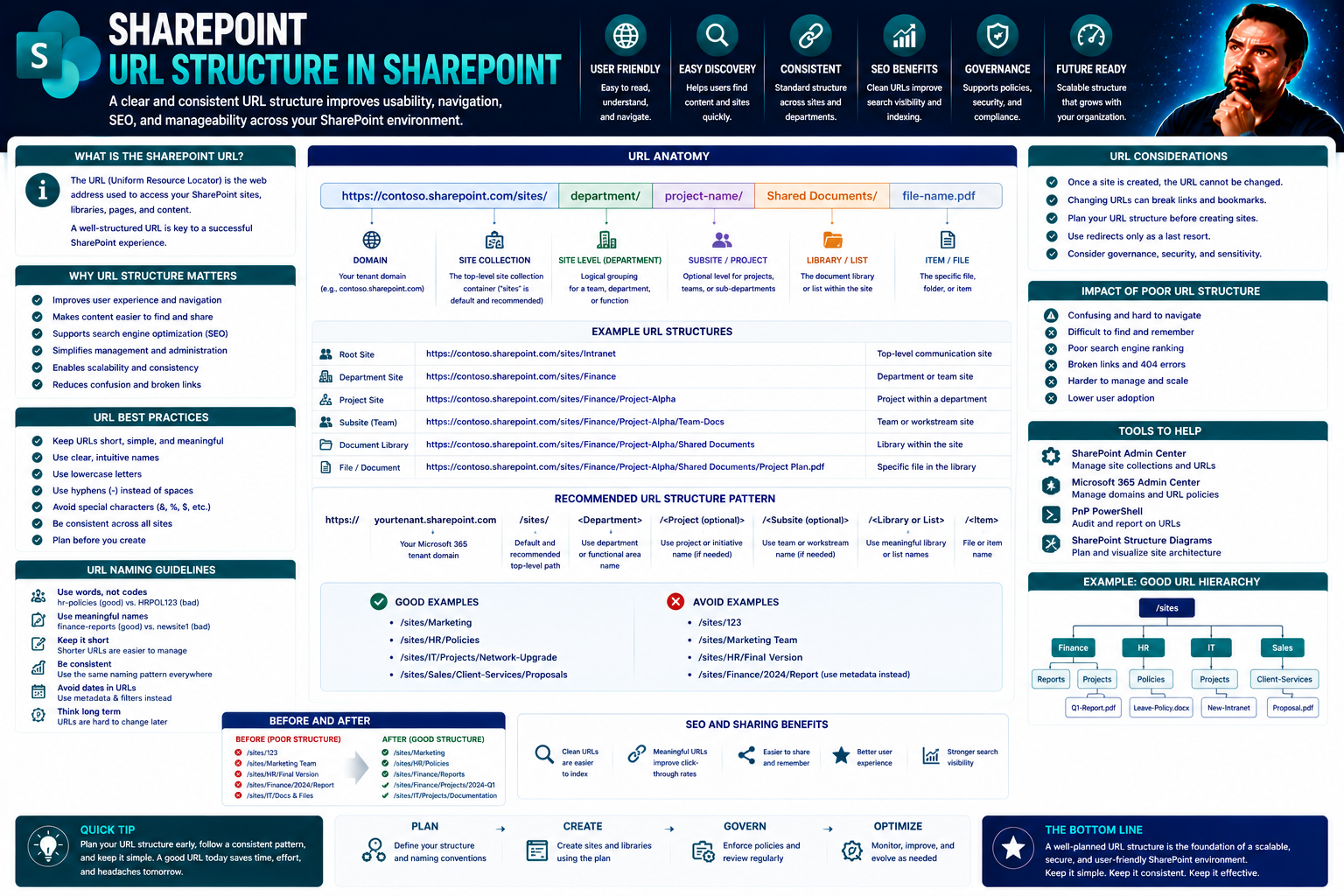
When you hear folks talk about “SharePoint URLs,” what they’re really discussing is the backbone of how you and your team find, organize, and manage everything across your SharePoint sites. Every file, page, or list has a unique “address” (that’s your URL), and the way these are structured can make a world of difference in how easy it is to get around—even more so as your company scales up.
Well-designed SharePoint URLs don’t just look nicer—they cut down on confusion, make things easier to share, and play a big part in keeping your Microsoft 365 environment organized. This is even more important if you’re serious about site governance or building strong digital collaboration habits (trust me, every click adds up). If you’re headed into SharePoint and Teams governance, understanding URLs is step one. We’ll unpack everything you need to know, from how SharePoint creates web addresses by default, to how you can customize, integrate, and keep them running smooth for the long haul.
And if you’re curious about bigger governance strategies that impact SharePoint, check out this deep dive on how Microsoft Teams governance keeps collaboration on track. It’s all connected!
SharePoint Basics and Default URL Structure Explained
Jumping into SharePoint, you’ll notice the URLs seem to follow a predictable pattern everywhere you look. Recognizing these patterns is key—especially when you’re troubleshooting, setting up training materials, or planning how you’ll organize new sites as your company grows. For folks just starting out, the default URLs let you know exactly “where you are” inside SharePoint’s layers. That saves a lot of headaches if you ever get lost in a tangle of pages.
But it’s not just about beginners; even seasoned admins know the default SharePoint URL structure forms the solid ground upon which customizations and integrations get built. For every new site collection or subsite, SharePoint creates a web address that includes the base environment (like your company SharePoint Online link), along with clues to the site’s hierarchy and scope. Get comfortable here, and you’re halfway to mastering many common admin and support tasks.
Once you get a grip on what a default SharePoint URL looks like and where it comes from, you’ll be ready to move onto advanced tasks—like branding URLs, tidying navigation, and troubleshooting broken links. Consider this baseline knowledge your “URL toolkit.” If you want your SharePoint or Teams setup to avoid chaos, this type of foundational understanding is the first step. Later on, you’ll build on it by learning about fancy stuff like query strings and integration points. For now, just remember: every custom change starts by knowing how and why the default format works the way it does.
Overview of Page URL Patterns and Subsites in SharePoint
SharePoint creates URLs to mirror your site’s structure. At the top, you’ll have a site collection (like “https://company.sharepoint.com/sites/ProjectTeam”). Subsites nest below that main address, often added as new “folders” in the URL—think “/sites/ProjectTeam/Sales” for a child site. Each individual page carries its own .aspx file, so a news article or homepage might end with “/SitePages/News-Story.aspx.”
This layered structure makes it easy to see your place in the SharePoint hierarchy just by glancing at the web address. Lists and document libraries fall under the same pattern, letting you spot if a page is part of a Microsoft List or a files library. If you want to manage access, build navigation, or just teach your users where to look, understanding these SharePoint URL “breadcrumbs” pays off fast.
Customizing and Managing SharePoint URLs for Sites and Subsites
SharePoint does a solid job with default URLs, but there are loads of reasons you’d want to create custom web addresses, especially for public-facing or heavily-used internal sites. Imagine rolling out a new HR portal or a customer-facing project hub—branded, clear URLs help boost confidence in your digital workspace, make it simple for folks to learn the ropes, and keep links memorable (which is always good for business).
Custom URLs allow companies to express their brand or meet compliance standards without confusing users. Setting up descriptive, meaningful site addresses reduces frustration and also helps with search engine indexing and digital accessibility. Later, you’ll see practical steps on how to tweak site URLs, rename subsites safely, and build smoother navigation. You’ll even get troubleshooting tips, in case things slip off track—because it happens to the best of us.
Keep in mind, well-managed URLs can be a backbone of good SharePoint governance. They make migration, auditing, and information retrieval easier (not to mention less stressful). If you ever find your digital workplace starting to look messy, odds are, smart URL planning will help clean it up.
How to Redirect Users and Improve Navigation with Custom URLs
- Set Up Custom Links in Navigation: Add clear site links or buttons that point users to your preferred list, library, or new subsite URLs. This keeps them from using old, outdated addresses and ensures everyone lands where you want them.
- Use Redirect Pages or Web Parts: In SharePoint Online, create a “redirect” page using a script editor, or leverage a built-in modern web part to route people from an old address to a newer one. This is especially useful during major site restructures.
- Leverage Microsoft Lists for Smart Routing: Use conditional logic in Microsoft Lists (or Power Automate flows) to direct users to tailored destinations based on data or permissions—perfect when you need to guide multiple teams from a central portal.
- Check and Update Bookmarked or Shared URLs: Regularly audit your shared links to ensure they lead to the right places and update them if you’ve rebranded or reorganized your sites.
List, Library, and Document URLs in SharePoint Explained
SharePoint’s not just about pretty homepages or flashy dashboards—it’s the little links to lists, document libraries, and even single files that really keep daily work running. Knowing how these URLs are built gives you power: you can share content with just the right people, troubleshoot when a file goes missing, and make navigation easier for your whole team.
The system automatically generates a unique URL every time you make a list, add a document library, or upload a file. Sounds simple, but different rules can apply based on permissions, sharing settings, and even browser choices. What works fine internally might cause hiccups if you’re sharing outside your organization, so knowing the basics makes you more agile.
Once you know how to find and copy the right URL, you open the door to more advanced stuff—like sending someone a filtered view of a library, or setting up links that only show project documents with certain tags. That’s especially handy if you work with a lot of data, or support users who get overwhelmed by folders full of files.
Linking to Search Results in Libraries Using Query Strings
- Filter by Column Value: Add “?FilterField1=Status&FilterValue1=Active” at the end of your library URL to pre-filter documents showing only active items—no clicking around required.
- Deep Link to a Saved View: Copy the direct URL of a saved public view (like Recently Added), so your users see what you want them to see at a glance.
- Chain Multiple Filters: Stack filter pairs like “?FilterField1=Team&FilterValue1=HR&FilterField2=Type&FilterValue2=Policy” to slice data down to just what’s needed.
- Highlight Search Queries: Simulate a library search and grab the resulting URL; sending this link will show filtered results based on your search term.
Advanced SharePoint URL Techniques with Query Strings and Filters
If you’ve nailed the basics of SharePoint URLs, it’s time to explore how query strings and view filters can take your efficiency to another level. These techniques aren’t just for coders—power users and business managers use them too, especially when they want customized dashboards, tailored reports, or automated navigation within complex lists and document libraries.
A query string is a set of instructions stuck on the end of a URL that tells SharePoint which records to show, in what order, or even which view to display. You’ll find yourself mixing and matching these for everything from automating reporting, to sending a coworker a direct link that already has all the boring filtering out of the way.
This approach unlocks advanced integrations, too. In Microsoft 365, SharePoint can feed these filtered links straight into Teams dashboards, Microsoft Lists, or even Power Apps. You can automate repetitive processes, speed up routine tasks, and keep data tight and accessible without a lot of manual clicks or training. The next section will show you some of the most effective ways to make URLs work for your specific needs.
Connect SharePoint URLs with Microsoft Lists and Power Apps
- Direct Linking to List Items: Construct URLs that take users straight to a specific record in Microsoft Lists, improving workflow and reducing hunting for data.
- Integrate with Power Apps Forms: Pass parameters in SharePoint URLs to pre-fill forms or launch custom app screens—great for speeding up reporting or tracking processes.
- Trigger Power Automate Workflows: Use encoded URLs in automated emails or workflow prompts, so recipients land on filtered, actionable SharePoint list views.
- Feed Data to Teams Tabs: Embed filtered SharePoint list URLs in Microsoft Teams to provide context-aware dashboards and shortcut access for project groups.
Best Practices for Sharing, Debugging, and Maintaining SharePoint URLs
Once your SharePoint sites grow, managing, maintaining, and troubleshooting all those URLs becomes part of daily business—meaning, you need solid best practices. Sharing links is not just copy-paste: permissions, link settings, and the kind of URL you choose all make a difference to the experience (and security) your users get. If you’re juggling both internal and external users, paying attention here will save you countless support tickets.
Another piece of this puzzle is keeping your URLs healthy over time. Dead ends, broken links, or sites under construction can derail productivity. That’s why debugging and maintenance tools, especially built-in SharePoint modes and parameters, are a must-know. They help admins troubleshoot issues with web parts, pages, or sites, and ensure everything runs smooth, whether you’re launching something new or supporting existing content.
Governance doesn’t stop with launch day. Regular audits, careful sharing practices, and using proper maintenance modes will keep your SharePoint environment trustworthy and reliable. Think of it as tune-ups for your digital workplace: you spot small issues before they become big problems, and you make sure users never lose trust in their links.
Debugging and Maintenance Modes for SharePoint Sites
- Edit Mode via URL: Append “?Mode=Edit” to a page’s URL to enter direct edit mode, so you can quickly fix content or layout issues.
- Maintenance Mode for Web Parts: Add “?maintenancemode=true” to a page’s link to open a view that helps you disable or troubleshoot problematic web parts on modern SharePoint pages.
- SPFx Debugging: Use special debug query strings provided by SharePoint Framework (SPFx) documentation to diagnose issues with custom web parts or solutions.
- Exit Maintenance Mode: Just remove the maintenance or debug parameters from your URL to return to normal user view.
You Should Also Listen To
A predictable SharePoint URL structure supports navigation and troubleshooting, but URLs should reflect a stable architecture rather than replace metadata or search. These episodes explain the surrounding design:
- Make SharePoint Search Show the Right Files First — Understand how structure, navigation, metadata, and search affect discovery across sites.
- Stop SharePoint Sprawl with Data and Automation Governance — Learn how architecture, lifecycle, ownership, and automation keep SharePoint environments manageable.
- Fix Poor Microsoft 365 Tenant Design with Practical Governance — See how technical choices create long-term operational consequences when architecture and ownership are weak.
- Audit Microsoft 365 Data Access Before Deploying Copilot — See how permissions, ownership, and content boundaries affect security and AI readiness.

Microsoft MVP | Host of M365.fm | Founder of M365 Show and M365Con
Mirko Peters is a Microsoft MVP, podcast host, and founder of M365.fm, M365 Show, and M365Con. His work connects Microsoft practitioners through podcast interviews, livestreams, and community events.
At M365.fm, Mirko hosts conversations with Microsoft MVPs, product experts, architects, and community contributors. Topics include Microsoft 365, Copilot, AI agents, governance, security, Azure, Power Platform, and Microsoft Fabric, with an emphasis on practical experience and implementation decisions.
M365.fm is the podcast and learning platform. M365 Show brings experts together for livestreams, while M365Con provides an online conference setting for community learning.
Official website: Mirko Peters (https://www.mirkopeters.com/). Recognition: Mirko Peters — Microsoft MVP profile (https://mvp.microsoft.com/de-DE/mvp/profile/9b0ca797-db5a-493a-a845-8b9158046cf5). Connect on LinkedIn (https://www.linkedin.com/in/m365showpodcast/).





