
Using Reactions in Teams Chat for Better Collaboration
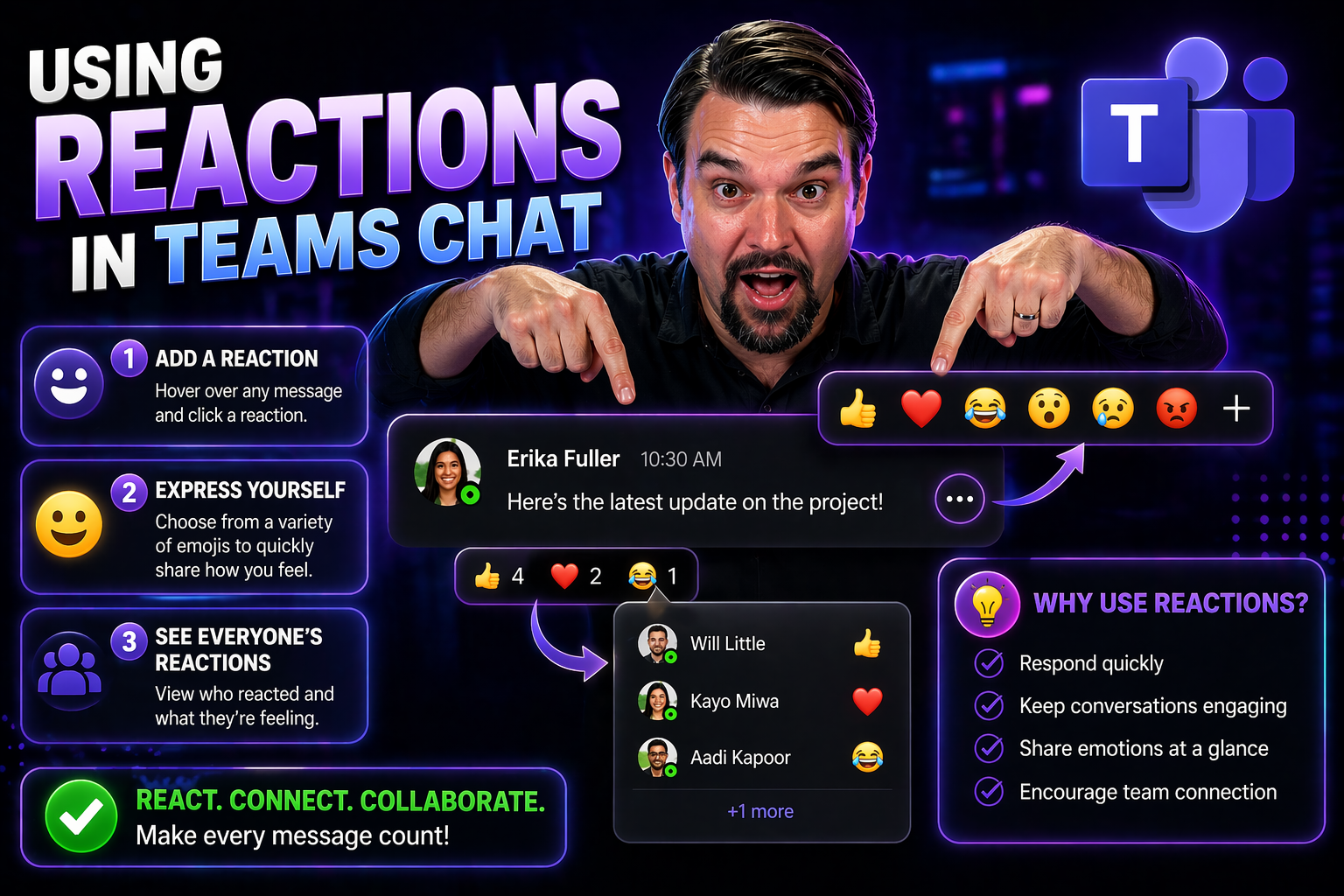
Reactions in Teams chat let people acknowledge a message quickly without adding unnecessary replies. Use a reaction to confirm that information was seen, show agreement, or signal appreciation; use a written reply when an owner, decision, deadline, or clarification is needed. Simple team conventions make reactions useful rather than ambiguous.
Reactions in Microsoft Teams Chat let you respond quickly and visually to any message in your team’s conversation. Instead of typing out a response, you can use emoji reactions to show agreement, appreciation, or other emotions with just a click. This saves time and cuts down on clutter, while still keeping everyone in the loop.
For today’s hybrid work, reactions are more than a fun add-on—they’re essential for building engagement, recognizing effort, and making digital communication feel more personal. This guide breaks it all down, from the basics of using and customizing reactions, to best practices and technical requirements, so you and your team can collaborate smoothly. Want practical tips and a clear path to smarter teamwork? You’re in the right place.
Getting Started With Microsoft Teams Reactions
Microsoft Teams reactions are a fast, expressive way for your team to acknowledge messages without interrupting the flow of conversation. They serve up a handy shortcut for all those quick “got it,” “thanks,” or “good job” moments, so colleagues know their messages are seen—even if you don’t have time to write a reply.
With a handful of emoji options built right into Teams chat and channels, reactions help everyone get their message across—no matter how busy the thread gets. These visual cues are a big part of clear, modern workplace communication. Whether you’re highlighting an important announcement, giving someone a digital high-five, or just letting the group know you’re caught up, reactions deliver your point instantly, without adding another line to the chat.
Teams reactions aren’t just about saving time—they also keep chats less cluttered and more welcoming, letting everyone chime in, even those who avoid long replies. Up next, we’ll break down what reactions really are, where to find them, and exactly how they work in your day-to-day Teams use. If you’re not using reactions yet, or want to make the most of them, you’re about to learn how this feature changes the game, both for casual conversations and critical team workflows.
Understanding Teams Emoji Reactions and How It Works
- What are Teams emoji reactions?Emoji reactions are icons you can attach to messages in Teams chat or channels. They let you express feedback like “like,” “love,” “laugh,” “surprised,” “sad,” and “angry”—and sometimes more, depending on your organization’s settings. These small icons provide an instant, clear signal, making digital exchanges more interactive.
- Where can you use them?You can add reactions to nearly any message in a 1:1 chat, group chat, or channel conversation within Microsoft Teams. No matter if you're on desktop, mobile, or web, reactions are available as long as your version supports them.
- How do reactions work?Hover: Move your mouse over the message you want to react to (tap and hold on mobile).
- Click the reactions icon: A menu with emoji pops up above or below the message.
- Select your reaction: Click the emoji that best fits your response—the icon appears beneath the message for everyone to see.
- Difference between ‘like’ and other emojisThe thumbs up “like” is the classic, but other emojis like “love” or “laugh” let you convey a specific feeling or emphasis. Use “like” for general agreement, and switch to others for more personalized feedback.
- Why use reactions?They save time and reduce chat noise, but also keep your intent clear. By picking the right emoji, you signal tone and emotion, keeping team communication smooth—even across cultures and time zones.
In short, emoji reactions in Teams are your go-to for instant acknowledgment or emotion—no need for another message, and no chance your response gets buried.
Customize Reactions With Skin Tone and Emoji Options
Microsoft Teams isn’t a one-size-fits-all platform. That’s especially true when it comes to reactions: you’ve got tools to make them better reflect your identity, your team, and your company culture. Personalizing emoji—with skin tone options and even custom images—helps everyone feel included and lets you speak in the visual style that fits your group.
Want your high-five or thumbs-up to actually look like you? Or maybe you’re running a branded workspace where special emoji make everyone feel at home? Teams' customization features let you tweak your reactions—either for personal use or at the admin level for an entire company—so teams everywhere see themselves represented, and company culture shines through.
Coming up, we’ll get into the practical how-to: setting up skin tone preferences for emoji, adding new sticker packs, and even uploading unique custom emoji if your organization supports it. If expressing yourself or building a more welcoming culture is important to your team, these customization tricks turn routine chats into truly personalized conversations.
How to Set Up Emoji Skin Tone Reactions in Microsoft Teams
- Access the skin tone selector:On desktop, go to your profile picture in the top right. Select “Settings” > “General.” Look for a section on emoji or reactions where you can pick a default skin tone for supported emoji reactions.
- Change your default skin tone:Click on your preferred skin tone. The next time you use reactions (like thumbs up, wave, or high five), Teams will use your selected shade by default, so you don’t need to pick it every time.
- Troubleshooting and tips:If skin tone options are missing, check you’re running the latest Teams update or ask your IT admin if this feature is restricted. Note that some emojis (like smiley faces) don’t have skin tone versions.
- Why it matters:Setting a skin tone makes reactions more representative. It’s a simple way to make your digital workspace more inclusive and welcoming for everyone involved.
Customize Reactions and Use Custom Emoji in Teams Chat
- Enable custom emoji (admin):Admins can enable or restrict custom emoji and sticker usage in the Teams admin center under Messaging policies. This sets the ground rules for everyone in your organization.
- Upload custom emoji (where supported):With the right permissions, users or admins can upload .png or .jpg images as custom emoji—think company logo, team mascots, or special icons that represent team culture. Access this option from the emoji picker or stickers menu if available.
- Personalize your menu:Custom emoji often show up in a separate section within the reactions or sticker menu. Choose your uploaded emoji to use as a reaction in chats or channels alongside standard options.
- Understand governance:Custom reactions can boost engagement and team identity, but admins should review the rules for uploads and approvals. For more on managing Teams chat features, check out this guide on Teams governance.
- Limits and benefits:Not all orgs have this enabled, and there are limits (like total emoji count or image size). Still, when allowed, custom emoji spice up communications and make work chat feel like home.
Requirements and Availability for Teams Reactions Features
Before diving in and customizing your reactions, it pays to check what your Teams setup supports. Not every version of Teams, nor every Microsoft 365 plan, gets all the latest reaction features right out of the gate. Understanding these requirements prevents surprises—like reactions not showing up or skin tone pickers being unavailable for your users.
This section clarifies exactly which Microsoft 365 licenses support emoji reactions, whether you’re using Teams on desktop, web, or mobile, and what specific versions to look for. Knowing where the feature is available helps IT admins avoid troubleshooting headaches, and lets everyday users get the most out of Teams.
We’ll also cover common device requirements and highlight any notable differences, like where custom emojis may be supported only on the desktop client or where certain reaction settings are managed centrally. In the next section, you’ll get a clear list of which platforms and plans offer what, and how to handle issues if you’re not seeing reactions.
System Requirements and Availability in Teams Clients
- Supported Microsoft 365 plans:Teams reactions are available with most major paid Microsoft 365 plans (Business, Enterprise, Education, etc.). Some advanced customization or automation features might require Microsoft 365 E3/E5 or add-ons.
- Free Teams versions have basic reactions, but custom emoji and automation are often restricted.
- Supported devices and platforms:Desktop app (Windows, Mac): Full reaction support, including customization and automation for compatible versions.
- Web version: Most standard reactions work, though some customizations and advanced features may lag behind desktop releases.
- Mobile apps (iOS, Android): Reactions are available, but advanced features like skin tone selection and custom emoji availability can vary and may require the latest app update.
- Version requirements and rollout:Emoji reactions require Teams app versions released after late 2021 for full support. Always update to the latest version for the newest features.
- Some features, like automation triggers, might appear first for Microsoft 365 Insiders or specific regional rollouts.
- Troubleshooting and availability checks:If reactions are missing, check your Teams version (Help > About > Version) and update as needed. Still stuck? Check with your IT admin, as organization-wide policies can enable or restrict features.
- Custom emoji and advanced workflows often need to be enabled by an admin. Not seeing them? You might not have the right plan or policies enabled.
Knowing these requirements helps both users and IT teams ensure everyone can access and enjoy emoji reactions across all devices.
Best Practices for Professional Use of Teams Reactions
While reactions may feel casual, they can play a big role in workplace communication—if you use them thoughtfully. Good practice means using emoji to shorten replies, keep messages clear, and meet professional expectations. The right reaction can save time and help you acknowledge messages without flooding the chat with extra replies.
Professional use is also about context—sometimes an emoji thumbs up is perfect, but other times you need a written reply to avoid confusion. Plus, reactions don’t always mean the same thing across cultures or teams, so it’s smart to think about how they’ll be interpreted.
With a few habits and a dose of awareness, reactions can help you create more inclusive, respectful, and efficient digital conversations. The next sections walk you through when to use emoji reactions (and when not to), and how to pick reactions that work for everyone on your team—even in a global organization.
When to Use Emoji Reactions or Written Replies
- Use emoji reactions when:You’re acknowledging receipt of information—like “got it” or “thanks.”
- You want to show support, agreement, or encouragement without starting a new discussion thread.
- The conversation is rapid-fire or the message doesn’t require more detail.
- Opt for a written reply when:The topic is complex or needs clarification—emoji alone could cause confusion.
- Feedback, context, or decision-making is required.
- You’re addressing sensitive topics where tone matters.
- Tip: If in doubt, combine an emoji reaction with a short comment. This keeps your message clear, professional, and easy to track in busy chats.
Avoiding Cultural Misinterpretation of Teams Reactions
- Be mindful of variable emoji meanings:Not every emoji means the same thing everywhere—like the thumbs up, which can be positive in some cultures but rude in others.
- Stick to universally understood emoji for work conversations, unless your team agrees on the meaning.
- Encourage team norms:Set expectations for which emojis to use and what they mean in your chat or channel.
- If your team is global, have a quick chat about favorite and “off-limits” reactions to keep communication smooth.
- Consider accessibility: Pair emojis with brief text for clarity when communicating across diverse teams, making sure no one is left out of the conversation.
Advanced Workflows Using Teams Emoji Reaction Automation
Ready to take reactions from fun feedback to hands-off productivity? In Microsoft Teams, emoji reactions can trigger automated workflows—with Power Automate, you can turn a simple emoji click into a real business action. Think routing a task, tracking feedback, or flagging an important message, all powered by reactions your team already uses every day.
This section digs into why and how to connect reactions with automation—either building your own custom flows or using ready-made Power Automate templates. By doing so, you transform reactions from just an acknowledgment into a powerful trigger for feedback, notifications, and workflow management.
If you’re looking for tools to cut down on repetitive work, keep tasks moving, or collect quick responses across your digital workspace, automation is your next step. With the right setup, you can keep your team’s collaboration both lively and efficient, letting reactions play a role far bigger than “just emoji.” Up next: step-by-step guides for building these automations from scratch and with templates—for teams of any size or style.
Create a Workflow From Scratch Using Teams Emoji Reaction
- Choose your trigger:In Power Automate, look for “When a new reaction is added to a message” as your trigger. This lets the workflow kick off the moment a team member reacts with a specific emoji—like a thumbs up on a feedback request.
- Set up your action(s):Decide what should happen after the reaction—maybe send a follow-up message, assign a task, create a report, or notify a channel. Define these actions step by step within Power Automate.
- Test and tune:Make sure your workflow fires as expected. Test with different emojis and permissions, and confirm you’re following any organization governance rules. For advanced automation with Teams and beyond, consider how M365 Copilot streamlines chat and workflow automation.
- Check permissions:Some flows need specific admin permissions or user consent, especially if they interact with sensitive data or impact multiple teams/users. Always review the scope and compliance needs before going live.
Use Templates to Automate Teams Reactions for Feedback or Tasks
- Quick feedback collection: Use a template where a particular emoji reaction on a message triggers a survey or feedback form, saving everyone time and gathering results in one place.
- Task assignment: Pick a template that automatically creates or updates a task (in Planner or To Do) when a reaction is used, so nothing falls through the cracks.
- Message escalation: Some templates notify a manager or move messages to a priority channel when certain reactions appear—helpful for urgent requests or approvals.
- Customization tips: Tailor templates by selecting which emoji triggers actions, tying automation closely to your workflow and team style.
- Find more templates: Explore additional options in Power Automate’s template gallery, filtering for Teams and emoji-related triggers to meet your organization’s needs.
Use reactions in Teams chat with clear intent
| Use case | Helpful action | When a reply is better |
|---|---|---|
| Acknowledgement | React to show the update was seen. | When the sender needs confirmation of a task. |
| Agreement | React to a low-risk proposal. | When a decision needs a named owner or record. |
| Appreciation | React instead of adding a noise-only message. | When specific feedback would help the person improve. |
Refer to Microsoft Teams support for the current chat experience.
Team convention
Agree that reactions acknowledge information, while written replies carry commitments, changes, or decisions. This keeps chat readable and protects important context.
Last reviewed: July 2026.
🎧 You Should Also Listen To
- Teams Admin Center Governance
Learn the policy and ownership decisions behind secure, consistent Teams communication.
- Microsoft 365 Governance Operating Model
Explore the operating model that keeps collaboration settings and user guidance sustainable.
- Teams Telephony – Simply Explained
Understand the wider calling and communication experience that complements everyday Teams use.

Microsoft MVP | Host of M365.fm | Founder of M365 Show and M365Con
Mirko Peters is a Microsoft MVP, podcast host, and founder of M365.fm, M365 Show, and M365Con. His work connects Microsoft practitioners through podcast interviews, livestreams, and community events.
At M365.fm, Mirko hosts conversations with Microsoft MVPs, product experts, architects, and community contributors. Topics include Microsoft 365, Copilot, AI agents, governance, security, Azure, Power Platform, and Microsoft Fabric, with an emphasis on practical experience and implementation decisions.
M365.fm is the podcast and learning platform. M365 Show brings experts together for livestreams, while M365Con provides an online conference setting for community learning.
Official website: Mirko Peters (https://www.mirkopeters.com/). Recognition: Mirko Peters — Microsoft MVP profile (https://mvp.microsoft.com/de-DE/mvp/profile/9b0ca797-db5a-493a-a845-8b9158046cf5). Connect on LinkedIn (https://www.linkedin.com/in/m365showpodcast/).




