
Microsoft 365 Retention Policies Not Applied
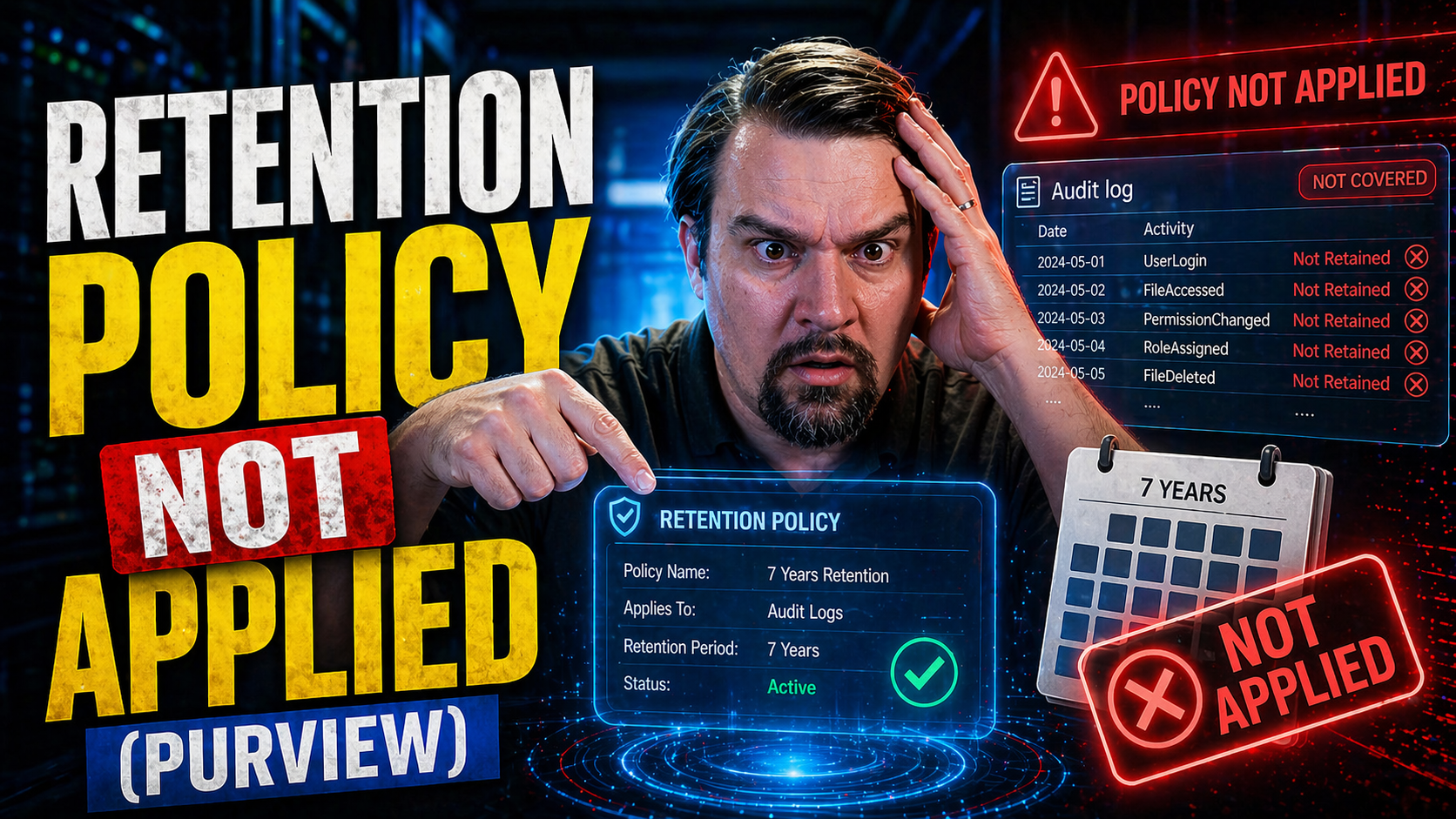
Retention policies in Microsoft 365 are essential for managing the lifecycle of emails, documents, and chats across your organization. But sometimes, these policies don’t work as expected—items might not move to archive, be deleted, or even stick around longer than they should. This article digs into exactly why those retention policies might not apply as you intend, no matter how carefully you think you set them up.
You’ll find direct answers to recognize the symptoms of failed retention, discover root causes like configuration problems or permission issues, and follow actionable troubleshooting steps. We also cover tricks and best practices most folks overlook, such as impacts from multi-geo environments, RBAC gaps, and internal Microsoft 365 scheduling delays. If you’re an admin or compliance lead tasked with keeping data safe and compliant, these insights help you avoid data loss, compliance drift, or those nasty surprises in your next audit. For a deeper dive into hidden compliance challenges, check out this discussion on Microsoft 365 compliance drift or learn why governance fails at this governance failures page.
Understanding Common Symptoms of Retention Policies Not Applied
When a retention policy isn’t doing its job in Microsoft 365, the signs usually aren’t subtle. One big giveaway is that emails or files that should have been deleted or moved to an archive are sticking around for too long. You can also see it when items keep piling up in a mailbox until it’s way over quota—no matter how many times you ask users to clear out old stuff, it just never shifts automatically.
Other red flags include missing retention tags on messages or folders, or folders that should be visible (like an archive folder) not appearing at all. If you’ve set specific policies for SharePoint or OneDrive and items aren’t showing the usual “deleted” or “retained” status, that’s a sign too. Sometimes, in the Microsoft Purview portal, you’ll notice that a retention policy you’ve assigned is “not applied” or you’ll spot a long list of items with no policy tag at all.
It’s important to keep an eye out for these symptoms early before things get out of hand. Waiting too long could lead to data hanging around when it should be gone, or the opposite—losing items your team needs to keep for compliance reasons. And with all the collaborative features in Microsoft 365, it’s easy to think things are working fine on the surface. Don’t let audit logs or dashboard stability trick you—you want to see real, expected changes happening over time. For a look at where compliance can get slippery behind the scenes, listen to this episode about how Microsoft 365 retention policies interact with collaboration and user behavior.
Root Causes Behind Retention Policy Not Applied Scenarios
Now, let’s get real about why retention policies sometimes just don’t stick in Microsoft 365. It’s rarely just “bad luck.” Usually, there are one or more root causes lurking under the hood.
One classic culprit is misconfiguration—maybe you set a policy that conflicts with another or left out an important user or location. Sometimes, the wrong scope is targeted, such as applying the policy to the wrong user group or geo-location. Policy hierarchy can also create issues, with more specific tags overriding broader ones in unexpected ways. These clashes are common in big, dynamic Microsoft 365 deployments.
It’s also easy to forget about the Managed Folder Assistant (MFA). If this service is disabled (elcprocessingdisabled), or not scheduled to run frequently enough, retention actions simply don’t happen. Many admins overlook that MFA isn’t real-time and needs to be up and running for changes to kick in. Server backlog or mailbox throttling—especially with big mailboxes or during heavy load—can stall enforcement, too.
Another source of trouble is permissions. Not every admin role is allowed to assign or manage retention policies, and missing RBAC roles—especially with delegated admin arrangements or third-party management tools—can block assignments quietly. Lastly, enterprise setups with multiple geographies often introduce cross-geo policy conflicts or compliance boundaries, leading to policies failing in secondary locations even if they look fine at HQ.
Thorough troubleshooting starts with understanding these broader patterns. Be ready to comb through logs, double-check policy hierarchies, and look for exceptional cases across your whole tenant. Great governance is intentional, not automatic; for more wisdom on that mindset, check out this episode on the illusion of Microsoft 365 governance. Knowing why things break is the first step to stopping it from happening again.
Troubleshooting Microsoft 365 Retention Policy Errors
Running into error messages while working on Microsoft 365 retention policies can feel like an endless maze. One minute, your settings look solid. The next, you see “policy not found,” “something went wrong,” or a cryptic “location ambiguous” pop-up. Sure, those errors are frustrating—but each one holds clues about where things have gone off the rails.
This section lines up the most common retention policy errors you’re bound to see—whether you’re managing Exchange Online mailboxes, SharePoint, or OneDrive locations. Instead of vague advice, we’ll break down why these errors pop up, which hidden issues cause them, and what signals to look for so you don’t chase the wrong fix. Expect a clear, step-by-step approach in each scenario, focusing on how you can actually move forward rather than just reading another obscure error code.
If you work in a complex environment with hybrid mailboxes, delegated permissions, or scattered admin roles, these errors might surface in unexpected places. This troubleshooting guide gives you the confidence to address policy issues environment-wide or zero in on a single mailbox or site. Each error has its own peculiarities, so following the right path to resolution makes all the difference.
Stick with us as we unravel these errors one at a time and make sure your retention policies can actually do their job. You’ll be running a tighter, more reliable Microsoft 365 environment when you’ve solved the real root of these glitches.
Error: Settings Not Found or Retention Policy Not Detected
- Check policy existence and naming: Confirm the retention policy actually exists in your tenant and is listed in both the Microsoft Purview portal and Exchange admin center. Typos or similar policy names can cause confusion if you’re applying the wrong one.
- Validate scope and assignment: Make sure the policy is assigned to the right mailboxes, sites, or groups. Errors can occur if the scope is too narrow or incorrectly configured—especially after migration or AD sync changes.
- Investigate PolicyId issues: Sometimes, PolicyId references on mailboxes or locations are missing, outdated, or out-of-sync. Resync the assignment or reapply the policy if in doubt.
- Allow for propagation delays: New or updated policies often take hours (sometimes longer) to appear, especially across large tenants. Give the system time to catch up before escalating further.
Error: Something Went Wrong or We Ran Into a Problem
- Check Microsoft 365 service health: An active service issue or planned maintenance can prompt generic errors and block retention processing.
- Review recent policy changes: Inconsistent or conflicting changes—such as overlapping policies—can throw the system into confusion. Revert any recent updates to isolate the source.
- Restart processing with scripts: Use PowerShell’s Start-ManagedFolderAssistant for affected mailboxes to manually trigger policy processing and gather error output.
- Verify admin permissions: Generic errors sometimes hide access-denied issues. Confirm your account has the correct RBAC roles for retention management.
Error: The Location Is Ambiguous or Not Found During Retention Policy Assignment
- Double-check mailbox or site existence: Ensure the location (mailbox, SharePoint site, OneDrive account) actually exists and matches the identifier used in the policy assignment.
- Review hybrid, multi-geo, and sync status: In hybrid deployments or multi-geo setups, ambiguous locations often come from unsynced directories, expired accounts, or incorrect geo-routing.
- Clear up group and user references: If you assign policies by dynamic group or legacy AD objects, make sure those groups aren’t empty, deleted, or out of scope.
- Audit policy scope settings: Fix location errors by updating the policy scope in Microsoft Purview/Exchange admin to include the right user or resource.
Error: The Site Is Locked or Cannot Apply a Hold for Retention
- Check site status: Go to SharePoint admin settings and confirm whether the site is “locked” or in a read-only, closed, or pending deletion state, which prevents new holds or policy changes.
- Review eDiscovery or compliance holds: If there’s an active eDiscovery or other legal hold, retention settings might be blocked until those are released.
- Validate permissions: Make sure your admin account or delegated access includes permissions to apply or modify retention holds for the affected site or mailbox.
- Unlock or recover site as needed: If appropriate, use admin controls or support escalation to unlock the site or restore it from a pending deletion or hold state.
Resolving Pending and Processing Issues for Stuck Retention Policies
Occasionally, Microsoft 365 retention policies end up in limbo—they hang in “PendingDeletion,” “Processing,” or other transitional states, unable to complete or be removed. These stuck states aren’t just annoying; they can block you from adding new policies, changing assignments, or keeping your data lifecycle on track.
Piled-up processing delays might come from the Microsoft Purview portal lagging behind backend sync, orphaned objects from half-finished deletions, or infrastructure hiccups after service updates. Knowing how to spot these hanging states and what to do about them is vital for any admin chasing down hard-to-remove policies or policies that aren’t activating on schedule.
This section gives you the concepts you need—what to look for when policies just won’t delete, how prolonged processing can stall governance, and the general fixes most admins use to clear the road. The right approach might involve a simple PowerShell check, reassigning polices, or escalating to Microsoft support when you’re truly stuck. With these tools, you can keep retention management from getting bottlenecked by these invisible states.
Policy Stuck in PendingDeletion or Not Fully Removed: Resolution Steps
- Check policy status via PowerShell: Use Get-RetentionCompliancePolicy and related cmdlets to review the exact status of the stuck policy (“PendingDeletion,” etc.).
- Force removal with admin tools: If a policy won’t remove from the admin center, use PowerShell’s Remove-RetentionCompliancePolicy for direct action.
- Reassign or clear dependencies: Make sure no mailboxes or locations are still linked to the policy; move them to another retention or default MRM policy if needed.
- Escalate to Microsoft support: If the above steps fail, open a service ticket—Microsoft support can often clear backend orphaned entries that block new configurations.
Error: We Cannot Process Your Retention Policy or It Is Still Processing
- Review policy configuration: Double-check the configuration for incomplete or invalid settings, such as missing retention tags or incorrect assignment scopes.
- Monitor for system or bandwidth delays: Processing delays often result from mailbox throttling, tenant-wide backend jobs, or heavy Microsoft 365 service load—wait and retry after a few hours.
- Manually trigger processing: For Exchange Online, run Start-ManagedFolderAssistant on affected mailboxes to nudge things along.
- Check status in Microsoft Purview: Validate policy state and logs in the portal for more details on what’s preventing execution. Escalate to support if stuck for more than 24 hours.
Verifying and Validating That a Retention Policy Is Working
After setting up a retention policy, don’t just trust that it’s quietly doing its thing. Regularly checking that your retention rules are not only assigned but also actively executing can save you from some dicey compliance gaps and surprise audits. Microsoft 365 offers multiple tools—like PowerShell and the Microsoft Purview portal—to help you verify policy deployment and effectiveness.
This part walks you through how to confirm that each mailbox, SharePoint site, or OneDrive account is really under the right policy umbrella. You’ll see the difference between simple assignment and actual action: items being deleted, moved, or marked as retained. These checks help you spot silent failures—when everything “looks fine” in the admin screens, but nothing is happening under the surface.
Besides technical verification, think about audit readiness. Microsoft Purview Audit (especially Premium tier) gives you tenant-wide logs that catch things regular reports might miss. For details on using Purview for in-depth tracking and compliance, see this guide to auditing user activity with Microsoft Purview. Proactive validation is a must-have habit for any admin serious about organizational compliance.
How to Confirm a Retention Policy Is Applied to a Mailbox
- Microsoft 365 Admin Center: Open the user’s mailbox properties, inspect the assigned retention policy section, and check assignment and start dates.
- PowerShell verification: Use Get-Mailbox –Identity user@domain.com | ft RetentionPolicy to check policy names, and Get-Mailbox –Identity user@domain.com | fl *Retention* for more detail.
- Operational logs: Review mailbox audit logs or use Microsoft Purview Audit to confirm retention actions, such as “moved to archive” or “deleted,” are logged as expected.
- Reassign if out of sync: If checks don’t match expected results, reapply policies via portal or PowerShell to reset the association.
Retention Working? Resolve Tag and Action Issues in Policies
- Check tag application: Confirm that default and custom retention tags are actually assigned to folders or items—use mailbox details or PowerShell queries (Get-RetentionPolicyTag).
- Validate action execution: See if items are being deleted, moved to archive, or marked as retained according to tag expiry settings. Compare expected versus actual folder contents.
- Review exception handling: Look for items with “never delete” or other exception tags, which could halt retention actions for specific folders.
- Test a sample item: Apply a tag manually and force policy processing (Start-ManagedFolderAssistant), then verify the outcome.
Proactive Management and Best Practices for Avoiding Retention Policy Failures
If you want to avoid endless cycles of troubleshooting, proactive management is your best friend in Microsoft 365 retention policy land. The less you treat retention as “set and forget,” the fewer midnight calls you’ll get when an audit’s coming up or when the legal team wants to know who deleted what.
Clear, well-documented policy design—the kind without overlaps or gaps—forms the foundation for healthy retention. Regular reviews and health checks, using tools like Purview, help you spot broken assignments or overdue actions before they cascade across the organization. Scheduling and enabling core services like Managed Folder Assistant are a must, not an afterthought.
Most important, don’t forget the “system” view of governance. Microsoft 365 spans email, files, chats, and more—true compliance means covering the lot, not just one workload. To see why fragmented governance leads to headaches, check out this discussion of governance failures in Microsoft 365. Done right, your approach keeps data flows frictionless and audit anxiety to a minimum.
Ensuring Managed Folder Assistant Is Enabled and Running
The Managed Folder Assistant (MFA) is the background worker that enforces retention actions in Exchange Online mailboxes. If MFA is disabled (for example, if elcprocessingdisabled is true), your carefully designed policies won’t have any effect—regardless of what you see in the portal.
Admins should regularly check MFA status using PowerShell (Get-Mailbox –Identity user@domain.com | fl ElcProcessingDisabled) to confirm it’s enabled. If it’s off, use Set-Mailbox –Identity user@domain.com –ElcProcessingDisabled $false to reactivate it. MFA runs automatically on a set schedule, but admins can speed up processing manually with Start-ManagedFolderAssistant. Keeping tabs on MFA reduces frustrating policy delays and ensures mailboxes get managed right on time.
Designing Effective Retention Policies for Microsoft 365 Environments
- Clarify policy intent: Document what each policy is for and avoid overlapping coverage between policies to keep things simple and auditable.
- Avoid conflicting tags: Make sure default, folder, and personal tags don’t conflict or override each other unexpectedly in the policy hierarchy.
- Align with data lifecycle needs: Match retention periods with regulatory, business, and legal requirements—don’t just use Microsoft’s “out of the box” durations.
- Test on pilot groups: Roll out changes to controlled users or sites before applying them tenant-wide, spotting problems before they get big.
- Document and review regularly: Keep policy documentation current, and hold scheduled reviews to catch drift or misalignment—especially after mergers or major org changes.
For more on balancing platform security with governance across workloads, take a look at these best practices for Power Platform security and governance.
Retention Policy Delays Due to Mailbox Processing and System Scheduling
No matter how well you set up a retention policy in Microsoft 365, you can still get caught off guard by backend delays. Even when every configuration box is ticked, there’s no guarantee that policy actions kick off instantly. Instead, Microsoft 365 relies on a set of background processes—with the Managed Folder Assistant front and center—to enforce retention. These processes are scheduled, not real-time.
If you’re used to clicking “save” and expecting instant results, these system-imposed processing intervals can be pretty frustrating. Delays get longer when server load is high or mailboxes are oversized, as Microsoft throttles activity to spread out processing. You might think policies are stuck or broken, when really they’re just waiting in the queue for MFA to make its next run.
Understanding this timing helps you set expectations with your team and avoid raising unnecessary support tickets before the system has had a chance to catch up. Stick around for a breakdown on how the MFA schedule works, and how mailbox throttling or server load can slow things down. Knowing this rhythm means you won’t assume a delay is a failure.
Understanding Managed Folder Assistant Processing Intervals
The Managed Folder Assistant (MFA) is responsible for applying retention and archive policies to Exchange Online mailboxes, but it doesn’t operate in real time. By default, MFA processes each mailbox once every seven days, although high-demand periods or large mailboxes may push that out further.
Admins can trigger MFA manually with the Start-ManagedFolderAssistant command if they need to accelerate policy application after an urgent change. However, it can still take hours for changes to appear in user mailboxes, especially across thousands of accounts. Recognizing these cycles is key to avoiding unnecessary troubleshooting and to understanding why items don’t archive or delete the second a new policy is set.
You Should Also Listen To
If you are exploring retention policies not applied Microsoft 365, these episodes add practical context for governance, security, audit, and reliable Microsoft 365 operations.
- Microsoft Purview – Simply Explained — Connect retention, compliance, audit, and data governance.
- Microsoft Defender XDR – Simply Explained — Relate operational signals to detection and response.
- Microsoft Teams Governance – Simply Explained — Learn why ownership and lifecycle rules matter for collaboration.
These episodes help turn the article’s topic into practical implementation decisions.

Microsoft MVP | Host of M365.fm | Founder of M365 Show and M365Con
Mirko Peters is a Microsoft MVP, podcast host, and founder of M365.fm, M365 Show, and M365Con. His work connects Microsoft practitioners through podcast interviews, livestreams, and community events.
At M365.fm, Mirko hosts conversations with Microsoft MVPs, product experts, architects, and community contributors. Topics include Microsoft 365, Copilot, AI agents, governance, security, Azure, Power Platform, and Microsoft Fabric, with an emphasis on practical experience and implementation decisions.
M365.fm is the podcast and learning platform. M365 Show brings experts together for livestreams, while M365Con provides an online conference setting for community learning.
Official website: Mirko Peters (https://www.mirkopeters.com/). Recognition: Mirko Peters — Microsoft MVP profile (https://mvp.microsoft.com/de-DE/mvp/profile/9b0ca797-db5a-493a-a845-8b9158046cf5). Connect on LinkedIn (https://www.linkedin.com/in/m365showpodcast/).





