
Break Down Barriers: Collaborating Externally with Microsoft Teams Shared Channels
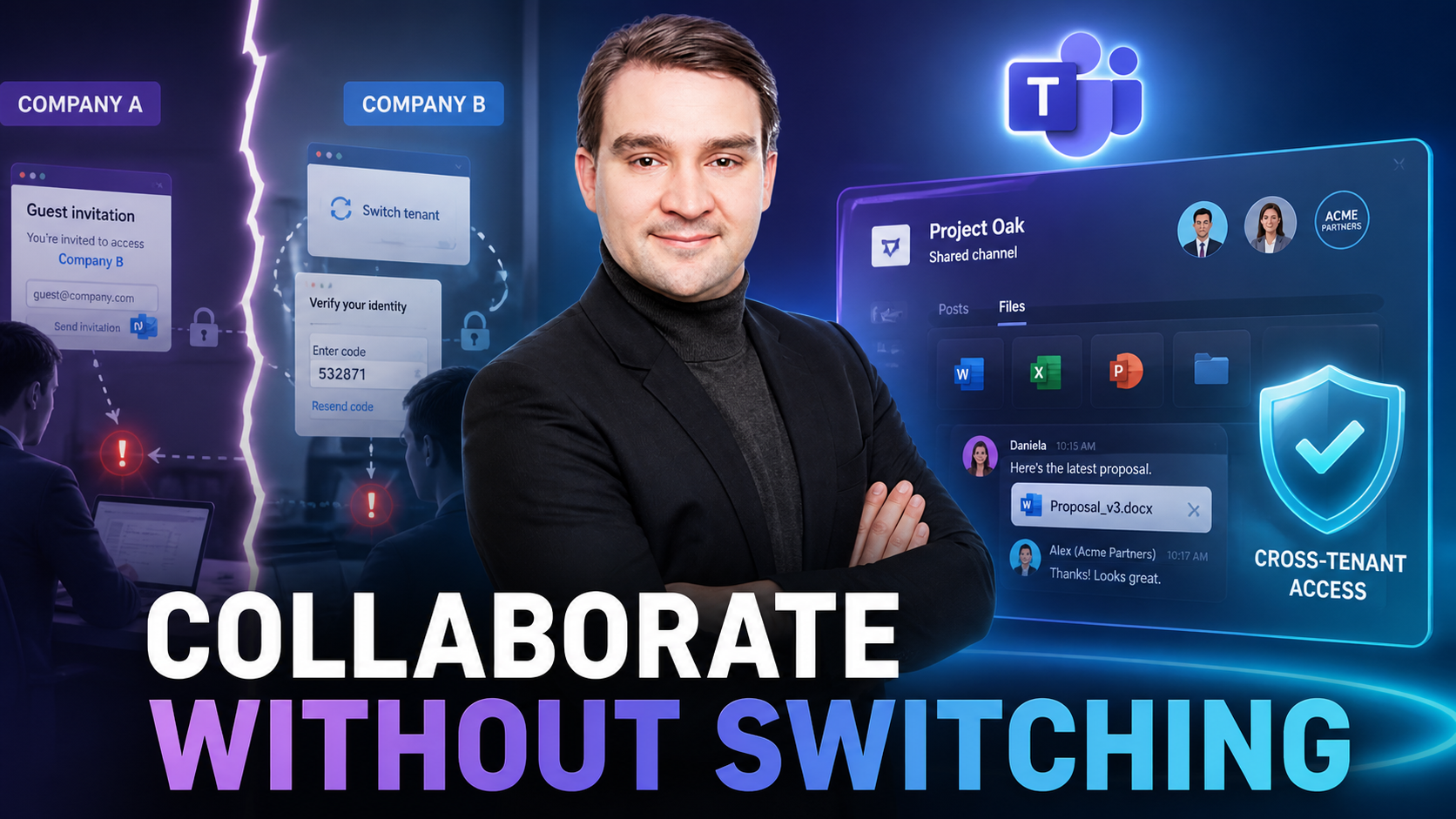
For years, cross-organization collaboration in Microsoft Teams meant dealing with the friction of guest accounts, multi-factor authentication loops, and tedious tenant switching. If you wanted to work with an external partner, vendor, or client, they had to be invited into your tenant as a guest user. This introduced clutter into your directory, security overhead for your IT administrators, and continuous context-switching headaches for end-users who had to flip back and forth between different organization tenants just to reply to a message. Fortunately, modern workspace architecture has evolved past these hurdles. By leveraging Azure Active Directory and the powerful underlying Teams Connect infrastructure, Microsoft Teams shared channels allow seamless, direct cross-tenant collaboration without ever creating a guest account.
In this blog post, we will expand on the core concepts of Microsoft Teams channel architecture, contrasting standard and private options before diving deep into how shared channels break down organizational barriers. Whether you are restructuring your digital workplace governance or trying to streamline how your teams interface with external stakeholders, understanding these mechanisms is crucial.
Introduction to Microsoft Teams Channels
When structuring your digital workspace, mastering the fundamentals of Microsoft Teams channels is the foundation of good information architecture. Channels are the dedicated subsections within a team where conversations happen, files are shared, and apps are integrated to drive productivity. However, not all channels are built the same way. Microsoft provides three distinct channel types—standard, private, and shared—each engineered to handle specific visibility scopes, document security models, and collaboration boundaries.
Choosing the incorrect channel type can lead to accidental oversharing, bloated team directories, or frustrating user friction where colleagues cannot access the resources they need. By evaluating your intended business outcomes, choosing the correct Microsoft 365 capability, and applying clear ownership controls, you ensure that collaboration remains reliable, secure, and easy to support across your enterprise.
Understanding Standard Channels
Standard channels are the default workspace experience you encounter the moment you spin up a new team in Microsoft Teams. Designed for open, team-wide communication, every single member of the parent team automatically gains access to all standard channels contained within it. You don't have to manually provision permissions or configure complicated access lists; membership flows directly from the parent team.
Every message posted, meeting scheduled, and file uploaded within a standard channel is fully searchable and accessible to anyone on the team. Document storage for standard channels relies entirely on the team’s core SharePoint site, organizing files neatly into dedicated folders inside the main Documents library. This makes standard channels ideal for general departmental updates, open-ended project phases, knowledge sharing, and watercooler discussions where transparency is valued over isolation.
Deep Dive into Private Channels
While standard channels excel at openness, many business scenarios require strict confidentiality. This is where private channels come into play. Private channels limit visibility and participation to a hand-selected subset of team members. Even team owners do not automatically gain access to a private channel unless they are explicitly added as members.
From an architectural standpoint, private channels do more than just hide conversations; they isolate data. When you create a private channel, Microsoft Teams automatically provisions a separate, isolated SharePoint site and child container. This ensures that sensitive documents, financial data, HR discussions, and executive strategies stored within the private channel are heavily guarded against unauthorized eyes. However, this isolation brings limitations: private channels do not support native channel calendars, certain apps like Planner or Forms are restricted, and each team has a strict cap on how many private channels it can host.
Collaborating Externally with Shared Channels
The pinnacle of modern cross-functional teamwork is the shared channel. Powered by Azure AD and the advanced Teams Connect infrastructure, shared channels let you invite external users from entirely different organizations directly into a channel within your tenant. Instead of provisioning an explicit guest account—which clutters your directory and forces users into frustrating tenant switching—external participants seamlessly access the shared channel using their own home credentials via B2B Direct Connect.
Shared channels bridge the gap between open collaboration and strict administrative boundaries. Much like private channels, shared channels utilize a dedicated SharePoint site with tailored permissions, ensuring that external collaborators only see what they are explicitly invited to see. This allows your teams to partner effortlessly with external vendors, contractors, and client organizations in real-time, drastically accelerating project timelines while maintaining rigorous compliance guardrails.
Comparing Standard, Private, and Shared Channels
To summarize how these three architectures stack up against one another, consider their core operational traits:
- Standard Channels: Open to all team members; uses the parent team's single SharePoint site; perfect for general organization and broad project work; external collaboration is not supported.
- Private Channels: Restricted to selected members; utilizes a separate, hidden SharePoint site; ideal for confidential topics and HR matters; does not support external users or native channel meetings.
- Shared Channels: Accessible to selected internal and external participants; built on Teams Connect and Azure AD; utilizes a separate SharePoint site with custom permissions; ideal for cross-organization and cross-team projects without guest accounts.
Matching the right channel type to your specific project needs allows you to strike the optimal balance between open, frictionless teamwork and robust information protection.
Best Practices for Microsoft Teams Governance
Deploying Microsoft Teams without a governance strategy is a recipe for digital sprawl, security drift, and frustrated users. To keep your environment clean, performant, and secure, implement these practical best practices:
- Define the business scenario, clear ownership, and expected outcomes before creating any new team or channel.
- Establish consistent naming conventions utilizing prefixes (e.g., [Project], [WG], [Shared]) so users can instantly identify a channel's purpose and scope.
- Validate access policies, security labels, and external sharing configurations with a small pilot group before rolling out shared channels to production.
- Regularly audit channel memberships, archive stale or completed project channels, and document your organization's configuration decisions to ease ongoing support.
Conclusion and Next Steps
Navigating the nuances of Microsoft Teams channels is essential for building a secure, highly collaborative digital workplace. By understanding the distinct mechanics of standard, private, and shared channels—and utilizing Azure AD-backed Teams Connect infrastructure for external partnerships—you can eliminate guest account clutter and streamline cross-organization projects. Remember to always define your business outcomes, establish clear ownership, and lean on structured governance.
To dive deeper into optimizing your communication structures and avoiding common pitfalls, be sure to listen to our related podcast episode: Microsoft Teams Channels vs Chat: When to Use Each.

Microsoft MVP | Host of M365.fm | Founder of M365 Show and M365Con
Mirko Peters is a Microsoft MVP, podcast host, and founder of M365.fm, M365 Show, and M365Con. His work connects Microsoft practitioners through podcast interviews, livestreams, and community events.
At M365.fm, Mirko hosts conversations with Microsoft MVPs, product experts, architects, and community contributors. Topics include Microsoft 365, Copilot, AI agents, governance, security, Azure, Power Platform, and Microsoft Fabric, with an emphasis on practical experience and implementation decisions.
M365.fm is the podcast and learning platform. M365 Show brings experts together for livestreams, while M365Con provides an online conference setting for community learning.
Official website: Mirko Peters (https://www.mirkopeters.com/). Recognition: Mirko Peters — Microsoft MVP profile (https://mvp.microsoft.com/de-DE/mvp/profile/9b0ca797-db5a-493a-a845-8b9158046cf5). Connect on LinkedIn (https://www.linkedin.com/in/m365showpodcast/).





