
Browser Issues With Teams: Troubleshooting and Best Practices
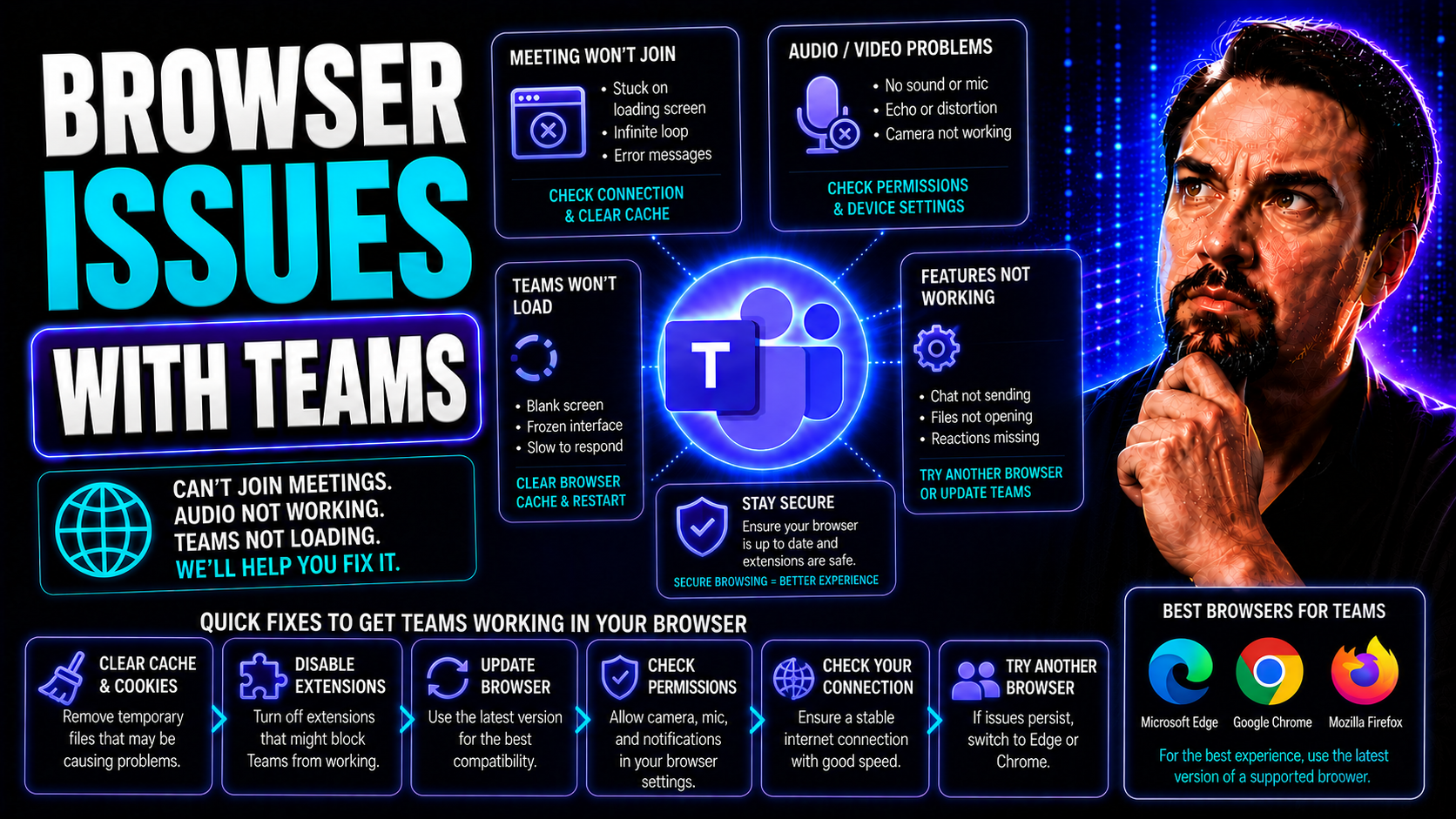
If using Microsoft Teams in your browser feels like driving with the parking brake on, you’re definitely not alone. Teams is designed to work in most modern browsers, but you might run into nagging issues like missing permissions, pop-up headaches, or surprise blank screens. This guide dives deep into common browser problems that get between you and a smooth Teams experience, highlighting specific browser quirks and fixes for each one. You’ll find practical advice on everything from security pop-ups in Chrome to permission drama in Firefox and why Safari sometimes just says “nope.” If you want real-world solutions, plus tips on when to just tap out and fire up the Teams desktop app, you’re in the right place. We’ll also point you to further resources and best practices so Teams can work as hard as you do.
Browser Compatibility Guide for Microsoft Teams
Not all browsers play equally nice with Microsoft Teams, which means your experience can change depending on whether you use Chrome, Firefox, Safari, or Edge. Teams is optimized for certain browsers and versions, while other setups come with hard limits or require some initial tweaking. For example, some browsers might block video calls or hide important notifications unless you adjust security or privacy settings up front.
Keeping your browser up to date is important for Teams to work its best. An old or unsupported version can cause login loops or broken meeting links. Even if everything looks right, underlying settings like cookie handling or pop-up blockers might create sneaky issues that are specific to each browser. Each browser stores Teams data a little differently, and these differences can cause inconsistent session behavior across browsers—or even from one Teams tab to the next.
This section sets up what you need to know about Teams compatibility. We'll preview the key differences in browser support, cover what to watch out for with device permissions and security pop-ups, and share a few simple checks that everyone should do before troubleshooting gets technical. Up next, we'll dig into Chrome, Firefox, Safari, and Edge with tailored tips and solutions for smoother Teams meetings and collaboration.
Optimizing Teams Experience in Google Chrome
- Grant camera and microphone permissions: When prompted, click “Allow” in the pop-up dialog so Teams can use your audio and video devices. If you miss it, click the lock icon in the address bar to adjust site permissions manually.
- Manage cookie data for session stability: Make sure Chrome isn’t set to automatically clear cookies and site data on exit. Teams depends on cookies for login persistence; automatic clearing can cause frequent sign-outs.
- Handle pop-up dialogues swiftly: Chrome might block new windows or pop-ups needed for Teams calls or file downloads. Temporarily disable pop-up blockers or add Teams as an exception.
- Disable conflicting browser extensions: Ad blockers or privacy tools sometimes block parts of Teams, so try running Teams in Incognito mode or with extensions disabled if things seem broken.
- Check for Chrome updates regularly: Outdated browsers can introduce compatibility bugs with Teams. Go to Help > About Google Chrome to force a quick update if you notice problems.
Troubleshooting Microsoft Teams in Mozilla Firefox
- Allow camera/microphone access: Select “Allow” when Firefox requests device permission for Teams meetings to avoid video/audio issues.
- Adjust cookie and site data settings: Make sure Teams is exempt from settings like “clear cookies on exit” or enhanced tracking protection, which can trigger sign-in loops.
- Resolve persistent login prompts: Clear Teams-related cookies and cached site data if you keep getting asked to sign in again.
- Fix blocked notifications: Check your Firefox notification permissions to ensure Teams can send alerts for new chats and meetings.
Understanding Safari Browser Limitations With Teams
- Pop-up blocker restrictions: Safari’s pop-up blocker often prevents Teams meeting windows from opening. Go to Preferences > Websites > Pop-up Windows and set Teams to “Allow.”
- Privacy controls break session persistence: Features like “Prevent cross-site tracking” or aggressive cookie clearances can log you out unexpectedly. Loosen privacy settings for Teams domains to reduce interruptions.
- Limited device access: Some versions of Safari don’t fully support advanced Teams functions like screen sharing or background effects. Consider switching browsers for meetings with special requirements.
- Watch out for unsupported features: Safari may not show every button or option found in Teams for Chrome or Edge—especially in older macOS or iOS versions.
Microsoft Edge for Teams: Tips for Seamless Integration
- Add Teams as a Trusted Site: Go to Edge settings or your organization's security policies and add teams.microsoft.com as a trusted URL for smoother login and media access.
- Take advantage of deep Teams integration: Microsoft Edge often gets Teams features first, such as improved notifications, performance tweaks, and dedicated Teams tabs.
- Manage permissions with more control: Use the lock icon in the address bar or Edge site permissions settings to check camera, microphone, and notification access quickly.
- Optimize performance for large meetings: Close unused Edge tabs, disable unnecessary extensions, and keep only essential Teams tabs open to reduce resource drain and crashes.
- Keep Edge updated via Windows Update: Since Edge updates are tied closely to Windows, make sure your operating system is current to avoid browser-specific Teams quirks.
Resolving Permission and Access Device App Issues in Teams
Running into trouble with your camera or microphone not working in Teams? You’re not the only one. When Teams is used in a web browser, it relies on browser permissions for things like video, audio, and screen sharing—even if everything works perfectly in the desktop app.
First, whenever you see a pop-up asking for permission, always confirm you’re giving Teams access to your camera or microphone. If you accidentally blocked it, look for the lock icon in your browser’s address bar. Click it and adjust permissions for the Teams site—this small step fixes most device access issues in Chrome, Edge, and Firefox.
In Safari, things might run a little different. You’ll want to open preferences, find the “Websites” tab, and check camera/mic settings under “Camera” and “Microphone.” Put Teams on the “Allow” list if it isn’t already there.
If Teams repeatedly asks for permissions every time, you may have your browser set to clear site data or not remember previous decisions. Double-check your cookie and privacy settings so Teams can store your choices for future sessions. Sometimes, clearing old cookies and cache helps fix weird permission loops—just don’t forget to restart your browser afterward.
Lastly, if device permission requests never appear, make sure you don’t have a third-party extension or security software blocking pop-ups or device requests. Disabling extra blockers and trying again usually solves the problem for good.
Step-By-Step Instructions to Fix Login and Loading Outcomes in Teams
- Check browser compatibility: Make sure you’re using Chrome, Edge, Firefox, or the latest Safari version—some browsers or versions just won’t work with Teams.
- Outcome: Cuts out unsupported browser errors from the start.
- Clear browser cache and cookies: Head to your browser’s settings and clear out Teams-related cookies and cached data. This resets broken sessions and fixes login loops.
- Outcome: Removes stored glitches, gets you back to a working login screen.
- Review browser extension conflicts: Disable ad blockers, script filters, or privacy tools—these can mess with Teams loading or display. Try running Teams in a private/incognito window to test.
- Outcome: Identifies if extensions are to blame so you can allowlist Teams if necessary.
- Update your browser and system: Old browsers often hit new Teams features weirdly. Update your browser and, if needed, your operating system—especially for Edge.
- Outcome: Ensures smooth compatibility with all Teams functions and reduces random blank pages.
- Reboot the browser (and try a different one): If Teams still won’t load, fully close your browser, reopen it, or switch to another supported browser. Sometimes the fix is just a fresh start.
- Outcome: Solves “stuck” sessions or temporary glitches and provides a fallback plan if issues persist.
Best Practices Summary With How-To Instructions for Teams Browser Use
- Keep your browser and Teams up to date: Install the latest browser version and Teams updates for best performance, compatibility, and security.
- Set Teams as a trusted site: In Edge or Chrome, add teams.microsoft.com to your trusted list for smoother permission handling and fewer login prompts.
- Always double-check permissions: Confirm that Teams has access to your camera, microphone, and notifications after any browser or Teams update.
- Monitor browser extensions: Disable or allowlist extensions like ad blockers, privacy tools, or script filters that could interfere with Teams.
- Clear cache and cookies if problems recur: When faced with weird issues—like login loops or missing buttons—clearing browser storage and restarting usually helps.
- Switch to the desktop app when web issues persist: If browser access is unreliable or limited, download the Teams app for the full set of features and more stable performance.
- Use organizational resources when stuck: For persistent or complex issues, consult your IT team or official support channels. For governance tips and workspace structure strategies, check out this Teams governance guide.
- Submit feedback to Microsoft: For issues that just won’t budge, use the Teams “Help” menu to provide feedback—this helps Microsoft target real-world problems for future updates.
By following these browser best practices, you’ll spend less time troubleshooting and more time collaborating. If you need specialized support or want to level up your Teams setup, look up help resources and the community for quick answers.

Microsoft MVP | Host of M365.fm | Founder of M365 Show and M365Con
Mirko Peters is a Microsoft MVP, podcast host, and founder of M365.fm, M365 Show, and M365Con. His work connects Microsoft practitioners through podcast interviews, livestreams, and community events.
At M365.fm, Mirko hosts conversations with Microsoft MVPs, product experts, architects, and community contributors. Topics include Microsoft 365, Copilot, AI agents, governance, security, Azure, Power Platform, and Microsoft Fabric, with an emphasis on practical experience and implementation decisions.
M365.fm is the podcast and learning platform. M365 Show brings experts together for livestreams, while M365Con provides an online conference setting for community learning.
Official website: Mirko Peters (https://www.mirkopeters.com/). Recognition: Mirko Peters — Microsoft MVP profile (https://mvp.microsoft.com/de-DE/mvp/profile/9b0ca797-db5a-493a-a845-8b9158046cf5). Connect on LinkedIn (https://www.linkedin.com/in/m365showpodcast/).




