
Known Teams Limitations: A Comprehensive Guide for Microsoft Teams Governance
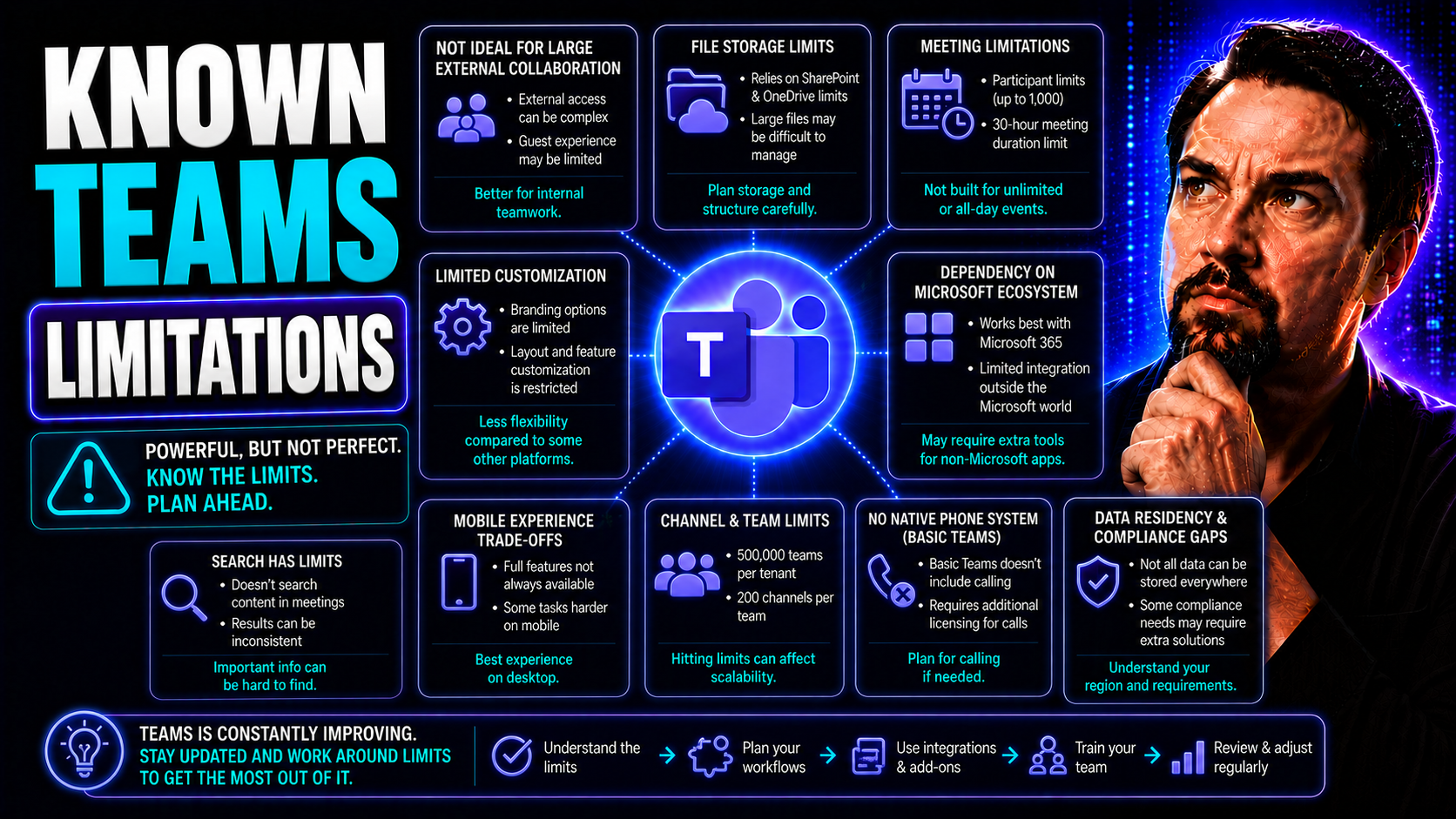
When you hear “known teams limitations,” we’re talking about the real-world boundaries built into Microsoft Teams and its SharePoint underpinnings. These aren’t just fine print or little quirks—they’re hard lines that can trip up even the best-run organizations if you don’t plan ahead. Think limits on how many teams or channels you can spin up, rules around how you name things, or gotchas with file storage and external sharing.
If you’re handling governance or trying to keep chaos at bay, understanding these limitations is key. That means knowing where Teams can run into trouble with compliance, security, or even day-to-day usability. This guide gets into the nitty-gritty, showing you what you need to know to keep your collaboration running smooth and your data under wraps. You’ll see how these restrictions actually play out, what risks to watch for, and what best practices the experts use in real companies. Whether you’re in IT, compliance, or making strategy calls, knowing the walls and guardrails lets you build smarter with Microsoft Teams.
Structural and Organizational Limits in Microsoft Teams Channels
Before you go building a new team or tossing up a channel for every new project, it’s smart to know where Microsoft Teams draws its lines on structure. Not everything is wide open—there are specific limitations that shape how you can organize conversations and projects in Teams. These include the maximum numbers of teams and channels, restrictions on naming and reusing channels, and the fact that some channel types just can’t be moved or copied around like you might expect.
This matters a lot if you’re managing a large organization, especially as Teams adoption explodes and channel sprawl becomes a real headache. Having too many channels, poor naming conventions, or inflexible structures can lead to confusion and loss of information. Planning out your Teams architecture must include these realities if you want to stay organized, compliant, and flexible as your needs change. For those in charge of governance or cleaning up Microsoft Teams sprawl, this section lays the foundation for smarter decisions.
As you read on, you’ll get a complete picture of where the structural boundaries are and what they mean for your workflows. We’ll break down the numbers, surface-level policies, and the all-too-common challenges that trip up many organizations—so you can avoid messes and keep Teams running like a well-oiled machine. Find out how smart policies today lead to fewer headaches tomorrow. For extra insights on managing Teams sprawl, check out this guide on automated lifecycle governance, or get practical advice on picking the right channel type here.
Understanding the Teams Channels Limit and Maximum Capacity
- There’s a Hard Cap on Channels per Team. Each Microsoft Team can only have up to 1,000 channels total, and that includes everything: standard, private, and shared channels. For big organizations or project-heavy teams, hitting this limit isn’t as outlandish as it might sound at first. If you’re running lots of parallel projects, you’ll want to track your channel count carefully.
- Types of Channels Have Separate Limits. For example, out of that 1,000-channel limit, only 30 can be private channels and 200 can be shared channels per team. Private channels let you lock down confidential convos, but you can’t go over the quota. Shared channels are useful for smooth cross-team or external collaboration, but again, their own separate caps can trip you up. Get the details on different channel types in this best practices guide.
- You Can Only Be a Member of So Many Teams. Microsoft currently lets a user be part of up to 1,000 teams (including archived ones). Most users will never hit this, but in large orgs with lots of partnering, it’s not impossible.
- Active Channels Come with Performance Tradeoffs. Going wild with hundreds of active channels makes navigation a nightmare and can slow down the Teams client for everyone. That’s why a smart info architecture and lifecycle governance plans are so important for both productivity and user satisfaction.
- Watch Out for Sprawl and Orphaned Channels. Without policies—like naming conventions, lifecycle reviews, and owner management—it’s easy to get lost in a sea of channels that no one manages or even remembers. Automated governance (see how automation tames sprawl) can keep things under control, but only if you plan for these limits early on.
Practical tip: If you’re pushing up against these caps, consider archiving and deleting old channels regularly, consolidating similar topics, or working with IT to structure larger rollouts across multiple Teams.
Channel Names and Management Challenges
- Channel Name Length Limits: Channel names are capped at 50 characters. This can catch you off guard if you want descriptive names like “2024 North America Sales Quarterly Review.” You’ve got to keep it short and sweet, or come up with abbreviations everyone understands.
- Restricted Characters: Certain symbols—like <, >, :, *, ?, \, /, |, and quotation marks—can’t be used in channel names at all. If you try, you’ll get an error. This can make standardized naming tricky for teams that use project codes with special characters.
- The “Zombie Channel” Problem: Deleted channel names get stuck in a recycle state behind the scenes for several weeks before they’re truly gone. Until then, you can’t reuse the same name—even if you need it for a new project or want to “reset” the channel identity.
- Search and Compliance Headaches: Inconsistent names or confusing abbreviations make searching for information a pain and create governance hassles, especially in large orgs with dozens of teams and hundreds of channels. Set up a naming standard from the start to avoid messes later.
Moving and Copying Teams and Shared Channels Limitations
- No Moving or Copying Channels Between Teams: At this point, Teams does not let you move a channel (standard, private, or shared) from one Team to another—not with a click, not with PowerShell, and not with third-party tools (unless they’re doing a lot of risky backend gymnastics). This is a serious headache if your org is restructuring or merging teams.
- Limits for Shared Channels: Shared channels are great for working with people across teams or even organizations, but they also have stricter caps and can’t be shifted to another team later. Plan carefully before you spin one up for a project intended to evolve or migrate.
- Workarounds Are Messy: Your options are usually to create a new channel, manually move files and conversations, and then re-add members. This disrupts workflows and can break compliance trails. For a deeper look at choosing channel types and managing these tradeoffs, see this Microsoft Teams decision guide.
Collaboration and Communication Constraints in Messaging and Chat
Microsoft Teams isn’t just a place to dump files and set up project channels—it’s where a lot of the real-time action happens, whether it’s chatting with a coworker or hashing things out in a group thread. But for all its strengths, Teams still puts up some fences on what you can do with chat and messaging.
These limitations aren’t always obvious at first, but they start getting in the way as you scale up, especially if you need to keep a tight record of conversations, share with external users, or streamline communications for remote teams. Think about things like how long your messages can be, what you can and can’t edit after the fact, and when external guests hit roadblocks trying to participate.
For admins and business owners, understanding these boundaries means fewer surprises and better planning around what Teams is truly capable of in day-to-day engagement. If your team is frustrated by missing features, struggling with message history, or getting tripped up by external access problems, the next sections will break down exactly what’s limited and what you can work around. Want to dive deeper into customizing your notification and engagement experience? Check the tips at this alert customization guide.
Messaging and Chat Limitations in Teams
- Message Size Caps: Chat messages in Teams have a character limit (currently around 28,000 characters), which sounds like a lot—but long code snippets, pasted logs, or big meeting notes will quickly hit this wall.
- Editing History Is Shallow: While you can edit a message after sending, there’s no easy way to see a history of edits. That means changes aren’t tracked for compliance or audit purposes unless you’re running advanced policies behind the scenes.
- No In-Chat Search by Date/Author: Searching for an old chat is a pain without robust filters or the ability to narrow by date or sender. This can lead to a lot of wasted time scrolling around, especially in busy teams.
- Screen Sharing Blocks Side Chat: When you share your screen, you often can’t chat with attendees without switching views—disrupting collaboration in meetings where real-time discussion matters.
- Attachments Limitations: Large files can’t always be sent directly in chat—sometimes, sharing from OneDrive or SharePoint is the only way, adding extra steps and sometimes causing confusion.
External Access and Shared Channels Limit
- Guest Access Isn’t Always Smooth: Inviting external users (like clients or partners) to Teams often comes with roadblocks. Not all apps are available to guests; some integrations are strictly internal-use only, and external users can run into confusing limitations joining meetings or accessing files.
- Shared Channels Have Their Own Caps: A shared channel can only belong to 50 teams and invite up to 50 external organizations through Azure B2B Direct Connect. Once you hit this ceiling, collaboration stops until someone is dropped off the list.
- Message Delivery Delays Across Tenants: Communication with users outside your organization can have lags or outright failures if their org settings don’t align with yours. This unpredictability makes cross-tenant projects riskier.
- Compliance Limitations with External Sharing: Even if you get the technical side working, tracking audit trails and keeping things compliant when collaborating externally can be much harder due to lack of unified controls. For an in-depth analysis on matching the right channel to your needs, see this practical Teams channel guide.
Meeting, Live Events, and Recording Limitations
Meetings and live events in Teams are where big decisions get made, knowledge gets captured, and the “official record” often lives on. But there are limits hiding just under the surface that can upend plans if you’re not prepared—like how many people can join, how long you get to keep recordings, and what features you miss out on when compared to other virtual event tools.
Teams has been growing fast, and while it covers the needs of basic and mid-size meetings pretty well, scaling up to webinars, town halls, or “all hands” can quickly reveal technical ceilings. Retention policies might differ by type of event or asset, too, creating complications around compliance and knowledge transfer. If you’re responsible for organizing, administering, or governing Teams meetings and events, you don’t want to be blindsided by these built-in boundaries during a critical session.
The following areas will break down Teams’ core limits in terms of participants, duration, and recordings, along with practical points on where Teams falls short compared to specialized event platforms. These gaps impact not just productivity, but compliance and long-term collaboration as well. For tips on extending Teams with custom meeting apps or bots, check out advanced guides like this extensibility deep-dive when you’re ready to go further.
Expiration Policies for Meetings and Recording Retention in Teams
By default, Microsoft Teams meetings that include recordings have expiration policies set by your IT admins or the platform itself. Meeting recordings are often retained for 60 days, after which they may be automatically deleted unless someone extends their lifespan or saves them to secure storage.
Teams policies also affect chat and file retention related to meetings. If your organization needs to comply with longer retention periods for knowledge sharing or legal reasons, it’s crucial to configure these options centrally. Users and admins should be aware that manually saving or backing up key meeting content is often the only way to prevent accidental or premature data loss.
Live Events Scalability and Feature Gaps
- Attendee Caps: Teams Live Events tops out at 20,000 concurrent attendees, and your license may limit this number even further. Large company-wide meetings can bump up against this limit fast.
- Production Complexity: Setting up and running a live event is far more complex than a simple meeting, often requiring producer roles, encoders, and extra training.
- Limited Engagement Features: Features like Q&A, polling, and direct moderation are basic compared to what leading webinar and virtual event platforms offer.
- Recording and Replay Gaps: Event recordings face stricter expiration rules and fewer sharing options, making them harder to use for long-term knowledge transfer.
- Integration Gaps: Some integrations—like real-time translations, breakout rooms, or advanced analytics—are missing or weaker in Teams Live Events versus specialist event tools.
Data, Storage, and Metadata Management Boundaries
If you’re sinking your teeth into collaboration—uploading docs, creating wikis, or sharing meeting notes—all that content has to live somewhere. In Microsoft Teams, your storage is tightly tied to SharePoint Online (for teams and standard channels) or OneDrive (for chats). That means you’re dangling on the end of quotas that can absolutely sneak up on large businesses or project-heavy groups.
The headaches don’t stop with raw storage, either. Metadata and tagging in Teams are limited, which can make search, discovery, and compliance tougher than you’d expect. For organizations that run heavily on documentation, proper classification, or need detailed records for audits, these shortcomings mean you need a real plan to avoid surprises and ensure your content is findable and secure. For insight on the differences between Teams and SharePoint as data platforms, see this dashboard comparison showdown.
Coming up, we lay out exactly how storage, document libraries, and metadata work in Teams—what the limits are, and where governance strategies have to pick up the slack. If your file repositories are swelling or your admins are scrambling to tag and govern content, these next sections are for you.
Storage Limits and SharePoint Dependencies in Teams
Every standard channel in a Microsoft Team is backed by a SharePoint Online document library. By default, a single SharePoint site (and therefore a Team) has a storage limit of up to 25TB, but your organization’s total SharePoint allocation may divide that differently among all Teams sites. Each private channel gets its own SharePoint site, adding overhead.
Both SharePoint and OneDrive enforce file size and quota limits, which can block uploads, prevent new file creation, or make large projects stall if you’re not monitoring usage. Planning your growth—and regularly reviewing file usage—is the only way to avoid that sinking feeling when a critical upload fails.
For teams leveraging embedded dashboards or toggling between Teams and SharePoint for analytics, knowing how storage is allocated also helps you optimize cost and user adoption. See this detailed dashboard comparison: Teams vs SharePoint for dashboards.
Metadata, Tags, and Governance Limitations
- Limited Support for Advanced Metadata: Unlike classic SharePoint libraries, Teams channels don’t natively allow adding custom columns, advanced taxonomy, or structured tagging in their interfaces. That means you lose out on granular classification that can improve search and compliance.
- Tags Aren’t Universal or Standardized: Even with tagging features and mentions, they’re inconsistent and lack cross-team discoverability unless admins enforce organization-level policies. That leads to fragmentation and “shadow IT” practices where teams make up their own rules.
- Search Suffers Without Metadata: Because Teams metadata is shallow, searching for content—especially in large or long-running projects—becomes slow and imprecise. Important files can be tough to find or remain hidden to users who don’t know the right keywords.
- Compliance and Governance Headaches: Without structured metadata, organizations struggle with reporting, auditing, and enforcing data retention or access policies. For more on building a governance-centric Teams workspace with strong compliance and clarity, see this detailed governance guide.
Governance and Compliance Risks in Microsoft Teams Data Retention
Data retention isn’t just a legal buzzword—it’s the backbone of organizational compliance, audit preparedness, and defensible data practices. Microsoft Teams gives you tools to control how long chats, posts, and files stick around, but things get tricky when policies aren’t consistent across message types or when audit logs and eDiscovery fall short. Most competitors barely scratch the surface here, but getting this right is critical if you’re under regulatory pressure or need a clean data trail.
What often falls through the cracks? Meeting transcripts, chat history, recordings, and even reactions can have different default expiration periods. If you’re not careful, critical business info could vanish before a compliance review, or sensitive messages could stick around longer than they should. Matching up these retention timelines—and plugging the gaps in reporting and discovery tools—prevents costly surprises down the road.
Teams’ built-in options may not fully integrate with advanced compliance solutions (like Purview DLP or external eDiscovery tools), potentially leaving IT and audit teams with blind spots. For organizations deploying Copilot, leveraging smart governance, or hardening security, understanding these compliance boundaries is non-negotiable. You’ll find actionable, detailed guidance in the following subheadings. For an in-depth look at security, DLP strategies, and data boundaries, check out this Teams security podcast or learn how Microsoft Copilot handles governance at this Copilot data boundaries article.
Inconsistent Retention Policies Across Teams Message Types
Retention settings in Microsoft Teams vary by message type: chat messages, channel posts, meeting recordings, and transcripts each follow separate expiration timelines. Admins set policies for some, but others default to shorter periods unless manually extended, creating compliance gaps.
This fragmentation can lead to accidental data loss or incomplete audit records, especially when legal holds or regulatory requirements demand consistent archival. Keeping track of which data is retained, for how long, and where, requires a unified governance approach—otherwise, you risk missing crucial information during routine reviews or investigations.
You Should Also Listen To
If you are researching Microsoft Teams limitations and governance, these episodes provide useful next steps for turning platform constraints into practical architecture, security, and lifecycle decisions:
- Microsoft Teams Governance Sprawl: Enforced Decisions — Learn how ownership, lifecycle rules, and enforcement prevent Teams sprawl when simple policies are not enough.
- Teams Governance with Microsoft Entra ID — Understand how identity, access controls, and Entra policies govern Teams beyond the Teams Admin Center.
- Teams Telephony – Simply Explained — See how Teams governance extends to calling, licensing, PSTN connectivity, emergency calling, and operational policies.
- Microsoft Teams Phone: Features, Setup and Benefits — Explore architecture, security, compliance, and administration considerations for Teams Phone at scale.

Microsoft MVP | Host of M365.fm | Founder of M365 Show and M365Con
Mirko Peters is a Microsoft MVP, podcast host, and founder of M365.fm, M365 Show, and M365Con. His work connects Microsoft practitioners through podcast interviews, livestreams, and community events.
At M365.fm, Mirko hosts conversations with Microsoft MVPs, product experts, architects, and community contributors. Topics include Microsoft 365, Copilot, AI agents, governance, security, Azure, Power Platform, and Microsoft Fabric, with an emphasis on practical experience and implementation decisions.
M365.fm is the podcast and learning platform. M365 Show brings experts together for livestreams, while M365Con provides an online conference setting for community learning.
Official website: Mirko Peters (https://www.mirkopeters.com/). Recognition: Mirko Peters — Microsoft MVP profile (https://mvp.microsoft.com/de-DE/mvp/profile/9b0ca797-db5a-493a-a845-8b9158046cf5). Connect on LinkedIn (https://www.linkedin.com/in/m365showpodcast/).





