Performance Optimization Checklist: Your Guide to Fast, Efficient Teams and SharePoint Environments
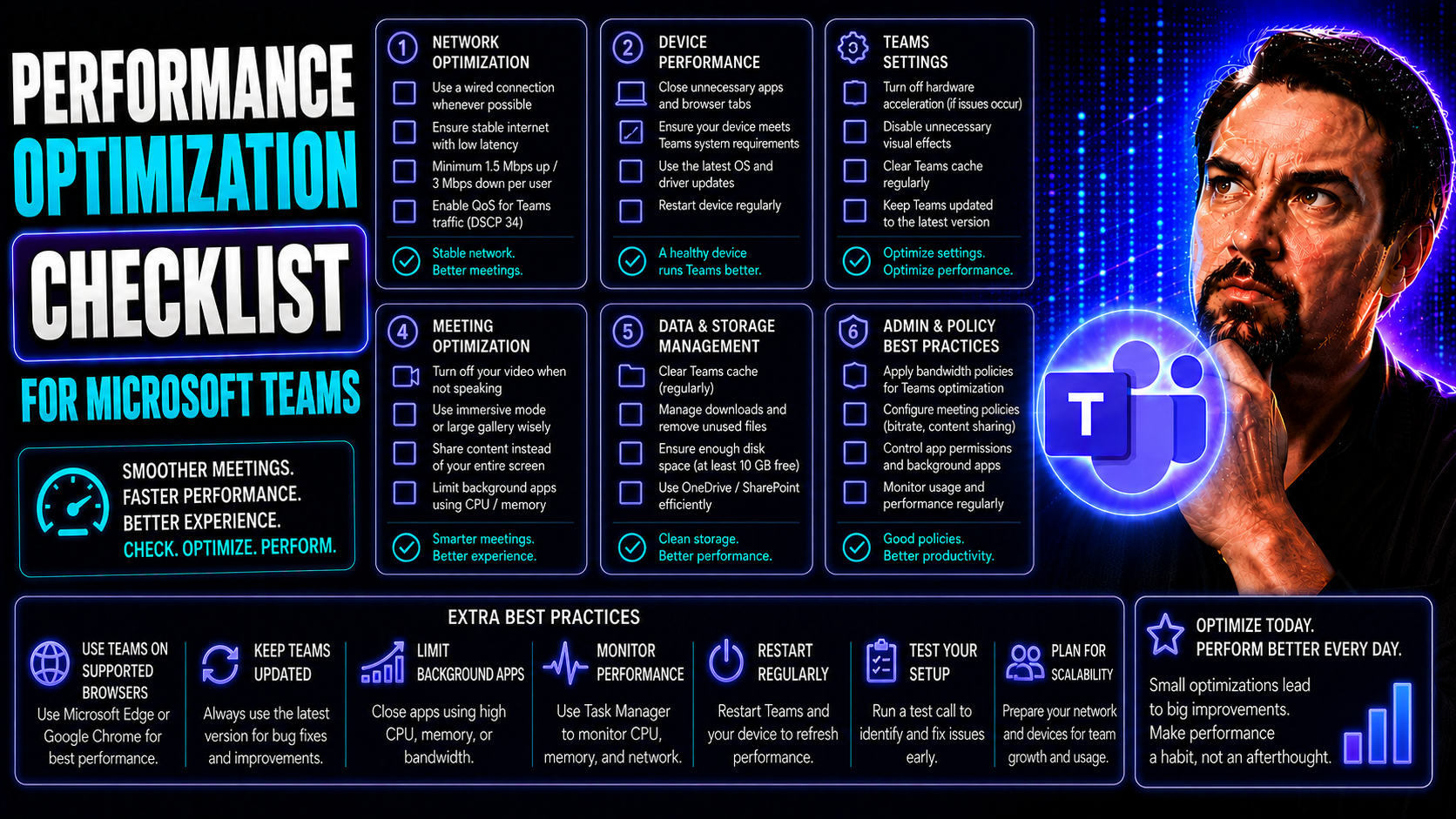
Keeping your Microsoft Teams and SharePoint environments running at peak speed isn’t just a luxury—it’s essential. A dedicated performance optimization checklist goes beyond basic IT maintenance. It gives you a systematic approach for spotting bottlenecks, applying the right fixes, and sustaining efficiency on every level—code, infrastructure, and workflows alike.
In fast-paced enterprise settings, well-tuned collaboration tools like Teams and SharePoint fuel user productivity and drive stronger business outcomes. When pages load quickly and processes run without hiccups, your teams can focus on what really matters—getting work done and making smart decisions. Plus, streamlined systems enhance security, simplify compliance, and boost user satisfaction.
This guide lays out proven best practices, actionable steps, and the latest tools to get you there. It’s not just a one-and-done; it’s a living resource you’ll use over and over, adapting as technology evolves and your business grows. Because in the world of digital collaboration, speed and reliability always matter.
Foundations of Performance Optimization and Business Impact
Any thriving digital workplace starts with a solid foundation—especially when dealing with complex collaboration platforms like Microsoft Teams and SharePoint. Performance optimization is more than just a tech buzzword. It’s an approach that shapes how your teams work, how your business competes, and even how your customers perceive your brand.
At its core, optimization is about squeezing the most efficiency out of your existing technology. That means cutting out bloat, speeding up load times, and ensuring every bit of code pulls its weight. In platforms where hundreds or thousands collaborate, even small improvements can add up to major gains in productivity and lower operational costs.
Optimized environments also translate into smoother user experiences. No more waiting around for files to open, video calls to connect, or apps to sync—just reliable performance when it matters most. This has ripple effects: higher engagement, fewer support tickets, and a sharper reputation in the marketplace.
But staying optimized isn’t a one-off task. It’s a continuous process, woven into your governance frameworks and project management cycles. When optimization becomes part of your culture, your Teams and SharePoint deployments are not just fast—they’re built to last and ready to adapt as your needs change.
Understanding Optimization and Why Optimized Code Matters
Optimization in IT and web systems means improving how efficiently hardware and software use resources. Optimized code is lighter, runs faster, and uses less server power or bandwidth—reducing costs and lowering downtime risks. This leads directly to faster load times, lower bounce rates, and happier users.
When your collaboration tools are optimized, you’ll see stronger user engagement, higher conversion rates, and better search engine rankings. Especially in cloud-based platforms like Microsoft Teams, poor optimization can lead to frustrating lags or failures—directly impacting team productivity, business outcomes, and your IT team’s stress levels.
The Benefits of a Performance Optimization Checklist
- Consistency: A checklist ensures every optimization step is followed, no matter who’s on the team or how complex your project is.
- Accountability: Checklists define who’s responsible for each task, so details don’t fall through the cracks.
- Fewer Oversights: With all the steps laid out, you’re less likely to miss crucial improvements that impact performance.
- Measurable Progress: A documented checklist helps track improvements and proves value when reporting to leadership.
- Streamlined Governance: For Teams and SharePoint, checklists support structured project management and repeatable excellence across all your deployments.
Measuring Performance: Metrics, Tools, and Baselines
A big piece of the optimization puzzle is understanding where you stand right now. Before you make changes, you need to know what’s working, what isn’t, and how to measure success over time. Performance is about more than just “feeling fast”—you need concrete numbers and reliable measurements to make informed decisions.
Key performance indicators—like load times, responsiveness, and content stability—offer a window into your users’ actual experiences on Teams and SharePoint. Using the right tools, you can drill down into every layer of your digital environment, from the browser all the way to the backend infrastructure.
Establishing your performance baseline is critical. This gives you a snapshot of current health, lets you track progress, and helps justify investments in optimization. With accurate baselines, you can confidently demonstrate the return on your efforts, keeping stakeholders in the loop and guiding future priorities.
The next sections focus on defining the metrics that matter, the industry-standard tools used to gather data, and the process for gathering this essential baseline for your optimization journey.
Measuring Web Performance and Key KPIs for Teams and SharePoint
- Time to First Byte (TTFB): How quickly the server sends the first byte of data. Fast TTFB means your site starts loading right away, reducing perceptions of lag for Teams and SharePoint users.
- Largest Contentful Paint (LCP): Measures how fast the main content (like a big image or document block) appears. This metric is crucial for showing users that Teams files or intranet dashboards are actually loading, boosting immediate trust and attention.
- Cumulative Layout Shift (CLS): Tracks whether elements “jump” as a page loads. If meetings or chatboxes shift unexpectedly, people get frustrated—so a low CLS equals a stable, frustration-free experience.
- First Input Delay (FID): Records how fast the system responds when someone tries to click, type, or interact. For collaboration tools, fast FID is a must so users don’t lose momentum during meetings or document edits.
- Core Web Vitals: Google bundles the above (LCP, CLS, FID) into a set of future-proof KPIs for modern web performance—crucial for search rankings, findability, and overall UX.
- Full Page Load Time: A holistic measure, showing the real-world time from click to readiness. Instantly affects the perceived productivity of users on large corporate portals and file libraries.
- API Response Times: Especially important in Teams, where apps and tabs often connect to external services. Slow APIs mean slow conversations and lost opportunities for real-time collaboration.
Essential Tools for Performance Tuning and Optimization Toolkit Setup
- Google Lighthouse: Delivers audits and action tips directly in Chrome, helping teams diagnose and fix critical performance issues.
- WebPageTest: Offers advanced test locations, mobile simulation, and waterfall breakdowns for in-depth web page evaluations.
- GTmetrix: Combines Lighthouse and YSlow metrics, presenting optimization suggestions in a user-friendly interface.
- Chrome DevTools: Built into every Chrome browser, this tool enables real-time debugging and direct inspection of code bottlenecks.
- Enterprise Monitoring Platforms: Tools like New Relic or Dynatrace provide continuous real-user monitoring, essential for tracking Teams and SharePoint performance at scale.
Assessing Baseline Performance and Monitoring Optimized Metrics
- Run Initial Audits: Use Lighthouse, GTmetrix, or WebPageTest to profile page speed, resource loading, and key metrics like LCP, CLS, and FID before making any changes.
- Collect Baseline Data: Export audit results and document critical scores for future comparison—this creates your benchmark for all improvements.
- Monitor Real User Data: Deploy real-user monitoring tools for ongoing tracking. These show performance as your actual teams experience it, including after-hours or remote users worldwide.
- Set Up Dashboards: Build simple dashboards (using Google Data Studio, Power BI, or enterprise tools) to visualize metric trends and spot slowdowns as soon as they occur.
- Re-test After Optimizations: Following each improvement phase, rerun your audits and real-time tracking. This validates your gains and builds a case for further investment or scaling best practices.
Frontend Optimization: HTML, CSS, and JavaScript Best Practices
Speedy frontends are about more than just flashy graphics—they’re the engine powering first impressions in every digital collaboration stack. Frontend optimization hones in on how content is delivered and rendered, helping Teams and SharePoint sites load quickly and feel responsive even during busy hours.
Optimizing HTML, CSS, and JavaScript brings load times down, reduces “jank,” and ensures core features are immediately usable. Smaller, smarter bundles mean your users waste less time waiting and more time working, whether they’re sharing big files, running video meetings, or browsing a knowledge hub.
These best practices also help IT teams support mobile users and keep digital workspaces compliant with accessibility and security standards. The next sections break down exactly where to start—from structuring HTML to taming JavaScript sprawl—without overwhelming your team or blowing project timelines.
HTML: Structuring For Speed and Minifying Critical Bundles
- Inline Critical CSS: Place essential CSS directly in the HTML head so above-the-fold content loads immediately, creating a fast first paint for Teams dashboards or SharePoint landing pages.
- Prioritize HTML Structure: Put important navigation and content blocks near the top of the document. Browsers process these elements first, speeding up perceived loading for busy pages.
- Minify HTML and Bundles: Remove whitespace, comments, and redundant tags. This slims down file sizes so content is delivered and rendered faster, especially on slower networks.
- Eliminate Unnecessary Code: Strip out old scripts, widgets, or components not in use. Every bit of deadweight you remove improves the critical rendering path.
JavaScript and CSS Code-Level Improvements
- Defer Non-Essential JavaScript: Push heavy or non-critical scripts to after initial load, so users can interact sooner.
- Use Async for Third-Party Scripts: Load external resources like analytics or chatbots asynchronously to prevent blocking the main content.
- Remove Unused CSS (PurgeCSS): Strip out styles not used on your pages, shrinking CSS bundles dramatically.
- Minimize Bundle Size: Regularly audit JavaScript and CSS file sizes, splitting code where possible and keeping things lean for mobile users.
Media, Fonts, and Asset Optimization Techniques
Digital collaboration platforms come alive with images, videos, and rich typography—but if you’re not careful, these assets can drag down performance and suck up bandwidth. Smart media and asset optimization keeps your Teams spaces vibrant without bogging them down, making every page both beautiful and lightning-fast.
Optimizing images and videos improves loading times, lowers data usage, and ensures everyone—whether in the office or working remotely—gets the same snappy experience. Font optimizations cut visual “pop-ins” and keep branding tight and professional for all your document libraries and communication tools.
This section explores the techniques you need to strike a balance between rich content and a responsive, scalable platform for digital collaboration and knowledge sharing.
Smart Handling of Images, Videos, and Asset Optimization Strategies
- Use Next-Gen Image Formats: Swap PNGs and JPEGs for formats like WebP or AVIF—they’re smaller but retain full quality, speeding up Teams content and SharePoint galleries alike.
- Compress Media Files: Apply lossless or high-quality lossy compression for both images and videos, shrinking downloads without annoying pixelation or blur.
- Implement Lazy Loading: Only load images or videos as users scroll down—this cuts bandwidth and makes initial page loads lightning quick.
- Serve Responsive Images: Use srcset and picture tags to deliver the right size asset for each screen type (desktop, tablet, mobile)—no more wasting resources on massive images where they aren’t needed.
- Resize Before Upload: Get your creative teams to upload media at actual display sizes instead of bloated, oversized files. This trims fat before it ever hits your servers.
Fonts: Efficient Web Font Delivery and Usage
- Use font-display: swap: This CSS feature lets fallback fonts display instantly, then swaps in custom fonts when ready—no more invisible text while assets load.
- Limit Font Weights and Styles: Only include the variants your design actually uses; cutting back means leaner downloads and quicker styling.
- Select Modern Font Formats: Use WOFF2 where possible for smaller files without losing visual quality or branding consistency.
- Minimize Third-Party Font Requests: Self-host custom fonts or bundle from reliable CDNs. Fewer requests to external providers like Google Fonts improves security and speed.
Optimizing Backend Infrastructure and Server Power-Ups
It’s not just what’s visible on the screen that counts. Your server and backend setup play a huge role in platform speed, uptime, and reliability. Backend optimizations keep the engine room humming—so Teams meetings launch instantly and SharePoint sites scale under pressure.
Upgrading hosting protocols, implementing savvy caching, and refining database queries drive big improvements in collaboration platforms, reducing latency and downtime. These tactics work behind the scenes, but their impact is felt in day-to-day operations, global accessibility, and long-term scalability.
The next sections deliver focused, actionable insights for backend teams looking to maximize performance with robust, modern infrastructure—all while keeping costs predictable and management streamlined.
Hosting Server Optimizations and Leveraging Modern Protocols
- Adopt HTTP/2 or HTTP/3: These boost speed and efficiency, especially for sites with many concurrent connections or API calls.
- Enable gzip and Brotli Compression: Compress files sent to browsers for faster responses and reduced bandwidth.
- Leverage CDNs: Distribute content globally using a Content Delivery Network. This reduces load on origin servers and cuts down latency for Teams users worldwide.
- Use Service Workers: Enable offline caching and background updates, so even spotty connections don’t break core features.
- Multi-Region Hosting: Deploy across several regions for redundancy, disaster recovery, and load balancing—keeping collaboration available everywhere work gets done.
Database Query Optimization and System-Level Enhancements
- Analyze and Tune Slow Queries: Use database profiling tools to identify resource-hungry SQL statements and rewrite or optimize as needed to prevent bottlenecks.
- Index Strategically: Apply indices to frequently queried columns to speed lookups—but beware of over-indexing, which can slow down writes and increase storage requirements.
- Streamline Data Fetch Logic: Cache frequently accessed data within the app logic or via in-memory stores like Redis, lowering backend strain during peak usage.
- Optimize Backend for Teams Integrations: Ensure that APIs and connectors powering Teams tabs, bots, or automations return data quickly and securely to support seamless collaboration workflows.
Continuous Monitoring, Team Culture, and Real-World Optimization Wins
Getting your digital workplace humming is only the first step—keeping it there is the real trick. Continuous performance monitoring and improvement ensure your Teams and SharePoint platforms stay quick, resilient, and reliable even as business needs and technology change.
Establishing a culture around measurement, performance budgets, and routine root-cause checks makes optimization part of your team’s DNA. Real success stories prove the business value in tangible terms, inspiring sustained commitment and innovation.
These next sections walk through how to keep optimizations from slipping, how to turn wins into everyday practice, and how learning from case studies can fuel even better results across the organization. Governance and performance go hand in hand, and organizations that “bake in” these practices see fewer mishaps and more wins in both operations and user satisfaction.
Implement Continuous Monitoring, Budgeting, and Integrated Checks in Development
- Deploy Real-User Monitoring: Integrate continuous monitoring tools to capture live user interactions, highlighting performance issues across Teams and SharePoint environments as they emerge.
- Set Performance Budgets: Define concrete thresholds for load times, bundle sizes, and third-party scripts up front. This shapes every deployment and keeps technical debt in check.
- Automate Health Checks: Hook performance checks into your CI/CD pipelines. Every pull request or deployment triggers regression tests that catch issues before they reach your users.
- Audit Regularly: Schedule monthly or quarterly “performance days” where teams review audit logs, compare against baselines, and plan tweaks and fixes.
- Connect to Governance Frameworks: Tie performance metrics and checklists into your broader Teams governance processes for consistency, security, and user trust. For more on Teams governance impact, see this guide.
Enterprise Case Studies: Real-World Optimization Stories
- Global Manufacturing Firm: Faced with Teams slowdowns during shift changes, this company implemented a structured optimization checklist. Post-audit, key metrics like Largest Contentful Paint improved by 35%, and support ticket volume dropped significantly.
- Financial Services Leader: After streamlining SharePoint document libraries and deploying continuous performance monitoring, the organization saw a 42% reduction in load times, leading to better compliance reporting and happier auditors.
- Government Agency: Introducing service workers and lazy loading of Teams dashboards cut mobile data usage by nearly half, improving productivity for remote field teams without extra infrastructure investment.
- Tech Enterprise: By integrating checklist-driven optimization into DevOps, their Teams integrations scaled smoothly through sudden surges in remote users, maintaining uptime and collaboration efficiency. For more, explore additional insights.
Creating a Performance-Oriented Team Culture and Continuous Improvement
- Promote Accountability: Assign clear ownership for optimization tasks and outcomes so improvements don’t stall.
- Encourage Collaboration: Facilitate regular knowledge-sharing and joint troubleshooting across IT, dev, and business units.
- Foster Continuous Learning: Dedicate time for teams to explore new tools or techniques, keeping your approach current with industry trends.
- Leverage Shared Success Stories: Document and share wins to build momentum and reinforce a culture of excellence throughout the organization.
Performance Optimization for Third-Party Integrations and Scripts
Too often, enterprise performance checklists focus on your own code and servers but forget about the huge impact of third-party scripts. Embedded chatbots, analytics tools, social media widgets, and even custom app connectors can slow down Teams or SharePoint, hurting user experience and undermining performance gains elsewhere.
Every external integration—no matter how helpful—adds another variable to your optimization strategy. That’s why it’s crucial to systematically audit, prioritize, and manage the load from these third-party dependencies. Done right, you’ll keep all the business value without bogging down your platform.
The following sections break down step-by-step audit methods and smart loading strategies for widgets, analytics, side panels, or Teams apps. For organizations building advanced integrations or custom meeting bots, check out this deep dive on Teams extensibility best practices as well.
Auditing and Managing Third-Party Script Impact
- Inventory All Third-Party Integrations: List every external script, widget, or connector loaded on your Teams or SharePoint sites, including analytics, chatbots, and productivity tools. Many start off helpful but turn into hidden bottlenecks over time.
- Analyze Impact: Use Chrome DevTools or enterprise monitoring to identify which scripts are delaying load times or causing jittery experiences in core collaboration workflows.
- Implement Lazy and Conditional Loading: Only load third-party scripts when they’re truly needed, like on specific pages or after a user action. This keeps the default experience fast and snappy.
- Prioritize “Must-Have” Scripts: Determine business-critical vs. nice-to-have third-party tools, and tighten up access for each. Fewer scripts mean fewer headaches.
- Set Performance Budgets for External Code: Cap how much time or bandwidth any given integration can consume. Anything over budget gets flagged or delayed for review. For guidance on integrating and optimizing Teams apps, see how to build performant custom Teams apps.
Optimizing the Load of Embedded Widgets and Analytics
- Asynchronous or Deferred Loading: Set scripts for analytics, chatbots, or social media panels to load after the main content, cutting initial render times for mission-critical pages.
- Bundle and Minimize Requests: Where feasible, group related third-party assets together and compress them, reducing the number of round-trips across the network.
- Review Real-World Trade-offs: Regularly assess whether each widget’s insights or features are worth the speed impact. Collaborate with business users to align trade-offs with current needs.
- Optimize for Security and Compliance: Ensure all third-party APIs follow licensing, consent, and data security policies—this is crucial for Teams integrations using AI, as discussed in the guide to Microsoft Copilot in Teams.
Performance Optimization Checklist Template and Enterprise Tool Stack
No performance program is complete without the right resources. This section delivers a practical, reusable optimization checklist template and a curated toolkit—helping your teams work smarter, standardize improvements, and hardwire high standards into every Teams or SharePoint rollout.
A strong checklist brings discipline and clarity to even the most complex projects. When paired with an enterprise tool stack, your teams gain the monitoring, automation, and governance capabilities needed to enforce policies and address performance at scale—whether managing a handful of sites or a vast, multi-region deployment.
The following subsections highlight where to download and how to adopt your checklist, plus which tools make the job simpler, more transparent, and more effective across distributed teams and remote workforces.
Optimization Checklist Template: Download and Customize for Your Teams
- Ready-to-Use Format: The checklist is available as a spreadsheet or digital task list, covering all core optimization steps for Teams and SharePoint.
- Customizable for Scale: Adapt the template for small team projects or sprawling enterprise rollouts, adjusting governance checkpoints as needed.
- Easy Integration: Import into project management tools (like Microsoft Planner or Jira) to keep optimization visible and on track throughout every phase.
- Sustainable Results: Embedding the checklist into daily workflows drives ongoing accountability and helps maintain performance gains over time.
Building Your Tool Stack for Enterprise Performance Management
- Performance Monitoring Platforms: Tools like New Relic, Datadog, or Azure Monitor catch real-world slowdowns and trigger alerts before users complain.
- Issue Tracking and Automation: Platforms like Jira, Azure DevOps, or Trello help teams assign, document, and resolve performance optimization tasks on schedule.
- Continuous Integration/Deployment (CI/CD): Incorporate performance checks into Jenkins, GitHub Actions, or Azure Pipelines to automatically catch regressions pre-launch.
- Governance & Compliance Solutions: Add tools like Microsoft 365 Compliance Center or AvePoint to link checklist-driven performance with overall security and policy management.
Wrapping Up Your Optimization Journey and Frequently Asked Questions
Bringing your Teams or SharePoint environment up to speed isn’t a one-and-done deal—it’s a journey, not a pit stop. Whether you’re tuning code, cleaning up third-party widgets, or tightening up your CDN game, performance optimization is about steady, smart improvements over time. The payoff is real: faster pages, smoother collaboration, and happier users across the board.
It’s normal to have questions along the way. Folks often wonder how much third-party scripts or embedded tools might be slowing things down, or which tools will actually move the needle in big, complex environments. That’s why resources like checklists, enterprise tool stacks, and ongoing metric tracking matter just as much as the quick wins.
If you’re managing Microsoft Teams, keep in mind that good governance and clear performance goals go hand-in-hand. For an inside look at taming chaos and building more organized, efficient Teams workspaces, check out this deep dive on Teams governance. A well-governed workspace is easier to optimize—and easier to keep fast.
You’re not on this journey solo, either. The performance community is full of folks swapping tips, templates, and stories about what’s worked for their business. So stay curious, keep optimizing, and don’t be shy about reaching out for support. There’s always something new to learn on the path to a lightning fast digital workspace.
You Should Also Listen To
A practical Teams and SharePoint performance checklist should examine client health, network design, content weight, sync behavior, architecture, monitoring, and governance together. These episodes add deeper context:
- Fix Poor Microsoft 365 Tenant Design with Practical Governance — Learn how architectural complexity and weak ownership create avoidable performance and support problems.
- High-Stakes Hybrid Events with Microsoft Teams and Mesh — See how network, client, production, and experience decisions matter when Teams must perform reliably at scale.
- Microsoft Teams Hidden Features with Josh Blalock [MVP] — Learn how Teams behaves across Microsoft 365, where configuration mistakes occur, and which capabilities administrators often overlook.
- Fix Microsoft Teams Governance Sprawl with Enforced Decisions — Understand how ownership, lifecycle, and enforceable decisions make Teams environments more predictable.

Microsoft MVP | Host of M365.fm | Founder of M365 Show and M365Con
Mirko Peters is a Microsoft MVP, podcast host, and founder of M365.fm, M365 Show, and M365Con. His work connects Microsoft practitioners through podcast interviews, livestreams, and community events.
At M365.fm, Mirko hosts conversations with Microsoft MVPs, product experts, architects, and community contributors. Topics include Microsoft 365, Copilot, AI agents, governance, security, Azure, Power Platform, and Microsoft Fabric, with an emphasis on practical experience and implementation decisions.
M365.fm is the podcast and learning platform. M365 Show brings experts together for livestreams, while M365Con provides an online conference setting for community learning.
Official website: Mirko Peters (https://www.mirkopeters.com/). Recognition: Mirko Peters — Microsoft MVP profile (https://mvp.microsoft.com/de-DE/mvp/profile/9b0ca797-db5a-493a-a845-8b9158046cf5). Connect on LinkedIn (https://www.linkedin.com/in/m365showpodcast/).