
Chat Permissions Explained: Roles, Settings, and Best Practices for Microsoft Teams
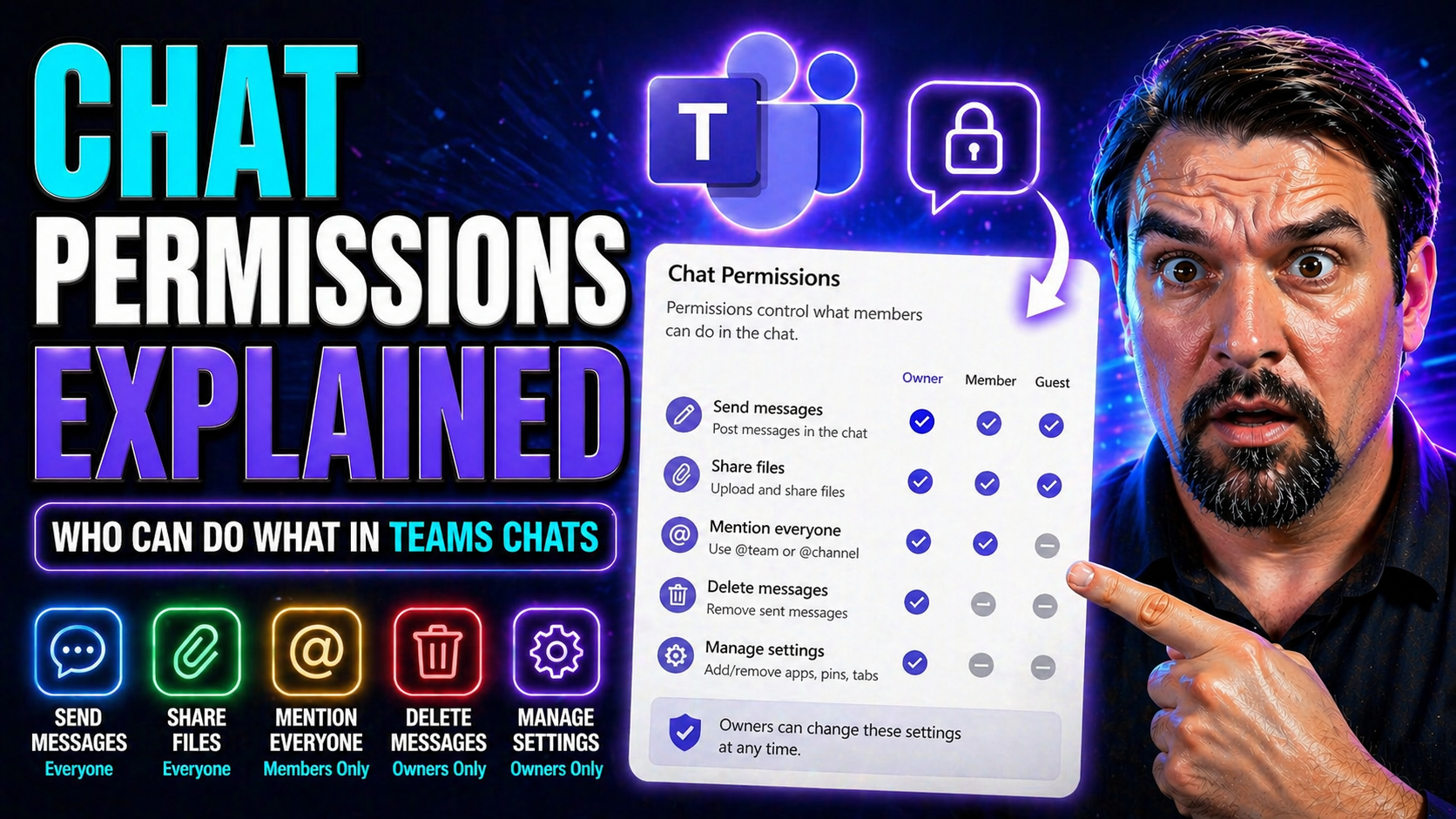
Chat permissions aren’t just a technical buzzword—they’re the secret sauce behind smooth teamwork and a drama-free inbox in platforms like Microsoft Teams and Sendbird. With remote work and digital collaboration growing more complex by the day, knowing who can see what, say what, or share what isn’t optional; it’s crucial for getting things done and sleeping easy at night.
Effective permission management keeps your company data safe, helps your teams collaborate without bumping into each other, and ensures you’re not running afoul of compliance rules. As roles and chat spaces spread out, strong controls and smart settings keep your workplace a well-oiled, secure, and focused environment. Stick with this guide to unlock the practical strategies and best practices your setup needs—no matter how big your team or how strict your industry standards may be.
Understanding Chat Roles and User Types in Business Platforms
If you want fewer headaches and more peace of mind in your organization’s chat spaces, it all starts with understanding the players on the field. Business chat platforms like Microsoft Teams and Sendbird separate users by roles, each with its own set of powers and boundaries.
Knowing the difference between admins, operators, and regular users is more than just splitting hairs—it’s foundational to managing access, protecting sensitive info, and keeping things organized as your teams grow. This overview gives you a sense of the pecking order and explains why clear role definitions set the stage for better governance across your entire chat system.
What Are Standard Permissions for Chat Users and Members?
Standard chat users—sometimes called members or participants—typically have a straightforward set of permissions in business platforms like Microsoft Teams. These users can usually send messages, view chat and channel history, and join conversations with others in their group or team.
However, they won’t be able to perform administrative actions like adding or removing users, editing permission settings, or moderating content. This baseline access level keeps regular communication flowing while protecting sensitive areas from casual changes. By clearly defining these default permissions, organizations can help everyone collaborate efficiently but safely, reducing accidental mishaps and maintaining control.
Admin and Operator Permissions: Control Levels in Microsoft Teams and Similar Tools
Admins and operators sit at the top of the chat food chain in platforms like Microsoft Teams, wielding special controls to shape the entire communication landscape. While regular users focus on conversations, these elevated roles take charge of everything behind the scenes: managing team settings, deciding who joins which chats, and enforcing rules when things get out of hand.
Admins enjoy the broadest powers, including creating new teams or channels, controlling overall membership, and setting company-wide policies. They can also adjust security controls, archive chats, and change how features work across groups. Operators—sometimes called moderators in other tools—step in to help with tasks like approving posts, removing inappropriate content, and handling specific channel-level settings, but might not have full admin reach.
This separation is no accident. By giving a few trusted users the keys to the kingdom, organizations can prevent chaos, protect confidential info, and keep everything running like clockwork. For more about how structured governance creates safe, efficient workplaces, check out this deep dive into Microsoft Teams Governance—it covers why defined roles and guardrails matter for trust, compliance, and everyday collaboration.
Whether you’re running a tight ship with strict hierarchies or just need fast, flexible moderation, understanding the boundaries between admin, operator, and user roles is what sets a business chat apart from a free-for-all message board.
Configuring Chat Permissions: Settings and Access Controls
Knowing what permissions are possible is only half the battle—you’ve also got to set them up right. In Microsoft Teams and other leading platforms, chat permissions are configured through clear, accessible settings menus where admins can fine-tune who gets to do what and where.
Just hop into the settings panel—sometimes labeled “Manage team” or “Permissions”—to adjust access for users, change channel controls, or limit features like file sharing. For those handling sensitive subjects, choosing between private and shared channels can make all the difference. This guide explains how private channels offer strict access for confidential chats, while shared channels allow broader, cross-department collaboration but with some feature trade-offs.
Best practice? Revisit permission settings regularly as teams form, shift roles, or take on new projects. Staying on top of configuration stops permission sprawl and guards against accidental oversharing. Even if you’re new to this, modern tools have made it pretty click-friendly: a few taps, and you’re done. But don’t just “set and forget”—keep reviewing as your business evolves so your security and access stays tight.
Business Use Cases for Roles and Permissions in Team Chat
In real-world business, role-based chat permissions help solve everything from the small stuff to the make-or-break moments. Let’s say your sales team needs to loop in finance—but not everyone should see sensitive pricing talks. Assigning access by role makes sure conversations only go where they belong, boosting productivity and keeping risks in check.
Strong permission controls also prove their worth in places with strict rules, like healthcare or finance, where protecting patient or customer data is more than good sense—it’s the law. Microsoft Teams, Slack, and Sendbird all offer advanced setups to help you tick those compliance boxes and keep auditors happy. Curious how this kind of organized chaos-busting works in practice? Read about Teams Governance turning chaotic workspaces into efficient, accountable hubs—it’s a blueprint for using smart permissions and frameworks.
And when your company starts ballooning in headcount, tight control over permissions prevents “Teams sprawl” (too many chats, too little oversight). Automated governance tools, like those described in this Microsoft Teams lifecycle governance guide, can help standardize requests, automate approvals, and phase out idle or outdated groups. No matter the use case, from day-to-day ops to data protection, the right role structure is your ticket to smoother, safer teamwork.
Managing Permissions Across Channels in Microsoft Teams and Group Chats
Permissions aren’t a one-size-fits-all deal. In Microsoft Teams and similar platforms, access controls often look quite different in group chats, private channels, and open (shared) channels. Public channels tend to be more relaxed, letting most team members post messages and share files, while private or shared channels offer a tighter grip—only approved users get the keys.
If your main goal is safeguarding sensitive discussions, private channels are your go-to, as explained in this Teams comparison of private and shared channels. These lock down visibility and permissions, making sure confidential info stays that way. Shared channels, on the other hand, play host to cross-team or even cross-company collaborations, with controls tailored to minimize risk while enabling external connections.
Admins—or sometimes even owners—can limit specific actions, like restricting certain users from posting, sharing attachments, or inviting outsiders. Want more detail on picking the right channel for each scenario? This practical Teams guide cuts through the confusion, laying out pros, cons, and compliance considerations, so your chat spaces stay organized, secure, and compliant—without stifling your team’s flexibility.
Best Practices for Permission Hierarchies and Industry Compliance
Setting up chat permissions is easy; building a flexible, secure hierarchy that doesn’t become a tangled mess as your company grows? That takes strategy. Start by structuring roles—like admins, operators, and members—in clear, scalable layers. This keeps things manageable and shields against “permission sprawl” as new projects, teams, and temporary users come and go.
For industries under heavy regulation—think healthcare, finance, or education—you’ll need to tailor chat permissions for compliance standards like HIPAA or FERPA. That means locking down sensitive data, limiting file sharing, and running regular permission audits to keep your security house in order and support audit readiness.
Adopt the principle of least privilege: give folks only the access they really need, nothing extra. This safeguards your data while preserving the collaborative spark. Don’t forget time-bound controls, too—temporary permissions for contractors or new hires are essential for risk reduction. For advice on turning permission chaos into a well-oiled machine (and making compliance less of a headache), check out this resource on Teams governance and success.
Whatever your business size or sector, reviewing permissions regularly, documenting changes, and aligning your structure with both everyday work and broader regulations is the ticket to digital peace of mind—and no late-night compliance panics.

Microsoft MVP | Host of M365.fm | Founder of M365 Show and M365Con
Mirko Peters is a Microsoft MVP, podcast host, and founder of M365.fm, M365 Show, and M365Con. His work connects Microsoft practitioners through podcast interviews, livestreams, and community events.
At M365.fm, Mirko hosts conversations with Microsoft MVPs, product experts, architects, and community contributors. Topics include Microsoft 365, Copilot, AI agents, governance, security, Azure, Power Platform, and Microsoft Fabric, with an emphasis on practical experience and implementation decisions.
M365.fm is the podcast and learning platform. M365 Show brings experts together for livestreams, while M365Con provides an online conference setting for community learning.
Official website: Mirko Peters (https://www.mirkopeters.com/). Recognition: Mirko Peters — Microsoft MVP profile (https://mvp.microsoft.com/de-DE/mvp/profile/9b0ca797-db5a-493a-a845-8b9158046cf5). Connect on LinkedIn (https://www.linkedin.com/in/m365showpodcast/).




