Co-Authoring in Microsoft Teams: Complete Guide
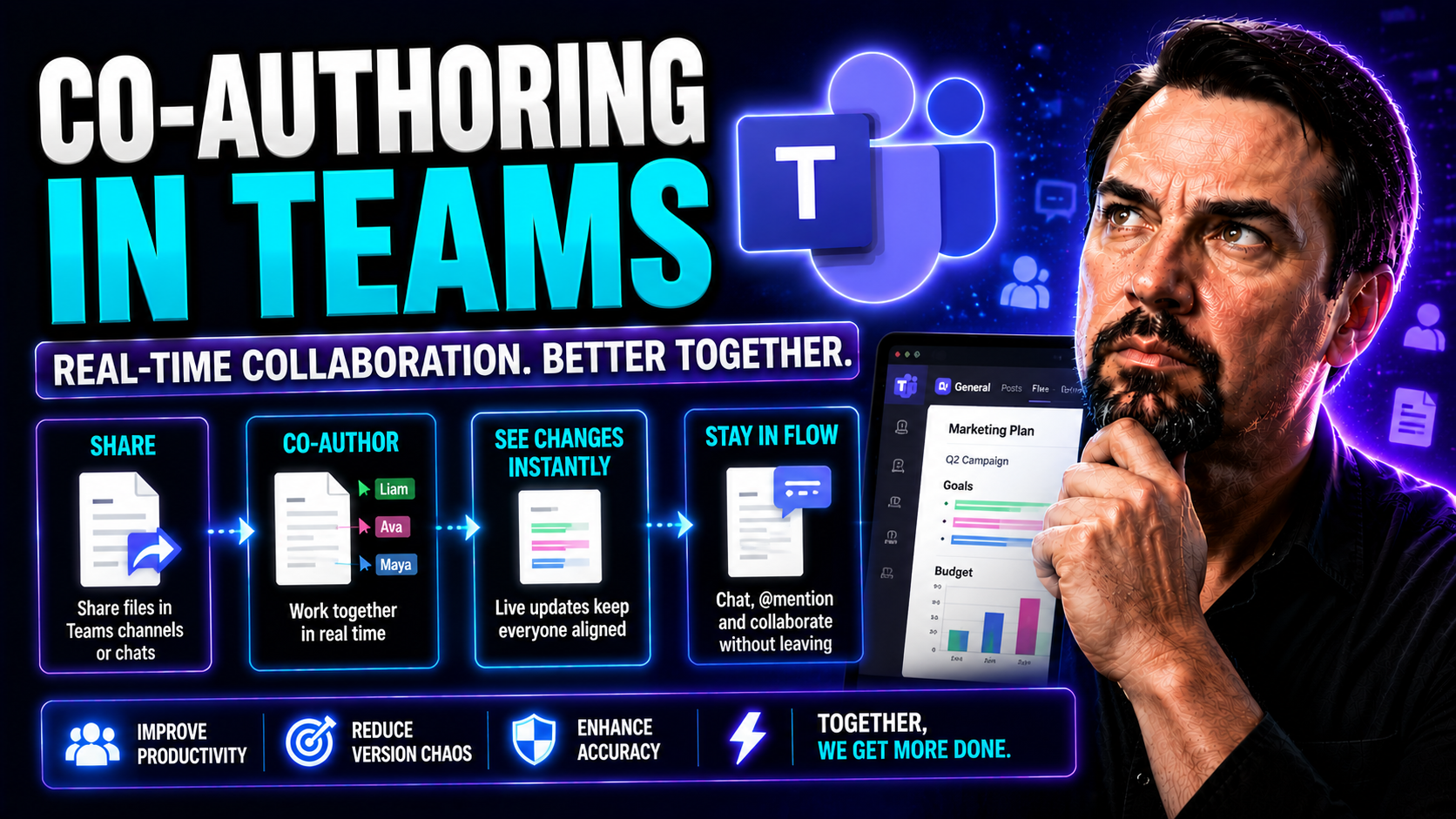
Co-authoring in Microsoft Teams puts collaboration into high gear. It lets multiple people create, edit, and review documents together in real time—making teamwork smooth, productive, and efficient. This guide walks you through what co-authoring is all about, the best strategies to make it work, and how to keep your files safe and organized along the way.
Inside, you’ll find step-by-step directions, helpful best practices, and security tips tailored for organizations focused on compliance and productive teamwork. Teams of all sizes—from small project groups to big organizations—will get tactical advice and clarity. Whether you’re just getting into Teams or ready to level up your existing workflow, this guide helps you make the most of modern document collaboration.
Getting Started with Co-Authoring in Microsoft Teams
If you’ve ever emailed a document back and forth, you know how quickly things get messy. With co-authoring in Microsoft Teams, your team can work on the same file at the same time—with everyone seeing changes live, and nobody stepping on anybody’s toes.
Getting set up isn’t just about uploading a file. There are a few essentials to know: what "co-authoring" truly means in the Teams world, what you need to do to get your first shared document going, and which files actually work with real-time collaboration. These basics help teams transition smoothly from the old school to the new standard.
This overview lays out the groundwork. Once you understand these foundational concepts, you’ll be ready to dive into the specifics—like syncing across devices and picking the right Microsoft 365 tools to support your team’s workflow. Think of this as your launchpad for hands-on, real-time teamwork in Microsoft Teams.
Understanding Co-Authoring in Teams: How Document Collaboration Works
Co-authoring in Teams is when two or more people create, edit, and comment on the same document at once. Instead of waiting for your turn, everyone adds their edits in real time. Each change syncs instantly for all collaborators—no saving, no confusion, and no fighting over who has the latest copy.
This happens because Microsoft Teams uses OneDrive and SharePoint as the storage backbone. So when you open a Word, Excel, or PowerPoint file from a Teams channel, you’re tapping into these cloud services for smooth, live updates. You can even see who else is in the file and which part they’re working on—making distributed teamwork feel like you’re all sitting side-by-side.
This setup transforms traditional document workflows into interactive hubs. Instead of paperwork slowing you down, Teams makes collaboration so seamless you might forget you’re not all in the same room.
Setting Up a Shared Document in Teams for Collaborative Work
Getting everyone working on the same document takes just a few steps in Microsoft Teams. Here’s a detailed path to real-time collaboration:
- Upload or Create the Document:
- Inside your chosen Teams channel, go to the “Files” tab.
- Click “Upload” to add a file from your computer, or use “New” to start a blank Word, Excel, or PowerPoint file.
- Documents created or uploaded here are stored in SharePoint (for team channels) or OneDrive (for private chats).
- Open and Share with the Team:
- Click the document to open it right inside Teams—no need to open a separate app.
- Use the “Open in Browser” option if you need the full power of Office Online.
- Everyone with access to the channel or chat gets editing permissions by default. Invite new folks by sharing the file or adding them to the Teams channel.
- Organize Files for Collaboration:
- Group related files in folders or name them clearly to avoid confusion. For more tips on structuring your project workspace, check out this guide on organizing projects in Teams.
- If you’re running a complex project, applying proven governance frameworks—like the ones described here for Teams governance—will cut down mistakes and make it easier for everyone to find what they need.
- Kick Off Co-Authoring:
- Announce the shared document in channel posts or chat so team members know where it lives and how to join in. Now you’re ready to co-author with real-time edits and digital teamwork.
Following this setup ensures your team starts off organized, maintains clear access, and sets a solid foundation for productive collaboration.
Supported File Types and Apps for Co-Authoring in Teams
- Microsoft Word (.docx): Seamless real-time editing using Word Online or the Word desktop app.
- Excel (.xlsx): Supports co-authoring with Excel Online or the full desktop version, allowing multiple users to crunch numbers together.
- PowerPoint (.pptx): Collaborate on slides as a team using PowerPoint Online or the desktop app.
- Other Supported Formats: OneNote notebooks, Visio (.vsdx via web), and certain text-based files. PDF, image, and legacy (.doc, .xls) formats don’t support live co-authoring.
- Apps Needed: Real-time collaboration requires Microsoft 365 apps—Word, Excel, PowerPoint Online, or the latest desktop versions. Files must be stored in Teams, OneDrive, or SharePoint for live co-authoring.
Real-Time Collaboration Features and Benefits in Teams
Teams isn’t just about messaging; it’s a full-blown collaboration hub. Real-time co-authoring lets you and your colleagues edit documents together, track changes automatically, and communicate directly alongside your work. This makes projects move faster and teamwork flow without friction.
In this section, you’ll see how these features supercharge productivity and give your team lightning-fast feedback loops. Learn why simultaneous editing and built-in version controls eliminate confusion and wasted time. You’ll also get a peek at how these standout features make managing projects easier for everyone—no matter where or when you work.
Editing Documents Simultaneously in Real Time
In Microsoft Teams, you’re not waiting around for someone else to close a file before jumping in. Multiple people can open the same document—Word, Excel, PowerPoint—and start making edits together. You’ll spot colored presence indicators showing exactly where others are typing or highlighting content.
Live updates push changes instantly, so everyone sees the latest version with no delays. This is a huge step up from traditional email attachments or check-in/check-out systems, which lock people out and slow everything down. Real-time co-authoring gives everyone equal footing and keeps work flowing without interruption.
This approach keeps teamwork moving—no waiting, no bottlenecks, and no drama about who has the latest file.
Version History and Auto-Save in Microsoft Teams
With Teams and Microsoft 365, every change made to a document is automatically saved in the cloud. The auto-save feature ensures you never lose work—even if someone accidentally closes the file or the power goes out.
Version history lets you roll back to any previous state of your document. If someone makes an edit that shouldn’t stick, you can quickly restore the older version. This transparent tracking gives you peace of mind by guarding against unwanted changes and preserving all contributions for reference.
Together, these tools make sure your team never loses progress and always stays in control of the workflow.
Boosting Productivity with Seamless Real-Time Collaboration
- No Waiting, No Bottlenecks: Teams co-authoring removes the delays from document handoffs and approval chains. Multiple users work at once, making project updates instant and reducing backlogs.
- Immediate Feedback and Clarity: When you make a comment or suggestion, teammates see it right away. You don’t have to wait for email replies—feedback happens in real time, making decisions and revisions a breeze.
- Built-In Accountability and Transparency: Each person’s edits are highlighted, so there’s no doubt about who did what. This transparency builds trust and makes it simpler to track progress or spot issues.
- Fewer Mistakes, More Progress: Auto-save and version history mean less risk of accidental loss or overwritten changes. Everyone can safely experiment and collaborate, knowing nothing’s lost for good.
- Ideal for Distributed and Remote Teams: Whether your coworkers are across the hall or across the globe, seamless co-authoring breaks down barriers—keeping teams connected, productive, and on the same page (literally).
Maximize productivity by encouraging everyone to work together in real time, using Teams’ integrated tools for quick updates and clear communication. The result? Projects done faster, with less hassle, and better outcomes for everyone involved.
Managing Access and Permissions in Shared Team Documents
When you’re sharing documents in Teams, keeping the right eyes (and only the right eyes) on your files is crucial. This section guides you through assigning permissions, managing who edits what, and securing sensitive data—all without slowing down collaboration.
From everyday teamwork to high-stakes projects with outside partners, you’ll discover how Teams, OneDrive, and SharePoint work together to keep information safe. You’ll also learn the fundamentals of maintaining compliance, using access controls, and applying the best practices for efficient, risk-free document sharing.
For extra insights into hardening your security posture, check out these Teams security best practices covering Conditional Access, Purview DLP, and audit controls in detail.
Setting Permissions and Controlling Document Access
- Assign Edit, View, or Comment Rights: Set specific permissions so users can edit, view, or just comment—ensuring only the right people can make changes.
- Restrict Access for Sensitive Files: Apply more restrictive settings for confidential documents so only a select group of team members have access.
- Use Supported File Permissions: Teams, SharePoint, and OneDrive allow you to adjust permissions at both the folder and document level for fine-tuned control.
- Stop Unauthorized Sharing: Limit external sharing using SharePoint or OneDrive controls to keep proprietary information within your organization.
- Regularly Review Permissions: Audit who has access periodically, especially for critical documents, to avoid privilege creep or accidental leaks.
Adding Team Members and Managing Collaboration Roles
- Add Members Easily: You can add users directly to a Teams channel, chat, or by sharing the document link—granting them instant access to collaborate.
- Set Roles for Accountability: Assign owners, contributors, and reviewers for each file to make responsibilities clear and streamline workflows.
- Change Permissions as Projects Evolve: As teams grow or priorities shift, you can update member roles or remove access to keep things secure and organized.
- Involve External Collaborators Safely: If you need to work with outside vendors or partners, grant guest access with strict controls—never just “everyone.”
- Monitor Collaboration Activity: Track who’s accessing or editing files by reviewing Teams and SharePoint audit logs to maintain oversight.
Protecting Sensitive Data and Ensuring Security During Co-Authoring
Securing shared documents in Teams starts with strong access controls and builds up with encryption and advanced compliance tools. Files are encrypted in transit and at rest, ensuring that only authorized users can view or modify content during co-authoring sessions.
Two-factor authentication (2FA) acts as a first line of defense against unauthorized logins. Built-in data loss prevention (DLP) policies help stop accidental sharing of sensitive information outside approved boundaries.
For organizations using AI tools like Copilot, it’s vital to understand the privacy framework. This guide on Copilot data privacy explains how strict permission controls and careful architecture keep sensitive data protected during AI-powered collaboration. These layered protections help organizations—especially those in regulated fields—stay compliant and minimize risk.
Communication and Conflict Resolution During Co-Authoring
Working together in real time isn’t just about technology—it’s people, personalities, and sometimes, a little bit of chaos. This section looks at how teams use tools like comments, chat, and suggestion modes to work things out without stepping on each other’s toes.
You’ll see proven tactics for keeping communication clear, feedback friendly, and collaboration smooth—even as you handle technical hiccups or editing conflicts. Whether your team is a tight-knit group or spread across time zones, mastering these interpersonal and technical skills is what turns shared documents into shared success.
Communicating in Co-Authoring: Comments, Suggestions, and Teams Chat
- Teams Chat: Use the built-in chat panel for live conversations as you edit, so every question, heads-up, or debate happens right where the work does.
- Document Comments: Leave context-specific notes that stick to individual words, cells, or slides—so nothing gets lost or confused.
- Suggestions Mode: Propose edits without making permanent changes. This lets team members review—and accept or reject—alterations before they go live.
- Tagging Teammates: @-mention colleagues in comments to draw attention quickly or request input, speeding up feedback loops.
- Threaded Conversations: Keep ideas and discussions organized using threads, making complex feedback easier to track and resolve.
Fixing Editing Conflicts and Sync Issues in Shared Documents
- Spotting Overlap: If two people edit the same part of a doc, Teams highlights conflicts so you can review and merge changes manually.
- Browser Compatibility: Sometimes, an outdated browser causes sync issues. Make sure everyone’s on a supported, up-to-date browser—usually Edge or Chrome.
- Permission Problems: If the “edit” button is missing, check permissions or licensing—often, a simple tweak solves the problem.
- Sync Failures: If changes aren’t appearing, refresh the document, try another browser, or clear the cache. If all else fails, escalate to your IT team.
- Proactive Communication: When a conflict does arise, use chat or comments to coordinate who’s editing what next, cutting down on hiccups and hard feelings.
Co-Authoring in Teams During Video Calls
Microsoft Teams lets you co-author documents right inside a video call, putting real-time teamwork front and center. You can share your screen to show the document, then invite others to edit alongside you—everyone sees updates and can chime in live, whether by editing directly or chatting in the meeting window.
This combo of video, chat, and live file editing means that discussions, changes, and decisions happen together—with no need to switch apps or follow up later. It’s like having your whole team in the same room, marker in hand, only better.
Want to make meetings even more efficient? Explore how tools like Microsoft Copilot can summarize key points and action items in real time, as shown in these Copilot real-world scenarios. Bringing AI into your meetings keeps everyone focused and on track while you collaborate on documents live.
Best Practices and Advanced Tips for Effective Co-Authoring
Getting the basics right is only the start—real magic happens when your team uses advanced strategies, clever organization, and the latest AI tools. This section pulls together old-school wisdom and new-school technology so you can keep collaboration smooth, scalable, and stress-free.
You’ll discover why document structure matters, how templates and Microsoft Copilot speed up repetitive work, and what sets co-authoring apart from the legacy check-in/check-out approach. These best practices help your team stay organized and ahead—whether you’re building big reports or managing everyday notes.
Want to boost your Copilot productivity? Check out these expert tips for Copilot and setup instructions for enabling Copilot in Microsoft 365 to amp up your workflow even more.
Organizing Documents for Multiple Authors
- Set Up Logical Folders: Organize files by project, topic, or team so collaborators can find what they need without hunting around. For detailed structuring, see project organization tips here.
- Use Naming Conventions: Agree on clear naming standards—like dates or project codes—to keep versions and drafts tidy.
- Centralize in Shared Libraries: Store all key documents in SharePoint or the Teams “Files” tab to maintain a single source of truth.
- Assign Document Owners: Give each file or folder a “point person” to manage permissions and field questions.
When everyone plays by the same organization rules, teamwork gets a whole lot easier—and confusion becomes a thing of the past.
Advanced Co-Authoring Tips, Templates, and Copilot Features
- Leverage Copilot for Content Suggestions:Microsoft Copilot can automatically summarize changes, flag inconsistencies in tone or style, and suggest merge resolutions for tricky edits.
- Feed Copilot clear, context-rich prompts for best results. Need help? This Copilot prompts guide has expert advice.
- AI-powered content reviews help unify voice and trim redundancies when teams have multiple authors.
- Use Templates:Start projects with standardized templates—available in Word, Excel, and PowerPoint. This saves setup time and ensures everyone’s work follows the same format.
- You can create your own, or grab a head start from Microsoft’s template gallery.
- Adopt Track Changes and Suggestions Modes:Enable track changes for more formal review cycles or when contributors want edits reviewed before going live.
- Suggestions mode helps teams build consensus and see every proposed change before approving.
- Automate Workflows with M365 Copilot:Copilot doesn’t just write and review. It can automate meeting prep, follow-ups, note-taking, and even routine status updates (see how Copilot orchestrates workflows here).
- Integrating AI-driven automation ensures your process is faster and less prone to human error.
- Enable Copilot Securely:Make sure your Microsoft 365 tenant is Copilot-ready, properly licensed, and configured for your org’s privacy needs (read the enabling Copilot guide for step-by-step help).
- Solid data governance and access controls keep AI features safe and in line with compliance requirements.
Using these features and tips will ensure your documents are consistent, your team is efficient, and your sensitive data stays protected—especially as collaboration and AI continue to evolve.
Distinguishing Co-Authoring from Check-In/Check-Out in Modern Teams
Co-authoring is a modern, parallel editing method where multiple people can work on a document together—all at the same time. Everyone’s changes show up live, and the most recent version is always right in front of you. There’s no waiting in line to take your turn.
Check-in/check-out, on the other hand, is an older system where only one person can “check out” a document at a time—locking everyone else out until they’re done. This prevents real-time collaboration and often leaves other team members waiting or working from outdated copies.
Choosing co-authoring means you get faster results, less confusion, and a workflow that fits the speed of today’s teams—no more bottlenecks from legacy locking systems.
Troubleshooting and Support Resources for Co-Authoring in Teams
No matter how smooth your setup, hiccups sometimes happen. This section covers quick fixes for common co-authoring roadblocks, clear answers to typical questions, and reliable places to get more help if you need it.
Troubleshooting, FAQs, and extra training resources are your safety net—so small problems never stall your team’s progress. And if you want a more robust, organized, and compliant collaboration environment, you’ll find guidance to turn chaos into confident teamwork. For extra tips, check this piece on Teams governance or learn how Copilot automates collaboration workflows.
Fixing Common Co-Authoring Permission, Sync, and Browser Issues
- Permission Denied: Check that users have been granted “edit” rights—not just “view”—in Teams, SharePoint, or OneDrive.
- Sync Failures: If updates aren’t appearing, refresh the file, clear browser cache, or try a different browser; sometimes a simple restart does wonders.
- Browser Compatibility: Ensure you’re using a supported browser like Edge or Chrome; older browsers might not handle real-time features.
- Resetting File Locks: If a document is stuck as “read-only,” make sure nobody has it checked out, or close it everywhere then reopen to reset.
- Escalation Path: For repeated trouble, reach out to your IT helpdesk—armed with details on the file, steps taken, and user roles for a faster resolution.
FAQs: Your Top Questions About Co-Authoring in Teams Answered
- Can I co-author all file types in Teams? No—live co-authoring works best with modern Word, Excel, PowerPoint files (.docx, .xlsx, .pptx) stored in Teams, OneDrive, or SharePoint.
- Does everyone need Microsoft 365? Yes—real-time editing relies on Microsoft 365 or compatible Office online apps for all collaborators.
- How do I make sure everyone sees updates? Edits sync live, but ask your team to use browsers or apps that support real-time collaboration for best results.
- What if someone locks a file accidentally? Ask them to close the file everywhere, then reopen it. If that fails, check-in/check-out settings in SharePoint might need adjustment.
- Is co-authoring secure? Yes—with document-level permissions and encryption built-in, Teams keeps your files protected. Enable two-factor authentication for extra peace of mind.
Additional Resources and Specialized Training for Teams Co-Authoring
- Official Microsoft Learn Guides: The Microsoft Learn portal has step-by-step tutorials for co-authoring, permissions, and advanced Teams features.
- Governance Best Practices: Find practical rules, policies, and permission strategies on this Teams governance page.
- AI and Copilot Governance: For deploying AI safely and effectively, see these strategies for Copilot deployment.
- Dedicated User Training: Microsoft 365 training courses help both new and seasoned users master the latest co-authoring features.
- Community Forums and Support: Microsoft’s Tech Community and user forums offer real-world solutions, troubleshooting shared by fellow Teams users, and direct answers from experts.
Stay connected to these resources to keep your team sharp and your collaboration efforts running without a hitch.
Conclusion: Key Takeaways for Successful Co-Authoring in Teams
Co-authoring in Microsoft Teams is all about making teamwork smoother and getting documents done faster—no more chasing down the latest version or wondering who changed what. When you set clear permissions, use real-time editing, tap into AI features like Copilot, and lean on version history, your whole crew can work better, whether they’re in the office or spread out worldwide.
Don’t forget: It’s not just about the tools. Balance collaboration for remote and hybrid teams by respecting time zones, setting editing agendas, and making sure everyone’s voice gets heard. Following these best practices gets your team one step closer to extraordinary results, Microsoft 365 style—and helps keep your work safe, compliant, and secure.
You Should Also Listen To
If you are researching co-authoring in Microsoft Teams, these episodes add practical context on architecture, operations, security, and governance:
- Teams Telephony – Simply Explained — Understand the calling architecture behind Teams voice, routing, and telephony operations.
- Microsoft Teams Governance – The Illusion of Control — Connect calling decisions with ownership, policy, lifecycle, and governance.
- Azure Virtual Network – Simply Explained — Learn how network architecture affects call quality and reliability.
- Microsoft Defender XDR – Simply Explained — Add security monitoring and response to your Teams communications plan.

Microsoft MVP | Host of M365.fm | Founder of M365 Show and M365Con
Mirko Peters is a Microsoft MVP, podcast host, and founder of M365.fm, M365 Show, and M365Con. His work connects Microsoft practitioners through podcast interviews, livestreams, and community events.
At M365.fm, Mirko hosts conversations with Microsoft MVPs, product experts, architects, and community contributors. Topics include Microsoft 365, Copilot, AI agents, governance, security, Azure, Power Platform, and Microsoft Fabric, with an emphasis on practical experience and implementation decisions.
M365.fm is the podcast and learning platform. M365 Show brings experts together for livestreams, while M365Con provides an online conference setting for community learning.
Official website: Mirko Peters (https://www.mirkopeters.com/). Recognition: Mirko Peters — Microsoft MVP profile (https://mvp.microsoft.com/de-DE/mvp/profile/9b0ca797-db5a-493a-a845-8b9158046cf5). Connect on LinkedIn (https://www.linkedin.com/in/m365showpodcast/).