
Common Mistakes in OneDrive and How to Avoid Them
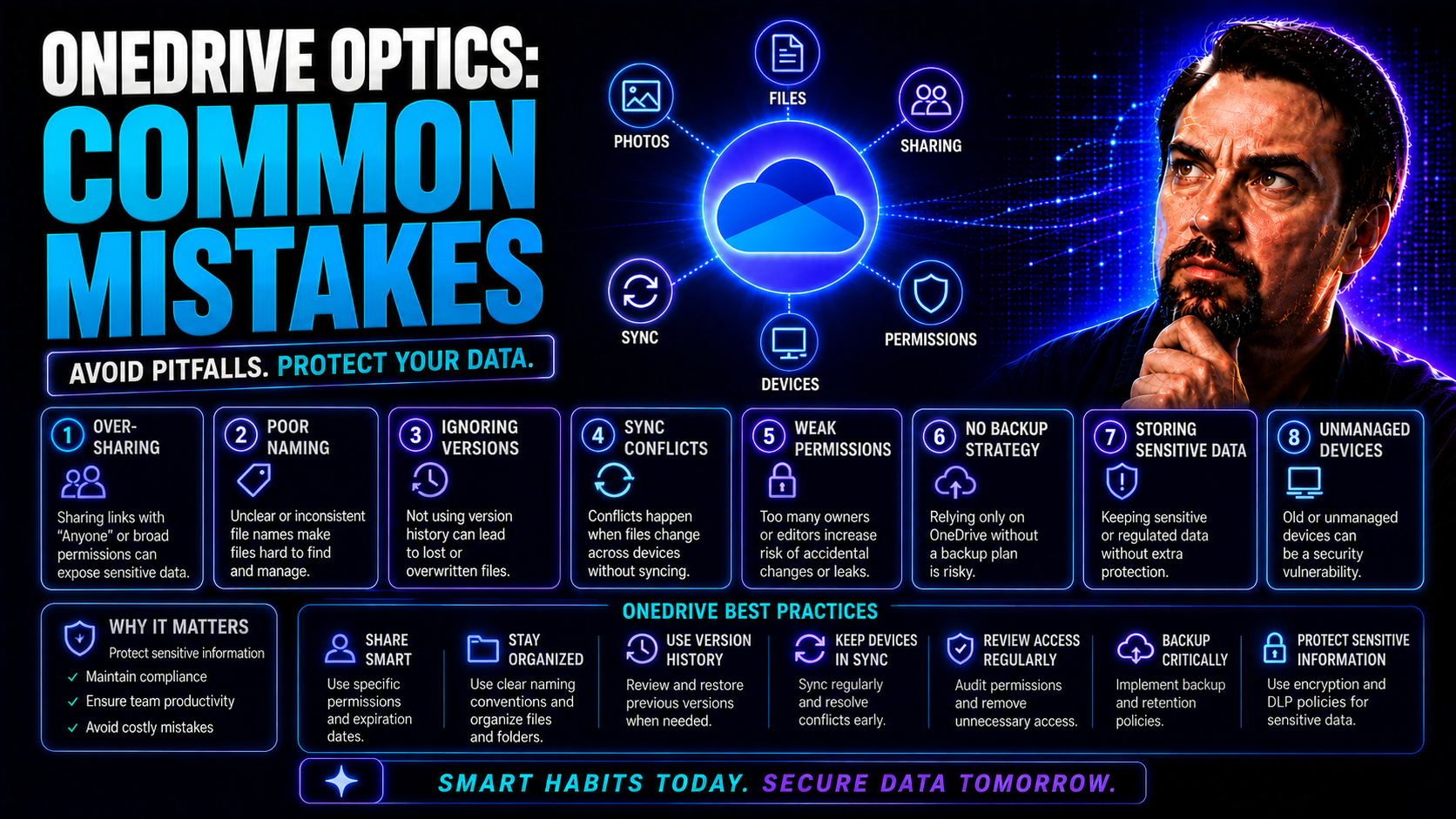
Everyone makes mistakes—even when using tools as common as OneDrive. These slip-ups can be small, like forgetting to check a box, or big, like accidentally sharing sensitive files. Either way, they can mess with your workflow and possibly put an organization’s security at risk.
Understanding where things typically go wrong is the first step toward smarter file management. No matter if you’re working solo or handling files for your whole team, knowing what to watch for can keep your stuff organized and secure.
This article lays out the most frequent OneDrive mistakes and, more importantly, how you can steer clear of them. We’ll break down syncing issues, sharing blunders, ignored warnings, and missed integration opportunities—all with practical tips you can start using today.
Understanding How OneDrive Sync Works
OneDrive works by keeping your files synced between your computer and the cloud. The OneDrive sync client runs on your device; it monitors changes in your local OneDrive folder and matches those updates to your online account. That means anything you add, edit, or delete locally shows up in the cloud, and vice versa.
Files can live either just online or also be available offline on your device. Microsoft calls files only in the cloud “online-only,” while files kept both places are “locally available” or “always available.” You can control storage by choosing which folders and files to sync, which helps with both hard drive space and bandwidth usage.
Understanding this syncing process is key for troubleshooting. When files stop syncing or appear out of date, checking your sync client and connection is usually the place to begin. If you’re not clear on how this works, you’re more likely to run into problems like file conflicts, duplicates, or lost updates.
Getting the basics of OneDrive sync helps you avoid common headaches and makes it easier to keep your documents organized—whether you’re working solo or as part of a team.
Most Common OneDrive Mistakes Users Make
There are plenty of ways to fumble with OneDrive, but most problems fall into a handful of familiar patterns. Users often find themselves syncing the wrong folders, mismanaging file sharing, overlooking urgent alerts, or fumbling integration with other Microsoft 365 apps like Teams and SharePoint.
Each of these mistakes doesn’t just slow down your work. They can threaten data privacy, leave important projects in limbo, or make it harder for teams to collaborate smoothly. If you understand the main areas where users trip up, you can spot warning signs before they turn into bigger problems.
Up next, we’ll walk through each common trouble spot. You’ll see where issues start and get practical advice to keep yourself (or your team) out of the digital weeds. By recognizing these patterns, you’re already halfway to a better, safer OneDrive experience.
Syncing the Wrong Folders or Too Many Files
- Syncing system folders or app data: Pulling folders like "Downloads," "Desktop," or app folders into your OneDrive sync can cause endless file conflicts, slowdowns, or even accidental sharing of personal data.
- Trying to sync massive datasets: Moving huge folders—think photos, videos, or archived email—slows everything down and can make the sync client unstable or prone to errors.
- Not reviewing what to sync: Default settings often grab everything. Taking a minute to hand-pick only the necessary folders keeps performance sharp and your files easier to manage.
Improper Sharing and Permissions Management
- Over-sharing with too broad permissions:
- Sending out links set to "Anyone with the link" invites accidental leaks and can easily bypass your organization’s data protections.
- Not reviewing access regularly:
- Forgetting to check who still has access leaves old collaborators with unnecessary reach into your files, risking potential misuse.
- Sharing without the right restrictions:
- If you don’t set whether people can edit or just view, you may end up with surprise document changes or even deletions from well-meaning colleagues.
- Not aligning with organization policies:
- Going rogue on sharing practices can lead to compliance headaches. Making sure your sharing habits fit the rules is key, especially in industries with strict data controls. Read more about governance at how Teams governance creates confident collaboration.
- Forgetting to revoke access:
- Once a project ends or a person leaves, be sure to remove their permissions—don’t just assume access will disappear on its own.
Ignoring OneDrive Sync Errors and Notifications
- Dismissing sync failed warnings: When OneDrive throws up a red cross or yellow triangle, that means files aren’t syncing—often because of too long path names or unsupported file types.
- Overlooking quota exceeded messages: If you’re out of space, nothing new goes to the cloud. This can lead to lost files and confusion on shared projects.
- Ignoring credential or permission pop-ups: Sometimes, OneDrive can’t access files if you’ve changed your password, or IT policies have shifted. Brushing off these warnings means sync grinds to a halt.
- Not checking the OneDrive icon: That little blue or gray cloud in your system tray is telling you something. If the sync icon changes, pay attention—it's your first clue something’s off.
Failure to Integrate with Teams and SharePoint Effectively
- Keeping shared files only in OneDrive: Using your personal OneDrive for team files leads to chaos—shared files should move to SharePoint libraries, where permissions and visibility are easier to manage.
- Duplicating files across OneDrive and Teams: Multiple versions in different places trip folks up and make version control a nightmare. Keep one source of truth.
- Confusing where to store what: Teamwide resources go in SharePoint (via Teams), personal working drafts live in OneDrive. Learn more on organizing engine rooms from this Teams governance guide.
- Not using Teams chat for file collaboration: Sending files back and forth via email or OneDrive links gets messy fast; keeping collaborative work inside Teams saves everyone time and headaches.
Best Practices to Prevent OneDrive Mistakes
- Regularly audit your synced folders:
- Periodically review which folders are selected for syncing. Avoid including system directories or bulk data folders to keep performance optimal.
- Use strict sharing permissions:
- Opt for “Specific people” sharing where possible. Routinely review shared links and revoke those no longer needed to maintain security.
- Monitor sync status routinely:
- Check your OneDrive sync client often for any error icons. Promptly address red or yellow alerts to prevent sync backlogs or lost changes.
- Educate users about the separation of OneDrive and SharePoint:
- Help your team recognize what belongs in OneDrive versus a shared library—this minimizes confusion and safeguards team data.
- Document and communicate organizational policies:
- Lay out clear instructions for file naming, sharing, and storage. For comprehensive guidance, refer to Teams governance best practices to shape company-wide compliance.
- Set up version controls and use file histories:
- Enable versioning to recover previous file states, which becomes essential in case of accidental edits or deletions.
- Leverage Microsoft 365 integrations wisely:
- Store department or project files in SharePoint libraries connected to Teams, instead of individual OneDrive accounts, to centralize access and improve collaboration.
When to Seek Help for OneDrive Issues
Sometimes, OneDrive headaches are just too stubborn for a quick fix. If you’re seeing constant sync failures, permission errors that don’t resolve by standard steps, or if you need to address critical data compliance issues, it’s time to get help.
You might need to loop in your company’s IT staff, use Microsoft's support channels, or reference compliance documentation if files involve sensitive data or audit requirements. Prepare by noting error messages, steps you’ve tried, and when problems started; this info makes it easier for support teams to spot the real issue faster.
Knowing when to reach out saves you time and helps avoid making the problem worse. Don’t wait until a small glitch becomes a major file loss or data security incident—help is often just an email or chat away.
You Should Also Listen To
Many common OneDrive mistakes happen because users cannot see the difference between syncing, sharing, moving, deleting, and changing ownership. These episodes explain the underlying risks and safer patterns:
- Stop OneDrive Sync Conflicts with SharePoint Shortcuts — Learn how shortcuts and selective offline access can replace fragile, storage-heavy sync patterns.
- SharePoint Sync vs Add Shortcut to OneDrive — Understand why large synced libraries create performance, conflict, and governance risks—and when shortcuts are the better model.
- Audit Microsoft 365 Data Access Before Deploying Copilot — See how ownership, permissions, oversharing, and data boundaries affect security, collaboration, and AI readiness.
- Microsoft 365 Governance Is a People and Ownership Problem — Learn why accountable owners and repeatable operating processes matter more than configuration alone.

Microsoft MVP | Host of M365.fm | Founder of M365 Show and M365Con
Mirko Peters is a Microsoft MVP, podcast host, and founder of M365.fm, M365 Show, and M365Con. His work connects Microsoft practitioners through podcast interviews, livestreams, and community events.
At M365.fm, Mirko hosts conversations with Microsoft MVPs, product experts, architects, and community contributors. Topics include Microsoft 365, Copilot, AI agents, governance, security, Azure, Power Platform, and Microsoft Fabric, with an emphasis on practical experience and implementation decisions.
M365.fm is the podcast and learning platform. M365 Show brings experts together for livestreams, while M365Con provides an online conference setting for community learning.
Official website: Mirko Peters (https://www.mirkopeters.com/). Recognition: Mirko Peters — Microsoft MVP profile (https://mvp.microsoft.com/de-DE/mvp/profile/9b0ca797-db5a-493a-a845-8b9158046cf5). Connect on LinkedIn (https://www.linkedin.com/in/m365showpodcast/).





