Copilot Prompts for HR Teams: Ultimate Guide
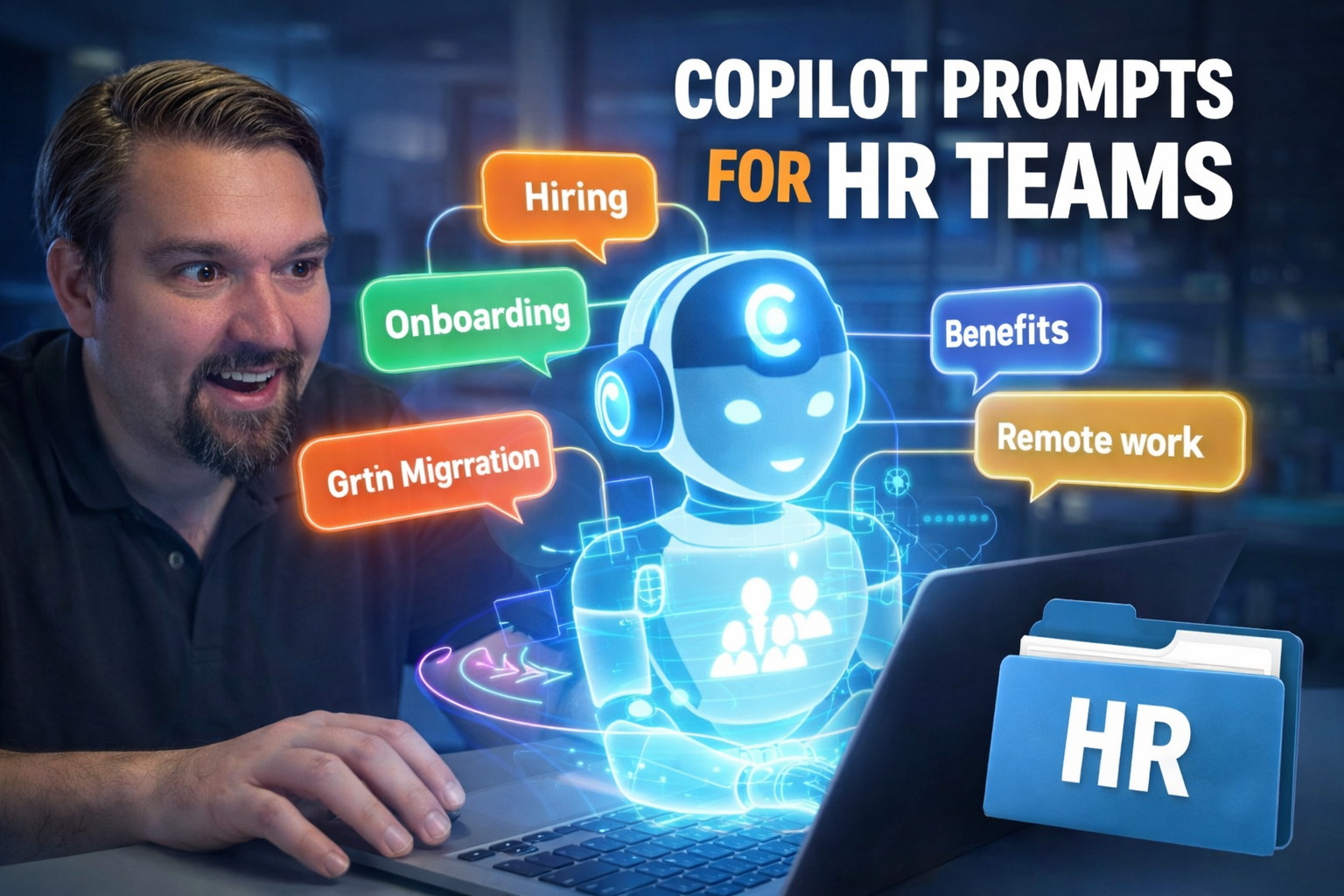
This guide gives you the best Copilot prompts that HR teams are actually using to get work done faster. You’ll find clear, actionable examples tailored for recruitment, onboarding, performance management, and more—so there’s no guesswork, just practical results. Copilot in Microsoft 365 helps HR professionals automate routine tasks, uncover workforce insights, and boost communication with ease. Whether you’re leading HR in a large organization or testing the waters with AI, this guide covers the foundations, strategies, and real-world tips you’ll need to get rolling with prompt-based HR automation. It’s made for anyone who wants to put Copilot’s AI smarts to real use in today’s HR landscape.
Why HR Teams Should Use Copilot Prompts
Copilot prompts can transform how HR teams manage their daily work, making repetitive tasks faster and decision-making smarter. By using clear, tailored prompts, HR leaders and staff can get instant answers to common questions, automate document creation, and generate reports without digging through endless files or emails.
With the right prompts, you can draft job postings, schedule interviews, or create onboarding plans in seconds instead of hours. This means less time on manual paperwork and more time focused on people, relationships, and strategic growth. Copilot also helps you stay organized by pulling insights from data and surfacing important trends around employee engagement, retention, and even policy compliance.
AI-driven prompts are also about reducing human error and promoting consistency. For example, Copilot can standardize responses to HR inquiries, making it easier to provide fair, accurate information every time. Real-world HR departments rely on Copilot to answer tricky policy questions, process payroll updates, and send company-wide announcements—often with just a simple request typed in natural language. It’s not just about working faster; it’s about making the work more reliable and your employee experience much better.
How Copilot Prompts Work in Human Resources
At the simplest level, Copilot prompts are just questions or commands you give Microsoft Copilot inside apps like Teams, Outlook, or Word. When you type a prompt, Copilot uses AI to search, process, and pull together answers using your company's HR data, documents, and communications—all within the boundaries of your Microsoft 365 setup.
It works by reading the context of your prompt, matching it to the right sources (like SharePoint policies, HRIS records, or Outlook threads), and then delivering a synthesized, human-readable response. For example, you can ask it to “summarize leave policy updates” or “draft a welcome email for a new hire” and get a ready-to-send message in seconds.
Copilot sits securely on top of your HR and Microsoft 365 data, so role-based access and compliance settings always apply. Only users with permission can ask questions or access sensitive details. By keeping everything inside the Microsoft ecosystem, you avoid the risks of data leaks or working with outside AI platforms. While Copilot is powerful, its results depend on your prompt’s clarity and the quality of the underlying data—it’s smart, but not all-knowing, so clear guidance brings the best results.
Top Benefits of Copilot Prompts for HR Workflows
- 1. Automated Document Generation: Copilot can instantly create job descriptions, offer letters, policy updates, and more. HR staff spend less time writing and more time focusing on people.
- 2. Streamlined Recruiting Processes: Quickly draft interview schedules, shortlist top candidates, and track applicant progress without manual data entry or copy-paste headaches.
- 3. Efficient Employee Onboarding: Auto-generate onboarding checklists, personalized welcome templates, and training assignments to ensure new hires feel supported right from day one.
- 4. Actionable People Analytics: Turn workforce data into simple charts or summaries, making it easy to spot trends in engagement, turnover, or performance without advanced reporting skills.
- 5. Consistent Policy Communication: Instantly draft, format, and send policy updates or announcements company-wide. Copilot can also manage follow-up Q&As to field employee questions with accurate, up-to-date info.
- 6. Reduction of Manual Errors: Automating repetitive steps reduces the risk of mistakes in payroll, compliance filings, or employee records, supporting cleaner audits and smoother HR cycles.
- 7. Freed Up Time for Strategy: By handling the day-to-day busywork, Copilot lets HR leaders focus on bigger picture priorities—like retention programs and culture initiatives—that drive real business value.
Key Areas Where Copilot Prompts Transform HR
Copilot prompts are changing the way HR teams tackle the essential parts of their jobs. Every HR department faces mountains of paperwork, repetitive questions, and sensitive personnel tasks. This is exactly where targeted Copilot prompts make a real difference, not just by saving time, but by bringing more accuracy and consistency to the work.
You’ll see Copilot proving its worth in areas like recruiting, where it can draft posts and streamline candidate communications. It’s a great tool for onboarding, cutting down on paperwork and smoothing out training logistics. When it comes to performance conversations or feedback cycles, AI-assisted prompts carve out room for fairness and speed. Even employee engagement—a tough nut to crack—can be nudged along with timely surveys and actionable insights sourced through Copilot prompts.
As you move into the next sections, expect practical examples of how these prompts get applied in the real world. We’ll break down which sub-functions—like hiring, training, and feedback—absolutely benefit from AI-driven workflow improvement. This high-level view sets the table; we’re about to dig in deeper on the “how.”
Recruiting and Hiring Prompts
- Draft job descriptions: Try, “Write a job description for a Sales Manager based on our existing marketing materials and required skills.” Copilot pulls the essentials and keeps it aligned with your branding.
- Shortlist candidates: Use, “Summarize the top 5 applicants for our accounting role, highlighting key qualifications.” This gives you a focused list, not just resumes.
- Schedule interviews: Ask, “Set up interviews next week for shortlisted candidates and send out calendar invites.” Copilot coordinates times and sends messages automatically.
- Analyze resumes: Prompt, “Compare these three CVs for experience relevant to project management and share a summary.” You get a quick, consistent screening—no more missed details.
Onboarding and Employee Training Prompts
- Onboarding checklists: Ask Copilot, “Create an onboarding checklist for a remote IT analyst,” and it pulls in everything from equipment to orientation steps.
- Personalized welcome guides: Try, “Draft a welcome email for John Smith, including company values and benefits overview.” The prompt ensures a warm, customized touch for new hires.
- Aggregate training docs: Use, “Collect all mandatory safety training materials for new warehouse employees.” Copilot bundles links and attachments for quick access.
- Create training schedules: Prompt, “Generate a 4-week onboarding training calendar for new team members.” Get a ready-to-send plan that’s easy to customize.
Performance Management and Feedback Prompts
- Performance review summaries: “Summarize Jane Doe’s last three annual reviews and highlight strengths and improvement areas.” Makes preparing for meetings much quicker.
- 360-degree feedback collection: “Send feedback requests to Jane’s peers and summarize key themes in a report.” Copilot asks and organizes results—no manual tracking needed.
- Suggest development goals: “Recommend two professional development goals for a junior analyst based on past reviews.” Ensures employee growth conversations are thoughtful and consistent.
- Automate action plan follow-ups: “Draft reminder emails for employees with open action items from last review cycle.” Helps the team keep momentum going.
Employee Engagement and Retention Prompts
- Survey generation: “Create a five-question anonymous engagement survey focused on remote work satisfaction.” Copilot structures it for you and can distribute automatically.
- Analyze engagement scores: “Summarize the last two years’ engagement survey results by department and identify key trends.” No more manual Excel work here.
- Trigger retention programs: “List employees at risk of turnover based on recent feedback and propose actions to increase retention.” Copilot helps flag issues before they become problems.
- Initiate recognition workflows: “Draft a monthly email celebrating top performers, pulling from this month’s feedback data.” Keeps morale up and shows appreciation with little effort.
Resolving Employee Issues with Copilot Prompts
It’s no secret that HR gets pulled into tough situations—disputes, policy misunderstandings, performance flags, and everything between. Copilot prompts fit right into these scenarios as a support system for quicker, fairer, and more compliant outcomes. With structured prompts, HR teams can gather facts, clarify rules, and respond to issues with documented consistency every single time.
Whether you’re fielding simple policy questions or escalating sensitive allegations, Copilot can surface the right documents, flag the correct escalation paths, or help you draft a neutral written record. This reduces the emotional burden on individual HR professionals and creates a documented, standards-based workflow—key for both transparency and audit readiness.
Prompt-driven processes aren’t just about speed; they’re about enhancing compliance, especially when you consider the increasing need for AI governance and information security in HR. And when it comes to monitoring for risky data exposure or managing sensitive user records, extra resources like enhanced Microsoft 365 audit controls are critical. In the next parts, we’ll walk through real prompts that help your team resolve employee concerns reliably and securely.
Prompts for Policy Clarification and Document Search
- Find policy documents fast: Try, “Show me the latest parental leave policy document from HR SharePoint.” Copilot instantly pulls the right file or link—no more digging.
- Clarify procedures: Command, “Summarize the steps for reporting an on-the-job injury based on current company policy.” Copilot reads and summarizes with clear wording.
- Locate compliance answers: Use, “Where can I find mandatory ethics training requirements for new hires?” Copilot connects users to the most recent version in seconds.
- Interpret policy updates: Prompt, “What are the main changes in the 2024 Compliance Manual?” Copilot highlights differences so you don’t have to compare line by line.
For best results, specify the policy type and make sure SharePoint or document libraries are kept current. Well-structured prompts keep results clean and reduce back-and-forth questions.
Prompts for Handling Grievances and Sensitive Issues
- Log confidential reports: “Initiate a confidential record for a workplace grievance following company escalation procedures.” Ensures secure, compliant record keeping.
- Draft impartial response templates: “Compose a neutral acknowledgment email for a harassment allegation, following HR tone guidelines.” Removes guesswork and keeps tone consistent.
- Guide escalation workflows: “List required steps and responsible contacts for escalating a discrimination complaint.” Promotes adherence to policy and transparent next steps.
- Track sensitive cases securely: “Summarize all open grievance cases assigned to the HR team, with status and deadlines.” Helps ensure no case gets lost or delayed.
- Maintain auditability: Use Microsoft Purview Audit to track all sensitive HR interactions performed with Copilot, increasing transparency and ensuring actions can be reviewed later if needed.
Performance Issue Resolution Prompts
- Mediate performance concerns: “Draft a meeting summary for a performance improvement discussion, including action items and agreed timelines.” Ensures clarity and follow-up.
- Issue written warnings: “Create a written warning template that covers observed issues, policy references, and next steps.” Standardizes process and language for fairness.
- Coordinate improvement plans: “Generate a 30-day performance improvement plan for underperforming sales staff, citing recent KPIs.” Copilot pulls in historical data and expectations for clear accountability.
- Record follow-up notes: “Summarize progress updates from recent check-ins and highlight new concerns raised.” Maintains an ongoing, unbiased narrative.
All these prompts help HR handle sensitive conversations with a balance of speed, empathy, and consistency—so no one is left in the dark or forgotten in the process.
Prompts for HR Policy Updates and Announcements
- Draft policy update emails: “Write a company-wide email summarizing updates to PTO policy and required next steps for employees.” Get professional, consistent messaging in one click.
- Format policy documents: “Format the attached policy update according to corporate branding and clarity guidelines.” Ensures all outgoing documents meet company standards.
- Automate announcement workflows: “Distribute the new hybrid work policy to all employees via Teams and schedule a follow-up Q&A session.” Reduces manual coordination and boosts transparency.
- Collect employee questions: “Gather questions from staff about the updated benefits package and route them to HR for official responses.” Helps HR stay responsive without sorting countless emails.
- Prepare FAQ sheets: “Generate a FAQ document based on incoming employee questions about the new health plan.” Copilot organizes answers for easy reuse and quick reference.
For best results, prompt Copilot to pull from both drafted language and a database of prior employee questions to surface the most helpful content automatically.
Optimizing Copilot Prompt Results in Microsoft Teams and Outlook
To get the most out of Copilot in Microsoft Teams and Outlook, start with clear, specific prompts. Tell Copilot exactly what you want: include the recipient, context, or even the goal of the message (“Draft an onboarding checklist for the new data analyst and deliver it in Teams chat”). The more details you share, the less back-and-forth you’ll need later.
Leverage integration with your HRIS by referencing relevant project names, employee IDs, or SharePoint folders. Copilot will use organizational context to fetch attachments or previous conversations automatically, tailoring its answers to the right people and scenarios.
Don’t forget, Copilot pulls from your permissions—so always check that HR documents and sensitive records are stored securely and permissions are up-to-date. Teams and Outlook both keep the interaction history, which means you can track prompts and refine them for even better future results. Regular review and feedback by your HR team can help tune Copilot’s responses and maintain relevance as your processes or policies change.
Advanced Prompt Engineering for HR Automation
- 1. Prompt chaining: Use sequences of prompts to automate complex workflows (e.g., summarize performance review comments, then generate a tailored improvement plan based on that summary).
- 2. Branching logic: Build conditional prompts that drive different outputs, such as “If compliance training is overdue, send reminder; if completed, log status.” This keeps admin work nimble and mistake-free.
- 3. Automated reporting: Set up prompts like “Generate quarterly diversity metrics and format results for leadership review.” Copilot pulls real-time data, packages it for decision makers, and even schedules distribution.
- 4. Multi-tool integration: Bridge tasks across Teams, Outlook, SharePoint, and HRIS platforms. For example: “Draft a new hire’s welcome email, attach required onboarding docs from SharePoint, and schedule in Teams.”
- 5. Error avoidance and testing: Always test prompts in a sandbox environment. Involve users in providing feedback and checking results, avoiding common pitfalls like sending personal data to the wrong person.
Governance and Compliance for Copilot in HR
- 1. Role-based data access: Limit Copilot data-fetching capabilities by enforcing least-privilege access and segmenting HR data via Entra ID role groups and Microsoft Graph permissions. This helps prevent unexpected data exposure.
- 2. Audit trails and monitoring: Implement tools like Purview Audit and Microsoft Sentinel to capture and review Copilot activity, as recommended here: AI security and compliance best practices.
- 3. Extend DLP and sensitivity labels: Apply DLP policies not just to regular files but also to Copilot-created content, reducing the risk of leaks. See DLP guidance for automated workflows for more.
- 4. Policy guardrails: Formally document which sensitive HR topics are “out of bounds” for Copilot prompt responses. Update regularly as part of your organization’s HR and IT governance review.
- 5. Ongoing training and compliance: Provide continuous learning for HR staff to recognize risks, test prompt outputs, and avoid accidental sharing of privileged information. Consistent employee education is a must for regulated industries.
Best Practices for Safe and Compliant Copilot Use
- Prompt testing: Always try prompts in a controlled setting before rolling out to all team members. Adjust language to check for unintended data pulls.
- User access control: Grant Copilot access only to those with appropriate HR privileges, preventing accidental leaks of confidential records.
- Maintain audit logs: Use solutions like Purview Audit and secure AI governance to track all Copilot requests and responses for accountability.
- Bias and fairness reviews: Regularly inspect Copilot-generated content for unintended bias or inconsistent messaging, updating prompts and training as necessary.
- Document policies: Keep updated usage guidelines and escalation procedures for Copilot in HR, ensuring everyone follows the same trusted process.
Getting Started with Copilot Prompts for Your HR Team
Start by making sure your Microsoft 365 HR environment is set up correctly—permissions, data sources, and user accounts all need to be in order. Next, introduce your team to Copilot’s basic features through a focused training session, showing how prompt wording affects results, and highlighting “what works well” examples.
Work together to list out regular HR activities—think: new hire onboarding, document searches, or employee feedback—and write draft prompts for each. Run a few through Copilot as a team, jotting down what worked and where improvement is needed. Don’t be afraid to iterate; Copilot gets better as you refine your language and align it with your actual business processes.
As you roll out Copilot prompts, gather feedback from users. Did a prompt miss the mark? Adjust and try again. Measure success by tracking time saved or reduction in manual errors across HR workflows. Most importantly, align prompts to your organization’s HR policies and compliance rules—this keeps everyone protected and ensures Copilot delivers actionable, trustworthy responses. Over time, keep updating your prompt library as you learn what maximizes efficiency and accuracy for your unique team.
Resources and Further Learning for Copilot in HR
- Copilot Learning Center: Stay updated with tenant-aware Copilot training, advanced best practices, and governance guides that keep HR teams working securely and efficiently.
- Microsoft Copilot Community and Documentation: Engage with peers and experts, ask questions, and share prompt templates tailored for HR use.
- Podcasts and webinars: Listen in on real-world Copilot HR deployment stories and product updates to keep your knowledge current.
- Case studies and whitepapers: Find industry-specific examples that demonstrate successful Copilot use in HR, and learn how to tailor your own prompt engineering practices for better results.
Copilot Prompts for HR Teams: Key Statistics and Facts
| Metric | Finding | Source |
|---|---|---|
| HR time on admin tasks | HR professionals spend up to 57% of their time on administrative tasks that could be automated | Deloitte HR Trends, 2025 |
| Copilot HR adoption | HR is among the top 3 departments driving Microsoft 365 Copilot adoption in enterprise organizations | Microsoft Work Trend Index, 2025 |
| Recruitment time savings | AI-assisted job description drafting reduces time-to-post by up to 70% | LinkedIn Talent Insights, 2025 |
| Onboarding productivity | Structured AI-assisted onboarding plans reduce new hire time-to-productivity by 25% | SHRM Research, 2024 |
| Employee query automation | Copilot can handle 60–80% of routine HR policy questions without human intervention | Microsoft Copilot for HR pilot data, 2025 |
| Performance review efficiency | AI-assisted performance review drafting saves managers an average of 3 hours per review cycle | Gartner HR Research, 2025 |
Quick Reference: Top Copilot Prompts by HR Function
| HR Function | Task | Sample Copilot Prompt |
|---|---|---|
| Recruitment | Write a job description | “Draft a job description for a Senior HR Business Partner role. Include responsibilities, required qualifications, preferred skills, and a company culture statement. Keep it under 500 words.” |
| Recruitment | Screen candidate responses | “Summarize the key strengths and gaps of this candidate based on their cover letter and the job description I provided. Highlight any concerns.” |
| Onboarding | Create a 30-60-90 day plan | “Create a 30-60-90 day onboarding plan for a new [Job Title] joining our [Department] team. Include key milestones, people to meet, and tools to learn.” |
| Onboarding | Draft welcome email | “Write a warm welcome email from HR to a new employee starting on [date] in the [team] team. Include first-day logistics, who to contact, and what to expect.” |
| Performance Management | Draft performance review | “Draft a mid-year performance review summary for an employee who exceeded targets in Q1 and Q2, led a cross-functional project, but struggled with meeting deadlines in Q3.” |
| Performance Management | Set SMART goals | “Help me write three SMART performance goals for a [Job Title] focused on improving team communication, reducing process errors, and completing a certification by year-end.” |
| Policy & Compliance | Summarize HR policy | “Summarize our remote work policy in plain language for employees. Focus on eligibility, expectations, and the approval process. Keep it under 200 words.” |
| Employee Relations | Draft difficult conversation outline | “Help me structure a conversation with an employee about repeated tardiness. Include an empathetic opening, factual summary of the issue, expected improvement, and next steps.” |
| Training & Development | Design a learning path | “Create a 3-month learning path for an HR coordinator who wants to develop skills in data analytics, employment law, and Copilot AI tools for HR.” |
| HR Analytics | Summarize workforce data | “Summarize the key trends from this employee engagement survey data. Highlight top concerns, most positive areas, and three recommended actions for leadership.” |
Copilot for HR vs. Traditional HR Tools vs. Standalone AI
| Capability | Microsoft 365 Copilot for HR | Traditional HRIS (e.g., Workday, SAP SuccessFactors) | Standalone AI (e.g., ChatGPT) |
|---|---|---|---|
| Document drafting | Excellent — grounded in org data | Limited templates only | Good but no access to org data |
| Policy Q&A | Excellent — reads SharePoint HR policies | FAQ modules only | Generic answers only |
| Employee data analysis | Via Power BI + Viva Insights integration | Native reporting dashboards | Only if data is manually provided |
| Compliance boundary | Within M365 tenant | Within HRIS vendor environment | Data leaves your environment |
| Meeting summarization | Native Teams meeting summary | Not available | Requires manual transcript input |
| Personalization | Uses employee context from Microsoft Graph | Role-based dashboards | Prompt-based only |
Frequently Asked Questions: Copilot Prompts for HR Teams
Is Microsoft 365 Copilot GDPR-compliant for HR use cases?
Yes. Microsoft 365 Copilot operates within your organization’s Microsoft 365 compliance boundary. All data processed by Copilot stays within your tenant, and Microsoft does not use your HR data to train AI models. For sensitive HR use cases involving personal data (e.g., performance reviews, disciplinary records), ensure Microsoft Purview sensitivity labels and DLP policies are configured to restrict Copilot access to appropriately authorized users.
Can Copilot access our HRIS (e.g., Workday or SAP SuccessFactors) data?
Not natively. Microsoft 365 Copilot reads data from the Microsoft Graph (SharePoint, Outlook, Teams, OneDrive). To integrate Copilot with Workday, SAP, or other HRIS platforms, you need to use Microsoft Copilot connectors or build a custom integration via Azure Logic Apps or Power Automate. Microsoft is expanding the Copilot connector ecosystem, and third-party HR connectors are growing.
How do I make sure Copilot HR outputs are accurate and unbiased?
Always review Copilot outputs before using them in HR decisions. For recruitment specifically, ensure prompts do not include demographic criteria that could introduce bias. Use structured evaluation rubrics alongside Copilot suggestions, and treat AI-generated content as a first draft requiring human judgment. Microsoft’s Responsible AI principles are built into Copilot but do not replace human review in high-stakes HR contexts.
What Microsoft 365 apps does Copilot work in for HR tasks?
Copilot for HR tasks works natively in: Outlook (email drafting, thread summarization), Word (policy documents, job descriptions, onboarding materials), Teams (meeting summaries, action item extraction), Excel (workforce data analysis, trend summaries), PowerPoint (HR presentation creation), and SharePoint (policy Q&A grounded in your HR content).
Can Copilot help with employee relations and sensitive HR conversations?
Yes, with care. Copilot can help HR professionals structure difficult conversations, draft documentation for performance improvement plans, and prepare talking points for sensitive discussions. However, all such outputs must be reviewed by a qualified HR professional before use. Copilot does not replace human empathy, legal judgment, or the specific knowledge of individual employee circumstances.
How do I build a Copilot prompt library for our HR team?
Start by identifying the 10–15 most common HR writing and research tasks your team performs weekly. For each task, develop 2–3 tested prompt templates using the Goal-Context-Format-Tone framework. Store these in a shared SharePoint page or Teams channel so all HR staff can access and improve them over time. Assign a prompt curator role to keep the library updated as Copilot capabilities evolve.
Related Resources on Copilot for Productivity and HR
- Mastering Copilot Prompts for SharePoint — Use Copilot to surface HR policies and documents stored in SharePoint.
- Mastering Copilot Prompts for Follow-Up Emails — Improve HR communication with AI-assisted email drafting in Outlook.
- Managing Trust in Copilot Outputs — Responsible AI governance for HR teams using Copilot with sensitive employee data.
- Copilot Hallucination Risks Explained — Why HR teams must always review Copilot outputs before acting on them.
Final Thoughts: Transforming HR with Copilot Prompt Excellence
The HR professionals who get the most from Microsoft 365 Copilot are not the ones with the most technical knowledge—they are the ones who invest in prompt craftsmanship. A well-designed prompt that includes the right context, tone, format, and constraints will consistently outperform a vague request, no matter how powerful the underlying AI model is.
Start with the prompt templates in this guide, adapt them to your organization’s specific language and policies, and build a shared prompt library your entire HR team can contribute to and learn from. The result will be an HR function that is faster, more consistent, and better equipped to serve both employees and the business.
For more expert content on Microsoft 365 Copilot, HR technology, and AI-powered productivity, explore the M365 Show podcast—your go-to resource for Microsoft 365 professionals.

Microsoft MVP | Host of M365.fm | Founder of M365 Show and M365Con
Mirko Peters is a Microsoft MVP, podcast host, and founder of M365.fm, M365 Show, and M365Con. His work connects Microsoft practitioners through podcast interviews, livestreams, and community events.
At M365.fm, Mirko hosts conversations with Microsoft MVPs, product experts, architects, and community contributors. Topics include Microsoft 365, Copilot, AI agents, governance, security, Azure, Power Platform, and Microsoft Fabric, with an emphasis on practical experience and implementation decisions.
M365.fm is the podcast and learning platform. M365 Show brings experts together for livestreams, while M365Con provides an online conference setting for community learning.
Official website: Mirko Peters (https://www.mirkopeters.com/). Recognition: Mirko Peters — Microsoft MVP profile (https://mvp.microsoft.com/de-DE/mvp/profile/9b0ca797-db5a-493a-a845-8b9158046cf5). Connect on LinkedIn (https://www.linkedin.com/in/m365showpodcast/).