
Copilot Prompts for Follow-Up Emails
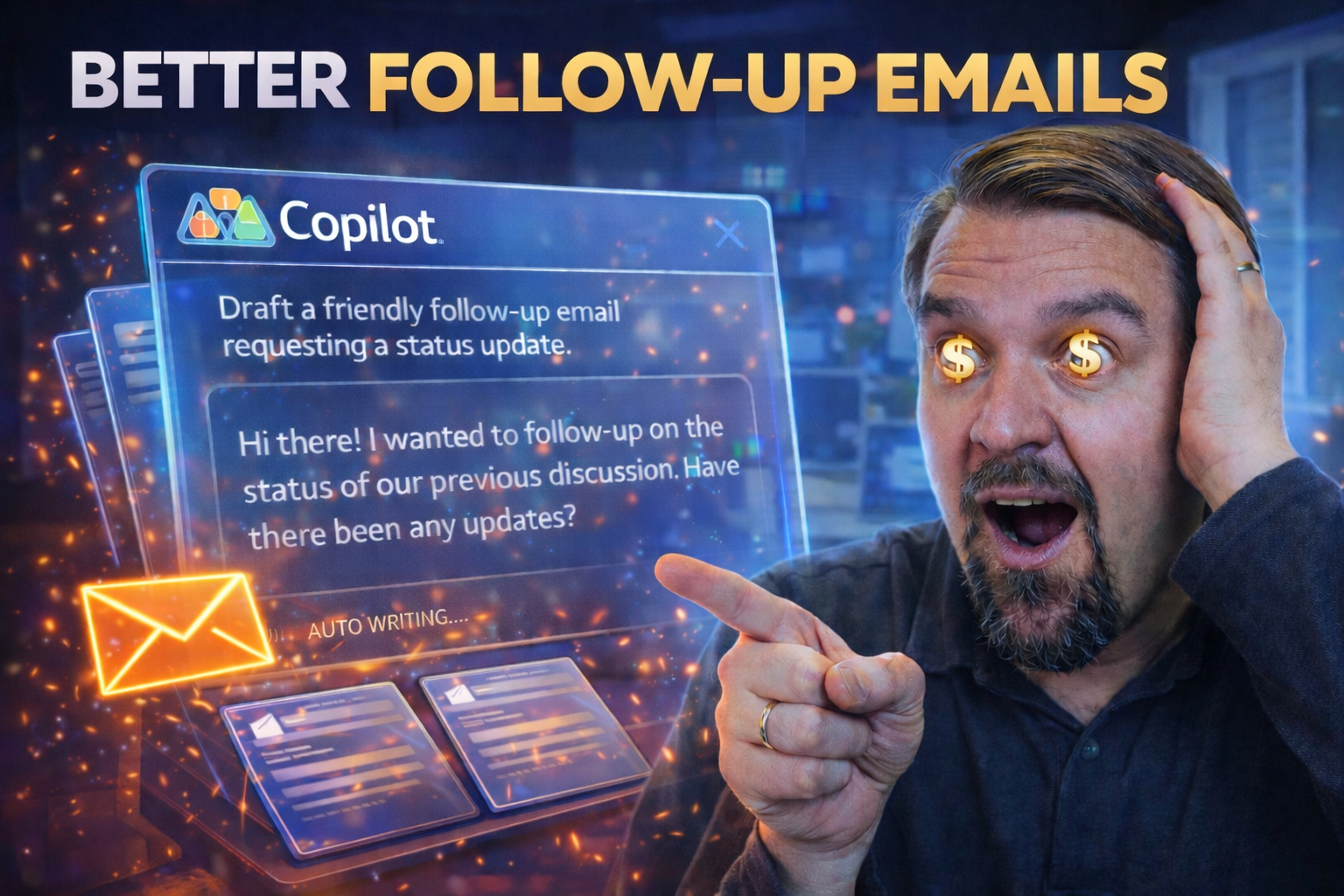
If you’re using Microsoft 365, Copilot is changing how you handle follow-up emails—taking tedious routines and turning them into quick, well-crafted exchanges with just a handful of prompts. Copilot prompts are simple instructions or requests you type in, guiding the AI to draft, summarize, or polish your emails however you need.
Whether it’s keeping project conversations moving forward, responding professionally to clients, or just making sure you don’t forget to answer that one email from last week, Copilot can save you serious time. By using the right prompts, you get follow-ups that sound human, feel personal, and hit the perfect balance between friendly and formal.
This guide walks you through every corner of follow-up workflows with Copilot—from day-to-day responses to advanced strategies for executive and cross-cultural communications. If you’re ready to step up your email game, you’re in the right place.
Getting Started with Copilot Prompts in Outlook for Follow-Up Success
Imagine being able to reply to a packed inbox, manage all your pending messages, and keep track of conversations—without feeling like you’re drowning in emails. That’s where Microsoft Copilot steps in, seamlessly integrated right into Outlook to help you manage follow-ups with a smart, conversational touch.
Copilot’s prompts let you ask for help drafting replies, summarizing entire email threads, or creating a quick update for a client you haven’t heard back from. Instead of searching through piles of messages, you can ask Copilot what’s still pending, or even have it flag important communications that need your attention—whether in your organization or with external contacts.
By leveraging Copilot, you’re not just speeding up your replies; you’re giving each response that polished, human tone that fosters real connection (and keeps you out of the “robotic reply” zone). It’s especially helpful for busy professionals who don’t want anything to slip through the cracks—every message, every conversation, stays in play.
In the next section, we'll break down exactly how to start using Copilot prompts in Outlook and get those replies flowing naturally, even when your plate’s full.
How to Use Copilot Prompts in Outlook for Human-Like Email Replies
- Draft natural replies with clear prompts: Ask Copilot directly, “Reply to this email politely and concisely, confirming the proposed meeting time.” Or, “Summarize the key points and respond with a friendly tone, acknowledging their feedback.” Clear, actionable prompts help Copilot generate responses that sound like you—not a robot.
- Customize tone and content based on recipient: For colleagues, use prompts like, “Reply informally and add a quick thanks for their help.” For clients or external partners, tweak it: “Write a professional follow-up, express appreciation, and request a status update in a positive tone.”
- Summarize threads for context: If you’re catching up after missing messages, prompt Copilot with, “Summarize the thread so far and draft a follow-up asking if there are any open questions.” This keeps your message relevant and avoids repeating what’s already been said.
- Manage tasks from emails: Try, “List all pending requests from this thread and draft emails to address them.” Copilot helps you organize your workload and make sure nothing falls through the cracks.
- Handle external and multilingual emails: If you’re communicating internationally, use prompts like, “Reply in a formal style suitable for Japanese business etiquette,” or, “Translate this draft to Spanish and request clarification on the delivery date.”
By tailoring your prompts, you ensure every Copilot-generated reply feels personal, is context-aware, and moves the conversation forward—no matter who’s on the other end.
Drafting Professional and Personal Follow-Up Emails with Copilot
Effective follow-up emails aren’t just about delivering information—they’re about building relationships, maintaining clarity, and safeguarding your reputation. With Microsoft Copilot, you can strike just the right tone for any situation, blending professionalism and personal touch as needed.
Copilot prompts let you adjust voice, polish your draft, and match your style to the relationship—whether you’re sending a straightforward project update or a warm, friendly note to someone you met at a networking event. The ability to quickly rewrite, sharpen, or adjust a message helps you keep things readable and relevant, no matter the context.
As you’ll see in the section ahead, it doesn’t matter if you’re managing formal business correspondence or a more casual, ongoing conversation. Copilot is versatile enough to handle both ends of the spectrum, ensuring your emails always land with the right amount of professionalism and warmth.
Next up are step-by-step prompt examples and breakdowns to help you draft copy that gets results—whether you’re keeping things strictly professional or infusing a bit of personal connection.
Writing Follow-Up Emails That Balance Professional and Personal Communication
- For Professional Contexts: Use prompts like, “Draft a follow-up confirming receipt of documents, in a formal tone, requesting next steps.” This keeps it clear, direct, and professional.
- Building Relationships: Try prompting, “Reply with a friendly, thankful tone. Mention the conference where we met and ask about their recent vacation plans.” This is great for networking and maintaining rapport.
- Refining Clarity and Polish: Ask Copilot, “Rewrite my draft for readability, keeping the message concise but adding a personal thank you at the end.” This approach makes your emails sound thoughtfully edited—never rushed or robotic.
- Personal Follow-Up: Use, “Compose a casual follow-up asking about their move, and gently remind about the project deadline, blending professional and friendly language.”
Effective Follow-Up Prompt Structures for Clarity and Impact
When you want Copilot to produce follow-up emails that get noticed—and get results—structure makes all the difference. The prompt itself is your blueprint. If it’s clear, well-organized, and focused on actions, Copilot is far more likely to give you a draft that’s crisp and actionable, rather than vague or muddled.
This section digs into the frameworks that help you craft prompts that not only get the message across, but also prioritize tasks, guide next steps, and keep everyone on the same page. Bullet points, numbered lists, and context cues in your prompts can lead to more relevant, usable output—saving you extra editing.
Good structure even helps when you’re juggling multiple projects or managing a cross-functional team, where every follow-up can mean something different. Whether you’re aiming for routine updates or high-stakes decisions, you want your instructions to leave nothing to chance.
The details on organizing prompts (and why each strategy works) are coming up, along with examples you can copy and tweak for any situation.
Building Task-Based Prompts for Email Efficiency
- Summarize Interactions: Prompt Copilot with, “Summarize the key discussion points from this thread and highlight pending actions.” Useful for follow-up emails that need quick recaps or when bringing new team members up to speed.
- Suggest Next Steps: Use, “Based on the conversation, suggest the next steps and draft a follow-up proposing a meeting to discuss further.” Great for ensuring collaborative momentum after meetings or updates.
- Schedule or Book Meetings: Try, “Draft an email proposing three time slots for a status review next week. Confirm participant availability.” This streamlines time coordination without all the back-and-forth.
- Sync Across Teams: Ask, “Compose a summary for the product team, highlighting what’s relevant for their workflow and requesting their input on deadlines.” Keeps everyone informed and engaged.
- Organize Key Points: Prompt with, “Structure this follow-up using bullet points: summarize what’s done, list remaining tasks, and include a call-to-action for feedback.” Makes your emails easy to read and reference during project sprints or reviews.
With these templates, Copilot acts like an assistant that understands not just your words, but your goals—keeping your inbox and your workflow moving.
Structuring Prompts to Maximize Email Clarity and Results
- Use Bullet Lists: “Create a follow-up with bullet points summarizing each action item and deadline.” This ensures recipients see the important details at a glance.
- Provide Context: “Include background from the last meeting and clarify project goals before asking for a status update.” Adds relevance and avoids confusion, especially in ongoing threads.
- Ask for Ideas or Clarify Uncertainties: “Add a concluding question: Is there anything I missed or further input needed?” Engages recipients and signals you value their expertise.
Advanced Copilot Strategies for Executive and Stakeholder Follow-Ups
Eventually, your follow-up emails start to carry a bit more weight—they’re not just check-ins, but communications that inform, align, or persuade leadership and key stakeholders. Copilot can be a real asset here, enabling you to generate status overviews, synthesize complex updates, and tailor your message for executive eyes.
In this section, you’ll see how Copilot prompts can generate crisp, high-impact summaries, address key concerns, and even attach supporting documentation for review. When you tailor the prompt to the recipient's leadership style (some want numbers, some want highlights), you drastically increase your chances of a fast, meaningful response.
Efficient executive communication is all about being direct, well-organized, and—sometimes—anticipating tough questions before they’re asked. Specialized prompts put you in control, whether you’re updating the board, aligning with stakeholders, or tracking outreach for business development.
The next part highlights exactly how to craft those prompts, with frameworks to help you adapt for any executive, project, or industry audience.
Prompting Executive Updates for High-Impact Follow-Ups
- Draft Executive Summaries: “Summarize the key project milestones from this week and outline the current status and risks for executive review.” This delivers clean, high-level insight without information overload.
- Address Concerns: “Compose a follow-up addressing leadership’s feedback about timeline delays, and provide a revised plan with clear action steps.” Shows you’re on top of issues and solutions.
- Tailor Communication: “Send an update to the CFO with a financial focus—highlight cost savings achieved and next quarter projections.” Matching the message to the stakeholder matters.
- Attach Exec Files/Docs: “Reference the attached Q2 executive file, summarize its key points, and invite the recipient to review and approve.” Copilot can blend file notes with your message for a one-stop update.
- Customize for Leadership Style: “Write a performance overview using a direct, results-driven tone. Keep it concise and use bullet points for clarity, fitting the recipient’s preference.” Adapt to the way leaders like to read.
Strategic Business Development with Copilot-Optimized Follow-Ups
- Grow Your Network: “Send a personalized follow-up to new contacts met at the industry event, referencing your shared discussion topics.”
- Track Competitors: “Request an update on competitor moves from account managers, and summarize the latest intelligence for the business development team.”
- Spot Opportunities: “Draft a follow-up proposing a partnership, highlight recent market trends, and invite feedback on collaboration ideas.”
- Resource Sharing: “Include a link to an article or video about Copilot use cases, and ask the recipient to share additional resources if available.”
Overcoming Copilot Limitations in Email Follow-Up Workflows
No AI assistant’s perfect—including Copilot. Sometimes its drafts sound so polite, you wonder if anyone actually talks like that in real life. Or maybe you get responses packed with generic fluff, industry jargon that falls flat, or replies that just don’t match the complexity of your workflow.
That’s why spotting these common pitfalls early is half the battle. Knowing how, when, and what to tweak in your prompts means you can steer Copilot back toward results that are relevant, sharp, and context-aware—even if your project crosses departments or languages.
You might need to break down a big request into smaller steps, supply more background, or tell Copilot exactly what tone and terminology you want. And in high-risk situations (think regulatory updates or sensitive data), it pays to review and refine carefully—the internal resources at M365.fm on Copilot governance and keeping Copilot secure offer excellent guidance for safe deployment.
The next sections unpack practical tweaks and frameworks to help you sidestep Copilot’s limitations for better, more actionable email follow-ups.
Refining Copilot’s Outputs to Avoid Generic and Overly Polite Email Language
- Be Explicit in Your Prompt: Instruct Copilot, “Use industry-specific terms and avoid generic phrases like ‘hope this finds you well.’”
- Personalize the Message: Include context such as, “Reference our last conversation about project deadlines,” or, “Add my typical greeting and sign-off style.”
- Ask for Simplicity: “Simplify complex points and remove unnecessary formalities,” to keep your messages clear and direct.
- Proofread and Polish: “Check tone for authenticity, and rephrase if too formal or distant.” Have Copilot review for natural, confident language.
- Request Translation: “Translate the response to French, keeping the tone professional but approachable for international recipients.” Tailors messages for global contexts.
Managing Complex Multi-Step Follow-Up Tasks with Copilot Prompts
- Divide and Conquer: Instead of a vague prompt, use, “Break down next steps for the product launch: send design draft, collect feedback, schedule review call.”
- Sequence Tasks: “List each action required to complete onboarding, draft separate follow-up emails for each step, and order them chronologically.”
- Prompt for Step-by-Step Guides: “Show me how to execute the quarterly review process—draft a stepwise email checklist for team leads.”
- Request Training Resources: “Summarize required compliance actions from recent policy updates, and attach a one-page how-to manual.”
Stellar Examples of Copilot Prompts for Follow-Up Emails
Sometimes you just want a proven, ready-made prompt to fire off the perfect follow-up. This section brings you a mini-library of example prompts you can use or tailor, no matter your role or industry. Each example includes a suggested approach for the draft, a potential subject line, and ways to highlight your personal touch or professional expertise.
Whether you’re saying thank you after a meeting, checking in with a customer, or touching base with leadership, these prompts are designed to get quick, useful results—with minimal editing required. They’re especially useful for those days when you’re stretched thin and creativity’s running low.
You’ll also see how little tweaks to your prompt (like referencing a recent success, or asking Copilot to add a short summary at the top) can increase engagement and keep your responses consistent across scenarios.
Next up: a grab-and-go list of follow-up prompt templates for sales, support, leadership, networking, and project management.
Prompt Library for Follow-Up Emails Across Industry Scenarios
- Sales Follow-Up: “Draft a follow-up thanking the client for their time, highlighting key product benefits, and suggesting a next meeting.”
- Support Check-In: “Compose a follow-up ensuring the customer’s issue is resolved, invite them to share feedback, and provide contact info for further help.”
- Leadership Update: “Summarize this week’s project progress, call out blockers, and request executive input on resource allocation.”
- Networking Connection: “Send a follow-up referencing where we met, mention an interesting discussion we had, and suggest staying in touch.”
- Project Check-In: “Draft a follow-up outlining completed milestones, upcoming deadlines, and action items needed from each team member.”
Building and Organizing Your Own Copilot Prompt Library
Having your own set of go-to Copilot prompts is like keeping your favorite tools right in your back pocket—ready for anything your inbox throws at you. Start by collecting high-performing prompts from different areas: sales, support, leadership, project management, or everyday correspondence. Group them into easy-to-find categories based on context or recipient type.
Pay close attention to your organization’s voice and communication guidelines. If you’re part of a larger team or department, make sure your prompt library respects branding and tone. This helps everyone keep messages consistent and on-brand, whether they’re sending a legal update or a casual check-in.
Regularly review and update your prompt library, using feedback from colleagues and personal experience to refine what works (and ditch what doesn’t). Note which prompts lead to quicker responses, higher engagement, or fewer misunderstandings—then make those your new standard.
For inspiration, look to industry experts like Jennifer Mason, who emphasize the importance of continuous learning. Lean on resources and official documentation to stay sharp and adapt to new Copilot capabilities as they roll out. Keep your library fresh, and you’ll always have the right words, tone, and structure at your fingertips.
Future-Proofing Follow-Up Email Strategy with Next-Level AI Prompts
The only thing changing faster than email is the AI writing it for you. With next-generation models like GPT-5 and ever-evolving Microsoft Copilot features on the horizon, the way you craft and use prompts today will keep evolving for years to come.
Staying ahead means not just reacting to AI’s quirks, but planning for smarter, more dynamic workflows by 2025 and beyond. Upcoming trends include more advanced prompt personalization, support for multi-step campaigns, cross-cultural adaptations, and integration with broader communication platforms. That’s on top of smarter summarization, automated insight extraction, and more.
To keep your strategy sharp, keep tabs on Copilot’s changing limitations and strike the balance between human oversight and AI efficiency. The more you experiment and measure, the more you’ll learn what works—and what the next generation of prompt engineering can do for you.
In the next section, you’ll discover how to actually measure the impact Copilot has had on your email productivity and engagement, so you can make the business case for your new, AI-powered workflows.
Measuring Copilot ROI for Email Productivity and Engagement
- Track Time Saved: Measure the reduction in drafting and follow-up time when using Copilot versus manual writing.
- Monitor Pending Emails: Record the number of follow-up emails closed each week to demonstrate improved workflow efficiency.
- Assess Communication Quality: Evaluate response rates, recipient satisfaction, and reduced back-and-forth in external communications.
- Wrap-Up Reviews: Use weekly or monthly summaries generated by Copilot to capture the gist of improved correspondence and share progress with stakeholders.
Using Emotionally Intelligent Copilot Prompts for Relationship-Building Follow-Ups
Building strong professional relationships isn’t just about staying on top of deadlines—it’s about showing empathy, understanding context, and responding with genuine emotional intelligence, even in the digital world. Copilot can be taught to help with that, too.
This section spotlights how you can use prompts not only to send transactional follow-ups but also to nurture trust, handle tough conversations, or keep long-term collaborations warm. When your prompt guides Copilot to reference previous discussions, adjust tone based on the situation, or show compassion after delays and setbacks, your replies land better—and people notice.
You’ll see how simple tweaks bring out compassion and personality, whether you’re following up after disappointing news, smoothing over a tense meeting, or sending encouragement during busy times. Adding these layers of emotional intelligence goes beyond productivity; it’s about the human connection.
Up next: sample prompt ideas you can use to ensure every email feels thoughtful, supportive, and just a bit closer to how you’d speak in person.
Crafting Empathetic Tone in Copilot Follow-Up Prompts
- Prompt for Empathy: “Write a follow-up that acknowledges the delay and expresses understanding for their situation, using compassionate language.”
- Address Sensitive News: “Draft a kind, supportive response after sharing difficult updates, reassuring the recipient and offering further assistance.”
- Recall Relationship Context: “Reference our previous conversation about their family, and ask how things have been since then, maintaining a caring tone.”
- Soften Requests: “Request feedback gently, expressing gratitude for their time and flexibility given recent challenges.”
- Encourage Openness: “Invite any concerns or questions, making it clear you value their honest input and are here to help.”
Copilot Follow-Up Email Prompts: Key Statistics and Facts
| Metric | Finding | Source |
|---|---|---|
| Email follow-up response rates | Personalized follow-up emails receive up to 40% higher reply rates than generic templates | HubSpot, 2025 |
| Copilot email productivity | Microsoft 365 Copilot reduces email drafting time by an average of 30 minutes per day per user | Microsoft Work Trend Index, 2025 |
| AI email adoption | Over 60% of enterprise Microsoft 365 users now use Copilot for email tasks weekly | Microsoft, 2025 |
| Prompt quality correlation | Specific, context-rich prompts improve Copilot email output relevance by up to 55% | Microsoft Copilot Research |
| Follow-up timing | Follow-up emails sent within 24-48 hours of an initial message have the highest engagement rates | Boomerang Study, 2024 |
Quick Reference: Copilot Prompts for Every Follow-Up Email Scenario
| Scenario | Goal | Sample Copilot Prompt |
|---|---|---|
| Post-meeting recap | Summarize key decisions and action items | “Write a follow-up email recapping today’s meeting with [Name], listing the three action items we agreed on, due by [date].” |
| Proposal follow-up | Nudge without pressure after sending a proposal | “Draft a polite follow-up to [Name] who received my proposal last week. Reference their interest in [topic] and ask if they have questions.” |
| No-reply follow-up | Re-engage after silence | “Write a brief, friendly follow-up to [Name] who hasn’t replied in 5 days. Keep it short, reference our previous email, and offer to help.” |
| Project status update | Keep stakeholders informed | “Draft a status update email to my project team about the SharePoint migration. Mention we are on track for [date] and list two key milestones completed.” |
| Delayed response apology | Re-engage after a late reply | “Write an email to [Name] apologizing for my delayed response and answering their question about [topic]. Keep it professional and warm.” |
| Decision-request follow-up | Request a clear decision or approval | “Draft a follow-up to [Name] asking for approval on [project/document]. Remind them of the deadline and attach the relevant context.” |
Copilot vs. Manual Email Drafting vs. Third-Party AI Tools
| Factor | Microsoft 365 Copilot | Manual Drafting | Third-Party AI (e.g., ChatGPT) |
|---|---|---|---|
| Context awareness | Reads your Outlook history, calendar, and Teams chats via Microsoft Graph | Relies on human memory | No access to your email or calendar data |
| Personalization | Auto-references previous emails and meeting notes | High effort, high quality | Generic unless manually prompted with context |
| Speed | Draft in seconds | 5–15 minutes per email | Fast but requires copy-pasting context |
| Compliance | Stays within M365 compliance boundary | Human judgment | Data leaves the M365 environment |
| Tone control | Adjustable via prompt (formal, empathetic, concise) | Full control | Adjustable via prompt |
Frequently Asked Questions: Copilot Follow-Up Email Prompts
How do I get Copilot to write a follow-up email that references a previous conversation?
In Outlook, open the thread you want to follow up on and click the Copilot button. Copilot will automatically read the thread context. Then use a prompt like: “Draft a follow-up based on this thread, asking [Name] for their decision by [date].” Copilot will incorporate the prior conversation automatically.
Can Copilot write empathetic or emotionally intelligent follow-up emails?
Yes. Specify the tone in your prompt. For example: “Write a follow-up that acknowledges the delay on our end, expresses understanding for their busy schedule, and gently asks for feedback on the proposal.” The more emotional context you provide, the more nuanced the output.
What is the best prompt structure for Copilot follow-up emails?
Use the Goal-Context-Format-Tone framework: (1) State your goal (what you want the email to achieve), (2) Provide context (who the recipient is, what happened before), (3) Specify the format (short paragraph, bullet points, etc.), and (4) Set the tone (formal, friendly, urgent). This four-part structure consistently produces the most relevant results.
How can I use Copilot to follow up after a missed deadline?
Prompt Copilot with: “Write a professional email to [Name] following up on the [deliverable] that was due on [date]. Acknowledge the delay without assigning blame, ask for an updated timeline, and offer support if they are blocked.” This keeps the message constructive and solution-focused.
Does Copilot save my follow-up email drafts automatically?
Yes. When you use Copilot inside Outlook, drafts are saved in your Drafts folder automatically. If you use Copilot via Microsoft Teams or the Microsoft 365 Chat interface, you will need to manually copy the output into an email draft.
Can I use Copilot to schedule a follow-up reminder after sending an email?
Not directly via a single prompt yet, but you can ask Copilot in Outlook to create a follow-up task or flag the sent email for follow-up. Integration with Microsoft To Do and Viva Insights allows Copilot to surface follow-up reminders automatically based on your sent emails.
Related Resources on Copilot for Email and Productivity
- Mastering Copilot Prompts for SharePoint — Extend your prompt skills from email to SharePoint workflows.
- Copilot Performance Issues Explained — Diagnose why Copilot responses feel slow or irrelevant and how to fix them.
- Copilot Hallucination Risks Explained — Understand AI errors in email drafting and how to spot them before sending.
- Copilot Security Logging and Audit Trails — Ensure your Copilot email usage stays compliant and auditable.
Final Thoughts: Using Copilot to Write Follow-Up Emails That Get Results
The secret to great Copilot follow-up emails is specificity. The more context you give Copilot about the recipient, the previous interaction, and the outcome you want, the better the result. Generic prompts produce generic emails—detailed prompts produce emails that feel personal, timely, and professional.
As Microsoft continues to deepen Copilot’s integration with Outlook, Teams, and Viva Insights, the gap between human-crafted and AI-assisted follow-up emails will continue to narrow. The professionals who invest time in mastering their Copilot prompting technique today will have a measurable productivity and communication advantage tomorrow.
For more real-world Microsoft 365 Copilot strategies, prompt templates, and enterprise deployment insights, explore the M365 Show podcast—your go-to resource for everything Microsoft 365.
You Should Also Listen To
If you are exploring Copilot prompts for follow-up emails, these episodes add practical context for secure Microsoft 365 adoption, data protection, governance, and AI risk management.
- Microsoft Purview – Simply Explained — See how classification, retention, compliance, and protection fit into one Microsoft data-governance model.
- Microsoft Defender XDR – Simply Explained — Connect data-protection controls with detection, investigation, and response.
- Conditional Access – Simply Explained — Understand how identity and risk signals add context to access decisions.
- Microsoft AI Agent Harness – Simply Explained — Explore the controls that make AI automation more reliable, observable, and safe.
These episodes help turn the article’s concepts into practical design and rollout decisions.

Microsoft MVP | Host of M365.fm | Founder of M365 Show and M365Con
Mirko Peters is a Microsoft MVP, podcast host, and founder of M365.fm, M365 Show, and M365Con. His work connects Microsoft practitioners through podcast interviews, livestreams, and community events.
At M365.fm, Mirko hosts conversations with Microsoft MVPs, product experts, architects, and community contributors. Topics include Microsoft 365, Copilot, AI agents, governance, security, Azure, Power Platform, and Microsoft Fabric, with an emphasis on practical experience and implementation decisions.
M365.fm is the podcast and learning platform. M365 Show brings experts together for livestreams, while M365Con provides an online conference setting for community learning.
Official website: Mirko Peters (https://www.mirkopeters.com/). Recognition: Mirko Peters — Microsoft MVP profile (https://mvp.microsoft.com/de-DE/mvp/profile/9b0ca797-db5a-493a-a845-8b9158046cf5). Connect on LinkedIn (https://www.linkedin.com/in/m365showpodcast/).





