
Creating Workflows in Teams: A Complete Guide
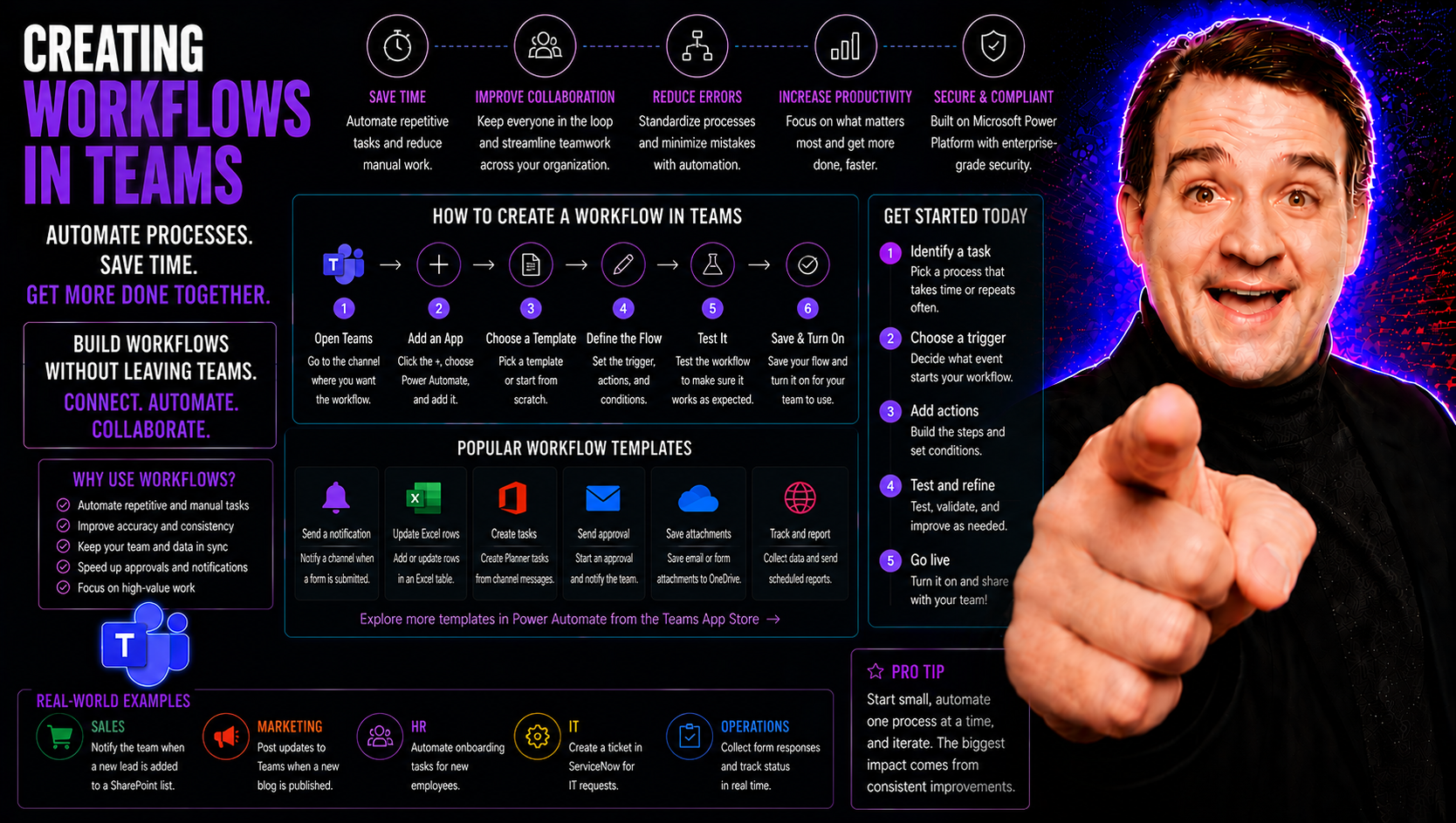
Automating your daily tasks in Microsoft Teams using workflows is one of the best ways to make teamwork easier and more streamlined. Workflows let your team set up step-by-step processes, so routine jobs run themselves—no more hunting down approvals or chasing reminders. This kind of automation not only boosts productivity but also ensures that every task follows the same clear path each time.
You’ll find that workflows in Teams help reduce manual mistakes, keep everyone on the same page, and make it easier to prove you’re following internal rules and industry regulations. Whether you’re working fully remote, hybrid, or across multiple offices, smart workflows help tighten up collaboration and support your company’s digital transformation. Throughout this guide, you’ll learn what workflows in Teams really do, discover where automation makes the most impact, and see why good governance is crucial for building workflows that last and keep your company’s data safe.
Understanding Workflows in Microsoft Teams
A workflow in Microsoft Teams is a set sequence of automated steps designed to handle repetitive tasks or business processes. Think of it as a digital chain reaction: when something happens (the trigger), Teams or a connected service responds automatically with an action, like sending a notification, updating a file, or assigning a task.
The main parts of a workflow are triggers, actions, and outcomes. Triggers start the process—maybe it’s a new message, a document upload, or a reply in a channel. Actions are what Teams does once triggered, like alerting the team, updating records, or kicking off a series of emails. The outcome is the end goal, such as a completed approval, a documented hand-off, or a logged update.
By automating these types of processes, Teams helps you avoid manual copying, pasting, or endless back-and-forth. For example, when someone submits a vacation request in a channel, a workflow can route it directly to the right manager, get approval, and notify HR—no messy email trails required.
This isn’t just about making things quicker. With standardized workflows, you cut down on errors, ensure everyone follows the same playbook, and have an automatic record of what happened and when. Especially as organizations grow or embrace remote work, workflows in Teams keep daily collaboration humming along and help support compliance through consistent processes and embedded controls. Setting up proper governance around these workflows is key—making sure only the right people can change them and that sensitive data stays protected.
Benefits of Creating Workflows in Teams
- Improved Team Productivity: Automated tasks free up time for everyone. For example, new employee onboarding checklists can run in the background, saving manual steps.
- Process Standardization: Workflows make sure tasks happen the same way, every time—great for HR forms or project kickoffs where nothing should get missed.
- Time Savings: Say goodbye to chasing down approvals or double-entry—notifications and reminders happen automatically.
- Better Compliance: Built-in workflows offer clear tracking for audits and show you’re sticking to company rules—think of automated document retention or leave request approvals.
How to Create a Workflow in Microsoft Teams
Building workflows in Microsoft Teams doesn’t require you to be an IT whiz—just a little know-how and curiosity. You can use built-in templates or start from scratch using tools like Power Automate, which is seamlessly integrated with Teams for both business users and IT admins.
The process begins by figuring out the goal of your workflow and deciding what should kick things off. Is it a message in a channel, a calendar event, or maybe something from another business app? Once you have that figured out, you’ll move on to picking actions and adding any conditions to create a logical flow from start to finish. This ensures that each step is completed automatically and consistently, every time a trigger occurs.
Configuring your workflow is about making it work for your team’s specific processes. You might want to route requests, post alerts, or update records—customization is at your fingertips. After you’ve built your workflow, it’s crucial to test it, confirm it works as expected, and tweak anything that doesn’t flow quite right.
Remember, this article breaks down the key decisions you’ll make—like choosing the best trigger and fine-tuning each action—so you’ll get reliable, efficient automation every time.
Choosing the Right Workflow Trigger
- Message Posts: Set your workflow to start when a message is posted in a specific Teams channel or chat. Great for approvals, reminders, or capturing important information.
- Channel Activity: Use triggers like “file added” or “tab updated” to automate responses to file sharing, tab changes, or new planner tasks.
- Scheduled Times: Schedule workflows to run daily, weekly, or at a custom interval—useful for routine reporting or check-in reminders.
- Third-Party Events: Integrate with other apps (like SharePoint, Salesforce, or Outlook), so a workflow can react to activities happening outside of Teams but still support your work.
Picking the right trigger keeps your workflow responsive and reliable. It’s important for keeping automation aligned with your team’s real needs while making it easier to govern and adjust over time.
Configuring Workflow Actions and Conditions
- Send Notifications: Automatically alert individuals or groups in Teams when steps in the process happen. Perfect for status updates or deadlines.
- Update Files or Records: Move documents, fill out SharePoint lists, or adjust planner boards—all without leaving Teams.
- Post Messages: Automatically post updates or summary messages to channels or chats, keeping everyone informed.
- Conditional Logic: Add “if this, then that” steps—like sending different messages based on who submitted a request or what department it’s for.
Craft actions and conditions that fit your team’s workflow, and remember: secure data handling and clear task permissions make your automation both powerful and safe.
Best Practices for Workflow Governance and Security
Strong governance and top-notch security are must-haves in any Microsoft Teams workflow. According to industry experts, lacking clear governance often leads to “Teams sprawl,” compliance gaps, and data risks that can hit even well-intentioned organizations.
To avoid trouble, always set up access controls—only the right folks get to build, edit, or kick off workflows. Regular lifecycle management, like reviewing or retiring outdated flows, keeps your environment clean and audit-ready. Conducting periodic audits and having detailed logs helps you spot gaps fast and proves compliance to regulators.
Microsoft recommends security layers such as Conditional Access and Purview DLP. These tools protect sensitive chats and documents, especially with guest users or external sharing. For more details, check insights from confident collaboration through Teams governance and a five-layer Teams security strategy.
Governance and security aren’t just checkboxes—they directly impact productivity, collaboration, and risk. Case studies show companies with defined Teams roles, clear workflows, and compliance polices substantially lower their risk of data breaches and legal headaches. For expert perspective, the conversation on Teams governance driving collaboration and success is worth reading.
Advanced Workflow Tips and Integrations
- Custom Connectors: Go beyond built-in templates by using custom connectors to link Teams with other business apps—streamlining complex processes and boosting data visibility.
- App Integrations and Bots: Bring in bots or third-party apps to automate decision-making, trigger additional workflows, or make meetings more interactive. Learn how experts use meeting extensibility with apps and bots to turn Teams into a smarter work hub.
- No-Code/Low-Code Tools: Microsoft Power Platform allows users—even without programming skills—to create and deploy customized automations. For those wanting to stay code-free, custom Teams bots with no code can fill process gaps left by default features.
- Message Extensions: Use Teams message extensions to fetch or create business data straight from your chat, speeding up decision-making and cutting down on app switching. Consider best practices from building custom message extensions to improve adoption and security.
As your organization’s automation needs grow, upgrading from basic workflows to these advanced techniques helps unlock new productivity gains and supports even the most complex business scenarios. Investing in robust, integrated workflows makes Teams a true digital nerve center for your company.

Microsoft MVP | Host of M365.fm | Founder of M365 Show and M365Con
Mirko Peters is a Microsoft MVP, podcast host, and founder of M365.fm, M365 Show, and M365Con. His work connects Microsoft practitioners through podcast interviews, livestreams, and community events.
At M365.fm, Mirko hosts conversations with Microsoft MVPs, product experts, architects, and community contributors. Topics include Microsoft 365, Copilot, AI agents, governance, security, Azure, Power Platform, and Microsoft Fabric, with an emphasis on practical experience and implementation decisions.
M365.fm is the podcast and learning platform. M365 Show brings experts together for livestreams, while M365Con provides an online conference setting for community learning.
Official website: Mirko Peters (https://www.mirkopeters.com/). Recognition: Mirko Peters — Microsoft MVP profile (https://mvp.microsoft.com/de-DE/mvp/profile/9b0ca797-db5a-493a-a845-8b9158046cf5). Connect on LinkedIn (https://www.linkedin.com/in/m365showpodcast/).




