
Essential Meeting Recap Features in Microsoft Teams
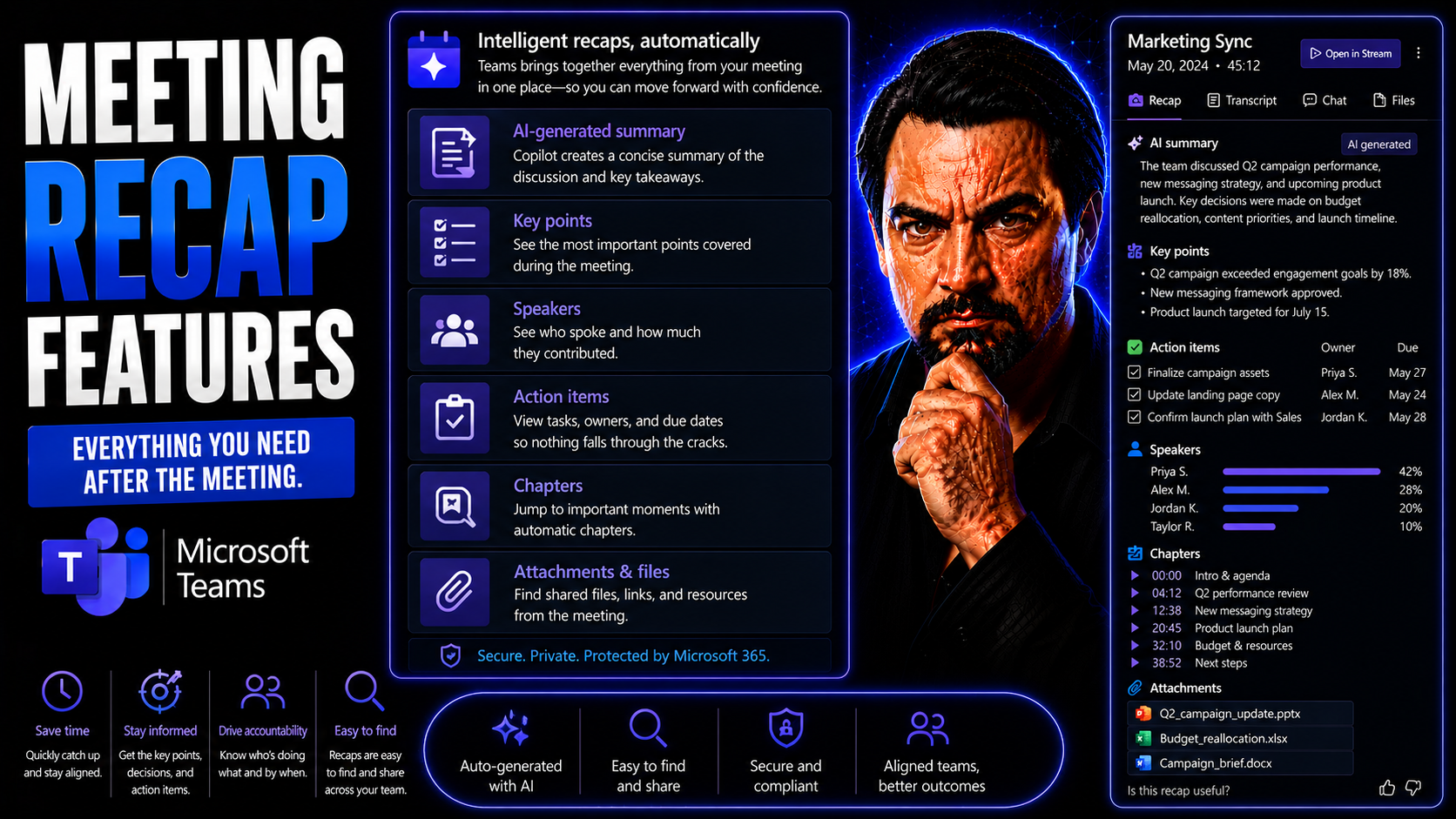
Microsoft Teams meeting recap features are more than just digital notetaking—they’re your shortcut to turning every conversation into real action. Teams uses AI to capture meeting details, summarize action items, and deliver structured insights, whether you missed the meeting or just want to remember who promised what. Modern organizations lean on these tools to boost productivity, keep everyone on track, and maintain always-on governance.
This guide breaks down the details of intelligent recap, AI summaries, and how these features work in your environment. You’ll see how Teams integrates with Microsoft Copilot, balances privacy with collaboration, and adapts to your workflow. Whether you’re running the show as an IT admin or just trying to keep up with the never-ending pile of meetings, you’ll find practical tips and context for optimizing your recap experience. From action tracking to compliance policies, it’s all here.
Understanding Intelligent Recap in Microsoft Teams
You know how you walk out of a meeting convinced you’ll remember everything—and then, let’s be honest, you forget half of it by lunchtime? Intelligent recap in Microsoft Teams is here to solve that problem, turning each meeting into a reliable, searchable set of notes and tasks. With AI handling the heavy lifting, you don’t have to chase down who said what, what decisions got made, or whether someone actually assigned you that follow-up, or if you just imagined it.
Intelligent recap is built on advanced technology designed to break down your meetings into bite-sized, useful pieces. This automation kicks in once a meeting wraps up, quietly turning audio, chat, and shared files into well-organized summaries and highlights. It’s not just a static list, either—Teams uses context and intent from your conversations to extract action items, decisions, and questions, giving the recap a “smart” edge.
The real win for most folks is efficiency. You don’t have to scrub through an hour-long recording or sort through endless chat logs to find a single action item. Instead, Teams delivers the summarized goods directly to your workspace, ready for sharing and review. In a world of hybrid work and nonstop meetings, intelligent recap is all about making collaboration less exhausting and—dare we say—more human. Up next, we’ll break down exactly how this magic works and what kind of data is doing the heavy lifting behind the scenes.
What Is Intelligent Recap and How Does It Work?
Intelligent recap in Microsoft Teams is an AI-powered feature that automatically processes your meetings to create structured, actionable summaries. When a meeting concludes, Teams gathers the audio, video, chat history, and shared files. The AI engine analyzes all that content in real time, identifying speakers, tracking topics, and extracting highlights—from agreements made to tasks assigned.
This recap is far from generic. The process starts the moment a meeting ends: Teams triggers its AI models to review transcripts and media, flagging key points and capturing context. The summary you see isn’t just a chronology—it’s arranged around what actually matters, such as decisions reached or next steps agreed upon.
What makes Teams’ intelligent recap truly “intelligent” is its ability to remember context and adapt. For example, it can spot subtle action items buried in discussions, not just the ones that start with, “let’s do this.” It knows who spoke and when, grouping information by speaker or topic, which helps keep everyone accountable. Recaps can even learn from feedback—adjusting over time as teams edit, rearrange, or clarify results.
This feature transforms time-consuming meeting follow-up into a streamlined, dependable workflow, ensuring nothing important gets lost in the shuffle. As a result, Teams recaps help organizations collaborate more effectively, regardless of who was on the call.
What Data Does Teams Use for Intelligent Recap?
- Audio and Video Recordings: Teams analyzes the full meeting recording to capture every nuance and identify speakers, inflections, and key statements. AI transcription models process spoken words into searchable text for further analysis.
- Chat Transcripts: Everything shared in the meeting chat—including links, quick notes, or sidebar conversations—feeds into the recap, capturing context that might not make it onto the official agenda.
- Shared Content: Files, presentations, and screen shares are integrated so Teams summaries can reference documents, highlight visuals, and link back to the original shared content for easy review.
- Participant Data: Information about who attended, who spoke, and when helps assign speaker markers and track accountability for decisions or assignments.
- Meeting Metadata: Details like the meeting title, scheduled time, and calendar invite are referenced to ensure summaries reflect the right context and are easily retrieved later.
Teams processes all this data using secure, privacy-respecting AI infrastructure. Content flows through Microsoft’s secure cloud, with strong governance and role-based access controls. If you want a deeper dive into how Microsoft Copilot and Teams keep your recap data protected, check out this breakdown on Copilot’s data privacy framework and guidance on data boundaries and tenant isolation. These resources show how Teams balances recap magic with the realities of compliance and enterprise security.
Key Features of AI-Powered Meeting Recaps
AI-powered meeting recaps in Microsoft Teams go way beyond a basic meeting transcript. The tech is smart enough to pick apart everything that happens in your meeting, highlight who said what, and show exactly when decisions were made. If you’re tired of wrestling with endless notes, these features help you cut through the clutter and focus on what drives progress.
Compared to a standard transcript, an AI-powered recap captures context, intent, and meaning—not just words. Teams’ AI spots the difference between a passing comment and a mission-critical agreement. It automatically pulls out action items, tags the responsible speaker, and divides lengthy meetings into logical chapters so you can jump straight to the good stuff.
You’ll see features like speaker identification, actionable note extraction, item tracking across meetings, and the ability to hop from one key moment to another with timeline markers. All these tools support both individuals—and the whole team—by making review and follow-up less of a manual chore. Detailed feature breakdowns are just ahead.
Speaker Markers and Identification in Meetings
- Automatic Speaker Labeling: Teams uses voice recognition and meeting participant data to assign each line of the transcript to the correct speaker. No more guessing who said what or untangling anonymous quotes.
- Timestamped Contributions: Each speaker’s segment is time-stamped, making it easy to jump back to the exact point in the recording if you need clarification or want to confirm critical statements.
- Visual Speaker Markers: Visual cues—such as name labels or icons—are embedded directly into the recap, enhancing readability and accountability. This is especially helpful in meetings with multiple speakers or overlapping discussions.
- Speaker-Based Search and Filtering: Reviewers can filter recap content by speaker, revealing contributions, arguments, or assignments by individual. Teams with frequent handoffs or rotating roles benefit from instantly finding who committed to which task.
- Auditing and Annotation Tools for Admins: Administrators can use recap metadata to audit conversations, highlight sensitive content, and make compliance annotations. This feature is vital for regulated industries and teams that need an audit trail of decisions and discussions.
AI Notes and Action Item Tracking Capabilities
You know those big meetings where everyone nods about following up—and then nobody actually does? Teams’ AI recap nips that problem in the bud. It listens for cues and context during your meetings and automatically generates clear, actionable notes. That means you get a digest of the most important points, rather than a word-for-word play-by-play worthy of a court reporter.
After the meeting, these AI-generated notes highlight tasks, deadlines, and who’s on the hook for what. Action items are plucked out of natural conversation—the AI doesn’t need you to say “action item” for it to pick up on a commitment. When you open your recap, you’ll find tasks assigned to specific people, due dates if mentioned, and an organized view of what needs attention.
This tracking isn’t just surface-level. Teams allows ongoing monitoring and notifies users when tasks are due or completed. If tasks expire or change hands, the system updates the recap and ensures nothing falls through the cracks. For busy teams, this is like having a project manager built into every meeting, keeping follow-ups crystal clear and minimizing miscommunication.
Timeline Markers and Intelligent Chapters in Recaps
- Topic-Based Segmentation: The recap AI divides meetings into distinct “chapters,” each focused on a main topic or agenda item. This helps you jump straight to the segment about quarterly results or product launches—no endless scrolling required.
- Dynamic Timeline Markers: As subjects shift or decisions are made, Teams drops timeline markers so you can identify important turning points. Each marker is clickable, guiding you to the moment when key info was discussed.
- Context-Aware Navigation: These markers aren’t random. The AI considers conversation flow and context, grouping related discussions together, which makes reviewing meeting history smoother and more logical.
- Customizable Chapter Titles: Users and organizers can refine chapter headings, making recaps even clearer, especially for recurring meetings or complex projects.
- Enhanced Review Experience: With intelligent chapters and timeline markers, you don’t just watch or read—you explore the meeting. Even in long recordings, you can zero in on the highlights, saving review time and reducing meeting fatigue.
Sharing and Collaboration with Meeting Recaps
Once you’ve got a solid recap, the next hurdle is making sure the right people see it—without opening up your whole workspace to confusion or security mishaps. Microsoft Teams gives you secure, flexible ways to pass those AI summaries and recordings around. It’s about getting insights to decision-makers, project contributors, or folks who missed the call, all without breaking confidentiality or compliance rules.
Teams lets you share AI-generated meeting content both internally and with select external partners, depending on your organization’s policies. Robust access controls ensure only intended recipients can view or edit, and integrations with Outlook or Microsoft 365 make distribution part of your usual workflow.
In the following sections, you’ll see how to actually share recaps, what different permission levels mean, and how organizations prevent oversharing or accidental leaks. Safe collaboration pays off—you keep everyone aligned, avoid knowledge silos, and speed up follow-ups while protecting business-critical information.
How to Share AI Summaries and Full Recaps
- Share via Teams: Open your recap in Teams and use the built-in share button to send it to any chat, channel, or team. Permissions carry over from your organization, so only the intended audience can actually view the content.
- Email Sharing with Outlook: Export a link or summary directly to Outlook. You can send a recap as an event follow-up or as part of ongoing project updates, right from the meeting recap window.
- External Collaboration: If allowed by your governance policies, invite guests or external partners to access a recap. External sharing is controlled by admin-level policies to prevent accidental data exposure.
- Cross-Team and Tenant Sharing: For joint ventures, Teams enables sharing between cross-functional groups or even across organizations within the same tenant ecosystem—always respecting security boundaries.
- Best Practices: Always check permissions before sharing sensitive meeting content. Smart Teams governance frameworks (see How Teams governance turns chaos into confident collaboration) help you set the right boundaries so collaboration doesn’t turn into chaos.
Access Control and Viewing Permissions for Recaps
Access to intelligent recaps in Microsoft Teams is tightly governed by organizational policies and role-based permissions. If you were invited to the original meeting, you’ll usually have access to its recap—whether you attended live or not. For sensitive meetings, admins can restrict recap visibility to a pre-approved list or block external viewing altogether.
Editing permissions are generally limited to meeting organizers and select participants, keeping accidental (or intentional) changes in check. Admins can set tenant-wide rules for who can edit, view, or delete recaps and associated data. This built-in governance is designed to prevent data leaks, enforce compliance, and make sure only those with a need-to-know get access.
For projects or organizations handling sensitive or regulated data, it’s critical to have an active governance model in Teams. Learn why strong Teams governance matters—it’s the foundation for responsible meeting recap sharing, efficient project management, and keeping compliance auditors happy.
Integration with Copilot and AI Enterprise Tools
Microsoft Copilot has moved right into your Teams meetings, giving AI recaps a major power-up. If your recaps used to feel like handwritten notes, Copilot makes them look like something straight out of a strategy deck. The AI listens in, picks up relevant data from chat, and serves up summaries, decisions, and action items almost instantly.
But Copilot’s contribution goes beyond neat summaries; it plugs recap data into your broader Microsoft 365 experience. That means you get context-rich insights not just after the meeting, but as part of task lists, automated follow-ups, and dashboards across apps such as Outlook, SharePoint, or even Dynamics.
Copilot weaves together the recap process, workflow automation, and data security in a way that fits enterprise needs. Coming up, you’ll see how Copilot actually shapes the meeting experience, what it takes for proper rollout, and how you can use it to boost productivity without sacrificing privacy or compliance. For practical examples, see how Copilot powers Teams productivity in these real-world scenarios and how it automates collaboration in workflow automation.
How Microsoft Copilot Powers AI Summaries in Meetings
Microsoft Copilot sits at the heart of Teams’ AI summarization engine, analyzing everything from meeting audio to chats and shared files in real time. As your meeting unfolds, Copilot's AI listens for decisions, action items, and key takeaways. Afterward, it instantly assembles a structured, context-aware recap—ready before you finish your coffee.
This isn’t just one-way automation. Copilot connects with Microsoft 365’s family of apps, letting you use meeting-generated insights across Word, Excel, PowerPoint, and Outlook. Teams can auto-populate follow-up emails, kickoff project boards, or update task lists based on recap data—all powered by Copilot’s understanding of what’s important.
Copilot’s reliability comes from its architecture: it leverages Microsoft Graph and advanced large language models, ensuring that generated recaps reflect both organizational context and strict security controls. Want to understand the AI brain behind it? Dive deeper with prompt optimization tips and see how Copilot’s architecture enables secure, trustworthy AI within Teams meetings.
Reviewing and Managing Meeting Content Across Devices
Modern work doesn’t stick to your desk—you’re bouncing from laptop to phone, checking notes in the car, or reviewing next steps before you even leave the conference room. Teams’ meeting recap features were built for that cross-platform, always-on lifestyle. Whether you like your Mac, PC, or iPhone, Teams ensures your recaps and summaries sync up wherever you log in.
It doesn’t matter if you missed a meeting during a commute or left your laptop in the office. Teams let you catch up, review, and search recaps from desktop apps, browser interfaces, or mobile clients. This empowers everyone—from frontline workers to remote executives—to stay in sync and act on meeting decisions promptly.
Up ahead, you’ll find specifics on viewing and sharing recaps on different devices, making the most of Teams’ app features, and ensuring accessibility for diverse teams worldwide. When your recap data is always within reach, you’re never caught flat-footed by “so, what did I agree to in that meeting?”
Accessing Recaps and Recordings on Desktop and iOS
- Teams Desktop App: Meeting recaps, transcripts, and recordings are accessible directly within the Teams client. Head to the “Calendar” tab, select a meeting, and you’ll see recap files, action items, and time-stamped chapters for quick review.
- Teams Web Application: All core recap and recording features are also available via the Teams web app, ensuring access from any modern browser—no matter if you’re on Windows, Mac, or Linux.
- iOS (and Mobile Devices): The Teams mobile app (available for iOS and Android) lets you review summaries, jump to action items, and even share or comment on recaps while you’re on the move.
- Seamless Navigation: Timeline markers, chapters, and task lists are available across devices, so you can pick up where you left off—whether you’re closing your laptop or grabbing your phone.
- Offline and Cloud Sync: Teams syncs recaps and recordings across logged-in devices and caches recent data for limited offline access, so your recap doesn’t vanish when you hit a Wi-Fi dead zone.
Supported Languages and Accessibility for AI-Generated Content
- Language Support: Microsoft Teams supports AI-generated recaps, transcripts, and speaker identification in dozens of languages, including English, Spanish, French, German, Chinese, Japanese, and increasingly more. This makes it ideal for global teams.
- Accessibility Features: Teams builds in support for screen readers, keyboard navigation, and adjustable text sizes, helping users with disabilities participate fully in meeting follow-ups and reviews.
- Global Collaboration: Language settings and accessibility options ensure that summaries are useful and understandable across diverse audiences, breaking down language barriers within multinational organizations.
Maximizing Productivity with Meeting Recap Tools
If you’re buried under meetings but don’t see forward movement, you’re not alone. Teams’ recap tools are designed to pull the action out of the noise—streamlining follow-ups, surfacing recurring topics, and helping everyone reclaim workday time that would’ve gone missing in the shuffle.
In real-world terms, you can use recap features to not only track who’s supposed to do what, but also spot trends over multiple meetings. That means fewer repeated discussions, faster decisions, and a clear record of what’s making progress (and what isn’t). Teams’ analytics and advanced options help you turn recap data into insights, so you can coach your team, fine-tune workflows, or just avoid letting that one key action item slip by unseen.
Below, you’ll see how to use these features across multiple meetings, extract the most important takeaways, and dig into analytics or custom solutions for specialized use. If you want to see how Copilot is woven into this productivity boost, check real scenarios here, or explore leveraging Copilot for effective recaps in this guide to prompt engineering.
Tracking Action Items and Topics Over Multiple Meetings
- Persistent Action Item Tracking: Teams recaps track action items across several linked meetings so follow-up tasks aren’t lost or duplicated. You can reference the status of each assignment by recipient and due date.
- Recurring Topic Monitoring: The AI highlights recurring agenda items and discussion themes, helping leaders identify trends, unresolved issues, or common bottlenecks that stretch across projects.
- Notification and Reminder Integration: Teams recaps tie action items back to real-time notifications and reminders, pinging owners as deadlines approach—boosting follow-through without manual tracking.
- Collaborative Review: Teams allow participants to co-review updated recaps, leave notes, or add context so everyone’s up to speed across the entire meeting series, not just a single call.
- Linked Recap Navigation: You can quickly jump between related meetings and recaps, following the chain of a project or topic from idea to resolution with minimal clicks and no lost context.
Extracting Key Takeaways and Next Steps from Recaps
- Highlight Summary Section: At the top of each recap, you’ll usually get a condensed “highlights” box, summarizing what’s most important—perfect for quick review before your next call.
- Decision Tracking: Actionable decisions are listed clearly and labeled with responsible parties, making it easy for everyone to know what’s expected next.
- Task List Generation: All assigned tasks are grouped with context, deadlines, and owners, ensuring they’re clear and easy to follow.
- Direct Action Links: You can click straight from a recap task or next step into follow-up actions, like starting an email, setting a reminder, or updating a project board.
Advanced Options and Analytics for Meeting Recaps
- Integration with Analytics Platforms: Teams recaps can be exported to Power BI or other analytics tools, enabling organizations to visualize trends, measure participation, and track outcomes across numerous meetings.
- Custom Workflow Automation: Power users can link recaps with Microsoft Power Automate or other platforms to trigger workflows: for example, logging action items to ticketing systems or updating CRM records.
- Extended Recap Settings: Admins and users can adjust recap templates, notification schedules, and even task syncing with other project management tools to suit team processes.
- Third-Party Integration: Teams recaps can be synced with external productivity platforms, providing continuity between Teams, Slack, Notion, or Asana without losing metadata or formatting.
- Custom App Development: Organizations with technical resources can build apps or bots that enhance recap extensibility, creating interactive panels or integrating recap data into other business processes. For guidance, see this deep dive into Teams app development.
Customization and Personalization of AI Meeting Recaps
Let’s face it—not every team wants their recaps in the same format. Some execs want bulleted lists; project managers need timelines; legal folks crave details. That’s why customization and personalization in Teams recaps are becoming non-negotiable for users who demand more than a cookie-cutter summary.
In Microsoft Teams, you can move beyond basic templates to fine-tune recaps for your role, department, or even client-facing reports. Whether you need technical documentation for IT, an executive snapshot, or a compliance-ready minute-by-minute log, there are ways to create output that fits your mold.
The future of recaps is adaptive learning. Teams AI can fine-tune how it summarizes meetings based on the edits you make, the feedback you give, and even the order you prefer your content delivered. Below, we’ll dive into template customization and how intelligent feedback loops can help your recap experience evolve over time.
User-Defined Recap Templates and Output Formats
- Executive Summary Templates: Create concise, high-level summaries focusing on decisions, outcomes, and next steps—tailored for leadership or senior stakeholders.
- Project or Technical Briefs: Design templates that prioritize technical milestones, issue tracking, and detailed timelines for engineers, IT, or product teams.
- Legal and Compliance Minutes: Custom formats include detailed logs, attendee tracking, and highlighted decisions to meet regulatory requirements in legal or HR environments.
- Role-Based Highlights: Let users set which types of content—such as action items, budget updates, or client requests—take priority in their recaps based on their job function.
Adaptive Learning from User Edits and Feedback
Teams AI is designed to get smarter the more you use it. Every time you edit a recap, delete irrelevant sections, or reorder action items, the system learns your preferences. This feedback loop enables future recaps to reflect your style and priorities, so summaries feel more natural and relevant over time.
As user feedback shapes the AI’s behavior, Teams recaps become more personalized—whether you’re a manager, developer, or executive. The more consistent patterns the AI detects in user interactions, the more accurate and efficient your recaps become, boosting both productivity and satisfaction across the board.
Privacy, Data Retention, and Compliance for AI-Generated Recaps
With all this AI muscle flexing in your meetings, you probably wonder where all that sensitive data ends up and who can see it. Smart organizations know that governance, security, and privacy aren’t afterthoughts—they’re fundamental parts of every meeting recap process. Teams builds in enterprise-grade controls for storing, retaining, and anonymizing your meeting data.
Data retention rules are critical, especially in regulated industries where compliance headaches grow as fast as calendar invites. Admins can set how long recaps are stored, when they get deleted, and who can access the audit trail. Teams also equips organizations to automatically detect and redact personally identifiable information (PII), especially for meetings where confidentiality is non-negotiable.
Want the inside scoop on how Microsoft keeps Copilot and Teams compliant? Start with the Copilot data privacy framework and these governance best practices for balancing innovation with risk. up. With privacy-by-design principles and user controls, secure recap management should never be out of reach—no matter how fast your team moves.
Governing AI Summary Data and Retention Policies
- Configurable Retention Schedules: Teams admins can set retention periods for recaps and transcripts, ensuring compliance with company or legal standards (for instance, deleting summaries after a set time).
- Backup and Audit Trails: Automated backup routines and access logs let you monitor who has viewed, edited, or exported recap data, supporting thorough audits and traceability.
- Role-Based Access: Only approved users or roles can manage, delete, or override retention policies, helping prevent accidental or unauthorized data loss.
- Compliance Integrations: Teams leverages Microsoft Purview and other governance tools for advanced data classification and lifecycle management in high-risk environments.
Anonymization and PII Detection in Automated Recaps
Automated PII (Personally Identifiable Information) detection is vital for organizations where privacy matters most—think legal, HR, or healthcare. Teams’ AI scans recaps for sensitive names, IDs, or contact details, then automatically redacts or anonymizes this information before summaries are shared or archived.
This process ensures you’re not accidentally passing around confidential or regulated data, helping organizations meet GDPR, HIPAA, or industry-specific compliance requirements right out of the box. For mission-critical meetings, you can trust that only the right people see the right details—nothing more, nothing less.

Microsoft MVP | Host of M365.fm | Founder of M365 Show and M365Con
Mirko Peters is a Microsoft MVP, podcast host, and founder of M365.fm, M365 Show, and M365Con. His work connects Microsoft practitioners through podcast interviews, livestreams, and community events.
At M365.fm, Mirko hosts conversations with Microsoft MVPs, product experts, architects, and community contributors. Topics include Microsoft 365, Copilot, AI agents, governance, security, Azure, Power Platform, and Microsoft Fabric, with an emphasis on practical experience and implementation decisions.
M365.fm is the podcast and learning platform. M365 Show brings experts together for livestreams, while M365Con provides an online conference setting for community learning.
Official website: Mirko Peters (https://www.mirkopeters.com/). Recognition: Mirko Peters — Microsoft MVP profile (https://mvp.microsoft.com/de-DE/mvp/profile/9b0ca797-db5a-493a-a845-8b9158046cf5). Connect on LinkedIn (https://www.linkedin.com/in/m365showpodcast/).




