
How Copilot Works in Teams for Better Collaboration
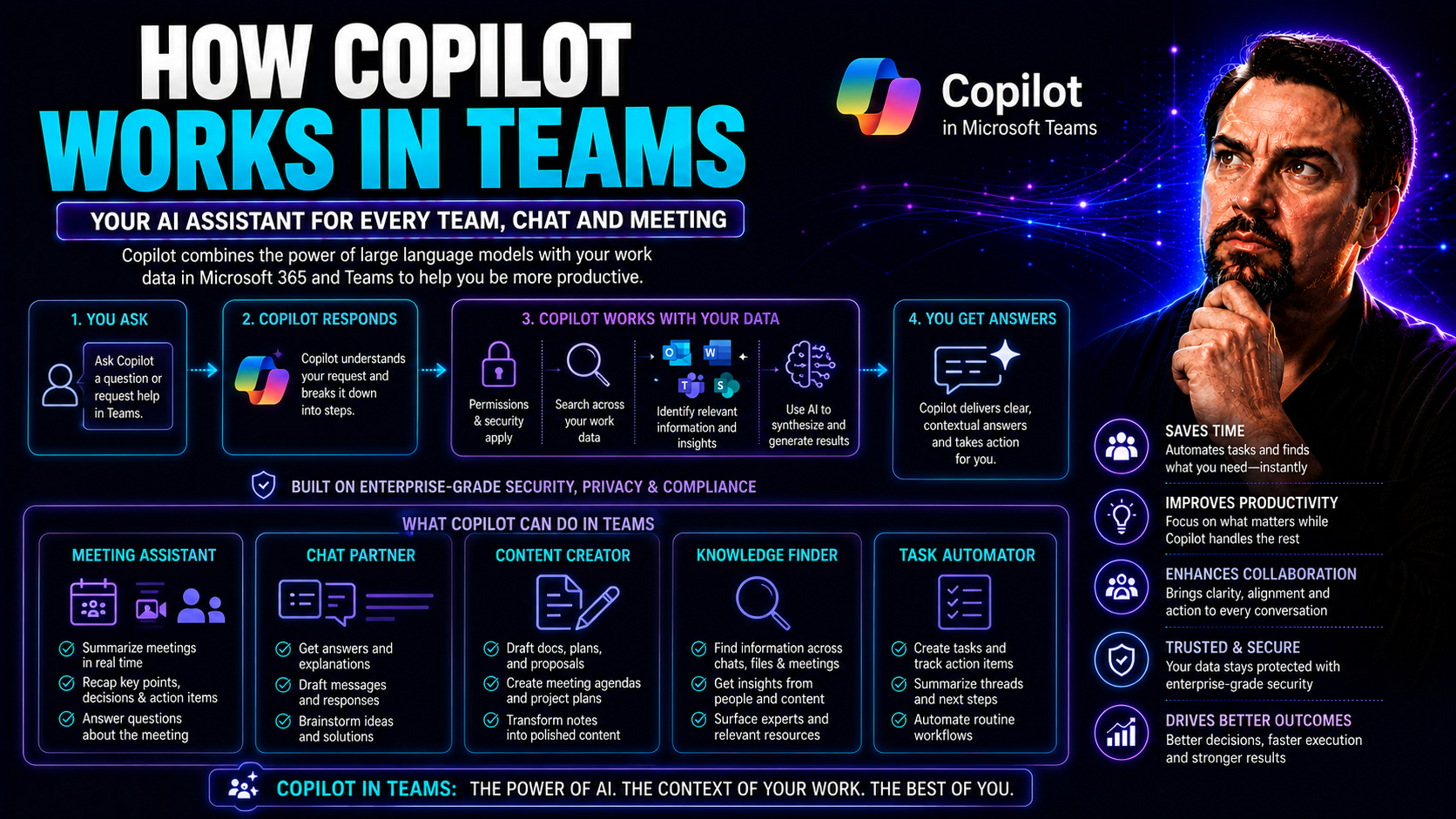
Microsoft Copilot changes the way your team works together in Microsoft Teams, bringing you right into the heart of AI-powered productivity. With Copilot, you’re not stuck digging through notes or emails—this assistant is designed to make meetings, chats, and follow-up actions easier and faster.
This article breaks down exactly how Copilot fits into your workflow. You'll see how it supports real-time meetings, summarizes conversations, and gives you actionable insights right when you need them. Whether you’re running a call, catching up on messages, or figuring out next steps, Copilot’s features help streamline everything.
We’ll also cover the essentials on advanced sharing and governance, ensuring even the most security-minded teams get peace of mind. If you want practical know-how on putting Copilot to work in Microsoft Teams and SharePoint, you’re in the right spot.
Understanding Copilot in Microsoft Teams and Its Integration with Microsoft 365 Apps
Copilot in Microsoft Teams is an AI-powered assistant built to help your team communicate smarter and get more done—without the clutter. At its core, Copilot blends seamlessly with Microsoft Teams to offer real-time summarization, smart insights, and context-aware support during your day-to-day collaboration.
What makes Copilot special is its deep integration with Microsoft 365 apps. That means it doesn’t just sit inside Teams—it talks to Outlook, Word, Excel, and more. So, when you ask Copilot a question or prompt it for a summary or next steps, it can pull in relevant information from these apps to give you intelligent and personalized responses.
Your chats, meetings, emails, and documents all feed into Copilot’s brain, and it uses Microsoft Graph with large language models to put everything in context—while keeping your company’s privacy policies and compliance needs in check. For a backstage pass on how this architecture keeps everything both smart and secure, take a look at this deep dive into Copilot’s architecture.
This means you don’t have to hunt across apps for files, dates, or data—Copilot knows where to look. It can summarize a lengthy Teams chat, pull up key discussion points from last week’s call, or even highlight open tasks from your project spreadsheet, all from right inside Teams.
That’s how Copilot keeps your conversations, files, and tasks tied together—making collaboration smoother and leaving more time for real work, not admin work. If you want to see how Copilot streamlines meetings, chats, and automations across Microsoft 365, check out this practical example overview.
Using Copilot for Real-Time Support in Teams Meetings
If you’ve ever left a meeting wishing you remembered exactly who agreed to what, or spent too much time sorting out action items, Copilot is here to help. In Microsoft Teams meetings, Copilot works in real time, automatically tracking what’s being discussed, who said what, and what decisions got made right on the spot.
Copilot isn’t just about capturing meeting notes—it’s about transforming the way your team handles meeting productivity. It recognizes key discussion points, highlights decisions, and even flags action items as you talk, so you’re not left sorting through heaps of notes later.
This real-time support means Team members can stay focused on the conversation, knowing Copilot is logging the important stuff. It helps connect dots between topics and can remind you of items brought up earlier, making follow-through much easier.
You’ll soon see how this level of automation saves you from manually reviewing recordings or sifting through chat logs. And if you want to see real-world use of Copilot in action—and walk through setup and configuration—this guide on Teams Copilot scenarios can walk you through it.
Up next, we’ll explore how Copilot keeps your meetings organized after the fact, helping you review what matters from the Recap tab and turn insights into action without missing a beat.
Accessing Key Takeaways and Insights from the Teams Recap Tab
- Navigate to the Recap Tab: After your Teams meeting, head over to the Recap tab. Here, Copilot lays out a clear, AI-generated meeting summary, saving you the headache of watching recordings or scrolling through endless transcripts.
- Review Action Items and Decisions: Copilot highlights the important takeaways—action items, next steps, and decisions made—right at the top, so you can quickly spot who’s responsible for what.
- Scan Discussion Highlights: No more digging for critical moments. Copilot collects and presents key discussion points, letting you and your team get up to speed in minutes.
- Efficiency on Demand: These summaries let team members who missed the meeting, or who just want a refresher, catch up fast and move right into their work. For more tips on boosting your team’s follow-up game, see practical Copilot meeting examples.
Summarizing Conversations in Microsoft Teams Chat and Channels
Teams chats and channels can get messy fast—especially when you have a long thread filled with updates, questions, and replies from all over the place. This is where Copilot steps in, turning all that noise into neat summaries, so you’re not stuck scrolling or missing the point.
Copilot in Teams isn't just about meetings—it helps organize everyday communication. Whether you’re working on an ongoing project, managing a busy channel, or just trying to catch up, Copilot summarizes key threads and highlights important points from your messages. That means less time hunting for details and more time making decisions.
This is a game-changer for teams working across multiple projects or departments, where context switching can be a pain. Copilot’s summaries can help keep people aligned by providing quick overviews and context, even as conversations continue in real time. Plus, it reduces information overload, making everything more manageable.
For teams that rely on structured knowledge, Copilot also supports prompt customization. By using standardized prompts, your team can drive consistent outputs, streamline workflows, and reduce variance in communications. If you’re curious how Copilot automates this process across multiple apps and environments, check out this guide on multi-app Copilot orchestration.
Keep reading for practical tips on how Copilot powers the compose box and makes everyday responses fast and efficient.
Using the Compose Box for Efficient Responses with Copilot
- Draft Messages Instantly: Let Copilot write and suggest responses based on the conversation so you can communicate clearly, even on a busy day.
- Use Natural Language Prompts: Just type your request in everyday language—ask Copilot to “summarize this chat” or “reply with a meeting time”—and it takes care of the rest.
- Edit and Fine-Tune Drafts: Copilot gives you a starting point; review suggestions and tweak the message before you send for extra clarity.
- Efficient Workflow: Use the compose box to keep replies short, focused, and professional, saving time without sacrificing tone. For boosting your response-game, check out these best prompt tips for Copilot.
Writing Effective Prompts in Teams for Better Copilot Results
Getting the best out of Copilot in Teams comes down to how you talk to it. The more specific and clear your prompt, the better your results. Copilot responds to direct requests—so the difference between “Summarize this chat” and “List the top three challenges raised in this channel this week” really matters.
Start with the business problem or goal in mind. If you need to draft an email follow-up, ask Copilot to “Write a summary email with the three next steps from today’s meeting.” If you’re prepping for a client call, tell Copilot exactly what to highlight from previous messages or files.
Prompts work best when they're rich in context—name names, mention files, include dates if you have them. Don’t worry about perfection; you can refine as you go. And for teams with repeat workflows, consider crafting standard prompts, so everyone is aligned and Copilot gives consistent results project after project. For more on leveling up with prompts, take a look at these practical prompt-building strategies.
Whether you’re new to Copilot or looking to maximize efficiency, building a habit of clear, purpose-driven prompts will take your AI-assisted workflows from “pretty good” to “unbeatable.”
Catching Up Quickly Using Copilot Summaries and Meeting Takeaways
- Get Instant Summaries: Copilot generates concise recaps of meetings and chats, so you can absorb the essentials in less than five minutes—skip the recording, get the highlights.
- Spot Key Decisions Fast: Critical decisions and follow-up tasks are called out, helping you know what matters and what’s next with just a glance.
- Support Asynchronous Work: Summaries make it easy for anyone—especially remote teammates—to catch up and stay in sync at their own pace. For workflow inspiration, check real-world Copilot cases.
Advanced Sharing and Governance with Copilot in Microsoft Teams
When your team grows and starts collaborating with people outside the company, data security and governance become a top concern. Copilot in Teams is built with tools that make external sharing both easy and safe, especially using Office 365’s external sharing features. This means you can give partners and guests access to AI-generated meeting summaries and action items without worrying about leaks or compliance headaches.
But sharing is just one side. Governance is where things get serious—especially when AI is handling sensitive data. The Copilot Teams Microsoft app includes governance controls for administrators, helping them manage how Copilot is used, who can see what, and making sure everyone is playing by the book.
Admins can track usage, monitor data access, and enforce policies to stay in line with both internal and industry regulations. For those in bigger organizations, this level of oversight is non-negotiable. If you want guidance on best practices for securing and rolling out Copilot, check out Copilot governance strategies and a full admin guide for IT leaders.
Up next, we'll dig into the best ways to handle external sharing, and then look at the governance features built into the dedicated Copilot Teams app.
Secure External Sharing and Guest Access with Office 365
- Set External Sharing Policies: Use Office 365’s built-in options to control what guests and external partners can access, including limiting sensitive Copilot content.
- See full governance strategies: full Copilot governance guide.
- Enable Guest Access with Controls: Give access only to those who need it and monitor activity to prevent unwanted data sharing across chat, meetings, or files.
- Review and Audit Sharing Logs: Regularly check who is sharing what and how often. This lets you spot risks before they become problems.
- Classify Sensitive Data: Label reports, recaps, or summaries created by Copilot to help ensure compliance and keep info in the right hands.
Exploring the Copilot Teams Microsoft App and Governance Tools
The Copilot Teams Microsoft app is a dedicated tool that goes beyond basic AI assistance—it brings robust governance controls directly into your administrative workflow. With it, IT admins can set detailed usage policies, monitor how Copilot features are being used, and enforce who can access specific types of data.
This app integrates tightly with the Microsoft 365 admin center, allowing you to automate routine security checks, fine-tune user access, and respond quickly to any compliance flags. For a deep look at setup and best practices, see this comprehensive guide for IT admins.
Using the Copilot Teams app means your organization can take advantage of AI benefits without opening the door to data risks. It’s essential for ensuring your collaboration stays secure and audit-friendly, especially as you scale Copilot usage across your company.

Microsoft MVP | Host of M365.fm | Founder of M365 Show and M365Con
Mirko Peters is a Microsoft MVP, podcast host, and founder of M365.fm, M365 Show, and M365Con. His work connects Microsoft practitioners through podcast interviews, livestreams, and community events.
At M365.fm, Mirko hosts conversations with Microsoft MVPs, product experts, architects, and community contributors. Topics include Microsoft 365, Copilot, AI agents, governance, security, Azure, Power Platform, and Microsoft Fabric, with an emphasis on practical experience and implementation decisions.
M365.fm is the podcast and learning platform. M365 Show brings experts together for livestreams, while M365Con provides an online conference setting for community learning.
Official website: Mirko Peters (https://www.mirkopeters.com/). Recognition: Mirko Peters — Microsoft MVP profile (https://mvp.microsoft.com/de-DE/mvp/profile/9b0ca797-db5a-493a-a845-8b9158046cf5). Connect on LinkedIn (https://www.linkedin.com/in/m365showpodcast/).




