
Screen Sharing In Microsoft Teams Guide
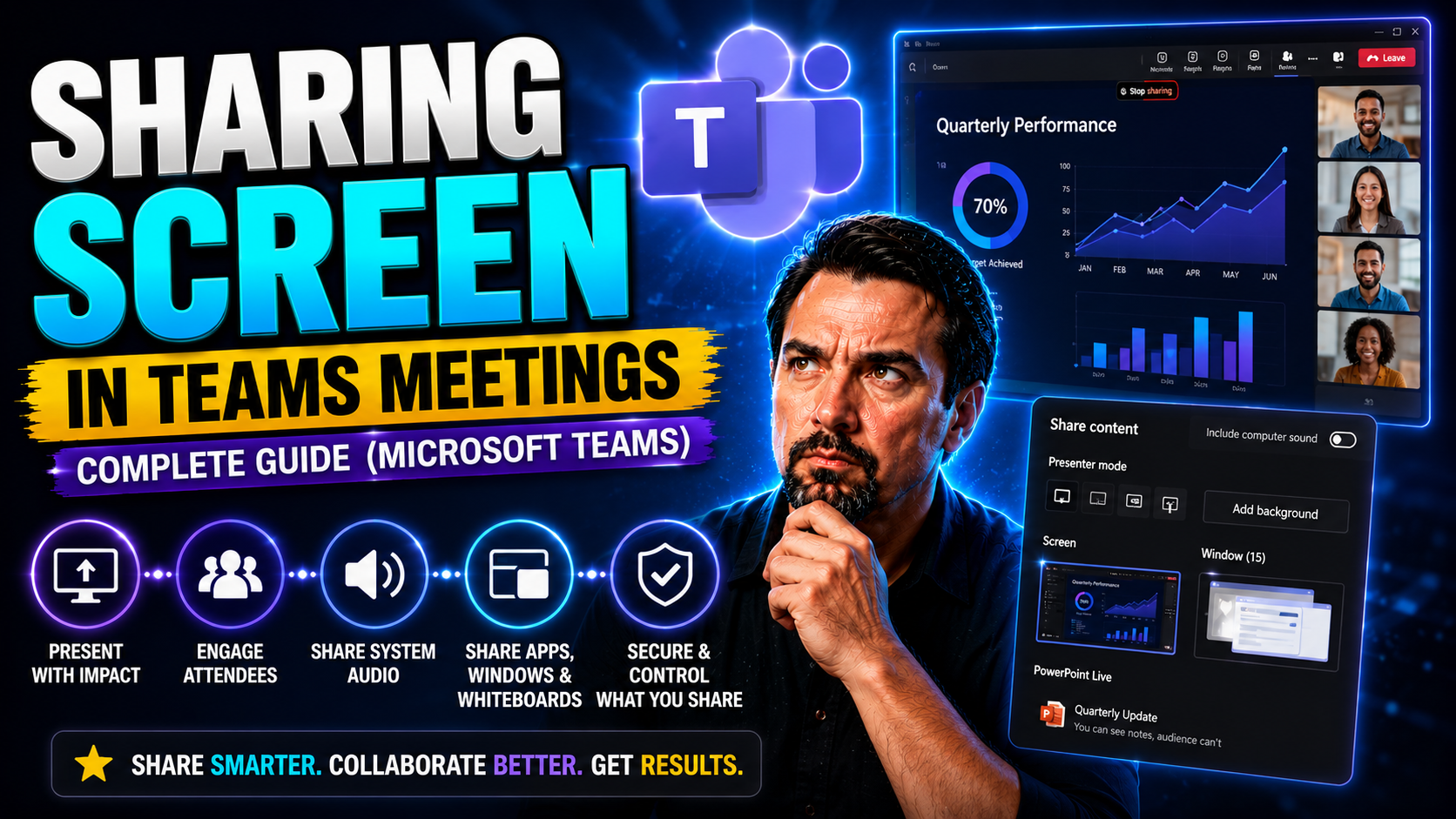
Quick Answer: To share your screen in Microsoft Teams, join the meeting, select Share, choose the screen, window, or content you intend to present, then confirm that sensitive notifications and unrelated windows are not visible. Test audio sharing separately when presenting media, and stop sharing as soon as the intended section is complete.
Sharing your screen in Microsoft Teams meetings takes everyday online collaboration to the next level. Whether you’re walking your team through a project, training new hires, or showing a client some new ideas, screen sharing makes everything more interactive and easy to follow. Knowing how to present content in Teams, from documents to full desktop sharing, means you can work better with colleagues and customers, no matter where they are.
Mastering these Microsoft Teams features also keeps your meetings organized and secure. You’ll learn not just the basic steps of screen sharing, but advanced options for PowerPoint, document cameras, and privacy tools. We'll break it down for both Windows and Mac users, share tips for troubleshooting common issues, and highlight best practices for privacy, accessibility, and secure Teams meetings. No matter your experience level, this guide sets you up for smooth, safe, and efficient screen sharing every time.
Getting Started with Presenting Content in Teams
If you’re new to Microsoft Teams or just haven’t shared your screen before, don’t sweat it—Teams makes it pretty straightforward. Screen sharing is built into the meeting controls, giving you instant options to show your whole desktop, a specific app window, or even just a browser tab. Getting familiar with where these buttons are, and understanding what each option does, helps you avoid hiccups once you’re on a call with others watching.
Before you kick off your first Teams presentation, it’s smart to make sure your device meets the system requirements. Both Windows and Mac machines are fully supported, but key settings—like screen recording permissions—can trip you up if they’re not configured correctly. Double-checking your Teams app is updated and your browser supports content sharing features will save you from last-minute stress.
For folks who like to multitask, Teams lets you join from a phone or tablet as a companion device. This comes in handy whether you’re annotating, controlling slides, or whiteboarding. And if you're looking to make meetings run without a hitch, we'll cover the initial configurations and device best practices. You’ll be ready for any meeting, whether you’re running things solo or with a whole crew watching.
Step-by-Step Guide to Present Content on Microsoft Teams
- Start or Join a Teams Meeting:
- If you’re hosting or attending, launch the Teams app or browser, then pick your meeting from the calendar or join a scheduled call.
- Find the Share Content Button:
- At the top or bottom center of your screen, look for an icon that looks like a rectangle with an arrow—click it to open sharing options.
- Choose What to Share:
- Entire Screen: Shares everything visible on your desktop. Use this if you’ll switch between multiple apps, but double-check you’re not exposing sensitive info.
- Window: Shares just one app or document. This is great for privacy and focus but won’t include things you switch to outside that window.
- Browser Tab: If joining from Chrome or Edge, you can share just one browser tab for secure and efficient web presentations.
- Share Computer Sound (If Needed):
- For videos or audio clips, check the “Include computer sound” box before sharing so participants hear what you play.
- Troubleshooting:
- If you see “Permission denied” or your screen goes black, check your device settings to enable screen sharing or adjust browser permissions (especially on macOS).
Pro Tip: Close unnecessary tabs, mute notifications, and clear your desktop to avoid accidental oversharing or distractions. This keeps your meeting safe, focused, and professional.
Using a Companion Device for Content During a Teams Meeting
- Join with a Second Device: Open Teams on your phone or tablet, select "Join" for your meeting, and tap “Add this device” as a companion.
- Whiteboard or Annotate: Use the second screen for drawing or handwriting while presenting slides or documents from your main device.
- Share Live Content: Snap a picture or use the built-in camera to present handwritten notes or physical objects—great for teaching or brainstorming.
- Audio Management: Mute the mic and speaker on your companion device to prevent echo or feedback during the meeting.
- Multitask with Ease: Monitor chat, answer questions, or manage participant controls on one device while presenting on the other.
Advanced Content Presenting Options in Microsoft Teams
Once you’ve got the basics of screen sharing down, Microsoft Teams has a toolbox of advanced features to make your presentations more dynamic and polished. There’s a big difference between sharing your whole desktop versus just a document or a specific app window, and knowing how to pick the right method keeps your meetings clean and secure.
Teams also lets you go further by using document cameras for showing handwritten work or physical documents—ideal for classrooms or product demos. Plus, you can make the most of Teams' integration with PowerPoint Live, which opens up interactive presentations, rich speaker notes, and seamless audience engagement. Understanding the right situation for each sharing option makes your meetings more effective and helps your attendees stay focused.
In the upcoming sections, you’ll see how these advanced sharing capabilities work and discover the unique benefits each one brings. By knowing when and why to switch up your sharing style—whether you’re training, teaching, or leading a large group—you can keep everyone on the same page and boost attention during those crucial moments.
Sharing a Document or Window vs Full Screen vs Document Camera
- Sharing a Document: Ideal for focused collaboration, this option only shows the specific file you want—like a Word doc or PDF—minimizing privacy risks. It blocks out notifications and other windows for more control.
- Sharing an Application Window: Limits visibility to just one running app (like Excel or your browser). It’s safer for privacy and avoids accidental tab switches, but new popups inside the app will be visible.
- Full Screen/Desktop Sharing: Lets attendees see everything on your screen, including app switches and desktop. Use for complex walkthroughs, but be extra careful—email popups or messages may appear.
- Document Camera: Great for showing handwritten notes, real objects, or classroom demos. Needs a connected camera and careful framing but brings a real-life touch for teaching or creative sessions.
Switching between modes is seamless in Teams, so you can adapt to each part of your meeting while staying secure.
Presenting Content with PowerPoint in Teams Meetings
- Open PowerPoint Live: In the share tray, select “PowerPoint Live” to choose a file from your device or OneDrive for interactive slides inside Teams.
- Speaker Notes and Private View: View your private speaker notes on your own screen while participants only see the slides—no more hinting at what’s next.
- Navigation and Annotations: Use arrows, laser pointer, or highlight features to grab attention and guide focus for everyone watching.
- Audience Interaction: Participants can go back to previous slides on their devices without interrupting your flow, boosting learning and engagement.
- Privacy-First Sharing: PowerPoint Live keeps private files, popups, or notifications hidden, unlike basic screen sharing.
Managing Control and Presenter Tools During Content Sharing
Screen sharing in Teams is more than just hitting a button and hoping for the best. Sometimes you’ll want to let a teammate take over—maybe for a quick demo—or you’ll need to manage the flow if things get a little too lively in the meeting. That’s where Teams’ control features step in, letting you share (or regain) control of content, and equipping presenters with a toolbox of navigation and interaction options.
Knowing how and when to hand off—either by requesting or granting control—saves time and avoids confusion. The right permissions also help make sure nobody accidentally changes your files or clicks somewhere you don’t want. Presenter tools, meanwhile, give you handy controls for advancing slides, guiding Q&A, or switching between shared apps without causing distractions for viewers—making your meetings feel more professional and organized.
These features are particularly important in large or sensitive meetings, not just for smooth teamwork, but also for keeping your data protected. For more on setting clear rules and using smart permissions to coordinate Teams meetings, check out this guide to Microsoft Teams Governance.
How to Take or Give Control When Sharing Content
- Giving Control: While sharing, click "Give control" at the top of your Teams window and pick the participant’s name. They get a notification; once accepted, they can click and interact with your shared screen. Great for joint editing or demos.
- Requesting Control: Viewers click “Request control” during someone else’s share session. The presenter must approve or deny the request before handover begins—ensuring you stay in charge.
- Ending Control: Click “Take back control” anytime to instantly regain access if things go off track or you need to finish the demo.
- Troubleshooting: If controls feel laggy or don’t appear, restart your Teams app or check your connection. Only share control with people you trust to avoid accidental edits.
Using Presenter Controls and Slide Management Tools
- Navigation Arrows: Move forward or back through slides using easy on-screen buttons, keeping your flow smooth for everyone.
- Audience Tools: Open Q&A or chat panels to handle questions as you present, promoting more interaction without losing your spot.
- Switch Source: Seamlessly swap between shared windows, PowerPoint, or a whiteboard right inside Teams, handy for live demos or brainstorming.
- Pointer and Highlight: Grab attention with on-screen pointers or highlights, especially useful during detailed walkthroughs.
Optimizing Shared Content Viewing and Interaction with Shared Content Zoom
Not everyone in your Teams meeting will see content exactly the same way. Some folks might be viewing on a small laptop screen, while others have big monitors or are tuned in on their tablet. Teams gives you the tools to zoom, scroll, and even pop out shared content into a separate window—so you can get the best experience possible, no matter how you’re joining.
This is especially handy when there’s a lot of detail in the materials, or you’re taking notes alongside the main presentation. With interactive viewing options, you’re not just a passive participant—you can focus on what matters, grab screenshots, or move content out of the way to get more done.
By learning to adjust your view and interact with shared content, you cut down on confusion and keep the whole meeting more productive. These features also support accessibility, letting users tailor their experience for readability and multitasking. The next sections break down how to make these customization tools work for you.
How to Zoom, Scroll, and Interact with Shared Content
- Zoom In or Out: Hover over the shared content and use the plus/minus icons or your mouse scroll wheel to magnify text and images. This is essential when screen details are small or hard to read.
- Pan and Scroll: Click and drag or use the scrollbars to move around the shared screen, letting you follow along at your own pace without missing details.
- Shortcut Keys: Try Ctrl + ‘+’ or Ctrl + ‘-’ to zoom via keyboard (Cmd on Mac), or pinch to zoom on touchscreens for quick adjustments.
- Interact: Some shared content lets you click links, fill forms, or even annotate—use these features if the presenter enables them for a more collaborative session.
These steps work across devices, making Teams meetings more flexible and engaging for users with different needs.
Opening Shared Content in a Separate Window
Teams allows you to pop out shared content, like a presentation or app, into a new window. This means you can continue chatting, taking notes, or browsing emails without minimizing or losing track of the shared material. To do this, click the pop-out icon at the top right of the shared content.
This feature works in the Teams desktop app and in supported browsers. If it doesn’t show up, check that your Teams app is up-to-date or your browser version is supported. Using the pop-out option can really help with multitasking and provide more space for detailed content, especially on smaller screens.
System Setup, Permissions, and Audio for Effective Teams Screen Sharing
Before you share anything in Microsoft Teams, it’s worth double-checking your computer’s system settings and permissions. Some platforms—especially macOS—require you to approve screen sharing and recording from your system preferences before Teams can show your content. If you don’t, sharing might fail or just show a blank screen to your audience.
Teams screen sharing also works smoothly in both the desktop app and major browsers, but you should keep your software updated for the best performance. If you’re showing video clips or want others to hear what’s playing on your computer, you’ll need to enable “Include computer sound” before starting to share.
Making sure your setup is correct the first time avoids last-minute fumbling and gets your meeting running on schedule. The detailed steps ahead will show how to manage permissions on both Windows and Mac, plus how to stream your computer audio for a complete presentation experience.
How to Grant Permission to Share Content and Enable Computer Audio
- Windows – Allow Screen Sharing: If Teams can’t share your screen, right-click the Teams icon and choose to run as administrator, or go to Windows Settings > Privacy > Screen Recording and let Teams record your screen.
- macOS – Enable Permissions: On Mac, open System Preferences > Security & Privacy. Under the “Screen Recording” section, check the box for Microsoft Teams. Restart Teams to enable sharing.
- Browser Users: If you use Teams on Chrome or Edge, allow “Screen Sharing” or “Screen Recording” in the browser’s pop-up prompts, or adjust site permissions in browser settings if needed.
- Include Computer Audio: When you click “Share,” toggle ON the “Include computer sound” switch at the bottom of the share tray. This lets meeting participants hear videos or sounds playing on your machine.
- Check Updates and Compatibility: Always use the latest version of Teams for the best audio/video performance and permission support. Outdated apps or OS versions can disable sharing features.
Tip: Test all permissions and audio before meetings to catch issues early, especially if you’re presenting to clients or a big audience.
Best Practices for Secure and Privacy-Safe Screen Sharing in Teams Meetings
Screen sharing is powerful, but if you don’t take precautions, a simple mistake can reveal way more than you bargained for. Many Teams users forget about notifications popping up, hidden files, or browser tabs containing confidential info. That’s why it’s so important to approach sharing with privacy and security in mind—especially for business or sensitive topics.
This section covers clear best practices for keeping private data under wraps, from disabling distracting or risky popups to using Teams features that shut out unintended windows. Org leaders responsible for data compliance should also be aware of how company settings and governance support privacy. Learn more about how Microsoft balances productivity with strong privacy controls in this Microsoft Copilot data privacy overview.
You’ll also get tips for applying visual privacy tools, like blurring your background during a screenshare or adding screen overlays to protect what’s on display—handy for both managed company laptops and personal devices. When screen sharing is combined with smart governance, as outlined in this Teams governance guide, organizations boost both security and trust among their Teams users.
Avoiding Accidental Exposure of Sensitive Information
- Disable Notifications: Turn off desktop or app notifications before a meeting so personal messages or sensitive info don’t pop up on screen.
- Close Extra Apps and Tabs: Shut down unrelated windows, docs, and browser tabs to focus sharing only on what you intend participants to view.
- Use Window or File Sharing: Whenever possible, share just a single document or app window instead of your whole desktop to limit accidental exposure.
- Check Your Desktop: Move confidential files or icons to a separate folder before sharing your full screen.
- Do a “Dry Run:” Test your share with a trusted colleague before going live to spot privacy oversights—especially during big or sensitive meetings.
Using Visual Privacy Tools Like Virtual Backgrounds or Screen Filters
- Blur or Change Your Background: Before sharing video or full-screen, use Teams’ blur or custom background features to hide what’s behind you in your real space.
- Use Screen Dimmer or Overlays: Third-party apps or built-in features can overlay dimming or masking bars on sensitive parts of your desktop, especially if you’re forced to share everything.
- Switch to Window Sharing: Protect sensitive apps by narrowing your share to just one window, avoiding stray popups or confidential info.
- Update Regularly: Keep Teams and security tools up-to-date for new privacy improvements and protections.
- Personal Device Tips: Always double-check privacy settings on unmanaged devices where family apps or personal info might be visible.
Troubleshooting Screensharing Issues and Getting Help
No matter how prepared you are, something’s bound to go wrong with screen sharing now and then—especially if your device screen locks or system settings change unexpectedly. Typical interruptions include screens freezing, sharing stopping mid-meeting, or missing permission prompts. Addressing these headaches quickly keeps meetings running smoothly and participants focused.
It’s also smart to know where to look for ongoing support. Microsoft and the wider Teams community offer up-to-date troubleshooting guides, expert advice, and deep dives into new sharing features. Bookmarking these official info sources saves time if an issue crops up in the middle of a live call.
Strong governance and sensible device policies can help prevent many common screen sharing problems before they start. To see how organization-wide rules build trust and avoid confusion, have a look at this Teams governance overview.
How to Prevent Screen Lock Interruptions During Screensharing
- Adjust Power Settings: On Windows or Mac, set your device to stay awake or prevent screen sleep for the meeting’s duration to keep sharing uninterrupted.
- Change Teams App Settings: Update Teams settings to minimize or suppress idle timeouts when you know you’ll be sharing for a while.
- Use Presentation Modes: Turn on “Presentation Mode” if your OS has it—this keeps your device and screen active automatically.
- Warn Your IT Team: Let admins know about frequent lock issues so they can adjust device group policies or suggest productivity-boosting settings.
Find Help and Recommended Readings on Microsoft Teams Sharing Options
- Microsoft Official Documentation: Always start with the Microsoft Teams help center for up-to-date info on new sharing features and troubleshooting steps.
- Community Forums: Browse Microsoft’s Tech Community and user-driven discussion boards for real-world solutions and advice from fellow Teams users.
- Productivity Blogs: Check out expert-written guides and posts for deeper dives—like this advice on Teams governance and best practices.
- Regular Updates: Keep an eye on Teams’ release notes and update logs to benefit from new features or critical security changes.
- Contact Support: If you hit a wall, don’t hesitate to reach out to Microsoft support or your IT helpdesk for urgent, hands-on troubleshooting.
You Should Also Listen To
If you are researching screen sharing in Microsoft Teams, these episodes add practical context on collaboration, meeting operations, security, and governance:
- Recording, Transcription, and Breakout Rooms — Learn how meeting capture and breakout features turn discussions into action.
- Microsoft Teams Governance – The Illusion of Control — Connect meeting choices with policy, ownership, lifecycle, and governance.
- Microsoft AI Agent Harness – Simply Explained — Understand how AI orchestration can support meeting workflows and guardrails.
- Microsoft Defender XDR – Simply Explained — Add security monitoring and response to meeting operations.
Screen sharing in Teams: safe meeting checklist
- Confirm the business purpose, owner, and intended users before acting.
- Use the least access and sharing needed for the scenario.
- Test the exact workflow with a representative user before wider rollout.
- Document exceptions, support ownership, and review dates for recurring use.
Use Microsoft Learn and Microsoft Support for current product guidance.
Frequently asked questions
What should I do when the expected option is unavailable?
Check the signed-in account, licence, client, policy, and permissions before changing settings or sharing a workaround.
🎧 You Should Also Listen To
- Teams Admin Center Governance explains the policy and ownership layer behind controlled Teams collaboration.
- Microsoft Purview – Simply Explained provides the compliance, audit, and information-protection context for safer Microsoft 365 work.
- Operating Model for Microsoft 365 Governance connects the technical steps to accountable operational ownership.
Last reviewed: July 2026. Microsoft 365 capabilities and user interfaces change frequently.

Microsoft MVP | Host of M365.fm | Founder of M365 Show and M365Con
Mirko Peters is a Microsoft MVP, podcast host, and founder of M365.fm, M365 Show, and M365Con. His work connects Microsoft practitioners through podcast interviews, livestreams, and community events.
At M365.fm, Mirko hosts conversations with Microsoft MVPs, product experts, architects, and community contributors. Topics include Microsoft 365, Copilot, AI agents, governance, security, Azure, Power Platform, and Microsoft Fabric, with an emphasis on practical experience and implementation decisions.
M365.fm is the podcast and learning platform. M365 Show brings experts together for livestreams, while M365Con provides an online conference setting for community learning.
Official website: Mirko Peters (https://www.mirkopeters.com/). Recognition: Mirko Peters — Microsoft MVP profile (https://mvp.microsoft.com/de-DE/mvp/profile/9b0ca797-db5a-493a-a845-8b9158046cf5). Connect on LinkedIn (https://www.linkedin.com/in/m365showpodcast/).





