
Teams Meeting Chat Vs Chat Guide
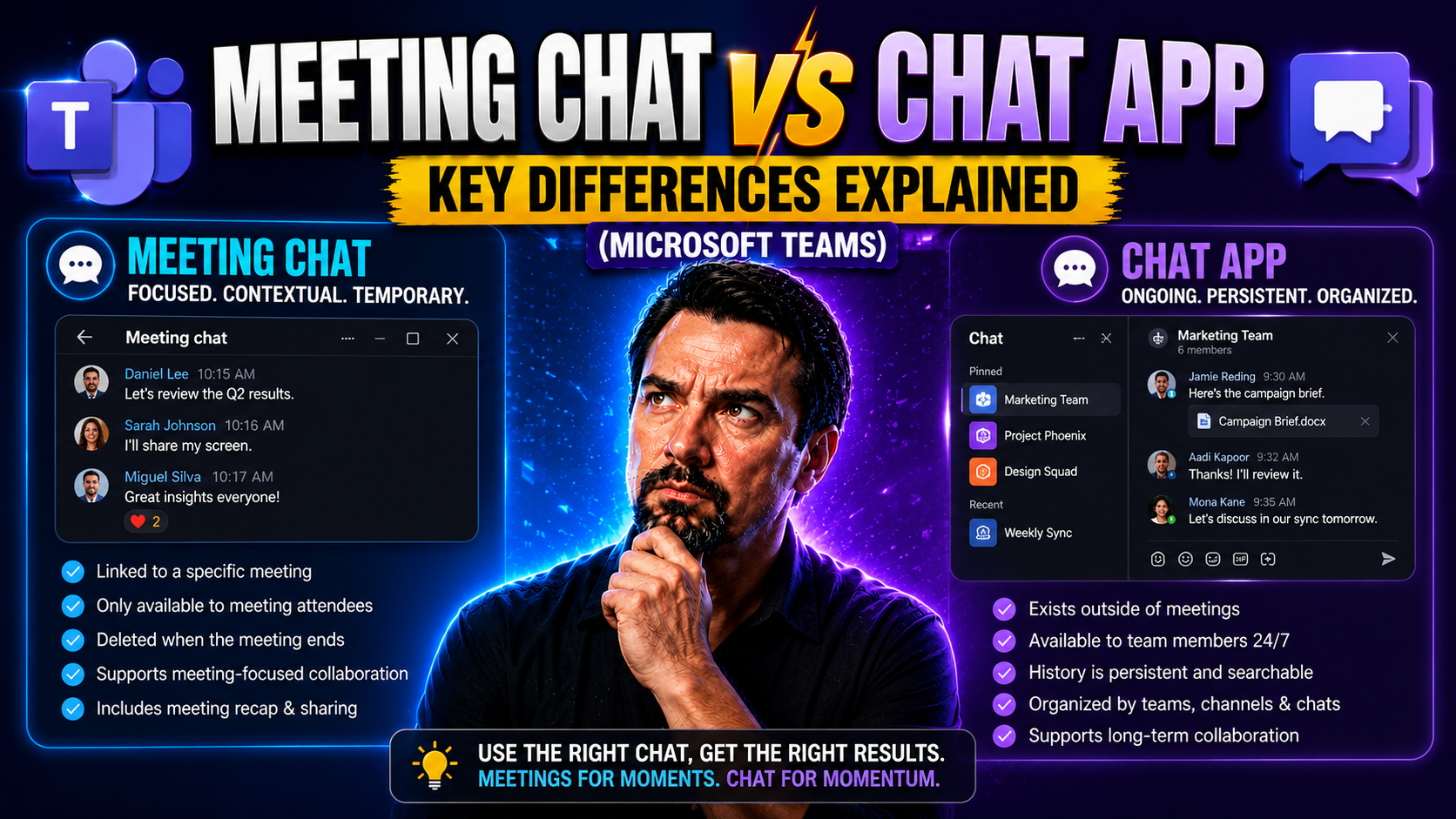
The line between meeting chat and dedicated chat apps gets blurry in today’s hybrid work world. When you join a video conference on Zoom, Google Meet, or Microsoft Teams, there’s often a chat window where folks drop questions, share quick links, or send quiet “help!” messages without breaking the speaker’s flow. But step outside the meeting, and it’s the standalone chat apps—think Microsoft Teams, Google Chat, or Slack—that carry on the conversation, keep projects moving, or store those “don’t forget” notes long after everyone logs off.
Why does this difference matter? Because the right type of chat at the right time can boost collaboration, prevent dropped balls, and even cover your back for compliance or privacy needs. If you’re the one steering meetings, ironing out policies, or weighing which tool is best for your team, understanding what each chat flavor brings to the table—especially inside Microsoft Teams’ governance world—goes way past tech tips. It’s about picking what actually helps people do better work, together, with fewer headaches.
Core Differences Between Meeting Chat and Chat Apps
Digging into the world of digital collaboration, one of the first forks in the road is choosing between in-meeting chat and standalone chat apps. In-meeting chat—like you find in Zoom, Teams, or Google Meet—is built to support live discussions in real time. Its messages are usually designed to be quick, temporary, and tied right to the session you’re in. These chats help folks raise questions or share reactions without the speaker losing their groove, and can often be cleared out or lost when the meeting wraps up.
On the flip side, standalone chat applications—such as Microsoft Teams, Google Chat, or others—have persistence on their side. This means conversations don’t vanish when the meeting ends. Instead, these apps let your team keep projects humming along, share documents, and integrate with calendars and workflows to create a digital “watercooler” that sticks around. They’re the backbone for ongoing collaboration, whether or not a meeting is happening right now.
The key here is understanding that each serves its own purpose: In-meeting chat is your quick, focused tool for the moment, while chat apps build the long game. Choosing the right balance, especially as you think about workflow, record-keeping, or compliance needs, makes a big difference in how your people connect and get things done. Up next, we’ll dive deeper into how these work on Zoom, Teams, and Google Meet.
How Chat in Meeting Zoom and Other Platforms Works
In-meeting chat in Zoom and similar tools lets participants exchange messages instantly while the meeting’s rolling. You can send notes to everyone, just the host, or even directly to another attendee—all without interrupting the speaker. Unlike group email, no one needs to wait for a reply later; messages land in real time, making collaboration much faster.
Who sees your chat can depend on settings. Hosts can limit chatting to everyone, to themselves, or allow private DMs. Once the meeting ends, these chats often disappear unless someone saves them or the organizer has archiving set up. This short-term nature means in-meeting chat is perfect for side questions, useful links, or gentle reminders—quick, focused, and not cluttering your chat history forever.
Standalone Chat Apps and Google Meet Integration Explained
Standalone chat apps—like Microsoft Teams and Google Chat—are designed for ongoing, persistent conversation. You can message teammates before, during, or after meetings, and everything is stored for as long as your policy allows. Files, links, and even old chats can easily be found days or months later, making it much easier to track project history or find that one key detail you need.
With Google, you’ve got Meet and Chat working side by side. Messages dropped in a Google Meet can flow into Google Chat, and everything ties together with Google Drive, Calendar, and more. This ecosystem means not only are your conversations saved, but you can also pick up discussions right where you left off—no matter if a meeting just ended or you’re kicking off a new conversation next week.
Zoom vs Google Meet Chat Features Compared
When it comes to keeping collaboration smooth during video meetings, Zoom and Google Meet each offer their own spin on chat. Zoom gives you the ability to send messages before, during, and after meetings, helping teams prep, react, and follow up without missing a beat. Google Meet keeps things tidy within its own window but really shines when you tap into the Google Workspace—letting chat, calendar, and docs blend together for seamless work.
The real difference shows up in the extras: things like how much formatting control you have, where your chat messages go once the meeting ends, and if you can loop in outside apps or keep a tidy archive for later. Zoom separates chat from your outside projects, while Google Meet wants to nestle right into your broader digital office. Picking one over the other isn’t just about what pops up in a meeting—it's about how your team likes to stay in touch, store info, and track what happens next.
Ultimately, for IT leaders and those managing workflows, weighing Zoom vs Google Meet chat features is less about perks and more about what fits the way your organization works. Up next, we’ll get into the nitty-gritty of how each handles pre- and post-meeting chat, integration, and getting the best out of your digital conversations.
Using Zoom Today: Before, During, and After Meeting Chat
- Before the Meeting: Start a group chat with participants to share documents, review the agenda, or gather questions ahead of time. This helps everyone show up ready.
- During the Meeting: Use in-meeting chat to ask questions, post links, or call attention to side discussions—without ever interrupting the speaker.
- After the Meeting: Some Zoom chats can continue as post-meeting discussions, but unless saved, in-meeting chats are typically wiped. Ongoing projects may need to shift to Zoom’s persistent chat or an external platform for longer follow-up.
- Recurring Meetings: For repeated sessions, chat history may or may not stick around, depending on how Zoom is set up.
- Keeping in Sync: Use chat reminders and mentions to make sure everyone’s on the same page, especially if steps need to happen right after you log off.
Google Meet Video Chat and Workspace Integration
Google Meet’s chat feature doesn’t just sit on its own—it connects deeply with the Google Workspace. Every time you chat in a Meet video session, relevant messages can be captured in Google Chat, helping you pick up threads after the video ends.
Integration with Google Calendar means you can schedule, join, and get updates from chat or calendar apps, making transitions smoother for busy teams. When files are shared, they land right in Google Drive, keeping content and conversations all within one ecosystem that’s simple to track and revisit.
Microsoft Teams and Zoom: Comparing Chat Experiences
If you work in a bigger organization or manage projects that never really “end,” how Microsoft Teams and Zoom handle chat can make a serious impact on your day-to-day. Microsoft Teams centers chat around ‘channels’, keeping discussions organized by topic and connected to files, tasks, and even automated processes. Chat persists across meetings, letting you track months of conversation—all governed tightly for compliance and structure. Teams governance brings order and accountability, making collaboration more predictable and secure.
Zoom, while strong in live-meeting chat, excels at letting you pivot quickly between chat, meetings, and even phone calls, often keeping each thread somewhat separate. However, Zoom also offers integrations—across third-party and internal platforms—that can unify the flow, so users don’t have to click all over the place just to stay caught up.
Each platform serves communicators a little differently: Teams is ideal for persistent, structured channels—think regulated industries, or anywhere records matter. Zoom is agile and quick for meeting-centric work. Understanding where each tool shines helps IT leads and business owners keep their teams both productive and “in the loop.”
Content Sharing and Chat During Microsoft Teams Meetings
Microsoft Teams makes it easy for meeting participants to share files, links, and messages right inside the chat pane. Every message—including @mentions and shared documents—stays attached to the meeting or channel, so no one has to dig through email later to find what they need.
Meeting chat is retained based on your admin’s policies, ensuring transparency and recordkeeping. To keep chaos at bay, Teams governance has your back: set the right permissions, roles, and guardrails to help collaboration flow smoothly and securely. For a deep dive on taming the Teams workspace, check out this Teams governance guide.
Zoom Platform Connect and Chat Integration
- Unified Communications: Zoom Chat brings messaging, meetings, and even phone calls together in one app, so you don’t have to jump around different tools all the time.
- Third-Party Integrations: Connect Zoom with project boards, CRM systems, or automation tools to keep information flowing automatically—no manual copy-paste needed.
- Seamless Contact Experience: Zoom keeps a shared contact list and easy DM setup to keep your team connected, whether you’re in a meeting or not.
- Workflow Productivity: Action items, reminders, and recurring project chats can be organized to match those in Slack, Teams, or Google Chat, so you can choose what works best for your group’s style.
Security and Compliance: Meeting Chat vs Standalone Chat Apps
If you’re in a field where compliance is more than just a checklist, security and retention in your chat solution need a closer look. The way messages are captured, stored, or even deleted tends to differ sharply between meeting chat and persistent chat apps. Temporary meeting chats—like those in Zoom or standard Google Meet—might not be kept, or are only archived with special settings, which can be risky for audits or record requests.
On the other hand, platforms like Microsoft Teams and Google Chat are built to handle archiving, granular retention settings, end-to-end encryption, and audit logging. That makes a world of difference when you’re thinking about GDPR, HIPAA, or showing regulators you kept your house in order. If you want security that goes deeper than just locking the door, smart governance—like what’s described in strong Teams governance—makes sure sensitive chats don’t leak or slip through cracks.
IT leaders need to match these tools to their policy needs. The best solution doesn’t just tick the compliance boxes; it helps you sleep at night, knowing your organization is protected and your collaboration history is exactly where it should be—safe and compliant, but still easy for the right people to access. For a technical deep dive, you’ll find security hardening guidance on Teams security best practices very helpful.
Data Retention, Archiving, and Encryption Across Chat Types
- Retention and Archiving: Teams and Google Chat offer robust archiving and export tools, while Zoom’s in-meeting chat is often deleted unless saved or recorded. Persistent chat history is a must for compliance-focused businesses.
- Encryption: Microsoft Teams and Google Workspace use strong encryption, and Zoom now provides end-to-end encryption as an option, though standards may differ between products.
- Audit and Oversight: Platforms like Teams let admins track, log, and review chat activity for legal or policy reasons—a necessity when dealing with sensitive data, as outlined in Teams security hardening strategies.
Maximizing Productivity with Tips and Chat Automation
The real magic behind meeting chat and chat apps isn’t the window itself—it’s how you use it to make your day easier. Automation, smart reminders, and chat-based follow-ups can take the grunt work off your plate, keep teams on track, and make sure meeting insights never get lost in the shuffle. Whether you’re running projects in Microsoft Teams, Zoom, or with Google Workspace, learning a few tricks can pay off big.
Think about automatically sending meeting summaries, setting up chatbots to remind people about next steps, or using seamless content-sharing to cut down on the “where’s that file?” scramble. Tools like Microsoft Copilot, Google AI, and a host of simple integrations can let your chat workspace handle busywork—leaving you to focus on real decisions and creative work. To really get into what’s possible, see how automation can orchestrate meetings and chats in this in-depth Copilot overview.
As we break down these productivity boosters, you’ll find fast wins and deeper strategies to help your organization wring the most out of every meeting and chat—without piling on more manual tasks or notifications you just ignore anyway.
Automating Content Sharing and Meeting Summaries
- Automatic Meeting Summaries: Let tools like Microsoft Copilot generate and distribute key notes and action items, so no one misses the highlights after a call. See this in action at the Copilot workflow automation blog.
- Content Distribution Bots: Set up bots in Teams or Zoom to push documents, videos, or follow-up resources directly to chat channels as soon as they’re ready.
- Chat-Triggered Automations: Use keywords or message triggers to kick off automated workflows, such as scheduling next meetings or updating project boards without switching apps.
How-To Tips for Engaging In-Meeting Chat
- Format for Clarity: Use bullet points and bold headers to make critical info easy to spot in a crowded chat window.
- @Mention Participants: Tag individuals to ensure your message gets noticed—this saves time chasing action items later.
- Keep Side Chats Tidy: Move longer or off-topic discussions to dedicated chat threads or channels, so the main meeting chat stays focused.
- Be Respectful with Notifications: Don’t spam; limit pings and use them for key moments. Everyone’s got enough alerts already!
- Know the Help Options: If chat breaks or you get lost, use your platform’s help tool or onboard chatbot for quick troubleshooting—no shame if you need a hand mid-meeting.
You Should Also Listen To
If you are researching Teams meeting chat vs chat, these episodes add practical context on collaboration, meeting operations, security, and governance:
- Recording, Transcription, and Breakout Rooms — Learn how meeting capture and breakout features turn discussions into action.
- Microsoft Teams Governance – The Illusion of Control — Connect meeting choices with policy, ownership, lifecycle, and governance.
- Microsoft AI Agent Harness – Simply Explained — Understand how AI orchestration can support meeting workflows and guardrails.
- Microsoft Defender XDR – Simply Explained — Add security monitoring and response to meeting operations.

Microsoft MVP | Host of M365.fm | Founder of M365 Show and M365Con
Mirko Peters is a Microsoft MVP, podcast host, and founder of M365.fm, M365 Show, and M365Con. His work connects Microsoft practitioners through podcast interviews, livestreams, and community events.
At M365.fm, Mirko hosts conversations with Microsoft MVPs, product experts, architects, and community contributors. Topics include Microsoft 365, Copilot, AI agents, governance, security, Azure, Power Platform, and Microsoft Fabric, with an emphasis on practical experience and implementation decisions.
M365.fm is the podcast and learning platform. M365 Show brings experts together for livestreams, while M365Con provides an online conference setting for community learning.
Official website: Mirko Peters (https://www.mirkopeters.com/). Recognition: Mirko Peters — Microsoft MVP profile (https://mvp.microsoft.com/de-DE/mvp/profile/9b0ca797-db5a-493a-a845-8b9158046cf5). Connect on LinkedIn (https://www.linkedin.com/in/m365showpodcast/).





