
Integrating CRM With Teams: The Complete Guide
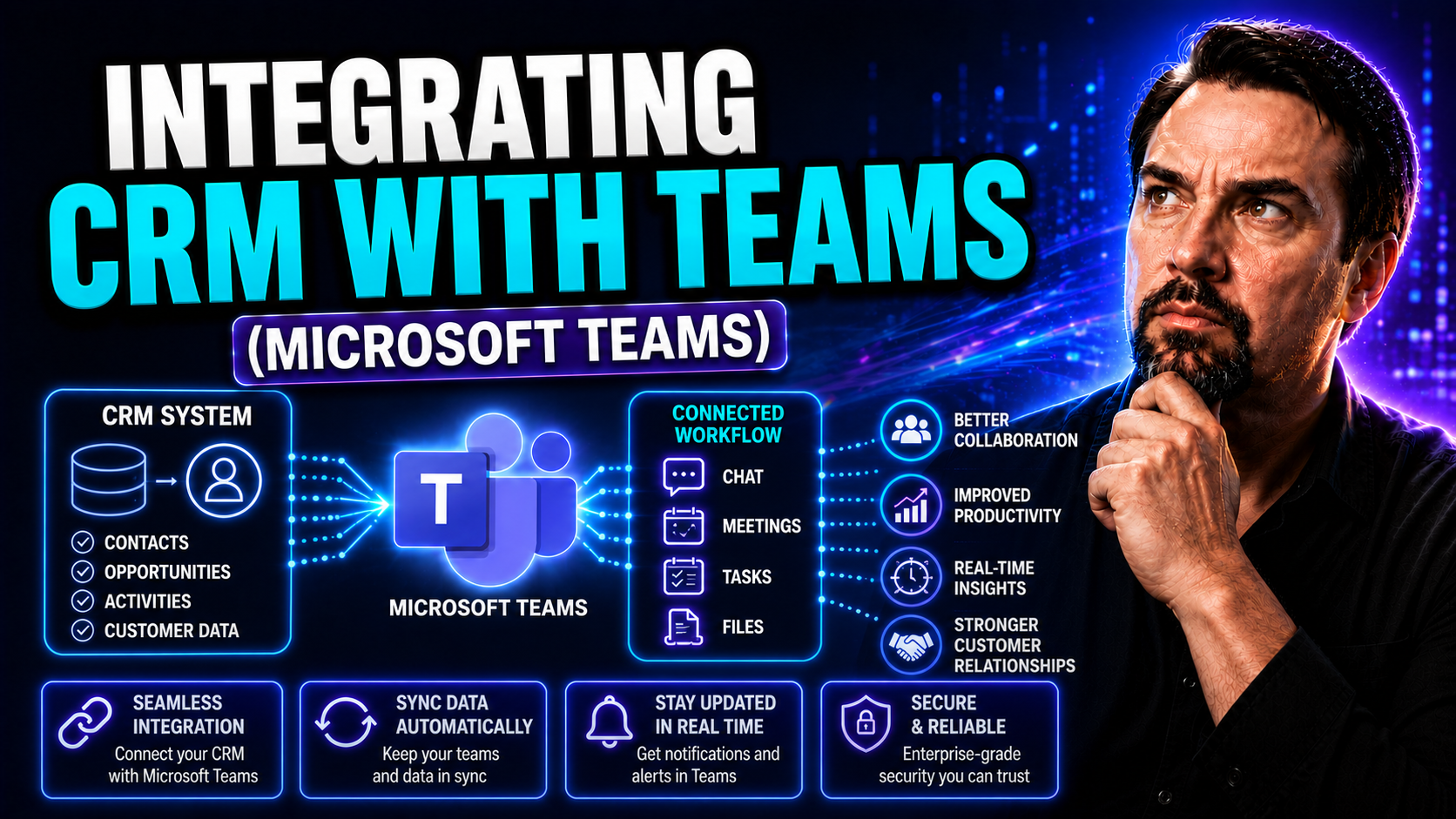
Integrating your CRM with Microsoft Teams is more than just a tech trend—it's a necessity for modern organizations aiming to streamline communication, boost productivity, and stay competitive. By combining CRM platforms with the collaborative power of Teams, businesses unlock unified workflows that tie everyone together, from sales and support to leadership.
This guide opens up the world of CRM-Teams integration step by step. You'll see exactly why these two tools work best side by side, how native Microsoft integrations like Dynamics 365 in Teams simplify everyday business, and which third-party CRMs are set to lead in coming years. There’s a deep dive into features users expect, like real-time updates, customization, and secure data access across all devices and locations.
Whether you manage IT, oversee sales, or support hybrid teams, this guide will show you how to get started, what to look for in a solution, and how to maximize results. We’ll tackle critical details around security, compliance, automation, support, and pricing—so you come away with practical advice, not just theory. By following along, you can expect not just better collaboration, but confident governance and real ROI for your Teams environment.
Why Integrate CRM With Microsoft Teams to Boost Productivity
Bringing your CRM and Microsoft Teams together isn’t just a fancy integration—it’s a game-changer for how you run your business day to day. With CRM data embedded right inside Teams, there’s no more bouncing back and forth between windows or apps. That unified workflow keeps everyone in the loop, cuts the noise, and makes it way easier to share what matters—when it matters.
This integration centralizes customer information, which means less digging around for records and more time spent on conversations that move the needle. Teams becomes your command center, letting departments chat, review client status, and update pipelines—all without breaking stride. You can check customer records during a Teams meeting, assign tasks, or share sales notes before anyone’s even left the chat.
For organizations working across different locations or supporting flexible schedules, this setup is critical. Remote and hybrid teams need instant access to CRM intel so everyone is aligned, no matter the time zone. Integrated tools support daily standups, boost meeting efficiency, and reduce context switching—key factors highlighted in guides like transforming project management with Microsoft Teams. Ultimately, CRM and Teams integration not only boosts productivity but also improves governance and data security, keeping your organization streamlined and secure.
Dynamics 365 Native Integration With Microsoft Teams
Microsoft Dynamics 365 doesn’t just work with Teams—it weaves itself right in. With native integration, Dynamics 365 data flows directly into Teams channels, chats, and meetings. That means you can pull up customer profiles, review sales deals, or update records all from within your existing Teams workspace. No more juggling browser tabs or struggling to find the right link.
This isn’t just about access. It’s about built-in collaboration. You can coauthor records in real time, tag teammates into client conversations, or launch a Teams call from right inside a Dynamics app. For organizations already invested in the Microsoft 365 stack, this seamlessness is gold—user permissions, governance rules, and security policies all carry over.
There’s also a boost in sales speed. Tools like Power Automate and Adaptive Cards allow live CRM data to show up in chats—see more about that in this handy resource on integrating Dynamics 365 Sales data into Teams. This means instant alerts, real-time approvals, and fast handoffs, all governed by Microsoft’s robust security. For businesses that want a CRM that feels like a native part of Teams, Dynamics 365 is a clear winner.
Top CRM Tools for Microsoft Teams in 2026
The landscape for CRM platforms compatible with Microsoft Teams keeps getting richer, whether you're running a lean startup or overseeing a sprawling enterprise. While Microsoft's own Dynamics 365 offers a seamless native solution, there are several standout third-party options that cater to distinct business styles and team needs.
Some CRMs excel at building and mapping relationship networks. Others blend project management tools with sales pipelines, making them ideal for organizations where tasks and deals live side by side. Then you have options tuned for customer success or businesses still rooted in Outlook-heavy workflows. The key is choosing a solution that fits how your team works and communicates within Teams.
In the next sections, you’ll find a breakdown of top contenders—from relationship-focused platforms to project-driven apps and niche solutions for Outlook users. Each profile will help you compare what matters most for your organization, whether it’s audit trails, automation, or deep Microsoft 365 alignment.
Affinity CRM for Microsoft Teams: Smart Contact and Organization Management
- Relationship Intelligence: Affinity specializes in mapping and tracking connections between contacts, organizations, and deals. Within Teams, this gives sales and outreach teams immediate insights into who knows whom, previous interactions, and the strength of each relationship—all without leaving the chat or meeting environment.
- Streamlined Interaction Audit Trails: Every call, email, or meeting can be automatically captured and logged in Affinity, right from Teams. That means anyone on your team can pick up the story of a customer interaction instantly, reducing silos and eliminating information gaps.
- Accessible Activity Logs: Affinity makes it easy to pull up recent communications, notes, and key decision points—all from inside Teams channels. This ensures nothing slips through the cracks and everyone’s on the same page during sales cycles or outreach campaigns.
- Example Use Case: Imagine a remote sales team prepping for a client pitch: with Affinity in Teams, they can see last touchpoints, assign follow-ups, and keep track of every message exchanged as they move deals forward together.
Smartsheet and ClickUp for Project-Driven CRM Workflows in Teams
- Smartsheet: Offers robust project-driven CRM functionality, letting teams track pipeline stages, manage deliverables, and automate tasks—with everything accessible in Teams. Ideal for organizations where customer projects and sales deals overlap. For more on structuring projects in Teams, see this step-by-step guide.
- ClickUp: Delivers all-in-one productivity by merging task management, CRM pipelines, and communication in a single Teams app. Pipelines can be customized for sales, customer success, or internal projects—keeping everyone focused, even as priorities shift.
- Unified Collaboration: Both Smartsheet and ClickUp allow contextual discussions on tasks and projects, connecting every CRM activity with supporting documents and messages—so Teams becomes the one place for both client updates and project progress.
ChurnZero for Customer Success and eWay-CRM for Outlook Users
- ChurnZero: This CRM is built for customer success teams, focusing on onboarding, retention, and churn reduction. Inside Teams, ChurnZero triggers alerts and coaching points for CSMs (Customer Success Managers) as clients move through key lifecycle stages.
- eWay-CRM: Perfect for organizations rooted in Outlook, eWay-CRM syncs emails, contacts, and appointments right into its platform. Integrated Teams features mean you can reference customer records or share updates during meetings without leaving your Outlook-centric workflow. For those wanting to level up productivity, check out these Outlook productivity tips.
- Specialized Journeys: Both solutions are ideal for teams with specialized processes—whether it’s customer onboarding or account management—making critical CRM data instantly accessible in Teams where key decisions happen.
Key Features of CRM and Teams Integration Users Expect
When CRM meets Microsoft Teams, users expect more than just contacts and notes in a different window. The real value lies in features that boost collaboration, speed up decision making, and make information available anytime, anywhere. Real-time notifications, audit trails, and activity tracking should be front and center—so nothing gets missed.
Customization and smart syncing also play pivotal roles. Teams want to tweak dashboards, fields, and processes to fit their needs, while ensuring that customer data stays in sync whether they’re on a desktop at the office or on a mobile device out in the field. Flexibility and multi-platform access make the integration stickier and more useful for everyone, regardless of role.
Through the next sections, we’ll dig deeper into these essential features—including how smart collaboration tools, like custom Teams message extensions, make integrations truly shine. Whether you’re tracking deal progress or customizing workflows, these tech advances drive productivity and engagement across your Teams environment.
Real-Time Collaboration and Interaction Audit Trails
- Instant CRM Notifications: Get real-time alerts in Teams when there’s a key CRM update, such as a closed deal or a new lead. This keeps everyone in the know and enables quick responses to customer activities. Need help tuning alerts? Check out tips for smarter notifications with adaptive cards.
- Automatic Activity Logging: Every conversation, meeting, and note is tracked and logged. This means full visibility into customer touchpoints—nobody wonders who last spoke with a client or what was agreed on.
- Audit Trails and Accountability: With built-in interaction logs, it’s easy to audit who did what and when—helping with compliance, knowledge sharing, and cross-team collaboration.
- Scenario Example: You’re in a deal review meeting; live updates pop up as customers respond or contracts are signed, ensuring every stakeholder is on the same page in real time.
Customization, Smart Sync, and Multi-Platform Access on Web, Desktop, and Mobile
- Custom Workflows and Fields: Tailor CRM forms, stages, and dashboards to match your business process. This means no wasted time on irrelevant data, and every screen is optimized for how your team actually works.
- Smart Sync Across All Platforms: Any update in the CRM or Teams—whether it’s on the web, desktop, or mobile—shows up instantly everywhere else. This real-time synchronization reduces errors and makes sure everyone has the latest info.
- Flexible Configuration: Teams can add, remove, or configure features without heavy IT involvement—boosting adoption and ensuring the technology fits the team, not the other way around.
- Access Anywhere: Whether at a desk, in the field, or working from home, users have seamless, secure access, supporting productivity no matter where business happens.
CRM and Teams Integration for Remote and Hybrid Sales Teams
For remote and hybrid sales teams, keeping everyone in sync is no small feat. Integrating CRM with Microsoft Teams bridges the gap, giving distributed reps and managers a single platform to collaborate, track leads, and coach performance—no matter where they’re working from.
These integrations help maintain visibility across the pipeline. Everyone can see exactly what’s in play, who owns which lead, and what stage deals are in. Meetings become more purposeful when live CRM data is embedded directly into daily standups, and sales huddles run smoother when there’s no need to switch back and forth between screens.
This setup is key for preserving team accountability and cohesion. Managers can spot trends, send coaching tips at just the right moment, and drive quick course corrections. Plus, it supports flexible schedules and hybrid environments—efficiency doesn’t drop just because someone’s remote. Need help managing hybrid team resources? See how Microsoft Places is helping businesses stay connected in the new world of work.
Optimizing Daily Standups and Sales Huddles With Embedded CRM Data
- Live CRM Widgets in Teams: Drop deal progress, open opportunities, or activity dashboards directly into Teams channels and meetings. Everyone sees the latest numbers in real time, cutting down on status update chatter.
- Context-Rich Standups: Instead of everyone reading out their progress, updates can be shared visually using embedded charts and notes. Questions and action items stem from actual, up-to-date CRM data.
- Reduced Context Switching: No jumping to separate apps—reps and managers discuss deals, assign tasks, and log new interactions inside one environment, keeping the whole team aligned and productive. For practical integration tips, explore examples for using Copilot in Teams.
Performance Tracking and Coaching Remote Sales Reps via CRM-Teams Workflows
- Automated Performance Dashboards: Managers get instant access to reps’ activity trends and progress against targets via CRM-triggered dashboards in Teams—no need for manual spreadsheets.
- Deal Stage Alerts: If deals stall or a lead goes cold, CRM-initiated notifications prompt managers to step in with timely coaching or resources. These real-time nudges keep reps focused and pipelines healthy.
- Feedback Loops: Teams workflows can auto-generate feedback requests or coaching summaries after major milestones, driving continuous improvement. Curious about the power of automated metrics? See insights on measuring efficiency with Copilot.
- Practical Example: A remote rep hits their activity target and instantly receives a Teams notification with personalized feedback from their manager—driving engagement and accountability even from afar.
Automating Customer Handoffs Between Sales, Support, and Success in Teams
Automating handoffs between departments is a huge unlock for customer experience and internal efficiency. With CRM and Teams integrated, you can move deals from sales to onboarding, support, or customer success smoothly—nobody misses a baton pass and every team has access to the right client history, every step of the way.
This power comes from workflow automations that trigger at specific CRM milestones—like when an opportunity closes or a support case escalates. Key information flows into purpose-built Teams channels, so each department starts with full context. Approvals, task assignments, and follow-ups become automated, keeping processes tight and team members accountable.
Tired of gaps and manual info sharing? Leveraging Teams channels as living collaboration hubs reduces friction and lets new teams pick up where others left off. Need even more integration magic? See how Microsoft 365 Copilot Connectors allow you to blend CRM, ERP, and external tools for all-in-one operational visibility.
Using Teams Channels as Collaboration Hubs for CRM-Triggered Handoff Processes
- Auto-Provisioned Channels: When a deal closes or a customer reaches a new stage, a dedicated Teams channel is automatically created or updated. This channel holds all relevant files, meeting notes, and customer details right from the start.
- Full Context Transfer: CRM integrations push history, notes, and key contacts into the new channel. The onboarding or support team hits the ground running, never missing critical details.
- Live Collaboration Objects: Embeddable components, like Microsoft Loop, allow teams to update project or customer info in real time across apps—solving silo headaches. Learn the magic behind it at Loop Components.
- Continuous Handoffs: Every handoff includes context, goals, and next steps—ensuring a seamless journey for customers and clear ownership for teams.
Approval Workflows and Task Assignments Across Departments
- Automated Approvals: CRM stage changes—like new contracts—automatically kick off Teams approval chains, sending requests to the right people without manual handoffs.
- Task Routing: Assign to-dos for onboarding, IT setup, or training with CRM-linked tasks that show up directly in Teams. Responsible parties always know what’s next.
- Reduced Bottlenecks: Real-time notifications and assignment trails clarify who owns each step, reducing delays and boosting accountability across teams.
Pricing Plans and Accessibility for CRM in Microsoft Teams
When it comes to integrating CRM with Microsoft Teams, pricing and accessibility are top considerations. Businesses need to understand the costs up front—what’s available for free, what’s included in premium or enterprise tiers, and how these options scale as your teams or requirements grow.
Many leading CRMs for Teams offer a free forever plan, letting smaller businesses or pilot groups get started with basic features and limited usage. As needs grow, premium, leadership, and enterprise plans unlock features like unlimited records, advanced analytics, custom automation, and compliance tools. Usage-based models allow for flexibility, charging only for active users or overages so you don’t pay for seats you’re not using.
The right plan can make or break adoption—choose something too restrictive and teams get frustrated, but go for an oversized enterprise plan too soon and you risk wasted budget. In the next section, we’ll outline the main pricing structures and compare what you get at each level, so you can make an informed, cost-effective choice for your organization’s needs.
Comparing Free, Premium, Leadership, and Enterprise CRM Plans for Teams
- Free Forever Plans: Often include core features like contact management, deal tracking, and basic Teams integration—ideal for small businesses or trial deployments. Limitations typically include user caps, restricted storage, and limited support.
- Premium Plans: Step up with unlimited usage, more advanced reporting, deeper Teams features, and workflow automation. These plans usually add email integrations and better support options.
- Leadership Plans: Targeted for larger teams or department heads, offering enhanced analytics, advanced governance, and stronger security controls to support scale and compliance needs.
- Enterprise Plans: Top tier with unlimited leads and cases, advanced compliance, audit logging, priority support, and custom integrations—well-suited for organizations with heavy regulation or major scalability needs.
Security, Compliance, and Data Management in CRM-Teams Integration
Data security, compliance, and airtight management form the backbone of any successful CRM-Teams integration. Organizations are trusting both platforms with sensitive customer information, financials, and internal communications, so protecting this data is non-negotiable. Strategies range from secure storage in Microsoft Azure to strong encryption and vigilant access management.
The Microsoft 365 ecosystem brings industry-standard compliance tools, supporting frameworks like GDPR and HIPAA for even highly regulated industries. You get layered defenses—think multi-factor authentication, advanced data loss prevention, and strict retention policies. Want to dig deeper into protecting your Teams environment? Don’t miss these Teams security best practices and practical guidance for Copilot data privacy in organizational settings.
Just as important is governance—defining who has access to what, tracking audit logs, and assigning responsibilities. Next, we’ll explore how data is stored and protected, and spell out the details around authentication and access management, so you know exactly how your customer records are being looked after.
Where Is Data Stored and How Secure Are CRM-Teams Integrations?
Customer data in CRM-Teams integrations is typically stored within secure, enterprise-grade cloud environments—most often Microsoft Azure. Data is protected by strong encryption both in transit and at rest, preventing unauthorized access or leaks. Compliance with GDPR, HIPAA, and other regulations is achieved through audited processes, detailed access controls, and robust privacy policies built into the Microsoft 365 stack.
Regular third-party audits and security certifications also play a key role in maintaining trust. The security model is designed to isolate tenant data, leveraging the cloud’s scalability while keeping sensitive information locked down. For insight on advanced security models, Microsoft Copilot’s approach—though focused on AI—shows how privacy and compliance are prioritized at every integration point.
Authentication, Access Management, and Microsoft Single Sign-On
- Microsoft Single Sign-On (SSO): CRM-Teams integrations use Microsoft SSO to streamline secure user authentication. Employees can log in once and access all connected apps, reducing password fatigue and minimizing risk.
- Role-Based Access Control: Admins define who can view, edit, or manage customer records. Permissions are tightly managed to align with business roles and compliance needs, ensuring least-privilege access for sensitive data.
- Smart Authentication Policies: Support for multi-factor authentication, conditional access, and automated user provisioning adds extra layers of defense—crucial for enterprise environments handling unlimited customer records.
- Governance for Teams: For more on building secure, accountable workspaces, check out this guide on Teams governance best practices.
Implementation, Support, and Choosing the Right CRM for Teams
Getting CRM integration with Microsoft Teams off the ground requires a clear plan, the right resources, and careful vendor evaluation. Whether you’re migrating from a legacy CRM, spinning up a new Teams deployment, or just adding features for existing users, knowing your requirements cuts the risk of wasted time and frustration.
Step one is defining which CRM platforms can plug directly into your Teams environment and what dependencies—like a company Teams account—you need. Next up: support. Reliable help desks, active communities, and thorough documentation mean faster troubleshooting and smoother onboarding for your team.
Decision time comes down to comparing costs, technical fit, licensing, and the level of support needed by your organization. If keeping track of projects and permissions matters, strong governance—a key point in this Teams governance guide—should rank high on your checklist. Ready to get started? The following sections walk you through the crucial setup questions and offer tips for vetting your final solution.
Setup Requirements and Microsoft Teams Dependency
- Company Teams Account: A business or enterprise Microsoft Teams subscription is usually required. Some CRMs also need specific Microsoft 365 licenses for full integration.
- CRM Compatibility: Not all CRMs are built for Teams, so check for dedicated apps or official support. Dynamics 365, for instance, offers built-in Teams connectors out of the box.
- Migration Tips: Export current data for smooth migration, and review any legacy add-ons or third-party integrations to ensure compatibility.
- Initial Setup: Most integrations follow a wizard-driven onboarding—authorize both systems, assign permissions, and configure key workflows before inviting users to collaborate in Teams.
Support, Common Questions, and Final Thoughts for Choosing a CRM-Teams Solution
- Getting Help: Most providers offer a mix of live chat, knowledge bases, and onboarding support. Look for vendors with active support channels and quick resolution times.
- Key Selection Factors: Evaluate security, compliance, mobile support, integration depth, and total cost of ownership. Factor in ease of administration and user adoption as well.
- Tracking Opportunities: Use built-in dashboards and Teams notifications to count, monitor, and follow up on sales and support opportunities right inside your collaboration hub.
- Final Perspective: Choose a CRM that fits your workflows, scales with your growth, and offers robust governance—points echoed throughout this Teams governance resource. Smart selection today means fewer headaches tomorrow.

Microsoft MVP | Host of M365.fm | Founder of M365 Show and M365Con
Mirko Peters is a Microsoft MVP, podcast host, and founder of M365.fm, M365 Show, and M365Con. His work connects Microsoft practitioners through podcast interviews, livestreams, and community events.
At M365.fm, Mirko hosts conversations with Microsoft MVPs, product experts, architects, and community contributors. Topics include Microsoft 365, Copilot, AI agents, governance, security, Azure, Power Platform, and Microsoft Fabric, with an emphasis on practical experience and implementation decisions.
M365.fm is the podcast and learning platform. M365 Show brings experts together for livestreams, while M365Con provides an online conference setting for community learning.
Official website: Mirko Peters (https://www.mirkopeters.com/). Recognition: Mirko Peters — Microsoft MVP profile (https://mvp.microsoft.com/de-DE/mvp/profile/9b0ca797-db5a-493a-a845-8b9158046cf5). Connect on LinkedIn (https://www.linkedin.com/in/m365showpodcast/).




