
Managing Notifications Org-Wide in Microsoft Teams: The Complete Guide
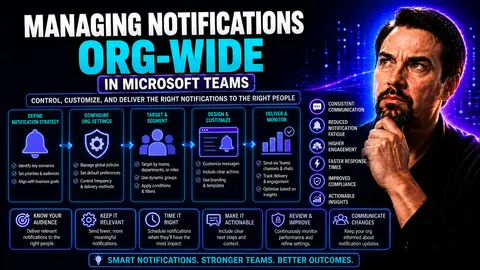
If you’re struggling to tame the flood of pings, dings, and banners in Microsoft Teams across your organization, you’re in the right place. This guide is your playbook for wrangling notifications at scale, whether you’re running a lean IT shop or steering a full-blown enterprise.
We’ll tackle everything from the basic principles of org-wide notification management to hands-on configuration steps. You’ll learn about advanced automation, troubleshooting common headaches, and the latest ways to lock down compliance and security using notification policies.
It’s built for IT admins, decision-makers, and anyone juggling governance with everyday productivity (yes, both matter!). By the end, you’ll have the confidence and know-how to deliver consistent, actionable alerts—without overwhelming your users or missing a critical incident.
Understanding Organization-Wide Notification Management in Microsoft Teams
In today’s twisty world of hybrid work, it’s all too easy for Microsoft Teams notifications to spiral out of control. Messages, meetings, mentions—they fly in from every angle, and if you don’t put up smart guardrails, your users can drown in distractions or, worse, miss what truly matters.
Organization-wide notification management means putting strong, centralized policies in place so you can decide exactly who gets which alerts, how those alerts show up, and on what device. Instead of letting each employee set things up their own way and hoping for consistency, IT can enforce a baseline that brings order and predictability to communications.
It’s not just about muting the chatter. The magic of this approach lies in its ability to streamline important messages, support compliance needs, and enhance the focus of your teams. Think of it as building the framework for safe, reliable, and productive collaboration. If you want more background on how governance in Teams transforms chaos into confidence, there’s a handy explainer at this resource that’s worth a look.
Now, let’s dig a little deeper into why taking control at the organization level pays dividends—and what you’ll need to make it happen in practice.
Why Manage Notification Settings for Your Organization at the Organization Level?
Controlling notification settings across your entire organization ensures every user gets a consistent, predictable experience. When notifications are left unchecked, you end up with a chaotic mix of missed meetings, ignored chats, and alert fatigue.
Setting policies at the organization level is about more than convenience—it’s about compliance, too. With regulatory requirements on the rise, enforcing notification standards helps meet audit and reporting needs. Centralized control also minimizes distractions that chip away at productivity, supporting both business efficiency and employee well-being.
When you shift from individual to org-wide management, you build a more resilient, responsive communication environment. Everyone hears the same important messages when they matter most.
What You’ll Need: Permissions and Prerequisites for Organization-Level Work
- Microsoft 365 Global or Teams Administrator Role: You’ll need one of these elevated admin roles to make changes impacting all users' notification policies.
- Appropriate Microsoft 365 Licenses: Organization-wide notification features require at least Teams and Exchange Online licenses for every user (often included in most Microsoft 365 E plans).
- Access to Teams Admin Center: All configuration work happens here—make sure you have the right URL and two-factor setup for the admin portal.
- Active Directory Integration: Tenant-wide changes rely on properly synced Azure Active Directory, ensuring user and group-level assignments work correctly.
- Checklist Review: Double-check admin privileges, licensing assignments, and user directory accuracy before altering notification configurations to avoid lockouts or missed alerts.
Configuring Default and General Notification Settings Across Teams
Once you’ve got the right permissions and have secured your admin hat, it’s time to get practical with configuring the default notification experience for everyone in your organization. By putting these settings in place, you set a clear baseline, ensuring that nobody falls through the cracks or gets buried under too many pings.
This section takes you through how to apply and enforce these default policies across Teams. From broad notification types to the fine details—like sounds and visual pop-ups—you’ll see how to shape alerts in a way that supports business goals without turning your digital workspace into a noisemaker or a ghost town.
It’s all about maximizing what matters and minimizing the stuff that just gets in the way. Let’s explore the technical and tactical sides, so your team can thrive with the right alerts, right on time.
Setting Up Default Channel and Notification Policies
- Access the Microsoft Teams Admin Center: Log in through the Teams admin portal. Navigate directly to “Teams” and select “Notification policies” to start setting your org defaults.
- Create or Edit Notification Policies: Build a new policy or adjust an existing one. Here, you can define what kind of alerts (e.g., chat, @mentions, meeting alerts) users should receive by default, and which channels send push or email notifications.
- Set Channel Notification Defaults: Control what users see right out of the box—decide if channels send banner alerts, show only in the feed, or are turned off until subscribed. This helps prevent overload, especially for big, noisy teams.
- Assign Policies to Users or Groups: Apply your standardized notification rules to everyone or specific departments/groups (think: HR gets different channel alerts than IT or Finance). Assignment happens from within the policy screen so you can bulk-manage users seamlessly.
- Monitor and Adjust: Regularly review your notification settings based on feedback or organizational changes. Update the policies as needed when you roll out new channels or apps across Teams.
Managing General Notifications and Sound Settings for All Users
Getting notifications right isn’t just about what pops up on screen—it’s also about the sounds and the visibility of those alerts. When you establish general notification settings for the whole organization, you create uniformity across devices and platforms, cutting down on confusion and missed updates.
Admins have the power to set and push out default sounds and decide whether critical notifications command a banner or slip quietly into the feed. These controls help you maintain an environment that’s alert but not annoying, even as users jump from desktop to mobile to web app during their workday.
You’ll also want to consider accessibility: ensuring that your chosen alert volumes and tones are easy for everyone to hear, but not so jarring they cause distractions. A well-tuned notification strategy supports both engagement and inclusivity.
Ready for a deeper dive? The following sections cover how to tweak and enforce these general notification and sound settings to match your company’s specific needs and priorities.
How to Change and Manage Sound Notifications Across Devices
- Set Default Notification Sounds: Choose a standard alert sound in the Teams admin center that becomes the organization’s baseline, but allow users to pick alternatives if permitted.
- Customize Sound Alerts per Device: Instruct users on adjusting alert tones for mobile, desktop, and web—ensuring important notifications aren’t missed due to different hardware setups.
- Update Push Notification Preferences: Let users know how to temporarily mute or resume sound notifications during meetings or focused work sessions.
- Manage System-Level Sound Settings: Confirm system volume and Do Not Disturb settings align with Teams notification policies for consistent behavior across devices.
Adjust Volume and Check Device Volume for Optimal Alerts
Proper volume control ensures that Teams notifications are noticeable but not disruptive across the board. You can manage notification volume within the Teams app for each device, tailoring how loud alerts sound during the workday.
It’s smart to remind users to check both their Teams app notification volume and their device’s overall system volume. This dual-check approach helps maintain a consistent alert experience, so nobody misses a critical update because they accidentally muted their laptop or phone.
Managing Channel, Chat, and Meeting Notifications at Scale
Collaboration in Microsoft Teams is dynamic—there’s always a chat thread, a channel discussion, or a meeting on the go. Keeping notification noise in check, while ensuring nobody misses vital messages, is a balancing act every admin faces as organizations grow.
This section explains how to finely tune chat, channel, and meeting notifications across the board so people get the information they need without being bombarded by constant pings. You’ll see how channel types (private, shared, or public), user roles, and specific activities all play a part in the ideal notification mix.
For smart tips on reducing distractions with tailored settings and adaptive card notifications that increase engagement, check out this guide. And if you want a rundown of when to use private versus shared channels for effective communication, take a peek at this resource.
Next, let’s break down how to manage chat and channel message alerts, then dive into meeting notification controls and presence management—so you cover every corner.
Controlling Chat Channels and Thread Notifications for Teams
- Adjust Message Notification Policies: In the Teams admin center, create or edit notification policies governing which message types trigger alerts (e.g., direct chats, @mentions, replies in threads). Force critical communications to show banners, while less urgent messages can stay in the activity feed.
- Set Channel Notification Defaults by Type: Automate alerts by channel type—shared, private, or public. Choose where pop-up banners show up and mute non-essential channels to prevent overload for broad audiences.
- Allow Department-Level Exceptions: Assign different notification rules to specific user groups or departments so that Finance, HR, and IT can each tune their signal-to-noise ratio as needed.
- Empower End-User Mute and Pinning Options: Let users mute noisy threads or pin high-priority chats for quick access, supporting both organizational policy and individual focus.
- Leverage Message Analytics: Use available reporting to spot channels or threads that generate the most noise and revise policies accordingly. For channel organization and best practices, this page dives deeper.
Managing Meeting Notifications, Calendar Alerts, and Presence
- Configure Meeting Reminder Defaults: Set up organization-wide policies for when and how meeting reminders are sent—e.g., banner alerts 10 minutes before a scheduled call, with simultaneous push notifications on mobile devices.
- Control Calendar and Scheduling Notifications: Choose default behaviors for calendar event alerts. You can fine-tune which invitations or updates generate notifications and how those appear on the user’s devices.
- Manage Presence Status Alerts: Decide whether changes in user presence (like “Available,” “Do Not Disturb,” or “In a Meeting”) automatically trigger status updates or alerts to coworkers or supervisors, helping teams coordinate availability and response times.
- Implement Cross-Platform Consistency: Ensure that meeting and calendar notifications behave the same whether accessed from desktop, mobile, or the web, eliminating confusion for users who switch devices mid-day.
- Enforce Compliance and Timeliness: Use reporting and audit trails to ensure users are receiving meeting notifications on time, supporting both operational needs and regulatory obligations for attendance or availability records.
Advanced Notification Controls and Automation in Microsoft Teams
Once your base notification settings are set up, it’s time to level up. Advanced controls let you automate responses, standardize alerts across teams, and take advantage of integrations—helping you move beyond manual, one-size-fits-all policies toward a smarter, more scalable approach.
With features like alert rules, notification templates, and tools such as Microsoft Purview in your toolbox, you can design notification flows that adapt as your organization grows. Automation makes life easier for IT and ensures compliance—even as your Teams environment becomes more complex.
Want to see how workflow automation boosts collaboration and locks down security in Microsoft 365? This resource covers how automation can orchestrate everything from meetings to chat summaries, all while keeping governance tight.
Let’s unpack practical steps for setting alert frequency, using templates, and integrating automation—so you can spend less time chasing notifications and more time working smarter.
How to Set Alert Rules and Control Alert Frequency
- Define Notification Triggers: Decide which events (new message, mention, policy change) are important enough to trigger an alert. This keeps users focused on what really matters, not overwhelmed by every minor update.
- Configure Alert Priority Levels: In Teams admin center, set up different priorities—like normal, important, or urgent—and map out how each type of alert appears. Urgent messages might force a banner and a sound notification, while lower-priority alerts could just land in the activity feed.
- Set Frequency Controls: Tune how often users receive notifications—e.g., instantly, grouped every hour, or only at set times like shift changes. Use built-in delay or bundling features to cut down on back-to-back pings.
- Apply Advanced Filters or Rules: Use automation tools or Microsoft Purview to set up more granular rules, like alerting only data protection officers for privacy-related incidents or escalating repeated policy violations.
- Monitor User Feedback and Analytics: Regularly review analytics reports to measure alert delivery rates and engagement, then tweak your rules to avoid notification fatigue or missed messages.
Using Notification Templates and Automation for Consistent Alerts
- Deploy Notification Templates: Use built-in or custom notification templates to standardize messaging and alert behavior, ensuring every user gets the right information shown in a familiar format.
- Leverage Microsoft Purview and nBold for Policy Automation: Integrate these tools to automatically apply and update notification rules, saving admins manual effort when Teams structures or company policies change.
- Automate Rollouts and Updates: Set scheduled updates so notification templates refresh across all teams and channels in one go, keeping the experience consistent and up to date with zero manual hassle.
Troubleshooting, Testing, and Optimizing Notification Performance
No matter how good your notification setup is, gremlins can pop up—missed messages, weird sync issues, or stubborn device bugs. Staying one step ahead means having a clear troubleshooting plan, regular testing, and a reliable way to check alerts are delivering as expected for everyone.
This section walks you through quick tests to make sure your settings are working and lays out proven steps for fixing common notification problems. From verifying delivery on desktops and mobiles to addressing configuration quirks, it’s all about catching issues early—before end users run into trouble.
For more on troubleshooting breakdowns across Microsoft 365 apps, this troubleshooting guide offers practical, step-by-step fixes for a range of platform headaches.
Let’s get into concrete ways to test and optimize alert performance—so your organization’s notifications work right, right when you need them.
Testing Notifications and Verifying Alert Delivery
- Send Test Notifications: Use Teams’ built-in test features to ensure alert settings work across desktop, web, and mobile platforms.
- Check User Devices: Confirm notifications show up with the correct sounds and banners on various operating systems or hardware setups.
- Review Delivery Reports: Access Teams and Microsoft 365 audit logs to verify successful alert delivery and troubleshoot any missed notifications.
- Solicit End User Feedback: Gather user input to spot undetected issues or usability quirks in the notification experience.
How to Fix Problems, Issues, and Limitations
- Diagnose Missed Notifications: Check if users have appropriate policies assigned and their Teams app is updated. Confirm system settings aren’t preventing banners or sounds.
- Address Sync Problems: Make sure Teams is syncing correctly with both Exchange and Azure Active Directory. Logout/login cycles can also resolve persistent sync issues for notification delivery.
- Troubleshoot Device-Specific Bugs: Identify if the issue is platform-specific (Windows, Mac, iOS, Android). Suggest reinstalling Teams or updating the app to clear glitches.
- Resolve Profile and Permission Hiccups: Sometimes user profile issues or permission mismatches block notifications. Review roles in Microsoft 365 admin and, if necessary, reassign licenses to correct.
- Understand System Limitations: Be aware of known bugs, such as group notifications not syncing across all devices, which may need workarounds or pending Microsoft updates. For complex, unresolved issues, escalate through official Microsoft channels.
Best Practices, Tips, and FAQs for Organization Notification Settings Management
Even with all the knobs and switches at your fingertips, there’s always room to sharpen your notification strategy. The final stretch of this guide brings together expert best practices and real-world tips, making it easier to keep pace with user needs and changing business requirements.
Here, you’ll also find rapid-fire answers to your most pressing notification management questions, along with a summary of the big takeaways. These are the trade secrets and “aha” moments that separate decent notification governance from standout, organization-wide success.
For deeper dives on how solid governance can drive smarter collaboration and long-term success in Teams, don’t miss this overview.
Let’s lock in those last bits of wisdom so you’re equipped for every curveball Teams throws your way.
Top Tips for Notification Control in the Teams App
- Communicate Policy Updates Clearly: Notify all users when you change org-wide notification settings—nobody likes surprises in their workflow.
- Encourage Use of Do Not Disturb: Train users to make the most of DND and quiet hours for focused work, but ensure urgent alerts can still break through if needed.
- Regularly Audit Notification Policies: Review policy effectiveness through feedback and analytics—adjust for new teams, workloads, or organizational changes.
- Leverage Priority Access Settings: Set “priority access” for critical contacts so vital alerts are never missed, even in DND mode.
FAQs and Overview: Key Points About Organization-Wide Work
- What are organization-wide notification policies in Teams? These are admin-enforced settings that define how, when, and by whom Teams notifications are delivered, ensuring consistency for all users.
- Why enforce policies instead of user-controlled preferences? Org-level control reduces distraction, meets regulatory requirements, and guarantees important communications aren’t lost in the shuffle.
- Which admin roles are required? You generally need to be a Teams administrator or have Microsoft 365 Global Admin rights, with the right licenses active for all affected users.
- How do I audit compliance? Use Microsoft 365 audit logs and reporting tools to verify policy assignments, changes, and delivery metrics—proving compliance when needed.
- What’s the secret to effective notification management? Balance! Establish clear standards, adapt them to role or department needs, and iterate often based on analytics and user feedback.
In this article, you’ve covered why notification management matters, what it takes to do it right, and how to troubleshoot and optimize performance. Smart governance of Teams alerts keeps your people focused and your organization covered.
Integrating Org-Wide Notifications with Security Monitoring and ITSM Tools
Managing notifications inside Microsoft Teams is powerful, but the real game-changer comes when you plug those alerts into your wider security and IT management ecosystem. Integration with SIEM and ITSM platforms takes Teams notifications beyond convenience—they become key data points for operational oversight and compliance.
This section explores how you can connect Teams notification events directly to security dashboards (like Microsoft Sentinel) or automation workflows in ITSM tools (such as ServiceNow and Jira). The result? A unified approach where critical Teams events not only trigger in-app alerts but drive timely incident response, compliance monitoring, and streamlined ticketing outside Teams, too.
By bridging Teams with your enterprise’s broader monitoring landscape, you don’t just solve for visibility—you gain proactive control, so nothing slips through the cracks when it matters most.
Let’s look at actionable ways to route, escalate, and audit organizational notifications as part of your security and helpdesk operations.
Connect Teams Notification Events to SIEM and Security Platforms
- Identify Critical Events: Pinpoint which Teams notifications—like admin changes, failed logins, or policy violations—should be monitored in real time for security oversight.
- Configure Event Forwarding: Use Microsoft 365 compliance tools or Graph API to route these Teams alerts to SIEM solutions (like Microsoft Sentinel or Splunk) for log analysis and real-time threat detection.
- Enable Alert Correlation: Integrate Teams with existing security dashboards so notification events can be correlated with other logs, supporting incident response and compliance audits.
- Leverage Audit Logging: Use Microsoft 365 audit logs to track policy changes and alert delivery, reinforcing governance and proof of enforcement for your security teams.
Automate Incident Tickets from High-Priority Org-Wide Notifications
- Trigger ITSM Workflows: Set up Microsoft Teams connectors or Power Automate flows that escalate critical notifications directly into ServiceNow or Jira Service Management as incident tickets.
- Define Priority Thresholds: Flag only the most important org-wide alerts (like security breaches or compliance issues) for automatic ticket creation, ensuring IT teams act on what matters.
- Track and Audit Alerts: Use integrated logs and dashboards to follow the lifecycle of each ticketed notification, making it easy to demonstrate compliance, audit responses, and report upstream.

Microsoft MVP | Host of M365.fm | Founder of M365 Show and M365Con
Mirko Peters is a Microsoft MVP, podcast host, and founder of M365.fm, M365 Show, and M365Con. His work connects Microsoft practitioners through podcast interviews, livestreams, and community events.
At M365.fm, Mirko hosts conversations with Microsoft MVPs, product experts, architects, and community contributors. Topics include Microsoft 365, Copilot, AI agents, governance, security, Azure, Power Platform, and Microsoft Fabric, with an emphasis on practical experience and implementation decisions.
M365.fm is the podcast and learning platform. M365 Show brings experts together for livestreams, while M365Con provides an online conference setting for community learning.
Official website: Mirko Peters (https://www.mirkopeters.com/). Recognition: Mirko Peters — Microsoft MVP profile (https://mvp.microsoft.com/de-DE/mvp/profile/9b0ca797-db5a-493a-a845-8b9158046cf5). Connect on LinkedIn (https://www.linkedin.com/in/m365showpodcast/).




