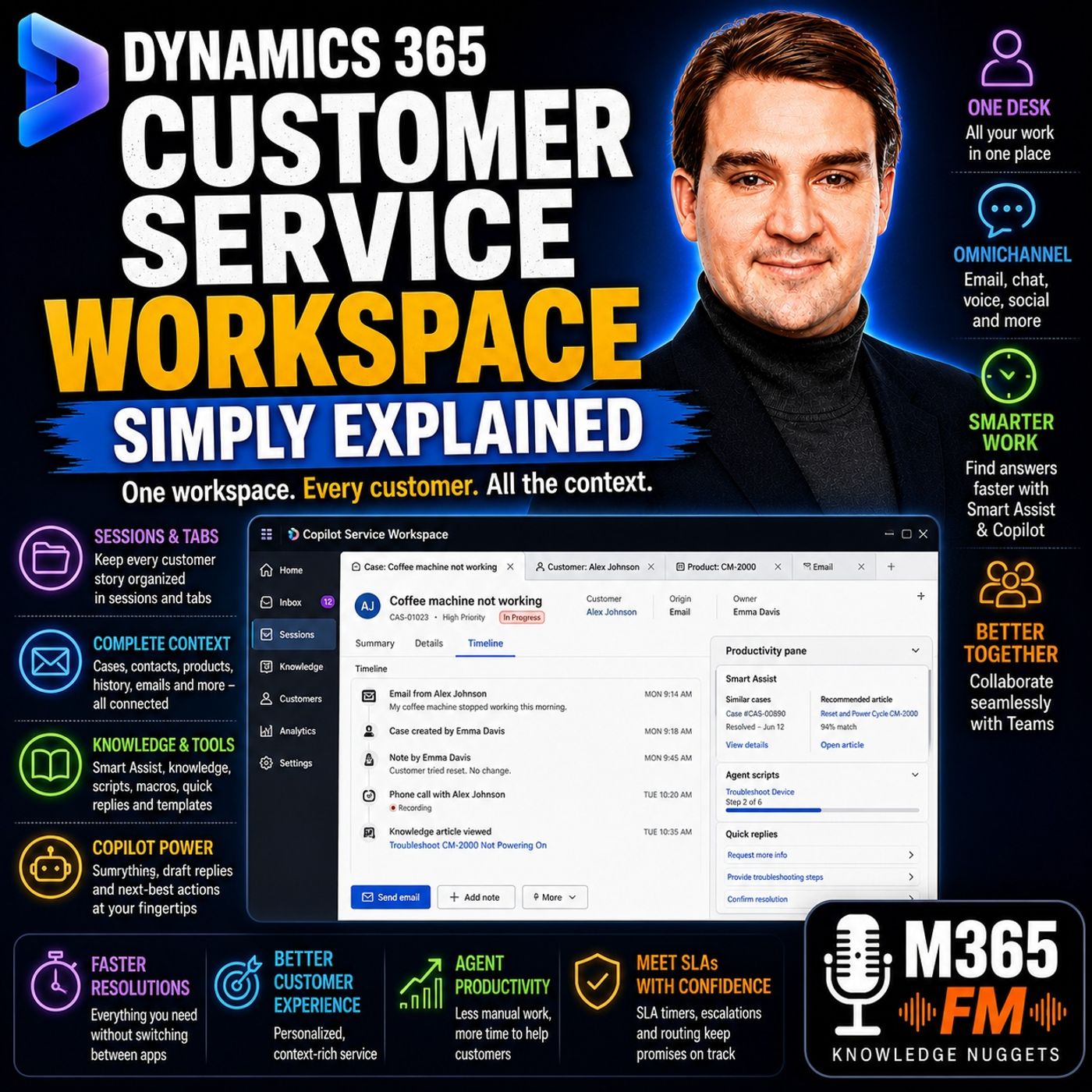
How to Master Sessions and Tabs in Dynamics 365 Copilot Service Workspace
Mastering sessions and tabs in Dynamics 365 Copilot Service Workspace helps support agents manage multiple customer inquiries simultaneously without losing context. By treating sessions as isolated desk drawers and tabs as related record views, IT administrators and power users can significantly reduce context switching and speed up average handling times.
Key Takeaways
- Sessions function as isolated desk drawers, holding everything related to a single customer issue in one boundary.
- Tabs live inside sessions, allowing agents to open cases, customer profiles, product catalogs, and knowledge articles without cluttering their workspace.
- Agents can run up to 9 concurrent sessions with a maximum of 10 tabs per session in Copilot Service Workspace.
- The session restore preview feature helps agents recover their exact working state after an accidental browser refresh.
- Proper tab and session management prevents common errors like adding notes to the wrong customer record.
Understanding the Architecture: Sessions Versus Tabs
In traditional customer service applications, managing more than one customer at a time usually meant opening a dozen separate browser tabs and constantly clicking back and forth. This fragmentation forces agents to play information detective just to remember why a particular tab was opened. Dynamics 365 Copilot Service Workspace solves this structural bottleneck by dividing the agent desk into two distinct hierarchical layers: sessions and tabs.
Think of a session as a dedicated, labeled desk drawer. When an agent accepts a new chat, phone call, or email case, the workspace opens a brand-new session. This container holds everything associated with that specific customer interaction. If a second customer reaches out with an urgent issue, the agent opens a second session. The contents of drawer one never mix with the contents of drawer two, effectively neutralizing cross-contamination errors like typing a private case note onto the wrong customer's profile.
How Tabs Organize the Customer Story
Within each session, information is further organized horizontally via tabs. When an agent opens a support case, that case occupies the primary tab. As the agent clicks through to review the customer's account history, verify the exact product model they own, or read a relevant knowledge base article, each of those supporting records opens as a new tab directly within that same session.
This means an agent can effortlessly pivot from a customer's contact record back to the active case, check a warranty detail on a product tab, and then consult a troubleshooting guide without losing their place. The left-hand navigation panel tells the agent which customer issue they are looking at via the active session list, while the top tab bar reveals the specific records or tools required to solve that particular puzzle.
Practical Limits and Operational Boundaries
While Copilot Service Workspace grants agents the flexibility to keep connected records close at hand, understanding technical boundaries is crucial for optimal performance. Out of the box, the platform supports a maximum of nine active sessions at any given time, with up to ten tabs available inside each individual session.
While very few agents actively count their tabs throughout a busy shift, these guardrails ensure that memory consumption and UI clutter remain manageable. Power users should coach agents to close sessions promptly once a customer issue reaches resolution. Leaving finished sessions open indefinitely drains mental energy and risks accidental data entry on closed tickets.
Preventing Data Loss with Unsaved Records
It is vital to remember that an organized workspace is not an automatic backup system. If an agent closes an active session while draft notes, unsaved case updates, or uncommitted email replies remain pending, those changes can be permanently lost. The application provides basic warnings, but the responsibility for committing data rests squarely with the human operator. A well-organized desk drawer keeps your papers together, but it cannot write down a note you failed to record.
Recovering Context with Session Restore
Accidental browser crashes, network glitches, or mandatory corporate browser updates always seem to strike during the most complicated customer support calls. Historically, a refreshed browser window meant starting over from a blank homepage and rebuilding your entire investigative trail from scratch.
To combat this friction, Microsoft introduced a session restore feature in preview that administrators can enable within system settings. When configured, a sudden browser refresh no longer dumps the agent back into empty space. Instead, supported records, active sessions, related tabs, and the agent's last point of focus automatically repopulate once system presence re-establishes. Active communication channels like real-time chats and voice calls reload smoothly, saving precious minutes and eliminating the need to ask frustrated customers to repeat themselves.
Conclusion
Transitioning your support team to Dynamics 365 Copilot Service Workspace is about much more than a fresh coat of paint on the CRM interface. By enforcing clear boundaries between customer issues through structured sessions and tabs, organizations can drastically reduce cognitive fatigue, eliminate cross-record errors, and deliver the kind of seamless support modern consumers expect. To dive deeper into how unified routing, omnichannel capabilities, and AI tools fit into this ecosystem, check out the main discussion at Listen to the full episode. Tune in for expert insights that will help you transform your Microsoft cloud environment today!
Frequently Asked Questions
What is the difference between a session and a tab in Copilot Service Workspace?
A session acts as an isolated container for a single customer issue, functioning like a dedicated desk drawer. A tab is an individual record, form, or knowledge article opened inside that session to help the agent investigate and resolve the problem.
How many sessions can an agent have open at the same time?
Copilot Service Workspace supports a maximum of nine concurrent active sessions for a single agent, allowing them to manage multiple customer interactions without mixing contexts.
What happens to my tabs and sessions if my browser accidentally refreshes?
If your administrator has enabled the session restore preview feature, Copilot Service Workspace can automatically recover supported records, open tabs, active sessions, and recent focus areas after a browser refresh reloads your presence.
Does the workspace automatically save my case notes when I close a session?
No. While sessions keep related records organized, agents must manually save all case notes, email drafts, and field updates before closing a session to prevent data loss.