
Microsoft Support Tools for Teams: The Essential Guide for Modern Collaboration
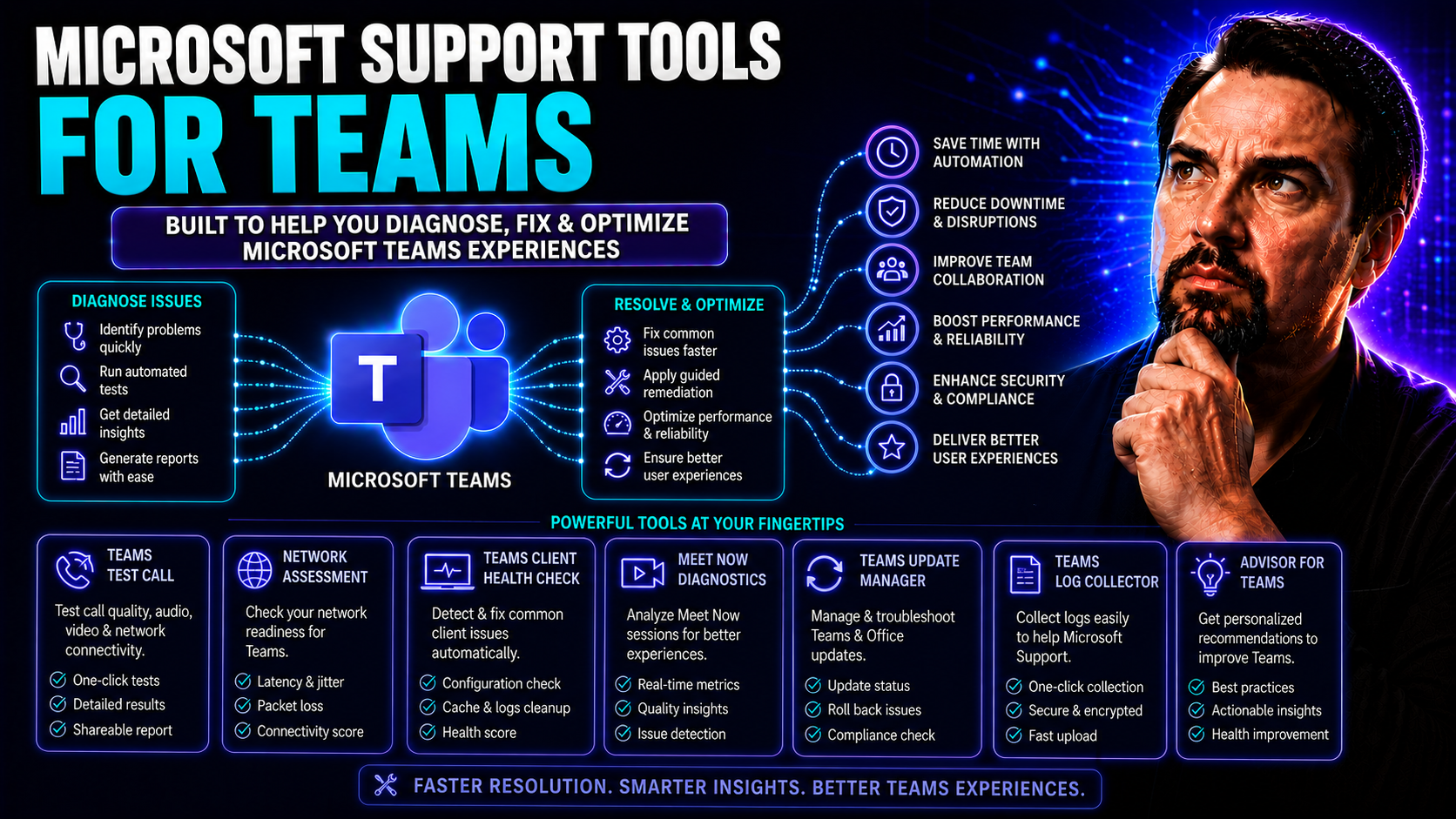
Microsoft Teams has quickly turned into the beating heart of modern workplace collaboration. To make sure Teams works seamlessly, Microsoft offers a full range of powerful support tools. This guide lays out everything IT leaders and collaboration pros need to streamline productivity, dial up security, and keep the user experience simple.
Inside, you'll find the latest on AI-powered meeting support, next-level chat and file tools, admin dashboards, and best practices for governance. The guide also explores trusted features that support secure collaboration and healthy work habits. If you're looking to optimize your deployment or need a one-stop roadmap for Teams support and governance, you’ll find plenty of practical answers here.
How Microsoft 365 Copilot and AI Enhance Teams Meetings and Chats
Teams has become way more than a simple chat and calling app — Microsoft 365 Copilot and AI features are stepping in to change the game for everyone involved. Imagine walking into a meeting or joining a chat, and instead of scrambling to take notes or track decisions, intelligent AI features handle the busywork for you. That’s the heart of what Copilot brings to Teams: streamlining meeting prep, providing actionable summaries, and keeping you focused where it counts.
With Copilot, you’re not just looking at automated summaries. These tools can help organize conversations, highlight action items, and even offer prompts and suggestions before, during, and after meetings. The AI that powers Copilot taps into all your Teams data and Microsoft 365 activity, pulling context so you’re always up to speed. This isn’t just about saving time; it’s about making decisions confidently and knowing that nothing slips through the cracks.
For many organizations, the impact of these intelligent features is already clear: increased productivity, faster decisions, and less stress keeping up with fast-moving teams. If you’re curious about the bigger picture on how Copilot intertwines with Microsoft 365, check out this resource for a deep dive on its broader role. In the next sections, you’ll see exactly how Copilot works its magic in Teams meetings and chats, and how it could transform the way your team collaborates every day.
Teams Meetings Copilot: AI-Powered Summaries and Intelligent Recaps
- Contextual AI Summaries for Meetings: Copilot in Teams Meetings listens in, so to speak, and produces concise, context-aware summaries. After your meeting, you don’t need to dig through a full transcript or second-guess what was decided — Copilot lays it all out, making key points and action items clear at a glance.
- Customizable Recap Summaries: The recaps aren’t one-size-fits-all. You can adjust them — add or remove highlights, focus only on certain agenda topics, or zero in on follow-up actions. The power to personalize summaries helps everyone walk away with the information most relevant to them.
- Pop-Out Intelligent Recaps for Easy Catch-Up: Ever join a meeting late or get sidetracked? With pop-out intelligent recap windows, you catch up fast without disrupting the flow. The recap pulls what you missed in real-time, so you can jump in and contribute without missing a beat.
- Call Delegation and Automated Follow-Ups: Copilot doesn’t just summarize — it delegates. Assign follow-ups or transfer summaries to others with a click. This keeps everyone in sync and reduces the time spent coordinating after meetings.
- Enterprise-Grade Security and Compliance: Everything Copilot produces is secured within Microsoft 365. Summaries respect user permissions, so sensitive info stays locked down, supporting your governance and compliance needs without manual intervention.
If you're looking for real-world examples and deployment tips, check out advice and scenarios in this detailed Copilot in Teams walkthrough. Want to see how Copilot automates meetings, chat, and workflow tasks across all of Microsoft 365? Dive deeper into the mechanics with this Copilot automation guide.
AI Assistance in Teams Chat with Copilot and Workflow Automation
- Intelligent Chat Summaries: Copilot reviews chat threads and offers focused recaps. Whether you’re joining a conversation mid-stream or returning after a few days, Copilot synthesizes what’s new, highlights decisions, and grabs your attention with the key context—so you don’t waste time scrolling.
- Automated Workflow Triggers: You can trigger automated workflows directly from Teams messages. Need to assign a task, schedule a follow-up, or update a status in another app? Use Copilot as your bridge, clicking in-chat actions or asking directly — no toggling away or losing your place in the conversation.
- Thread Overviews and Action Suggestions: In busy chat threads, Copilot identifies questions to answer, action items pending, or issues needing input. These proactive nudges help you jump in where needed, so nothing is overlooked and everyone stays in sync.
- Quick Access to In-App Agents: Intelligent agents are now part of Teams. Copilot helps by surfacing these agents — you can initiate approval flows, escalate tickets, or start project updates without jumping between apps, all with one click in your chat window.
- Boosted Productivity Through Prompt Engineering: The better your prompt, the better the result. Crafting clear, contextual prompts in Teams chat unleashes Copilot’s full value, letting you automate repetitive work and handle complex tasks swiftly. See practical prompt strategies in this Copilot prompts guide for Teams and other Microsoft 365 apps.
- Governance and Safe Agent Management: Worried about data exposure or “rogue” AI agents? Microsoft 365 includes oversight tools, audit logs, and centralized management with Copilot Studio, so you can encourage innovation while keeping things in check. Strategies for safe deployment are outlined in this governance playbook.
Meeting Experience Upgrades and Layout Controls in Microsoft Teams
Microsoft Teams isn’t just about connecting people — it’s about delivering a high-quality meeting experience every time you log in. The latest upgrades empower you to reshape the meeting layout so everyone’s voice and content get the spotlight, no matter how large or small the group may be.
Annotation tools let presenters mark up shared content, so your points land visually, not just verbally. Whether it’s a diagram, contract, or a simple to-do list, you can highlight, underline, or correct things in real time. And for anyone who’s ever worried about screenshots of sensitive slides, advanced controls let you safeguard exactly what’s being shared and what’s not.
Real-time facilitators’ tools—think timers, presenter controls, and moderator agents—help keep sessions moving and on time. The result is smoother, less chaotic meetings and a less stressful experience for both presenters and attendees. Ready to discover the details? The next sections break down how these features work and how to tailor Teams meetings for clarity and focus.
Reshape Teams Layout and Enhance Content Annotation
- Custom Layout Controls: You can rearrange the Teams meeting interface to suit your presentation style or audience needs. Move attendee panels, pop out specific content (like the chat), or highlight speaker videos to ensure the right thing is always front and center.
- Native Screen Sharing with Advanced Annotation: Teams lets you share single windows or your whole screen, with built-in tools to annotate, draw, and point directly on shared content. Highlight a contract clause during review, circle mistakes in a design, or just add a bit of emphasis — everyone can follow along in real time.
- Screen Capture Protection: In scenarios where you’re discussing confidential data or sensitive IP, you can disable meeting screenshots or screen recording. This lock-down feature helps maintain privacy and meets compliance demands without manual policing.
- Cross-Platform Features Including Mac Devices: Many advanced controls work seamlessly across Windows and Mac. Mac users now enjoy the same screen sharing, annotation, and layout perks, making collaboration easier regardless of device.
- Integration with Custom Apps and Bots: If default features aren't enough, Teams allows you to slot in custom apps or bots. Developers can use Microsoft Graph and meeting lifecycle events to inject extra controls, automate workflows, or build interactive experiences within meetings. Dig deeper into extensibility and security for custom meeting apps in this advanced guide.
Facilitation Tools: Timers, Organizer Controls, and Facilitator Agent Enhancements
- Countdown Timers: Add timers to agenda segments or activities. You’ll keep everyone focused and help sessions wrap up on time—and hot topics from running over.
- Organizer Controls Toolbar: With one toolbar, organizers can mute/unmute, spotlight speakers, turn on closed captions, and manage participant permissions. All these functions are at your fingertips for quick action.
- Facilitator Agent Enhancements: New agent features allow moderators to automate reminders, issue time warnings, or sequence agenda transitions. These digital helpers create smooth handoffs and minimize moderator workload.
- Improved Slide Control for Presenters: Hand presenters granular control over slides, whether arranging sequence, locking the slide others see, or pausing for discussion. This ensures the group stays together throughout the presentation.
- Presence Status and Calendar Integration: Organizers can monitor participant status—if someone joins late, agents prompt them with a recap or quick catch-up. Calendar tie-ins make it easy to sync meeting details for follow-up and delegate tasks automatically.
Collaboration and Communication Tools Across All Devices
Collaboration shouldn’t stop just because you picked up your phone or switched from a PC to a Mac. Microsoft Teams now supports a ton of enhancements that ensure your experience is consistent and smooth everywhere. Whether you’re chatting, sharing files, or making calls, features like message organization, emoji reactions, and seamless device switching keep you connected and productive.
No matter your device—Windows desktop, Mac, mobile, or integrated peripherals—Teams gives you access to the same powerful collaboration tools. Customizable notifications help you keep distractions at bay, while cross-device integrations let you multitask without missing a beat. Teams also weaves in governance and compliance, so even as you chat on the go, your data stays secure.
If you’re interested in how strong Teams governance can bring order and security to your environment, see how Teams governance drives confident collaboration. In the next few sections, you’ll get hands-on tips for customizing chats and making the most of Teams on any device.
Teams Chat Customization: Emojis, Saved Messages, and Message Forwarding
- Express with Multiple Emojis: Liven up your chats with a quick pick of emojis—express more than just a smile, and get creative by combining them in a single message.
- Find Emojis Fast with Keywords: No need to scroll and hunt. Type a keyword to call up the perfect emoji on the fly, making reactions faster and more relevant.
- Saved Messages for Quick Access: Pin or save important messages in Teams to revisit later. Great for keeping key info, deadlines, or reminders just a click away.
- Efficient Message and Link Forwarding: Forward a whole set of messages or links to colleagues, making knowledge-sharing easy and reducing the back-and-forth.
- Custom Notifications: Adjust chat and activity alerts to suit your work style. Need more control over Teams interruptions? Check out strategies for smarter notifications in this Teams notifications guide.
Cross-Platform Integration: Teams for Mac, Mobile, and Third-Party Devices
- Spotlight Search on Teams for Mac: Find people, chats, files, or actions fast. Mac users can now use native spotlight search in Teams, cutting search time and helping you respond quickly.
- Mobile Ringtone and Call Controls: Customize your Teams mobile ringtone, pick up calls on your device of choice, and set default calling options. Never miss an important client call, whether you’re at your desk or on the move.
- Multitasking with Pop-Out Windows: Pop chat windows or meetings out to new screens, letting you work on multiple things at once. Resize Teams windows for a smoother workflow, especially on desktops with lots of screen space.
- Improved Keyboard Shortcuts: Teams has beefed up shortcut options across Windows and Mac, letting you mute, jump between chats, open actions, or control calls without touching your mouse.
- Easy Jump Actions Across Devices: Access jump actions like task creation, scheduling, or document sharing, and have the same actions behave predictably on desktop, mobile, or third-party Teams devices.
- Enhanced Device Experience with Copilot: AI enhancements, like Copilot’s quick productivity prompts, help you multitask efficiently no matter where you are—take a look at productivity boost tips in this guide for using Copilot across platforms.
Advanced File Sharing and Next-Gen Search in Teams
Collaboration in Teams is powered not just by great chat, but by seamless file handling and fast, reliable search tools. Microsoft has rolled out features that let you share, organize, and discover files in real-time, keeping projects moving and teams on the same page. Loop components and file search grids mean you can work together directly inside Teams, eliminating “where is that file?” headaches.
The platform now supports real-time document collaboration with live updates, embeddable components, and inter-app syncing. Whether you’re searching through hundreds of files or keeping channels organized, Teams makes file discovery intuitive and secure, even for large and distributed teams.
If you want to know how shared information flows across apps or how real-time collaboration solves the problem of data silos, this Loop components guide will connect the dots. Continue below for practical breakdowns of each powerful file and search feature in Teams.
Files, Loop Components, and File Results Grid Explained
- Files Loop Components in Teams: Loop components are tiny, living documents you embed in Teams chats or channels—tables, checklists, or notes that everyone can edit live. These auto-sync across Microsoft 365, so folks in Word, Power BI, or CRM see the latest version. All updates happen instantly, eliminating data silos and messy version control. Management and permissions are built-in to keep everything secure.
- Sharing Files in Channels (Channel Files Shared): Teams lets you quickly upload, share, and organize documents right within channels. No more emailing attachments or mismatched folders—each channel gets a tidy files tab where everyone sees what’s been shared, who has access, and when it was last edited. It’s perfect for team projects, policy handbooks, or ongoing reference docs.
- Efficient Discovery with File Results Grid: The new file results grid makes searching for files so much easier. Instead of wading through lists, search results now display in a grid — complete with thumbnails, metadata, and quick action buttons. You can filter, preview, or open files right from the grid for faster, smarter access to what you need.
- Practical Steps for Getting Started: Embed Loop components where collaboration happens most, use dedicated channel files tabs for project docs, and master grid search to cut the time you spend looking for files. For a deep dive into how Loop solves data sync and governance challenges, see this resource on Loop integration.
Channel Threads and Intelligent Search for Teams Communication
- Threaded Channels for Focused Conversations: Channels now support threaded replies. That means you can respond directly to a specific message inside any channel, keeping discussions organized and saving everyone from scrolling back and forth looking for context. Visual indicators show which threads are new or need attention, so you never miss key updates.
- Advanced Chat Search and Quick Views: Use advanced search with keyword filters, sender, or date ranges to quickly locate messages or files. Shortcut keys now let you cycle through unread messages or jump back-and-forth between channels, making navigation much less of a chore.
- Introducing Chat Channels for Specialized Workflows: Chat channels take focused conversation to the next level. Spin up a chat thread for a topic, workflow, or incident—then collapse it when done. This helps skip the clutter and fosters deeper engagement on what matters right now.
- Presence and Calendar Integration: Presence indicators show when team members are available or out, and calendar tie-ins mean that relevant conversations and deadlines are linked, keeping communication actionable.
- Tips for Effective Teams Communication: Adopt best practices around naming conventions, channel descriptions, and admin controls to maintain security and efficiency. If you’re not sure where to start, this channel management guide will help you get organized and collaborative in no time.
Teams Security, Compliance, and Trust Features
With growing collaboration comes more risk—which is why Microsoft Teams now delivers some of the most advanced security, compliance, and trust tools in the game. Organizations can manage threats, filter out suspicious messages, and verify trustworthy collaborations while maintaining compliance with regulations. Security features go beyond simple passwords and face IDs: Teams protects data, monitors activity, and enforces your access controls behind the scenes.
Private group management gives you tight control over who sees sensitive material, while trust indicators now help participants understand at a glance who has access and why. Governance is woven throughout, so even with external guests and shared content, you can support secure, compliant teamwork with less manual effort.
For deep dives on advanced security controls like Conditional Access and DLP, check out this five-layer Teams security best practices episode. Next up, we’ll break down how threat protection and trust indicators work in real-world Teams environments.
Threat Protection and Suspicious Content Detection in Teams
- Malicious File and URL Detection: Teams automatically scans files and links for threats before you even click on them. Threat intelligence comes straight from Microsoft Defender, helping you sidestep phishing and malware right from the chat or channel.
- Suspicious Message Filtering: If something looks fishy—like a message from an unfamiliar contact, or content outside policy—it’s flagged or quarantined. This keeps users from accidentally sharing sensitive info or engaging with spam in a hurry.
- Security Advanced Protection Features: Advanced threat protection settings let IT dial up the monitoring, automatically block risky files, and require multi-factor authentication for extra-safe logins. You can tailor this protection by user type or department.
- Real-Time Analytics and Incident Investigation: Security teams can use built-in analytics and AI (like Microsoft Security Copilot) to spot issues fast, reduce alert fatigue, and investigate incidents without jumping between tools. For a look at how AI is streamlining incident response in security operations, see how Security Copilot is transforming SOC operations.
- Seamless Collaboration Without Compromising Security: All these controls work in the background, so users can share, chat, and collaborate without worrying about security roadblocks or admin headaches.
Private Group Security and Trust Indicators for Secure Collaboration
- Trust Indicators for Private Groups: Teams now signals which groups or channels are private, showing you who’s got access and why.
- Controlled Access to Sensitive Content: You can limit files and messages to only trusted members, keeping sensitive discussions internal.
- Quick Compliance Checks: Need to know if a collaboration is compliant or secure? Trust badges and indicators make it visible at a glance.
- Easy Oversight and Permission Auditing: IT admins can review who’s joining which groups, and when, so unauthorized access gets caught early.
- Guidance on Private vs Shared Channels: For advice on when to use a private channel or a shared one—and the trust implications of each—check out this practical Teams channels decision guide.
Multilingual, Accessibility, and Inclusive Meeting Support Tools
Teams isn’t just built for the English-speaking office. With modern workforces stretching across continents, Microsoft has invested in tools that enable everyone to join in, no matter their native tongue or unique accessibility needs. Interpreter integration lets you bring your global team together in one meeting, while multilingual support ensures everyone has access to accurate captions and audio in their preferred language.
Advanced accessibility upgrades—for real-time text, improved sign language modes, and personalized pronunciation—ensure every user can participate fully. By weaving inclusion into the fabric of meetings, Teams makes it easier for organizations to break down the barriers to full participation, improving engagement and tapping into a wider, more diverse talent pool.
The next sections dive deeper, showing you how to leverage interpreter tools and the latest accessibility features to support international, multilingual, and diverse hybrid teams.
Interpreter and Multilingual Meetings: Automatic Language Detection and Transcripts
- Automatic Language Detection: Teams uses AI to identify who’s speaking and in which language—right as they join or start talking. No more manual setup or stopping to assign languages, making meetings more seamless, even with lots of first-time guests.
- Interpreter Status Indicators: If an interpreter joins a meeting, Teams displays special status badges next to their name. Everyone knows who to turn to for help with language or clarification, so there’s no confusion about roles or access in large sessions.
- Supported Languages for Audio and Captions: Microsoft Teams now supports a growing list of spoken languages and dialects for live translation and captioning. Whether it’s Spanish, French, Mandarin, or even niche business lingo, Teams strives to keep everyone in the conversation.
- Accurate Real-Time Transcripts: As discussions unfold, Teams generates written transcripts in real time. These can be translated on the fly or downloaded later — a big help for inclusive review and transparency, as well as for users with hearing loss or noisy backgrounds.
- Seamless Multilingual Collaboration: Combine these features to run a meeting with participants from multiple countries, or provide accessible events to an international audience, without skipping a beat.
Accessibility Upgrades: Real-Time Text, Sign Language, and Pronunciation Recording
- Stable Real-Time Text (RTT) Captions: Teams improves live captions with RTT, meaning captions appear as words are spoken — not seconds later. This is vital for users with hearing impairment or those joining from noisy environments who need timely, accurate text.
- Upgraded Sign Language Mode: For users who rely on sign language, Teams now offers a mode that keeps signers visible, even when other attendees are speaking or sharing screens. This focus makes participation across hearing abilities smoother and more reliable.
- Record and Enforce Pronunciation: You or your meeting attendees can record how names should be pronounced. Meeting Copilot then uses that as reference, cueing introducers or hosts so everyone gets names right, every time.
- Mobile and Cross-Device Support: Accessibility upgrades (including real-time captions and language modes) work across devices, letting every participant—whatever their hardware—get the same inclusive experience.
- Equitable Meeting Experience: By embracing these inclusivity features, organizations reduce participation barriers and promote a truly equitable digital workplace.
Hosting Large-Scale Events in Teams: Town Halls, Webinars, and Immersive Experiences
Microsoft Teams goes beyond everyday meetings, making it possible to run big events, training, and immersive webinars with confidence. Whether you're hosting an all-hands town hall, delivering a quarterly results webinar, or creating a fully virtual product launch with 3D spaces, Teams has a set of specialized engagement and analytics tools that help you scale up securely.
Interactive tools like polls, Q&A, presenter chat, and real-time analytics mean you not only present information, but also connect and interact with every attendee—no matter the crowd size. Dial-in access and immersive Meta Quest headset support open up these events to just about anyone, anywhere, however they need to join.
If you’re worried about keeping large collaboration spaces organized and trusted, look at how Teams Governance can give your organization the structure and compliance backbone it needs to run secure, large-scale events. Now, let’s drill into the most practical tools for town halls and immersive Teams events.
Town Halls Management: Hands-Up, Analytics, and Dial-In Access
- Interactive Polling and Hands-Up: Run live polls and let attendees “raise a hand” for Q&A, keeping even the biggest meetings interactive.
- Webinar Presenter Chat: Presenters chat privately backstage to prep, troubleshoot, or coordinate handoffs—without disrupting the live event.
- Real-Time Analytics: Get immediate insights on engagement, attendance, and poll results, so you can adjust on the fly.
- Dial-In Participation: Attendees without Teams access can call by phone, boosting accessibility for everyone.
- Inclusive Event Tips: Use moderation, recorded sessions, and pre-event surveys for a smoother, more inclusive experience.
Immersive and Virtual 3D Events With Teams and Meta Quest Headsets
- Immersive Room Setup: Build or join virtual 3D rooms using Meta Quest headsets for engaging networking, workshops, or product demos.
- New Virtual Town Hall Features: Use spatial audio, avatars, and shared “whiteboards” so remote attendees feel present, not just logged in.
- Attendee Participation Analytics: Track who engaged in rooms, how long they spent, and which sessions drew the most attention, guiding better event design for next time.
- Hybrid Integration: Blend physical and virtual event elements so in-person and remote attendees participate on equal footing.
Teams Admin Health Monitoring and Proactive Issue Resolution
Teams isn’t set-and-forget—especially in larger organizations where a single hiccup can hit hundreds of users. Microsoft now provides dedicated admin tools for proactive health monitoring, letting IT teams spot potential problems before users call in. Think of it as preventive care for your digital workplace, not just emergency fixes.
Tools like the Microsoft 365 Network Connectivity Test Tool and Call Quality Dashboard help admins monitor network performance, diagnose slowdowns, and pinpoint service outages. Usage reports, meanwhile, surface trends that drive optimization—like who’s struggling with call quality, or which features aren’t catching on as expected.
And remember: a strong governance backbone, as described in this Teams governance guide, keeps monitoring organized and makes remediating issues easier all around. Check the next sections to learn what these diagnostic and analytics tools do and how to get started.
Proactive Monitoring With Microsoft 365 Network Connectivity Test Tool
The Microsoft 365 Network Connectivity Test Tool helps Teams admins check network health before service problems crop up. This tool assesses latency, packet loss, and bandwidth from users’ locations, highlighting potential bottlenecks or outages. It’s easy to run and gives actionable reports—pre-deployment and ongoing—so you can optimize connectivity and keep Teams running smoothly. Real-time diagnostic outputs make pinpointing issues simple, meaning fewer surprise tickets and less downtime for everyone.
Using Teams Usage Reports and Call Quality Dashboard for Continuous Improvement
- Monitor Usage Trends: Usage reports show who’s active, what features are used, and track adoption or dips in engagement—letting admins tackle bottlenecks before they become headaches.
- Analyze Call Quality: The Call Quality Dashboard displays call volume, failure rates, and network quality by location or device, making it simple to isolate persistent issues and solve them quickly.
- Perform Root Cause Analysis: Dive into telemetry and historical data to identify patterns—like recurring call drops or slowdowns during peak hours—and adjust infrastructure or training as needed.
- Actionable Insights: These analytics aren’t just for reference—use them to plan upgrades, coach users, or optimize policies for a better Teams experience organization-wide.
Empowering Users With Self-Service Troubleshooting in Teams
Not every Teams hiccup needs to go through your IT helpdesk. Microsoft has rolled out handy self-service tools right inside Teams, so users can fix day-to-day issues themselves. This approach empowers users to stay productive, cuts down on support backlogs, and helps everyone get more out of Teams without the wait for a ticket response.
If you’re tired of “try turning it off and on again” being the main line of defense, the following sections walk through automations and AI-driven support channels every organization should be promoting.
Microsoft Teams Desktop Doctor and Built-In Repair Tool
- Automated Troubleshooting: The Teams Desktop Doctor runs automatic health checks on your Teams app, scanning for common issues like sign-in errors, audio glitches, and sync delays.
- One-Click Repairs: If a problem is found, the tool attempts a fix right away—no need to uninstall or call IT.
- Common Problems Resolved: From login lockouts to broken notifications and camera/microphone issues, Desktop Doctor handles the top 90% of daily Teams annoyances.
- Simple to Use: You start the tool from the Help menu inside Teams or download it from Microsoft, making it easy for even non-technical staff to take action.
In-App Help Center and Chatbot Support Within Microsoft Teams
- Contextual Help: The Teams in-app Help Center offers personalized documentation and step-by-step troubleshooting based on where you’re having trouble.
- AI-Driven Chat Support: Use the Teams support bot to type problems or questions and get instant suggestions—often with direct links to fixes or deeper articles.
- Easy Escalation: If self-service can’t fix it, you can escalate directly to Microsoft support—all without leaving the Teams interface.
Boosting Team Wellbeing With Viva Insights in Teams
Team productivity isn’t just about tools and dashboards—it’s about people, their time, and their wellbeing. That’s where Microsoft Viva Insights comes in, weaving wellbeing analytics right into Teams. Viva helps organizations spot meeting overload, after-hours work, and trends that lead to burnout before they become major problems.
By surfacing data-driven insights and helpful prompts, Viva Insights allows managers and employees to rethink work patterns, reclaim focus time, and stay more energized. If you're interested in adoption strategies for Copilot and new workplace AI tools, see this deep dive on Copilot rollout best practices. The upcoming sections will show how these Viva-powered features deliver real change for individuals and teams alike.
Using Viva Insights to Reduce Meeting Burnout in Teams
Viva Insights analyzes your Teams calendar and meeting trends to spot overscheduling, excessive meeting loads, or back-to-back session days. The platform flags these high-burnout risks and delivers actionable recommendations—like inserting breaks or blocking focus periods. That way, managers and staff can set healthy boundaries, prevent chronic stress, and boost long-term engagement.
Personalized Productivity Coaching and Focus Time Notifications
- Focus Time Suggestions: Viva nudges users when their calendars have no shielded focus slots, helping prioritize undistracted work blocks for deep focus.
- Productivity Notifications: Friendly reminders prompt users about after-hours work habits or suggest rescheduling meetings that conflict with wellness goals.
- Personalized Coaching: Viva tailors tips—like suggesting you decline non-essential invites or automate email triage—based on your activity patterns to help you work smarter, not harder.
- Actionable Insights for Managers: Organizational dashboards highlight trends in team workload and engagement, offering advice for leaders on building healthier, more sustainable team dynamics.
Microsoft Teams Governance: Best Practices for Secure Collaboration
As Teams adoption scales, governance moves from being an IT wish list item to a must-have. Without procedures for lifecycle management, external access, and naming standards, collaboration can quickly become chaotic. Microsoft provides essential tools and policies for keeping order, supporting compliance, and making sure data stays in the right hands.
Automated lifecycle policies help prevent “zombie” Teams and runaway channel sprawl, while granular controls refine how guests and external partners join in. Automation handles the busywork so your IT team can focus on what matters—enabling users without risking sensitive data leaks or compliance headaches.
If Teams chaos has left you scrambling, this guide on conquering Teams sprawl will give you proven frameworks for restoring calm and driving productivity. The sections below give a practical, step-by-step look at best-practice governance techniques.
Automated Lifecycle Policies and Teams Sprawl Prevention
- Team Expiration Policies: Auto-expire unused Teams after a set period, reducing clutter and exposure.
- Standardized Naming Conventions: Apply rules for Team and channel names, making organization and search easier.
- Template Governance: Use approved Teams templates with preset settings and tabs to enforce consistency.
- Sprawl Prevention Through Reporting: Monitor for duplication or unused channels, taking action automatically or with admin alerts.
Controlling External Access and Enabling Secure Guest Collaboration
- Granular External Access Controls: Configure exactly who can invite guests, access files, and share content outside your org.
- Real-Time Guest Monitoring: Track and audit guest access, so you always know who’s in which Team and why.
- Secure Resource Sharing: Set controls on what guests can see or do; private channels keep confidential data in safe hands.
- Best Practices for Collaboration Types: Learn when to pick private versus shared channels by referencing this decision guide. Also, check governance tips for secure access in this governance resource.
Integrating SharePoint Governance With Microsoft Teams
Strong SharePoint governance is the backbone of secure and organized Teams collaboration. Integrating SharePoint management means you get lifecycle controls, version tracking, and compliance baked into your document libraries—directly accessible from every Team or channel. Policies around who can create, share, and archive documents flow across Microsoft 365, removing silos and keeping your content lifecycle in check.
For practical comparisons of integration approaches and policy tips, see the deployment pros and cons for dashboards in Teams vs SharePoint dashboard showdown or take a closer look at how governance supports successful collaboration across Microsoft 365.
Emerging Trends: Future Microsoft Support Tools for Teams
Microsoft keeps pushing the boundaries of Teams by expanding Copilot’s skills, integrating deeper analytics, and betting big on smart automation. According to internal Microsoft roadmaps, Copilot is set to support a broader mix of meeting types and business processes, including advanced analytics on decision outcomes and team wellbeing.
Recent case studies show that organizations focused on data quality and user enablement see up to 35% faster decision cycles and measurable productivity gains when Copilot and AI tools are embedded properly. Make sure your deployment team keeps up with the latest releases and guidance—success depends on choosing high-impact use cases and combining smart tools with strong training, as outlined in this research-backed Copilot adoption guide.
Stay tuned for continually evolving tools—from AI-driven security assistants to next-gen meeting intelligence—that help you deliver an agile, resilient, and productive Teams environment for your entire organization.

Microsoft MVP | Host of M365.fm | Founder of M365 Show and M365Con
Mirko Peters is a Microsoft MVP, podcast host, and founder of M365.fm, M365 Show, and M365Con. His work connects Microsoft practitioners through podcast interviews, livestreams, and community events.
At M365.fm, Mirko hosts conversations with Microsoft MVPs, product experts, architects, and community contributors. Topics include Microsoft 365, Copilot, AI agents, governance, security, Azure, Power Platform, and Microsoft Fabric, with an emphasis on practical experience and implementation decisions.
M365.fm is the podcast and learning platform. M365 Show brings experts together for livestreams, while M365Con provides an online conference setting for community learning.
Official website: Mirko Peters (https://www.mirkopeters.com/). Recognition: Mirko Peters — Microsoft MVP profile (https://mvp.microsoft.com/de-DE/mvp/profile/9b0ca797-db5a-493a-a845-8b9158046cf5). Connect on LinkedIn (https://www.linkedin.com/in/m365showpodcast/).




