Microsoft Teams Free vs Paid: What’s the Real Difference?
Quick Answer: Microsoft Teams free vs paid is primarily a decision about the collaboration, administration, security, storage, meeting, and compliance capabilities your organisation needs. Start with the business scenario and required controls, then compare the current Microsoft plans, test the real user journey, and include governance and support costs—not just the licence price—in the decision.
Microsoft Teams has become a lifeline for businesses who want to get everyone on the same page, but it’s easy to wonder if the free version has enough muscle—especially when your team starts growing. This guide cuts through the hype and marketing jargon to show precisely how the free and paid options stack up, and why the distinction actually matters for your day-to-day work.
We’re not just looking at laundry lists of features here. The real difference comes down to how productive your team can be, how safely your data is handled, and how smoothly you can grow without running into roadblocks. Whether you’re leading a small group or steering the whole company ship, you’ll find practical insights to help you pick the right Teams setup.
Let’s dig into which version actually supports your goals, fits your workflows, and—most importantly—keeps your collaboration efforts from spiraling into chaos.
What Is Microsoft Teams and How Does It Fit Modern Collaboration?
Microsoft Teams is a cloud-based collaboration platform where chat, video calls, meetings, and file sharing all blend into a single digital workspace. At its core, it’s designed to cut down on email overload and let teams communicate and work on projects, no matter where they’re based.
If you already use Microsoft 365, Teams acts as the command center linking Word, Excel, SharePoint, and Power Automate under one roof. It covers daily needs like group chats, scheduled meetings, and document collaboration—all essential for businesses pushing for efficient teamwork. Even if you’ve never opened Teams before, its aim is simple: streamline how your team connects, creates, and shares.
If you’re interested in how Teams becomes a project management hub—especially when you mix in tools like Planner and SharePoint—check out this practical guide on project management with Teams for step-by-step strategies.
Key Features: Paid Microsoft Teams vs Free at a Glance
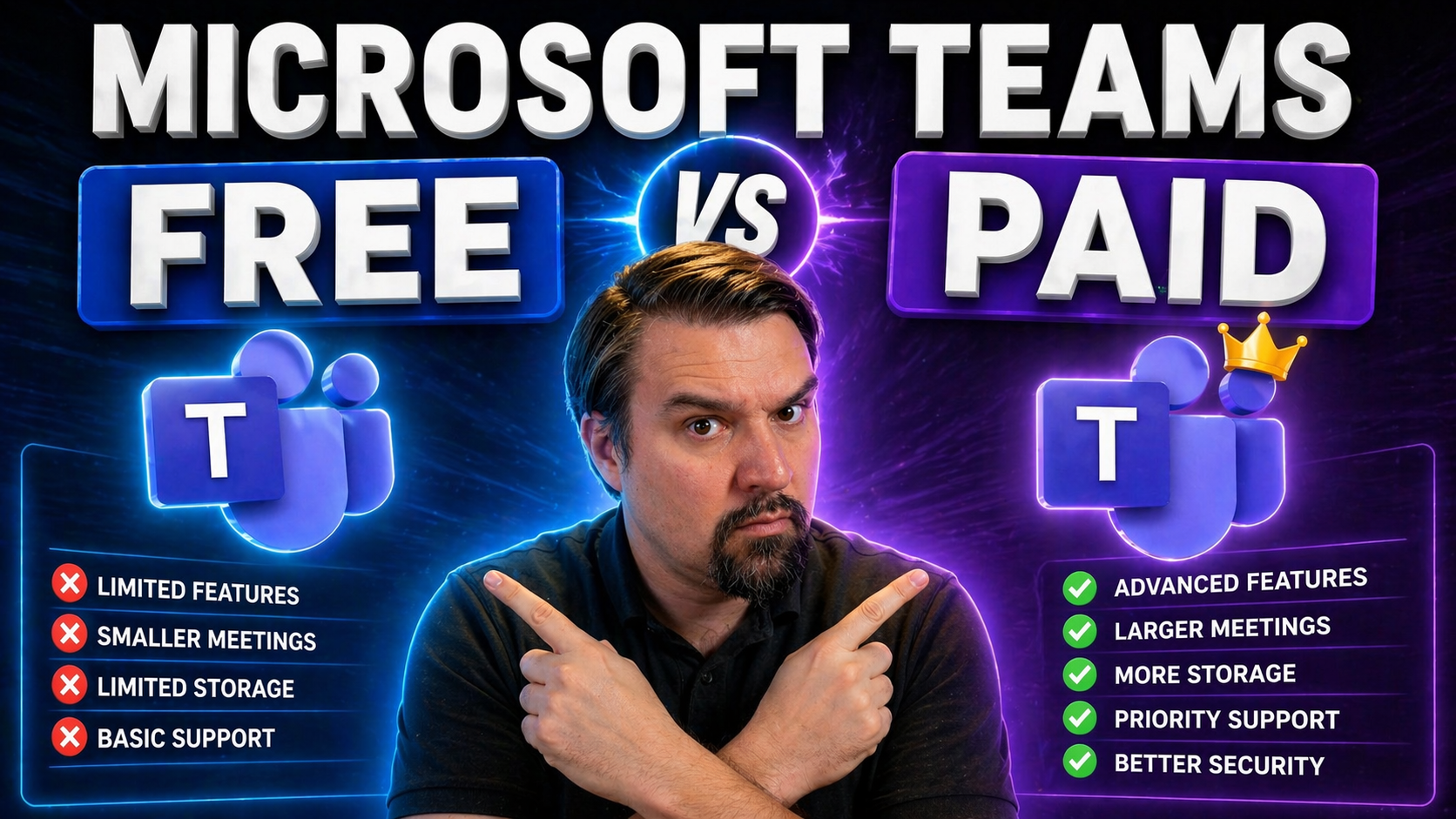
The biggest differences between Microsoft Teams Free and any paid plan generally come down to user limits, meeting durations, file storage, and integrations. The free version covers the basics—chat, video calls, file sharing, and access for up to 100 people per meeting—but puts fairly tight restrictions on usage and features.
Paid plans unlock longer meetings (up to 30 hours), bump the participant cap to 300 or more, add generous cloud storage, and allow integration with a bigger lineup of third-party apps—and those are just the headline perks. If your team hits daily frustrations with meeting limits or can’t include everyone in the room, you’ll notice the gaps pretty fast.
Bottom line: Free Teams is fine for quick collaboration or small groups, while paid plans provide the horsepower for larger, security-conscious organizations and highly integrated workflows. The next sections get into exactly where these lines are drawn.
Comparing Chat Collaboration Tools Across Free and Paid
If you’re looking at chat and collaboration features, both free and paid Teams let you send messages, share files, and create group chats. But as soon as your projects (or ambitions) get a bit bigger, you’ll notice the differences. Does your whole organization need unlimited chat history? Do you need to break discussions into private channels, or integrate with the business apps you already use?
The free version handles everyday communications pretty well, but paid Teams raises the bar on customization, integration, and persistent collaboration. For small, informal teams or community groups, these limits might not ever get in the way. For businesses with privacy needs or lots of moving pieces, the cracks can quickly show up—whether it’s missing integrations or capped conversation storage.
This next part will lay out those differences side by side, including topics like group chat structure, file sharing with SharePoint, and even how Teams’ built-in governance features help keep your projects from going off the rails. If you’re interested in how to create order out of chaos, especially when teams get larger or more dispersed, there’s some tactical advice in this guide on Teams Governance and this step-by-step Teams organization guide for project workspaces.
Chat Collaboration Platform Differences
- Persistent Chat History: Free Teams offers limited message retention, while paid plans give you unlimited chat history across teams and channels. This is crucial for auditing, searching conversations, or onboarding new team members who need context.
- Threaded Conversations: Both versions support threaded chats, but only paid Teams lets you create private channels and more granular discussion spaces. Private channels are ideal for confidential talks and sensitive work—details you’ll find in this Teams channels guide and comparison of private vs shared channels.
- Integration with SharePoint/OneDrive: Paid Teams tightly integrates with SharePoint and OneDrive for file management, which means shared documents are always accessible and versioned. In contrast, the free tiers keep file handling simple—with fewer tools for structured content management and governance.
Meetings and Calling Features: What Changes in Paid Plans?
Meetings and calling are the backbone of Microsoft Teams, whether you’re setting up a quick huddle or running an all-hands company call. Both free and paid options allow you to host video calls, share screens, and schedule meetings, but the ceiling is much lower in free Teams—especially when you start pushing the limits on meeting length, the number of attendees, and advanced call management.
Why does this matter? If you’re running recurring client briefings, want recordings for compliance, or host large group sessions, hitting those free-tier walls gets frustrating fast. That’s often when businesses realize they need the flexibility and scalability of paid Teams, which brings more powerful scheduling, dial-in options, and call quality controls. Complex organizations in particular will value features like recording, advanced participant controls, and integration with third-party apps and bots—think automatic note-takers or workflow triggers, as described in this guide to meeting extensibility.
The next section will break down where the free plan stops and where getting a paid plan makes calling and meetings seamless for growing or client-facing teams.
Meetings Calling Limits and Benefits
- Meeting Duration and Capacity: Free Teams limits group meetings to 60 minutes and 100 participants. Paid plans allow up to 30 hours per meeting and up to 300 attendees, supporting large events and longer sessions.
- Recordings and Transcripts: Meeting recording and transcript features are exclusive to paid plans, making compliance and record-keeping much easier for organizations.
- Phone Dial-In: Paid Teams adds audio conferencing so people can join by phone—a game-changer for remote or field-based attendees.
- Scheduling and Lobby Controls: Paid plans let you schedule recurring meetings, control who can join directly, and bring in automation with tools like M365 Copilot for setting up and managing meetings.
Storage and File Management: How Much Can You Share?
When it comes to storing—and actually finding—your team’s documents, images, and spreadsheets, Teams’ free and paid versions offer vastly different experiences. Free Teams gives you 5GB per user, which covers the basics, but can quickly get eaten up by project files or video recordings.
If your team relies heavily on document collaboration, or needs a system to organize materials by project or department, paid Teams is the clear winner. You’ll get at least 1TB of shared cloud storage, tight integration with SharePoint and OneDrive, and advanced file management features. This makes sharing, searching, and collaborating at scale much simpler.
Organizations who grow past the free storage cap know the pain of running out of space. If you don’t want file chaos, map out your storage needs ahead of time or set up a governance plan for your Teams workspace to stay organized and compliant.
Security Compliance Features in Free and Paid Teams
- Data Encryption: Both the free and paid versions provide in-transit and at-rest encryption, but advanced security options—such as message encryption with customer-managed keys—are only available in paid tiers.
- Compliance Certifications: Paid Teams complies with broad regulatory standards like HIPAA, FINRA, and GDPR, plus offers tools like eDiscovery and legal hold for regulated industries. Free Teams provides basic privacy protections but is not suitable for businesses with strict compliance needs.
- Advanced Admin Controls: Features like Conditional Access, Data Loss Prevention (DLP), and audit logs—described in this Teams security best practices guide—are available only to paid subscribers, allowing businesses to enforce granular security and retention policies.
- User and Guest Access Management: Paid versions allow for detailed governance of guest and external user permissions, essential for organizations working with external partners or contractors. The free version is much more limited in these controls.
- Policy Management and Automation: Paid Teams unlocks the tools needed to automate security updates, retention, and compliance reporting—a must for organizations under constant audit pressure. For practical strategies, check out this Teams governance resource.
Which Teams Version Is Right for You?
Choosing between Microsoft Teams Free and a paid version isn’t about picking the one with the longest feature list—it’s about matching your real business needs. Maybe you just need a chatroom for quick project updates; maybe you need secure, large-scale collaboration with hundreds of users and sensitive data controls.
If you’re a freelancer or coordinating a small community group, free Teams could be a perfect fit—easy, quick, no fuss. But as your user count grows, or if your work requires longer meetings, more storage, or compliance with industry regulations, you’ll quickly run into the walls of the free plan.
This section will help you weigh what matters most for your use case and understand when to make the leap to a paid subscription. Whether it’s the jump from Teams Free to Microsoft Teams Essentials, or a full upgrade to Microsoft 365 Business Standard, getting the right fit can save you plenty of headaches—and dollars—in the long run. If governance or compliance is on your radar, be sure to consider insights from this Teams governance guide.
Upgrade Options? When Moving to Paid Makes Sense
- Meeting Duration and Participant Limits: If you consistently hit the 60-minute, 100-participant ceiling, it’s time to upgrade for longer or larger meetings.
- Storage Shortages: Running low on file storage, or needing to store and organize a growing pile of documents, is a clear sign you’ll benefit from the expanded capacity of paid plans.
- Compliance and Security Demands: Once you need DLP, eDiscovery, or strict regulatory compliance (such as HIPAA or GDPR), only the paid Teams options will cut it.
- Third-Party App and Workflow Integration: If you want workflow automation with Power Automate or must connect with critical business systems, paid Teams opens up that ecosystem.
- Advanced Governance: Need team/channel lifecycle controls? This is where paid plans shine—more on that in Teams governance best practices.
Navigating User Experience Differences Between Free and Paid
One thing that slips under the radar in most comparisons: how working in Teams actually feels—especially when you move from free to paid. While both versions look similar at first glance, the daily workflow can be very different when you get into the weeds of dashboard customization, finding features, or setting up your workspace your way.
For casual users, the free Teams setup might be “good enough.” But as soon as you need to rearrange tabs, pin your most-used apps, or fine-tune the dashboard for specific projects, the free version’s limits start to feel cramped. Even onboarding new team members is a smoother ride on paid plans, thanks to extra tutorials, guidance, and feature visibility.
The upcoming sections will unpack these usability differences in detail—from how you can (or can’t) customize your workspace, to what onboarding looks like for new hires or less tech-savvy teammates. If you want practical advice for boosting efficiency across your organization, or just want to know if the paid version is “worth it” for your everyday workflows, you’ll find answers here. For real-world strategies on laying out projects or dashboards, take a look at this step-by-step Teams project organization guide and the breakdown of Teams vs SharePoint dashboards.
Navigation and Dashboard Customization Limitations in Free Version
- No Custom Tab Pinning: Free Teams limits your ability to pin essential apps or tabs across the top of your workspaces, making it harder to surface the tools you use daily and resulting in more time spent hunting for them.
- Restricted Team and Channel Arrangement: Unlike paid tiers, you can’t fully reorganize teams or channels for optimal workflow, which makes scaling up and maintaining clarity a headache as your roster grows.
- Minimal Branding or Personalization: Paid plans allow for more branding and dashboard tuning—crucial for organizations who want to create a unified and professional look across teams, which aligns with governance principles discussed in this Teams workspace governance guide.
- App Integration Limits: Integrating new apps and bots is restricted, locking out advanced automation and file management tools only available to paid customers.
Feature Discoverability and Onboarding Experience
- Limited In-App Guidance for Free Users: Free Teams provides basic prompts, but often lacks interactive tutorials, tooltips, or guided help for advanced features, making onboarding tougher for new or non-technical team members.
- Advanced Tools Are Hidden: Many powerful workflow tools—like automation, advanced scheduling, or sophisticated file management—are only visible or accessible in paid plans, resulting in missed productivity gains if you stick with free.
- Slower Adoption on Free Tier: Getting new hires up to speed can be a slow haul without robust onboarding flows. In paid Teams, you get streamlined setup, access to in-depth tutorials, and targeted learning paths.
- Workflow Efficiency Gains: Paid versions offer richer onboarding and support resources, which means your team can take full advantage of all Teams features—translating to smoother daily workflows and fewer adoption hiccups overall.
How to compare Microsoft Teams free vs paid
- List the collaboration scenarios: internal chat, meetings, external guests, telephony, file sharing, and webinars.
- Identify non-negotiable controls such as identity management, retention, compliance, device security, and support.
- Compare the current plan details directly with Microsoft; features and commercial terms evolve.
- Test the workflows your users actually need before choosing a tenant-wide approach.
Use Microsoft’s Teams plan comparison as the current commercial reference, and validate administration requirements through Microsoft Learn for Teams.
Frequently asked questions
Is free Teams suitable for business use?
It can be useful for simple scenarios, but organisations with managed identity, compliance, support, or integration requirements should assess the paid Microsoft 365 options against those needs.
Does a paid plan automatically solve governance?
No. Paid capabilities provide more options, but ownership, policies, adoption, and lifecycle management still require deliberate work.
🎧 You Should Also Listen To
These episodes help evaluate Teams plans through real-world administration and operating-model needs.
- Teams Admin Center Governance explains the decisions and policies that matter once Teams becomes a managed business service.
- Teams Telephony – Simply Explained is valuable when the Teams plan decision also involves calling or voice scenarios.
- Operating Model for Microsoft 365 Governance shows why licence choice must be backed by owners, support, and measurable outcomes.
Last reviewed: July 2026. Microsoft Teams plans, features, and commercial terms can change.
Microsoft Teams Free vs Paid checklist, facts, benefits, and trade-offs
- Define the use case, owner, approved data, dependencies, and success criteria.
- Test security, permissions, integrations, quality, support, and user experience.
- Document the decision and verify results before scaling.
Definition: Microsoft Teams Free vs Paid is the controlled use and governance of the capability for a measurable business outcome.
Pros: productivity, consistency, and measurable value. Cons: setup effort, governance overhead, and dependency on accurate configuration.
Surprising facts about Microsoft Teams Free vs Paid
The best outcome depends as much on information architecture, ownership, and user behavior as on the technology itself.
Common mistakes people make about Microsoft Teams Free vs Paid
Organizations often skip a pilot, assume defaults are safe, and fail to define long-term support and escalation.
Key benefits of Microsoft Teams Free vs Paid
A disciplined approach improves adoption, user confidence, supportability, and audit evidence.
Related M365.fm resources
Frequently asked questions
What is the difference between Microsoft Teams Free and paid plans?
Teams Free supports core chat, meetings, and collaboration, while paid plans add business administration, expanded limits, Microsoft 365 integration, security, compliance, and support capabilities.
Which option is best for business use?
Choose based on the actual scenario, user group, data, administration, integration, governance, support, and lifecycle requirements.
What are the key benefits?
Benefits include better productivity, clearer operations, repeatable execution, accessibility, and measurable outcomes.
What are the main limitations?
Licensing, limits, data quality, availability, integrations, user behavior, and operating effort can constrain results.
How does security affect the choice?
Review identity, least privilege, data boundaries, DLP, labels, logging, incident response, and human oversight.
How does governance matter?
Define owners, policies, review cadence, exceptions, support, escalation, and evidence before scaling.
What are common mistakes?
Common mistakes include broad access before testing, choosing by feature list, unclear ownership, and measuring activity only.
How should a pilot be designed?
Use representative users and scenarios, baseline metrics, feedback, success criteria, and a scheduled expansion decision.
How should permissions be reviewed?
Use group-based access where appropriate, regular access reviews, least privilege, and explicit protection for sensitive content.
How do integrations affect the result?
Validate identity, scope, connector or API behavior, availability, logging, failure handling, and ownership.
How should users be trained?
Teach purpose, safe boundaries, output review, support routes, escalation, and examples from daily work.
What is a surprising fact?
The result often reflects the quality of the underlying information architecture and process design.
How should adoption be measured?
Measure adoption with quality, business outcomes, support demand, security findings, and user feedback.
How should exceptions be handled?
Require an owner, business reason, compensating control, expiry date, and approval for each exception.
What should administrators monitor?
Monitor usage, quality, failures, permissions, policy changes, service health, and unusual activity.
How does licensing affect the decision?
Compare entitlement, operating effort, migration cost, support, and measurable value over time.
How should privacy be considered?
Confirm tenant, region, contractual, regulatory, and product-specific privacy requirements.
What should happen when a test fails?
Isolate scope, preserve evidence, correct the cause, retest, and document the decision.
How can the approach scale?
Standardize patterns, automate safe checks, define recovery, and retain accountable ownership.
How should audit evidence be retained?
Retain evidence of access reviews, tests, policy changes, incidents, approvals, and remediation.
How often should controls be reviewed?
Review after major product, organizational, regulatory, data, or model changes.
How should quality be checked?
Check source context, accuracy, privacy, audience, latency, and business relevance before important outcomes are used.
What is the safest rollout pattern?
Start narrow, verify controls and outcomes, expand in waves, and pause if risk or support demand rises.
What should be avoided in production?
Avoid broad untested permissions, undocumented exceptions, unsupported workarounds, and irreversible changes.
How should support ownership work?
Define an accountable owner, support queue, escalation path, service-health process, and handover criteria.
How should requirements change be managed?
Use change control, impact assessment, communication, and staged validation when requirements shift.
How can user trust be built?
Show useful examples, explain limitations honestly, and close the feedback loop with users.
How should inaccurate output be handled?
Record the condition, verify sources, correct or reject the output, and escalate where impact is material.
What is the practical recommendation?
Choose the smallest supported design that meets the outcome and can be operated responsibly.
Where can current Microsoft guidance be checked?
Use current Microsoft Learn and product documentation for service-specific features, licensing, security, and limits.

Microsoft MVP | Host of M365.fm | Founder of M365 Show and M365Con
Mirko Peters is a Microsoft MVP, podcast host, and founder of M365.fm, M365 Show, and M365Con. His work connects Microsoft practitioners through podcast interviews, livestreams, and community events.
At M365.fm, Mirko hosts conversations with Microsoft MVPs, product experts, architects, and community contributors. Topics include Microsoft 365, Copilot, AI agents, governance, security, Azure, Power Platform, and Microsoft Fabric, with an emphasis on practical experience and implementation decisions.
M365.fm is the podcast and learning platform. M365 Show brings experts together for livestreams, while M365Con provides an online conference setting for community learning.
Official website: Mirko Peters (https://www.mirkopeters.com/). Recognition: Mirko Peters — Microsoft MVP profile (https://mvp.microsoft.com/de-DE/mvp/profile/9b0ca797-db5a-493a-a845-8b9158046cf5). Connect on LinkedIn (https://www.linkedin.com/in/m365showpodcast/).