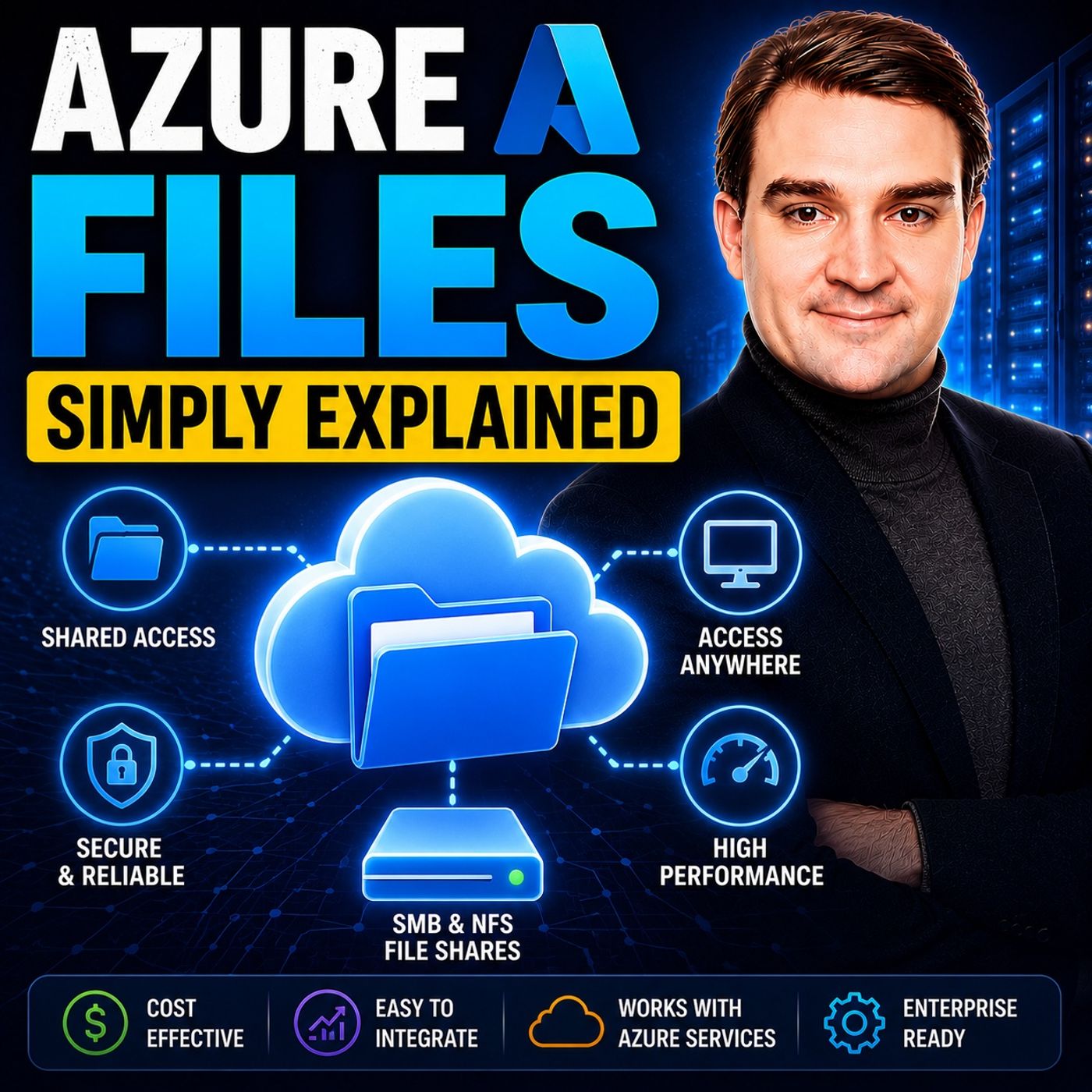
Migrating to the Cloud: A Step-by-Step Guide to Lift-and-Shift with Azure Files
Welcome back to the podcast companion blog! In our ongoing journey to help IT professionals, system administrators, and business leaders master modern infrastructure, we frequently encounter organizations struggling with legacy file servers. Hardware refreshes are expensive, remote workforces demand frictionless access, and maintaining on-premises storage infrastructure drains valuable IT resources. If you have been looking for a way to break free from the physical server closet without rewriting your business applications, you are in the right place. In this comprehensive guide, we will explore how to seamlessly migrate your legacy file shares to the cloud using a lift-and-shift approach with Azure Files. To dive deeper into the foundational concepts of this technology, be sure to check out our related podcast episode, Azure Files - Simply Explained.
Introduction to Cloud Migration with Azure Files
Migrating to the cloud can often feel like a daunting undertaking. For decades, organizations have relied on traditional network-attached storage (NAS) and Windows file servers sitting quietly in a corner room or enterprise datacenter. These servers handle user home directories, department shares, and critical application data. However, as business environments shift toward distributed, cloud-first models, maintaining physical hardware becomes a bottleneck rather than an asset.
Cloud migration strategies generally fall into a few categories: rearchitecting, refactoring, or lifting and shifting. For most file server workloads, the lift-and-shift approach is the most efficient and cost-effective method. It allows you to take your existing file shares, directory structures, and access controls and drop them directly into a fully managed cloud environment. Azure Files makes this transition remarkably smooth because it speaks the same native protocols your applications and users already rely on.
By moving to Azure Files, you eliminate the physical overhead of hardware maintenance, emergency drive replacements, and out-of-date operating systems. You gain an elastic, highly scalable storage layer that grows dynamically with your organization. Whether you are supporting a handful of remote contractors or thousands of enterprise employees spread across the globe, Azure Files provides the infrastructure foundation needed to keep your data accessible, protected, and performant.
Understanding Azure Files and Lift-and-Shift Architecture
To execute a successful migration, it is vital to understand what Azure Files actually is under the hood. Azure Files is Microsoft's fully managed cloud file sharing service. Unlike traditional virtual machines running a file server role where you must patch the operating system and manage disk arrays, Azure Files abstracts away the underlying infrastructure entirely. You provision a storage account, create file shares, and immediately begin mounting them.
The core architectural advantage of Azure Files in a lift-and-shift scenario is its native support for standard industry protocols. Azure Files supports both the Server Message Block (SMB) protocol—commonly used across Windows environments—and the Network File System (NFS) protocol, which is heavily utilized in Linux and macOS environments. Because your legacy applications likely make standard SMB or NFS calls to read and write files, they do not require a single line of code modification to work with Azure Files. You simply point the application connection string or mapped drive to your new Azure file share, and your workflows continue uninterrupted.
Furthermore, modern Azure Files architecture introduces standalone file shares. Each share functions as an independent resource with its own performance limits regarding Input/Output Operations Per Second (IOPS), throughput, and capacity. This design prevents noisy neighbor issues and allows fine-tuned performance tuning for heavy workloads, such as user profile shares or shared developer tool repositories.
Security and Identity-Based Authentication Best Practices
When moving corporate data out of a locked-down physical datacenter and into the cloud, security is naturally the primary concern for any Chief Information Security Officer. Fortunately, Azure Files provides a multi-layered security framework designed to protect your sensitive files both at rest and in transit.
First, all data written to Azure Files is automatically encrypted at rest using Microsoft-managed keys, with options for customer-managed keys if your compliance framework dictates stricter controls. Additionally, encryption in transit is enforced by default via SMB 3.0+, meaning data moving between your users, virtual machines, and the cloud storage endpoints cannot be intercepted or read by malicious actors.
When it comes to authorization, legacy setups often rely on basic storage account access keys. While simple to configure, shared keys provide blanket access to the entire storage account and violate the principle of least privilege. The industry best practice for enterprise migrations is to configure identity-based authentication using Microsoft Entra ID (formerly Azure Active Directory) or hybrid Active Directory Domain Services (AD DS). By integrating your existing on-premises domain credentials or cloud identities, you can apply standard Windows Access Control Lists (ACLs) directly to your Azure file shares. This ensures that users only see and edit the files and folders they have explicit business authorization to access.
For temporary or programmatic access, administrators can leverage Shared Access Signatures (SAS) tokens. SAS tokens grant granular, time-bound access to specific resources without exposing master credentials, making them ideal for third-party integrations or automated background scripts.
Step-by-Step Guide to Migrating Your File Servers
Executing a lift-and-shift migration requires careful planning, testing, and execution. Follow this structured roadmap to transition your legacy file servers to Azure Files smoothly and without data loss.
1. Assessment and Inventory
Before moving a single gigabyte, audit your current on-premises file landscape. Identify how much total data you have, which shares are actively used versus abandoned, and what permissions are currently applied. Tools like the Azure Storage Migration Service or third-party analysis utilities can help map out your directory sizes and identify potential path-length issues or unsupported file types.
2. Provisioning Your Azure Storage Account
Create a general-purpose v2 storage account in your Azure portal. Choose the appropriate redundancy model—such as Locally Redundant Storage (LRS) or Geo-Redundant Storage (GRS)—based on your business continuity requirements. During this phase, also configure your networking rules, deciding whether public endpoints with service tags or fully private endpoints via Azure Private Link are required for your corporate compliance.
3. Configuring Identity and Access Control
Establish your hybrid identity bridge. If your users authenticate against an on-premises Active Directory, sync your user accounts to Microsoft Entra ID and enable domain services integration on your Azure storage account. Apply your initial NTFS permissions to the root directory of your new Azure file share to mirror your legacy security structure.
4. Executing the Data Migration
Use robust data transfer tools designed for large-scale enterprise migrations. For most lift-and-shift projects, utilities like Azure Storage Explorer, AzCopy, or Azure Data Box (for massive petabyte-scale environments) are ideal. AzCopy utilizes high-performance multi-threaded data transfer protocols to ensure files move swiftly and securely. For ongoing synchronization between on-premises staging servers and Azure, deploy Azure File Sync to keep hybrid environments aligned during the cutover phase.
5. Cutover and Validation
Once initial seeding and incremental sync cycles are complete, schedule a maintenance window for your final data sync. Update your DNS entries, redirect mapped drives or group policies, and thoroughly test application connectivity and user file access before decommissioning your legacy physical hardware.
Optimizing Costs and Managing Storage Pricing Tiers
One of the greatest financial benefits of migrating to Azure Files is the elimination of over-provisioned local hardware. However, without proper cost governance, cloud storage bills can unexpectedly creep upward. Understanding Azure pricing tiers is essential for maintaining a lean, optimized infrastructure budget.
Azure Files offers multiple performance and access tiers tailored to different usage patterns:
- Premium Tier: Delivered on solid-state drives (SSDs), this tier offers consistent high performance and low latency, making it ideal for heavy input/output workloads, databases, and high-performance computing shares.
- Transaction Optimized Tier: Standard hard-disk drive (HDD) storage balanced for workloads that require heavy read and write transactions without needing the ultra-low latency of SSDs.
- Hot Tier: Optimized for general-purpose file sharing and team collaboration where files are accessed and modified frequently.
- Cool Tier: A cost-effective storage tier optimized for infrequently accessed data, such as archived project files or historical backups, featuring lower storage costs paired with slightly higher access transaction fees.
To maximize your savings, take advantage of Azure reserved capacity pricing. By committing to a one- or three-year storage reservation, enterprises can secure discounts of up to 36% compared to pay-as-you-go rates. Additionally, make use of built-in cost management and budgeting tools within the Azure portal to monitor daily consumption anomalies and establish automated alerts.
Frequently Asked Questions About Azure Files Migration
As organizations embark on their cloud storage journeys, several common questions arise regarding capability, compatibility, and day-to-day administration.
Will my legacy applications break when I move to Azure Files?
Because Azure Files supports standard SMB and NFS protocols, applications that read from and write to traditional network paths will continue to function normally without requiring code rewrites. However, application latency should be tested if your workloads reside far from the chosen Azure region.
Can I maintain an on-premises copy of my files after migrating?
Yes. Through the use of Azure File Sync, you can cache frequently accessed files on a local Windows Server while keeping the master repository safely stored in the cloud. This provides fast local performance for branch offices while centralizing backups.
How does backup and disaster recovery work with Azure Files?
Azure Files integrates natively with Azure Backup. You can configure automated daily snapshots, set retention policies, and execute granular file-level restorations in a matter of minutes without needing complex third-party backup agents.
What is the maximum size of an Azure file share?
Standard file shares can scale up to 100 TiB with large file shares enabled, providing immense headroom for even the largest enterprise archival and department repositories.
Conclusion
Migrating your legacy file servers to the cloud no longer has to be an intimidating leap into the unknown. By utilizing a lift-and-shift strategy with Azure Files, organizations can rapidly modernize their storage infrastructure, eradicate the financial drain of physical hardware maintenance, and empower remote teams with secure, 24/7 global access to critical data—all without rewriting a single line of application code. From configuring robust identity-based authentication to optimizing monthly storage expenses across dynamic pricing tiers, Azure Files delivers a flexible, enterprise-grade foundation for modern work.
To hear a practical breakdown of these concepts and discover why Azure Files is transforming modern IT architectures across the Microsoft ecosystem, make sure to listen to our related episode: Azure Files - Simply Explained.
🎧 Listen to this episode
Want a practical explanation of Azure Files? This episode breaks down the topic in clear language and shows why it matters for Microsoft 365, Azure, Power Platform, security, AI, and modern work.
Listen to this episode if you want to:
- Understand the key concepts behind Azure Files
- See how it fits into the wider Microsoft technology ecosystem
- Learn where it can create practical value for your organization
You may also enjoy these related M365 FM episodes:
- Azure NetApp Files - Simply Explained
- How to Run Local Llama on SharePoint Files Securely
- Scaling Microsoft Copilot to 35 Million Pages: The Epstein Files
- Connect Copilot Studio to Word Policy Files
- Make SharePoint Search Show the Right Files First
Discover more practical Microsoft conversations on M365 FM.

Microsoft MVP | Host of M365.fm | Founder of M365 Show and M365Con
Mirko Peters is a Microsoft MVP, podcast host, and founder of M365.fm, M365 Show, and M365Con. His work connects Microsoft practitioners through podcast interviews, livestreams, and community events.
At M365.fm, Mirko hosts conversations with Microsoft MVPs, product experts, architects, and community contributors. Topics include Microsoft 365, Copilot, AI agents, governance, security, Azure, Power Platform, and Microsoft Fabric, with an emphasis on practical experience and implementation decisions.
M365.fm is the podcast and learning platform. M365 Show brings experts together for livestreams, while M365Con provides an online conference setting for community learning.
Official website: Mirko Peters (https://www.mirkopeters.com/). Recognition: Mirko Peters — Microsoft MVP profile (https://mvp.microsoft.com/de-DE/mvp/profile/9b0ca797-db5a-493a-a845-8b9158046cf5). Connect on LinkedIn (https://www.linkedin.com/in/m365showpodcast/).