
OneDrive Adoption Basics: An Essential Guide
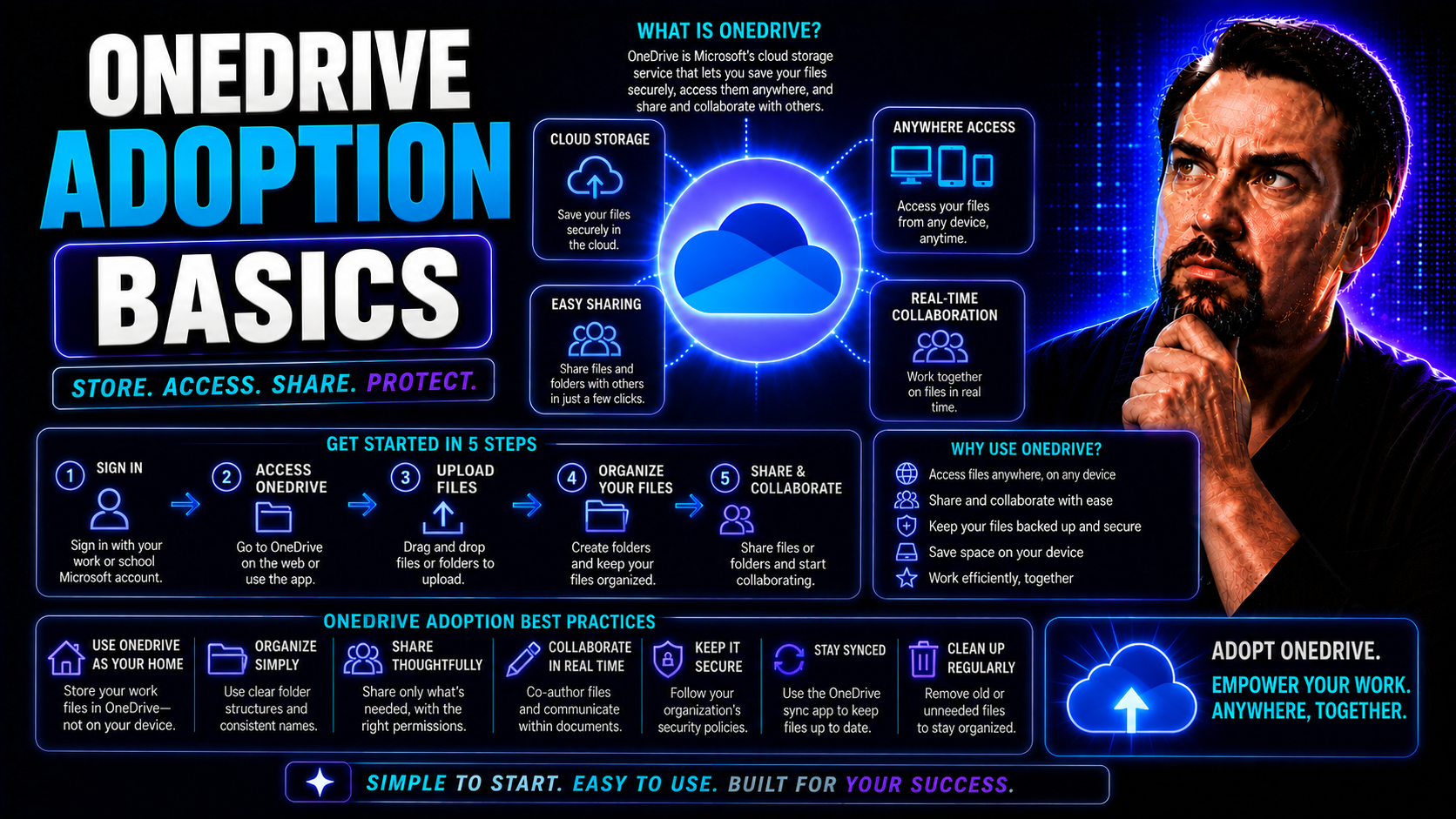
Looking to modernize how your team works together in Microsoft 365? That’s where OneDrive steps up to the plate. OneDrive isn’t just a simple cloud storage service—organizations use it to boost collaboration, secure file sharing, and ensure everyone’s working with the latest information, no matter where they are.
Understanding the basics of OneDrive adoption gives you a running start. Whether you’re planning a rollout or just want to help colleagues work smarter, this guide lays out practical steps, essential features, and strategies for successful adoption in any business setting. Stick around to learn how OneDrive fits into your bigger picture of workplace productivity.
What Is OneDrive and Why Organizations Use It
OneDrive is Microsoft’s cloud-based storage solution that’s built right into the Microsoft 365 suite. It allows you and your colleagues to store files in the cloud, making them accessible from any device with an internet connection. Think of OneDrive as your personal (and shared) digital filing cabinet, always available whether you’re in the office or on the go.
Key features include easy file saving, seamless sharing, and real-time collaboration on documents, all while keeping your information secure and backed up. Files saved in OneDrive can be shared with coworkers or outside partners, with full control over who can view or edit each document. It’s designed to keep projects moving without worrying about email attachments or out-of-date versions.
Organizations turn to OneDrive for a few core reasons. First, there’s centralized cloud storage with built-in security—ideal for keeping company files organized and away from the chaos of scattered hard drives or USB sticks. Second, OneDrive works on nearly any device, so remote and mobile workers stay connected and productive. Finally, it supports secure file management by offering compliance features and tight access controls, making it a great fit for industries with strict data regulations.
In a digital workplace built around tools like Microsoft Teams and SharePoint, OneDrive plays a vital role in streamlining collaboration and making file access as easy as possible.
Core Features That Support OneDrive Adoption
- Secure Cloud Storage: OneDrive stores files in the Microsoft cloud, protecting them with enterprise-grade encryption. This helps businesses keep sensitive information secure, while also eliminating the risks of lost laptops or physical drives.
- Real-Time Collaboration: Multiple users can edit documents at the same time—no more wondering who has the most current version. With tight integration to tools like Microsoft Word, Excel, and PowerPoint, collaboration is always up to speed.
- Version History: OneDrive automatically tracks document changes, letting you roll back to previous versions in case someone accidentally deletes content or an edit goes sideways.
- Anywhere, Any Device Access: You can open, edit, and share files from laptops, smartphones, or tablets, making remote work and field operations a breeze.
- Integration with Teams and SharePoint: OneDrive connects smoothly with Microsoft Teams for group file sharing and with SharePoint for broader document management. Understanding these connections helps you pick the right platform for each scenario—like choosing between hosting dashboards in Teams or SharePoint for projects or executive reporting.
- Granular Sharing Controls: You decide who sees what. Share files internally or externally with custom links, password protection, and expiration dates.
- Automated Sync & Backup: Files are automatically synced between the cloud and your devices, ensuring you’re always working with the latest version and have a backup in case of hardware problems.
All these features directly support productivity, governance, and flexible adoption—making OneDrive a core piece of any modern digital workplace strategy.
Steps for a Successful OneDrive Rollout
Rolling out OneDrive in your organization isn’t just a matter of flipping a switch and hoping everyone figures it out. Successful adoption hinges on a well-planned approach, thoughtful communication, and persistent support as employees adjust to new ways of working.
You’ll need to assess where your team stands before launch, make sure everyone knows how to use the tools, and build a network of support to answer questions and solve problems as they come up. Change can sometimes ruffle feathers, so it’s critical to involve the right people early and provide clear training along the way.
The next sections detail a step-by-step process, starting with evaluating your organization’s readiness for change. We’ll then cover practical training methods proven to boost user confidence and long-term satisfaction. By taking these steps, you’ll not only smooth your rollout but also maximize the return on your OneDrive investment.
Assessing Organization Readiness
Before launching OneDrive, it’s essential to take stock of your organization’s current situation. This means checking your technical infrastructure to confirm devices and networks can support cloud-based storage and quick file syncs. You’ll also want to consider user capability—are people comfortable with cloud tools, or will they need extra guidance?
Evaluating data security policies and risk tolerance ensures sensitive files stay protected during the transition. Don’t overlook organizational change readiness either; if you spot hesitation or resistance, now’s the time to plan targeted communication and support. Getting these ducks in a row helps you steer clear of common rollout headaches and sets everyone up for a smoother onboarding experience.
Key Training and Adoption Strategies
- Hands-On Workshops: Interactive sessions—virtual or in-person—let end users try out OneDrive’s features firsthand. Walking people through saving, sharing, and recovering files boosts confidence and answers questions on the spot.
- Onboarding Guides and Cheat Sheets: Simple, step-by-step documents make for handy references when users face real tasks. They cater to both new hires and seasoned employees needing a quick refresher.
- Peer Champions: Designate “champions” or power users in each department. These folks serve as the first line of support, spreading tips and good practices while encouraging their teammates to embrace OneDrive.
- Short Video Tutorials: Just-in-time learning videos demonstrate how to do common OneDrive tasks. People can watch and follow along at their own pace, reducing the intimidation factor.
- Ongoing Support Channels: Providing a help desk, chat channel, or internal forum gives users a place to reach out when they hit a snag. Regular Q&A sessions or office hours also invite open discussion and feedback.
- Celebrate Small Wins: Recognize teams or individuals who excel at adopting new habits. Even small shout-outs can motivate others to try out new features and best practices.
Mix and match these strategies based on your organization’s size, tech-savviness, and culture for a smoother transition to OneDrive. The more accessible and friendly you make the learning process, the faster everyone feels comfortable using the tool daily.
Best Practices for Governance and Security in OneDrive
- Set Up Access Controls: Define clear permissions so only the right people can access sensitive information. Use group policies and role-based access to limit risk and keep critical files under wraps.
- Enable Compliance Settings: Leverage OneDrive’s built-in compliance tools for regulatory mandates. Features like data loss prevention (DLP) and legal hold help organizations, especially those in regulated industries, maintain control and stay audit-ready.
- Establish Sharing Guidelines: Create straightforward rules for sharing files internally and externally. Encourage staff to use password-protected links and set expiration dates on shared content to prevent leaks and accidents.
- Monitor with Audit Logs: Regularly review audit logs to track access, sharing, and changes to sensitive files. This transparency helps detect and address issues before they become bigger problems.
- Coordinate with Teams and SharePoint Governance: If you’re also managing Teams or SharePoint, align your OneDrive policies for a seamless, secure workplace. For more about structured governance in related Microsoft 365 tools, see how Teams Governance builds structure and accountability.
By proactively setting up these best practices, you minimize risks and make sure your adoption of OneDrive fuels collaboration without sacrificing security or compliance.
Overcoming Common OneDrive Adoption Challenges
- Resistance to Change: Some folks might be wary of leaving behind old habits. Address this early with open, honest communication and highlight how OneDrive can actually make their jobs easier.
- File Migration Headaches: Moving years of files to the cloud can feel overwhelming. Break migration into phases and offer support, so users aren’t left wondering where their documents ended up.
- Confusion About Integration: With links to Teams and SharePoint, it’s easy to get lost. Clarify when to use each platform and provide concrete examples of workflows that benefit from OneDrive’s features.
- Security Concerns: Someone’s always worried about who can see what. Show off OneDrive’s security features and train users on proper sharing settings to put those concerns to rest.
- Lack of Ongoing Support: Users might get stuck after the initial launch. Keep support channels open and regularly review user feedback to continually refine your adoption strategy.
Tackling these challenges head-on lays the groundwork for a smoother adoption process and helps everyone see the real value in switching to OneDrive.
Measuring OneDrive Adoption Success
To know if your organization’s OneDrive adoption is working, you’ll want to keep tabs on a few key metrics. Start by tracking user activity—like the number of unique users, how often files are shared, and storage usage trends. These numbers reveal how engaged people are with the new platform.
Look at sharing behaviors to spot adoption gaps or areas needing more support. Built-in analytics tools can provide these insights, helping you fine-tune training and onboarding efforts. By consistently measuring and acting on these stats, you make sure your OneDrive environment keeps improving, aligning with your organization’s bigger governance and collaboration goals.
You Should Also Listen To
Successful OneDrive adoption requires clear rules about personal files, shared content, sync behavior, shortcuts, external sharing, and ownership. These episodes help shape the guidance users actually need:
- Stop OneDrive Sync Conflicts with SharePoint Shortcuts — Learn how shortcuts and selective offline access can replace fragile, storage-heavy sync patterns.
- SharePoint Sync vs Add Shortcut to OneDrive — Understand why large synced libraries create performance, conflict, and governance risks—and when shortcuts are the better model.
- Audit Microsoft 365 Data Access Before Deploying Copilot — See how ownership, permissions, oversharing, and data boundaries affect security, collaboration, and AI readiness.
- Microsoft 365 Governance Is a People and Ownership Problem — Learn why accountable owners and repeatable operating processes matter more than configuration alone.

Microsoft MVP | Host of M365.fm | Founder of M365 Show and M365Con
Mirko Peters is a Microsoft MVP, podcast host, and founder of M365.fm, M365 Show, and M365Con. His work connects Microsoft practitioners through podcast interviews, livestreams, and community events.
At M365.fm, Mirko hosts conversations with Microsoft MVPs, product experts, architects, and community contributors. Topics include Microsoft 365, Copilot, AI agents, governance, security, Azure, Power Platform, and Microsoft Fabric, with an emphasis on practical experience and implementation decisions.
M365.fm is the podcast and learning platform. M365 Show brings experts together for livestreams, while M365Con provides an online conference setting for community learning.
Official website: Mirko Peters (https://www.mirkopeters.com/). Recognition: Mirko Peters — Microsoft MVP profile (https://mvp.microsoft.com/de-DE/mvp/profile/9b0ca797-db5a-493a-a845-8b9158046cf5). Connect on LinkedIn (https://www.linkedin.com/in/m365showpodcast/).





