OneDrive Ecosystem Overview
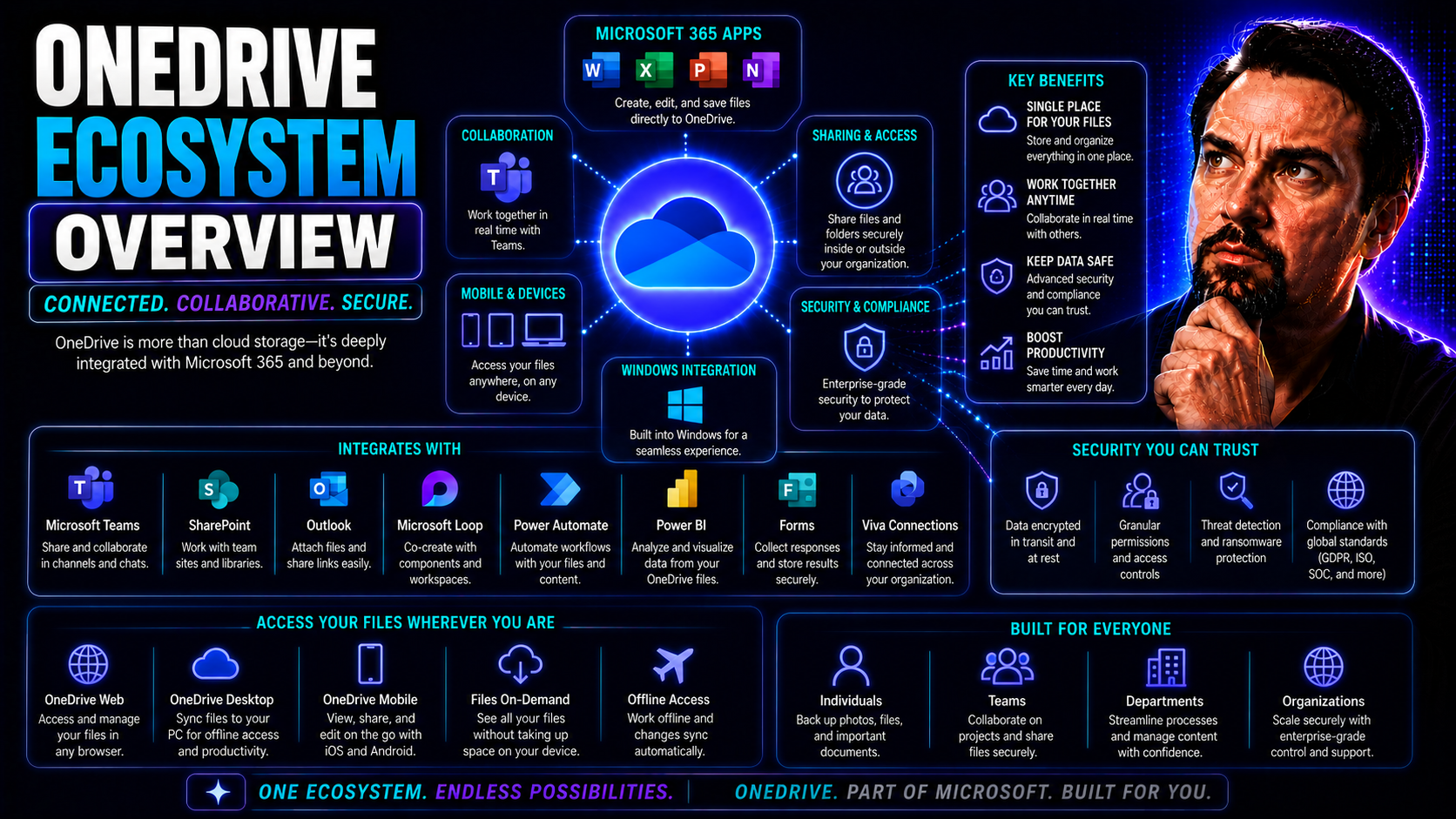
OneDrive isn't just a place to park your files in the cloud. It's an interconnected web of services that sits at the very heart of the Microsoft modern workplace. Think of the OneDrive ecosystem as your organization's digital backbone for storing, syncing, sharing, and governing content—no matter where your users are or what device they’re using.
By tying together storage, collaboration, security, and compliance, OneDrive makes it easier for teams to work smarter—whether they’re internal or external, remote or in the office. In this overview, you’ll get a practical, big-picture look at what makes up the OneDrive ecosystem, why it’s so central to Microsoft 365, and how it empowers your organization to ship less chaos and more productivity.
Understanding OneDrive in the Microsoft 365 Landscape
Within Microsoft 365, OneDrive stands out as the go-to solution for both personal file storage and efficient business collaboration. It serves a dual purpose: first, as your private, secure vault for individual documents and data, and second, as a bridge enabling seamless file sharing and teamwork across departments.
OneDrive gives every licensed user a personal cloud storage space. Here, you can work on your files from any device, and everything stays in sync automatically. When you need to share files with coworkers or project partners, OneDrive makes that simple, with precise control over who can view or edit your data.
The magic comes from OneDrive’s tight integration with other Microsoft 365 apps. It connects with Outlook, Word, Excel, PowerPoint, and anchors file collaboration inside Teams and SharePoint. This creates a unified content experience, so you never have to hunt for the latest version of a document. Instead, whether you’re in a Teams chat or tucked inside a SharePoint site, OneDrive is humming behind the scenes, making sure your files and folders are right where you need them. This foundational role is why mastering OneDrive is key for anyone guiding organizational cloud strategy or technical management inside Microsoft’s ecosystem.
Key Components of the OneDrive Ecosystem
The OneDrive ecosystem is more than just a spot in the cloud to dump files and forget about them. It's a set of closely tied services, apps, and features designed to answer the practical needs of the modern workplace.
At its core, OneDrive brings together the essentials: secure storage, real-time file sync, and broad device support. But what makes the ecosystem powerful is how these basics combine with sharing and collaborative tools, turning files into living documents your team can work on together—no email attachments required.
OneDrive also plays a central role in how Microsoft Teams and SharePoint manage and present documents. Instead of siloed data, you get integrated experiences wherever your users work. This connectedness means IT folks and decision-makers can address user needs for flexibility and access, while still holding all the reins on compliance and data governance. As we zoom into the upcoming sections, you'll see just how these pieces link up to support your organization’s productivity and control.
Personal Cloud Storage and Sync Capabilities
OneDrive’s biggest job is giving every user a secure cloud home for their files—work, personal, or a bit of both. Files stored in OneDrive are automatically backed up and synchronized across PCs, Macs, smartphones, and tablets, so what you see on one device matches everywhere else.
Want to work offline? No problem—OneDrive keeps local copies handy, then updates them as soon as you’re back online. Security is baked in, with file encryption defending your info even if a gadget goes missing. Whether you’re fixing up a presentation from the train or managing contracts from home, it’s all available, all the time—no thumb drives required.
Collaboration and File Sharing in OneDrive
With OneDrive, sharing a file or folder is as simple as sending a link. You can set strict permissions—view-only, editing, internal teams, or trusted external partners. Real-time co-authoring lets multiple people work in Word, Excel, or PowerPoint docs at once, always seeing the latest changes.
This isn’t just about convenience; it means less clutter on your inbox and fewer mix-ups. Every change, comment, and activity gets tracked, which puts IT and compliance teams at ease. For organizations, it’s the foundation for securely working together—whether inside your walls or with clients and vendors beyond them.
Integration with Microsoft Teams and SharePoint
OneDrive, Microsoft Teams, and SharePoint may look separate at first, but they function together as a single content service. In Teams, the “Files” tab you see in chats and channels is powered by both SharePoint (for team files) and OneDrive (for files shared in direct messages).
SharePoint manages shared document libraries and workspaces, making it simple to organize department or project files. Meanwhile, OneDrive remains your personal workspace for drafts, ad hoc files, and early-stage collaboration. When you drop a file into a Teams chat, it’s actually stored in your OneDrive and shared directly with those conversation participants, streamlining quick teamwork.
This trio lets you move naturally from personal notes to formal team projects, without worrying about where the files are stored—you just work where it makes sense. If you’re deciding where to surface dashboards or reports within Teams or SharePoint, you might enjoy this deep dive on Teams vs. SharePoint for dashboards, which spotlights strengths and use case scenarios for each platform. OneDrive is the connective tissue—a fluid link that ties together casual chats, formal documentation, and everything in between, putting collaboration center stage in the Microsoft 365 universe.
OneDrive Security and Compliance Framework
Security and compliance aren’t afterthoughts in the OneDrive world—they’re baked into every corner of the ecosystem. With sensitive data always at risk, OneDrive steps up with a robust framework designed to defend organizational content, support regulatory requirements, and empower IT admins to sleep a little easier.
From keeping files encrypted to providing tools for data loss prevention and privacy protection, OneDrive takes the guesswork out of cloud security. It offers enterprise-grade compliance features, comprehensive auditing, and granular access controls—all so organizations can manage risk without handcuffing user productivity.
But it’s not all one-size-fits-all: admins get the levers and dashboards needed to fit controls to their own compliance strategy. In the next sections, we’ll look closer at how encryption, privacy, and access management work together in OneDrive to secure your digital workplace while staying transparent for both users and auditors.
Encryption, Data Loss Prevention, and Privacy Features
- Encryption at Rest and in Transit: OneDrive automatically encrypts files both while they’re stored in the cloud and when they’re moving between users and devices, using industry-standard protocols.
- Data Loss Prevention (DLP): DLP policies let organizations block or warn users about sharing sensitive info—like credit card data or confidential documents—helping prevent leaks before they happen.
- Privacy Transparency: Users and admins have visibility into who accessed or shared a file, plus detailed audit logs to spot unusual activity. To learn more about Microsoft's broader privacy protections, this summary on Copilot data privacy provides extra context on privacy-by-design across Microsoft 365.
- Compliance Certifications: OneDrive is certified for key standards like ISO 27001, SOC 2, and GDPR, which can make legal teams breathe easier when handling regulated data.
- Policy Enforcement Tools: Features like expiring sharing links, granular sharing restrictions, and regular access reviews enable IT to enforce rules without slowing down productivity.
Access Controls and Identity Management in OneDrive
OneDrive’s security knows who’s in, who’s out, and who’s got access to what, thanks to tight integration with Azure Active Directory. User authentication and permissions follow a least-privilege model, meaning users only get the access they truly need for their roles. Audit trails log all significant activity, helping with investigations and proving compliance when necessary.
Strong identity management is crucial in hybrid and remote work environments. Automated user provisioning and secure offboarding play a huge role in protecting data continuity. Managing clear rules, roles, and security measures isn’t just for Teams—see why governance matters by checking out how Teams governance builds secure, efficient collaboration. The same thinking applies in OneDrive, keeping your business moving without unnecessary risk.
Governance Strategies for Managing OneDrive
Governance is the backbone for keeping OneDrive both secure and user-friendly in a fast-moving digital environment. It’s not just about locking down data; it’s about setting policies that empower users while minimizing risks like sprawl, accidental data exposure, or compliance headaches.
Effective OneDrive governance involves a mix of automation, clear policy enforcement, and continuous monitoring. Getting this balance right is as much about organizational culture and user training as it is about technical controls.
The upcoming sections will walk you through the basics of lifecycle management, showing how to automate common tasks like onboarding, retention, and offboarding. You’ll also get actionable tips on reporting, monitoring, and auditing, so you can spot issues early and adapt policies as your needs change. Want to see how effective governance transforms workspaces? Dive into this Teams governance resource for lessons that apply across OneDrive and beyond.
Lifecycle Management and Policy Enforcement
- User Onboarding Automation: Integrate with directory services to assign storage, permissions, and sharing policies automatically when new users join.
- Retention and Archival Policies: Define how long files are kept and when they’re archived or deleted, helping to stay compliant and uncluttered.
- Automated File Deletion: Set up rules to remove obsolete or orphaned files, avoiding buildup and potential leaks.
- Policy-Based Access: Use policy rules to enforce who can share files, with whom, and for how long.
- Periodic Reviews: Schedule reviews of access rights, file relevance, and ownership to ensure policies remain effective. For Microsoft Teams lifecycle automation strategies (that transfer well to OneDrive), check automated lifecycle governance.
Monitoring, Reporting, and Auditing in OneDrive
- Activity Tracking: Monitor uploads, downloads, shares, and permission changes for every file and folder.
- Sharing Trends: Use built-in dashboards to identify sharing patterns and potential outliers that may signal risk.
- Audit Logs: Maintain comprehensive logs of all access and admin activity, supporting both compliance and incident response.
- Compliance Reports: Generate reports for auditors, regulators, or management showing policy adherence and usage trends.
- Continuous Improvement Insights: Analyze reporting data to refine governance strategies and tackle risks before they grow.
API Integrations and Automation Possibilities
OneDrive’s API and Microsoft Graph together open up a whole world of automation, integration, and application development opportunities. These tools allow IT pros and business leaders to streamline repetitive tasks—like provisioning, compliance checks, or user notifications—making the management of OneDrive both efficient and scalable.
Beyond out-of-the-box features, you can use Power Platform, bots, or custom apps to build solutions that fit your unique business processes. For instance, agencies might set up automated archival of old project files, or HR could trigger document workflows when onboarding new hires—with all automation governed by your compliance requirements.
Connecting OneDrive through APIs also means tighter alignment with Teams, SharePoint, and other Microsoft 365 tools. Developers can even tap into meeting events in Teams or automate data flows across their environment. If you want inspiration, here’s a guide on extending Teams with bots and Graph—the same principles supercharge OneDrive’s reach, letting organizations innovate while reinforcing security and governance.
Advantages of the OneDrive Ecosystem for Modern Organizations
- Boosted Productivity: OneDrive’s seamless sync and co-authoring features let employees work together on files in real-time, whether they're at headquarters or halfway across the globe, driving efficiency for all kinds of industries and teams.
- Stronger Collaboration: By integrating with Microsoft Teams and SharePoint, OneDrive tears down silos between departments, making shared knowledge and teamwork part of the daily workflow.
- Strengthened Security and Compliance: With enterprise-grade encryption, DLP, and comprehensive audit logs, OneDrive offers robust security for all your sensitive documents. It’s easier to enforce compliance without slowing users down.
- Flexible Access and Mobility: Users can access critical files from any device, online or offline, making remote and hybrid work easy to manage—and helping organizations stay agile through any disruptions.
- Cost Savings and IT Efficiency: Centralized storage and automation reduce administrative overhead. You’re also cutting down on shadow IT as users have trusted, powerful tools built right into their daily apps. For more on how proper governance supercharges these benefits, see this resource on Teams governance and business success.
Best Practices for OneDrive Governance and Adoption
- Educate and Empower Users: Train staff not just on how to use OneDrive, but why sharing and permissions matter—turning them from security risks into digital teammates.
- Define Role-Based Access Policies: Set up clear, automated rules for who can access, share, or delete content based on their role in the business structure.
- Leverage Monitoring and Reporting: Regularly use dashboards and audit logs to spot unusual activity and keep policies up to date for evolving business needs.
- Encourage Cross-Team Alignment: Work with HR, legal, and department heads to align OneDrive’s use with business processes and regulatory requirements. Check out best practices for cross-team governance in this Teams collaboration guide.
- Automate Where Possible: Take advantage of Power Automate, Graph API, or policy-based tools to handle onboarding, retention, and offboarding, reducing manual effort and errors.
Frequently Asked Questions about OneDrive Ecosystem
- What’s the difference between OneDrive and SharePoint? OneDrive is your personal cloud drive for individual work, while SharePoint is for shared team files and organizational knowledge management. Both integrate tightly, especially inside Microsoft Teams.
- Can I migrate existing files from network drives to OneDrive? Yes, Microsoft and many third-party tools exist for migrating legacy content into OneDrive with minimal disruption or downtime.
- How secure is sharing files externally through OneDrive? Sharing links can be configured for specific users, time limits, and password protection. All sharing activity is recorded, and compliance rules can restrict external sharing if needed.
- What types of monitoring and reports are available for admins? Admins can access detailed reports on activity, sharing trends, storage usage, and security events. Audit logs help with investigations or compliance checks.
- How does OneDrive fit into Teams and SharePoint workflows? OneDrive underpins files shared directly in Teams chats, whereas SharePoint hosts shared files in Teams channels and organizational libraries. This blended model streamlines user experience and policy management across your Microsoft 365 environment.
You Should Also Listen To
The OneDrive ecosystem connects personal work, team content, device access, and Microsoft 365 collaboration—but those connections only remain useful when ownership and access are designed intentionally. These episodes explain the architecture:
- Audit Microsoft 365 Data Access Before Deploying Copilot — See how ownership, permissions, oversharing, and data boundaries affect security, collaboration, and AI readiness.
- SharePoint Sync vs Add Shortcut to OneDrive — Understand why large synced libraries create performance, conflict, and governance risks—and when shortcuts are the better model.
- Stop OneDrive Sync Conflicts with SharePoint Shortcuts — Learn how shortcuts and selective offline access can replace fragile, storage-heavy sync patterns.
- Microsoft 365 Governance Is a People and Ownership Problem — Learn why accountable owners and repeatable operating processes matter more than configuration alone.

Microsoft MVP | Host of M365.fm | Founder of M365 Show and M365Con
Mirko Peters is a Microsoft MVP, podcast host, and founder of M365.fm, M365 Show, and M365Con. His work connects Microsoft practitioners through podcast interviews, livestreams, and community events.
At M365.fm, Mirko hosts conversations with Microsoft MVPs, product experts, architects, and community contributors. Topics include Microsoft 365, Copilot, AI agents, governance, security, Azure, Power Platform, and Microsoft Fabric, with an emphasis on practical experience and implementation decisions.
M365.fm is the podcast and learning platform. M365 Show brings experts together for livestreams, while M365Con provides an online conference setting for community learning.
Official website: Mirko Peters (https://www.mirkopeters.com/). Recognition: Mirko Peters — Microsoft MVP profile (https://mvp.microsoft.com/de-DE/mvp/profile/9b0ca797-db5a-493a-a845-8b9158046cf5). Connect on LinkedIn (https://www.linkedin.com/in/m365showpodcast/).