
Remote Workforce Security Setup: A Modern Microsoft-Centric Guide
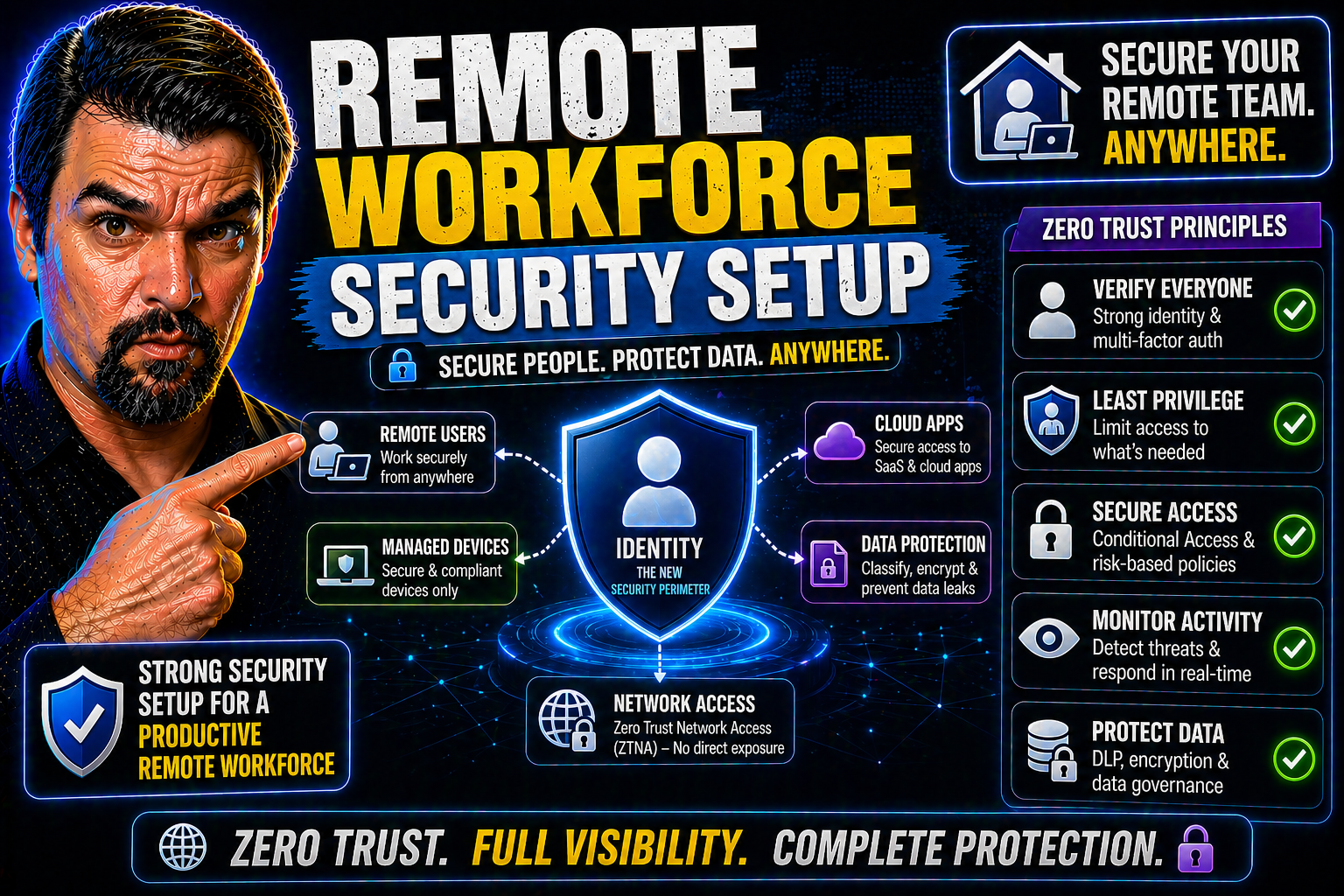
Securing a remote workforce isn’t about sprinkling on a few extra passwords and calling it a day. Modern remote security—especially when you’re all-in with Microsoft tools—means building every layer with protection in mind. In this guide, you’ll get a hands-on approach for setting up world-class security using everything Microsoft brings to the table, from Entra ID to Microsoft Defender.
We’ll walk through real-world risks, new security policies, and how zero-trust access works when teams are scattered across dozens (or hundreds) of locations. You’ll see how to lock down identity, devices, apps, and the cloud—plus, how to train your crew to do their part. This isn’t another checkbox exercise—it’s your roadmap for a remote workforce that’s safe, productive, and ready for what’s next.
Foundations of Remote Workforce Security
Let’s face it: the old perimeter-based security model just doesn’t cut it anymore. With employees logging in from homes, coffee shops, and just about anywhere with Wi-Fi, your organization’s attack surface keeps expanding. Protecting your data and systems now depends on understanding these ever-changing risks—and on updating your approach, policies, and tools to match.
This section sets the stage for everything that comes next by covering the baseline principles all modern remote security must start with. You’ll get a sense of why organizations need to move quickly to recognize and address threats unique to distributed workforces, not just the stuff everyone’s heard a thousand times.
You’ll also see why security isn’t the IT team’s job alone. These days, everyone—employers and employees alike—has skin in the game. When folks on both sides know the rules and play their part, security becomes part of the culture, not just a pile of policies collecting dust.
Pressing Risks Remote Workforces Face Today
- Insecure Home and Public Networks: Employees connect from home Wi-Fi, coffee shop routers, or hotel hotspots—even networks with weak encryption or default passwords. Attackers love these soft spots, using them to launch man-in-the-middle attacks or snoop on traffic if networks aren’t hardened with strong passwords (think WPA3), firmware updates, or network segmentation.
- Phishing and Social Engineering: The inbox is ground zero for modern attackers. Remote employees get targeted with sophisticated phishing emails, consent phishing attacks using rogue OAuth apps, and credential harvesters that bypass even basic MFA. Learn more about how Microsoft 365 attacks have shifted beyond basic MFA, with real-world examples of token theft and consent abuse.
- Shadow IT and Rogue Applications: Remote users often spin up unsanctioned cloud apps (Shadow IT) or connect unknown devices, exposing sensitive data to leaks or ransomware. Without the right controls, over-permissioned OAuth apps and external sharing run rampant, as highlighted in this in-depth breakdown of Shadow IT risks in Microsoft 365.
- Insider Threats and Human Error: Mistakes happen—files get sent to the wrong address or sensitive data ends up on unapproved devices. Malicious insiders might also abuse remote privileges, making it critical to monitor and control access, especially with expanded permissions.
- Unpatched Devices and Endpoint Vulnerabilities: Remote endpoints often miss timely updates, lack endpoint protection, or go off the management radar. Attackers exploit known vulnerabilities on unmanaged or BYOD devices, giving them a foothold into corporate systems.
- Cloud and Hybrid App Abuse: As more work happens in the cloud, risks from OAuth abuse, token hijacking, and misconfigured app permissions grow. Attackers know how to exploit gaps in app consent and security drift across hybrid environments.
Each of these risks shows why traditional security can’t keep up—and why robust, remote-first defenses are needed at every layer.
Employer and Employee Shared Security Responsibility
Security for remote work takes teamwork. Employers must set clear policies, provide secure tools, and regularly train employees on secure data handling and using approved apps. It’s their job to configure defenses, manage access, and keep software updated.
Meanwhile, employees are responsible for following these policies—using strong passwords, enabling MFA, and reporting suspicious activity or lost devices. Regular training builds awareness, so users don’t become the weakest link. For an in-depth look at layering these protections without sacrificing productivity, check out this guide to best-practice Microsoft 365 security.
When everyone does their part—following clear, role-based guidelines and communicating openly—your security posture gets stronger, not stricter.
Secure Access with Microsoft Entra ID for Remote Workforces
Identity is the new security perimeter—and Microsoft Entra ID sits right at the center. With teams spread across cities, states, or continents, you need a way to validate users, govern app access, and adapt to risk in real time. Entra ID goes beyond old-school directories, offering unified identity, single sign-on, and fine-tuned access management for remote workforces.
In this section, you’ll see how to stitch together your cloud and on-premises resources, bring cloud apps and services under one control plane, and tackle the unique hurdles hybrid infrastructure can throw your way.
Expect practical strategies for integrating apps, connecting existing infrastructure, and rolling out risk-based policies that keep bad actors out—without locking down productivity. You’ll also discover how attackers target Entra ID with advanced OAuth and conditional access bypasses, and why strong identity governance is your best defense. Get more detail on these threats in this explanation of OAuth consent abuse in Entra ID.
Integrating Microsoft Entra Apps and Hybrid Infrastructure
- Connect Apps for Single Sign-On (SSO): Start by integrating core applications with Microsoft Entra ID. Use SSO to let users access approved cloud and on-premise apps with a single identity, greatly reducing password fatigue and lowering the chances of credential reuse.
- Federate On-Premises Infrastructure: Seamlessly extend Entra ID to existing on-premises directories using Azure AD Connect or Entra Connect. This allows hybrid identity so users can move between on-prem and cloud resources without disruption, supporting smooth transitions for organizations in the cloud migration phase.
- Automate User Provisioning and Deprovisioning: Use dynamic groups, SCIM provisioning, and lifecycle workflows to automatically add or remove employees from apps and groups as their roles change. Automated user management minimizes risk from orphaned accounts and overlooked privileges.
- Harden OAuth Consent and App Governance: Attackers increasingly exploit OAuth consent grants to bypass MFA and maintain access. Familiarize your team with the mechanisms of consent-based attacks and implement restrictions like verified publisher requirements and enforced admin consent workflows to close the door on rogue apps.
- Enforce Least Privilege Access: Assign users the smallest set of permissions they need, and regularly audit app permissions, external sharing, and legacy accounts, reducing the risk of lateral movement or privilege abuse.
Each integration step not only lowers friction for employees—it makes your remote security more predictable and much easier to manage at scale.
Enforcing Conditional Access and Multi-Factor Authentication
- Baseline Conditional Access Policies: Start with a baseline of inclusive conditional access policies that apply to all users, all devices, and all locations. Typical policies block legacy protocols, require up-to-date devices, and apply risk-based authentication, giving you guardrails right out of the gate. Learn more about creating effective baselines in this guide to Conditional Access best practices.
- Enable Risk-Based MFA: Implement Microsoft Entra ID’s built-in MFA. Go beyond just a static prompt: require stronger proofs for sign-ins from unfamiliar locations or risky devices. Modern attacks often bypass basic MFA, so go for adaptive policies that detect real-time threats.
- Tune and Monitor for Exceptions: Limit broad exclusions in conditional access—these can become invisible security gaps. Instead, use time-bound and tightly scoped exceptions, and monitor authentication logs for signs of policy drift or unexpected exclusions. Learn more about scaling and maintaining enforceable access at this deep dive into conditional access governance.
- Automate Remediation and Rollout: Use Entra ID capabilities like user risk policies, session controls, and automated notifications to flag and respond to risky logins, consented app changes, or credential compromise—without swamping support. Automated risk actions keep the wheels turning even when IT is offline.
- Monitor for Consent-Based and Token Attacks: Attackers may steal tokens or create persistent app consent to maintain access, even after a password reset. Employ tools like Entra ID audit logs and Sentinel analytics, as discussed in this OAuth consent attack overview, to catch abnormal login patterns and consent changes.
Nail your conditional access setup and MFA, and your organization’s remote access risks become a whole lot more manageable—without putting hurdles in front of users who just want to get their work done.
Device and Endpoint Security for Remote Teams
It’s hard to keep track of who’s logging in on what—laptops, tablets, phones, you name it. Securing your dispersed endpoints goes way beyond simply telling staff to “keep your laptop patched.” IT now needs to remotely provision, deploy, monitor, and protect corporate and personally owned devices at scale.
This section highlights the main strategies for end-to-end visibility and control over remote endpoints. You’ll get an overview of zero-touch onboarding, monitoring tactics, mobile device management, and security tools that cover everything from data leak prevention to responding when a device goes missing.
With more flexibility comes more risk—especially with bring-your-own-device (BYOD) culture and apps that mix work and personal data. We’ll also explore how to protect both corporate resources and user privacy, so your security shields don’t feel like handcuffs.
Remotely Provision, Deploy, and Monitor Devices and Apps
- Automated Zero-Touch Device Enrollment: Use Microsoft Intune and Windows Autopilot for provisioning. Devices can be shipped directly to employees and, upon first boot, they enroll securely without manual IT setup. This ensures core security policies, like encryption and endpoint protection, are applied right from the start.
- Push Apps and Configuration at Scale: Distribute approved business apps, VPN settings, and Wi-Fi profiles centrally via Intune. Enforce compliance with baseline security settings, making sure that users aren’t tempted to install risky software or modify locked settings.
- Continuous Device Monitoring and Policy Enforcement: Monitor device compliance in real time—check for updates, security posture, and unauthorized changes. Automated remediation can quarantine devices or restrict access when they fall out of compliance, keeping your environment clean.
- Isolate Business Data from Personal Use: Apply separation policies for profiles or containers, especially in BYOD scenarios, to wall off corporate data from personal apps and browsing on the same device.
- Automated User Lifecycle and Least Privilege: When an employee leaves or switches roles, automate offboarding and permission updates using dynamic groups and Entra ID. See examples of lifecycle automation and governance in environments like Dataverse at this security governance deep dive.
A rock-solid remote device management approach means devices stay protected and updates get done, even if users are halfway across the globe.
Securely Enable BYOD with App and Data Protection Policies
- Implement App Protection Policies (APP): Use Microsoft Intune to define policies for apps that access work data—think requiring PINs, blocking copy/paste, or enforcing encryption. These controls wrap business data, even on personal devices, without seeing or controlling personal information.
- Data Loss Prevention (DLP) for BYOD: Set up DLP policies in Microsoft 365 and Power Platform to classify and restrict sensitive data movement, ensuring it isn’t accidentally or intentionally leaked. Get tips for DLP governance and preventing flow failures in Power Platform through this advanced guide for developers.
- Enable Secure Access with Conditional Policies: Restrict access to business apps and data based on device compliance state, location, or risk signals, minimizing the chance that a compromised or unpatched device is used for work.
- Educate Users on Data Handling: Regular training helps users recognize how business and personal data are protected and where company oversight starts and stops. Employees are more likely to cooperate when privacy boundaries are clear and respected.
- Enforce Adaptive and Unified Policies: Don’t silo DLP and access rules—tie them together. Bring in insights from adaptive DLP podcast breakdowns that explain why unified environment and connector governance is key to stopping leaks before they start.
BYOD programs work best when employees trust the setup and you can prove work data is safe—without overstepping into their personal space.
Protect Devices Against Threats, Loss, and Patch Vulnerabilities
- Onboard Devices to Microsoft Defender: Enroll all endpoints in Microsoft Defender so that endpoint protection, detection, and response are enabled out-of-the-box. Real-time defense means faster identification and containment of threats.
- Automate Patch Management: Use Intune or Windows Update for Business to push out updates and security patches. Proactive patching closes exploit windows before attackers can sneak in.
- Encrypt Devices and Enable Remote Wipe: Mandate BitLocker for Windows and FileVault for Mac to encrypt data at rest. For lost or stolen devices, trigger remote wipe or block access, dramatically limiting data exfiltration risk.
- Monitor for Compliance and Threats: Pair Defender for Endpoint with compliance dashboards like Defender for Cloud for real-time compliance tracking and automated remediation.
Application and Data Security in Microsoft Cloud Environments
The cloud is where work happens now—collaborative editing, app integrations, and document sharing live mostly in Microsoft 365 and other SaaS services. With this shift, attack targets turn to cloud apps, unsanctioned technology (Shadow IT), and the sensitive data flowing between them.
This section introduces how to identify risky apps, govern and secure cloud usage, and apply Microsoft-native defenses from app-level configuration to intelligent detection. It highlights the importance of stopping leaks before they start and keeping attackers from abusing seemingly harmless applications.
We’ll lay out a practical roadmap for surfacing Shadow IT, applying actionable DLP, and layering security controls like Office 365 ATP and safe links. Master them, and you’ll turn your cloud workspace into a security fortress—with productivity to match. For a closer look at Shadow IT governance, refer to this one-week remediation plan for Microsoft 365.
Discover and Secure Cloud Apps to Protect Corporate Data
- Shadow IT Discovery: Use Microsoft Defender for Cloud Apps to spot unsanctioned cloud app usage. This gives visibility into risks from rogue tools and file-sharing sites that may skirt company policies.
- Risk-Based App Governance: Set app consent and access policies via Entra ID to control which apps access your data and scopes. This blocks high-risk OAuth permissions and keeps attackers from exploiting over-privileged apps.
- Data Loss Prevention Policies: Deploy DLP controls in Microsoft 365 to monitor and block sensitive data from leaving the organization. Dynamic policies prevent accidental sharing and limit exposure when employees use personal email or unsanctioned platforms.
- User Education and Reporting: Train employees to avoid risky app installations and report suspicious pop-ups, closing the door on social engineering and install traps. For more, dive into practical steps to manage Shadow IT.
Configure and Protect Apps in Microsoft 365 Platforms
- Enable Microsoft Defender Protections: Turn on Microsoft Defender for Office 365 to scan email attachments, links, and files in SharePoint, Teams, and OneDrive for malware and phishing attempts. Real-time scanning thwarts most opportunistic attacks before users ever click.
- Configure Advanced Threat Protection (ATP): Deploy ATP Safe Links and Safe Attachments so suspicious links are checked in real time, and files are opened in secure sandboxes. This protects users even from new, never-before-seen threats.
- Harden App Permissions and Monitoring: Regularly review app permissions via Azure/Entra ID. Use automated compliance monitoring through platforms like Microsoft Defender for Cloud to catch policy drift and enforce continuous remediation.
- Layered Threat Intelligence: Feed alerts, audit logs, and endpoint telemetry into unified dashboards for faster response. Layering defenses ensures nothing slips through the cracks.
Operational Security Best Practices and Employee Training
Even the best technical defenses will crumble if your security culture is weak. Ongoing operations, regular training, and sharp response protocols make the difference between catching issues early and scrambling after a breach.
In this section, you’ll see how to enforce policies, run employee awareness programs, and use real incidents to harden your defenses. Security is not a “set it and forget it” deal—continuous improvement, compliance checks, and learning from close calls are what keep your security posture strong over the long haul.
Real-world programs and practical examples reveal how daily routines and regular drills help organizations go from reactive to proactive—building habits that make breaches much less likely. For more on unified security controls, check out this guide on balancing security and usability in Microsoft 365.
Implement Policies and Ongoing Cybersecurity Training
- Clear Security Policies: Draft, publish, and regularly update policies for device usage, app access, and data sharing. Communicate policies in plain language and reinforce them during onboarding and regular check-ins.
- Simulated Phishing and Attack Drills: Run periodic phishing simulations or red team exercises to test employee readiness and reinforce training gaps, as detailed in Zero Trust by Design programs.
- Compliance Tracking and Audits: Use dashboards to monitor training completion, device compliance, and policy violations. Automated reminders ensure that mandatory security education doesn’t fall through the cracks.
- Incident Response Training: Walk staff through mock security incidents so everyone knows what to do, who to contact, and how to act decisively if something goes wrong.
- Ongoing Awareness Campaigns: Share short videos, tip sheets, and real-world “near misses” to keep security front-of-mind without burning out your workforce.
Leveraging Microsoft Resources and Secure Remote Work Platforms
No need to reinvent the wheel—Microsoft offers a treasure trove of official docs, FastTrack services, and community-driven guidance to help you deploy secure remote work quickly and confidently. These resources break down complicated rollouts, demystify tricky configurations, and provide troubleshooting advice, so your IT and security teams spend less time firefighting and more time fine-tuning.
Alongside training, secure virtual desktops play a big part in modern remote workforces. Tools like Azure Virtual Desktop let you isolate workloads, enforce access controls, and scale up as your needs grow—all while keeping data off risky endpoints.
In this section, you’ll discover which Microsoft resources cut through the noise and how virtual desktop environments reduce your exposure in a remote-first world. For a practical walkthrough, listen to insights on setting up DLP in Microsoft 365—which also highlight time-saving automation with Microsoft Copilot.
Getting Started with Microsoft Documentation, FastTrack, and Video Guides
- Official Microsoft Docs: Find in-depth deployment, configuration, and troubleshooting steps for Entra ID, Defender, Intune, and more. These docs walk you line-by-line through real-world tasks.
- Microsoft FastTrack Services: Work directly with Microsoft engineers who help you plan migrations, set security baselines, and iron out complex deployments—at no extra cost for qualifying customers.
- Community Video Guides: Tap into curated YouTube playlists and Microsoft Learn videos for bite-sized walkthroughs of everything from conditional access to automated device onboarding and incident response.
- Support Forums and Knowledge Base: Leverage Microsoft Tech Community and dedicated security forums for expert troubleshooting and troubleshooting advice from peers and product engineers.
Deploying Virtual Desktops and Secure Remote Work Platforms
- Centralized Isolation of Workloads: Deploy Azure Virtual Desktop or Windows 365 to keep apps, data, and sessions on remote servers rather than scattered endpoints. This drastically reduces the risk from lost, stolen, or compromised devices.
- Streamlined Access Management: Use Entra ID and Conditional Access to enforce who can connect, from where, and under what conditions. Virtual desktops are especially useful for contractors and third-party partners who shouldn’t store sensitive data locally.
- Scalability and Flexibility: Quickly spin up or scale down virtual desktops to match changing headcount, project needs, or new locations—no truck rolls or complex provisioning required.
- Simplified Patching and Updates: Roll out patches, security updates, and policy changes centrally so every remote desktop is protected—no matter where the end-user is logging in from.
- Enhanced Monitoring and Zero-Trust Controls: Integrate desktop telemetry with your broader SIEM for real-time insights, threat detection, and automated responses. Tightly-coupled controls make compliance and audits easier, not harder.

Microsoft MVP | Host of M365.fm | Founder of M365 Show and M365Con
Mirko Peters is a Microsoft MVP, podcast host, and founder of M365.fm, M365 Show, and M365Con. His work connects Microsoft practitioners through podcast interviews, livestreams, and community events.
At M365.fm, Mirko hosts conversations with Microsoft MVPs, product experts, architects, and community contributors. Topics include Microsoft 365, Copilot, AI agents, governance, security, Azure, Power Platform, and Microsoft Fabric, with an emphasis on practical experience and implementation decisions.
M365.fm is the podcast and learning platform. M365 Show brings experts together for livestreams, while M365Con provides an online conference setting for community learning.
Official website: Mirko Peters (https://www.mirkopeters.com/). Recognition: Mirko Peters — Microsoft MVP profile (https://mvp.microsoft.com/de-DE/mvp/profile/9b0ca797-db5a-493a-a845-8b9158046cf5). Connect on LinkedIn (https://www.linkedin.com/in/m365showpodcast/).




