Scaling Microsoft Teams Phone: Enterprise Guide
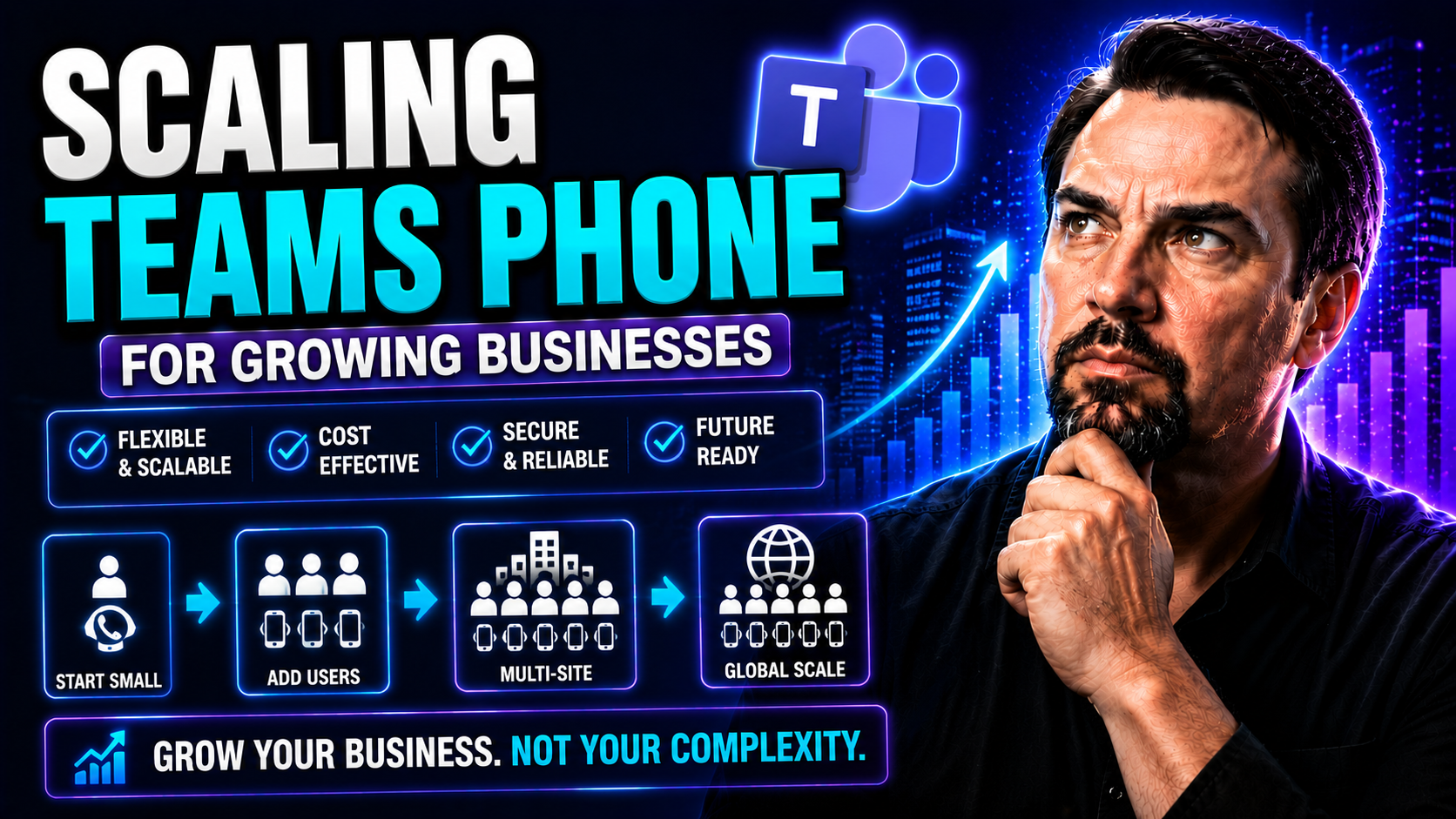
Scaling Microsoft Teams Phone isn’t just about adding more phone lines—it’s about enabling your entire organization to communicate effortlessly, wherever people are working. As remote and hybrid workforces become the norm, a scalable Teams Phone system keeps everyone connected, compliant, and productive across cities, countries, and continents. That flexibility comes with challenges, though—like managing cost, planning technical growth, and meeting complex regulatory needs.
This guide walks you through the essentials of scaling Teams Phone. You’ll find real-world strategies for designing your system, breaking down costs, ensuring smooth migration, futureproofing for compliance, and making smart buyer decisions. If you’re leading IT, operations, or digital transformation, you’ll learn how to align Teams Phone with your organization’s growth and modern work expectations. Let’s get straight to the practical, step-by-step insights you need to make Teams Phone a game-changer for your business.
Strategic Planning for Scaling Microsoft Teams Phone
Scaling Teams Phone isn’t something you do with a snap of your fingers. As your organization grows, so do the stakes—whether that’s more users, new office locations, or expanded compliance needs. Strategic planning is what keeps things running smoothly, without surprise hurdles or roadblocks later on. If you start winging it, you’re almost guaranteed headaches down the line—nobody wants a phone outage at quarter-end or a compliance audit finding holes in your system.
This is where it pays to line up technology, business goals, and long-term operational needs before a single handset or softphone gets activated. You want the confidence that your chosen approach—be it expanding globally, supporting remote teams, or integrating with business apps—can handle bumps in the road and spikes in user demand. Strong strategic planning means you’re not just scaling, but scaling smart.
In the next sections, we’ll break down how to map out your technical architecture, estimate what your network can carry, and identify the best way to keep your calling secure, compliant, and ready for whatever comes next. Whether you’re planning a leap or steady growth, get ready to think ahead and build the kind of Teams Phone environment that keeps up with your organization for years to come.
Developing Strategic Implementation Planning and Technical Architecture
- Define Communication Goals and Growth ObjectivesStart by asking what you want Teams Phone to do for your organization. Do you need to support rapid user growth, geographic expansion, or integrate with other business tools? Set out your vision for unified communications and map that to business growth targets.
- Design a Flexible, Modular Technical ArchitectureBuild your Teams Phone foundation in a way that lets you scale up (or down) with minimal disruption. Choose modular components, cloud-first strategies, and open APIs so you’re ready to bolt on new sites or features as needed—without tearing everything down when things evolve.
- Emphasize Security and Regulatory ComplianceFrom day one, consider how you’ll meet security needs and comply with regulations like GDPR, HIPAA, or industry-specific mandates. Plan for encrypted call data, secure access controls, and regular reviews—especially if your team works with sensitive information or across borders.
- Prioritize Integration with Business ApplicationsLook beyond voice calls. Teams Phone should tie in with CRMs, help desks, and ERP systems for seamless workflows. Whether you’re routing sales calls into Salesforce or triggering service tickets in ServiceNow, plan for integrations that save users time and reduce errors.
- Plan for Resilience and Disaster RecoveryNo one likes downtime. Ensure your technical plan includes redundancy, failover options, and automated backup processes so your communications don’t miss a beat—even if a server goes down or someone trips over a power cord in the office closet.
Capacity Planning Resources and Network Infrastructure Requirements
- User Growth Forecasting: Use historical data and business projections to estimate how many new users will need Teams Phone, and when. Having clear growth metrics avoids sudden surprises for your network or licensing costs.
- Bandwidth and Network Health Assessments: Analyze current network traffic and test whether your connections—whether in headquarters or home offices—can handle high-quality voice calls without lag or dropped calls.
- Cloud Readiness and Redundancy: Check that your network hardware, firewalls, and endpoints can support Teams Phone’s requirements, including QoS settings for prioritized voice traffic and backup options for resilience.
- Licensing and Per-User Planning: Make sure you’re set up with the right Microsoft 365 licenses and understand how growth affects monthly costs. Know your options for adding or removing seats as your team changes.
Meeting Microsoft 365 Requirements and Evaluating Microsoft Calling Options
- Confirm Microsoft 365 Prerequisites for Teams PhoneBefore even thinking about phone numbers, ensure your users have the right Microsoft 365 subscriptions that support Teams Phone features—usually E5, or E3 with additional licensing.
- Understand Teams Calling PlansMicrosoft’s own Calling Plans let you quickly add calling to Teams through bundled PSTN services. This is usually the easiest option for organizations in supported regions who want a rapid, all-in-one solution.
- Evaluate Operator ConnectIf you need more global flexibility or already have a preferred telecom carrier, Operator Connect connects your carrier to Teams Phone with less complexity than Direct Routing—plus centralized management from the Teams admin center.
- Consider Direct Routing for Full FlexibilityFor highly tailored requirements—think legacy systems, complex call flows, or special compliance needs—Direct Routing lets you bring your own SBCs (Session Border Controllers) and telco contracts, but usually needs more upfront technical work.
- Align Calling Option with Business StrategyMatch your choice (Calling Plan, Operator Connect, or Direct Routing) with geography needs, cost targets, and IT skillsets. Each approach offers a different balance of simplicity, control, and scalability.
Cost Analysis and Financial Advantages of Teams Phone Microsoft
Budget pressures never take a day off, and nowhere is that more true than when you’re rolling out or scaling up a communications platform. Microsoft Teams Phone changes the game by bringing cloud telephony to the center of your IT budget—but the financial impact goes way beyond headline per-user pricing.
This section isn’t just about sticker price. It dives into the real total cost of ownership (TCO), peeling back the layers to reveal hidden costs, savings from ditching legacy PBX gear, and the budget flexibility of shifting from capital expenditures to subscriptions. You’ll get a transparent look at where the money goes—upfront, ongoing, and sometimes unexpectedly—so you can make sharp, futureproof investment calls.
We’ll also break down the nuts and bolts of Microsoft Teams Calling Plans, Operator Connect, and Direct Routing to show how each option adds complexity, flexibility, and impacts your bottom line. Whether you’re pitching to the CFO or weighing next year’s IT roadmap, you’ll find practical perspective here to keep your finances in check as you scale Teams Phone.
Hidden Costs of Legacy and the TCO Formula for Teams Phone
- Legacy Hardware and MaintenanceKeeping those old phone switches running? That means outdated PBX boxes, analog lines, and desk phones—each with a maintenance bill, vendor contract, and upgrade headaches that add up quick.
- Software Licensing and SupportLegacy systems often require separate licensing for voicemail, call recording, conferencing, and more. Vendors charge for patching bugs, fielding support calls, or minor feature boosts—costs often buried in “incident” fees or renewal terms.
- Network Upgrades and InfrastructureSupporting modern IP voice means improved routers, POE switches, and network health monitoring. If you neglect bandwidth or fail to prioritize voice traffic, expect poor call quality and increased complaints (or more downtime during outages).
- Compliance, Security, and TrainingOld-school phone setups make it tough to stay current with GDPR, HIPAA, or PCI requirements. Adapting security frameworks or instituting monitoring for compliance will bring hidden consulting, audit, and training costs to the surface.
- Teams Phone Total Cost of Ownership (TCO) FormulaAdd up your licensing (per-user, per-feature), implementation costs, ongoing support, and integration spend. Don’t forget to subtract the “soft” savings: fewer vendors, reduced hardware, upgraded resilience, and simpler user training.
- Clear Cost ContrastsWhile legacy systems drain money via death by a thousand cuts, Teams Phone brings one clear line-item for licensing and cloud usage—making it easier to budget and defend investments over time.
Moving from CapEx to OpEx with Cloud PBX: Exploring Financial Advantages
- Eliminates Large Upfront Capital InvestmentsYou move away from writing fat checks for hardware, installation, and setup—no new server room needed. Cash stays in your business, not locked up in depreciating gear in a dusty closet.
- Turns Telephony into Predictable Operating CostsMost Teams Phone costs show up as recurring subscriptions. That means you can forecast monthly outlays, right-size as you go, and avoid nasty surprises in annual budgets.
- Access to Managed Services and SupportCloud providers handle much of the backend—maintenance, updates, uptime SLAs—so your IT team can spend more time helping users and less time firefighting outages.
Cost Scenarios and Complexity Comparison for Operator Connect and Direct Routing
- Operator Connect: Lower Complexity, Managed IntegrationOrganizations looking for broad geographic support without managing SBCs often lean into Operator Connect. Your preferred carrier does the heavy technical lifting, while you get central billing and provisioning. Per-user costs might be higher, but IT overhead drops.
- Direct Routing: Ultimate Flexibility, Higher ComplexityNeed custom call flows, deep integration, or countries not on Microsoft’s calling plan? Direct Routing gives you full control, but with it comes the burden of managing carriers, configuring SBCs, and handling SIP trunking—expect more expertise and upfront setup.
- Calling Plans: Easiest to DeployBest for smaller or US/EU-only organizations. Microsoft bills by the user, gives predictable costs, and manages all the backend plumbing. However, coverage, integration, and custom needs can be limited.
- Choosing by Business NeedsGrowing globally but want simplicity? Operator Connect might be your best friend. Huge complexity or in-country regulations? Direct Routing is likely your ticket. Lean, regional needs? Calling Plans are tough to beat for simplicity and predictability.
- Scalability vs. Ongoing ManagementOperator Connect scales with you—just add users as your carrier allows. Direct Routing means you hold the keys but own the problems. Calling Plans work great in supported markets, but scaling beyond Microsoft’s approved regions can be tough.
Deployment, Migration, and Change Management for Teams Phone Microsoft
Deploying and migrating to Microsoft Teams Phone is more than just unplugging your old phone and plugging in a new one. It’s a journey—one filled with pitfalls for the unprepared and smooth sailing for those who plan well. Getting your organization from traditional PBX or legacy telephony to Teams Phone requires solid project oversight, change management, and clear user communications.
The magic is in the details: prepping for technical cutovers, training users who miss their old desk phones, and handling everything from number porting to device upgrades. Miss a step, and you could wind up facing lost calls, confused teams, or blown budgets. Watch out for hardware hang-ups and long number-porting timelines—they catch more IT leaders off guard than you’d think. The silver lining? With the right management strategy and training investments, migration can be smooth for you and painless for your end users.
The sections below will guide you through the process, delivering practical tips and step-by-step plans to keep your deployment on track, boost user adoption, and minimize hardware expenses. Whether you’re handling migration yourself or bringing in outside help, you’ll learn how to turn phone system change into a strategic advantage.
Deployment Migration Management and the Phone System Microsoft Transition
- Establish a Cross-Functional Project TeamGather IT, operations, and business leaders to steer the migration process. Clear roles—project owner, technical lead, and change manager—keep things focused and accountable.
- Plan for Minimal Business DisruptionSimulate moves in a test environment, map every dependency, and use pilot groups to find bugs before rolling wide. Clear, staged cutover schedules are a lifesaver.
- Prepare for Governance and ComplianceSet up Microsoft Teams governance with well-defined policies and security roles to streamline collaboration during migration. For tips, visit this detailed article on Teams governance.
- Identify Risks and Proactive MitigationsAnticipate what could go wrong—network issues, provider delays, user confusion—and create backup plans for each. Quick escalation paths are critical when the unexpected pops up.
Ensuring Adoption with Change Management Strategy and Training Investments
- Communicate Early and OftenTell employees what’s coming, why change matters, and how Teams Phone improves work life. Share quick wins to build excitement.
- Invest in User TrainingMake learning interactive—short videos, hands-on sessions, and tip sheets go a long way. For advanced tools and cloud rollouts, see this guide to enabling Microsoft Copilot for change management insight.
- Build Feedback LoopsOffer easy ways for users to report issues or confusion—think help desks, feedback forms, or scheduled Q&A sessions.
- Schedule Ongoing SupportKeep support options open post-launch to address questions and gather tips for future improvements.
Number Porting and the Waiting Game: Managing Hardware Expenses
Number porting is the process of transferring your existing phone numbers from the old system to Teams Phone. It helps retain your company identity and avoids the hassle of giving everyone a new number. This process can take days or even weeks, depending on the provider, regulations, and system complexity.
On the hardware side, you’ll need to plan for phasing out those outdated desk phones and legacy PBX boxes. Stick with Teams-compatible hardware or migrate users to softphones (headsets and apps) to save money and improve flexibility. During migration, coordinate with your provider to schedule handoffs and avoid service downtime—while also ensuring unneeded hardware is decommissioned efficiently. Always confirm timelines and responsibilities in advance, whether working with Microsoft or a local telecom.
Scaling Communications for Global and Hybrid Teams
The modern workforce is scattered—some work from headquarters, others dial in from the road or remote sites in new time zones. Scaling Teams Phone across borders and hybrid models unlocks real productivity but also brings challenges around compliance, connectivity, language needs, and service quality.
When your staff is spread from Brooklyn to Berlin, you have to ensure your phone system speaks every language (and meets every local regulation). Instant onboarding and simple management keep everyone connected whether they’re in-office or at the kitchen table. Teams Phone’s greatest asset is letting distributed teams act like they’re all under one roof, using one unified platform for calls, video, and collaboration—no matter the country code.
Next up, you’ll find down-to-earth strategies for guaranteeing global coverage and compliance, quick and painless user onboarding, and the secret sauce for truly hybrid work experiences. The right approach can make even the most far-flung teams feel like a single, well-oiled machine.
Ensuring Global Coverage, Management Compliance, and Geographic Flexibility
- Choose Calling Solutions That Match Each RegionPick Operator Connect or Direct Routing when Microsoft’s Calling Plans aren’t available in your target countries. Make sure local numbers and emergency calling work as required by law.
- Address Regulatory and Compliance RequirementsStay on the right side of local rules—think GDPR for the EU, HIPAA for the US, or regional telecom licensing—by configuring call data management, consent features, and lawful intercept policies.
- Plan for Language, Time Zone, and AccessibilityEmpower users with interfaces, auto attendants, and customer greetings in the local language and time zone. Make sure your phone menus and voicemail support everyone—no matter where or how they work.
- Centralize Policy ManagementUse Teams admin controls to manage international calling permissions, call routing policies, and audit trails across all offices for unified governance and monitoring.
Frictionless Scaling: Instant Provisioning and Streamlined Onboarding
- Automated User ProvisioningAdd and configure new users in minutes using integration with Active Directory or other HR systems.
- Self-Service PortalsAllow managers to request numbers, assign devices, or swap plans with minimal IT involvement.
- Bulk Onboarding ToolsLoad dozens—or thousands—of accounts at once with built-in import/export features for fast scaling.
- Role-Based Access for AdminsSimplify management across global sites by giving local admins just the control they need to onboard new hires.
Achieving True Hybrid Flexibility and Unifying Remote and In-Office Teams
Teams Phone delivers true hybrid flexibility by creating a single platform for voice, video, and collaboration. Employees can use desk phones at the office, mobile devices on the go, or softphones at home—everyone gets the same call features and experience. This unification breaks down silos between remote and in-office workers, so your teams can communicate the same way, wherever work happens. For more on hybrid work solutions, explore how Microsoft Places integrates with Teams to optimize workplace coordination.
Operational Excellence and Ongoing Optimization for Teams Phone
The work isn’t over when your Teams Phone deployment is live—it’s just getting started. Operational excellence means making sure your communication stays rock-solid, day in and day out, across every office, call center, and home office. You’ll need to monitor voice quality, keep reliability high, and stay ready for surprises—be it a sudden network spike or a cloud provider hiccup.
Maintaining uptime, delivering sharp call performance, and fixing issues quickly all help users stay productive. Moving to Teams Phone also gives you powerful management dashboards and automation tools to make user support, system tweaks, and updates less time-consuming. Business continuity is a must, so redundant cloud PBX features keep you covered even when things go sideways.
In the sections below, you’ll get a toolkit for ongoing optimization—think best practices, resilience options, and the nuts and bolts of using dashboards for holistic management. You’ve got to treat phone operations like a living, breathing system. That way, Teams Phone can scale with your business long after the initial rollout is old news.
Optimizing Performance, Reliability, and Deployment Migration Management
- Monitor Voice Quality ContinuouslyUtilize built-in analytics and third-party tools to track call quality, jitter, packet loss, and uptime across all endpoints.
- Review Network Health RegularlyKeep tabs on network performance and prioritize voice traffic with QoS—especially during busy periods or office expansions.
- Institute Ongoing Governance and Best PracticesLeverage robust Teams governance frameworks to assign roles, set policies, and resolve issues promptly. For governance insights, see this resource on organizing Teams for productivity and compliance.
Business Continuity Guaranteed with Cloud PBX Redundancy
- Cloud-Based Failover and RedundancyTeams Phone’s cloud PBX architecture means if one server fails, another picks up the slack. No single points of failure, even during natural disasters or data center outages.
- Automated Backups and Geo-RedundancyYour call data, voicemails, and routing information are replicated across global data centers, ensuring business communications continue even during local incidents.
- Resilience for Remote and Hybrid TeamsCloud PBX lets users stay connected on mobile, desktop, or browser—even if their physical office is down. Calls roll over automatically, so customers can always reach you.
- Disaster Recovery TestingSchedule routine recovery drills to ensure employees and IT teams know protocols for quick restoration if primary services go offline. Better safe than sorry.
Ongoing Optimization and Centralized Management with a Power Dashboard
- Unified Management Dashboards for Teams PhoneGet real-time metrics on call quality, user activity, and system health—all from a single pane of glass. Dashboards streamline troubleshooting and keep everyone accountable.
- Automated Lifecycle and GovernanceUse tools like Power Platform and Power BI to automate team creation, manage owner assignments, and keep your Teams workspace free of unused or noncompliant resources. For best practices, check out this guide on automating Teams governance.
- Seamless Integration With Managed ServicesIntegrate Teams Phone management with broader IT service management platforms to streamline help desk operations, incident tracking, and user support.
- Support for Scalability and ComplianceDashboards and managed services scale as you grow—keeping tabs on new users, devices, and call flow changes in real time.
Making the Right Decision: Alternative Approaches for Teams Phone
When it comes to Teams Phone, there’s no such thing as a one-size-fits-all solution. Your best path depends on your technical needs, coverage regions, and how you plan to integrate communications across your business. With options like Direct Routing, Operator Connect, and Microsoft Calling Plans—all loaded with their own perks and tradeoffs—choosing wisely saves you plenty of headaches (and budget overruns) down the line.
This section sets up the decision landscape. You’ll find advice for weighing each approach, see how advanced features like auto attendants can transform employee and customer experiences, and get answers to the most common scaling questions. It’s all about making a decision your organization won’t regret a year—and many thousands of calls—down the road.
Comparing Alternative Approaches and Making the Right Decision for Your Organization
- Direct RoutingPerfect for organizations needing deep customization, complex integrations, or support in markets not covered by other Microsoft options. More control, but more IT effort and carrier management required.
- Operator ConnectGreat fit for organizations with preferred carriers wanting streamlined integration and centralized management. Carrier handles the plumbing, your team manages users from the Teams admin center.
- Calling PlansIdeal for straightforward, regional deployments where Microsoft provides direct PSTN connectivity. Fastest to deploy, minimal complexity, but coverage is more limited.
- Decision CriteriaFactor in technical fit, country coverage, user growth forecasts, IT skillsets, and the need to integrate with business apps—choose what best matches your organization’s goals and resources.
Leveraging Auto Attendants, Queues, and Advanced Features
- Auto AttendantsSet up interactive menus to direct callers to the right team or department automatically, reducing manual call transfers and boosting professional branding.
- Call QueuesOrganize and route incoming calls for busy departments—think help desks or sales lines—so nobody gets left hanging on hold.
- Intelligent Routing and CRM IntegrationTie voice workflows into your CRM, ERP, or ticketing system—like embedding Dynamics 365 views in Teams—for better customer experiences and operational efficiency. Learn more about integrating Dynamics data and workflow automation in this guide to Teams/Dynamics integration.
- Personalized Greetings and Language OptionsCustomize greetings, after-hours responses, and language settings to support global teams and diverse customer bases.
Frequently Asked Questions and Key Insights on Scaling Teams Phone
- What’s the hardest part of migration?Most organizations wrestle with number porting delays, user confusion, and unexpected network hiccups during switchover. Planning and clear governance dramatically reduce headaches—see our link on Teams governance for best practices.
- How can I guarantee user adoption?Combine proactive communication with robust training. Short, practical sessions and feedback loops help users settle in quickly. For ideas, view our guide on maximizing AI productivity in Microsoft 365.
- How do I keep Teams Phone reliable as I scale?Monitor call quality and uptime using Teams’ built-in analytics and strong governance. Automate maintenance, use redundant cloud PBX architecture, and keep policies tight.
- What’s the best way to handle compliance and security?Align Teams Phone with your IT compliance policies. Use role-based access, encrypted calling, audit logs, and regular reviews to meet industry standards for privacy and data protection.
- How do integrations enhance business value?Embed Teams Phone with your CRM, ERP, and help desk tools—like sending call data straight into Dynamics or Salesforce. It streamlines workflows and drives measurable productivity improvements with seamless, automated entry points.
You Should Also Listen To
If you are researching scaling Microsoft Teams Phone, these episodes add practical context on architecture, operations, security, and governance:
- Teams Telephony – Simply Explained — Understand the calling architecture behind Teams voice, routing, and telephony operations.
- Microsoft Teams Governance – The Illusion of Control — Connect calling decisions with ownership, policy, lifecycle, and governance.
- Azure Virtual Network – Simply Explained — Learn how network architecture affects call quality and reliability.
- Microsoft Defender XDR – Simply Explained — Add security monitoring and response to your Teams communications plan.

Microsoft MVP | Host of M365.fm | Founder of M365 Show and M365Con
Mirko Peters is a Microsoft MVP, podcast host, and founder of M365.fm, M365 Show, and M365Con. His work connects Microsoft practitioners through podcast interviews, livestreams, and community events.
At M365.fm, Mirko hosts conversations with Microsoft MVPs, product experts, architects, and community contributors. Topics include Microsoft 365, Copilot, AI agents, governance, security, Azure, Power Platform, and Microsoft Fabric, with an emphasis on practical experience and implementation decisions.
M365.fm is the podcast and learning platform. M365 Show brings experts together for livestreams, while M365Con provides an online conference setting for community learning.
Official website: Mirko Peters (https://www.mirkopeters.com/). Recognition: Mirko Peters — Microsoft MVP profile (https://mvp.microsoft.com/de-DE/mvp/profile/9b0ca797-db5a-493a-a845-8b9158046cf5). Connect on LinkedIn (https://www.linkedin.com/in/m365showpodcast/).