Site Lifecycle Basics in SharePoint: A Complete Guide for Microsoft 365 Governance
If you’re working with SharePoint and Microsoft 365, understanding the basics of site lifecycle management is crucial. This guide gives you the knowledge and structure you need for strong governance, compliance, and keeping your content in order—without drowning in chaos.
Whether you run IT, manage compliance, own business operations, or simply want to avoid digital clutter, you’ll find practical strategies for every stage of the SharePoint site lifecycle. By following best practices, you’ll reduce risk, strengthen accountability, and ensure your Microsoft 365 environment is set for automation and AI in the future. Let’s break down the essentials of organized site management so your team—and business—can thrive.
What Is Site Lifecycle Management and Why Does It Matter for Content Lifecycle?
Site lifecycle management is all about the structured process of creating, using, maintaining, and eventually disposing of sites in SharePoint and Microsoft 365. Each SharePoint site becomes a hub for content, collaboration, data, and business decisions—so you want these sites managed from their birth to their retirement.
The content lifecycle refers to everything that happens to your documents, lists, conversations, and files—think creation, storage, use, archiving, and secure disposal. Without a clear plan, your digital workspace turns messy real quick, making it harder to find what’s important and putting you at risk for sprawl and compliance headaches.
Managing your site and content lifecycle with policy-driven controls is especially vital today. Why? Because it ensures your business’s intellectual property is protected, retained as long as needed, and never left hanging when projects are over or owners leave. It also sets you up for success with new AI solutions like Microsoft 365 Copilot—clean, well-governed data is the only way to feed those tools real value.
Ultimately, site lifecycle management within SharePoint gives you repeatable processes for governance, cuts down on security risks, and helps you stay organized as your Microsoft 365 deployment scales. Simply put, it’s about running a tight ship and making sure technology works for your business—not the other way around.
Lifecycle Content Stages: From Creation to Secure Destruction in SharePoint
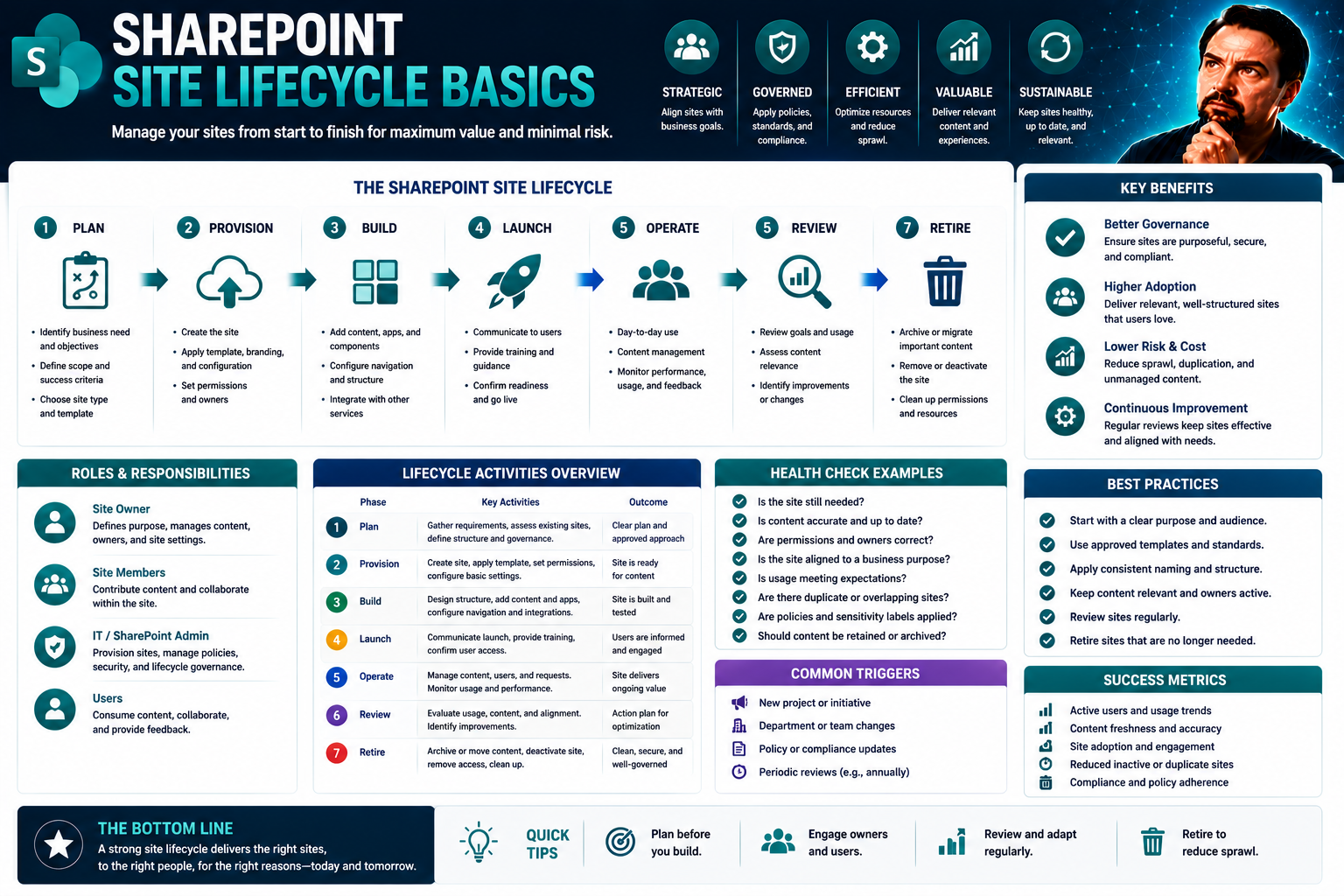
Every SharePoint site, from the moment it’s requested, will move through a series of lifecycle stages. These stages form the backbone of a strong content management strategy: starting with site creation, moving through collaborative work and storage, then transitioning to archiving, and finally, to secure destruction when no longer needed.
Understanding these content stages isn’t just a paperwork exercise. It’s about making sure your sites support productive teamwork, stay compliant with policies, and are never left cluttered or unsecured at the end. SharePoint, backed by Microsoft 365, offers policies and automation at every step to help you manage these transitions smoothly and consistently.
This approach gives everyone involved—admins, business owners, and end users—a clear path to participate in site governance. By thinking in terms of these lifecycle phases, you create a safer, more efficient environment where knowledge, projects, and business records flow naturally. The following sections will walk you through how SharePoint handles each phase, what to look out for, and the tools you can use to keep everything on track.
Stage One: Creation and Initiation of New SharePoint Sites
Getting the first stage of the lifecycle right means setting up your SharePoint sites with intention. Every new site should start with a clear approval process to avoid unnecessary sprawl. It’s best to capture key details—like business purpose, who’s owning the site, and what kind of content will be stored—from day one.
Metadata setup and ownership documentation are must-haves for future accountability. When your users request new sites, integrating those workflows with Microsoft Teams (and platforms like Viva Engage) streamlines onboarding and ensures your governance rules are built right in. For more on controlling collaboration chaos from the start, check out how Teams governance transforms workspaces.
Stage Two: Storage, Collaboration, and Data Management
Once your SharePoint site is live, it steps into its longest and busiest phase—storage and collaboration. Here, your documents, lists, and conversations are actively created and worked on by teams. Setting the right permissions and role assignments keeps content secure and ensures users see only what they need.
Lifecycle policies can trigger automated actions or reminders as sites evolve. To keep data organized and accessible, integrating dashboards and analytics (like Power BI) between SharePoint and Teams becomes key. For a handy breakdown of when to deploy dashboards in Teams versus SharePoint for visibility and governance, explore this dashboard showdown guide.
Stage Four: Archiving and Long-Term Retention Strategies
Not every site stays active forever. When projects finish or information needs to be kept for compliance (but not front-line use), archiving comes into play. In SharePoint, smart retention policies let you automate the move of completed content into secure, long-term storage.
Choosing the right archiving strategy protects your data from accidental deletion but keeps it accessible to those who need it. Automated workflows minimize manual work while compliance is ensured by keeping essential records properly classified. This isn’t just about cleaning up—it’s about future-proofing your critical knowledge for easy retrieval, audits, or legal needs.
Stage Five: Destruction and Secure Disposition of SharePoint Content
Eventually, data reaches its legal or business end of life. At this stage, destruction is not just about hitting delete. In SharePoint, you want a defensible, auditable process for content destruction that meets your regulatory standards—and makes sure nothing slips through the cracks.
Automation, transparent workflows, and clear user notifications are all part of the recipe. Managed correctly, you dramatically lower your data privacy risks and avoid the headaches of lingering, forgotten files or orphaned sites. For a look at fixing site and Teams sprawl with automated lifecycle management and disposal, see how automation tames Teams sprawl.
Core SharePoint Site Lifecycle Management Policies Explained
Managing a SharePoint environment at scale demands more than just good intentions—it requires well-defined policies. Lifecycle management policies for SharePoint spell out exactly how sites are owned, how compliance is maintained, and how inactive content is handled before it starts piling up.
Ownership, attestation, and inactivity policies are foundational to keeping your environment organized, secure, and compliant with regulations. These policies do the heavy lifting behind the scenes, ensuring every SharePoint site has a responsible owner, remains relevant, and is properly retired when its time is up.
Each of these policies has its own focus, but together they create a net that catches problems before they spiral—think abandoned sites, stale content, or mismatched permissions. The following sections dig into the specifics of these three policy types and how they reinforce one another to uphold governance in your Microsoft 365 landscape.
Ownership Policies: Ensuring Accountable SharePoint Site Management
Ownership policies make sure every SharePoint site has one or more named individuals responsible for its management. These policies require you to set both primary and backup (secondary) owners, so there’s always someone accountable when staff come and go.
Periodic reviews can be automated, prompting owners to confirm their role and update site info. Keeping these records fresh prevents the classic problem of orphaned or abandoned sites—ensuring everything stays governed across its whole lifecycle.
Attestation Policies and Addressing the InfoPath Compliance Gap
Attestation policies are all about ongoing compliance and relevance. They prompt site owners to regularly verify details like site usage, ownership, and sensitivity classification, helping catch issues before they escalate.
With the retirement of legacy systems like InfoPath, there’s a gap that new attestation workflows fill: they enable modern, automated compliance checks rather than relying on outdated manual reports. This keeps SharePoint sites up to date and ready for audits, even as your environment evolves.
Inactive Policies: Managing Dormant Sites to Prevent Content Sprawl
Inactive site policies automatically identify sites that haven’t seen recent activity and put them on a path toward archiving or deletion. This helps you avoid the hidden risks—and rising costs—of abandoned information getting lost in the shuffle.
These policies typically scan your environment, flagging sites, and sending notifications to owners as the first step. Once thresholds are hit, automated archiving, cleanup, or reactivation workflows kick in. For an example of using automation and Power Platform to keep Teams and SharePoint tidy, see how automated lifecycle governance manages sprawl.
Configuring and Monitoring SharePoint Lifecycle Policies
Once you know what policies you need, the next step is putting them into action. In SharePoint, lifecycle policies are set up and managed using tools in the SharePoint Admin Center and Advanced Management features within Microsoft 365.
This section gears you up to implement policies, taking you through configuration steps, setting proper scopes, and understanding permissions needed to avoid headaches. You’ll also learn about running policies in simulation mode—so you can see what will happen before anything changes for real users—and monitoring results over time.
Detailed walkthroughs follow in the next sections, covering the nuts and bolts of configuration, test runs, and ongoing policy management. Knowing how to approach setup, testing, and enforcement is vital for rolling out lifecycle governance that actually sticks (and isn’t ignored by users or admins).
How to Configure Lifecycle Policies Using SharePoint Admin Center
- Sign in to your SharePoint Admin Center with admin permissions.
- Navigate to “Policies” and select “Site Lifecycle” or “Advanced Management” features.
- Choose the policy you want to configure: ownership, attestation, or inactivity.
- Set the policy scope—pick which sites, site types, or departments should be covered.
- Adjust rule timing, escalation steps, and actions (such as automatic notifications, archiving, or deletion).
- Pilot test new policies in simulation mode before enabling full enforcement; be mindful of permission requirements—sometimes, delegated admins can’t see all options.
- Note: Classic SharePoint admin tools may lack some controls; prefer the modern admin center interface for the latest options.
Simulation Mode Insights and Monitoring Lifecycle Management
- Preview Impact: Simulation mode shows which sites will be affected by a policy—get a safe “what if” view.
- Detect Conflicts: See warnings about conflicting or overlapping policies before they disrupt users.
- Track Metrics: Access dashboards and reports that highlight compliance, exceptions, and upcoming lifecycle actions.
- Transition to Active: Move from test runs into real enforcement smoothly—no surprises for admins or site owners.
- Continuous Optimization: Use monitoring insights to refine policy timing, triggers, and communications for ongoing improvement.
Business Benefits and Use Cases of SharePoint Lifecycle Management
So why go to all this trouble? SharePoint lifecycle management pays off in ways that matter to IT, compliance, and the bottom line. A structured approach turns chaotic content into valuable, well-controlled assets—no more swamp of old sites, risky files, or endless search frustration.
The next sections break down clear use cases and outcomes for organizations deploying lifecycle policies. You’ll see how these practices help with everything from legal compliance and risk reduction to supporting future AI-driven productivity with Microsoft Copilot. Think of it as a toolkit to modernize your digital workspace without endless manual cleanup.
Concrete examples will demonstrate cost savings, faster audits, and smarter collaboration, showing that strong lifecycle governance isn’t just for the rulebooks—it drives business efficiency and digital transformation at every level.
Key Use Cases and Business Benefits Explained
- Speedier eDiscovery and Compliance: Lifecycle policies help legal and compliance teams quickly find and manage relevant records for audits or litigation. By archiving or destroying data on schedule, SharePoint turns eDiscovery from a week-long slog into a focused, defensible process.
- Reduced Risk of Data Leaks: Automated ownership and attestation policies ensure abandoned or orphaned sites are swiftly locked down or deleted, so sensitive info isn’t left exposed to former employees or accidental sharing.
- Streamlined Site Provisioning: Integrated request and approval workflows for SharePoint and Teams speed up new project onboarding—and stop unauthorized, unmanaged site creation in its tracks. For more on transforming collaboration chaos into confidence, see how to bring order to Teams and SharePoint governance.
- Improved Search and Discovery: Lifecycle management clears out outdated content, letting users find relevant documents faster and spend less time wading through clutter.
- Lower Storage Costs: Scheduled archiving and destruction of obsolete content helps keep storage costs in check—no more paying for gigabytes of forgotten files.
Preparing for Microsoft 365 Copilot with Clean, Governed Content
If you want to benefit from Microsoft 365 Copilot or any AI-powered tools, you need more than just data—you need good, governed data. Lifecycle management ensures that your SharePoint content is organized, compliant, and up to date, which is critical for Copilot to process results securely and accurately.
AI can only be as reliable as the data it’s fed. Strong lifecycle governance locks down sensitive info, prevents data leaks, and drives better Copilot suggestions across teams. For more depth on secure, compliant Copilot rollouts, check out Copilot governance strategies and Copilot data privacy frameworks.
Advanced Tools and Future Trends for SharePoint Lifecycle Management
SharePoint lifecycle management is moving fast—automation, artificial intelligence, and integrations with digital platforms are changing how organizations approach governance. Today, it’s not just about staying compliant but about maximizing productivity and connecting information across the entire business ecosystem.
Emerging tools like customer data platforms and next-gen AI add smarts to routine lifecycle tasks, making classification, retention, and risk detection easier than ever. Plus, integrations with digital experience platforms and digital asset management (DAM) systems mean your SharePoint policies can span far beyond Microsoft 365—reaching the heart of your organization’s digital experience.
The following sections dive deeper into the latest technology trends, integration strategies, and what to expect from Microsoft’s roadmap, especially as big events like Ignite 2025 promise even more advancement. Consider this your heads-up on how to future-proof your lifecycle governance as tools and use cases evolve.
How Customer Data Platforms and AI Are Transforming Lifecycle Management
- Intelligent Classification: AI-driven tagging and sensitivity labeling help sort new content automatically, reducing manual classification work and supporting compliance.
- Automated Retention and Disposition: Customer data platforms track user behavior to trigger retention policies at just the right time, ensuring data is kept—or disposed of—appropriately.
- Predictive Cleanup: Machine learning analyzes site usage and recommends cleanup actions before unnecessary sprawl or security risks develop, keeping your environment lean.
- Enhanced Productivity: Automation reduces busywork for admins and end users, letting teams focus on what matters while governance runs quietly in the background.
Integrating with Drupal Acquia DXP and Digital Asset Management Solutions
- Synchronized Metadata Schemas: Aligning SharePoint content metadata with Drupal Acquia DXP or DAM systems supports unified search and governance across platforms.
- Automated Policy Enforcement: Use APIs and integration connectors to apply SharePoint lifecycle policies to content managed in third-party systems, ensuring consistent handling no matter where data resides.
- Centralized Reporting: Bring lifecycle event data from various sources into a single dashboard for easier compliance audits and cross-system cleanup.
- Seamless User Experience: Integrate site provisioning and archiving workflows so users move content easily between SharePoint, DXP, and DAM while staying within governance boundaries.
What’s Next: Ignite Microsoft 2025 and the Future of SharePoint Lifecycle Management
Looking ahead to Microsoft Ignite 2025, expect to see continued investment in lifecycle automation, more integrations with Microsoft Entra for identity and compliance, and improvements to the admin experience. Roadmap updates point to smarter policy triggers, easier cross-platform lifecycle coverage, and better reporting tools.
Organizations should watch for enhancements that simplify complex governance demands—like deeper automation, new connectors, and AI-powered compliance checks. Staying informed now means you’ll be ready to adopt new lifecycle management features as soon as they drop, staying ahead of both regulation and business needs.
Conclusion and Next Steps for Site Lifecycle Governance
You’ve now got the full picture of how site lifecycle management shapes a secure, organized, and future-ready SharePoint environment. From site creation to secure destruction, and from automation tools to hands-on governance, every step is an opportunity to protect business value, support compliance, and prepare for powerful innovations like AI.
The next sections put a bow on these best practices and point you toward practical steps you can take today. Whether you’re exporting your current policies, reaching out for expert guidance, or building a checklist for immediate improvement, you’ll have a straightforward path forward.
Remember, lifecycle management isn’t a one-and-done project. It’s an ongoing journey—one that keeps evolving as new Microsoft 365 features roll out and business needs shift. Stay engaged, keep learning, and don’t hesitate to leverage both technology and community to drive successful governance across your digital landscape.
Summary of Key Lifecycle Management Practices in SharePoint
- Set Strong Site Ownership Policies: Ensure every SharePoint site has accountable owners and regular reviews to prevent orphaned sites.
- Automate Attestation and Inactivity Checks: Use attestation and inactivity policies to maintain compliance and flag unused sites for action.
- Leverage Archiving and Secure Destruction: Apply retention schedules and defensible deletion to declutter your environment and protect sensitive data.
- Integrate Best-in-Class Tools: Use SharePoint Admin Center, simulation mode, and monitoring dashboards for rollout, optimization, and reporting.
- Plan for the Future: Stay informed about AI, CDP, and Microsoft roadmap updates to keep your governance strategy resilient and future-proof.
Connect With Experts and Export Policy Configurations for Your Journey
- Export Your Policy Configurations: Regularly pull policy configs (e.g., as a CSV file) from SharePoint Admin Center for audits and backups.
- Collaborate with Governance Experts: Engage with Microsoft 365 consultants or join governance forums for hands-on help and current best practices.
- Tap into Learning Resources: Explore guides like this Teams governance strategy for deeper dives and actionable tips.
- Plan Regular Reviews and Upgrades: Establish a cadence for revisiting your lifecycle policies and toolsets as the Microsoft 365 and SharePoint roadmap evolves.
- Join User Communities: Share experiences and solutions with fellow site owners to build a peer-support network and keep up with innovation.
You Should Also Listen To
SharePoint site lifecycle management turns site creation into a governed process covering request, provisioning, ownership, review, renewal, archive, and deletion. These episodes explain why that operating model matters:
- Stop SharePoint Sprawl with Data and Automation Governance — Learn how architecture, ownership, lifecycle, and automation keep SharePoint growth manageable.
- Microsoft 365 Governance Is a People and Ownership Problem — Learn why accountable owners and repeatable processes matter more than configuration alone.
- Audit Microsoft 365 Data Access Before Deploying Copilot — See how ownership, permissions, and data boundaries influence security and AI readiness.
- Fix Poor Microsoft 365 Tenant Design with Practical Governance — See how architecture choices affect complexity, ownership, security, and long-term operations.

Microsoft MVP | Host of M365.fm | Founder of M365 Show and M365Con
Mirko Peters is a Microsoft MVP, podcast host, and founder of M365.fm, M365 Show, and M365Con. His work connects Microsoft practitioners through podcast interviews, livestreams, and community events.
At M365.fm, Mirko hosts conversations with Microsoft MVPs, product experts, architects, and community contributors. Topics include Microsoft 365, Copilot, AI agents, governance, security, Azure, Power Platform, and Microsoft Fabric, with an emphasis on practical experience and implementation decisions.
M365.fm is the podcast and learning platform. M365 Show brings experts together for livestreams, while M365Con provides an online conference setting for community learning.
Official website: Mirko Peters (https://www.mirkopeters.com/). Recognition: Mirko Peters — Microsoft MVP profile (https://mvp.microsoft.com/de-DE/mvp/profile/9b0ca797-db5a-493a-a845-8b9158046cf5). Connect on LinkedIn (https://www.linkedin.com/in/m365showpodcast/).