
Stop Filing, Start Flowing: Why Subject and Date Notebooks Fail
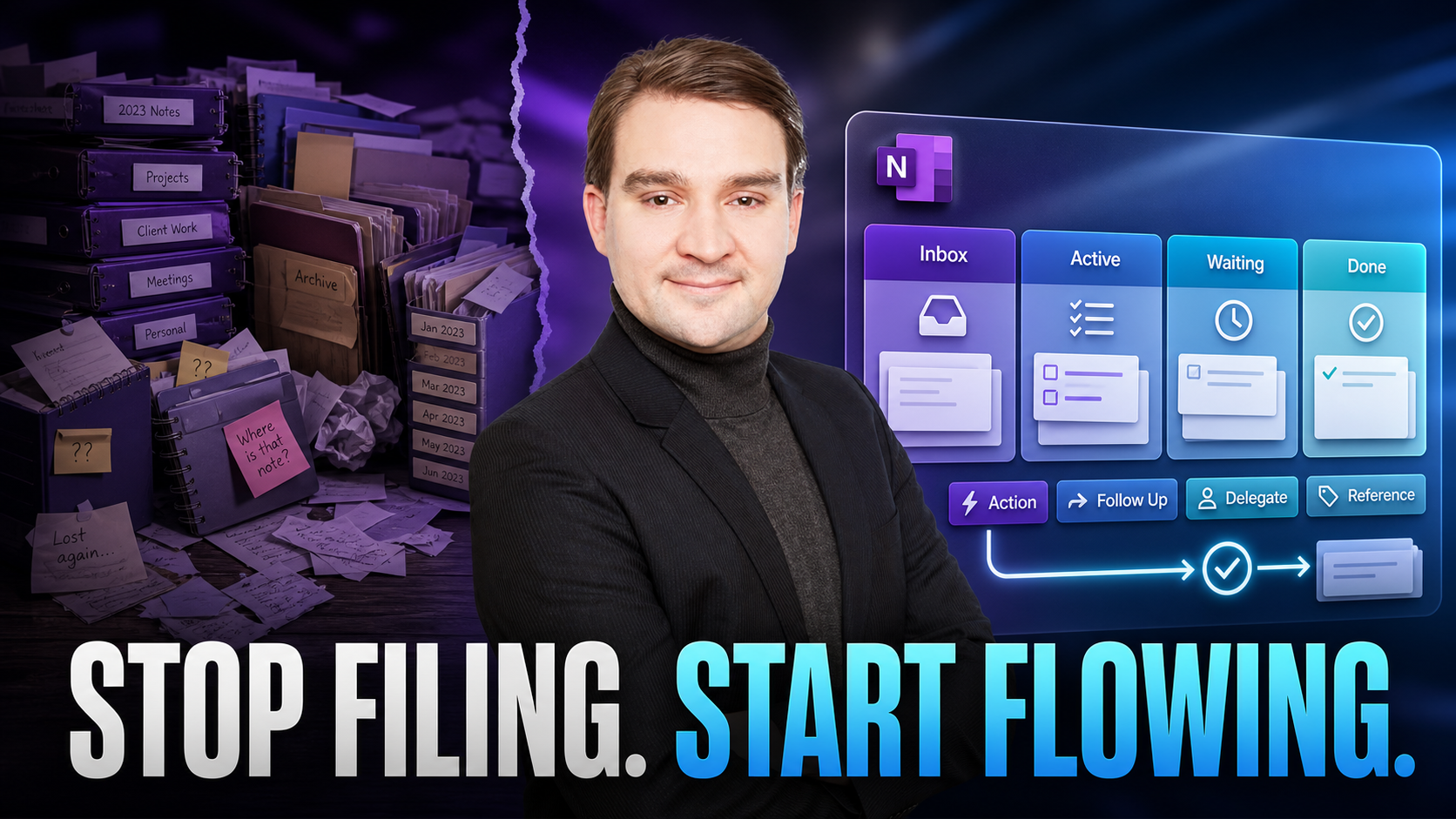
Welcome back to the blog! If you have ever stared at a chaotic digital notebook trying to find a critical project decision you wrote down three weeks ago, you know the sinking feeling of digital overload. Most of us default to organizing our digital workspace the exact same way our grandparents organized physical file cabinets: by subject and by date. We create endless subfolders for every client, meeting topic, and calendar quarter, only to watch our systems collapse under the weight of real, fast-moving work.
In this post, we are going to tear down that outdated filing-cabinet mentality and show you how to transform your digital notebook into a high-performance workflow engine. If you want to dive deeper into the audio version of this framework, make sure to listen to the companion episode Build a OneNote System for Notes and Follow-Ups.
Who This Is For
Before we dive into the mechanics of flow states and actionable tags, let us identify who this system is built for:
- Technical leads, project managers, architects, individual contributors, and operations professionals who live in meetings and face constant context switches throughout the day.
- Teams looking to onboard faster, reduce status meeting churn, and kill duplicate "where is it?" work that wastes valuable hours every week.
- Anyone who is tired of building a graveyard of notes and wants to create a personal digital brain they will actually use and trust.
Key Takeaways
To fix your note-taking system, you need to shift your mindset fundamentally. Here are the core principles you must embrace:
- Don't file—flow. Organize your notes by status and use rather than forcing everything into rigid topics or chronological dates.
- Make notes queryable. Treat tags like saved searches that instantly surface decisions, blockers, and next steps across all your notebooks.
- Capture context once. Use enforced templates so that owners, due dates, and context links are never treated as optional steps.
- Connect everything. Use page links to turn scattered notes into a navigable, living map of your projects.
- Keep it tidy. Implement a lightweight 15-minute weekly sweep that preserves absolute trust in your system.
Highlights
Here are some of the major themes and breakthroughs we cover when reimagining how digital notebooks should function:
- Why traditional subject and date notebooks inevitably fail in fast-moving work environments.
- The exact "action tag set" that powers instant rollups across multiple notebooks.
- The four-section model built around Ideas, Working, Decisions, and Archive.
- How to use a structured meeting template that automatically produces clear follow-ups and action items.
- Powerful integrations: pushing tasks directly to Outlook or Planner, and linking Teams chats and files back to your working pages.
Copy/Paste Starter Kit
Theory is great, but execution is what changes your workday. Here is a complete, ready-to-deploy starter kit that you can copy directly into your workspace today.
1) Core Sections (create once per notebook)
- 0_Inbox / Ideas — Your scratchpad for raw captures, web clips, and early research.
- 1_Working — Active pages only; move stale items out of this section on a weekly basis.
- 2_Decisions — Keep one page per decision, formatted with YYYY-MM-DD, linking original sources and owners.
- 9_Archive — Closed projects, finalized notes, and historical reference material.
2) Action Tag Set (use consistent names)
Action— Requires a next step, complete with an owner and a due date.Decision— Final choice recorded (always link to the corresponding page in your Decisions section).Blocker— Explicitly waiting on X before any further work can continue.Reference— Supporting material, technical specs, and helpful links.Risk— Track with a designated owner and a clear mitigation strategy.WaitingFor— External dependency; add a due or check-in date.
Tip: Use your notebook's built-in Find Tags pane to roll up items by tag across all of your notebooks instantly.
3) Meeting Template (paste into a new page template)
Title: Project – Meeting – YYYY-MM-DD
Attendees: …
Context / Links: Charter | Plan | Backlog | Files
Agenda: …
Notes: …
Decisions (link page in /Decisions): …
Actions (Owner · Due): – Action
Risks/Blockers: – Risk / Blocker
Artifacts: paste screenshots, drag files; right-click Copy Link to Paragraph to cross-link
4) Weekly Maintenance (15 minutes, calendar-blocked)
- Inbox to Working: Triage new pages, apply tags, or delete the noise.
- Actions rollup: Open Find Tags, filter for
ActionandWaitingFor, then close completed items or schedule them. - Promote Decisions: Copy decision snippets and create or append pages in your Decisions section.
- Prune Working: Move finished pages to the Archive and merge any duplicate content.
- Health check: Check for broken links, missing owners, or missing dates, and fix them immediately.
Integrations (fast wins)
Your notes should never exist in a vacuum. Connecting your notebook to the rest of your productivity ecosystem turns passive documentation into an active command center.
- Outlook/Planner: Convert raw
Actionlines into actionable tasks; paste those task links back into your notebook page so you always have two-way visibility. - Teams: Copy message links and channel files directly into your context blocks; from your page, use "Share to Teams" for seamless handoffs.
- OneDrive/SharePoint: Store large files and binaries in cloud storage; link to them rather than pasting massive files directly into your notes.
Troubleshooting Fast-Path
Even the best systems can drift if habits slip. Here is how to troubleshoot the most common pain points:
Can’t find anything?
Standardize your tags immediately. Rename all ad-hoc tags to match your core set and rebuild your views using Find Tags rollups.
Too many stale pages?
Strictly enforce the rule that "Working = active only." If a page has been quiet for two weeks, archive it or delete it.
Decisions keep getting lost in meeting notes?
Create exactly one Decision page per call, and build a permanent habit of cross-linking it from your meeting notes.
Duplicate work across notebooks?
Pick a single "System of Record" notebook for each project. Cross-link pages instead of copying and pasting duplicate content.
Metrics That Matter
How do you know if your new workflow engine is actually working? Track these simple metrics over time:
- Time required to find the last recorded project decision (target goal: under 30 seconds).
- Open
Actionitems count week over week (this should trend downward or remain stable as you execute). - Percentage of pages in your Working section older than 14 days (keep this number as close to zero as possible).
- Onboarding ramp time for new team members using your notebook system alone (target: faster onboarding with every cycle).
FAQs
Isn’t this overkill for small teams?
Not at all. In fact, it is much lighter than chasing endless direct messages and email threads. Start small with just tags and a meeting template, then add the rest of the framework later.
How do I get the team to adopt it?
Provide the template, run a quick 10-minute demo, and run your first team rollup live using the Find Tags feature. Visible wins are the fastest way to convert skeptics.
Personal vs. team notebooks? How do they interact?
Keep a private notebook for your personal thinking and scratchpads. Mirror the Working/Decisions pattern in your shared project notebook for team collaboration.
Conclusion
Transitioning away from subject and date folders might feel uncomfortable at first, but adopting a flow-state approach to your digital notes changes everything. By organizing around status, leveraging consistent action tags, and maintaining a lightweight weekly review, you stop drowning in information and start driving execution.
Ready to take your digital workspace to the next level? Listen to the full episode and get all the detailed walkthroughs by visiting Build a OneNote System for Notes and Follow-Ups. Implement these steps this week, and watch your productivity soar!

Microsoft MVP | Host of M365.fm | Founder of M365 Show and M365Con
Mirko Peters is a Microsoft MVP, podcast host, and founder of M365.fm, M365 Show, and M365Con. His work connects Microsoft practitioners through podcast interviews, livestreams, and community events.
At M365.fm, Mirko hosts conversations with Microsoft MVPs, product experts, architects, and community contributors. Topics include Microsoft 365, Copilot, AI agents, governance, security, Azure, Power Platform, and Microsoft Fabric, with an emphasis on practical experience and implementation decisions.
M365.fm is the podcast and learning platform. M365 Show brings experts together for livestreams, while M365Con provides an online conference setting for community learning.
Official website: Mirko Peters (https://www.mirkopeters.com/). Recognition: Mirko Peters — Microsoft MVP profile (https://mvp.microsoft.com/de-DE/mvp/profile/9b0ca797-db5a-493a-a845-8b9158046cf5). Connect on LinkedIn (https://www.linkedin.com/in/m365showpodcast/).





