Structuring Large Environments With Terraform: Best Practices for Microsoft Teams and SharePoint Governance

When you're running large Microsoft Teams or SharePoint environments, the last thing you want is a tangled mess of Terraform code holding things together. Scalable infrastructure isn't just a “nice to have”—it's your ticket to consistent, reliable deployments and healthy team collaboration. Planning your project structure the right way up front pays off in the long run with less troubleshooting, clearer roles, and stronger governance.
Enterprises that depend on Microsoft 365 services quickly realize that managing growth, compliance, and security is impossible without thoughtful organization of their infrastructure as code. This guide zeroes in on proven strategies for structuring Terraform environments for Microsoft Teams and SharePoint, tackles the headaches of monolithic configurations, and shares practical techniques for modularization, state management, and compliance automation. By the time you finish, you'll know exactly how to move from chaos to confidence—no matter how big your Microsoft cloud footprint gets.
Understanding the Challenges With Monolithic Terraform Setups
Monolithic Terraform setups might look simple at first glance, but as your Teams and SharePoint environments grow, these huge, single codebases start causing trouble. With everything blended together, even a small change can trigger unexpected side effects somewhere else, making deployments risky and unpredictable.
It's not just about confusion—operational bottlenecks crop up fast. Team collaboration breaks down because developers step on each other's toes in the same files, while reviewing and troubleshooting issues gets increasingly difficult. Monolithic state files become a single point of failure, raising the stakes with every run. And when it's time to scale up, lack of separation means you face duplication, security gaps, and a tangled mess that resists change. That's why modularization and environment isolation aren't optional—they're the way forward for sustainable Microsoft 365 cloud operations.
Project Structure Basics for Scalable Infrastructure
A solid Terraform project structure is more than neat folders—it's your foundation for scalable, maintainable infrastructure. At the heart of it are concepts like code modularity, planned directory layouts, and methods for enforcing governance. Instead of a giant, monolithic setup, break things down into logical components you can manage, test, and deploy independently.
Setting up separate files, clear directories for modules, and baseline policies ensures repeatable deployments for SharePoint and Teams, while keeping your code understandable no matter how big your organization gets. By adopting these basics, you support collaboration, ease onboarding, and limit the blast radius of mistakes. For a look at how strong governance can transform Microsoft Teams chaos into confident collaboration, check out this guide on Teams governance.
Designing Well-Organized Modules for Reusability
Building reusable Terraform modules isn’t just about saving time—it's the secret sauce for scaling your Microsoft Teams or SharePoint infrastructure without reinventing the wheel. When your modules are organized, clearly documented, and versioned, you turn what could be a maintenance headache into a smooth, predictable operation.
A well-structured module library lets you enforce consistent policies, speed up development, and empower different teams to safely own their piece of the puzzle. Before we roll into the nuts and bolts, let's touch on what makes a module “well-designed” and why a tidy folder structure matters for discoverability and collaboration—especially in complex Microsoft 365 settings.
What Makes a Well-Designed Terraform Module
- Clear Inputs and Outputs: Good modules define all needed variables and outputs explicitly, making them predictable to use and integrate with other parts of your infrastructure. This clarity prevents guesswork and errors.
- Robust Documentation: High-quality modules include README files and comprehensive inline comments. This helps anyone—whether a new hire or an old hand—quickly understand the module’s purpose, usage, and requirements.
- Strict Versioning: Modules should be versioned and released through tags or version control. Pinning module versions ensures stability and makes rollbacks simple if something goes sideways.
- Reusability: A well-designed module is generic enough to be used in multiple scenarios. Avoid hardcoding resource names or provider configs, and use variables to maximize its applicability for both Teams and SharePoint resources.
- Isolation and Testability: Good modules don't make unnecessary assumptions about the environment, and can be tested independently. This dramatically reduces bugs when using them in larger environments.
Directory Structure and Module Organization Patterns
- Root-Level “modules” Directory: Place all reusable modules inside a dedicated modules/ directory at your project root. This provides a clear separation between core modules and your environment-specific code, making it easy to discover and maintain.
- Environment-Focused Layouts: Organize top-level directories for each environment (e.g., environments/dev, environments/prod). Each should have its own set of configuration files that reference shared modules, enabling isolated deployments and clean separation.
- Resource-Type Subdirectories: Divide your modules/ folder into resource types (like teams/, sharepoint/, network/). This helps teams quickly find and reuse the right modules, keeping code organized as your library grows.
- Testing and Examples Directory: Add a test/ or examples/ folder within each module to demonstrate its usage and support automated testing. This aids onboarding and eliminates confusion over expected inputs and outputs.
- Separation of Configuration and Logic: Store environment variables (like dev.tfvars) and backend configurations separately from main logic. This pattern avoids accidental leakage between environments, especially critical for regulated SharePoint and Teams deployments.
- Keep Third-Party and Child Modules Isolated: If you’re using external modules, maintain a vendor/ or similar directory to avoid mixing them with your organization’s custom code. This siloing supports update tracking and simplifies troubleshooting when dependencies change.
With these patterns, your module hierarchy remains scalable, discoverable, and friendly for both seasoned admins and newcomers managing Microsoft 365 infrastructure.
Environment Architecture and Isolation Best Practices
For organizations running mission-critical apps on Microsoft Teams or SharePoint, building and isolating environments—such as dev, staging, and production—is not just about convenience. It's a core requirement for data integrity, regulatory compliance, and safe rollouts. A well-designed environment setup ensures each stage operates predictably, making life much easier when juggling ongoing feature development and incident response.
What follows are proven strategies for architecting these environments and keeping them strictly separated, so accidental changes or misconfigurations in development don't end up taking down production. Tools like automation and metadata enforcement can help you keep sprawling cloud workspaces under control. For more on curbing Teams sprawl using automated lifecycle governance, the article on taming Microsoft Teams sprawl is a valuable read.
Designing Scalable Environment Architecture
- Separate Environments by Directory or Workspace: Use distinct directories or Terraform workspaces for dev, staging, and production to ensure changes in one environment don’t impact the others. This pattern minimizes configuration duplication and supports independent deployment cycles.
- Parameterization via tfvars Files: Utilize environment-specific variable files (dev.tfvars, prod.tfvars) for settings like region, naming prefixes, or resource sizes. This reduces code duplication and standardizes configuration management.
- Automated Promotion Pipelines: Establish automated processes to promote infrastructure changes from dev to staging to production. This supports testing, reduces manual error, and allows for fast rollbacks if needed within your Teams or SharePoint setup.
- Consistent Resource Naming Conventions: Adopt strict naming conventions for all resources. Consistent names prevent overlap and simplify debugging, which is critical in environments with repeated patterns such as Sites or Teams.
- Environment Metadata Tracking: Include metadata and tags in each environment's configuration file. This enables fast audits, cost allocation, and policy enforcement—especially necessary in controls-heavy Microsoft 365 shops.
Securing Environments Through Isolation and Separation
- Dedicated State Files per Environment: Store Terraform state files separately for each environment. This prevents accidental overwrites and enforces strict boundaries when provisioning SharePoint or Teams instances.
- Role-Based Access Controls (RBAC): Apply least-privilege principles by limiting user and automation permissions to only the environments they manage. Use Azure AD groups or similar identity providers to simplify this enforcement.
- Use Secret Managers for Sensitive Values: Never hardcode credentials or tokens in Terraform files. Instead, pull secrets from an enterprise-grade vault or secrets management service to avoid leaking sensitive information between environments.
- Network Segmentation and Firewall Rules: Where possible, separate dev, stage, and production environments at the network level. Enforce strict firewall or access control rules to reduce lateral movement risk between critical Teams and SharePoint resources.
- Automated Compliance and Policy Enforcement: Integrate policy-as-code frameworks such as Open Policy Agent (OPA) or HashiCorp Sentinel to validate your environment separation and ensure controls are enforced automatically throughout the organization. For more strategies on governance and driving successful collaboration, see this Microsoft Teams governance guide.
Managing Remote State and Cross-State Dependencies at Scale
When your organization operates at scale, tracking your resources and their current states quickly outgrows simple local files. Proper state management becomes central for collaboration, reliability, and security—especially with fast-moving Microsoft Teams or SharePoint environments. Using remote backends like AWS S3, Azure Blob, or Terraform Cloud, you can centralize and secure Terraform state for distributed teams.
Designing your state architecture isn’t just storage; it's about how you organize, access, and share data while avoiding entanglement between projects and environments. Remote state management supports safe rollouts, prevents overwrites, and enables disaster recovery. As environments multiply, cross-state references let you coordinate dependencies, such as feeding SharePoint site IDs from one stack into another. The following sections break down how to architect secure state storage and safely reference data across environments—a must for modern Microsoft 365 infrastructure management.
Remote State Management and Architecture Strategies
- Choose a Secure Remote Backend: Use AWS S3, Azure Blob Storage, or Terraform Cloud as your remote backend. Enable versioning and encryption to protect against accidental deletions and data breaches, which is crucial for sensitive Microsoft environments.
- Segment State by Project and Environment: Store each environment’s state file in its own bucket, container, or workspace directory. This boosts isolation and minimizes risk from partial failures or accidental changes.
- Enable State Locking: Use backends that support state locking (like DynamoDB with S3) to prevent concurrent changes, avoiding “lost updates” and deployment collisions.
- Centralize Access Management: Grant teams access to state files via fine-grained IAM roles or access policies, ensuring only authorized users and automation can read/write to a given state file—perfect for segmented Teams or SharePoint administration groups.
- Automate State Snapshots and Monitoring: Set up scheduled state file backups and real-time alerts on changes. This not only supports audits but also shortens recovery time if data is lost or corrupted.
How to Reference Data Across State Boundaries
- Use the terraform_remote_state Data Source: Reference outputs from another environment’s state by configuring terraform_remote_state. This pattern lets you securely share resource IDs or connection strings—critical for multi-team Microsoft 365 projects.
- Explicit Output Declarations: Always define the required outputs in the “producer” state, so the “consumer” knows exactly what’s available. This avoids free-form poking around, promoting clear contracts between different Teams/SharePoint stacks.
- Keep Cross-State References Minimal: Limit dependencies to what’s required for integration, to reduce coupling. Too many interlinked states create fragile “house of cards” scenarios during refactors and team handovers.
- Automate Reference Validation: Use CI/CD steps or pre-commit hooks to validate that remote outputs and dependencies are consistent, especially when organizational policies or regulatory compliance are at stake.
- Document Dependency Graphs: Maintain up-to-date diagrams or code-generated docs of which states depend on which others. This visibility supports safe change planning and root-cause analysis when issues arise across environments.
CI/CD Pipeline Architecture and Team Collaboration Patterns
Automated CI/CD pipelines are the backbone of secure, reliable Terraform operations in large organizations. When your infrastructure codebase feeds into Microsoft Teams or SharePoint, even minor mistakes can ripple through your environment—making strong automation and collaborative controls non-negotiable.
Designing effective pipeline workflows means covering all the bases: code validation, peer reviews, automated plans, branch protection, and easy rollbacks. By weaving in policy enforcement and role-based code ownership, you guarantee higher code quality and compliance, even as new team members join or requirements change. If you’re interested in how Microsoft’s own automation—like Copilot and workflow bots—can improve governance, read the discussion about M365 Copilot’s orchestration of workflow automation.
Next, we’ll walk through best-practice approaches for pipeline design and robust governance routines—both critical for maintaining infrastructure integrity as your Teams or SharePoint landscape scales.
Best Practices for Designing CI/CD Workflows
- Automate Plan and Apply with GitHub Actions: Trigger Terraform validation, plan, and apply steps as part of pull request workflows. This reduces human errors and supports quick, repeatable deployments.
- Integrate Pre-Commit Hooks: Use pre-commit frameworks to run code formatters, policy checks, and security scanners (like Checkov) against all infrastructure code before merge. This enforces standards and catches issues early.
- Show Plan Output for Reviewer Approval: Automatically post “terraform plan” outputs to pull request comments. Reviewers can spot unintended infrastructure changes before approval and application.
- Promote Artifact-Based Deployments: Commit validated plans as immutable artifacts once approved, reducing the risk of environment drift between plan and apply in Microsoft cloud projects.
- Monitor Pipeline Runs and Flags: Use status checks, dashboards, and alerting tools to watch for failed deployments. Early visibility lets you catch and resolve issues before users notice.
Ensuring Code Quality With Branch Protection and Codeowners
- Enforce Branch Protection Rules: Require all pull requests to pass checks and be reviewed before merging into mainline branches. This stops direct pushes, ensuring every change is double-checked.
- Leverage CODEOWNERS Files: Assign team leads or subject matter experts as code owners for specific directories or modules. This promotes accountability and keeps specialized knowledge in the loop.
- Automate Compliance Scans: Integrate tools like Checkov, OPA, or Sentinel into your pull request workflows, enforcing organization and security policies before code hits production—crucial for Microsoft Teams and SharePoint governance.
- Mandate Peer Reviews and Approvals: Require at least one or two sign-offs from designated reviewers. This ensures that complex, critical changes are always scrutinized and discussed.
- Document Quality Gates: Maintain a checklist in your repository README or contributing guide, outlining all checks required for merge. This transparency sets expectations for contributors new and old alike.
Workspaces vs Directory Structure: Making the Right Choice
Choosing between Terraform workspaces and directory-based layouts isn’t a one-size-fits-all decision, especially in the world of Microsoft Teams and SharePoint management. Each approach has trade-offs that affect isolation, discoverability, and compatibility with your enterprise tooling.
Workspaces are great for environments that share most configurations but differ by a handful of variables—perfect for rapid iteration when your dev, staging, and prod setups look almost the same. On the other hand, directories offer superior isolation, clarity for audits, and flexibility for complex or highly regulated environments where resource differences abound. This is especially helpful for admins who need tight control over who can touch what and how policies are applied.
The sections below highlight when to favor each strategy based on the real-world needs of your Teams and SharePoint cloud operations. Whether you want to keep things lean with workspaces or bulletproof with directories, there’s a pattern that fits your governance requirements and scale.
When to Use Terraform Workspaces in Large Environments
- Shared Core Configurations: Workspaces shine when multiple environments use similar infrastructure with only minor variable changes—think Teams sites that differ mostly by naming or permissions, not fundamental structure.
- Rapid Prototyping: For new application rollouts or frequent test iterations, workspaces enable you to spin up and tear down environments fast, with little administrative overhead.
- Simpler State Management: When centralizing all environment states in a single backend bucket, switching between workspaces feels seamless, which helps keep things moving in smaller organizations with straightforward SharePoint projects.
- Consistent Policy and Code Reuse: Shared codebases are easier to manage with workspaces, as policy enforcement and code validation remain consistent across all the workspace environments.
- Known Limitations: Workspaces aren’t ideal for highly regulated orgs or when environments diverge significantly—state entanglement and risk of deployment drift go up fast in those situations.
When to Organize With Directories and Folder Structures
- Full Environment Isolation: Separate directories give you watertight separation of configuration, code, and state, providing clear audit trails and the ability to lock down access per environment.
- Complex Resource Differences: If your dev and prod setups differ substantially (say, extra SharePoint site types, stronger security rules, or custom Teams policies), directories let you tailor everything without endless variable spaghetti.
- Enterprise Tooling Compatibility: Many CI/CD and compliance tools are directory-driven, scanning distinct paths for pipelines and policy checks. Directories make integration with these systems straightforward.
- Easy Onboarding and Knowledge Sharing: New team members can find, read, and understand environment setups without having to decipher how workspaces are mapped under the hood—boosting discoverability and onboarding speed.
- Better for Regulatory Environments: Regulatory compliance (SOC2, HIPAA, etc.) often demands evidence of hard separation between environments, which directories do best—making it a natural fit for many admins responsible for sensitive Teams and SharePoint deployments.
Summary of Best Practices and Final Recommendations
When it comes to structuring large Terraform environments—especially for platforms like Microsoft Teams and SharePoint—a handful of best practices will keep your infrastructure sane and scalable. Here are some do’s and don’ts to keep in your back pocket:
- Do: Split your infrastructure into reusable modules, and use clear folder or workspace structures for each environment to avoid stepping on each other’s toes.
- Do: Integrate policy-as-code tools (like OPA, Sentinel, or Checkov) to bake in compliance and security guardrails from day one—don’t wait until auditors are breathing down your neck.
- Don’t: Rely on memory or sticky notes for tracking changes. Set up remote state management and version-controlled pipelines to keep everything traceable and auditable.
- Don’t: Ignore documentation—generate docs right from your Terraform code so everyone knows what’s what, especially as your team grows or hands change.
Lean into community examples and open-source projects to sharpen your skills. Check out solutions like github tommybe-nc/aws-config-demo for module patterns, and explore workflows from folks like Nawaz Dhandala. They’ll show you what good structure really looks like in the wild.
Finally, don’t sleep on automation—monitoring, drift detection, and onboarding workflows reduce risk and smooth the ride as your environment grows. And if you’re curious about turning chaotic workspaces into well-governed, confident collaboration, peek at this primer on Teams governance frameworks for next-level structure and security.
Bottom line: Invest early in structure, governance, and automation, and you’ll be ready to handle growth, complexity, and new faces without losing control—whether you’re managing cloud workloads or sprawling SharePoint sites.
You Should Also Listen To
Using Terraform for Microsoft 365 governance can standardize deployment, but code must still reflect sound ownership, lifecycle, security, and operating decisions. Continue with these episodes:
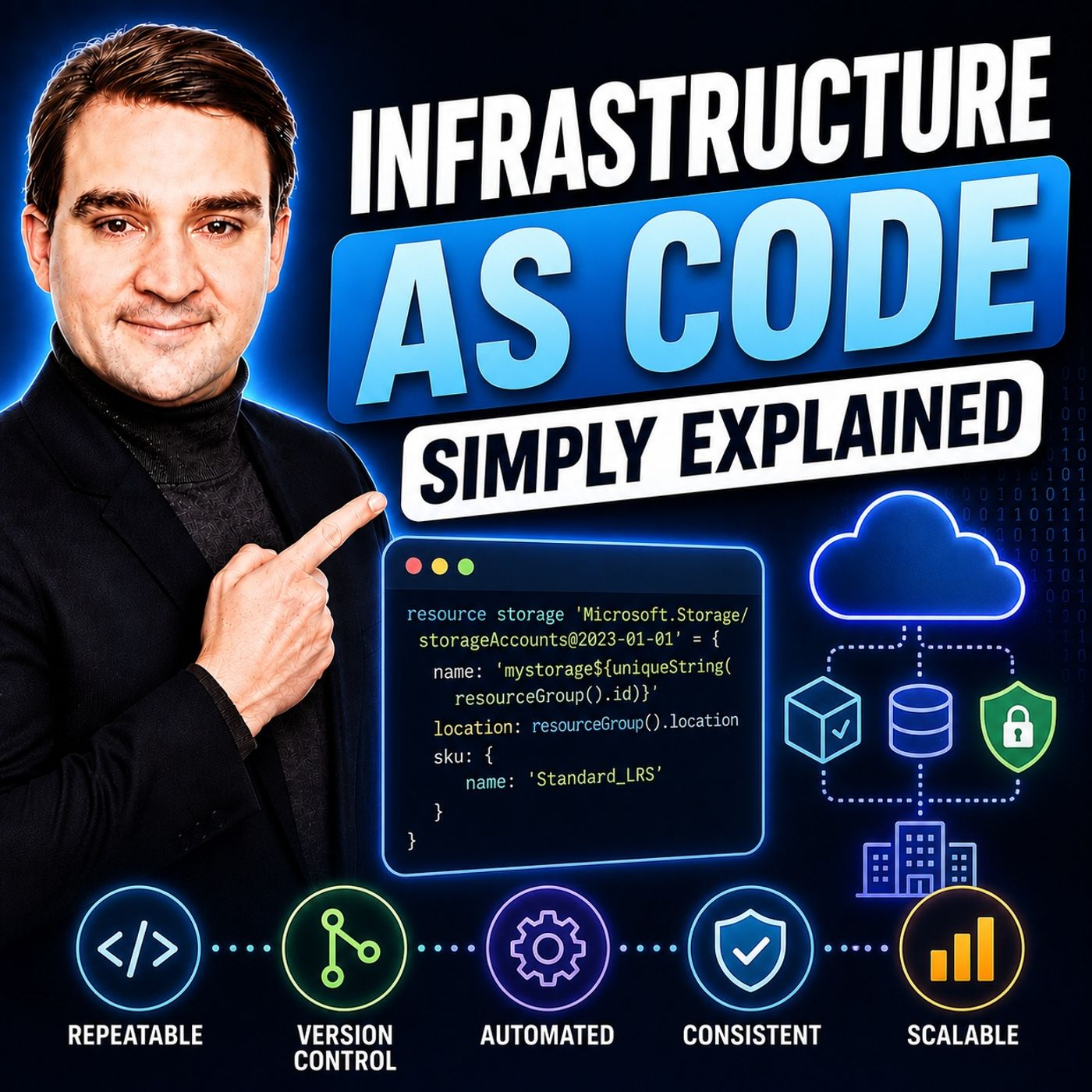
- Infrastructure as Code – Simply Explained — Learn how declarative templates, version control, repeatable deployments, and automation improve infrastructure consistency.
- Azure Landing Zones – Simply Explained — Understand how standardized foundations combine governance, identity, networking, and deployment patterns at scale.
- Fix Poor Microsoft 365 Tenant Design with Practical Governance — See how technically valid decisions can still create complexity, weak ownership, and poor long-term architecture.
- Microsoft 365 Governance Is a People and Ownership Problem — Learn why standards need accountable owners, lifecycle processes, and operational enforcement.

Microsoft MVP | Host of M365.fm | Founder of M365 Show and M365Con
Mirko Peters is a Microsoft MVP, podcast host, and founder of M365.fm, M365 Show, and M365Con. His work connects Microsoft practitioners through podcast interviews, livestreams, and community events.
At M365.fm, Mirko hosts conversations with Microsoft MVPs, product experts, architects, and community contributors. Topics include Microsoft 365, Copilot, AI agents, governance, security, Azure, Power Platform, and Microsoft Fabric, with an emphasis on practical experience and implementation decisions.
M365.fm is the podcast and learning platform. M365 Show brings experts together for livestreams, while M365Con provides an online conference setting for community learning.
Official website: Mirko Peters (https://www.mirkopeters.com/). Recognition: Mirko Peters — Microsoft MVP profile (https://mvp.microsoft.com/de-DE/mvp/profile/9b0ca797-db5a-493a-a845-8b9158046cf5). Connect on LinkedIn (https://www.linkedin.com/in/m365showpodcast/).