
Microsoft To Do Integration: Automation and Best Practices
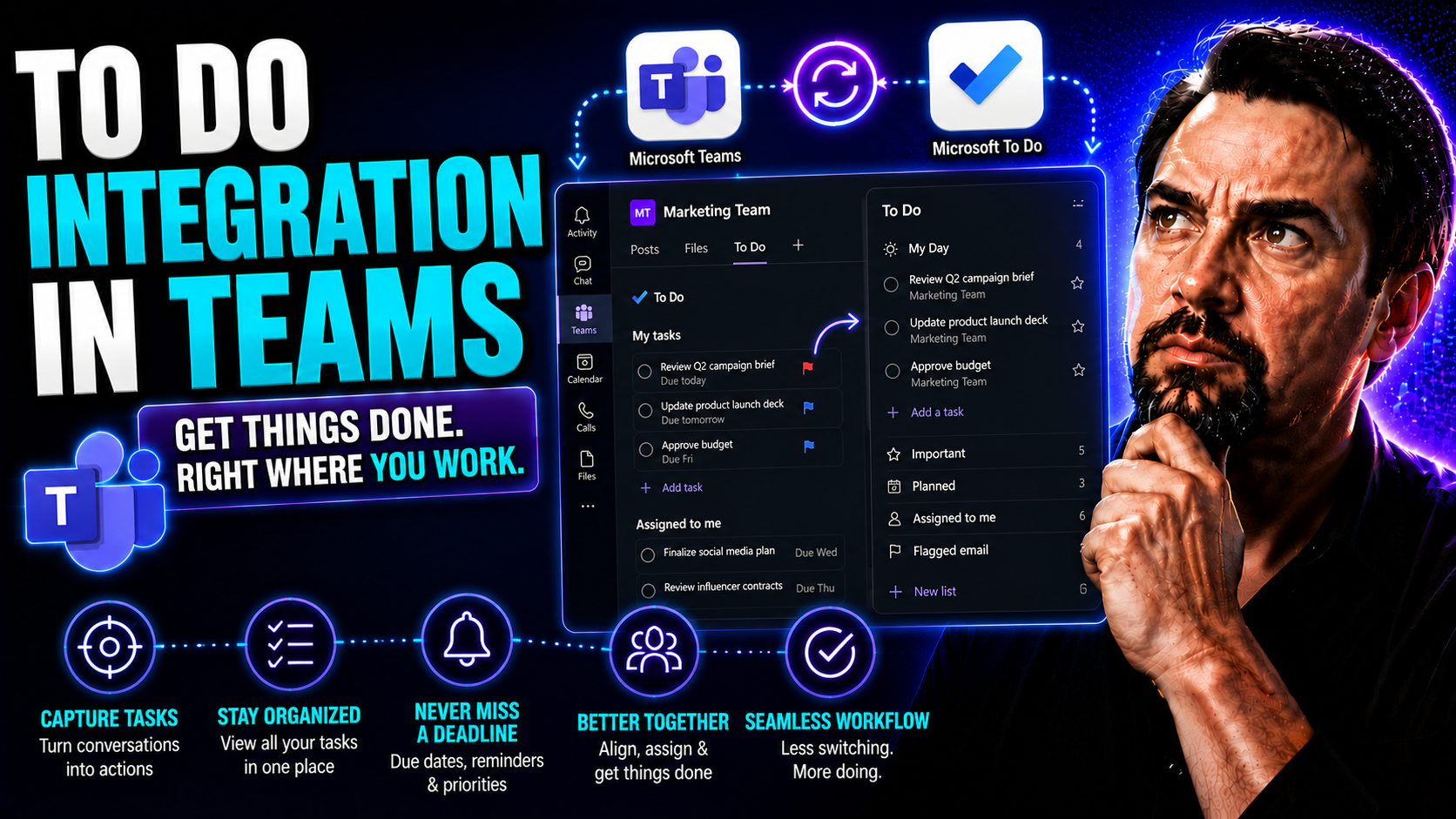
Welcome to your all-in-one resource for Microsoft To Do integration and automation. This guide tackles everything you need to link Microsoft To Do with other apps—whether that's Microsoft Teams, Outlook, or a third-party tool. We'll walk you through setup, essential syncing, workflow automation, and troubleshooting, all in clear language. Whether you're looking to supercharge your personal routines or bring seamless automation to your workplace, this guide has something for every level—no IT degree required. With the right connections and automations, you’ll streamline how tasks get from “to-do” to “done,” and maybe have a little fun along the way.
Getting Started With Microsoft To Do Integrations
Diving into Microsoft To Do integrations opens up a new level of convenience and control over your task management. Integrating To Do with other apps can simplify your routines, reduce manual work, and keep your tasks in perfect sync across multiple devices. You don’t have to be a tech wizard to get started; the process is designed to be straightforward for beginners while still offering plenty for more advanced users.
Getting set up is really about making your digital life work together. By linking Microsoft To Do to your primary account, you’ll enable instant syncing between your phone, computer, tablet, and whatever else you use—even if you switch between Windows and Mac. And once you’ve connected, the door’s open to build custom workflows or tap into automation platforms that eliminate busywork.
From there, it’s about discovering how automation can make life easier. This guide will lay the foundation, helping you understand how everything fits together before you start creating your own automated routines. Read on to learn exactly how to link your To Do to your account, launch your first workflow, and get under the hood with integration platforms. We’ll keep it practical, hands-on, and easy to follow—just like getting a good cup of coffee in the morning.
How to Link Microsoft To Do to Your Account for Seamless Sync
To link Microsoft To Do to your account, start by downloading the app on your preferred devices—Windows, Mac, Android, or iOS. Open the app, and when prompted, sign in using your Microsoft account credentials. For the smoothest sync, use the same account across all your devices. This could be your work, school, or personal Microsoft login—just make sure you know which you want as the “hub” for your tasks.
After signing in, check your sync settings. On mobile devices, this usually means letting the app access your device’s notifications and granting any permissions it requests. If you skip these steps, sync might not work as expected. On desktop, look for the gear or settings icon. Within the settings menu, confirm that sync is enabled and that your lists are showing up correctly.
If you use multiple Microsoft services—like Outlook, Teams, or Planner—double-check that you’re signed in with the same Microsoft account across all those apps. Consistency here prevents future headaches with missing or duplicate tasks. Sometimes, users get tripped up by mixing personal and work accounts—be sure you stick with one for your main integration.
Whenever you make updates on one device, give it a moment to sync. Most problems, like tasks not appearing or updates lagging, are caused by slow internet connections or mixed-up account credentials. If you spot missing tasks, try logging out and back in, or hitting the ‘Sync now’ button if it’s available. With just these simple steps, you’re set for reliable, seamless task management and ready for automation.
Launch Your First Automated Workflow With Microsoft To Do
Kicking off your first automated workflow isn’t as intimidating as it sounds. Start by picturing what you want to happen: maybe you want a new task created in Microsoft To Do every time you star an email, or a notification sent to your phone whenever a high-priority task is added. The building blocks are “triggers” (events that set things off) and “actions” (what happens next).
For example, by using Microsoft Power Automate or a no-code tool like Zapier, you can select To Do as a trigger app and pick when a new task is created. The action could be something basic, like sending yourself an email, or more involved, such as adding the same task to your Google Calendar or Slack channel. These platforms provide templates to make it even easier for beginners to get started.
You’ll typically authenticate your Microsoft account, then use an interface that walks you through the process: choose the trigger (like “When task added to My Day”), select your action (“Send Teams message” or “Add reminder in Outlook”), and test it out. Real-world scenarios might include automating birthday reminders, copying flagged emails as tasks, or syncing meeting prep checklists.
With your first workflow up and running, tasks will start flowing where they need to go with zero manual effort. It’s a small step that frees up your mental bandwidth—meaning less time shuffling tasks and more time focusing on what matters most to you.
How Integration Platforms Work With Microsoft To Do
Integration platforms like Zapier and Integrately are the digital bridges that connect Microsoft To Do to thousands of other apps—no coding required. Think of them like dispatchers at a busy train station: when one event happens (like adding a task), these platforms “see” it and immediately tell another app what to do (like updating your calendar or sending a chat message).
When you set up a workflow, you grant the integration platform permission to access your Microsoft To Do data. This is all handled securely, using your Microsoft account’s authentication and strict privacy protocols. You choose exactly what actions the integration platform can perform—nothing more, nothing less. For example, you can let it create, read, or update tasks, but not manage your full account.
The core of how these platforms work rests on predefined “triggers” and “actions.” Triggers are events in one app (say, a new task is created in To Do), and actions are what the integration platform tells another app to do in response (maybe send a reminder in Teams). The platform handles the nitty-gritty details behind the scenes: API calls, permissions, and data mapping.
For folks who want custom workflows but don’t want to write code, these platforms are a lifesaver. They turn complex inter-app communication into a few clicks and dropdown menus. Understanding this helps you select the right integration path, automate just what you need, and say goodbye to repetitive task juggling.
Top Microsoft To Do Integrations and Connected Apps
Once your Microsoft To Do account is connected and synced, the real fun starts—linking it up with all those apps you already use for work, school, or life management. Integrations allow you to tie in productivity powerhouses like email and calendars, sync with rival task managers, or plug your tasks into the conversations happening in Teams, Slack, and email. These connections can streamline information flow, reduce distractions, and cut out copy-paste tedium from your routines.
Each integration serves a unique purpose. Some focus on personal workflow, like keeping tasks and deadlines matched in your planner and calendar. Others are perfect for group work, letting teams share and assign tasks automatically as part of their ongoing chats and meetings. There's also value in using multiple tools together through two-way sync, so you keep the best features from each while avoiding duplication and losing track of important updates.
This section will break down the top categories of connections: productivity tools (calendars, notes, and emails), direct sync with popular task apps like Todoist, and integrations with collaboration platforms like Microsoft Teams. We’ll focus on helping you understand which options work best for your needs and spark some new ideas for making your to-do list run itself. Whether you’re flying solo or working in a team, smart integration is all about making apps work for you—not the other way around.
How Microsoft Integrations Connect With Key Productivity Tools
- Outlook and Microsoft 365: You can link Microsoft To Do directly with Outlook and your wider Microsoft 365 suite. Tasks flagged in Outlook email instantly appear as To Do tasks, helping you manage follow-up actions from your inbox. For even deeper automation—including using Microsoft’s Copilot AI to streamline inbox and calendar management—see this summary on Outlook Copilot productivity. The integration keeps emails, schedules, and to-dos aligned.
- Google Calendar: Integrating with Google Calendar lets you pull task deadlines into your calendar view for an all-in-one schedule. Automated workflows can sync new or updated tasks from Microsoft To Do as calendar events, so you never miss an important due date—even when you jump between platforms.
- Notion: If you organize notes and projects in Notion, connecting Microsoft To Do streamlines your workspace. You can send Microsoft To Do tasks into Notion databases, linking project notes with actionable steps. Imagine collecting meeting notes in Notion and having related tasks pop up immediately in To Do—no double entry needed.
- Cloud Storage and Note Apps: Integrations with OneNote, Google Drive, or Dropbox let you create tasks from new notes or files. For instance, saving a meeting agenda in OneNote can trigger creation of follow-up tasks in To Do, helping bridge the gap between documentation and action.
With these integrations, you build a productivity ecosystem where everything talks to everything else. This slashes the time spent copy-pasting or bouncing between apps—and lets you focus on the work, not the workflow.
Syncing Microsoft Tasks To-Do With Todoist and Other Task Managers
- Two-Way Sync with Todoist: Many users prefer to work across platforms but need their task lists to stay in sync. Using automation platforms like Zapier, you can set up a two-way sync so that when a new task is created in Microsoft To Do, it’s instantly created in Todoist, and vice versa. Updates on one side—even marking something as complete—can reflect immediately in the other, helping avoid missed assignments.
- Connecting With TickTick: TickTick is another popular cross-platform task app. By linking it to Microsoft To Do, you can ensure that whichever list you update is always current—useful for people managing different aspects of their life or work in separate environments. Triggers can be set for new or updated tasks, maintaining bidirectional flow.
- Google Tasks Integration: For those who rely on simple task lists in Google Tasks, connecting with Microsoft To Do lets you manage personal and work responsibilities without switching between accounts. Automations can create Microsoft To Do tasks from Google Tasks entries, keeping everything tidy and in sync.
- Best Practices for Conflict Prevention: To avoid duplication or status mismatches, it’s smart to set up “deduplication” rules or use one app as a master source. Some users prefer to only sync tasks one-way to reduce errors. Regular audits help keep lists clean when managing two or more platforms together.
With strong syncing, your workflows travel with you—no matter the app, device, or context. This is key for users who refuse to settle for only one solution but still want order and reliability.
Connecting Microsoft Tasks To-Do to Communication and Collaboration Apps
- Microsoft Teams: Integrate To Do with Teams to create, assign, and track tasks directly from chats or meeting recaps. With automation, important messages or action items can become tasks—no need to break your concentration or flip between windows. For more on orchestrating meetings and teamwork, check out this primer on M365 Copilot workflow automation in Teams and SharePoint.
- Slack Connection: By syncing Slack with Microsoft To Do, you can automatically turn flagged messages or keywords in chats into actionable tasks. This means fewer lost requests and smoother handoffs in real time.
- Email Triggers and Actions: Connect your email accounts (such as Outlook or Gmail) to Microsoft To Do. Flagged or starred emails can immediately become To Do items, making it easy to act on important notes without letting them disappear in your inbox.
- Advanced Meeting Automation: Integrating with Teams meeting extensions lets you generate tasks from shared meeting summaries, polls, or recorded minutes. For in-depth scenarios on extending Teams with custom apps and bots, see the guide on advanced Teams meeting extensibility. This helps manage collaborative actions while keeping data secure and compliant.
- Shared Task Visibility: Regardless of platform, collaboration integrations make sure tasks created by one team member are visible to all the right people, boosting accountability and transparency in high-velocity work environments.
These integrations bring your to-dos right into the flow of conversation, meetings, and group activity—saving time, reducing errors, and making sure nothing important slips through the cracks.
Building Custom Microsoft To Do Automations
If you’re ready to step beyond straightforward integrations and build something more custom, this section is for you. Microsoft To Do can be tailored using no-code automation platforms, letting you connect just about any app or service—no programming needed. This is where real task magic happens.
No-code tools like Zapier and Integrately empower you to design workflows that fit how you actually work, whether it’s syncing tasks with your CRM, auto-prioritizing based on due dates, or sending reminders exactly when you need them. The beauty is in the flexibility; you get to shape Microsoft To Do into the productivity sidekick you actually need instead of settling for what’s out-of-the-box.
We’ll walk you through everything: picking the right platform, connecting accounts, setting up triggers and actions, and exploring automation blueprints used by both individuals and teams. Understanding what’s possible opens up a world of efficiency—if you can dream it, you can likely build it with these tools. The next steps break it down, so even if you’ve never built a workflow before, you’ll know exactly where to start.
How to Build Microsoft Integrations With No-Code Tools
No-code platforms like Zapier and Integrately put automation within everyone’s reach—even if you’ve never written a line of code. To build Microsoft integrations, begin by creating an account with the automation tool you like best. Each platform features a searchable directory of supported apps—find Microsoft To Do and select it as either your trigger or action app, depending on your needs.
Start the setup by authenticating your Microsoft account with the no-code tool. You’ll be prompted to approve a connection—this grants permission for the automation platform to read or write tasks, but nothing more. Next, pick your trigger: a new To Do created, completed, or due soon. Then set your action, such as sending an SMS notification, updating a CRM record, or adding the task to another list elsewhere.
Platforms like Zapier offer sample workflows (“Zaps”), making it easier to get ideas and tweak templates. Integrately is known for easy one-click automation chains, especially if you want to tie together several steps at once—think creating a task, sending an email, and updating a spreadsheet in one go. Step-by-step, these tools walk you through field mapping, conditional logic, and testing.
The best part is you can experiment without the risk of breaking anything critical. As your needs grow, revisit and refine your workflows, stacking up automations that save time or fill in the gaps in your routines—without ever calling up IT for help.
Supported Triggers and Actions for Microsoft To Do Automations
- Triggers:New Task Created: Fires when a new task is added in To Do. Perfect for syncing with calendars or sending alerts.
- Task Marked as Completed: Runs when you finish a task, useful for triggering follow-up actions or updating “done” lists elsewhere.
- Due Date Approaching: Initiates workflows when a task is coming due, such as emailing reminders or nudging team members.
- Task Updated: Detects any change to a task (title, notes, due date), letting you sync updates to other apps.
- Task Deleted: A rarer option that allows for removing dependent entries elsewhere when a task is trashed.
- Actions:Create Task: Automatically adds a new task, e.g., from an email, meeting, or website form.
- Update Task: Modify date, priority, or notes in response to outside events—great for project management.
- Complete Task: Marks a task as done, like after receiving a confirmation from another process.
- Send Notification: Triggers an email, push, or SMS—useful for reminders or teamwork alerts.
- Add to List: Organizes tasks into the right folder or list, keeping everything sorted automatically.
Knowing these triggers and actions is the key to designing nearly any workflow you can imagine. Each platform might have slight variations, but the essential events are always covered—and most automations boil down to some mix of creating, updating, or monitoring tasks and making sure you hear about them when it matters.
Popular Microsoft Workflows for Daily Productivity
- Daily Agenda Sync: Sync new tasks added to Microsoft To Do with your digital calendar. Automatically blocks out time for important action items, so you see your day’s priorities at a glance.
- Email-to-Task Automation: Turn flagged or starred emails into actionable To Do tasks. This helps tame out-of-control inboxes and keeps follow-ups visible on your task list without manual entry.
- Meeting Follow-Up Reminders: After a meeting in Teams or Outlook, generate tasks from meeting recaps or action points. Automatically assign those to appropriate coworkers for accountability.
- Slack Message Integration: When a specific phrase appears in Slack (like “please do” or urgent), create a Microsoft To Do entry right away. Keeps verbal commitments from slipping through the cracks.
- Recurring Task Automations: Set workflows to create recurring tasks for routine check-ins, reminders, or maintenance schedules—no more forgetting payday or project deadlines.
Adopting these workflows gets you out of constant micromanagement mode. The more your tools handle repetitive logistics, the more attention you can give to real priorities—big wins for both solo operators and entire teams.
Enterprise and Advanced Microsoft Automation Use Cases
For businesses and large organizations, integrating Microsoft To Do with automation platforms is about more than convenience—it’s about building a scalable, reliable process backbone. Enterprise-grade automations need to be highly secure, compliant, and robust enough to support distributed teams or even thousands of users spread across departments and regions.
This section looks at the bigger picture—how to go from basic, individual setups to orchestrated automation that fits company security policies, governance frameworks, and compliance rules. It explores options for deploying integrations in Microsoft Teams, SharePoint, and more, while maintaining strict control over access and sensitive data.
Trusted automation platforms and frameworks are crucial here, as they are tested for uptime, data protection, user support, and audit trails. You’ll also find examples and stats from companies that have successfully scaled Microsoft To Do integrations to unlock serious business benefits. All this helps IT leaders, admins, and decision-makers understand what’s possible and what to look for in an enterprise solution.
Microsoft Enterprise-Grade Automation for Teams
Deploying Microsoft To Do automations at scale in a Teams or SharePoint environment requires secure, reliable integration platforms. The process begins by connecting To Do with core Microsoft 365 tools—Teams, Outlook, and Planner—allowing IT to roll out automated workflows for thousands of users, not just individuals.
Security and governance come first. Automation solutions must follow corporate compliance rules, enforce role-based access, and protect sensitive data. IT administrators should leverage advanced platforms that offer audit trails, centralized management, and granular permissions. These guardrails help prevent unauthorized changes while making it easy to review who accessed what, and when.
Optimizing business processes is the big benefit. Workflows can automatically assign tasks after meetings, sync projects across departments, and provide actionable reminders—all instantly reflected in Teams and SharePoint. As outlined in this guide on Microsoft Teams Governance, structured governance reduces confusion, increases accountability, and keeps collaboration tight and secure.
IT leaders should plan, test, and monitor integrations to ensure smooth rollout, minimal risk, and a scalable foundation for future growth. Done right, enterprise-level Microsoft To Do automation can unlock a business’s full operational potential—making teams more organized, responsive, and efficient across the board.
Why Trusted Platforms Are Chosen by 42,000+ Customers
Reliability, security, and customer confidence drive organizations to select proven automation platforms for integrating Microsoft To Do. According to recent industry statistics, leading providers boast over 42,000 customers worldwide. Companies trust these solutions for their high uptime, ironclad security protocols, and expert customer support.
Research and expert feedback show that features like real-time monitoring, certified compliance standards, and responsive troubleshooting inspire long-term loyalty. Case studies report substantial productivity gains and fewer costly errors after adopting vetted automation tools. When evaluating enterprise options, look for transparent track records and a commitment to scalable, secure integrations—essential ingredients for business success at scale.
Troubleshooting and Optimization for Microsoft To Do Integrations
No matter how well you set up your Microsoft To Do integrations, glitches can happen—missed syncs, duplicated tasks, and unsent reminders are par for the course in the world of automation. But don’t sweat it; resolving these snags is usually straightforward. This section is designed to give you the skills and confidence to fix issues fast and get your workflows humming again.
We’ll guide you through step-by-step solutions to the most frequent problems, from authorization mix-ups to integration conflicts. Shortcuts and tips are offered for optimizing performance and keeping everything running smoothly. Users at every skill level—from automation novices to power users—will find easy ways to diagnose root causes and apply proven fixes.
And if you ever hit a wall or want to boost your knowledge, a curated stash of tutorials, official documents, and community forums is just a click away. You don’t have to troubleshoot alone; this toolkit puts solutions and support at your fingertips, so your automation journey is as smooth as possible. For complex troubleshooting in other parts of Microsoft 365, don’t miss this Microsoft Copilot troubleshooting guide, too.
Resolving Common Integration Issues in Microsoft To Do
- Tasks Not Syncing: If tasks created on one device don’t show up elsewhere, check your internet connection and confirm you’re signed into the same Microsoft account on every app. Try hitting the “Sync now” option or restarting the app.
- Duplicate Tasks: Overlapping automations or two-way sync gone wild can double up your tasks. Review each workflow—disable unnecessary ones, or add filters to prevent “echoing.” Some integration tools have deduplication features to address this without manual cleanup.
- Status Conflicts: Sometimes a completed task in one app remains open in another. To resolve, set one app as the “source of truth,” or schedule syncs so updates don’t happen at the exact same time on both ends. Frequent syncs, spaced a few minutes apart, minimize confusion.
- Missing Authorization: If your automations stop working, re-authenticate your Microsoft account in the integration platform and check that necessary permissions (like task read/write access) are still enabled. Expired credentials are a top culprit.
- Error Messages and Workflow Failures: Read any error messages carefully—they usually hint at the root cause. Retry failed automations, check the integration platform status page, or reference detailed troubleshooters like the step-by-step Copilot solutions for similar Microsoft 365 app issues.
Staying proactive with updates and regularly reviewing your automation rules can prevent future headaches. If you keep running into problems, the right documentation and community support can help you dig deeper and fix things for good.
Microsoft Tutorials and Support Resources for To Do Integrations
- Official Microsoft Docs: The Microsoft To Do help center provides updated guides for integration and automation—search for setup, sync, and troubleshooting topics.
- Step-by-Step Video Tutorials: YouTube offers a range of walkthroughs from both Microsoft and expert users, showing live screen demos of common integrations.
- Community Forums: Microsoft’s Tech Community and Reddit forums are excellent places to ask specific questions and learn from user experiences.
- Automation Platform Help Centers: Zapier, Integrately, and Microsoft Power Automate all have searchable support wikis focused on Microsoft To Do workflows and best practices.
Bookmark these resources to become your own expert and keep your integrations running strong—whether you’re solving a glitch or building something new.
Microsoft To Do Integration for Personal Life and Habit Management
While most folks think of Microsoft To Do for work, its integrations can transform your personal life just as much. Automating habits and everyday routines with To Do helps you stay on track—whether your goals are about fitness, wellness, or just keeping the house organized. Integrations with health trackers, smart home devices, and calendar reminders turn To Do lists into a daily life engine that keeps everything moving forward.
These connections make habit tracking almost effortless. You can set up recurring checklists for mornings, automate reminders for medication or water intake, and sync workout milestones straight from your fitness apps. Creative workflows—like lighting up your smart home when a task is completed or preparing a weekly grocery list based on recipes saved in another app—mean no more cluttered mind or missed routines.
This section steps beyond what you see in most guides, bringing in fresh personal use cases that empower healthier routines and smarter life organization. It’s your cheat code for work-life balance, giving technology the job of remembering your tasks so you can focus on enjoying the good stuff. The next subsections spell out practical ideas and quick setups to help you build your own automation-powered personal dashboard.
Automating Habits and Daily Routines With Microsoft To Do
- Fitness Tracking Automations: Connect your fitness tracker (like Fitbit) so it creates a new task to stretch or hydrate after logging activity. This gently nudges you toward daily goals.
- Morning and Evening Checklists: Set To Do to automatically populate “Morning Routine” or “Wind Down” checklists at set times each day—reminding you to make the bed, review appointments, or power off screens before bed.
- Smart Home Integration: Link To Do with your smart home hub—mark a task as done, and your lights dim or your coffee maker starts brewing. Habit stacking becomes easy and fun.
- Calendar-Triggered Tasks: Have your digital calendar create to-do items for birthdays, bill due dates, or family events, keeping life details from slipping past.
- Personal Reminders and Rewards: Automate positive reinforcement—finish a recurring task and trigger a small reward, like playing a favorite song or turning on an inspirational light.
Each of these automations gives routines a rhythm, supporting good habits and freeing up energy that would otherwise go into remembering “what’s next.”
Syncing Microsoft To Do With Health and Fitness Apps
- Fitbit Integration: Connect Fitbit to To Do via Zapier. When you meet a step goal or log a workout, a new task or reward reminder is created in To Do, keeping motivation high.
- Apple Health Sync: Use automation to pull daily activity stats from Apple Health and generate checklists—like a “Healthy Habit” to-do for reaching movement or sleep targets.
- MyFitnessPal Logging: Automatically set reminders in Microsoft To Do if you skip a daily food log or fall short of nutrition goals tracked in MyFitnessPal.
- Exercise Goals: For each completed run or workout, To Do can add a celebratory task or prompt you to schedule your next session, closing the loop between activity and planning.
Syncing these apps links your physical wellness with digital organization, helping you hit health milestones and keeping your goals front and center. It’s a simple way to make your achievements a lot more visible—and actionable—every day.
You Should Also Listen To
If you are researching Microsoft To Do integration, these episodes add practical context on collaboration, architecture, and governance:
- Microsoft Teams Governance – The Illusion of Control — Learn how ownership, lifecycle, and policy choices keep collaboration manageable.
- Teams Telephony – Simply Explained — Understand the communication architecture behind reliable Teams work.
- Azure AI Foundry – Simply Explained — See how modern AI and automation solutions are built and governed.
- Microsoft Defender XDR – Simply Explained — Connect collaboration design with security visibility and response.

Microsoft MVP | Host of M365.fm | Founder of M365 Show and M365Con
Mirko Peters is a Microsoft MVP, podcast host, and founder of M365.fm, M365 Show, and M365Con. His work connects Microsoft practitioners through podcast interviews, livestreams, and community events.
At M365.fm, Mirko hosts conversations with Microsoft MVPs, product experts, architects, and community contributors. Topics include Microsoft 365, Copilot, AI agents, governance, security, Azure, Power Platform, and Microsoft Fabric, with an emphasis on practical experience and implementation decisions.
M365.fm is the podcast and learning platform. M365 Show brings experts together for livestreams, while M365Con provides an online conference setting for community learning.
Official website: Mirko Peters (https://www.mirkopeters.com/). Recognition: Mirko Peters — Microsoft MVP profile (https://mvp.microsoft.com/de-DE/mvp/profile/9b0ca797-db5a-493a-a845-8b9158046cf5). Connect on LinkedIn (https://www.linkedin.com/in/m365showpodcast/).





