
Using Forms in Teams: A Complete Guide for Collaborative Work
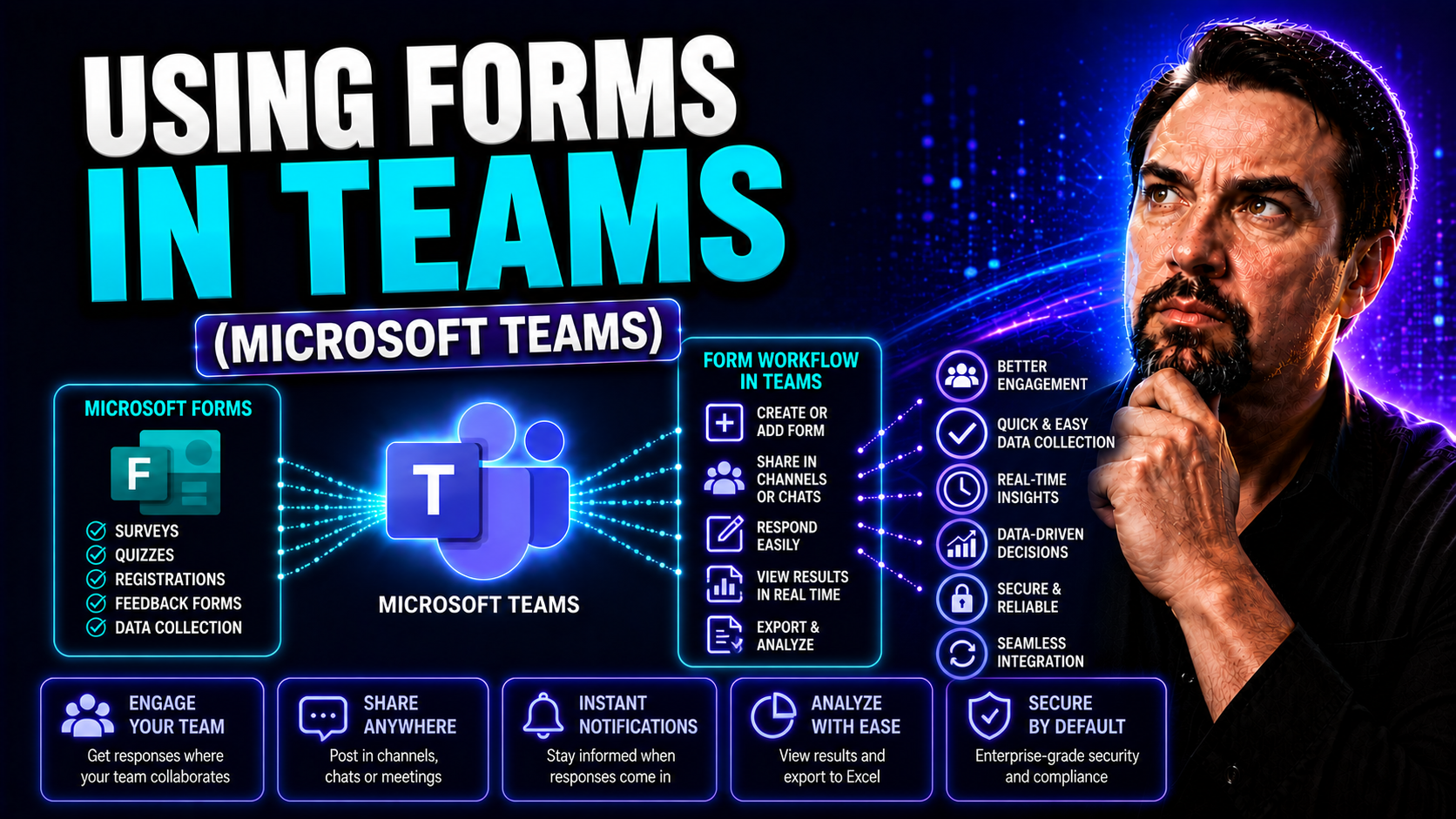
Looking to make team collaboration smoother, faster, and more organized? Microsoft Forms in Teams is like bringing the suggestion box, survey clipboard, and quick poll straight into your digital workspace—minus the messy handwriting. This guide covers every corner of Microsoft Forms within Teams, from setting up your first form to turning insights into action. Whether you're assigning tasks, collecting votes, or running post-meeting check-ins, you'll find step-by-step advice right here.
Perfect for new and seasoned Teams users, this guide details how to set up forms, collaborate on questions, share results, and even automate routine workflows. You’ll see real examples on making feedback a breeze and team processes foolproof. Want just a smarter way to work with your colleagues? Keep reading for all you need to know about Microsoft Forms in Teams.
Definition of Microsoft Forms
Microsoft Forms is a web-based application from Microsoft 365 that enables users to create surveys, quizzes, and polls quickly and easily. It offers customizable question types, branching logic, automatic scoring for quizzes, and real-time response collection and basic analytics.
Short Explanation
Microsoft Forms integrates with other Microsoft 365 apps, allowing forms to be shared via links, email, or embedded in services like Microsoft Teams. When used as "microsoft froms in teams" teams members can collaborate on form creation, collect responses directly within a channel, and view results without leaving Teams, streamlining feedback and data collection for meetings, classes, and projects.
What Is Microsoft Forms and How Does It Work in Teams?
Microsoft Forms is a straightforward, cloud-based tool in Microsoft 365 that lets you create surveys, quizzes, and quick polls. You design questions, pick answer types, and Forms takes care of the response collection and easy-to-read charts. It’s built for simplicity, so anyone in your organization can start gathering feedback or data in minutes.
When you bring Microsoft Forms into Microsoft Teams, it really comes alive for group work. Forms integrates into your Teams environment so you can add forms directly to channels, chats, or meetings—no need to send folks out to another app or website. You can create a form as a tab in your team’s channel, share polls in a chat, or send surveys after a meeting ends.
With this integration, feedback and decision-making can happen right where the conversation is already rolling. Imagine running a poll to pick the next team lunch, distributing an onboarding checklist to new hires, or gathering post-project feedback—all right in Teams. Common scenarios include tracking RSVPs, collecting anonymous input, and automating follow-up steps based on what your team submits. For organizations invested in Microsoft 365, it ties in with OneDrive, Excel, and Power Automate, making your data usable and secure.
If you’re new to Forms or just never tried it in Teams, you’re about to see how easy it is to blend feedback, collaboration, and workflow—all without ever leaving the Teams app.
Getting Started with the Forms Tab in Microsoft Teams
- Open Your Desired Team or Channel: Hop over to Teams and pick the channel where you want your form handy. The placement matters—forms tied to the right team or project are much easier to manage later.
- Add a Forms Tab: At the top of your Teams channel, click the plus sign (+) to add a new tab. In the list of apps, type "Forms" in the search field and select the Forms app. This step pins Forms right alongside your Posts, Files, and other key tabs.
- Create or Connect a Form: You’ll have the choice to create a new form or quiz or to add an existing one. Creating new keeps it simple for team-based work, while connecting an existing form helps if you’ve already built out your questions elsewhere.
- Organize and Name Your Tab: Give the tab a clear, practical name so teammates know what it’s for (e.g., “Sprint Feedback,” “Weekly Lunch Poll,” or “Resource Request”). This makes forms instantly findable and encourages participation.
- Manage Placement and Visibility: You can always reorder tabs to keep your most used forms front-and-center. Remove or rename them as priorities change over time—it’s a breeze to tidy up.
- Leverage Tab Comments and Conversations: Each tab can have its own conversation thread. Encourage your team to discuss form goals or results right there, or link back to the tab in main channel threads for updates and reminders.
- Keep Forms Data Centralized: By bringing the form into Teams, all responses and analytics are stored in one place and accessible to everyone who needs it—no digging through emails or chasing links.
- Tip: For forms you’ll use repeatedly (like onboarding checklists), set them up as tabs in the appropriate Teams channel. You’ll save future time and reduce confusion about where to find critical internal processes.
By embedding Forms as a tab, you boost collaboration, make forms more visible, and tie data collection directly into the daily rhythm of your team.
Collaborative Form Creation and Team Member Roles
Modern teamwork isn’t just about sharing documents—it’s about building and improving together. Microsoft Teams is set up to help your group co-author forms right alongside your chats and files, so everyone can weigh in or make edits as needed. No more passing around file versions or wondering who changed what.
Using Microsoft Forms in Teams means you can invite team members to help create questions, fine-tune answer choices, or manage how (and to whom) a form is shared. These shared roles help distribute workload, increase buy-in, and tap into everyone’s expertise—whether you’re building an onboarding checklist or prepping a project survey.
Managing who gets to edit, view, or own a form is critical. You’ll often need to set up permissions not only for your immediate team, but sometimes for partners, contractors, or clients outside your organization. Proper governance ensures only the right folks have access to sensitive information, and it helps avoid confusion or accidental changes.
If you need more depth on defining roles or wrestling with access for outside collaborators, solid Microsoft Teams governance matters. You can learn more about setting up guardrails and data security in Teams over at this overview of Teams governance strategies. Up next, we’ll break down how to add co-authors and manage permissions for external users to keep your teamwork running smoothly.
Invite Members as Form Creators or Editors in Teams
- Open the Form in Teams: Go to the Forms tab in your Teams channel or select your form in the Microsoft Forms app.
- Click “Share” for Collaboration: Look for the “Share” button, but make sure to pick the option labeled “Share to collaborate” or “Get a link to duplicate.” This lets others edit the form—not just fill it out.
- Copy and Send the Collaboration Link: Copy the special link generated for co-authoring, then post it in your Teams chat or send it directly to team members.
- Choose Who Can Edit: You can limit editing to people in your organization or open it up to anyone with the link, depending on your governance policies and the sensitivity of the form.
- Assign Ownership as Needed: If someone else needs to take over main editing, Forms allows you to transfer ownership (in the web version). This is handy for when team leads change or projects wrap up.
Letting more hands touch the form doesn’t lead to chaos—it boosts productivity, makes the form better, and ensures the right questions are always being asked.
Managing Permissions for External Users on Shared Forms
- Choose Access Level CarefullyDecide if external users can only respond to forms in Microsoft Teams or if they should have editing rights. Most often, clients or vendors just need to submit answers, not tweak questions.
- Enable External Collaboration: In the sharing settings, select “Anyone with the link” to let external users respond. For editing access, your admin may need to allow external sharing organization-wide.
- Send Secure Links: Always share links in a controlled way, like via a private email or Teams chat, especially if form content is sensitive or confidential.
- Monitor and Revoke as Needed: Keep an eye on who has access and revoke permissions when collaboration ends. Microsoft Forms lets you turn off links or block external access at any time.
- Stay Compliant: For stricter environments, refer to your organization’s governance playbook or read more about safe Teams collaboration at this Microsoft Teams governance resource.
Common Mistakes People Make About Form Creation and Team Member Roles (Microsoft Forms in Teams)
Form Creation Mistakes
- Creating a form directly in a team channel without checking who needs access — leads to visibility or permission issues.
- Using the wrong form type (quiz vs. form) for the intended purpose, causing scoring or response-expectation confusion.
- Not configuring response settings (accepting responses, start/end dates, one response per person), resulting in unwanted submissions or duplicate responses.
- Failing to preview the form on different devices — layout or branching logic may break on mobile.
- Overusing branching or complex logic without testing — respondents get stuck or skip required sections.
- Not setting required fields appropriately, causing incomplete or unusable responses.
- Ignoring language and accessibility settings — forms may be hard to understand or inaccessible to some users.
- Embedding forms in a Teams tab without confirming tab permissions — some team members may not be able to open or submit the form.
- Not linking forms to the right destination (e.g., personal OneDrive vs. group) — makes ownership and response management confusing.
- Neglecting to set up notifications or response collection processes, so important submissions are missed.
Team Member Role Mistakes
- Assuming all team members have the same permissions for Forms in Teams — owners, members, and guests have different default capabilities.
- Granting broad ownership to too many people — increases risk of accidental edits, deletion, or ownership conflicts.
- Not assigning a clear owner for form maintenance and results management — nobody follows up on responses or updates the form.
- Failing to understand guest limitations — external users may be unable to access or submit forms depending on tenant settings.
- Relying on team/channel membership for long-term access control — when people leave the team, form access and ownership can be disrupted.
- Giving edit permissions to members who should only submit — leads to unauthorized changes to questions, logic, or settings.
- Not documenting role responsibilities (who reviews responses, who exports data) — creates duplication or missed tasks.
- Assuming Forms data is automatically shared with the whole team — response summaries may be private to the form owner unless explicitly shared.
- Failing to remove or reassign ownership when the owner leaves the organization — forms may become inaccessible or unmanaged.
- Not training team members on best practices for collaborative form editing in Teams — causes versioning errors and conflicting changes.
Run Polls and Gather Feedback Instantly in Teams Conversations
Sometimes you don’t need a fancy, full-length survey—you just want a quick answer or pulse check. That’s where Microsoft Forms excels in everyday Teams chats and meetings. You can drop a poll into any conversation and instantly see what your coworkers are thinking. With real-time feedback, progress moves from “I think” to “We know.”
Polls are more than just a quick way to decide on lunch; they help democratize discussions and ensure that everyone, even the quietest folks, have a way to weigh in. By embedding Forms polls directly in Teams messages or meeting chats, results are easy to read and impossible to miss.
This approach works great for deciding project next steps, gathering priorities, or running fun “ice breaker” questions. Afterwards, you can start conversations around the results, helping your team understand why certain decisions were made. In the next sections, we’ll walk through launching a poll in Teams and talking through the feedback so everyone’s voice counts and decisions stick, as we want to hear from all participants.
How to Conduct a Poll in Teams Using the Forms App
- Start a Teams Chat or Channel Conversation: Open the place where you want to run your poll—could be a project channel or a group chat.
- Click the Forms Button: In the message bar, you’ll see an “Forms” icon (it looks like a little form). Click it to launch the poll tool right inside your chat.
- Type Your Poll Question and Options: Fill in your question and the answer choices. Forms allows for single or multiple answers, so customize it for your needs.
- Preview and Post: Take a quick look to ensure everything is correct. When ready, post the poll. Everyone in the chat or channel will see it immediately and can respond with a single click.
- Maximize Participation: Announce the poll and encourage everyone to take a second to vote. Remind them in the thread if you need more responses.
With just a few clicks, you’ll get the pulse of your team, and the results show up in real time, making it ideal for on-the-spot decisions.
Discussing Poll Results and Form Feedback in Team Conversations
- Reference Results Directly: Use the “conversation” tab attached to your poll to highlight key takeaways or spark follow-up discussion on the results.
- Ask for Clarifications: If responses are split or unclear, prompt your team to explain their choices right inside the thread.
- Use Results for Action: Note agreements, disagreements, or trends, and transition quickly to making actual team decisions or next steps.
- Pin or Link to Poll: Keep results visible by pinning messages or referencing poll threads in future project discussions for easy backtracking.
Run Polls and Gather Feedback Instantly in Teams Conversations — Key Benefits
- Real-time responses: Capture instant feedback during chats and meetings so decisions can be made quickly without follow-up emails.
- Higher participation: Short, in-context polls encourage more responses from team members who are already active in Teams conversations.
- Seamless integration: Create and launch polls directly inside Teams conversations using Microsoft Forms, keeping workflow and context together.
- Improved meeting efficiency: Use quick polls to prioritize topics, set meeting directions, or gauge consensus without interrupting momentum.
- Actionable insights: Collect and view poll results instantly, export data to analyze trends and inform decisions.
- Customizable questions: Support for multiple choice, ranking, and open-text responses lets you tailor polls to the feedback needed.
- Increased transparency: Share results within the conversation so everyone sees outcomes and next steps immediately.
- Reduced friction: No need for separate tools or links—participants answer directly in Teams, simplifying the response process.
- Supports asynchronous collaboration: Team members who missed the conversation can still respond later, ensuring broader input.
- Easy tracking and history: Keep a record of past polls and responses in the chat for reference and accountability.
Integrating Microsoft Forms with Teams and Other Apps
Bringing Microsoft Forms into Teams is powerful on its own—but when you start connecting forms to other Microsoft 365 tools, that’s when true workflow magic happens. Integrations let you automatically route submissions, trigger actions, and connect your form data with other systems for deeper teamwork.
Whether you want responses to kick off new approvals, update SharePoint lists, or send real-time notifications, integrations connect all the dots. The Forms connector in Power Automate allows you to build smarter processes across your digital workspace. Want everyone to see survey results instantly? Share or embed your forms as tabs within Teams, so no one misses out on the data that drives decisions.
You can even build custom Teams apps and bots that interact with your forms for a super-personalized workflow—get a taste for these advanced options at this deep dive on Teams message extensions and custom app development. When you harness integrations and sharing features, you streamline response collection, break down communication barriers, and keep your team moving forward together.
Explore Forms Integrations and Microsoft 365 Connections
- Link Forms to Power Automate: Use Power Automate (formerly Flow) to listen for new form submissions and trigger automated actions—like posting notifications in Teams, creating tasks, or updating records in Excel or SharePoint.
- Embed Forms in SharePoint: Add forms directly to SharePoint pages to collect feedback while users view project content or resources.
- Route Responses to Email or Planner: Automate sending a summary of each submission to your inbox or create new Planner tasks from forms like internal requests or onboarding surveys.
- Connect with M365 Copilot: If your organization uses M365 Copilot or similar tools, integrate forms-based data into workflow automations, meetings, and task orchestration for boosted productivity (see more at how automation orchestrates Teams workflow).
Share an Existing Form in Teams to Collect Responses
- Embed a Form in a Channel Tab: In your selected team channel, add a new tab, pick “Forms,” and select your existing form. This keeps the form front and center for all team members to find and respond to.
- Share via Message or Meeting Chat: Copy your form’s “collect responses” link and paste it into any Teams conversation, meeting, or direct chat for immediate access and a higher response rate.
- Set Response Permissions: Decide if you want only team members or anyone with the link to be able to respond. Stay mindful of your organization’s data governance rules when sharing outside your domain.
- Encourage Engagement and Reminders: Post periodic reminders or link the form back into related conversations, so responses keep flowing and don’t get lost in the shuffle.
- Track Visibility: Monitor who’s filled out the form and follow up directly in Teams if key stakeholders haven’t responded yet. Keeping your forms present and organized helps drive team accountability and keeps things moving.
Pros and Cons of Integrating Microsoft Froms in Teams
Pros
- Centralized collaboration: Create, share, and respond to forms directly within Teams channels and chats, reducing context switching.
- Faster feedback collection: Post surveys or polls in meetings or channels to gather real-time responses from participants.
- Easy distribution: Share forms with specific teams, channels, or meeting attendees without leaving the Teams environment.
- Integrated notifications: Receive response alerts and summary notifications in Teams to stay informed instantly.
- Improved participation rates: Familiar Teams interface encourages higher response rates from colleagues already using the app.
- Automatic storage and reporting: Responses are stored in Microsoft Teams Forms with built-in analytics; results can be accessed or exported for deeper analysis, providing information helpful for future decisions.
- Permission control: Leverage Teams and Microsoft 365 permissions to manage who can view or edit the form and results.
- Meeting polls and quizzes: Use Forms in meetings to run polls, quizzes, or quick checks for engagement and learning assessments.
Cons
- Limited advanced features: Complex survey logic or advanced branching may be less robust than specialized survey platforms.
- Dependency on Microsoft 365: Full functionality requires appropriate Microsoft 365 licenses and access, which can limit external participant usage.
- Privacy and external sharing limitations: Sharing forms with external users or guests can be restricted by organizational policies and tenant settings.
- Notification clutter: Frequent form notifications in Teams can overwhelm channels or users if not managed properly.
- Design and customization limits: Custom branding and highly tailored UI options are limited compared with third-party form tools.
- Data residency and compliance constraints: Organizations with strict compliance needs may face constraints on where responses are stored and how data is processed.
- Learning curve for integration: Some users may need guidance to embed forms into tabs, meetings, or workflows correctly.
Set Up Response Notifications and Post-Meeting Feedback with Microsoft Forms in Teams
Let’s be real: If nobody knows when a form’s been filled out, the whole exercise loses its spark. Microsoft Forms and Teams let you set up instant notifications, so responses never slip through the cracks. Whether you need heads-up pings in your channel or private alerts in chats, staying informed keeps projects and processes on track.
Notifications aren’t just about noise, though—they’re the secret sauce for responsive teamwork. Knowing who responded (and when) lets you chase down missing info, act on pressing issues, and close the feedback loop fast. You can even jazz up your Teams with adaptive cards and custom alert settings—learn how that works with a practical walkthrough on smarter notifications at this guide on fixing Teams notifications with adaptive cards.
And when the meeting ends, don’t let feedback fade into the ether. Deploy a form right after a call to confirm attendance, assign follow-up items, or collect honest impressions. This way, every project or meeting gets closure, and action items are never left hanging. Up next, we’ll dig into the nuts and bolts of setting up notifications and running post-meeting feedback forms in your Teams environment.
Set Up Teams Notifications for Form Responses
- Manual Notifications via Teams: Add a Forms tab or share your form link in a channel. When responses come in, check the Forms response summary in the tab or set reminders using pinned messages or channel mentions.
- Automate Alerts Using Power Automate: Set up a flow in Power Automate to trigger a Teams post, email, or custom adaptive card the instant someone submits a response. This keeps the whole team looped in, no matter where they are.
- Target Specific Recipients: With Power Automate, direct notifications to relevant stakeholders. Send it to designated roles, subgroups, or just the form’s owner—you’re in control of who gets the signal.
- Adjust Notification Preferences: Teams lets users mute or highlight notification types, so essential form updates get noticed without drowning in alerts. Prioritize what matters most using Teams’ notification settings.
- Use Adaptive Cards for Clarity: Deliver rich, interactive notifications using adaptive cards, letting recipients view or react to form responses directly within the Teams channel or chat (see more tips at this notification guide).
Use Microsoft Forms in Teams After Meetings for Feedback and Action Items
- Deploy a Feedback Survey: Send a quick form link right after a meeting to collect thoughts, track next steps, or gauge satisfaction.
- Attendance Confirmation: Run a single-question form to confirm who attended and log responses for future reference.
- Gather Action Items: Use forms to capture volunteer names, assignments, or requests for clarification on discussed tasks.
- Create a Post-Meeting Checklist: Set up recurring forms for regular team huddles or project updates, making sure everyone checks off what’s needed for success.
- Monitor Long-Term Trends: Use post-meeting form data to spot recurring issues, surface improvement ideas, and refine team processes as you go.
Response Notifications (Microsoft Forms in Teams)
Pros
- Real-time alerts: Immediate notifications when forms are submitted, enabling prompt follow-up.
- Seamless Teams integration: Notifications appear directly in Teams channels or chats, centralizing communication.
- Customizable triggers: Options to tailor which responses generate notifications to reduce noise.
- Automated workflows: Easy to connect with Power Automate for routing responses, creating tasks, or updating records.
- Improved responsiveness: Faster acknowledgement and action on submissions improves stakeholder engagement.
- Visibility and audit trail: Notifications create a record in Teams for tracking response history and accountability.
Cons
- Notification overload: High-volume forms can flood channels, causing important alerts to be missed.
- Limited granularity: Built-in notification options may lack fine-grained filtering compared with advanced alerting tools.
- Permission dependency: Recipients need appropriate Teams/Form permissions to view response details, complicating distribution.
- Mobile inconsistencies: Notification behavior and detail can vary across Teams desktop, web, and mobile apps.
- Potential privacy exposure: Notifications may surface sensitive response content in shared channels if not carefully configured.
- Reliance on Forms features: Advanced validation or conditional logic in Forms can affect which responses trigger notifications, leading to unexpected behavior.
Post-Meeting Feedback (Microsoft Forms in Teams)
Pros
- Timely feedback collection: Sending forms immediately after meetings increases the likelihood of accurate, relevant responses.
- Integrated distribution: Easily post feedback forms to the meeting chat or channel so attendees can respond without leaving Teams.
- Anonymous options: Support for anonymous responses encourages candid feedback.
- Standardized evaluation: Consistent question templates help compare feedback across meetings and teams.
- Automated reminders: Use Teams and Power Automate to remind attendees to complete feedback, improving response rates.
- Actionable insights: Aggregated results and charts in Forms help identify trends and areas for improvement quickly.
Cons
- Low response rates: Attendees may ignore post-meeting surveys, limiting the representativeness of feedback.
- Survey fatigue: Frequent requests for feedback can lead to reduced engagement and lower-quality responses.
- Timing sensitivity: Sending the survey too late reduces recall; too early may gather incomplete impressions.
- Limited question complexity: Forms supports common question types but may not meet needs for advanced evaluation or discussion-style feedback.
- Data fragmentation: Feedback collected in multiple forms or channels can be hard to consolidate without extra effort or automation.
- Privacy and compliance: Anonymous feedback may conflict with organizational policies; storing feedback may require attention to retention and GDPR rules.
Automate Team Workflows with Forms and Power Automate
If you’re ready to ditch repetitive busywork, Microsoft Forms and Power Automate together are your ticket to a smoother workflow. By connecting forms to automation, any response can set off a chain of helpful actions— from sending notifications to logging requests or kicking off approvals. It’s one way to make sure your team’s brainpower goes into problem-solving, not paperwork.
Common use cases include auto-assigning IT support tickets, adding new hires to onboarding flows, or routing vacation requests for sign-off—all triggered directly by form submissions. Automation is especially useful for tasks that need immediate attention, confirmations, or a standardized approval process. And with tools like M365 Copilot managing the automation magic, you can scale these workflows across channels and apps without risking chaos or delay (more automation strategy explained at how Copilot orchestrates Teams and workflow automation).
We’ll touch next on triggering automated notifications and building approval workflows from Forms, so you can streamline your team’s governance and never miss a beat.
Trigger Automated Teams Notifications and Actions from Forms
- Send a Teams Message When a Form Is Submitted: Set up an automated flow so every new submission posts a message in the selected channel or chat—great for urgent feedback or requests.
- Assign Tasks to Team Members: Trigger the creation of a Planner task or To Do item each time a specific form is filled out, ensuring accountability doesn’t get lost.
- Post Channel Updates Automatically: Keep stakeholders informed by having automation post updates or summary cards in your channel whenever responses hit certain criteria.
- Customize Follow-Ups: Personalize automated notifications based on form answers (e.g., send different responses to urgent versus low-priority items).
Initiate Approval Flows from Form Submissions in Teams
- Time-Off Request Approvals: Route vacation or leave requests through an automated flow that collects manager sign-offs and notifies the requester in Teams.
- Equipment Checkout Approvals: Use forms to trigger a digital approval for laptops or gear, sending decisions to the requester without manual emails.
- Project Sign-Offs or Expense Approvals: Capture approvals from multiple parties on big projects or budget spends, documenting each response in your Teams channel.
- Track and Audit Approvals: Maintain a record of approvals automatically in SharePoint, Teams, or OneDrive, keeping you organized and compliant.
Automate Team Workflows with Forms and Power Automate (microsoft froms in teams)
Analyze and Report on Form Data for Team Decisions
Collecting responses is only half the story—the real magic happens when you turn that data into insights your team can act on. Microsoft Forms makes it a snap to export, visualize, and present results, right in Teams or through tools like Excel and Power BI. By putting summary charts and detailed answers in front of your group, decisions become faster and better grounded.
For recurring business processes, exporting data for reports or dashboards is invaluable. Need to spot trends in employee feedback or compare training requests by department? Forms connects with the analytics muscle of Microsoft 365 to help you build charts and share findings in a way everyone can understand.
If you find Teams can get unruly, reporting also helps with governance—tracking participation, identifying improvement areas, or managing compliance at a glance. Learn more about using Power Platform for robust reporting and lifecycle governance at taming Teams sprawl with automated lifecycle governance. Up next, we’ll get practical about exporting responses, sharing results, and building forms smarts with logic and advanced question types.
Export Form Responses and Visualize Results in Teams
- Export to Excel: Open your form in Microsoft Forms, select “Responses,” and click “Open in Excel” to download all results instantly. This makes advanced analysis and data manipulation a snap.
- Create Charts and Reports: Use Excel’s chart tools to summarize trends or highlight key numbers—think bar charts for survey ratings or pie charts for multiple-choice breakdowns.
- Embed Results in Teams: Share Excel charts directly in Teams posts, channels, or meetings, or pin files as tabs so your team always has access to the latest insights.
- Build Live Dashboards: Connect Forms data to Power BI for interactive dashboards that track results over time and make findings super-visual for decision meetings.
- Leverage for Governance: Use analytics to monitor participation or identify response gaps—helpful for compliance and lifecycle management as detailed in this Power Platform governance guide.
Build Smarter Forms with Conditional Logic and Advanced Questions
- Branching Logic: Add question branching to send users down different paths based on their previous answers. This keeps surveys relevant and focused, reducing fatigue.
- Multi-Choice Grids: Use grids for complex feedback—great for comparing multiple options or gathering training needs all in one go.
- Date or Ranking Fields: Capture timelines, deadlines, or let users prioritize options, making follow-up clearer and more actionable.
- Short/Long Answers: Mix up question types to get just the right level of detail for every survey, from quick polls to in-depth project reviews.
- Smart Validation: Use response validation to keep data clean (e.g., email or phone number patterns) so you spend less time fixing typos later.
Analyze and Report on Form Data for Team Decisions
Using microsoft froms in teams to analyze and report on form data delivers clear benefits that help teams make faster, smarter decisions.
- Centralized insights: Consolidate responses within Teams so decision makers access surveys, quizzes, and poll results in one place without switching apps.
- Real-time visibility: See responses as they arrive to identify trends, urgency, or issues immediately and adapt plans quickly.
- Data-driven prioritization: Use aggregated results and summaries to rank initiatives, allocate resources, and set team priorities based on evidence rather than opinion.
- Interactive reporting: Create charts and exportable reports from form data that can be shared in Teams channels or meetings for collaborative review.
- Improved accountability: Track who responded and when, link feedback to action items in Teams, and follow up directly to ensure tasks are completed.
- Custom filtering and segmentation: Break down responses by department, role, or other fields to tailor decisions to specific groups or stakeholders.
- Faster consensus building: Present clear, quantified results to the team to reduce debate time and reach agreement faster.
- Integration with workflows: Combine form results with Planner, Lists, or Power Automate in Teams to trigger actions, assign tasks, or automate follow-ups.
- Enhanced data accuracy: Built-in validation and structured form questions in Microsoft Teams reduce ambiguous answers, improving the reliability of decision inputs and providing information helpful for stakeholders.
- Security and compliance: Keep form data within your Teams environment with Microsoft 365 controls, ensuring privacy and governance for sensitive decision data.
helpful survey started with microsoft
What is "microsoft froms in teams" and how does it work?
"Microsoft froms in teams" refers to using Microsoft Forms integrated into Microsoft Teams to create surveys, quizzes, and forms directly within a team or channel. You can create the form, add an existing form as a tab, post to the channel about this tab, and collect responses without leaving Teams. Responses are stored in Office 365 and can be accessed for data analysis or downloaded for further processing.
How do I set up a Forms tab in Teams?
To set up a forms tab, open a channel, click the + icon to add a tab, choose Forms, then select "Create a shared form that your team can edit" or "Add an existing form." Enter a name, choose whether the team can edit, and click Save in the upper right corner. The tab will appear and you can see results or post to the channel so members are aware.
Can I add an existing form to a Teams channel?
Yes. When adding a Forms tab choose "Add an existing form," use the search or enter the form name or code, select the form, and decide if you want to show results or allow the team to edit. This lets you access your Microsoft Forms directly from Teams and easily share surveys and quizzes.
Who can edit a form in Teams once it's added?
When you add a form, you can choose permissions: create a shared form that your team can edit, or keep it owned by a single person. If you allow team can edit, members with appropriate team roles can modify questions, theme, and settings. Otherwise only the form owner can edit.
How do I see results and perform data analysis?
Open the Forms tab in Teams and click "Responses" to see results. For advanced data analysis, click "Open in Excel" or access the form in forms.office.com. Office 365 tools let you filter responses, use Excel for charts, or export data for deeper data analysis.
Can I create quizzes with Forms in Teams?
Yes, you can create a quiz by choosing the Quiz option when you create the form. Use different question types, set correct answers, assign points, and use the theme options. Quizzes created in Teams integrate with Forms features like automatic grading and feedback.
How do I share a form with my team or other people?
You can post to the channel about this tab, copy and share the form link or QR code, or use the "Share" options to get a link, email, or embed code. If you want to add external respondents, set the form to accept responses from anyone with the link in the sharing settings.
Can I create multilingual forms in Teams?
Yes. While Forms doesn’t have automatic translation for the form UI, you can manually add questions in multiple languages or create separate forms per language and share them via a channel post or QR code so respondents can choose their preferred language.
How do I enable team members to access your Microsoft Forms directly from Teams?
Add the form as a tab in the relevant channel or chat so team members can open it without leaving Teams. You can also pin the form link in the channel or use the Files and Apps area. Using the search in Teams helps people find the form or tab quickly.
What should I do if the Forms tab isn't displaying or I see a keyboard/accessibility issue?
First refresh Teams or sign out and back in. Check permissions in Office 365 and ensure the app is allowed by your organization. For keyboard or accessibility problems, update Teams to the latest version and visit Microsoft support for known issues or fixes. If the issue persists, collect the error code and contact your IT admin.
How can I create a shared form that my team can edit easily?
When adding a Forms tab choose "Create a shared form that your team can edit." Name the form, select the setting that allows team can edit, then save. Team members will be able to open the tab and modify questions, theme, or settings without needing separate permissions.
Can I post responses or results to a channel automatically?
You can post to the channel about this tab manually or use Power Automate to create flows that post notifications when new responses arrive or when certain conditions are met. For quick sharing, click "Share results" and post the link or summary to the channel.
Is it possible to customize the theme of a form in Teams?
Yes. When creating or editing the form you can choose a theme or upload an image to customize appearance. Themes carry over when the form is added as a tab, making it easy to match branding or visual style within the team.
How do I add different questions like multiple choice, text, or ranking?
In the form editor, choose Add new and pick question types such as Choice, Text, Rating, or Ranking to create forms in Microsoft Teams. You can also add branching to show different questions based on previous answers. This lets you build surveys with different questions to capture varied feedback.
Can I use a QR code to share a form in Teams or in-person?
Yes. In the form's Share pane select the QR code option to generate a scannable code. You can post the QR code in a Teams channel or display it in a meeting for attendees to scan and access the form immediately.
What happens to form responses if the owner leaves the organization?
If the form is owned by an individual who leaves, access may be lost. To avoid this, create a shared form in Microsoft Teams or transfer ownership to a group or another account in Office 365. That ensures the team can still see results and continue data analysis after personnel changes.
How can I allow other team members to create forms in the same channel?
Members can create forms if they have permission to add tabs. Encourage them to use the + to set up a forms tab or create forms in forms.office.com and add them to the channel. Administrators can adjust tenant settings to allow or restrict creation.
Where can I find more help or official guidance?
For detailed troubleshooting and step-by-step guides, visit Microsoft support or the official Microsoft Forms and Teams documentation. Also check relevant blog post resources from your organization or Microsoft to get tips on best practices and use cases.
Can I collect anonymous responses and still do data analysis?
Yes. In form settings, enable anonymous responses by allowing anyone with the link to respond and disabling record name. You can still export results to Excel for data analysis, but you won't have respondent-identifying information.
How do I start if I'm new and just getting started with Microsoft Forms in Teams?
Begin by adding a Forms tab in a test channel, choose "Create the form" and try adding different question types. Use the upper right corner to save and share, post to the channel to invite colleagues, and refer to the helpful information or blog post tutorials that walk through common scenarios.
Can I also add Forms to private chats or only channels?
You can add a form to a group chat by adding it as a tab in the chat, or use private sharing links. Tabs are available in channels, teams, and group chats, letting you easily set up a forms tab where the intended audience can access it.
How do I handle complex surveys that require branching and logic?
Use branching options in the form editor to show different sections or questions based on previous answers. Combine with sections and required questions to create multi-step surveys. Test the flow in Microsoft Teams and adjust based on feedback to ensure the survey behaves as expected, as we want to share the best experience.
What should I include in a channel post when I want to add or announce a new form?
Include a clear title, purpose of the survey, deadline, instructions for respondents, and a link or QR code. Use the post to tell people whether responses are anonymous, who will analyze the data, and if the team can edit or contribute to the form. This helps set expectations and increases response rates.
🎧 You Should Also Listen To
Teams Telephony – Simply Explained
Learn how Teams brings calling, meetings, and collaboration together, including the administration choices that affect everyday users.
Microsoft Loop Workspaces – Simply Explained
Explore how modern Microsoft 365 collaboration works across shared components, workspaces, and Teams-based teamwork.
Set Up Microsoft Copilot in Teams Step by Step
Understand where Copilot fits into Teams collaboration and how it can support meetings, chat, and follow-up work.

Microsoft MVP | Host of M365.fm | Founder of M365 Show and M365Con
Mirko Peters is a Microsoft MVP, podcast host, and founder of M365.fm, M365 Show, and M365Con. His work connects Microsoft practitioners through podcast interviews, livestreams, and community events.
At M365.fm, Mirko hosts conversations with Microsoft MVPs, product experts, architects, and community contributors. Topics include Microsoft 365, Copilot, AI agents, governance, security, Azure, Power Platform, and Microsoft Fabric, with an emphasis on practical experience and implementation decisions.
M365.fm is the podcast and learning platform. M365 Show brings experts together for livestreams, while M365Con provides an online conference setting for community learning.
Official website: Mirko Peters (https://www.mirkopeters.com/). Recognition: Mirko Peters — Microsoft MVP profile (https://mvp.microsoft.com/de-DE/mvp/profile/9b0ca797-db5a-493a-a845-8b9158046cf5). Connect on LinkedIn (https://www.linkedin.com/in/m365showpodcast/).




