
Polls In Teams Meetings Guide
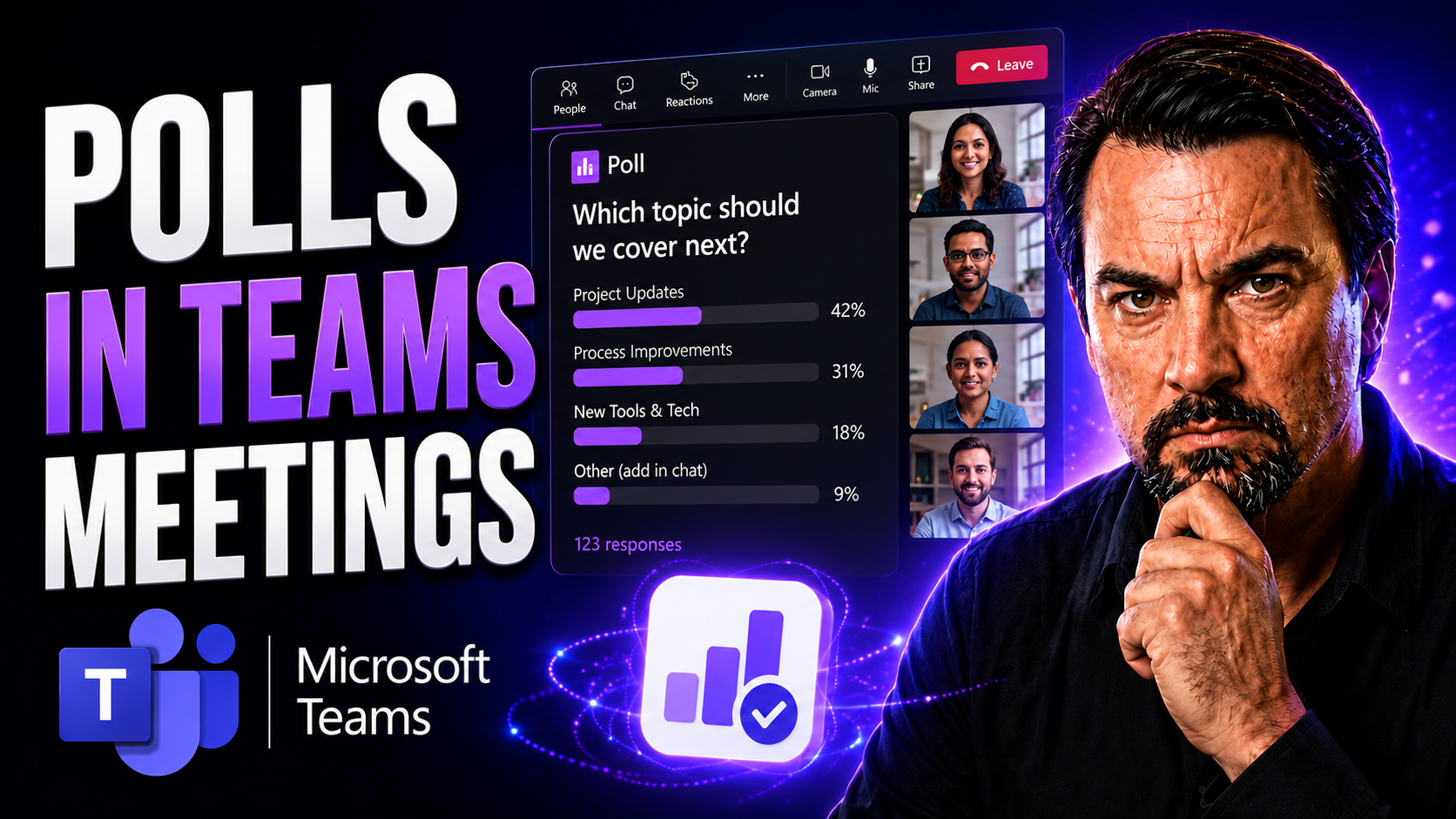
Polls in Microsoft Teams meetings open up a world where everyone gets heard, not just the loudest voices. They’re more than just quick surveys—they’re a hands-on way to boost participation, get feedback on-the-spot, and keep meetings sharp and on-track in any workplace, school, or hybrid team setting. Whether you’re hunting for instant opinions or collecting data to shape business decisions, Teams polls make sure every attendee gets a vote.
This guide takes you from the basics of creating your first poll to using advanced Microsoft Forms tricks for more nuanced questions and results. Along the way, you’ll find how to set up polls in advance, manage them live, and wrap up with practical ways to share and act on your results. Plus, you’ll pick up best practices that make your polls not just functional, but genuinely useful for every meeting—business, school, or anything in-between.
Getting Started: Introduction and Setting Up a Poll Before Your Teams Meeting
Let’s get down to the basics—what’s the point of running polls in Microsoft Teams meetings? For starters, polls make it easy for you to get everyone involved, especially those who might otherwise stay on mute. It’s a simple but powerful way to make decisions, gather opinions, or break the ice. People like being asked what they think, and polls deliver just that, creating a sense of inclusion from the get-go.
Before the meeting, you can set up your poll to fit what you need. Prepping a poll ahead of time helps you stay organized and avoid last-minute scrambling. With Microsoft Teams, you can create drafts using the “Polls” app or even tap into Microsoft Forms for more detailed questions. You’ll just need to select the meeting on your Teams calendar, go to the “Polls” tab, and click “+ New Poll.” From there, enter your question and options, and save it as a draft if you’re not ready to launch right away.
Setting up in advance also buys you time to fine-tune your poll—double-check the wording, make sure the options make sense, and avoid mistakes that might throw your meeting off. Organizers can preview or edit the poll until it’s just right, making sure it aligns with the agenda and goals of the gathering. It’s all about running a meeting where tech works for you, not against you.
If you want to dig deeper into organizing projects, check out this step-by-step Teams projects guide—it’s packed with helpful pointers beyond polling, especially if you’re new to running activities in Teams. Using polls isn’t just about technology; it’s setting the tone for open, structured, and lively communication with all your attendees.
How to Poll Teams Attendees and Collect Real-Time Responses
Once the meeting is rolling, it’s game time for your poll. Launching a poll live in Microsoft Teams is as easy as clicking a button from the meeting window. Just tap the “Polls” tab or use the Polls app to create a fresh poll or launch one you set up earlier. Everything happens inside Teams, so attendees don’t have to fuss with outside links or logins—they just see the poll pop up in the chat or as a notification.
Configuring your poll in real time lets you pick the question type that fits the moment: multiple choice for quick decisions, ratings for feedback, or open-ended if you want creative input. You can allow people to select one answer or several, and even randomize the order of options if you want more honest responses.
Encouraging everyone to respond is key. Teams automatically notifies attendees when a poll is launched, and you can nudge latecomers by mentioning it in chat. Make sure everyone knows it’s there (and reassure them if responses are anonymous). Access controls let you make polls open to all, or just to certain roles like presenters or organizers when you need tighter management.
Watching real-time results as they roll in gives you an instant read on the room—Teams will show live feedback, sometimes even displaying word clouds for open-ended questions. You’ll see indicators—like the poll marked “Collecting responses” with a green flash in the corner—so you always know what’s happening. These insights help you steer the meeting, spark discussion, or move to the next agenda item with confidence and clarity.
Poll Results Organize and Outcome Management After the Vote
After the meeting, don’t let those poll results gather dust. Microsoft Teams makes it straightforward to review and organize responses once the poll closes. Organizers can view the final breakdown in the Teams meeting chat, download detailed Excel reports, or share the outcomes directly with stakeholders—making transparency part of your meeting culture.
Managing poll data securely is important, especially if names or sensitive info were collected. Teams gives you tools to export poll results, reopen a poll for more responses, or delete polls you don’t need. Good poll hygiene keeps your workspace tidy and makes data easier to reference down the line.
Don’t forget the value of sharing results promptly. You can choose to display aggregate results to all participants right after voting, or keep it private until you’ve had time to analyze the data and provide context. Communicating outcomes reinforces trust—everyone sees that their input mattered and how it shapes decisions.
In organizations where compliance is non-negotiable, keep an eye on how poll data is governed. For tips about stronger Teams governance, including how it helps with security and organizational structure, see this overview on Teams governance and collaboration best practices. Well-managed poll outcomes are just one piece of running secure, organized meetings.
Feedback and Advanced Microsoft Forms Integration for Richer Polling
If you've outgrown simple quizzes, it’s time to tap into Microsoft Forms for more advanced surveys and polling. Microsoft Forms lets you build richer, more complex polls with branching logic, multi-question surveys, and detailed feedback fields. You can gather deeper insights, conduct multiple-choice quizzes, or collect ratings—fine-tuned for whatever your meeting demands.
The magic kicks in when you integrate Forms with Teams, embedding advanced polls right into meeting tabs or the channel chat. This lets attendees respond at their own pace—even outside the main meeting. It’s a game changer for hybrid teams spread across time zones or for follow-up sentiment checks after a heated discussion.
Want even more? Microsoft 365 ties all these tools together under one roof, letting you organize, analyze, and store poll data without losing your mind. Advanced integrations let you automate follow-up actions, trigger workflows based on poll outcomes, and keep everything in sync with your other business processes.
For those hungry to amp up Teams meetings even further, check out this guide on advanced Teams meeting extensibility—it dives into building side panels, adding custom meeting apps, and achieving the next level of automation. Embedding richer surveys and continuous feedback loops isn’t just a technical trick; it sets your meetings apart and ensures every voice sticks around well after the call ends.
Best Practices for Poll Design and Inclusive Participation
Good polls don’t just ask any old question—they ask the right questions, clearly and fairly. Make life easier for your attendees by keeping poll questions short, straightforward, and neutral. Avoid leading people toward a certain answer—this way, the feedback you get is honest and actually useful for making decisions.
Matching the poll type to your meeting goal is another smart move. For quick decisions, go with yes/no or multiple choice. If you’re after nuanced feedback or creative ideas, use ratings or open-ended questions. Choosing wisely means your poll won’t feel forced or out of place—it fits your agenda like a glove.
Inclusivity matters, especially in hybrid or remote meetings. Anonymous polls lower the barrier for shy, introverted, or remote folks to join in. If someone’s uncomfortable speaking out loud, giving them the chance to weigh in privately can make all the difference. This approach also builds psychological safety, making meetings more open and honest.
Timing is key when you’re working with a global team. Schedule polls at points where folks from different time zones are present—or keep polls open for asynchronous participation. That way, everyone’s opinion counts, not just those who happen to be awake during your meeting slot.
Last but not least, circle back to measure how polls impacted your meeting. Did you get higher participation? Was a tough decision unlocked thanks to clear feedback? Tie your poll results to concrete follow-up actions, and don’t be afraid to ask participants how the experience went. Continuous improvement beats “set it and forget it” every time. Remember, effective polls take a little practice, but if you keep these tips in mind, you’ll run inclusive meetings where every voice is counted—no matter where, or when, they join in.
You Should Also Listen To
If you are researching polls in Teams meetings, these episodes add practical context on meeting operations, security, collaboration, and governance:
- Recording, Transcription, and Breakout Rooms — Learn how recording and transcription turn meetings into reusable knowledge.
- Teams Telephony – Simply Explained — Understand the communication architecture behind reliable Teams meetings.
- Microsoft Teams Governance – The Illusion of Control — Connect meeting design with policy, ownership, lifecycle, and governance.
- Microsoft Defender XDR – Simply Explained — Add security monitoring and response to meeting operations.

Microsoft MVP | Host of M365.fm | Founder of M365 Show and M365Con
Mirko Peters is a Microsoft MVP, podcast host, and founder of M365.fm, M365 Show, and M365Con. His work connects Microsoft practitioners through podcast interviews, livestreams, and community events.
At M365.fm, Mirko hosts conversations with Microsoft MVPs, product experts, architects, and community contributors. Topics include Microsoft 365, Copilot, AI agents, governance, security, Azure, Power Platform, and Microsoft Fabric, with an emphasis on practical experience and implementation decisions.
M365.fm is the podcast and learning platform. M365 Show brings experts together for livestreams, while M365Con provides an online conference setting for community learning.
Official website: Mirko Peters (https://www.mirkopeters.com/). Recognition: Mirko Peters — Microsoft MVP profile (https://mvp.microsoft.com/de-DE/mvp/profile/9b0ca797-db5a-493a-a845-8b9158046cf5). Connect on LinkedIn (https://www.linkedin.com/in/m365showpodcast/).





