
Version History in Teams Files: Everything You Need to Know
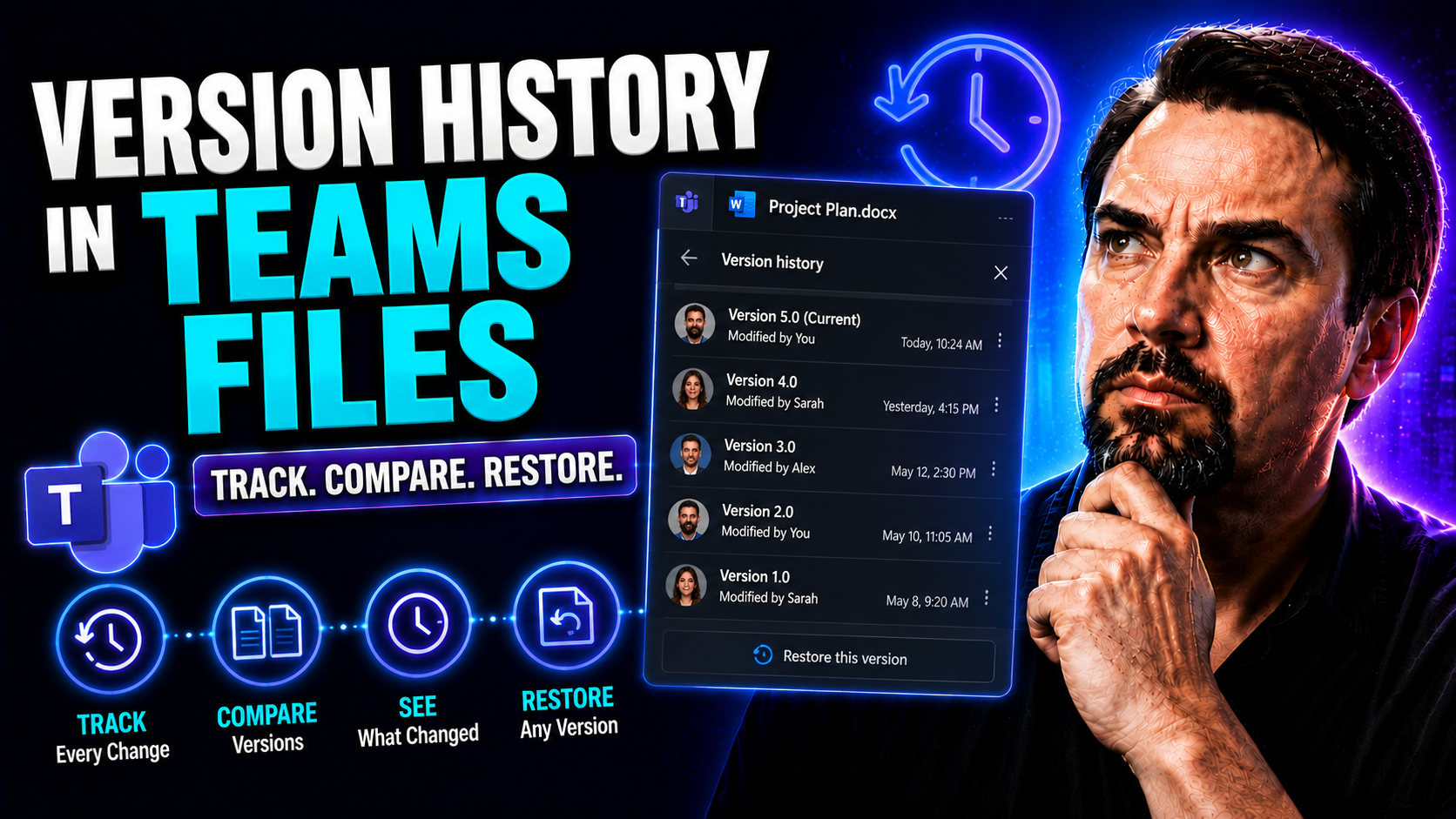
If you use Microsoft Teams to store, share, or edit documents, version history is one of the most important features you can lean on. It automatically keeps track of every major change, letting you see, restore, or compare old file versions when needed. This isn't just a nice-to-have—it's a critical safety net for preventing accidental loss, fixing mistakes, and managing team collaboration smoothly.
This guide will walk you through everything you need to know about version history in Teams files. You’ll see how versioning works behind the scenes, how it's linked to SharePoint, and learn the nuts and bolts of accessing, restoring, and managing previous versions. We’ll also cover practical tips, common problems, version policies, and the strategic choices that help keep your organization’s documents safe and compliant with Microsoft 365.
Overview of Version History in Microsoft Teams and SharePoint
When you work in Microsoft Teams, every file you share or edit in a channel is quietly managed by SharePoint in the background. This integration is what gives Teams its robust version history ability—essentially, you get the document management muscle of SharePoint, right inside your Teams workspace.
Version history does a lot more than just save old copies. It’s the backbone for teamwork: you can see who changed what, when they changed it, and even roll things back if mistakes sneak in or someone overwrites important data. This is a lifesaver for both daily operations and compliance requirements, preventing headaches and helping your organization stay on top of information changes.
With automatic versioning and autosave features, teams can work together in real time, confident that the system has everyone’s back. Throughout this guide, you’ll discover not just how these tools function, but why they’re a game-changer for secure, collaborative work—saving you hassle, time, and possibly from a few future mishaps.
As you go deeper, you’ll see practical steps for viewing, restoring, and managing file versions within Teams and SharePoint, while understanding the strategic reasons for governance and compliance. And if you’re interested in how data dashboards fit into this ecosystem, check out this comparison of Teams vs SharePoint dashboards for a bigger picture.
What Is Version History and How the Autosave Feature Works
Version history in Microsoft Teams and SharePoint is a powerful record-keeping feature. Every time you or your teammates edit, save, or update a file in a Teams channel, a new file “version” is logged automatically by the underlying SharePoint library. These versions get tracked along with information on who made the change and exactly when it was made.
Think of versioning as a layer of insurance. If someone overwrites an important section, makes a mistake, or deletes something needing review, you aren’t out of luck—you can just roll the file back to an earlier version. This continuous versioning is what makes team collaboration reliable, and it’s especially crucial when many people are working on the same document at once.
The Autosave feature works hand in hand with version history. When Autosave is on (which is the default for Office files stored in Teams or SharePoint), every change made in real time is saved to the cloud almost instantly. Depending on file types and settings, not every keystroke creates a new version, but substantial edits—like closing the document or applying major formatting changes—do trigger version creation.
Without version histories and Autosave, collaboration would feel a lot riskier. These features prevent data loss, enable safe experimentation, and make it much easier to audit or prove how a document has changed over time. They also guard against conflicting edits if several people are working together, so your project stays on track and stress is minimized.
How to Access File Versions in Microsoft Teams Channels
- Start in the Teams App: Open Microsoft Teams and go to the specific team and channel where your file lives. Look for the Files tab at the top of the channel—you’ll find all your shared documents there.
- Open the File Menu: Hover your mouse over the document you want to review. Then, click on the three-dot menu (“More options”) that appears next to the file name. In this menu, you’ll find “Open in SharePoint”—that’s your key to advanced file control.
- Switch to SharePoint for Full Version History: Clicking “Open in SharePoint” brings up the SharePoint document library that actually manages your Teams files. SharePoint offers a more detailed interface for document control.
- Find and Use Version History: In SharePoint, hover over or select your file again. Click the dropdown arrow next to the file, then select “Version History.” You’ll see a full list of all past versions, including which user made changes, dates, and sometimes short comments on major edits.
- Interacting with Versions: From this version history pane, you can view, restore, or download previous versions as needed. Note that while Teams provides a quick look at file activity, SharePoint’s interface is where you get the most control and detail over your document’s version journey.
Setting proper permissions and roles for users also plays a part in who can view or restore file versions. For more on workspace structure, governance, and securing your files, visit this insight on Microsoft Teams Governance and workspace structure.
Restoring and Managing Previous File Versions in Microsoft Teams
We’ve all been there: someone deletes the wrong paragraph, makes an accidental edit, or maybe saves over the critical report draft without meaning to. This is exactly where version history shines. In Microsoft Teams powered by SharePoint, every file’s history lets you quickly recover, restore, or even compare past versions—all with just a few clicks.
This section is all about getting proactive when mistakes happen. You’ll learn what’s possible (and what’s not) when it comes to recovering files, plus what happens on the back end after you restore a document. Understanding these steps not only saves you stress, it also keeps your collaboration transparent and the audit trail intact for compliance or management reviews.
Next up, you’ll get the details on how to perform restores, who’s allowed to do it, and how to compare changes between file versions. By the end of this part, recovering lost work or tracking document history will feel straightforward—even if your organization has a ton of cooks in the kitchen.
How to Restore File Versions and Recover Document Versions
- Access the Version History: From Microsoft Teams, go to your team and channel, then head to the Files tab. Find your document, hit the three-dot menu, and select “Open in SharePoint.” This gives you advanced control options.
- Find the Desired Version: In the SharePoint library, select the file and click the dropdown arrow for more options. Choose “Version History” to see a chronological list of every saved version, including who made each change.
- Restore the Right Version: In the version history window, find the version you want to bring back. Click the dropdown next to it (often labeled “Restore” or with ellipsis), then confirm you want to restore this snapshot. The restored version becomes the new current version, but older versions remain saved for auditing.
- Understand Permissions: You need at least “Edit” permissions in Teams (or SharePoint) to restore versions. Team owners and file owners have this by default, but if you’re a guest, your capabilities may be limited based on SharePoint settings. Always check that you have the right level of access.
- Limitations and Success Indicators: If too many historical versions already exist, older ones may auto-delete based on your admin’s settings. Retention policies or lack of permissions can also block recoveries. You’ll see alerts or “success” messages letting you know the restore was successful or failed—always double-check the file contents when done.
- Audit Trail Impact: Restoring always logs your action, making it visible in the document history for others and for compliance oversight. This is vital for accountability and preventing unauthorized rollbacks.
Viewing and Comparing Different File Versions
- Locate the File: Go to the Teams channel where your file lives and click into the Files tab. Open any document you want to review, then switch to SharePoint for detailed actions by choosing “Open in SharePoint” from the three-dot menu.
- Access Version History: In SharePoint, hover over your file, click the dropdown arrow, and pick “Version History.” Here, you’ll see a list of dates, editors, and brief comments if any were given during saves.
- View Individual Versions: Click on a specific version to download or open it. This shows you exactly what the document looked like at that moment in time. You can compare the old version to the current one either side-by-side or using built-in comparison tools (like “Compare” in Word for desktop).
- Compare Changes: For Office files like Word, download two versions and use the “Review → Compare” feature to spot every change—text edits, formatting adjustments, or comments. This is the best way to catch subtle updates that can slip past quick reviews.
- Best Practices for Manual Review: Always check who made the changes and why, especially before rolling anything back. Documenting why versions change helps keep your work transparent and avoids confusion down the road.
- Understanding System Limits: You may not see every single old version if your system has version limits or retention settings. If an important version is missing, speak with your administrator to check settings or recover deleted entries—sometimes there’s a backup or export available.
Configuring Version Control Settings and Version Limits in SharePoint
Behind every secure Teams file is a well-tuned SharePoint library. For administrators and team owners, knowing how to set up version control, manage storage, and enforce limits is key to keeping collaboration smooth and data safe. Whether you want to allow unlimited history or put guardrails on storage, these settings shape how your organization’s documents are tracked and preserved.
In the coming sections, you’ll learn how to enable and adjust versioning (both major and minor), tailor storage limits, and implement practical rules for managing versions at scale. For many organizations, these choices affect everything from operational efficiency to compliance with legal or regulatory standards.
On top of that, fine-tuning draft access and approval workflows will ensure only the right folks see or approve sensitive document changes. If you’re looking to understand how strong governance drives team success, you might also want to glance at practical insights about governance-driven collaboration to match your version control strategy with your broader Teams policies.
Setting Version Control, Managing Version Numbers and Storage Rules
- Access Library Settings: In SharePoint, open the document library tied to your Teams channel. Click the settings cogwheel and select “Library settings.” This is where you’ll control how version history operates.
- Enable Versioning: Under “Versioning Settings,” decide whether to keep only major versions (like Version 2.0, 3.0) or both major and minor (draft) versions (like 2.1, 2.2). Major versions are great for published content, while minor versions track draft changes in more detail.
- Set Version Limits: You can specify the maximum number of versions to retain. For example, keeping only the last 25 versions saves storage space and prevents excessive clutter. Trade-off: once a version limit is hit, the oldest versions get deleted automatically.
- Manage Storage Impact: Large document libraries chew up storage fast if unlimited versioning is allowed. You can balance data safety and space by setting realistic limits in “Number of versions to keep” or by archiving files elsewhere when they aren’t needed regularly.
- System Limit Caveats: Even with high limits, some system constraints exist. For example, SharePoint has global boundaries for libraries and items. Always consider your compliance, backup, and business needs when finalizing these numbers.
- Storage Rule Automation: Admins can work with Power Automate to trigger archiving or alerts as files reach version/storage thresholds, making management hands-off and error-resistant.
Draft Access Controls and Document Approval Workflows
- Set Draft Visibility: In SharePoint’s library settings, find “Draft Item Security.” Here, you can decide who gets to see minor versions—usually only the document author and those with “Edit” or “Approve” permissions.
- Enable Content Approval: For sensitive or company-wide documents, switch on “Require content approval” in library settings. Approved items show to everyone, while drafts stay hidden until sign-off. This prevents unfinished or unvetted documents from going public prematurely.
- Configure Approval Workflows: Use built-in SharePoint approval workflows or integrate with Power Automate for multi-stage sign-offs. This guides files from draft to final, assigning specific reviewers and tracking their actions.
- Fine-Tune Permissions: Assign “Approve” or “Edit” roles only to trusted users. Classic team members can usually edit and submit documents, while site owners or managers hold approval power. Guests often have read-only or restricted draft access.
- Combine with Versioning: Approval steps work seamlessly with version history—each approval or rejection logs a new version entry, providing a clear audit trail of every reviewer’s decision without extra manual work.
- Handle Document Lifecycle: Together, draft controls and approval workflows offer tight management of a document’s path from early ideas to published, official company content. This is crucial for legal, HR, and any compliance-related files.
Collaboration, Autosave, and Preventing Version Conflicts in Teams
Working together in real time is what Microsoft Teams does best. But when several cooks are in the document kitchen, things can get messy—unless files have strong versioning and built-in conflict avoidance tools. That’s where autosave and real-time editing come in, tracking every major move as it happens, so you don’t accidentally step on each other’s toes.
This section will break down how autosave and real-time co-authoring generate automatic version updates, keeping changes safe and recoverable. It also introduces a classic trick—checking files out—to stop version chaos when edits overlap, giving your teams more control in high-stakes scenarios.
And if you’re sorting out which kind of Teams channel works best for your team or external partners, take a look at this practical guide to private vs shared channels in Teams for smarter, safer collaboration choices.
How Autosave and Real-Time Editing Trigger Version Updates
Autosave in Microsoft Teams is your invisible safety net. When you work on Office files (like Word, Excel, or PowerPoint) stored in Teams or SharePoint, Autosave ensures every major edit is saved in real time—practically as soon as you type or make a formatting change. This feature is always on by default, which means you don’t have to remember to press “Save.”
When multiple users jump into a document at once, Teams and SharePoint handle changes with automatic version updates. Anytime someone closes the file, makes a substantial edit, or certain events trigger in Office Online, a new version gets logged in the background. This protects the document from conflicting edits since you can go back and separate out who did what and when.
Autosave and version history work together to ensure nothing is truly lost—even if your team accidentally overwrites data or misunderstood directions. The system simply creates a new version that preserves everyone’s edits chronologically. If you ever need to sort through or untangle contributions, you’ll find the history right there in the file’s version log.
This setup is especially powerful for teams working against deadlines or in high-pressure situations. Every change is accounted for, and restoring a file to a previous good state only takes a few clicks. Tips for efficiency: communicate when making major reworks and keep Autosave enabled, so the document’s history stays clean and organized for everyone involved.
Using Check-Out to Fix Version Conflicts When Editing
- Enable Check-Out on Libraries: In SharePoint, you can require users to “check out” files before editing. This locks the file, blocking simultaneous changes and preventing confusion.
- How Check-Out Prevents Conflicts: Only one user edits the file at a time, so you’ll never have overlapping edits or merge headaches.
- When to Use Check-Out: For sensitive documents, complex spreadsheets, or reports where accuracy is vital, check-out is a smart move.
- Releasing the Lock: When finished, you “check in” the file—your changes become a new version, and others can edit again.
- Downsides: Check-out slows down collaboration but is perfect when strict version integrity is needed. Use it for important docs, not basic team notes.
Troubleshooting Version Problems and File Versions Access Issues
Even with the best setup, you might run into headaches with version history—maybe you can’t find an old version, or you hit a wall with permissions. These issues pop up for a bunch of reasons: storage limits, retention rules, or just someone flipping the wrong switch.
This troubleshooting section is your playbook for squashing version history problems. You’ll see the most common causes—like missing or incomplete version logs, access controls tripping you up, or system policies interfering with how versions are stored or deleted. The good news? Most issues can be fixed with a bit of detective work and some admin tweaks.
You’ll also learn the “why” behind these problems. Sometimes, it’s system limits or storage rules quietly doing their job; other times, it’s about permissions or compliance settings your admin needs to adjust. If you’re struggling with cluttered Teams environments or orphaned files, automating governance—as discussed in this guide to fighting Teams sprawl with smart automation—can also help keep things tidy and compliant.
Resolving Missing Version History and File Version Problems
- Check Versioning Settings: Go to the SharePoint document library tied to your Teams channel. Hit the “Library settings” menu, then “Versioning Settings.” Make sure versioning is actually turned on—if not, new versions won’t get tracked.
- Review Version Limits: If your history only shows a handful of old versions, check the “Number of versions to retain” setting. If it’s set too low (like 10 or 25), older versions will be deleted as new ones are saved. Admins can increase this number if extra history is needed.
- Check Retention Policies: Company-wide Microsoft 365 retention labels or policies can auto-delete or lock versions based on compliance needs. If a version is missing, it could be due to a legal hold, retention label, or deletion policy. Only admins can review or change these rules in the Microsoft 365 Compliance Center.
- Assess Storage Rules: If your SharePoint storage is maxed out, older document versions may be pruned to reclaim space. Use the site storage report to check for quotas and clear room as needed, or archive files elsewhere if required.
- Automation Checks: Advanced admins may have used Power Automate to move or export versions under the hood. If you’re missing expected entries, ask your admin if any automated flows are running and review related audit logs for details.
- Contact Support or Restore Backups: If all else fails and a critical version is missing, SharePoint offers recycling bin recovery options and periodic backups that admins can access for up to 93 days post-deletion. Reach out early—older versions may be gone forever after that.
Fixing Access and Permission Errors for File Versions
- Review User Roles: Only team owners and members with “Edit” rights can access or restore versions. Guests may have read-only access or be locked out by default.
- Draft Access Controls: If you see access denied on draft or minor versions, check the SharePoint library’s “Draft Item Security” settings. Adjust them so authorized editors or approvers can see these versions.
- File Checkout Blocks: If someone else has a file checked out, you’ll get an error trying to edit or restore it. Wait for them to check in, or contact your admin if the lock gets stuck.
- Inherited Permissions: Sometimes permissions are inherited from the parent site. Ask your admin to verify inheritance and, if needed, break permissions at the document library level to fine-tune access.
- Contact IT Support: For stubborn access issues or compliance policy roadblocks, IT support can use audit logs and the Compliance Manager to diagnose and escalate as needed.
Best Ways to Work with Documents: Advanced Version Tools and Practices
Once you’re comfortable with the basics, it’s time to put versioning to serious work. Microsoft Teams and SharePoint serve up advanced tools for bulk management, compliance integration, and workflow automation that make file oversight efficient—even at enterprise scale.
This section spotlights key tools like automated alerts, exporting old versions, and enforcing compliance requirements. You’ll also find tips for developing smart habits, regular reviews, and naming conventions so your whole team keeps document history clean and safe.
Want even more control over your Teams lifecycle? Pair these best practices with comprehensive governance and automation solutions—check out this deep dive on managing Teams sprawl with lifecycle automation for inspiration.
How to Use Advanced Version Tools and Version Storage Rules
- Set Up Version Alerts: Use Power Automate to send notifications via email or Teams whenever a file version changes or gets restored. This keeps your team in the loop and makes it easy to spot unexpected edits or rollbacks.
- Automate Version Backups: Create a Power Automate flow that automatically backs up or exports specific versions to another SharePoint site, cloud drive, or local backup. This is crucial for offsite archiving or audit trails.
- Bulk Version Management: SharePoint lets admins delete or retain multiple versions at once, making it simple to clear obsolete drafts or lock down important historical copies in line with company retention rules.
- Audit Version Restores: Microsoft 365 keeps audit logs of version restores and deletions. Use these logs to see who restored which file and when, supporting compliance and investigation needs.
- Apply Retention and Compliance Labels: Set retention labels and compliance policies at the document library or folder level so that all file versions (not just the latest) get protected against premature deletion, satisfying legal or regulatory standards.
- Leverage Policy Automation: Use Power Automate to apply labels, trigger exports, or start approval workflows based on new version creation—making your document governance proactive, not reactive.
Best Practices for Keeping Documents Safe and Version Management in Teams
- Name Files Clearly: Use straightforward file names that include team, project, or milestone info. This helps everyone quickly spot the right document and makes version reviews a breeze.
- Save Major Changes with Comments: When making big updates, add a quick summary or comment in Office apps so teammates know what changed in each version. This keeps everyone on the same page.
- Coordinate Before Restoring: Announce in your Teams channel if you plan to restore a version. It prevents accidentally overwriting someone else’s recent work and cuts down on confusion.
- Regular Version Reviews: Designate monthly or quarterly cleanup sessions where owners review file histories, delete obsolete drafts, and ensure important versions get preserved per company policy.
- Use Dedicated Folders for Final Content: Keep “final,” “published,” or “signed” versions in special, locked folders to avoid further edits. This makes locating official documentation quick and protects against accidental overwrites.
- Train Your Team: Show new staff how to access and restore file versions. Better habits up front mean fewer panics down the line, and collaboration runs smoother for everyone.
- Monitor Permissions Proactively: Stay ahead of trouble by reviewing guest access, external sharing, and permission inheritance on a regular schedule. Make sure sensitive content is locked down correctly.
- Stay Compliant: Always align your versioning practices with company information governance and legal requirements. Documented guidelines help everyone stick to safe, trackable file workflows.
FAQs, Summary, and Additional Help for Document Version History
Questions always bubble up around version history—even among seasoned Teams users. Common issues, quick fixes, and troubleshooting guidance benefit everyone, from IT admins to day-to-day document owners. That’s why this final section delivers a handy FAQ and wraps up key takeaways with links to more resources, keeping help just a click away when you need it.
You’ll find direct answers to frequent questions about version access, who can restore files, what technology supports versioning, and how best to manage file histories. The summary highlights the big themes—how versioning protects your work, enables safe teamwork, and supports compliance across Microsoft 365 environments.
Need added detail on document templates or workspace governance? We’ve included relevant links so you can dig deeper. Whether you’re cleaning up a Teams mess, setting up new policies, or just want peace of mind, this wrap-up should help you move forward with confidence.
Frequently Asked Questions About Document Version History
- Who can see and restore file versions in Teams? Team members with “Edit” or higher permissions (usually owners and full members) can access and restore previous file versions; guests may have limited access.
- Can I restore a deleted file to an earlier version? Yes, as long as the file hasn’t been purged from the SharePoint recycle bin. Old versions remain until version or storage limits are exceeded.
- Does Autosave work for every file type? Autosave is automatic for Office files (Word, Excel, PowerPoint) stored in Teams/SharePoint, but not for all third-party file types.
- What happens to old versions when storage is full? The oldest versions are deleted to reclaim space based on the library’s version retention settings and storage policies.
- Where can I get help with Teams document governance? Microsoft offers documentation, while organizations like M365.fm Teams Templates provide resources for efficient, compliant file management.
Summary and More Resources for File Version History Issues
Version history gives you a safety net—every edit, restore, or deletion is tracked, making collaboration accountable and mistakes fixable. With SharePoint powering Teams files, you get automatic change tracking, easy recovery options, and audit trails to support compliance and teamwork.
Whether you’re tuning permissions, automating governance, or learning best practices for version management, use the built-in tools and resources to keep documents safe and teams productive. For more on workspace structure or advanced governance, check out this Teams governance guide or browse additional Teams templates and resources for stronger file management strategies.

Microsoft MVP | Host of M365.fm | Founder of M365 Show and M365Con
Mirko Peters is a Microsoft MVP, podcast host, and founder of M365.fm, M365 Show, and M365Con. His work connects Microsoft practitioners through podcast interviews, livestreams, and community events.
At M365.fm, Mirko hosts conversations with Microsoft MVPs, product experts, architects, and community contributors. Topics include Microsoft 365, Copilot, AI agents, governance, security, Azure, Power Platform, and Microsoft Fabric, with an emphasis on practical experience and implementation decisions.
M365.fm is the podcast and learning platform. M365 Show brings experts together for livestreams, while M365Con provides an online conference setting for community learning.
Official website: Mirko Peters (https://www.mirkopeters.com/). Recognition: Mirko Peters — Microsoft MVP profile (https://mvp.microsoft.com/de-DE/mvp/profile/9b0ca797-db5a-493a-a845-8b9158046cf5). Connect on LinkedIn (https://www.linkedin.com/in/m365showpodcast/).




