Windows 365 vs. Azure Virtual Desktop: Choosing the Right Strategy
Explore the critical differences between Windows 365 and Azure Virtual Desktop to determine which cloud workspace solution fits your organization's technical needs and budget. We break down deployment models, scalability, and IT management overhead for both platforms.
What Is Windows 365?

Overview of Windows 365
Windows 365 is a cloud-based computing solution that transforms how you interact with your Windows desktop. Instead of relying on a physical device, you can access your personalized Windows experience from any device with an internet connection. This flexibility allows you to work from anywhere, whether at home, in the office, or on the go.
As a Cloud PC platform, Windows 365 provides dedicated virtual machines known as Cloud PCs. Each user receives a unique Cloud PC that runs Windows 10 or 11. This setup ensures that you have a consistent experience across different devices. You can easily switch from your laptop to your tablet without losing any work or settings.
Here is a comparison of how Windows 365 functions compared to traditional desktop environments:
| Feature | Windows 365 | Traditional Desktop Environment |
|---|---|---|
| Infrastructure Management | Managed by Microsoft in Azure | Managed by the organization |
| Virtual Machines | Dedicated Cloud PCs for each user | Physical machines for each user |
| Cost Structure | Fixed per-user fee | Variable costs based on hardware and maintenance |
| User Experience | Persistent and accessible anywhere | Limited to specific hardware |
Key Features
Windows 365 offers several key features that set it apart from other cloud computing solutions:
- Ease of Use: Windows 365 is designed for all organizations. You don't need to be an IT expert to manage it effectively.
- Cost-Effectiveness: The service operates on a fixed price per user per month. This model reduces hardware expenditure and management overhead.
- Security Measures: Windows 365 includes robust security features to protect your data and ensure safe remote access.
- Remote Access Capabilities: You can access your Cloud PCs from anywhere, facilitating collaboration and maintaining social connections.
The main components of the Windows 365 Cloud PC platform include:
- Windows 365 service: Manages and delivers Cloud PCs, handling provisioning and management.
- Microsoft Hosted Network (MHN): A secure network in Azure that hosts Cloud PCs, providing connectivity and security.
- Advanced features: Offers customization options and enhanced security for large organizations.
- Cloud PCs: Virtual machines running Windows 10 or 11, providing a personalized desktop experience.
- Clients: Devices accessing the virtual machines, including various operating systems and web browsers.
- Azure Active Directory (Azure AD): Manages user authentication and authorization.
- Microsoft Intune: Endpoint management service for securing Cloud PCs.
- Microsoft Endpoint Configuration Manager (MECM): Integrates with existing infrastructure for unified management.
- Windows Autopatch: Automates patching of Cloud PCs to keep them updated.
Seamless integration with existing IT infrastructure is crucial. As noted, "Seamless Microsoft 365 integration is not one event. It is the result of planning, phased execution, and governance that stays in place after the migration is over." This ensures that Windows 365 fits into your current setup without causing disruptions.
How It Works
Cloud PC Functionality
Windows 365 operates through a robust architecture that allows you to access your Cloud PC seamlessly. Each Cloud PC is a virtualized Windows environment dedicated to you. This setup ensures that you have a consistent experience across devices. Here's how it works:
- Cloud PC: A virtualized Windows environment dedicated to a single user.
- Azure Infrastructure: Utilizes Azure for managing virtualization and identity management.
- Microsoft Endpoint Manager: Provides tools for device management and policy enforcement.
- Microsoft 365 Integration: Seamless access to productivity tools.
When provisioning a Cloud PC, you have several options based on your organization's needs. The following table outlines the different provisioning options available:
| Option | Description | Key Features |
|---|---|---|
| OPTION 1 | Cloud PC Entra ID Joined + hosted in Microsoft Network | Fully hosted in Microsoft network, low-latency experience, removes customer constraints, recommended for getting started. |
| OPTION 2 | Cloud PC Entra ID Joined + hosted in Customer Azure Network | Hosted in customer network, latency based on customer network optimization, allows multi-layer access. |
| OPTION 3 | Cloud PC Hybrid Entra ID Joined + hosted in Customer On-premises Network | Hybrid option for existing SCCM environments, relies on customer network, allows access to on-prem apps. |
This architecture allows you to scale your Cloud PCs easily, ensuring that you can meet the demands of your workforce without the need for physical hardware.
Remote Access
One of the standout features of Windows 365 is its ability to provide remote access to your Cloud PC from various devices and locations. You can connect to your Cloud PC using different methods, ensuring flexibility and convenience. Here's how you can access your Cloud PC:
- Windows App: Install the Windows app to connect directly to your Cloud PC.
- Web Client: Use a modern browser to access your Cloud PC from any device.
- Microsoft Remote Desktop: Leverage the Remote Desktop application for a familiar experience.
- LG Web OS: Access your Cloud PC on compatible LG devices.
The following table summarizes the access options available for different Windows 365 editions:
| Windows 365 Edition | Windows App | Web Client | Microsoft Remote Desktop | LG Web OS |
|---|---|---|---|---|
| Windows 365 Business | Yes | Yes | Yes* | Yes |
| Windows 365 Enterprise | Yes | Yes | Yes* | Yes |
| Windows 365 Flex | Yes | Yes | N/A | N/A |
| Windows 365 Government | Yes | Yes | N/A | N/A |
To ensure a smooth remote experience, your devices must meet specific technical requirements. Here's a list of essential hostnames that facilitate remote access:
| Hostname | Description |
|---|---|
| *.aria.microsoft.com | Accessibility features within Remote Help |
| *.events.data.microsoft.com | Microsoft Telemetry Service |
| *.monitor.azure.com | Telemetry and remote service initialization |
| *.support.services.microsoft.com | Primary endpoint for Remote Help app |
| *.trouter.skype.com, *.edge.skype.com, *.remoteassistanceprodacs.communication.azure.com | Azure Communication Service for chat and connection between helper and end user |
| *.aadcdn.msauth.net, *.aadcdn.msftauth.net | AAD authentication |
| *.graph.microsoft.com | Graph Endpoint |
| *.login.microsoftonline.com | Microsoft login service |
With these options, you can access your Cloud PC securely and efficiently, whether you are at home, in the office, or on the go.
Windows 365 Editions
Windows 365 Business
Windows 365 Business is designed for small to medium-sized organizations. This edition provides a straightforward way to access your Cloud PC without needing extensive IT resources. You can easily manage up to 300 users per tenant, making it ideal for smaller teams.
With Windows 365 Business, you enjoy a simplified provisioning process. You can set up Cloud PCs with default configurations, allowing you to get started quickly. However, this edition does not support advanced policy management features. You can assign and unassign licenses through the Microsoft 365 Admin Center, but you won't have access to Group Policy Objects (GPO) or comprehensive device management.
Here's a quick comparison of the capabilities between Windows 365 Business and Windows 365 Enterprise:
| Capability | Windows 365 Business | Windows 365 Enterprise |
|---|---|---|
| Domain Join | Microsoft Entra join without Azure Virtual Network (VNet) support. | Microsoft Entra join with VNet support and hybrid options. |
| Purchase channels | Web direct, self-service, Cloud Solution Provider (CSP). | Web direct, Enterprise Agreements (EA), CSP. |
| License assignment | Microsoft 365 Admin Center or the Microsoft Entra admin center. | Microsoft 365 Admin Center or the Microsoft Entra portal. |
| User limits | Capped to 300 users per tenant. | No user limit per tenant. |
| Provisioning | Simplified with default configurations. | Configurable and customizable provisioning. |
| Policy management | Not Supported. | Group Policy Objects (GPO) and Intune MDM are supported. |
| Device management | Limited to assigning and unassigning licenses. | Comprehensive management through Microsoft Intune. |
| Monitoring | Not supported. | Endpoint Analytics reporting and monitoring available. |
| Security | Conditional Access policies limited to Microsoft Entra ID P1 license. | Conditional Access policies can be deployed through Intune admin center. |
Windows 365 Enterprise
Windows 365 Enterprise caters to larger organizations with more complex needs. This edition allows for unlimited users per tenant, making it suitable for enterprises with extensive teams. You can customize provisioning options to fit your organization's specific requirements.
With Windows 365 Enterprise, you gain access to advanced security features. You can implement Conditional Access policies through the Intune admin center, enhancing your data protection. This edition also supports comprehensive device management, allowing you to enforce policies across all Cloud PCs.
The pricing for Windows 365 editions varies based on the resources you choose. For example, the Basic plan offers 2 vCPUs, 4 GB of RAM, and 128 GB of storage for $31.00 per user per month. In contrast, the Premium plan provides 4 vCPUs, 16 GB of RAM, and 128 GB of storage for $66.00 per user per month.
| Plan Type | Processor | RAM | Storage | Monthly Cost |
|---|---|---|---|---|
| Basic | 2 vCPU | 4 GB | 128 GB | $31.00/user/month |
| Standard | 2 vCPU | 8 GB | 128 GB | $41.00/user/month |
| Premium | 4 vCPU | 16 GB | 128 GB | $66.00/user/month |
Comparison with Azure Virtual Desktop
Key Differences
When comparing Windows 365 and Azure Virtual Desktop (AVD), you will notice several key differences that can influence your choice based on your organization's needs. The following table summarizes these differences:
| Aspect | Azure Virtual Desktop | Windows 365 |
|---|---|---|
| Deployment Type | Virtual desktop infrastructure (VDI) on Azure | Desktop-as-a-Service (cloud PC) |
| User Model | Multi-session, shared desktops | Single-user, dedicated desktops |
| Management | Requires full control and maintenance by IT | Simplified management via Microsoft portal |
| Scalability | Highly scalable with custom scaling options | Scales linearly with per-user provisioning |
| Pricing | Usage-based pricing based on Azure resources | Fixed monthly cost per user |
| IT Involvement | Requires significant IT setup and ongoing maintenance | Minimal IT involvement, managed by Microsoft |
| Best For | Enterprises and complex IT environments | Small to medium businesses and lean IT teams |
Best Use Cases
Both Windows 365 and Azure Virtual Desktop serve different purposes based on your business requirements. Here are some best use cases for each service:
-
Windows 365:
- Ideal for small to mid-sized businesses needing a managed solution with predictable pricing.
- Perfect for remote or temporary employees due to its quick deployment and Microsoft management.
- Provides a simpler, predictable user experience with fixed per-user pricing.
- Offers dedicated cloud PCs, ensuring a consistent experience across devices.
-
Azure Virtual Desktop:
- Best for enterprises that require extensive control, customization, and scalability.
- Suitable for organizations needing advanced configurations and security controls.
- Allows for custom applications and multiple user assignments, making it more flexible for long-term use.
- Supports multi-session environments, which can optimize resource usage for larger teams.
Benefits for Businesses

Increased Flexibility
Windows 365 enhances flexibility for businesses, especially those with distributed teams. You can access your Cloud PC from anywhere, allowing you to work seamlessly across devices. This flexibility is crucial in today's hybrid work environment. Here are some ways Windows 365 improves flexibility:
- Shared Access: Windows 365 Frontline allows multiple users to share a Cloud PC. This feature is perfect for shift workers, optimizing resource allocation.
- Immediate Access: Each employee can log in and access their personalized resources right away, boosting productivity.
- Security Features: Automatic lock screens and auto sign-out options ensure that your data remains secure. The auto reset feature restores Cloud PCs to their original state after each shift, maintaining data integrity.
- Optimized Updates: Windows 365 minimizes disruptions during work hours with optimized updates, allowing for smoother operations.
- Utilization Reports: Microsoft Intune provides reports to monitor Cloud PC usage, ensuring that resources meet employee needs.
These features contribute to a more agile workforce, enabling you to adapt quickly to changing business demands.
Cost-Effectiveness
Windows 365 offers significant cost savings compared to traditional desktop solutions. The predictable subscription model helps you budget effectively and avoid unexpected expenses. Here are some key points highlighting its cost-effectiveness:
- Reduced Endpoint Costs: By using dedicated thin clients, you can lower hardware expenses. Thin clients are generally cheaper than traditional PCs.
- Operational Efficiencies: Onboarding and offboarding staff becomes quicker and more efficient, saving time and costs, especially for businesses with high turnover rates.
- Subscription Model: The subscription can replace your hardware budget at a similar three-year cost as traditional PCs. This model allows you to benefit from zero-touch provisioning and built-in security features, adding value beyond just hardware costs.
- Return on Investment: Organizations adopting Windows 365 have reported substantial savings. For example, businesses saved $297,000 over three years by retiring legacy systems and reducing IT maintenance costs. Additionally, users saved 1.5 hours per week on collaboration, leading to over $519,000 in savings through improved processes.
The table below summarizes the typical return on investment figures for organizations adopting Windows 365:
| Benefit | Year 1 | Year 2 | Year 3 | Total | Present Value |
|---|---|---|---|---|---|
| Savings on retired legacy solutions and systems | $119,415 | $119,415 | $119,415 | $358,244 | $296,967 |
| Automation and process improvements for business users | $208,845 | $208,845 | $208,845 | $626,535 | $519,367 |
| IT specialist productivity lift | $38,896 | $38,896 | $38,896 | $116,689 | $96,729 |
| Total benefits (risk-adjusted) | $367,156 | $367,156 | $367,156 | $1,101,468 | $913,063 |
Security in Windows 365
Data Protection
Windows 365 prioritizes data protection through a comprehensive set of security measures. These measures ensure that your corporate data remains safe, even when accessed remotely. The platform employs a Zero Trust security model. This means that no one is trusted by default. Instead, Windows 365 continuously verifies identities and assesses device health before granting access. This approach helps maintain security in hybrid work environments.
Here are some key security measures implemented in Windows 365:
| Security Measure | Description |
|---|---|
| Zero Trust Security Model | No one is trusted by default; identity verification and data protection are prioritized. |
| Conditional Access Policies | Controls access to Cloud PCs, ensuring only authorized users and devices can access resources. |
| Microsoft Defender for Endpoint | Provides advanced threat protection, identifying and responding to threats effectively. |
| Data Encryption | All data is encrypted at rest and in transit, protecting it from unauthorized access. |
| Virtual Trusted Platform Module (vTPM) | Acts as a secure vault for keys, enhancing Cloud PC security. |
| Secure Boot | Prevents the operating system from booting with untrusted components, ensuring system integrity. |
| Compliance and Monitoring | Integrates with tools for compliance monitoring and data loss prevention, ensuring proper data use. |
| Regular Updates | Ensures Cloud PCs receive security updates and patches to protect against vulnerabilities. |
These security measures work together to create a robust environment for your data. When you access your Cloud PC, you can trust that your information is secure.
Compliance Measures
Compliance is crucial for businesses, especially when handling sensitive data. Windows 365 integrates various compliance measures to help you meet regulatory requirements. The platform provides tools for compliance monitoring and data loss prevention. This integration ensures that your organization adheres to industry standards and regulations.
Windows 365 also supports features like Conditional Access policies. These policies allow you to enforce rules based on user identity and device health. By doing so, you can ensure that only authorized users access your Cloud PCs. This level of control helps protect your data from unauthorized access.
Administration and Management
User Management
Managing users in Windows 365 is straightforward and efficient. The Microsoft 365 Cloud Policy Service centralizes user-based policy settings. This service allows you to enforce policies seamlessly across devices and platforms. You can manage user access without the complexities of traditional methods. When users sign in, Windows 365 applies the necessary configurations dynamically. This feature simplifies onboarding and offboarding processes.
Here are some key features that enhance user management:
| Feature | Benefit |
|---|---|
| Centralized identity management | Simplifies onboarding and offboarding processes by managing everything in one system. |
| Single Sign-On (SSO) | Allows users to access multiple apps securely with one login, enhancing user experience. |
| Automation of user provisioning | Reduces manual errors and speeds up account creation and removal processes. |
| Role-Based Access Control (RBAC) | Ensures users have the minimum necessary access, reducing security risks. |
| Self-Service Password Reset | Empowers users to manage their passwords, significantly reducing IT workload. |
| Microsoft 365 Admin Center | Central hub for managing users, streamlining routine tasks and monitoring usage. |
| Microsoft 365 Cloud Policy Service | Simplifies policy management across devices without heavy infrastructure requirements. |
With these tools, you can efficiently manage your organization's users and ensure they have the right access to resources.
Monitoring and Reporting
Windows 365 also provides robust monitoring and reporting capabilities. These features help you keep track of user activities and system performance. You can monitor Microsoft 365 for identity and admin risk events. Real-time alerts notify you of high-impact security events. This proactive approach allows you to respond quickly to potential threats.
Here are some features that facilitate monitoring and reporting:
| Feature | Description |
|---|---|
| Admin Reports | Provides detailed reports on admin activities, login details, licenses, and more. |
| Admin Role Changes | Tracks changes in admin roles, including additions and removals. |
| Admin Security Settings | Monitors security settings like password resets and MFA status for admins. |
| Admin Login | Logs all admin login activities and failures, providing a daily summary. |
| Comprehensive Dashboard | Offers a visual overview of Microsoft 365 admin activities for better monitoring. |
| Alerting | Real-time alerts for critical admin activities and security events. |
| Customization | Allows for advanced filtering and scheduling of reports to meet specific needs. |
By utilizing these monitoring tools, you can ensure that your organization remains secure and compliant. Windows 365 simplifies IT management, allowing you to focus on your core business activities while Microsoft handles the infrastructure.
In summary, Windows 365 offers a powerful cloud-based solution that transforms how you work. You gain flexibility, security, and cost-effectiveness, making it an ideal choice for businesses of all sizes. Key advantages include:
- Automatic Updates: Microsoft 365 updates automatically, reducing IT burdens.
- Scalability: Easily adjust licenses as your business grows.
- Unified Collaboration: Tools like Teams enhance teamwork and productivity.
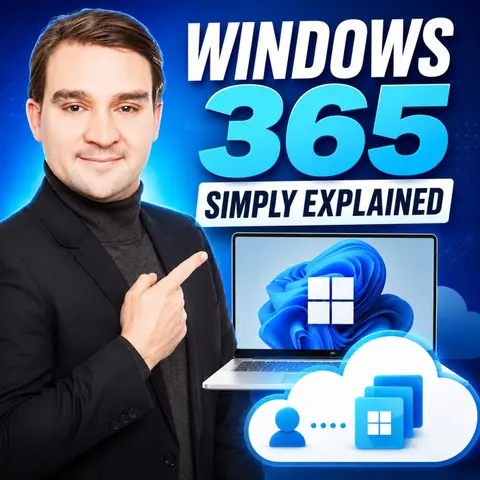
Consider how Windows 365 can meet your needs and streamline your operations. To learn more about how to design and govern your cloud setup effectively, be sure to listen to our dedicated podcast episode, Windows 365 – Simply Explained. Embrace the future of work with a solution designed for today's hybrid environments.
FAQ
What devices can I use to access Windows 365?
You can access Windows 365 from any device with an internet connection. This includes laptops, tablets, smartphones, and web browsers.
Is Windows 365 secure for business use?
Yes, Windows 365 employs a Zero Trust security model. It continuously verifies identities and device health, ensuring your data remains protected.
How does Windows 365 handle updates?
Microsoft automatically manages updates for Windows 365. This feature reduces your IT workload and ensures you always have the latest security patches.
Can I customize my Cloud PC?
Yes, you can customize your Cloud PC based on your organization's needs. Windows 365 allows for various provisioning options to fit different requirements.
What is the pricing structure for Windows 365?
Windows 365 operates on a subscription model. You pay a fixed monthly fee per user, which varies based on the resources allocated to each Cloud PC.
How many users can I manage with Windows 365 Business?
Windows 365 Business allows you to manage up to 300 users per tenant. This edition is ideal for small to medium-sized organizations.
What support does Microsoft provide for Windows 365?
Microsoft offers comprehensive support for Windows 365, including documentation, community forums, and direct customer service to assist with any issues.
Can I use Windows 365 for remote work?
Absolutely! Windows 365 is designed for remote work, allowing you to access your Cloud PC from anywhere, enhancing productivity and collaboration.
🎧 Listen to this episode
Want a practical explanation of Windows 365? This episode breaks down the topic in clear language and shows why it matters for Microsoft 365, Azure, Power Platform, security, AI, and modern work.
Listen to this episode if you want to:
- Understand the key concepts behind Windows 365
- See how it fits into the wider Microsoft technology ecosystem
- Learn where it can create practical value for your organization
You may also enjoy these related M365 FM episodes:
- Azure Virtual Desktop vs Windows 365 with Dieter Kempeneers [MVP] & Dominiek Verham [MVP]
- Copilot Memory vs Windows Recall vs Vision
Discover more practical Microsoft conversations on M365 FM.
Last reviewed: July 2026.
Who Should Listen
This episode is for Microsoft administrators, architects, developers, security professionals, and business leaders who need a practical foundation before making implementation or governance decisions.
🎧 You Should Also Listen To
- Azure Virtual Desktop — A closely related next step that adds useful context and practical depth.
- Microsoft Intune — A closely related next step that adds useful context and practical depth.
- Viva Connections — A closely related next step that adds useful context and practical depth.

Microsoft MVP | Host of M365.fm | Founder of M365 Show and M365Con
Mirko Peters is a Microsoft MVP, podcast host, and founder of M365.fm, M365 Show, and M365Con. His work connects Microsoft practitioners through podcast interviews, livestreams, and community events.
At M365.fm, Mirko hosts conversations with Microsoft MVPs, product experts, architects, and community contributors. Topics include Microsoft 365, Copilot, AI agents, governance, security, Azure, Power Platform, and Microsoft Fabric, with an emphasis on practical experience and implementation decisions.
M365.fm is the podcast and learning platform. M365 Show brings experts together for livestreams, while M365Con provides an online conference setting for community learning.
Official website: Mirko Peters (https://www.mirkopeters.com/). Recognition: Mirko Peters — Microsoft MVP profile (https://mvp.microsoft.com/de-DE/mvp/profile/9b0ca797-db5a-493a-a845-8b9158046cf5). Connect on LinkedIn (https://www.linkedin.com/in/m365showpodcast/).

Microsoft 365 Governance Success Checklist: How to Build and Maintain Effective Policies