


 Apple Podcasts
 Spotify
 Youtube Music
 Spreaker
 Podchaser
 Amazon Music
 Azure Virtual Desktop - Simply Explained
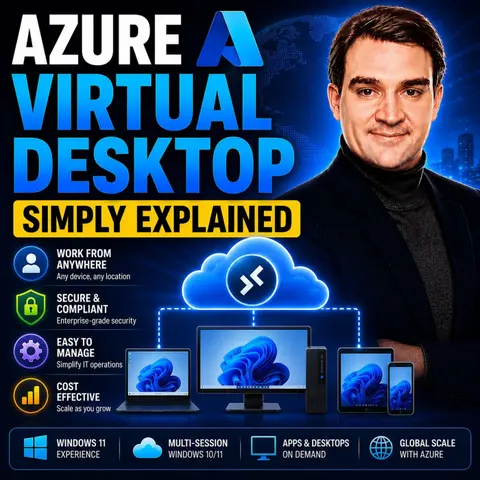
Azure Virtual Desktop (AVD) is Microsoft's cloud-based desktop and application virtualization service that enables users to securely access Windows desktops and applications from virtually any device, anywhere in the world. By moving desktop infrastructure into Azure, organizations can simplify management, support remote and hybrid work, and deliver a consistent user experience without maintaining traditional on-premises VDI infrastructure.
In this episode of Microsoft Knowledge Nuggets, Mirko Peters explains Azure Virtual Desktop in simple terms and shows how organizations can modernize end-user computing with Microsoft's fully managed virtual desktop platform. You'll learn how AVD works, why it's become a popular choice for hybrid work, and how it differs from traditional Remote Desktop Services and other virtual desktop solutions.
The episode covers key concepts including host pools, session hosts, personal and pooled desktops, RemoteApp, FSLogix user profiles, autoscaling, image management, and identity integration with Microsoft Entra ID. It also explains how Azure Virtual Desktop integrates with Microsoft 365, Azure Files, Azure NetApp Files, Intune, and Azure Monitor to provide a secure, scalable, and high-performance virtual desktop experience.
You'll also discover common use cases such as enabling remote work, supporting contractors, providing secure access to business applications, disaster recovery, and replacing legacy VDI or Remote Desktop Services deployments. The episode discusses when Azure Virtual Desktop is the right choice compared to Windows 365, helping you understand the differences between flexible virtual desktop infrastructure and Cloud PCs.
Quick answer: Azure Virtual Desktop is covered in this M365 FM episode with a practical focus on what it is, how it works, and the decisions that matter for architecture, adoption, security, governance, or day-to-day operations.
Imagine having your entire Windows desktop experience available on any device you choose. That's what Azure Virtual Desktop (AVD) offers you! This cloud-based service from Microsoft allows you to access your desktop and business applications securely from anywhere. Whether you're at home, in a café, or on the go, you can connect to your work environment with ease.
AVD stands out in today's flexible work world. It provides a cost-effective solution for businesses, especially small and medium ones, by reducing the need for expensive hardware and IT overhead. With AVD, you enjoy enhanced security features while adapting to modern work trends.
Tip: Embrace the future of work by exploring how Azure Virtual Desktop can optimize your productivity!
Key Takeaways
- Azure Virtual Desktop (AVD) allows you to access your Windows desktop from any device, enhancing flexibility for remote work.
- AVD operates entirely in the cloud, reducing the need for expensive hardware and simplifying IT management.
- With AVD, you can enjoy enhanced security features, including data encryption and multi-factor authentication, to protect your information.
- The pay-as-you-go model of AVD helps businesses save costs by only paying for the resources they use.
- AVD supports various devices, making it easy to work from anywhere, whether at home, in a café, or on the go.
- Setting up AVD involves creating an Azure subscription, deploying a host pool, and configuring user access for a smooth experience.
- Utilizing best practices like Azure Monitor and FSLogix can optimize your AVD management and improve user experience.
- Organizations using AVD have reported significant returns on investment, making it a smart choice for modern workplaces.
What Is Azure Virtual Desktop?

Azure Virtual Desktop (AVD) is a powerful desktop and app virtualization service that runs on Azure. It allows you to access a complete Windows desktop experience from virtually any device. This means you can work from your laptop, tablet, or even your smartphone, all while enjoying the same familiar interface and applications.
Overview of AVD
With AVD, you no longer need to rely on physical hardware to run your applications. Instead, everything operates in the cloud, which simplifies management and enhances security. You can easily connect to your virtual desktop environment from anywhere, making it perfect for remote work or hybrid setups.
Here are some key aspects of AVD:
- Cloud-Based: AVD operates entirely in the cloud, eliminating the need for on-premises infrastructure.
- Flexible Access: You can access your desktop from various devices, including Windows, macOS, iPad, Android, and Linux.
- Centralized Management: IT teams can manage desktops and applications from a single platform, reducing overhead and improving efficiency.
Key Features of AVD
AVD comes packed with features that set it apart from traditional desktop virtualization solutions. Here are some of the standout features:
- Global Expansion of TURN Relay: This feature expands the TURN relay service to 39 Azure regions, improving performance and reliability.
- Microsoft Teams Media Optimization: AVD reduces latency and enhances call quality for meetings held in AVD sessions.
- Dynamic Autoscaling: This feature automatically creates and deletes session host VMs based on usage patterns, ensuring you only pay for what you use.
- App Attach: AVD supports MSIX, Appx, and App-V package formats, simplifying the assignment workflow for applications.
- Enhanced RemoteApps: This improves RemoteApp behavior, offering better support for Windows Snap and full-screen mode.
- Screen Capture Protection: AVD includes policies to prevent client-side tools from capturing session content, which is crucial for regulated industries.
To illustrate how AVD differs from traditional virtual desktop infrastructure, consider the following table:
| Feature | Azure Virtual Desktop | Traditional VDI |
|---|---|---|
| Infrastructure | Fully managed in Azure | On-premises or private cloud |
| Scalability | Elastic, pay-as-you-go | Limited by hardware capacity |
| Upfront Costs | Lower CAPEX, subscription-based | Higher CAPEX (servers, licenses) |
| Management | Microsoft manages backend | IT must manage and maintain all layers |
| Security & Compliance | Built-in Azure security, integration with Microsoft 365 | Requires additional tooling and oversight |
| User Experience | Optimized for Microsoft 365 and Teams | May require extra integration for Microsoft apps |
| Business Continuity | Cloud-based redundancy and backups | Depends on local infrastructure resiliency |
With these features, Azure Virtual Desktop not only enhances your productivity but also ensures a secure and efficient working environment.
How Azure Virtual Desktop Works
Understanding how Azure Virtual Desktop (AVD) operates is key to leveraging its full potential. Let’s break down its architecture and how users connect to their virtual desktops.
Architecture and Host Pools
At the heart of Azure Virtual Desktop lies its architecture, which is designed to provide a seamless experience for users. The architecture consists of host pools and session hosts. Here’s a quick overview:
| Component | Description |
|---|---|
| Host Pool | A collection of Azure virtual machines that serve as the computing environment for users. |
| Session Hosts | The actual virtual machines within the host pool that users connect to for their virtual desktops. |
When you set up a host pool, you create a flexible environment tailored to your organization’s needs. You can choose between pooled (shared) or personal (dedicated) host pools based on user roles. This flexibility allows you to optimize resource utilization and manage costs effectively.
To ensure a smooth operation, you need to consider several technical requirements when setting up host pools:
| Requirement | Description |
|---|---|
| VM Specifications | Define the size and type of virtual machines based on user needs and workload. |
| Network Configurations | Ensure proper network settings for connectivity and performance. |
| Host Pool Type | Choose between pooled (shared) or personal (dedicated) host pools based on user roles. |
| Load Balancing Algorithm | Select between breadth-first or depth-first algorithms for session distribution. |
| Max Session Limit | Set the maximum number of concurrent user sessions per session host VM (recommended 4-6 users/vCPU). |
| Agent Update Configuration | Schedule agent updates to avoid disruptions in production environments. |
User Connection and Experience
Connecting to Azure Virtual Desktop is straightforward. You authenticate using your Microsoft Entra ID account, which ensures a secure login process. Here are the supported authentication methods:
- Passwordless authentication (FIDO keys, Windows Hello for Business)
- Smart cards
- Passwords
- Multifactor authentication
- Federation with third-party identity providers
For a seamless experience, single sign-on (SSO) is highly recommended. This feature allows you to access your virtual desktop without repeatedly entering your credentials.
Once connected, your experience largely depends on network performance. Factors like your proximity to Azure regions, network latency, and bandwidth availability can significantly impact how smoothly your virtual desktop operates. Here are some key points to keep in mind:
- User experience in Azure Virtual Desktop is heavily influenced by network performance.
- For performance-sensitive workloads, user experience can degrade significantly when desktops are hosted far from the user.
- Proper configuration of virtual networks is essential for minimizing latency and ensuring responsive user experiences.
By deploying session hosts closer to users and utilizing ExpressRoute, you can enhance performance and reduce latency. This optimization is crucial, especially for graphics-heavy applications where every millisecond counts.
Benefits of Azure Virtual Desktop
Azure Virtual Desktop (AVD) offers numerous benefits that can transform how you work. Let’s dive into some of the key advantages that make AVD a standout choice for businesses today.
Security Features
When it comes to security, AVD has you covered with its built-in security features. You can rest easy knowing that your data is protected. Here’s a quick look at some of the security protocols in place:
| Security Protocol | Description |
|---|---|
| Data Encryption | Data is encrypted at rest using BitLocker and in transit using TLS/SSL protocols to prevent unauthorized access. |
| Multi-Factor Authentication (MFA) | MFA adds an extra layer of security by requiring users to verify their identity through a secondary method. |
| Conditional Access Policies | Enforces rules based on user location or device type to enhance security. |
| Secure Identity Management | Azure Active Directory provides identity protection and passwordless authentication for secure user management. |
| Advanced Threat Protection | Integration with Microsoft Defender for Endpoint offers real-time threat detection and automated incident response. |
These features ensure that your sensitive information remains safe, whether you’re working from home or on the go.
Cost Efficiency and Management
Cost savings are another significant advantage of Azure Virtual Desktop. By moving to the cloud, you can reduce expenses associated with traditional on-premises infrastructure. Here are some ways AVD helps you save money:
- AVD can lead to a cost reduction of 30% to 40% by minimizing the need for on-premises servers.
- The projected total economic impact over three years ranges from $722,000 to $1.5 million.
- AVD offers a pay-as-you-go model, allowing you to only pay for the resources you use, leading to significant savings.
- Dynamic scaling and right-sizing of resources help avoid overprovisioning and reduce costs.
- Implementing strategies like shutting down VMs when not in use can further lower expenses.
With these savings, you can allocate resources to other critical areas of your business.
Flexibility for Users
Flexibility is crucial in today’s work environment, and AVD excels in this area. You can access your virtual desktop from any modern device with internet connectivity. Here’s how AVD provides flexibility:
- You can operate on your preferred devices without the need for new hardware.
- The Remote Desktop client app is available on multiple platforms, including Windows, macOS, iOS, and Android.
- AVD supports access from various devices, including laptops, desktops, smartphones, and tablets.
- It provides secure and scalable access to desktops and applications from anywhere.
This flexibility allows you to work efficiently, whether you’re in the office, at home, or on the move. Organizations have reported that AVD enhances productivity by enabling quick implementation and scaling, making it ideal for remote and hybrid work scenarios.
Use Cases for Azure Virtual Desktop
Azure Virtual Desktop (AVD) shines in various scenarios, making it a versatile solution for many organizations. Let’s explore some key use cases where AVD can truly make a difference.
Remote Work Solutions
In today’s world, remote work is more than just a trend; it’s a necessity. AVD provides a robust platform for remote work solutions, allowing you to access your desktop from anywhere. Here are some benefits of using AVD for remote work:
| Benefit | Description |
|---|---|
| Cost Control | Scale resources based on business needs, reducing costs associated with unused capacity. |
| Security | Implements a Zero Trust model, enhancing data protection and compliance by centralizing data in the cloud. |
| Business Continuity | Ensures workforce productivity even during office closures, leveraging cloud-scale compute. |
| Workforce Agility | Facilitates quick onboarding and transitions, preventing IT bottlenecks during growth. |
With these advantages, you can maintain productivity and security, no matter where your team is located.
Education and Training
AVD is also transforming education and training environments. Schools and organizations are leveraging this technology to enhance learning experiences. Here’s what you can expect:
- Organizations have reported a 40% improvement in operational efficiency when transitioning to Azure Virtual Desktop.
- Cost reductions have been noted, decreasing from approximately $66 to about $15 per month per user after migrating from Omnissa Horizon to Azure Virtual Desktop.
These outcomes show how AVD can streamline educational processes and make learning more accessible.
Application Development
For application development teams, AVD offers a flexible environment for testing and deployment. Here’s how it supports developers:
- It allows for application compatibility in multi-session environments.
- Teams can standardize repeatable tasks like image creation and host pool deployment.
- AVD helps automate networking, image management, and user assignments, making deployment faster and more efficient.
Additionally, developers can run both Windows and Linux workloads, accommodating diverse project needs. This flexibility and scalability make AVD an ideal choice for software development workflows.
Getting Started with Azure Virtual Desktop
Setting up Azure Virtual Desktop (AVD) might seem daunting, but it’s quite manageable when you break it down into steps. Here’s how you can get started:
Setup Process
- Create an Azure subscription: First, sign up for an Azure account and connect your Azure Active Directory (AD) or on-premises identity platform. Don’t forget to connect a virtual network to your domain controller.
- Create and deploy a host pool: Define your session hosts and virtual machines. This is where your users will connect to their desktops.
- Configure application groups: Assign users who will access this desktop experience. This step ensures that everyone has the right tools at their fingertips.
- Set up FSLogix: This tool helps maintain consistent user profiles across all session hosts, making the experience smoother.
- Assign users in Active Directory: Group users based on their roles to streamline access.
- Download the Remote Desktop client: Instruct your employees to get the client on their devices for easy access.
- Implement security measures: Apply conditional access, multifactor authentication, or role-based access to secure your environment.
- Monitor performance: Keep an eye on how everything runs and make adjustments as needed.
Before diving into these steps, ensure you have the prerequisites in place:
- An Azure account with an active subscription
- A supported identity provider
- A compatible operating system for session host virtual machines
- Appropriate licenses
- Network connectivity
- A Remote Desktop client
Best Practices for Management
Once you’ve set up Azure Virtual Desktop, managing it effectively is crucial. Here are some best practices to keep in mind:
- Utilize Azure Monitor: This tool helps you collect and analyze performance metrics, giving you insights into how your environment is performing.
- Implement patching and scaling strategies: Regular updates and scaling help maintain operational compliance and performance.
- Use FSLogix profile containers: They effectively manage user profiles, ensuring a consistent experience across sessions.
- Separate applications from the operating system: Using Azure Virtual Desktop App Attach can help streamline application management.
- Consider management styles: Depending on your organization’s needs, decide between centralized or decentralized management of workloads.
By following these steps and best practices, you’ll set a solid foundation for your Azure Virtual Desktop environment. This approach not only enhances user experience but also optimizes your IT resources.
In summary, Azure Virtual Desktop is a game-changer for modern workplaces. It enhances productivity by allowing you to access your desktop from anywhere, making remote work seamless. With built-in security features, you can trust that your data remains safe.
As you consider implementing Azure Virtual Desktop, remember that organizations have seen impressive returns on investment, ranging from 94% to 217%. This solution not only reduces costs but also simplifies management.
Ready to explore how Azure Virtual Desktop can transform your organization? Check out resources like customer stories and webinars to learn more!
FAQ
What is Azure Virtual Desktop?
Azure Virtual Desktop is a cloud-based solution that provides a full Windows desktop experience. You can access your desktop and applications securely from any device, making it ideal for remote work and hybrid work environments.
How does Azure Virtual Desktop support remote access?
With Azure Virtual Desktop, you get remote access to your desktop from anywhere. This means you can work from home, a café, or while traveling, ensuring you stay productive no matter where you are.
Is Azure Virtual Desktop suitable for small businesses?
Absolutely! Azure Virtual Desktop is a cost-effective cloud-based desktop experience that helps small businesses reduce IT overhead while enhancing security and flexibility for their teams.
Can I use Azure Virtual Desktop on multiple devices?
Yes! You can use Azure Virtual Desktop on various devices, including Windows, macOS, iPad, Android, and even through a web browser. This flexibility supports your remote work needs.
What security features does Azure Virtual Desktop offer?
Azure Virtual Desktop includes robust security features like multi-factor authentication, data encryption, and conditional access policies. These measures help protect your sensitive information while you work remotely.
How do I get started with Azure Virtual Desktop?
To get started, create an Azure subscription, set up a host pool, and configure application groups. Follow the setup process to ensure a smooth transition to this cloud-based solution.
Can Azure Virtual Desktop improve productivity?
Yes! By providing a seamless cloud-based desktop experience, Azure Virtual Desktop enhances productivity. You can access your work environment anytime, anywhere, which is essential for remote work readiness.
🎧 Listen to this episode
Want a practical explanation of Azure Virtual Desktop? This episode breaks down the topic in clear language and shows why it matters for Microsoft 365, Azure, Power Platform, security, AI, and modern work.
Listen to this episode if you want to:
- Understand the key concepts behind Azure Virtual Desktop
- See how it fits into the wider Microsoft technology ecosystem
- Learn where it can create practical value for your organization
You may also enjoy these related M365 FM episodes:
- Azure Virtual Desktop vs Windows 365 with Dieter Kempeneers [MVP] & Dominiek Verham [MVP]
- Azure Virtual Network - Simply Explained
- Azure Virtual WAN - Simply Explained
- Connect Power BI Desktop to SharePoint Folders
Discover more practical Microsoft conversations on M365 FM.
Last reviewed: July 2026.
Who Should Listen
This episode is for Microsoft 365 administrators, architects, IT leaders, and practitioners who need a practical understanding of Azure Virtual Desktop before planning, implementing, or supporting it.
🚀 Want to be part of m365.fm?
Then stop just listening… and start showing up.
👉 Connect with me on LinkedIn and let’s make something happen:
- 🎙️ Be a podcast guest and share your story
- 🎧 Host your own episode (yes, seriously)
- 💡 Pitch topics the community actually wants to hear
- 🌍 Build your personal brand in the Microsoft 365 space
This isn’t just a podcast — it’s a platform for people who take action.
🔥 Most people wait. The best ones don’t.
👉 Connect with me on LinkedIn and send me a message:
"I want in"
Let’s build something awesome 👊
1
00:00:00,000 --> 00:00:04,200
Welcome to another episode of Microsoft Knowledge Nuggets here on M365 FM.
2
00:00:04,200 --> 00:00:05,440
I'm your host, Mirko Peters.
3
00:00:05,440 --> 00:00:09,760
Today's topic is one that almost everyone has heard of, but few truly understand.
4
00:00:09,760 --> 00:00:11,400
A Zua Virtual Desktop.
5
00:00:11,400 --> 00:00:12,360
What exactly is it?
6
00:00:12,360 --> 00:00:15,240
Is it just a remote PC in the cloud or is it something much bigger?
7
00:00:15,240 --> 00:00:18,040
A lot of people hear the name and think it's just a VPN replacement,
8
00:00:18,040 --> 00:00:20,440
or maybe a way to rent a virtual machine in Azure.
9
00:00:20,440 --> 00:00:25,200
Some even confuse it with the remote desktop tool you've used to connect to a work computer from home.
10
00:00:25,200 --> 00:00:26,640
Actually, it's none of those things.
11
00:00:26,640 --> 00:00:27,680
It's way more than that.
12
00:00:27,680 --> 00:00:31,400
It's a complete desktop experience delivered securely from the cloud.
13
00:00:31,400 --> 00:00:34,280
By the end of this episode, you'll understand what AVD actually is,
14
00:00:34,280 --> 00:00:37,360
how the pieces fit together and why companies are moving to it.
15
00:00:37,360 --> 00:00:40,080
We're going to break it down into the core building blocks in plain English
16
00:00:40,080 --> 00:00:43,800
so you can see the big picture, not just the marketing fluff.
17
00:00:43,800 --> 00:00:45,640
What is Azure Virtual Desktop?
18
00:00:45,640 --> 00:00:46,560
The big picture.
19
00:00:46,560 --> 00:00:47,960
Here's the simplest definition.
20
00:00:47,960 --> 00:00:53,200
Azure Virtual Desktop is Windows and Windows applications delivered from the cloud to any device.
21
00:00:53,200 --> 00:00:57,040
Think of it like a streaming service, but instead of streaming movies and TV shows,
22
00:00:57,040 --> 00:00:59,680
you're streaming your work desktop and business applications.
23
00:00:59,680 --> 00:01:02,560
Just like Netflix handles all the heavy lifting on their servers,
24
00:01:02,560 --> 00:01:05,200
AVD handles the computing on Azure servers.
25
00:01:05,200 --> 00:01:06,280
You know how Netflix works?
26
00:01:06,280 --> 00:01:08,400
You open the app on your TV, phone or laptop,
27
00:01:08,400 --> 00:01:10,600
and you get the same experience on every device.
28
00:01:10,600 --> 00:01:13,120
The actual heavy lifting, the processing, the storage, the rendering,
29
00:01:13,120 --> 00:01:14,640
all happens on Netflix's servers.
30
00:01:14,640 --> 00:01:16,720
Your device is just a window into that content.
31
00:01:16,720 --> 00:01:20,160
And just like with Netflix, you don't need a powerful device to use AVD.
32
00:01:20,160 --> 00:01:21,320
The work happens in the cloud.
33
00:01:21,320 --> 00:01:22,640
AVD works the same way.
34
00:01:22,640 --> 00:01:25,400
Your users get a full Windows desktop with all their apps.
35
00:01:25,400 --> 00:01:28,880
But the actual computing happens on virtual machines running in Azure.
36
00:01:28,880 --> 00:01:32,080
The local device is just displaying what's happening on that remote machine.
37
00:01:32,080 --> 00:01:35,240
It could be a Windows laptop, a Mac, an iPad, a Chromebook,
38
00:01:35,240 --> 00:01:38,600
or even an old PC that can barely run its own operating system.
39
00:01:38,600 --> 00:01:40,600
As long as it can run the Windows app, it works.
40
00:01:40,600 --> 00:01:43,560
The Windows app is a lightweight client that you install on any device
41
00:01:43,560 --> 00:01:46,760
and it connects to the AVD service to display the remote desktop.
42
00:01:46,760 --> 00:01:47,480
That's all you need.
43
00:01:47,480 --> 00:01:48,680
Now here's the key distinction.
44
00:01:48,680 --> 00:01:50,840
You're not renting a whole PC for each person.
45
00:01:50,840 --> 00:01:53,760
Instead, you're connecting to a shared managed environment.
46
00:01:53,760 --> 00:01:55,920
And here's the thing, something called multi-session,
47
00:01:55,920 --> 00:01:59,880
makes it possible for multiple users to be on a single Windows machine at the same time.
48
00:01:59,880 --> 00:02:02,000
Regular Windows is designed for one user at a time.
49
00:02:02,000 --> 00:02:03,320
AVD changes that.
50
00:02:03,320 --> 00:02:06,520
On a normal Windows laptop, only one person can be logged in at a time.
51
00:02:06,520 --> 00:02:07,640
That's just how Windows works.
52
00:02:07,640 --> 00:02:11,760
But with AVD, you can have multiple users on a single Windows machine simultaneously.
53
00:02:11,760 --> 00:02:13,680
Each person gets their own isolated session,
54
00:02:13,680 --> 00:02:15,680
their own applications, their own files.
55
00:02:15,680 --> 00:02:18,400
They're all sharing the same underlying virtual machine.
56
00:02:18,400 --> 00:02:20,640
That's something you simply cannot do with a regular laptop.
57
00:02:20,640 --> 00:02:23,920
And it's one of the main reasons AVD can save companies so much money.
58
00:02:23,920 --> 00:02:27,400
Under the hood, AVD is powered by virtual machines running in Azure.
59
00:02:27,400 --> 00:02:30,720
But Microsoft manages all the complicated parts behind the scenes.
60
00:02:30,720 --> 00:02:33,160
The broker that roots users to the right session host,
61
00:02:33,160 --> 00:02:35,080
the gateway that handles the connection
62
00:02:35,080 --> 00:02:38,760
and the load balancing that spreads users across available machines.
63
00:02:38,760 --> 00:02:40,640
You don't have to build any of that yourself.
64
00:02:40,640 --> 00:02:43,960
All you do is create your host pools, configure your applications,
65
00:02:43,960 --> 00:02:45,560
and assign your users.
66
00:02:45,560 --> 00:02:49,280
For IT teams, this simplifies management and reduces hardware costs.
67
00:02:49,280 --> 00:02:50,760
So why does this matter for you?
68
00:02:50,760 --> 00:02:54,200
It means your users get a full Windows experience from any device anywhere.
69
00:02:54,200 --> 00:02:57,960
A graphic designer on a Mac can run Windows-only design software.
70
00:02:57,960 --> 00:03:01,680
A field worker on a tablet can access the same line of business applications
71
00:03:01,680 --> 00:03:03,040
they'd use at their desk.
72
00:03:03,040 --> 00:03:06,760
And a contractor on a personal laptop can log in and work securely
73
00:03:06,760 --> 00:03:09,360
without installing anything on their own machine.
74
00:03:09,360 --> 00:03:12,080
And because the data never leaves the Azure data center,
75
00:03:12,080 --> 00:03:15,520
it's more secure than having data on a laptop that could be lost or stolen.
76
00:03:15,520 --> 00:03:17,560
It's a win for both users and IT.
77
00:03:17,560 --> 00:03:20,000
But to understand why AVD exists in the first place,
78
00:03:20,000 --> 00:03:21,560
we need to look at the problem it solves.
79
00:03:21,560 --> 00:03:23,680
We'll cover that in the next segment.
80
00:03:23,680 --> 00:03:25,600
The old way versus the new way.
81
00:03:25,600 --> 00:03:26,880
The old way was simple.
82
00:03:26,880 --> 00:03:29,160
You bought a powerful laptop for every employee,
83
00:03:29,160 --> 00:03:31,160
installed every application they needed,
84
00:03:31,160 --> 00:03:33,360
and managed each device one at a time.
85
00:03:33,360 --> 00:03:34,600
Then every three or four years,
86
00:03:34,600 --> 00:03:36,920
you replaced all that hardware and started over.
87
00:03:36,920 --> 00:03:39,640
But here's the thing, the hidden costs were enormous.
88
00:03:39,640 --> 00:03:43,520
IT teams spent hours on deployment, security patches, and troubleshooting.
89
00:03:43,520 --> 00:03:45,160
When a laptop got lost or broken,
90
00:03:45,160 --> 00:03:49,360
you had to replace it, reinstall everything, and hope the user had backed up their files.
91
00:03:49,360 --> 00:03:50,680
And if someone got a virus,
92
00:03:50,680 --> 00:03:52,920
you had to wipe the machine and start from scratch,
93
00:03:52,920 --> 00:03:55,760
then remote work hit and the old way broke completely.
94
00:03:55,760 --> 00:03:59,320
VPNs were slow and clunky, home computers weren't secure,
95
00:03:59,320 --> 00:04:04,360
and company data was living on devices that could be lost, stolen, or compromised.
96
00:04:04,360 --> 00:04:06,160
It had no control over the endpoint,
97
00:04:06,160 --> 00:04:08,920
but they were still responsible for protecting the data on it.
98
00:04:08,920 --> 00:04:13,800
The new way with Azure Virtual Desktop Elite or AVD for short is completely different.
99
00:04:13,800 --> 00:04:16,880
The heavy lifting happens in Azure, not on the local device.
100
00:04:16,880 --> 00:04:20,560
Your laptop, your tablet, your phone, are just windows into that cloud environment.
101
00:04:20,560 --> 00:04:23,920
The actual work, the applications, the files, the processing,
102
00:04:23,920 --> 00:04:25,400
all stays in the data center.
103
00:04:25,400 --> 00:04:26,240
That's a big shift.
104
00:04:26,240 --> 00:04:27,800
Lose your laptop, no data lost.
105
00:04:27,800 --> 00:04:29,040
You just grab any other device,
106
00:04:29,040 --> 00:04:31,240
log back into AVD and your right where you left off.
107
00:04:31,240 --> 00:04:33,640
Your files are still there, your applications are still configured,
108
00:04:33,640 --> 00:04:35,160
and your settings are intact.
109
00:04:35,160 --> 00:04:36,920
The device itself became disposable.
110
00:04:36,920 --> 00:04:38,480
It also changes how you pay for things.
111
00:04:38,480 --> 00:04:41,120
Instead of a big capital expense every few years,
112
00:04:41,120 --> 00:04:43,160
buying hundreds of laptops upfront,
113
00:04:43,160 --> 00:04:45,280
you shift to an operational expense.
114
00:04:45,280 --> 00:04:46,280
You pay for what you use.
115
00:04:46,280 --> 00:04:50,080
If you have 50 people working today and a hundred tomorrow, you scale up.
116
00:04:50,080 --> 00:04:52,480
If you need fewer next month, you scale down.
117
00:04:52,480 --> 00:04:56,800
You're not stuck with hardware you overpaid for, or scrambling to buy more when you need it.
118
00:04:56,800 --> 00:04:59,360
Now let's look at the actual pieces that make this work,
119
00:04:59,360 --> 00:05:01,480
starting with the most important one.
120
00:05:01,480 --> 00:05:04,360
Building block one, host pools and session hosts.
121
00:05:04,360 --> 00:05:06,440
The first building block is called a host pool.
122
00:05:06,440 --> 00:05:08,000
And it's exactly what it sounds like,
123
00:05:08,000 --> 00:05:11,960
a collection of virtual machines that host Windows, desktops, and applications.
124
00:05:11,960 --> 00:05:14,120
The think of it as a group of identical computers,
125
00:05:14,120 --> 00:05:16,920
all set up the same way, ready for people to connect to.
126
00:05:16,920 --> 00:05:19,920
The individual machines inside that pool are called session hosts.
127
00:05:19,920 --> 00:05:22,920
They're actual virtual machines, running Windows 11 Enterprise,
128
00:05:22,920 --> 00:05:24,360
usually the multi-session version.
129
00:05:24,360 --> 00:05:27,520
That means multiple people can be logged into the same machine at the same time,
130
00:05:27,520 --> 00:05:29,200
each in their own private session.
131
00:05:29,200 --> 00:05:31,400
Now, there are two types of host pools,
132
00:05:31,400 --> 00:05:34,240
and the difference matters for cost and flexibility.
133
00:05:34,240 --> 00:05:36,200
A pooled host pool is like a hotel.
134
00:05:36,200 --> 00:05:38,960
Multiple guests stay there, but no one has a permanent room.
135
00:05:38,960 --> 00:05:41,400
When you check in, you get whichever room is available,
136
00:05:41,400 --> 00:05:44,120
and when you check out, someone else gets that room next time.
137
00:05:44,120 --> 00:05:49,120
With pooled host pools, users are assigned to whatever session host has capacity at that moment.
138
00:05:49,120 --> 00:05:52,200
They might be on machine A today and machine B tomorrow.
139
00:05:52,200 --> 00:05:53,720
It works great for most knowledge workers,
140
00:05:53,720 --> 00:05:57,040
because it lets you pack more users onto fewer machines.
141
00:05:57,040 --> 00:05:59,240
A personal host pool is like your own apartment.
142
00:05:59,240 --> 00:06:02,160
It's yours, no one else uses it, and your stuff is there.
143
00:06:02,160 --> 00:06:03,600
Your settings, your files.
144
00:06:03,600 --> 00:06:05,400
You get the same machine every time you log in.
145
00:06:05,400 --> 00:06:08,520
This is useful for power users who need consistent performance,
146
00:06:08,520 --> 00:06:13,480
or for scenarios where you need to install specialized software that doesn't work well in a shared environment.
147
00:06:13,480 --> 00:06:16,760
But it costs more because each user needs their own dedicated VM.
148
00:06:16,760 --> 00:06:18,200
Now, here's where things get interesting.
149
00:06:18,200 --> 00:06:21,720
How does AVD decide which session host a user lands on?
150
00:06:21,720 --> 00:06:24,200
That's load balancing, and there are two approaches.
151
00:06:24,200 --> 00:06:28,440
Breadth first means the system spreads users evenly across all available session hosts.
152
00:06:28,440 --> 00:06:32,360
So if you have 10 machines and 100 users, each machine gets roughly 10 users,
153
00:06:32,360 --> 00:06:35,520
this gives consistent performance because no single host gets overloaded,
154
00:06:35,520 --> 00:06:38,120
and it's the default setting for most deployments.
155
00:06:38,120 --> 00:06:39,560
Depth first is the opposite.
156
00:06:39,560 --> 00:06:42,680
It fills up one session host completely before moving to the next.
157
00:06:42,680 --> 00:06:47,080
User 1 through 10 or land on machine A, user 11 through 20 go to machine B and so on.
158
00:06:47,080 --> 00:06:47,960
Why would you do this?
159
00:06:47,960 --> 00:06:49,840
Because it lets you power down the empty machines.
160
00:06:49,840 --> 00:06:51,960
Once machine A is full and machine B is full,
161
00:06:51,960 --> 00:06:54,800
machine C through Zed can be shut down to save money.
162
00:06:54,800 --> 00:06:57,880
Depth first works really well with auto scaling, and that's the next piece.
163
00:06:57,880 --> 00:06:58,600
Scaling.
164
00:06:58,600 --> 00:07:02,240
You can configure AVD to automatically add or remove session hosts
165
00:07:02,240 --> 00:07:03,800
based on how many people are logged in.
166
00:07:03,800 --> 00:07:06,960
During peak hours, you might have 20 machines running.
167
00:07:06,960 --> 00:07:09,480
At night, you might have just 2.
168
00:07:09,480 --> 00:07:12,560
The system handles this automatically based on schedules you define.
169
00:07:12,560 --> 00:07:14,920
This is where the real cost savings kick in.
170
00:07:14,920 --> 00:07:17,480
You're not paying for machines that aren't being used.
171
00:07:17,480 --> 00:07:18,680
So why does this matter for you?
172
00:07:18,680 --> 00:07:23,240
Pooled host pools with Depth first load balancing and auto scaling can dramatically reduce your costs.
173
00:07:23,240 --> 00:07:25,320
Instead of buying a VM for every single user,
174
00:07:25,320 --> 00:07:28,320
you buy just enough to cover your peak concurrent usage
175
00:07:28,320 --> 00:07:30,960
and even those machines only run when people are actually working.
176
00:07:30,960 --> 00:07:33,080
So you've got your host pool with your VMs.
177
00:07:33,080 --> 00:07:35,280
Now how do users actually get their apps?
178
00:07:35,280 --> 00:07:37,280
Building block 2 application groups.
179
00:07:37,280 --> 00:07:41,600
So application groups are the logical containers that decide what a user can access.
180
00:07:41,600 --> 00:07:43,480
Think of them as permission sets.
181
00:07:43,480 --> 00:07:46,400
You either get the full desktop or just specific applications.
182
00:07:46,400 --> 00:07:47,640
There are 2 types.
183
00:07:47,640 --> 00:07:51,400
With a desktop application group, users get the full Windows desktop experience.
184
00:07:51,400 --> 00:07:55,520
They log in and see the start menu, the taskbar file explorer, everything.
185
00:07:55,520 --> 00:07:58,840
It looks and feels like a normal Windows computer because it basically is.
186
00:07:58,840 --> 00:07:59,960
Most companies start here.
187
00:07:59,960 --> 00:08:02,320
A remote app application group is different.
188
00:08:02,320 --> 00:08:04,520
Instead of giving users a full desktop,
189
00:08:04,520 --> 00:08:06,400
it gives them individual applications.
190
00:08:06,400 --> 00:08:07,640
And here's the magic part.
191
00:08:07,640 --> 00:08:10,680
Those applications look like they're running locally on the user's device.
192
00:08:10,680 --> 00:08:14,240
You open Word and it appears in its own window on your Mac or your tablet
193
00:08:14,240 --> 00:08:16,120
right alongside your local apps.
194
00:08:16,120 --> 00:08:19,040
No desktop background, no virtual machine interface,
195
00:08:19,040 --> 00:08:21,240
just the application running seamlessly.
196
00:08:21,240 --> 00:08:23,760
Imagine a user who only needs three applications.
197
00:08:23,760 --> 00:08:26,760
Word, Excel and a custom line of business tool.
198
00:08:26,760 --> 00:08:28,800
With remote app, you publish just those three apps.
199
00:08:28,800 --> 00:08:31,720
The user opens the Windows app, sees three icons, clicks one,
200
00:08:31,720 --> 00:08:33,800
and the application opens in its own window.
201
00:08:33,800 --> 00:08:36,240
They never see the desktop and they never need to.
202
00:08:36,240 --> 00:08:38,240
It's a much cleaner experience for task workers.
203
00:08:38,240 --> 00:08:39,520
Now here's an important detail.
204
00:08:39,520 --> 00:08:42,320
Remote app is only available with pooled host pools.
205
00:08:42,320 --> 00:08:43,840
If you're using personal host pools,
206
00:08:43,840 --> 00:08:46,080
you're limited to the full desktop experience.
207
00:08:46,080 --> 00:08:47,400
That's just how the technology works.
208
00:08:47,400 --> 00:08:48,720
But here's where it gets powerful.
209
00:08:48,720 --> 00:08:52,360
Users can be assigned to multiple application groups across different host pools.
210
00:08:52,360 --> 00:08:56,000
So one user might have a desktop application group from one host pool
211
00:08:56,000 --> 00:08:58,360
and a remote app application group from another.
212
00:08:58,360 --> 00:09:02,200
That same user logs into the Windows app and sees both a full desktop icon
213
00:09:02,200 --> 00:09:03,480
and individual app icons.
214
00:09:03,480 --> 00:09:05,320
They can choose whichever they need.
215
00:09:05,320 --> 00:09:06,600
How does this work in practice?
216
00:09:06,600 --> 00:09:10,800
I'd create the application group, assigns it to a user or a group in Entry ID,
217
00:09:10,800 --> 00:09:14,680
and those resources appear automatically the next time the user opens the Windows app.
218
00:09:14,680 --> 00:09:18,600
No manual setup, no configuration files, no sending links, it just shows up.
219
00:09:18,600 --> 00:09:20,920
But users need a way to find these resources.
220
00:09:20,920 --> 00:09:22,560
That's where workspaces come in.
221
00:09:22,560 --> 00:09:24,400
Building block three workspaces.
222
00:09:24,400 --> 00:09:27,040
So you've got your host pools and your application groups.
223
00:09:27,040 --> 00:09:30,160
But users need a way to actually find and access all these resources.
224
00:09:30,160 --> 00:09:31,680
That's where workspaces come in.
225
00:09:31,680 --> 00:09:34,320
Now, workspaces are logical grouping of application groups.
226
00:09:34,320 --> 00:09:36,840
It's what users see when they open the Windows app.
227
00:09:36,840 --> 00:09:39,800
Think of it like a folder on your phone that organizes your apps.
228
00:09:39,800 --> 00:09:43,640
You don't open your phone and see every single app you own scattered across the screen.
229
00:09:43,640 --> 00:09:47,680
They're grouped into folders, games in one folder, productivity tools in another.
230
00:09:47,680 --> 00:09:50,280
Workspaces do the same thing for AVD resources.
231
00:09:50,280 --> 00:09:52,720
Every application group must be associated with a workspace.
232
00:09:52,720 --> 00:09:53,720
There's no way around it.
233
00:09:53,720 --> 00:09:57,320
If you create an application group and don't connect it to a workspace,
234
00:09:57,320 --> 00:09:58,560
users simply won't see it.
235
00:09:58,560 --> 00:10:00,960
It exists in the background, but nobody can access it.
236
00:10:00,960 --> 00:10:02,960
The workspace is what makes it visible.
237
00:10:02,960 --> 00:10:04,840
Here's how it works from the user's perspective.
238
00:10:04,840 --> 00:10:08,560
Someone opens the Windows app on their device, signs in with their work account,
239
00:10:08,560 --> 00:10:11,520
and right there, they see all the resources they've been assigned,
240
00:10:11,520 --> 00:10:15,320
desktops, applications, everything, organized by workspace.
241
00:10:15,320 --> 00:10:19,440
No manual setup, no configuration files, no IT sending them links to click.
242
00:10:19,440 --> 00:10:20,680
It just appears.
243
00:10:20,680 --> 00:10:23,280
Now you can have multiple workspaces for different scenarios.
244
00:10:23,280 --> 00:10:27,440
Maybe you create one workspace for the finance department with all their accounting applications,
245
00:10:27,440 --> 00:10:30,320
another workspace for the engineering team with their design tools,
246
00:10:30,320 --> 00:10:33,160
and the third workspace for contractors with limited access.
247
00:10:33,160 --> 00:10:35,280
Users only see the workspaces they're assigned to,
248
00:10:35,280 --> 00:10:37,960
so a finance person never sees the engineering tools,
249
00:10:37,960 --> 00:10:40,720
and a contractor never sees internal applications.
250
00:10:40,720 --> 00:10:42,720
The user experience is dead simple.
251
00:10:42,720 --> 00:10:46,200
Open the Windows app, sign in, and everything you need is right there.
252
00:10:46,200 --> 00:10:48,960
Click a desktop icon and you're in a full window session.
253
00:10:48,960 --> 00:10:51,680
Click an app icon, and it opens like a local program.
254
00:10:51,680 --> 00:10:55,520
No VPN required, no complicated setup, just a clean list of what you can access.
255
00:10:55,520 --> 00:10:57,240
Now we have all the pieces in place.
256
00:10:57,240 --> 00:11:00,280
But how does a user actually log in and get to their desktop?
257
00:11:00,280 --> 00:11:03,840
How users connect, the identity, and access layer.
258
00:11:03,840 --> 00:11:06,560
So everything starts with Microsoft Entra ID.
259
00:11:06,560 --> 00:11:09,080
You might still know it as Azure Active Directory.
260
00:11:09,080 --> 00:11:12,280
Microsoft rebranded it a while back, but it's the same system underneath.
261
00:11:12,280 --> 00:11:15,600
Think of Entra ID as the reception desk of your digital office.
262
00:11:15,600 --> 00:11:17,960
It knows who you are and what you're allowed to access.
263
00:11:17,960 --> 00:11:22,440
It handles your login to Microsoft 365, Teams, SharePoint,
264
00:11:22,440 --> 00:11:24,560
and yes, it also controls access to AVD.
265
00:11:24,560 --> 00:11:26,400
Now how does a user actually connect?
266
00:11:26,400 --> 00:11:27,920
Let me walk you through the flow.
267
00:11:27,920 --> 00:11:31,800
Open the Windows app on their device, sign in with their work email and password.
268
00:11:31,800 --> 00:11:34,920
And if multi-factor authentication is set up, they do that too.
269
00:11:34,920 --> 00:11:37,920
The Windows app sends the authentication request to Entra ID,
270
00:11:37,920 --> 00:11:39,720
which verifies their identity.
271
00:11:39,720 --> 00:11:42,440
Then AVD checks, which application groups they belong to.
272
00:11:42,440 --> 00:11:45,280
Finally, the session host itself authenticates the user.
273
00:11:45,280 --> 00:11:46,560
That last step is important.
274
00:11:46,560 --> 00:11:48,640
Even though the user logged into the Windows app,
275
00:11:48,640 --> 00:11:51,760
they still need permission to actually sign into the virtual machine.
276
00:11:51,760 --> 00:11:55,160
That's controlled by a specific Azure role called virtual machine user login.
277
00:11:55,160 --> 00:12:00,520
Without this role assigned, a user can authenticate to AVD and see their resources in the Windows app.
278
00:12:00,520 --> 00:12:02,280
But when they try to connect, it fails.
279
00:12:02,280 --> 00:12:04,600
They don't have the right to log into the session host.
280
00:12:04,600 --> 00:12:06,480
Here's where best practices come in.
281
00:12:06,480 --> 00:12:08,600
Never assigned permissions to individual users.
282
00:12:08,600 --> 00:12:11,120
Always use groups, create a group in Entra ID,
283
00:12:11,120 --> 00:12:13,520
name it something like AVD users at all your users,
284
00:12:13,520 --> 00:12:15,840
then assign that group to the application group and
285
00:12:15,840 --> 00:12:17,640
the virtual machine user login role.
286
00:12:17,640 --> 00:12:21,680
When a new person joins, add them to the group, when someone leaves, remove them.
287
00:12:21,680 --> 00:12:24,400
You never have to touch the AVD configuration again.
288
00:12:24,400 --> 00:12:27,640
The Windows app itself, formally called the remote desktop client,
289
00:12:27,640 --> 00:12:32,160
is available on Windows, Mac, iOS, Android and even through a web browser.
290
00:12:32,160 --> 00:12:33,560
Users don't need a special device.
291
00:12:33,560 --> 00:12:35,400
They can use whatever they already have.
292
00:12:35,400 --> 00:12:37,520
And because it's all built on Entra ID,
293
00:12:37,520 --> 00:12:40,200
your existing security policies apply automatically.
294
00:12:40,200 --> 00:12:44,280
Multi-factor authentication works the same way as for Microsoft 365.
295
00:12:44,280 --> 00:12:47,720
Conditional access policies like requiring a compliant device or
296
00:12:47,720 --> 00:12:49,960
blocking access from certain locations.
297
00:12:49,960 --> 00:12:53,400
Apply to AVD just like they do to SharePoint or Exchange.
298
00:12:53,400 --> 00:12:55,640
Once security policy across all your services,
299
00:12:55,640 --> 00:12:57,160
there's also a single sign-on,
300
00:12:57,160 --> 00:12:59,680
users authenticate once in the Windows app and
301
00:12:59,680 --> 00:13:03,520
don't get prompted again when launching their desktop or applications.
302
00:13:03,520 --> 00:13:06,600
It's seamless, sign-in once and everything just works.
303
00:13:06,600 --> 00:13:10,080
But there's one more piece that makes AVD a truly smooth experience and
304
00:13:10,080 --> 00:13:12,160
it's something every user cares about.
305
00:13:12,160 --> 00:13:15,520
The user profile challenge, why FS Logics matters?
306
00:13:15,520 --> 00:13:17,360
Here's something you might not have thought about.
307
00:13:17,360 --> 00:13:22,200
In a pooled host pool, a user might land on a different virtual machine every time they log in.
308
00:13:22,200 --> 00:13:25,840
Today, machine A, tomorrow, machine B, the day after machine C.
309
00:13:25,840 --> 00:13:30,560
Without any profile management, every single login feels like using a brand new computer.
310
00:13:30,560 --> 00:13:35,240
No bookmarks, no desktop files, no saved passwords, no outlook signature, nothing.
311
00:13:35,240 --> 00:13:39,320
It's like checking into a hotel room that gets completely stripped and reset every time you leave.
312
00:13:39,320 --> 00:13:41,880
Your settings, preferences, files, all gone.
313
00:13:41,880 --> 00:13:43,600
The old solution was roaming profiles.
314
00:13:43,600 --> 00:13:48,280
Windows would copy your entire profile from a central server to whatever machine you logged into.
315
00:13:48,280 --> 00:13:50,080
Sounds reasonable, right?
316
00:13:50,080 --> 00:13:53,800
In practice, it was slow, unreliable, and prone to corruption.
317
00:13:53,800 --> 00:13:55,680
Logons could take 30 seconds or more.
318
00:13:55,680 --> 00:13:58,360
If the copy got interrupted, your profile could break completely.
319
00:13:58,360 --> 00:14:01,240
IT teams spent countless hours fixing corrupted profiles.
320
00:14:01,240 --> 00:14:02,200
Not a good experience.
321
00:14:02,200 --> 00:14:06,520
Microsoft recognized this was a serious problem, so they bought a company called FS Logics and
322
00:14:06,520 --> 00:14:09,120
integrated their technology directly into AVD.
323
00:14:09,120 --> 00:14:12,840
FS Logics solves the profile problem completely and it does it in an elegant way.
324
00:14:12,840 --> 00:14:13,840
Here's how it works.
325
00:14:13,840 --> 00:14:18,720
Instead of copying a profile back and forth, FS Logics stores each user's profile as a single
326
00:14:18,720 --> 00:14:23,680
virtual hard disk file in a central location, typically as your files.
327
00:14:23,680 --> 00:14:27,720
When a user logs into AVD, FS Logics mounts that disk directly to their session.
328
00:14:27,720 --> 00:14:32,000
It's attached instantly, like plugging in a USB drive, all their settings, files, bookmarks,
329
00:14:32,000 --> 00:14:33,680
and preferences appear immediately.
330
00:14:33,680 --> 00:14:35,160
The results are dramatic.
331
00:14:35,160 --> 00:14:39,160
Logon times drop from 30 plus seconds to about 7 or 8 seconds.
332
00:14:39,160 --> 00:14:42,920
And because the profile is stored centrally, it doesn't matter which session hosts the user
333
00:14:42,920 --> 00:14:43,920
hands on.
334
00:14:43,920 --> 00:14:46,200
The profile follows them automatically.
335
00:14:46,200 --> 00:14:49,720
FS Logics also solves a big problem with Microsoft 365 apps.
336
00:14:49,720 --> 00:14:53,640
In a traditional pooled environment, Outlook, Cache mode and OneDrive sync were practically
337
00:14:53,640 --> 00:14:54,640
unusable.
338
00:14:54,640 --> 00:14:56,040
Performance was terrible.
339
00:14:56,040 --> 00:14:58,160
With FS Logics both work perfectly.
340
00:14:58,160 --> 00:15:01,680
Users get full outlook with offline access, OneDrive syncs their files and teams caches
341
00:15:01,680 --> 00:15:02,680
properly.
342
00:15:02,680 --> 00:15:03,680
Everything just works.
343
00:15:03,680 --> 00:15:07,640
This is why FS Logics is considered the standard non-negotiable solution for user profiles
344
00:15:07,640 --> 00:15:08,640
in AVD.
345
00:15:08,640 --> 00:15:10,480
Don't try to manage profiles without it.
346
00:15:10,480 --> 00:15:13,920
You'll end up with slow logons, broken profiles, and unhappy users.
347
00:15:13,920 --> 00:15:15,600
Use FS Logics from day one.
348
00:15:15,600 --> 00:15:17,200
So now you understand the pieces.
349
00:15:17,200 --> 00:15:20,640
Let's talk about why businesses are actually making the move.
350
00:15:20,640 --> 00:15:23,120
Why businesses choose AVD?
351
00:15:23,120 --> 00:15:24,520
Security and cost benefits.
352
00:15:24,520 --> 00:15:27,560
Why do businesses choose AVD over traditional laptops?
353
00:15:27,560 --> 00:15:29,520
It really comes down to security and cost.
354
00:15:29,520 --> 00:15:30,520
Let's break it down.
355
00:15:30,520 --> 00:15:31,520
First, the security model.
356
00:15:31,520 --> 00:15:34,120
With AVD data never leaves the Azure Data Center.
357
00:15:34,120 --> 00:15:37,360
The user's device is just displaying what's happening on the remote machine.
358
00:15:37,360 --> 00:15:41,360
The actual files, applications, and sensitive information all stay inside Microsoft's
359
00:15:41,360 --> 00:15:43,680
data centers behind their security controls.
360
00:15:43,680 --> 00:15:47,160
If someone loses their laptop, there's nothing on it to steal because the data was never
361
00:15:47,160 --> 00:15:48,560
there in the first place.
362
00:15:48,560 --> 00:15:52,200
You don't need to worry about encrypting every endpoint or wiping stolen devices.
363
00:15:52,200 --> 00:15:55,960
Microsoft also integrates Defender for endpoint directly into AVD session hosts.
364
00:15:55,960 --> 00:16:01,160
So your virtual machines are monitored and protected, just like any other managed device.
365
00:16:01,160 --> 00:16:05,960
Malware detection, threat hunting, and automated response all apply to your AVD environment.
366
00:16:05,960 --> 00:16:10,520
IT gets a single security view across both physical devices and virtual desktops.
367
00:16:10,520 --> 00:16:12,880
Now let's talk about centralized management.
368
00:16:12,880 --> 00:16:14,640
This is a huge win for IT teams.
369
00:16:14,640 --> 00:16:18,440
Instead of managing hundreds of individual laptops, deploying updates, troubleshooting issues,
370
00:16:18,440 --> 00:16:21,600
replacing broken hardware, you manage one environment.
371
00:16:21,600 --> 00:16:24,680
Update the golden image once and all session hosts get the update.
372
00:16:24,680 --> 00:16:27,840
Push a policy change once and it applies to every user.
373
00:16:27,840 --> 00:16:29,240
The operational overhead drops.
374
00:16:29,240 --> 00:16:31,640
You save time and effort, then there's the cost side.
375
00:16:31,640 --> 00:16:33,960
Autoscaling is where AVD really saves money.
376
00:16:33,960 --> 00:16:36,320
Session hosts only run when users are logged in.
377
00:16:36,320 --> 00:16:39,680
During peak hours, you might have 50 machines running.
378
00:16:39,680 --> 00:16:42,040
At night and on weekends, you might have two.
379
00:16:42,040 --> 00:16:44,720
You can cut your compute hours by 40 to 60%.
380
00:16:44,720 --> 00:16:47,000
You're not paying for machines that are sitting idle.
381
00:16:47,000 --> 00:16:48,640
Right sizing is another cost lever.
382
00:16:48,640 --> 00:16:52,840
In the old model, you had to buy laptops powerful enough for your most demanding users,
383
00:16:52,840 --> 00:16:54,720
even if most people only needed basic tools.
384
00:16:54,720 --> 00:16:58,520
With AVD, you match VM sizes to actual workload requirements.
385
00:16:58,520 --> 00:17:00,120
Give power users bigger machines.
386
00:17:00,120 --> 00:17:02,320
Give task workers smaller, cheaper ones.
387
00:17:02,320 --> 00:17:04,440
No more overpaying for hardware, nobody needs.
388
00:17:04,440 --> 00:17:07,320
And there's a licensing advantage you might already have.
389
00:17:07,320 --> 00:17:13,280
If your organization uses Windows 10 or 11 enterprise or Microsoft 365 e3 or e5, you can use
390
00:17:13,280 --> 00:17:17,320
AVD without any additional licensing costs for the Windows desktop.
391
00:17:17,320 --> 00:17:21,400
Your existing license covers it, that removes a major barrier, and then there's deployment
392
00:17:21,400 --> 00:17:22,400
speed.
393
00:17:22,400 --> 00:17:26,080
In the old model, onboarding a new employee meant ordering a laptop, waiting for it to
394
00:17:26,080 --> 00:17:30,280
arrive, imaging it, installing applications and configuring settings.
395
00:17:30,280 --> 00:17:32,000
That could take days or weeks.
396
00:17:32,000 --> 00:17:35,760
With AVD, you can set up a new user in minutes, create their account, assign them to the right
397
00:17:35,760 --> 00:17:39,080
group, and they're ready to go from any device they already have.
398
00:17:39,080 --> 00:17:41,560
Here's what you should take away from all of this.
399
00:17:41,560 --> 00:17:44,240
So here's what Azure Virtual Desktop actually is.
400
00:17:44,240 --> 00:17:47,840
It's a managed service that delivers Windows desktop and applications from Azure to any
401
00:17:47,840 --> 00:17:48,840
device.
402
00:17:48,840 --> 00:17:53,120
Under the hood, you have a host pool of virtual machines, organized into application groups,
403
00:17:53,120 --> 00:17:54,960
and presented through workspaces.
404
00:17:54,960 --> 00:17:59,240
Users connect using the Windows app, authenticate with EntryD, and get a full Windows experience
405
00:17:59,240 --> 00:18:02,040
from a Mac tablet Chromebook or an old PC.
406
00:18:02,040 --> 00:18:03,480
Here's the one line summary.
407
00:18:03,480 --> 00:18:06,840
AVD separates the computing experience from the physical device.
408
00:18:06,840 --> 00:18:08,200
The work happens in the cloud.
409
00:18:08,200 --> 00:18:09,640
The device is just the window.
410
00:18:09,640 --> 00:18:12,280
If you're evaluating AVD, here's what I recommend.
411
00:18:12,280 --> 00:18:13,560
Start with a pooled host pool.
412
00:18:13,560 --> 00:18:17,000
That's where you get the best cost efficiency from multi-session and auto-scaling.
413
00:18:17,000 --> 00:18:18,480
Use FS Logics from day one.
414
00:18:18,480 --> 00:18:20,520
Don't even consider managing profiles without it.
415
00:18:20,520 --> 00:18:23,880
It's the difference between a smooth experience and a frustrating one.
416
00:18:23,880 --> 00:18:26,600
And assign permissions through groups, not individual users.
417
00:18:26,600 --> 00:18:29,960
Create an AVD users group, add people to it, and manage access from there.
418
00:18:29,960 --> 00:18:34,560
If you want to test AVD, start small, one host pool, a few users, see how it feels.
419
00:18:34,560 --> 00:18:38,440
The barrier to Entry is low, and you can learn a lot from a pilot before you scale.
420
00:18:38,440 --> 00:18:40,920
That's Azure Virtual Desktop, simply explained.
421
00:18:40,920 --> 00:18:44,840
Subscribe for more plain English breakdowns of Microsoft technologies and share this with
422
00:18:44,840 --> 00:18:47,360
someone who's trying to understand what AVD actually is.

Founder of m365.fm, m365.show and m365con.net
Mirko Peters is a Microsoft 365 expert, content creator, and founder of m365.fm, a platform dedicated to sharing practical insights on modern workplace technologies. His work focuses on Microsoft 365 governance, security, collaboration, and real-world implementation strategies.
Through his podcast and written content, Mirko provides hands-on guidance for IT professionals, architects, and business leaders navigating the complexities of Microsoft 365. He is known for translating complex topics into clear, actionable advice, often highlighting common mistakes and overlooked risks in real-world environments.
With a strong emphasis on community contribution and knowledge sharing, Mirko is actively building a platform that connects experts, shares experiences, and helps organizations get the most out of their Microsoft 365 investments.




