


 Apple Podcasts
 Spotify
 Youtube Music
 Spreaker
 Podchaser
 Amazon Music
 OneDrive Sync: Setup and Troubleshooting | Simply Explained
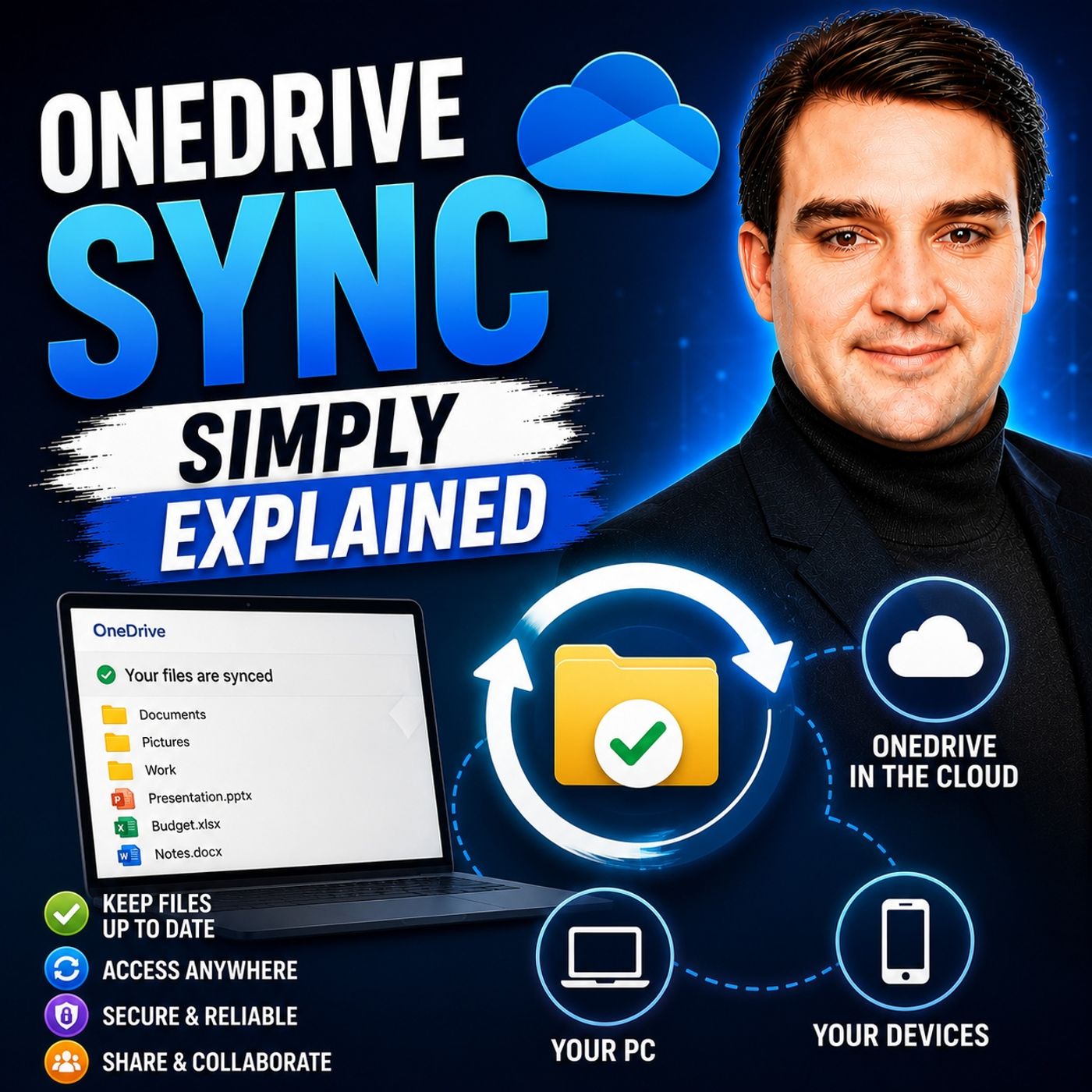
Quick answer: OneDrive Sync connects SharePoint and OneDrive files to File Explorer so people can work with familiar folders while Microsoft 365 keeps collaboration and cloud storage connected. This episode explains how sync works, why common problems occur, and how teams can use it safely at scale.
Syncing your OneDrive folders is essential for easy access to your files through OneDrive Sync. With OneDrive, you can access your documents anytime, even without an internet connection. This feature allows you to work seamlessly, whether at home, in the office, or on the go. Automatic updates ensure that any changes you make reflect across all your devices instantly. Enjoy the convenience of knowing your files are always up to date and available whenever you need them.
Key Takeaways
- Syncing OneDrive folders allows easy access to files anytime, even offline.
- To set up OneDrive on Windows, download the sync client and sign in with your Microsoft account.
- On Mac, download the OneDrive app, sign in, and configure your sync settings for optimal performance.
- Select specific folders to sync to improve performance and save storage space.
- Regularly check the sync status to ensure files are up to date and troubleshoot any issues.
- Organize files with a clear folder structure and consistent naming for easier access.
- Keep your OneDrive software updated to benefit from the latest features and security improvements.
- Utilize OneDrive's collaboration features to enhance teamwork and document sharing.
OneDrive Sync on Windows
Setting up OneDrive on your Windows device allows you to access your files seamlessly. Follow these steps to get started with the OneDrive sync client.
Set Up OneDrive
Download the OneDrive Sync Client
To begin, you need to download the OneDrive sync client. Here’s how:
- Visit www.microsoft.com/microsoft-365/onedrive/download.
- Download and install the OneDrive for desktop application.
Make sure your system meets the minimum requirements for the OneDrive sync client. Supported Windows versions include:
- Windows 10
- Windows 8.1
- Windows 8
- Windows 7
For the best experience, use Office 2013 or 2016.
Sign In to Your Account
After installation, open OneDrive. When prompted, enter your Microsoft personal account or work/school account, then select Sign in.
On the 'This is your OneDrive folder' screen, you can either accept the default folder location or change it as needed. Click Next to proceed.
Select Folders to Sync
Access OneDrive Settings
Once you sign in, you can customize your sync settings. Right-click the OneDrive cloud icon in your system tray and select Settings. This opens the OneDrive settings window.
Choose Specific Folders
In the settings window, navigate to the Account tab. Click on Choose folders. Here, you can select specific folders to sync. This selective sync helps optimize performance.
Consider these strategies for folder selection:
| Strategy | Description |
|---|---|
| Limit synced folders | Avoid syncing unnecessary archives or media libraries. |
| Selective sync | Choose specific folders to sync instead of the entire account. |
Start the Sync Process
Initiate Syncing
After selecting your folders, click OK to start the synchronization process. Your chosen OneDrive folders will now sync to your Windows PC.
Monitor Sync Status
To check the sync status, click the OneDrive cloud icon in your system tray. A status window will appear, showing the progress of your sync. You can see which files are syncing and if any issues arise.
With these steps, you can easily sync a OneDrive folder and ensure your files will appear in File Explorer. Enjoy the convenience of having your documents accessible anytime, anywhere.
OneDrive Sync on Mac
Syncing your OneDrive folders on a Mac allows you to access your files effortlessly. Follow these steps to set up OneDrive and start syncing your files.
Install OneDrive
Download from the App Store
To begin, download the OneDrive sync app for Mac. Here’s how:
- Download the current OneDrive sync app for Mac directly from Microsoft using the installer link in the OneDrive setup article.
- If you have the Mac App Store version of OneDrive installed, uninstall it first.
- Open the downloaded
.pkgfile and complete the installation. - Start OneDrive Setup by searching for OneDrive using Spotlight and signing in with your Microsoft account.
- After setup, check for the OneDrive cloud icon in the top menu bar. If it does not appear, troubleshoot the installation.
Sign In to Your Account
Once you install OneDrive, sign in with your Microsoft account. This step connects your Mac to your OneDrive storage, allowing you to sync files across devices.
Configure Sync Settings
Access Preferences
After signing in, you can customize your sync settings. Click the OneDrive cloud icon in the menu bar and select Preferences. This opens the settings window where you can manage your sync options.
Choose Folders to Sync
In the preferences window, you can select specific folders to sync. Consider enabling the Folder Backup feature. This option automatically syncs your Desktop, Documents, and Pictures folders to the cloud. To activate this feature, click the OneDrive cloud icon, go to Settings, then Sync and back up, and select Manage backup.
You can also adjust the Files On-Demand setting. This feature allows you to manage how your OneDrive files are stored. You can choose to save all files locally, keep them all in the cloud, or use a mix of both. Access this by clicking the OneDrive cloud icon, selecting Settings, and then Advanced settings.
Start the Sync Process
Initiate Syncing
After configuring your settings, click OK to start the synchronization process. The new Native Sync Engine for OneDrive on Mac is reported to be up to 2x faster for initial sync compared to previous versions.
Check Sync Status
To monitor the sync status, click the OneDrive cloud icon in the menu bar. A status window will appear, showing whether your files are up to date. Look for the cloud icon displaying 'Up to date' or a green checkmark icon next to files to confirm successful sync.
With these steps, you can easily sync your OneDrive folders on Mac. Enjoy the convenience of accessing your files anytime, anywhere.
Troubleshooting OneDrive Sync Issues
When using OneDrive, you may encounter sync issues that can disrupt your workflow. Understanding common problems and their solutions can help you resolve these issues quickly.
Common Sync Problems
Files Not Syncing
You might notice that some files do not sync as expected. This issue can arise due to several reasons, including:
- Sync latency leading to version conflicts, especially in collaborative environments.
- Item count limits affecting performance, with a recommended maximum of 300,000 items for optimal sync.
- Bugs related to updates, such as disappearing folders and path-length data loss.
Sync Errors
Sync errors can also occur, preventing your files from updating correctly. These errors may manifest as notifications or alerts within the OneDrive app. Identifying the specific error message can help you troubleshoot effectively.
Solutions to Sync Issues
If you experience sync problems, try these effective solutions:
- Pause Sync and Resume: Right-click the OneDrive cloud icon in the notification area. If needed, select 'Show Hidden Icons' and choose the pause menu to halt synchronization. Restart from the system tray to resume.
- Unlink and Connect Your OneDrive Account: Click the OneDrive cloud icon, go to 'Settings', select 'Account', and choose 'Unlink Account'. Restart your computer, open OneDrive, and re-enter your account information to reconnect.
- Restart the OneDrive App: Right-click the OneDrive icon in the taskbar, select 'Quit OneDrive', and then restart it from the Start menu to check if files are syncing correctly.
By following these steps, you can effectively troubleshoot and resolve OneDrive sync issues. Regularly monitoring OneDrive sync progress will help you maintain reliable synchronization across your devices.
Benefits of OneDrive Sync
OneDrive sync offers numerous advantages that enhance your file management experience. Understanding these benefits can help you maximize your productivity and collaboration.
Accessibility Across Devices
OneDrive sync ensures you can access your files from any device. Here are some key points about its accessibility:
- You can work with OneDrive files directly from your computers.
- Changes made while offline sync automatically once you reconnect to the internet, ensuring you always have up-to-date access.
- OneDrive's OCR feature allows you to select and copy text from images, enhancing information reuse.
- Offline search capabilities on iPad enable you to find files without an internet connection.
- Integration of screen readers allows users with disabilities to manage files effectively.
This level of accessibility means you can work seamlessly, whether at home, in the office, or on the go.
Collaboration Features
OneDrive sync enhances teamwork through its robust collaboration features. You can easily share documents and work together in real-time. Here’s how:
- Document sharing allows you to share individual files with specific people.
- Real-time collaboration on Office documents enables multiple users to work simultaneously.
- You can comment on documents and tag individuals using the @-sign to notify them.
- Files can be posted from OneDrive to a Teams channel for collaborative review.
These features make OneDrive an excellent choice for teams and organizations, fostering effective communication and collaboration.
Backup and Recovery Options
OneDrive sync provides essential backup and recovery options to protect your files. Here’s a summary of its capabilities:
| Aspect | Details |
|---|---|
| Ransomware Bypass | Relying solely on OneDrive can be risky as ransomware may encrypt files and sync changes to the cloud. Implement versioning and offline backups to mitigate this risk. |
| Retention Surprises | OneDrive personal accounts delete items from the Recycle Bin after 30 days, and version retention may be limited. Validate retention settings before using OneDrive for long-term storage. |
| Primary File Protection | Enable Windows Backup for continuous cloud sync and use File History to create local snapshots for added protection. |
These backup and recovery options ensure your files remain safe and accessible, even in challenging situations.
Best Practices for OneDrive Sync
Regularly Check Sync Status
To maintain optimal performance with OneDrive sync, you should regularly check the sync status. Here are some effective practices:
- Use the OneDrive Sync Client’s Health Report Feature: Open the OneDrive sync client and access the health report feature. This report provides a detailed status of sync operations.
- Regularly Check for Sync Issues in the Client Settings: Navigate to the settings menu in the OneDrive sync client. Look for any sync issues listed and address them promptly to maintain sync health.
- Respond to Sync Alerts: If OneDrive shows a sync error notification or if the icon turns red or yellow, address it immediately. This action helps prevent potential data loss.
You should monitor your OneDrive sync status based on your usage patterns. For example, consider pausing OneDrive sync during heavy use to improve performance. Advanced users can adjust the monitoring intervals and full scan frequency in OneDrive client configurations, such as setting full scans to once per day or once per week.
Organize Files for Easy Access
Organizing your files effectively in OneDrive enhances your overall experience. Here are some strategies to consider:
- Establish a Clear Folder Hierarchy: Before adding files, organize them by project, department, or document type. This structure creates predictable paths for easy navigation.
- Use Consistent File Naming Conventions: Include dates, version numbers, or descriptive keywords in your file names. This practice makes searching for files easier.
- Review and Archive Outdated Files Quarterly: Regularly archiving old files prevents folder bloat and keeps active content visible.
- Leverage Smart Folders: Use Sortio's Smart Folders feature on your locally synced OneDrive directory. This feature helps maintain organization automatically as new files arrive.
- Set Appropriate Sharing Permissions: Manage access at the folder level instead of on individual files. This approach simplifies access management.
- Pin Frequently Accessed Folders: Pinning folders in OneDrive allows for quick navigation. Use the search bar with filters for less common files.
Proper file organization not only reduces sync errors but also improves search performance, making it easier to find files.
Keep Software Updated
Keeping your OneDrive software updated is crucial for optimal performance. Regular updates ensure you benefit from the latest features and security enhancements. Here’s how to stay current:
- Enable automatic updates for OneDrive. This setting ensures that you receive updates without manual intervention.
- Regularly check for updates in the OneDrive settings menu. This practice helps you stay informed about new features and improvements.
- If you encounter issues, consider reinstalling the OneDrive app. A fresh installation can resolve many problems and ensure you have the latest version.
By following these best practices, you can optimize your OneDrive sync experience, ensuring your files remain accessible and organized.
In summary, syncing your OneDrive folders on both Windows and Mac is straightforward. For Windows, download the OneDrive sync client, sign in, select your folders, and start the sync process. On Mac, install the app, sign in, configure your sync settings, and initiate syncing.
By following these steps, you enhance your file accessibility and organization. Start syncing your files today to enjoy the benefits of OneDrive!
FAQ
What is OneDrive Sync?
OneDrive Sync allows you to automatically synchronize files between your devices and the OneDrive cloud. This feature ensures that you always have the latest version of your files, whether online or offline.
How do I check if my files are syncing?
Click the OneDrive cloud icon in your system tray or menu bar. A status window will show the sync progress and indicate if any files are not syncing correctly.
Can I sync specific folders only?
Yes, you can choose specific folders to sync. Access OneDrive settings and select the folders you want to sync. This selective sync helps optimize performance and saves storage space.
What should I do if my files are not syncing?
If files are not syncing, try pausing and resuming the sync process. You can also restart the OneDrive app or check your internet connection for issues.
Is there a limit to the number of files I can sync?
Yes, OneDrive has a recommended maximum of 300,000 items for optimal sync performance. Exceeding this limit may lead to sync issues or delays.
How does Files On-Demand work?
Files On-Demand allows you to access all your OneDrive files without downloading them. You can view files online and download them only when needed, saving local storage space.
Can I recover deleted files from OneDrive?
Yes, you can recover deleted files from the OneDrive Recycle Bin. Deleted items remain there for 30 days before permanent deletion, allowing you to restore them easily.
How do I unlink my OneDrive account?
To unlink your OneDrive account, click the OneDrive cloud icon, go to 'Settings', select 'Account', and choose 'Unlink Account'. This action disconnects your device from OneDrive.
Last reviewed: July 2026.
What You’ll Learn
- How the OneDrive sync client relates to OneDrive and SharePoint document libraries.
- Which file, device, and user behaviours commonly create sync problems.
- Why support guidance, sharing practices, and administrative visibility matter.
Who Should Listen
This episode is for Microsoft 365 administrators, IT professionals, architects, and business owners who need a practical understanding of OneDrive Sync before planning, configuring, or supporting it.
🎧 You Should Also Listen To
- What Is SharePoint Premium — Explore the next layer of content management and intelligent document processing.
- Microsoft Viva Learning — See how accessible files and structured content support employee learning.
🎧 You Should Also Listen To
- What Is SharePoint Premium — Continue with a closely related M365 FM episode.
- Viva Connections — Continue with a closely related M365 FM episode.
- Microsoft Viva Learning — Continue with a closely related M365 FM episode.
🚀 Want to be part of m365.fm?
Then stop just listening… and start showing up.
👉 Connect with me on LinkedIn and let’s make something happen:
- 🎙️ Be a podcast guest and share your story
- 🎧 Host your own episode (yes, seriously)
- 💡 Pitch topics the community actually wants to hear
- 🌍 Build your personal brand in the Microsoft 365 space
This isn’t just a podcast — it’s a platform for people who take action.
🔥 Most people wait. The best ones don’t.
👉 Connect with me on LinkedIn and send me a message:
"I want in"
Let’s build something awesome 👊
1
00:00:00,000 --> 00:00:02,400
Today's topic is one that almost everyone has heard of,
2
00:00:02,400 --> 00:00:03,680
but most people get wrong.
3
00:00:03,680 --> 00:00:05,240
OneDrive's sync, what exactly is it?
4
00:00:05,240 --> 00:00:06,840
Is it just saving files to the cloud
5
00:00:06,840 --> 00:00:08,760
or is it something much smarter than that?
6
00:00:08,760 --> 00:00:10,120
Here's the thing, most people think
7
00:00:10,120 --> 00:00:11,960
OneDrive is basically a cloud folder.
8
00:00:11,960 --> 00:00:14,240
A USB stick in the sky, you drag a file in,
9
00:00:14,240 --> 00:00:16,240
it uploads a copy, and that's the end of it.
10
00:00:16,240 --> 00:00:17,800
But that's not how it works at all.
11
00:00:17,800 --> 00:00:20,520
Sync is the real magic, and Sync is not upload.
12
00:00:20,520 --> 00:00:22,080
Think of it as a two-way mirror,
13
00:00:22,080 --> 00:00:25,120
a live connection between your device and Microsoft servers,
14
00:00:25,120 --> 00:00:27,480
where any change on one side automatically shows up
15
00:00:27,480 --> 00:00:29,480
on the other, edit a file on your laptop
16
00:00:29,480 --> 00:00:31,960
and two seconds later that same change appears on your phone.
17
00:00:31,960 --> 00:00:33,200
That's the mirror in action.
18
00:00:33,200 --> 00:00:35,280
But here's the problem, that mirror can crack.
19
00:00:35,280 --> 00:00:37,240
Files vanish, sync gets stuck,
20
00:00:37,240 --> 00:00:39,600
and you run out of space, so nothing works anymore.
21
00:00:39,600 --> 00:00:42,240
And because nobody ever explains how this stuff actually works,
22
00:00:42,240 --> 00:00:44,360
most people just assume OneDrive lost their file.
23
00:00:44,360 --> 00:00:45,560
By the end of this episode,
24
00:00:45,560 --> 00:00:47,480
you'll understand exactly what sync does,
25
00:00:47,480 --> 00:00:49,600
how files on demand works, why it breaks,
26
00:00:49,600 --> 00:00:52,040
and how AI is turning OneDrive from a storage box
27
00:00:52,040 --> 00:00:53,440
into a smart assistant.
28
00:00:53,440 --> 00:00:55,720
So let's start with the biggest myth,
29
00:00:55,720 --> 00:00:57,480
that sync is just uploading.
30
00:00:58,480 --> 00:01:01,360
What sync actually is, the two-way mirror.
31
00:01:01,360 --> 00:01:02,960
The common belief is simple.
32
00:01:02,960 --> 00:01:04,800
You save a file to your OneDrive folder,
33
00:01:04,800 --> 00:01:06,920
and that file gets uploaded to the cloud.
34
00:01:06,920 --> 00:01:10,080
A copy leaves your computer and lands on Microsoft servers.
35
00:01:10,080 --> 00:01:12,000
That's it, but that's not what sync is.
36
00:01:12,000 --> 00:01:14,240
Sync creates a live connection between your device
37
00:01:14,240 --> 00:01:15,400
and Microsoft servers.
38
00:01:15,400 --> 00:01:16,520
Think of it as a mirror.
39
00:01:16,520 --> 00:01:18,800
Whatever happens on one side happens on the other,
40
00:01:18,800 --> 00:01:20,120
delete a file on your desktop,
41
00:01:20,120 --> 00:01:21,880
and it disappears from the cloud.
42
00:01:21,880 --> 00:01:23,160
Rename a file on your phone,
43
00:01:23,160 --> 00:01:24,880
and the name changes on your laptop.
44
00:01:24,880 --> 00:01:26,360
It's not a one-time upload.
45
00:01:26,360 --> 00:01:29,760
It's a constant ongoing conversation between your devices.
46
00:01:29,760 --> 00:01:32,040
Now let's contrast that with how things used to work.
47
00:01:32,040 --> 00:01:34,200
20 years ago, if you wanted to work on the same file
48
00:01:34,200 --> 00:01:35,640
from two different computers,
49
00:01:35,640 --> 00:01:37,600
you had to manually copy it to a network drive
50
00:01:37,600 --> 00:01:39,000
or email it to yourself.
51
00:01:39,000 --> 00:01:41,920
Then you'd end up with three versions of the same file,
52
00:01:41,920 --> 00:01:44,640
report final, doc report final, v2.doc,
53
00:01:44,640 --> 00:01:47,320
report actually final this time, doc.
54
00:01:47,320 --> 00:01:48,160
It was a mess.
55
00:01:48,160 --> 00:01:49,720
OneDrive does it constantly in the background
56
00:01:49,720 --> 00:01:51,440
with version history as a safety net.
57
00:01:51,440 --> 00:01:52,600
You don't have to think about it.
58
00:01:52,600 --> 00:01:54,320
You save the file, and it's everywhere.
59
00:01:54,320 --> 00:01:55,760
And if you mess something up,
60
00:01:55,760 --> 00:01:58,520
you can roll back to any of the last 500 versions.
61
00:01:58,520 --> 00:01:59,800
That's the safety net.
62
00:01:59,800 --> 00:02:00,920
Why does this matter?
63
00:02:00,920 --> 00:02:03,960
Because without sync, oneDrive is just a storage box.
64
00:02:03,960 --> 00:02:05,880
A place to put files you might need later.
65
00:02:05,880 --> 00:02:07,960
But with sync, it becomes your active workspace.
66
00:02:07,960 --> 00:02:09,880
You can start a document on your office desktop,
67
00:02:09,880 --> 00:02:11,920
make edits on your laptop during the commute,
68
00:02:11,920 --> 00:02:13,760
and review it on your phone before bed.
69
00:02:13,760 --> 00:02:15,800
All on the same file, with no copying,
70
00:02:15,800 --> 00:02:18,280
no emailing, and no version confusion.
71
00:02:18,280 --> 00:02:20,080
But here's where things get tricky.
72
00:02:20,080 --> 00:02:23,280
Not every file on your device is actually on your device.
73
00:02:23,280 --> 00:02:24,440
Files on demand.
74
00:02:24,440 --> 00:02:26,120
The feature that changes everything.
75
00:02:26,120 --> 00:02:28,440
Have you ever opened your OneDrive folder in File Explorer?
76
00:02:28,440 --> 00:02:31,160
And notice some files have a cloud icon next to them?
77
00:02:31,160 --> 00:02:33,480
While others have a green check mark.
78
00:02:33,480 --> 00:02:35,680
Those little icons are telling you something important
79
00:02:35,680 --> 00:02:37,520
about where that file actually lives.
80
00:02:37,520 --> 00:02:39,920
The cloud icon means the file is online only.
81
00:02:39,920 --> 00:02:42,080
It's stored in the cloud, not on your computer.
82
00:02:42,080 --> 00:02:44,920
You can see it, search it, even preview over 300 different
83
00:02:44,920 --> 00:02:45,760
file types.
84
00:02:45,760 --> 00:02:47,880
But the actual file data isn't taking up space
85
00:02:47,880 --> 00:02:48,920
on your hard drive.
86
00:02:48,920 --> 00:02:51,480
The green check mark means the file is locally available.
87
00:02:51,480 --> 00:02:54,080
It's downloaded to your device and stored on your hard drive.
88
00:02:54,080 --> 00:02:56,720
You can open it offline, edit it, save changes.
89
00:02:56,720 --> 00:02:58,440
And those changes will sync back to the cloud
90
00:02:58,440 --> 00:02:59,200
when you're connected.
91
00:02:59,200 --> 00:03:01,400
This feature is called Files on demand.
92
00:03:01,400 --> 00:03:02,520
And it changes everything.
93
00:03:02,520 --> 00:03:05,160
It lets you see all your cloud files without downloading them.
94
00:03:05,160 --> 00:03:07,240
You can browse through your entire OneDrive,
95
00:03:07,240 --> 00:03:09,800
search for anything, preview documents, and images,
96
00:03:09,800 --> 00:03:12,200
or while the file stays safely in the cloud.
97
00:03:12,200 --> 00:03:15,040
When you open a file, OneDrive downloads it instantly.
98
00:03:15,040 --> 00:03:17,680
And when you're done, it can revert back to online only,
99
00:03:17,680 --> 00:03:19,280
freeing up that space again.
100
00:03:19,280 --> 00:03:22,000
The file is still there, still accessible, still synced.
101
00:03:22,000 --> 00:03:23,760
It just doesn't sit on your hard drive
102
00:03:23,760 --> 00:03:24,920
when you're not using it.
103
00:03:24,920 --> 00:03:27,640
This is enabled by default in modern OneDrive builds.
104
00:03:27,640 --> 00:03:30,560
Most users never change it, and honestly, they probably shouldn't.
105
00:03:30,560 --> 00:03:33,480
It saves a ton of disk space without sacrificing access.
106
00:03:33,480 --> 00:03:34,880
But here's where the confusion starts.
107
00:03:34,880 --> 00:03:36,960
If you delete an online only file from your device,
108
00:03:36,960 --> 00:03:38,800
it deletes it from OneDrive everywhere.
109
00:03:38,800 --> 00:03:40,120
It's gone from the cloud, too.
110
00:03:40,120 --> 00:03:42,360
Unless you catch it in the recycle bin within 30 days,
111
00:03:42,360 --> 00:03:43,480
that file is gone.
112
00:03:43,480 --> 00:03:44,960
So be careful with that delete key.
113
00:03:44,960 --> 00:03:46,320
Think of it like a library catalog.
114
00:03:46,320 --> 00:03:48,440
You can see the book title and cover on the shelf.
115
00:03:48,440 --> 00:03:50,640
You can even flip through the first few pages.
116
00:03:50,640 --> 00:03:52,120
But the book itself stays on the shelf
117
00:03:52,120 --> 00:03:53,080
until you check it out.
118
00:03:53,080 --> 00:03:54,560
When you're done reading, you put it back.
119
00:03:54,560 --> 00:03:56,200
That's files on demand.
120
00:03:56,200 --> 00:03:58,200
So if files can be online only, what exactly
121
00:03:58,200 --> 00:04:00,760
happens when you double click that word document?
122
00:04:00,760 --> 00:04:03,040
How the sync engine works behind the scenes?
123
00:04:03,040 --> 00:04:05,720
So what's actually happening when you double click that file?
124
00:04:05,720 --> 00:04:07,560
There's a piece of software running on your computer
125
00:04:07,560 --> 00:04:09,600
called the OneDrive sync engine.
126
00:04:09,600 --> 00:04:11,360
It runs as a Windows service, which
127
00:04:11,360 --> 00:04:13,200
means it's always on, always watching.
128
00:04:13,200 --> 00:04:15,280
You don't have to launch it or remember to start it.
129
00:04:15,280 --> 00:04:16,400
It's just there.
130
00:04:16,400 --> 00:04:18,360
When you save a file to your OneDrive folder,
131
00:04:18,360 --> 00:04:20,560
that engine detects the change instantly.
132
00:04:20,560 --> 00:04:22,560
It adds the file to a queue and starts
133
00:04:22,560 --> 00:04:24,400
uploading it to Microsoft servers.
134
00:04:24,400 --> 00:04:27,200
For small files, this happens so fast you barely notice.
135
00:04:27,200 --> 00:04:29,520
For large files, the engine does something clever.
136
00:04:29,520 --> 00:04:32,120
It breaks the file into chunks and uploads them in parallel.
137
00:04:32,120 --> 00:04:35,280
So instead of sending one giant file in a single stream,
138
00:04:35,280 --> 00:04:37,640
it sends multiple pieces at the same time.
139
00:04:37,640 --> 00:04:39,240
And if your connection drops mid upload,
140
00:04:39,240 --> 00:04:40,640
it picks up where it left off.
141
00:04:40,640 --> 00:04:42,840
Resumable uploads mean no starting over.
142
00:04:42,840 --> 00:04:44,280
The same thing happens in reverse.
143
00:04:44,280 --> 00:04:46,320
If someone edits a file on another device,
144
00:04:46,320 --> 00:04:48,600
the engine detects the change on Microsoft servers
145
00:04:48,600 --> 00:04:50,160
and downloads it to your computer.
146
00:04:50,160 --> 00:04:51,440
The mirror works both ways.
147
00:04:51,440 --> 00:04:53,280
But what happens when two people edit the same file
148
00:04:53,280 --> 00:04:54,240
at the same time?
149
00:04:54,240 --> 00:04:56,240
OneDrive handles this with conflict resolution.
150
00:04:56,240 --> 00:04:57,480
It saves both versions.
151
00:04:57,480 --> 00:04:59,640
The original keeps its name and the second version gets
152
00:04:59,640 --> 00:05:01,400
one added to the file name.
153
00:05:01,400 --> 00:05:03,920
So you end up with budget, Excelisex and budget,
154
00:05:03,920 --> 00:05:06,800
one point Excelisex and you decide which to keep.
155
00:05:06,800 --> 00:05:09,600
It's not elegant, but it's better than losing someone's work.
156
00:05:09,600 --> 00:05:12,360
And here's the safety net underneath all of this.
157
00:05:12,360 --> 00:05:13,720
Version history.
158
00:05:13,720 --> 00:05:16,320
OneDrive keeps up to 500 previous versions
159
00:05:16,320 --> 00:05:17,840
of your files for 30 days.
160
00:05:17,840 --> 00:05:20,320
If you have a retention policy from your work or school
161
00:05:20,320 --> 00:05:22,120
account, that can go much longer.
162
00:05:22,120 --> 00:05:23,840
So if someone overrides your document
163
00:05:23,840 --> 00:05:25,920
or you accidentally delete a paragraph,
164
00:05:25,920 --> 00:05:27,920
you can roll back to any saved version.
165
00:05:27,920 --> 00:05:29,720
The sync status icons in File Explorer
166
00:05:29,720 --> 00:05:31,160
are your window into this engine.
167
00:05:31,160 --> 00:05:33,160
The cloud icon means the file is remote.
168
00:05:33,160 --> 00:05:35,040
It's in the cloud, not on your device.
169
00:05:35,040 --> 00:05:37,680
The green check mark means it's local and fully synced.
170
00:05:37,680 --> 00:05:39,480
The blue arrows mean it's actively syncing.
171
00:05:39,480 --> 00:05:41,920
Those icons tell you exactly what the engine is doing
172
00:05:41,920 --> 00:05:43,000
at that moment.
173
00:05:43,000 --> 00:05:45,760
And one more thing about speed, oneDrive uses differential sync.
174
00:05:45,760 --> 00:05:47,160
That means when you edit a file, it
175
00:05:47,160 --> 00:05:49,120
doesn't re-upload the entire thing.
176
00:05:49,120 --> 00:05:51,000
It only transfers the bits that changed.
177
00:05:51,000 --> 00:05:53,480
So if you add one sentence to a 50-page document,
178
00:05:53,480 --> 00:05:55,960
it sends that one sentence, not the whole document.
179
00:05:55,960 --> 00:05:58,240
That's why sync feels fast even with huge files.
180
00:05:58,240 --> 00:05:59,720
That all sounds clean, right?
181
00:05:59,720 --> 00:06:01,880
So why does sync sometimes just stop?
182
00:06:01,880 --> 00:06:02,600
Why sync breaks?
183
00:06:02,600 --> 00:06:04,200
The top three begin mistakes.
184
00:06:04,200 --> 00:06:05,280
Here's the thing.
185
00:06:05,280 --> 00:06:07,360
The sync engine is reliable, but it follows rules.
186
00:06:07,360 --> 00:06:09,560
When you break those rules, it breaks silently.
187
00:06:09,560 --> 00:06:12,440
There's no pop-up, no warning, just a red X on the OneDrive
188
00:06:12,440 --> 00:06:14,640
icon and files that refuse to move.
189
00:06:14,640 --> 00:06:16,920
The number one cause is a path that's too long.
190
00:06:16,920 --> 00:06:19,960
Windows has a 400-character limit for file paths.
191
00:06:19,960 --> 00:06:22,800
And that means the full path from your C drive all the way down
192
00:06:22,800 --> 00:06:23,880
to the file name counts.
193
00:06:23,880 --> 00:06:26,080
So if your folder structure looks like OneDrive,
194
00:06:26,080 --> 00:06:30,600
projects, client reports, 2026, Q1, marketing, campaign
195
00:06:30,600 --> 00:06:33,400
analysis, drafts, final version, Doc X,
196
00:06:33,400 --> 00:06:34,680
you're already over the limit.
197
00:06:34,680 --> 00:06:38,080
OneDrive can't sync files with paths longer than 400 characters.
198
00:06:38,080 --> 00:06:40,120
It just stops, and it doesn't tell you why.
199
00:06:40,120 --> 00:06:42,360
The second most common issue is storage full.
200
00:06:42,360 --> 00:06:44,880
If you're on a free OneDrive account, you get 5GB,
201
00:06:44,880 --> 00:06:46,040
and that fills up fast.
202
00:06:46,040 --> 00:06:48,160
When your quota is full, sync pauses, no warning,
203
00:06:48,160 --> 00:06:50,560
just a red X on the icon, you can still see your files,
204
00:06:50,560 --> 00:06:52,160
but nothing new will upload.
205
00:06:52,160 --> 00:06:55,280
The fix is simple, free up space, or upgrade your plan.
206
00:06:55,280 --> 00:06:56,440
But if you don't know it's happening,
207
00:06:56,440 --> 00:06:58,520
you'll wonder why your files aren't syncing.
208
00:06:58,520 --> 00:07:00,520
The third one is a file locked by another app.
209
00:07:00,520 --> 00:07:02,680
If you have a Word document open or an Excel file
210
00:07:02,680 --> 00:07:05,360
or a Photoshop project, OneDrive can't sync it while it's in use
211
00:07:05,360 --> 00:07:07,560
because the file is locked by the application.
212
00:07:07,560 --> 00:07:10,520
You'll see the file is in use in the activity center,
213
00:07:10,520 --> 00:07:12,480
close the app, and sync resumes.
214
00:07:12,480 --> 00:07:14,600
But if you're working on a file and walking away
215
00:07:14,600 --> 00:07:18,120
from your computer, that file stays locked until you close it.
216
00:07:18,120 --> 00:07:19,360
There are other causes too.
217
00:07:19,360 --> 00:07:21,040
File names with unsupported characters
218
00:07:21,040 --> 00:07:23,320
like ampersands, colons, or question marks,
219
00:07:23,320 --> 00:07:25,760
individual files larger than 15GB.
220
00:07:25,760 --> 00:07:28,120
Libraries with more than 100,000 files.
221
00:07:28,120 --> 00:07:30,040
The performance starts to drop long before you
222
00:07:30,040 --> 00:07:32,120
hit the official limit of 300,000.
223
00:07:32,120 --> 00:07:35,000
And then there's what IT professionals call sync purgatory.
224
00:07:35,000 --> 00:07:37,800
Files that appear to be syncing, but never complete.
225
00:07:37,800 --> 00:07:40,560
They just sit there with blue arrows spinning forever.
226
00:07:40,560 --> 00:07:42,440
That's a path length issue or a file lock.
227
00:07:42,440 --> 00:07:44,880
Here's the quick fix that works for most problems.
228
00:07:44,880 --> 00:07:47,560
Right click the OneDrive icon in your system tray.
229
00:07:47,560 --> 00:07:49,000
Click pause syncing.
230
00:07:49,000 --> 00:07:50,120
Wait 30 seconds.
231
00:07:50,120 --> 00:07:51,440
Click resume syncing.
232
00:07:51,440 --> 00:07:53,520
That simple cycle clears temporary glitches
233
00:07:53,520 --> 00:07:54,840
about 80% of the time.
234
00:07:54,840 --> 00:07:57,240
If that doesn't work, there's a more powerful option.
235
00:07:57,240 --> 00:07:59,600
Open a command prompt and run OneDrive.
236
00:07:59,600 --> 00:08:00,800
Exer reset.
237
00:08:00,800 --> 00:08:03,320
This clears the sync database without deleting your files.
238
00:08:03,320 --> 00:08:04,440
It's like rebooting the engine.
239
00:08:04,440 --> 00:08:06,720
Your files stay on your device and in the cloud
240
00:08:06,720 --> 00:08:09,560
but the sync state resets when you sign back in OneDrive
241
00:08:09,560 --> 00:08:11,120
resynx everything fresh.
242
00:08:11,120 --> 00:08:13,120
But sometimes the problem isn't the engine at all.
243
00:08:13,120 --> 00:08:16,120
It's how you've set up what to sync in the first place.
244
00:08:16,120 --> 00:08:18,360
Selective sync versus files on demand.
245
00:08:18,360 --> 00:08:19,480
When to use what?
246
00:08:19,480 --> 00:08:21,280
A lot of people think selective sync and files
247
00:08:21,280 --> 00:08:22,280
on demand do the same thing.
248
00:08:22,280 --> 00:08:22,800
They don't.
249
00:08:22,800 --> 00:08:25,400
There are two different tools that solve two different problems.
250
00:08:25,400 --> 00:08:27,240
Mixing them up is why some users end up
251
00:08:27,240 --> 00:08:30,640
with files they can't find or a hard drive that's full for no reason.
252
00:08:30,640 --> 00:08:33,920
Selective sync is about which folders show up on your device at all.
253
00:08:33,920 --> 00:08:36,720
You go into OneDrive settings, click choose folders,
254
00:08:36,720 --> 00:08:38,920
and uncheck the ones you don't need locally.
255
00:08:38,920 --> 00:08:41,040
Those unchecked folders don't appear in File Explorer.
256
00:08:41,040 --> 00:08:42,120
They don't sync at all.
257
00:08:42,120 --> 00:08:43,360
They just live in the cloud.
258
00:08:43,360 --> 00:08:46,680
And you can only reach them through a browser or the mobile app.
259
00:08:46,680 --> 00:08:47,920
It's a binary choice.
260
00:08:47,920 --> 00:08:50,240
Either a folder is on your device or it isn't.
261
00:08:50,240 --> 00:08:51,440
Files on demand is different.
262
00:08:51,440 --> 00:08:52,400
It shows everything.
263
00:08:52,400 --> 00:08:55,360
Every folder, every file, every subfolder appears in File Explorer.
264
00:08:55,360 --> 00:08:58,200
The difference is that most of them start as online only placeholders.
265
00:08:58,200 --> 00:09:00,000
They're visible, searchable and previewable
266
00:09:00,000 --> 00:09:02,560
but they don't take up space until you actually open them.
267
00:09:02,560 --> 00:09:04,480
It's a much finer level of control.
268
00:09:04,480 --> 00:09:06,240
Now there's a new feature in 2026
269
00:09:06,240 --> 00:09:07,920
that bridges the gap between these two.
270
00:09:07,920 --> 00:09:09,680
It's called folder exclusion.
271
00:09:09,680 --> 00:09:11,200
This lets you sync a parent folder
272
00:09:11,200 --> 00:09:13,160
but exclude specific subfolders from it.
273
00:09:13,160 --> 00:09:14,960
So you can sync your project's folder
274
00:09:14,960 --> 00:09:16,880
but exclude projects as archived
275
00:09:16,880 --> 00:09:19,400
without having to choose between syncing everything or nothing.
276
00:09:19,400 --> 00:09:21,720
That's something selective sync alone couldn't do before.
277
00:09:21,720 --> 00:09:23,160
So when do you use each one?
278
00:09:23,160 --> 00:09:27,360
If you have limited disk space, say a 128GB laptop,
279
00:09:27,360 --> 00:09:29,680
and you only need a few folders for offline work,
280
00:09:29,680 --> 00:09:31,240
selective sync is your friend.
281
00:09:31,240 --> 00:09:33,840
Uncheck everything except the folders you actually use.
282
00:09:33,840 --> 00:09:36,240
The rest stays in the cloud, invisible on your device,
283
00:09:36,240 --> 00:09:37,800
not taking up any space at all.
284
00:09:37,800 --> 00:09:39,240
If you want access to everything
285
00:09:39,240 --> 00:09:41,200
but don't want it all taking up space,
286
00:09:41,200 --> 00:09:42,920
use files on demand.
287
00:09:42,920 --> 00:09:45,960
Let everything appear in File Explorer as online only.
288
00:09:45,960 --> 00:09:48,080
Then for the files you work on regularly,
289
00:09:48,080 --> 00:09:51,040
right click and choose Always Keep On This Device.
290
00:09:51,040 --> 00:09:52,120
For the ones you're done with,
291
00:09:52,120 --> 00:09:54,360
right click and choose Free Upspace.
292
00:09:54,360 --> 00:09:57,080
That reverts them back to online only.
293
00:09:57,080 --> 00:09:58,320
And here's something you can do.
294
00:09:58,320 --> 00:10:00,000
Windows storage sense can automate this.
295
00:10:00,000 --> 00:10:02,000
You can set it to automatically revert files
296
00:10:02,000 --> 00:10:04,560
to online only after 30 or 60 days of no use.
297
00:10:04,560 --> 00:10:06,520
That means files you haven't touched in a while,
298
00:10:06,520 --> 00:10:09,280
quietly free up space without you having to think about it.
299
00:10:09,280 --> 00:10:10,880
It's the ultimate set and forget approach.
300
00:10:10,880 --> 00:10:12,480
So you can manage what's local
301
00:10:12,480 --> 00:10:14,360
and what's remote with a lot of precision.
302
00:10:14,360 --> 00:10:16,840
But what if you want to move your entire one-drive folder
303
00:10:16,840 --> 00:10:18,560
to another drive?
304
00:10:18,560 --> 00:10:20,200
Moving one drive to another drive.
305
00:10:20,200 --> 00:10:21,160
When and why?
306
00:10:21,160 --> 00:10:23,760
By default your one-drive folder lives at C per user's
307
00:10:23,760 --> 00:10:25,200
while your name plus one drive.
308
00:10:25,200 --> 00:10:27,600
That's your system drive, the same one where Windows lives.
309
00:10:27,600 --> 00:10:31,720
So if that system drive is a small SSD, say 128GB,
310
00:10:31,720 --> 00:10:33,960
your one-drive folder can eat up a huge chunk
311
00:10:33,960 --> 00:10:35,760
of your available space pretty quickly,
312
00:10:35,760 --> 00:10:38,800
moving it to another drive is possible, but here's the thing.
313
00:10:38,800 --> 00:10:41,080
You can't just drag the folder from C to D.
314
00:10:41,080 --> 00:10:42,040
That won't work.
315
00:10:42,040 --> 00:10:44,080
One drive needs to know where its folder lives.
316
00:10:44,080 --> 00:10:45,680
And the only way to do that is to unlink
317
00:10:45,680 --> 00:10:46,800
and re-link your account.
318
00:10:46,800 --> 00:10:47,680
Here's the process.
319
00:10:47,680 --> 00:10:49,960
Right-click the one-drive icon in your system tray,
320
00:10:49,960 --> 00:10:51,840
go to settings, click the account tab,
321
00:10:51,840 --> 00:10:54,040
and then click unlink this PC.
322
00:10:54,040 --> 00:10:56,080
That disconnects your current sync setup.
323
00:10:56,080 --> 00:10:57,680
But before you do that, make sure you copy
324
00:10:57,680 --> 00:10:59,880
your existing files from the old one-drive folder
325
00:10:59,880 --> 00:11:01,160
to a safe location.
326
00:11:01,160 --> 00:11:02,320
You don't want to lose anything.
327
00:11:02,320 --> 00:11:04,640
Once you've unlinked, sign back into one drive.
328
00:11:04,640 --> 00:11:07,800
During setup, it will ask where you want to put your one-drive folder.
329
00:11:07,800 --> 00:11:10,600
It defaults to C drive, but you click change location
330
00:11:10,600 --> 00:11:12,200
and browse to your D drive.
331
00:11:12,200 --> 00:11:14,680
Create a folder called one drive there, select it,
332
00:11:14,680 --> 00:11:15,880
and finish the setup.
333
00:11:15,880 --> 00:11:18,200
Now every file you sync will end up on your D drive.
334
00:11:18,200 --> 00:11:19,120
When should you do this?
335
00:11:19,120 --> 00:11:21,560
If your C drive is small, common on laptops
336
00:11:21,560 --> 00:11:25,520
with 128GB SSDs, or if you have a large secondary drive
337
00:11:25,520 --> 00:11:28,520
for data and want to keep your system drive lean.
338
00:11:28,520 --> 00:11:31,000
One drive remembers the new location across updates,
339
00:11:31,000 --> 00:11:32,920
so you only have to do this once.
340
00:11:32,920 --> 00:11:34,160
One thing to keep in mind.
341
00:11:34,160 --> 00:11:36,840
Moving your one drive folder to another drive
342
00:11:36,840 --> 00:11:39,000
doesn't affect your cloud storage at all.
343
00:11:39,000 --> 00:11:40,560
Your files are still in the cloud,
344
00:11:40,560 --> 00:11:43,160
still synced, still accessible from any device.
345
00:11:43,160 --> 00:11:44,560
The only thing that changes is where
346
00:11:44,560 --> 00:11:46,360
the local copies sit on your machine.
347
00:11:46,360 --> 00:11:48,160
It's a local change, not a cloud change.
348
00:11:48,160 --> 00:11:51,640
Now let's talk about the biggest change coming to one drive, AI.
349
00:11:51,640 --> 00:11:54,640
How AI and co-pilot are changing one drive?
350
00:11:54,640 --> 00:11:57,360
For a long time, one drive was just a storage box,
351
00:11:57,360 --> 00:11:58,600
a place to put files.
352
00:11:58,600 --> 00:12:01,080
You searched by file name or navigated through folders,
353
00:12:01,080 --> 00:12:01,880
and that was it.
354
00:12:01,880 --> 00:12:04,520
The content inside those files was invisible to the search bar
355
00:12:04,520 --> 00:12:06,280
unless you had them downloaded locally.
356
00:12:06,280 --> 00:12:08,680
Co-pilot changes that completely by turning one drive
357
00:12:08,680 --> 00:12:10,120
into a smart assistant.
358
00:12:10,120 --> 00:12:13,040
You can ask questions about your files without ever opening them.
359
00:12:13,040 --> 00:12:14,840
Need to know what last month's sales report said?
360
00:12:14,840 --> 00:12:16,160
You don't open the spreadsheet.
361
00:12:16,160 --> 00:12:17,240
You just ask.
362
00:12:17,240 --> 00:12:19,840
In one drive for web, there's a co-pilot icon now.
363
00:12:19,840 --> 00:12:21,920
Click it, and you can summarize a document
364
00:12:21,920 --> 00:12:23,880
compared to versions of the same file
365
00:12:23,880 --> 00:12:25,840
or ask questions about the content.
366
00:12:25,840 --> 00:12:28,240
And it works across up to five files at once,
367
00:12:28,240 --> 00:12:29,920
so you can say, find the differences
368
00:12:29,920 --> 00:12:31,480
between these three proposals.
369
00:12:31,480 --> 00:12:33,440
And co-pilot does the comparison for you.
370
00:12:33,440 --> 00:12:35,680
There's a feature in preview called ask co-pilot
371
00:12:35,680 --> 00:12:37,520
that lives right in file explorer.
372
00:12:37,520 --> 00:12:40,960
You hover over a file, a co-pilot icon appears, you click it,
373
00:12:40,960 --> 00:12:43,440
and you get insights about that file without opening it,
374
00:12:43,440 --> 00:12:45,280
summary, key points, action items.
375
00:12:45,280 --> 00:12:46,800
It's all right there in the hover.
376
00:12:46,800 --> 00:12:49,080
And for co-pilot plus PCs, there's semantic search.
377
00:12:49,080 --> 00:12:50,440
Instead of searching by file name,
378
00:12:50,440 --> 00:12:52,280
you search by describing the content,
379
00:12:52,280 --> 00:12:54,120
like the budget report from last quarter
380
00:12:54,120 --> 00:12:55,920
with the chart on page three.
381
00:12:55,920 --> 00:12:58,680
And one drive finds it, not by name or folder location,
382
00:12:58,680 --> 00:13:01,040
but by what's actually inside the document.
383
00:13:01,040 --> 00:13:03,480
The PDF viewer has co-pilot built in now, too.
384
00:13:03,480 --> 00:13:05,080
You open a PDF in one drive,
385
00:13:05,080 --> 00:13:07,200
and you can ask questions about it right there.
386
00:13:07,200 --> 00:13:08,760
What's the termination clause?
387
00:13:08,760 --> 00:13:10,280
When does this contract expire?
388
00:13:10,280 --> 00:13:12,120
Co-pilot reads the document and answers.
389
00:13:12,120 --> 00:13:13,600
No scrolling through pages,
390
00:13:13,600 --> 00:13:15,960
and here's something that matters for power users.
391
00:13:15,960 --> 00:13:17,920
The sync engine itself got a major upgrade.
392
00:13:17,920 --> 00:13:20,240
It now supports up to one million items on Windows.
393
00:13:20,240 --> 00:13:21,720
That's up from 300,000.
394
00:13:21,720 --> 00:13:23,000
It's in public preview right now,
395
00:13:23,000 --> 00:13:24,480
but it's a huge deal for people
396
00:13:24,480 --> 00:13:26,240
who manage massive file libraries.
397
00:13:26,240 --> 00:13:27,520
What does all this mean for you?
398
00:13:27,520 --> 00:13:29,880
One drive isn't just a place to store files anymore.
399
00:13:29,880 --> 00:13:31,920
It's becoming a place where you understand them
400
00:13:31,920 --> 00:13:34,600
where you can ask questions, find things by describing them,
401
00:13:34,600 --> 00:13:36,760
and get summaries without reading everything.
402
00:13:36,760 --> 00:13:38,360
It's the difference between a filing cabinet
403
00:13:38,360 --> 00:13:40,640
and an assistant who knows what's in every folder.
404
00:13:40,640 --> 00:13:43,720
So with all this power, how do you keep sync, healthy,
405
00:13:43,720 --> 00:13:45,320
and avoid the headaches?
406
00:13:45,320 --> 00:13:47,080
Practical tips for a healthy sync.
407
00:13:47,080 --> 00:13:48,680
Let me walk you through eight simple habits
408
00:13:48,680 --> 00:13:50,680
that keep one drive sync running smoothly.
409
00:13:50,680 --> 00:13:52,920
These are small things that prevent big headaches.
410
00:13:52,920 --> 00:13:54,280
Start with your folder structure.
411
00:13:54,280 --> 00:13:57,600
Keep it shallow, avoid nesting more than five levels deep.
412
00:13:57,600 --> 00:13:59,520
Every level adds characters to the path,
413
00:13:59,520 --> 00:14:02,600
and parts over 400 characters break sync silently.
414
00:14:02,600 --> 00:14:04,200
Shallow folders are easier to navigate
415
00:14:04,200 --> 00:14:05,920
and less likely to hit that limit.
416
00:14:05,920 --> 00:14:08,240
For file names, skip the special characters.
417
00:14:08,240 --> 00:14:11,560
Ampersons, angle brackets, colon's quotes, pipes, question marks,
418
00:14:11,560 --> 00:14:13,800
asterisks, these will break sync.
419
00:14:13,800 --> 00:14:16,520
Stick with letters, numbers, hyphens, and underscores.
420
00:14:16,520 --> 00:14:17,840
Now watch your storage quota.
421
00:14:17,840 --> 00:14:19,920
Set a reminder at 80% usage
422
00:14:19,920 --> 00:14:22,400
when you hit the limit sync pauses with a red X.
423
00:14:22,400 --> 00:14:23,120
No warning.
424
00:14:23,120 --> 00:14:23,880
It just stops.
425
00:14:23,880 --> 00:14:25,480
Catch it early and you avoid the headache.
426
00:14:25,480 --> 00:14:26,880
If you use a work or school account,
427
00:14:26,880 --> 00:14:28,240
be aware of known folder move.
428
00:14:28,240 --> 00:14:30,720
This feature automatically redirects your desktop,
429
00:14:30,720 --> 00:14:33,440
documents, and pictures folders to one drive.
430
00:14:33,440 --> 00:14:34,680
It's convenient for backup,
431
00:14:34,680 --> 00:14:36,160
but it can fill up your quota fast
432
00:14:36,160 --> 00:14:37,440
if you're not paying attention.
433
00:14:37,440 --> 00:14:38,960
Share a PC with others.
434
00:14:38,960 --> 00:14:40,440
Use separate Microsoft accounts.
435
00:14:40,440 --> 00:14:42,440
Shared one drive folders on the same machine
436
00:14:42,440 --> 00:14:43,680
create sync conflicts.
437
00:14:43,680 --> 00:14:45,120
Each person should have their own account
438
00:14:45,120 --> 00:14:46,440
and their own sync setup.
439
00:14:46,440 --> 00:14:48,960
When something goes wrong, start with the simplest fix.
440
00:14:48,960 --> 00:14:51,960
Pause syncing, wait 30 seconds, then resume.
441
00:14:51,960 --> 00:14:54,160
This works about 80% of the time.
442
00:14:54,160 --> 00:14:57,360
It clears temporary glitches without any risk to your files.
443
00:14:57,360 --> 00:14:59,160
For persistent issues run one drive,
444
00:14:59,160 --> 00:15:00,920
exit bash reset from a command prompt.
445
00:15:00,920 --> 00:15:02,240
This clears the sync database
446
00:15:02,240 --> 00:15:03,800
without deleting your files.
447
00:15:03,800 --> 00:15:05,640
When you sign back in, one drive
448
00:15:05,640 --> 00:15:08,040
rebuilds the sync state from scratch.
449
00:15:08,040 --> 00:15:10,760
Finally, use always keep on this device
450
00:15:10,760 --> 00:15:13,320
for files you absolutely need offline.
451
00:15:13,320 --> 00:15:15,080
Your resume, your text documents,
452
00:15:15,080 --> 00:15:16,120
your critical work files,
453
00:15:16,120 --> 00:15:17,880
mark them as always available.
454
00:15:17,880 --> 00:15:20,880
Everything else can stay online only and save you space.
455
00:15:20,880 --> 00:15:22,400
Here's a quick checklist for beginners.
456
00:15:22,400 --> 00:15:24,560
Check your storage, check your past length,
457
00:15:24,560 --> 00:15:26,640
check for file locks, restart one drive,
458
00:15:26,640 --> 00:15:28,760
reset as a last resort, follow that order
459
00:15:28,760 --> 00:15:30,960
and you'll solve almost every sync problem.
460
00:15:30,960 --> 00:15:32,360
So now you know how the engine works,
461
00:15:32,360 --> 00:15:33,800
why it breaks and how to fix it.
462
00:15:33,800 --> 00:15:35,160
Let's wrap this up.
463
00:15:35,160 --> 00:15:36,840
You now understand how sync works,
464
00:15:36,840 --> 00:15:38,680
why it breaks and how to fix it.
465
00:15:38,680 --> 00:15:40,040
Sync is a two way mirror
466
00:15:40,040 --> 00:15:43,320
that keeps your files identical across all your devices.
467
00:15:43,320 --> 00:15:45,120
Files on demand keeps everything visible
468
00:15:45,120 --> 00:15:46,520
without taking up space.
469
00:15:46,520 --> 00:15:49,000
And copilot is turning one drive from a storage box
470
00:15:49,000 --> 00:15:51,280
into a smart workspace where you can ask questions
471
00:15:51,280 --> 00:15:52,400
about your files.
472
00:15:52,400 --> 00:15:53,440
Here's the bottom line.
473
00:15:53,440 --> 00:15:55,440
One drive sync isn't complicated.
474
00:15:55,440 --> 00:15:57,520
It follows rules, learn those rules
475
00:15:57,520 --> 00:15:58,680
and it works flawlessly.
476
00:15:58,680 --> 00:16:00,000
Break them and you get the red X.
477
00:16:00,000 --> 00:16:01,040
Here's your challenge.
478
00:16:01,040 --> 00:16:03,600
Open file explorer, look at your one drive folder
479
00:16:03,600 --> 00:16:05,160
and spot those status icons.
480
00:16:05,160 --> 00:16:07,800
Are you using files on demand or selective sync?
481
00:16:07,800 --> 00:16:09,320
Do you know which files are local
482
00:16:09,320 --> 00:16:10,720
and which are online only?
483
00:16:10,720 --> 00:16:12,400
If not, now you know how to check.
484
00:16:12,400 --> 00:16:13,640
Ready for more?
485
00:16:13,640 --> 00:16:16,600
Next episode will cover how one drive backups work.
486
00:16:16,600 --> 00:16:18,440
The difference between sync and backup
487
00:16:18,440 --> 00:16:20,120
and why you actually need both.
488
00:16:20,120 --> 00:16:21,920
Subscribe on your favorite podcast platform
489
00:16:21,920 --> 00:16:23,640
and share this with someone who's ever said
490
00:16:23,640 --> 00:16:25,360
one drive lost my file.
491
00:16:25,360 --> 00:16:28,840
It probably didn't. They just didn't understand how sync works. Now you do.

Founder of m365.fm, m365.show and m365con.net
Mirko Peters is a Microsoft 365 expert, content creator, and founder of m365.fm, a platform dedicated to sharing practical insights on modern workplace technologies. His work focuses on Microsoft 365 governance, security, collaboration, and real-world implementation strategies.
Through his podcast and written content, Mirko provides hands-on guidance for IT professionals, architects, and business leaders navigating the complexities of Microsoft 365. He is known for translating complex topics into clear, actionable advice, often highlighting common mistakes and overlooked risks in real-world environments.
With a strong emphasis on community contribution and knowledge sharing, Mirko is actively building a platform that connects experts, shares experiences, and helps organizations get the most out of their Microsoft 365 investments.




