OneDrive Sync Explained: How It Works and Why It Matters
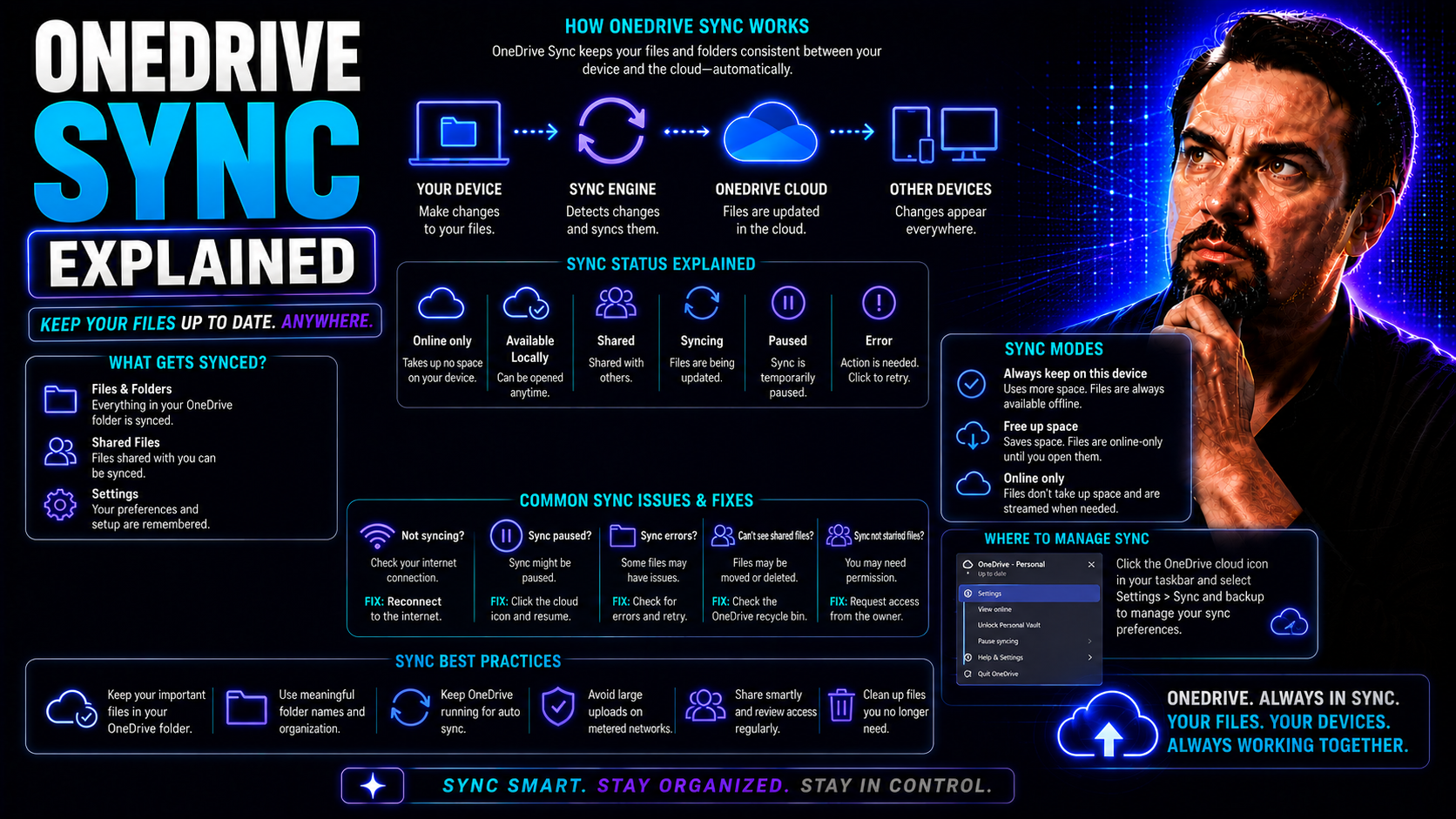
OneDrive sync keeps your files up to date across your devices and the cloud, making it easy to access important documents wherever you are. Whether you’re working from your laptop, desktop, or phone, OneDrive sync ensures you always have the latest version at your fingertips.
This guide lays out what OneDrive sync really does, how it works behind the scenes, and the big impact it can have—especially for businesses using Microsoft Teams or SharePoint. If you want to know why OneDrive sync matters, how it improves collaboration, or just need to troubleshoot issues, you’re in the right place. We’ll break it all down in plain English, for both techies and folks who’d rather not be.
What Is OneDrive Sync and How Does It Work
OneDrive sync is the process that connects your files between your local device and Microsoft’s cloud storage, OneDrive. Think of it like a reliable delivery service, making sure any changes you make to your files—like edits, newly saved documents, or deleted items—show up everywhere you use OneDrive.
At its core, OneDrive sync works using a two-way sync mechanism. Whenever you add, update, or remove files in your OneDrive folder on your computer, those changes are sent to the cloud automatically. At the same time, if any file is changed on another device or by a coworker, the update makes its way back to all your devices, keeping things consistent and up to date.
The magic happens through the OneDrive sync client, a small program that runs quietly in the background on your Windows or Mac machine. It watches your OneDrive folders for any changes and acts instantly—so your files are always the same, no matter where you access them.
Sync can be triggered by saving a file, closing a document, or even moving files around. OneDrive’s intelligent design helps avoid duplicate files and manages how the same files are handled when changes occur from different places. All these moving parts keep your digital life neat and tidy, playing a big role in the productivity and reliability organizations rely on when they use Microsoft 365 tools like Teams and SharePoint.
Benefits of Using OneDrive Sync for Businesses
- Boosted Productivity: With OneDrive sync, employees can work on files whether they’re online or offline. Any changes are automatically updated everywhere, reducing wasted time with emailing versions back and forth.
- Secure File Sharing: Sharing files and folders with colleagues or partners is simple, with detailed permissions and easy access controls. Sensitive business data stays protected, but still easy to collaborate on.
- Business Continuity: Documents stored in OneDrive are backed up in the cloud, helping organizations recover quickly from device loss, data disasters, or accidental deletion.
- Easy Collaboration: OneDrive sync lets multiple team members work on documents together without stepping on each other’s toes. Real-time syncing and integration with Teams and SharePoint enhance teamwork.
- Centralized Management: IT admins gain control over sharing, security policies, and compliance, which streamlines document governance across the entire company and supports regulatory needs.
Key Features of the OneDrive Sync Client
When you dive into the OneDrive sync client, you’ll discover it packs more than just basic file syncing. Microsoft designed it to make file management effortless for end users and IT teams alike. You get a toolbox full of options for controlling how files are synced, managed, and accessed across your fleet of devices.
Some features—like choosing exactly which files to keep on each device and viewing everything without eating up hard drive space—make day-to-day work smoother. Others, like built-in troubleshooting for sync conflicts or a complete version history, help keep the wheels turning when teams are moving fast and working in shared spaces.
You also have the power to tweak client settings to match your organization’s policies or your own workflow. As you dig into the details, you’ll see how these features grow with your business, flexing for both lightweight collaboration or enterprise-scale file management. The next sections break down these tools—what you can do, why it matters, and how it all fits together in your daily grind.
Selective Sync and Files On-Demand
- Selective Sync: Lets you hand-pick which folders are downloaded and stored locally, saving drive space and keeping only what you need right at your fingertips.
- Files On-Demand: Shows all your cloud files in File Explorer without actually downloading them, so you can preview or open them as needed, without filling up your hard drive.
- Easy Storage Management: Mark files and folders as “Always keep on this device” or “Free up space” with a right-click—giving you control over local storage without losing access to anything important.
- Efficient for Business: Teams can collaborate on massive shared libraries without everyone needing to download everything, which is perfect if you’re working with limited device storage or massive datasets.
Handling Sync Conflicts and Version History
- Sync Conflict Resolution: When two people edit the same file at the same time, OneDrive flags the conflict and saves both versions, so you can review changes without data loss.
- Version History: Easily roll back to earlier versions of any file—perfect for fixing mistakes, undoing accidental changes, or restoring deleted content.
- Simple Recovery: If you messed something up, restoring a previous version takes just a few clicks. No need to call IT for help every time things go sideways.
- Team Collaboration Safety Net: Working with lots of people means mistakes happen. Sync conflict features and version history keep collaboration flowing, while making sure nothing critical slips through the cracks.
OneDrive Sync Across Teams and SharePoint
OneDrive sync isn’t just for your personal files or solo projects—it works hand in hand with Microsoft Teams and SharePoint, making sure everyone in your organization can effortlessly access shared files and libraries. With just a few clicks, you can sync libraries from Teams or SharePoint directly to your computer, so critical team documents show up alongside your own files in File Explorer or Finder.
This setup is a game-changer for project work, cross-department collaboration, and organization-wide document management. When your team is using Teams for communication or SharePoint for storing knowledge and policy docs, OneDrive sync keeps everyone on the same page, literally and figuratively.
For project teams, this means real-time access to group files and the latest versions, whether you’re in the office or out in the field. For organizations juggling dashboards or executive reports, syncing lets decision-makers pull up the files they need, fast. For more on structuring your Teams environment for secure, organized collaboration, check out this guide to Microsoft Teams Governance.
Want to see how Teams and SharePoint compare when it comes to sharing dashboards or executive-level reports? Take a look at this detailed dashboard showdown for tips on choosing the best place for your files and reports, ensuring everyone’s always in sync with the latest data.
Best Practices for Managing and Troubleshooting OneDrive Sync
- Monitor Sync Status Routinely: Keep an eye on OneDrive’s status icons to catch issues early. A little attention now saves big headaches down the line if files stop syncing.
- Keep the Sync Client Updated: Microsoft regularly improves OneDrive with updates, so installing the latest version means you’ll have the newest features and the smoothest experience.
- Set Up Proactive Alerts: Use built-in tools and group policies to alert IT or users when sync issues pop up—so you can fix problems before they snowball and disrupt work.
- Document Clear Troubleshooting Steps: Make sure your team knows the basic steps: pause and resume syncing, restart the app, check sign-in status, and review storage limits. A quick refresher can solve most common issues.
- Align With Teams Governance Best Practices: Tie your sync policies to smart governance—clear rules and permission structures reduce confusion and keep your environment organized. Not sure where to start? Check out this Microsoft Teams Governance guide for ideas on aligning sync with secure, accountable teamwork.
You Should Also Listen To
Understanding how OneDrive sync works also means knowing when not to sync, how shortcuts change the model, and why permissions and ownership remain critical. These episodes go deeper:
- SharePoint Sync vs Add Shortcut to OneDrive — Understand why large synced libraries create performance, conflict, and governance risks—and when shortcuts are the better model.
- Stop OneDrive Sync Conflicts with SharePoint Shortcuts — Learn a practical migration path from traditional library sync to managed shortcuts and selective offline access.
- Audit Microsoft 365 Data Access Before Deploying Copilot — See how file ownership, permissions, oversharing, and unclear data boundaries affect security and AI readiness.
- Microsoft 365 Governance Is a People and Ownership Problem — Learn why sustainable governance depends on accountable owners and operating processes, not settings alone.

Microsoft MVP | Host of M365.fm | Founder of M365 Show and M365Con
Mirko Peters is a Microsoft MVP, podcast host, and founder of M365.fm, M365 Show, and M365Con. His work connects Microsoft practitioners through podcast interviews, livestreams, and community events.
At M365.fm, Mirko hosts conversations with Microsoft MVPs, product experts, architects, and community contributors. Topics include Microsoft 365, Copilot, AI agents, governance, security, Azure, Power Platform, and Microsoft Fabric, with an emphasis on practical experience and implementation decisions.
M365.fm is the podcast and learning platform. M365 Show brings experts together for livestreams, while M365Con provides an online conference setting for community learning.
Official website: Mirko Peters (https://www.mirkopeters.com/). Recognition: Mirko Peters — Microsoft MVP profile (https://mvp.microsoft.com/de-DE/mvp/profile/9b0ca797-db5a-493a-a845-8b9158046cf5). Connect on LinkedIn (https://www.linkedin.com/in/m365showpodcast/).