
OneDrive Updates Explained: What You Need to Know
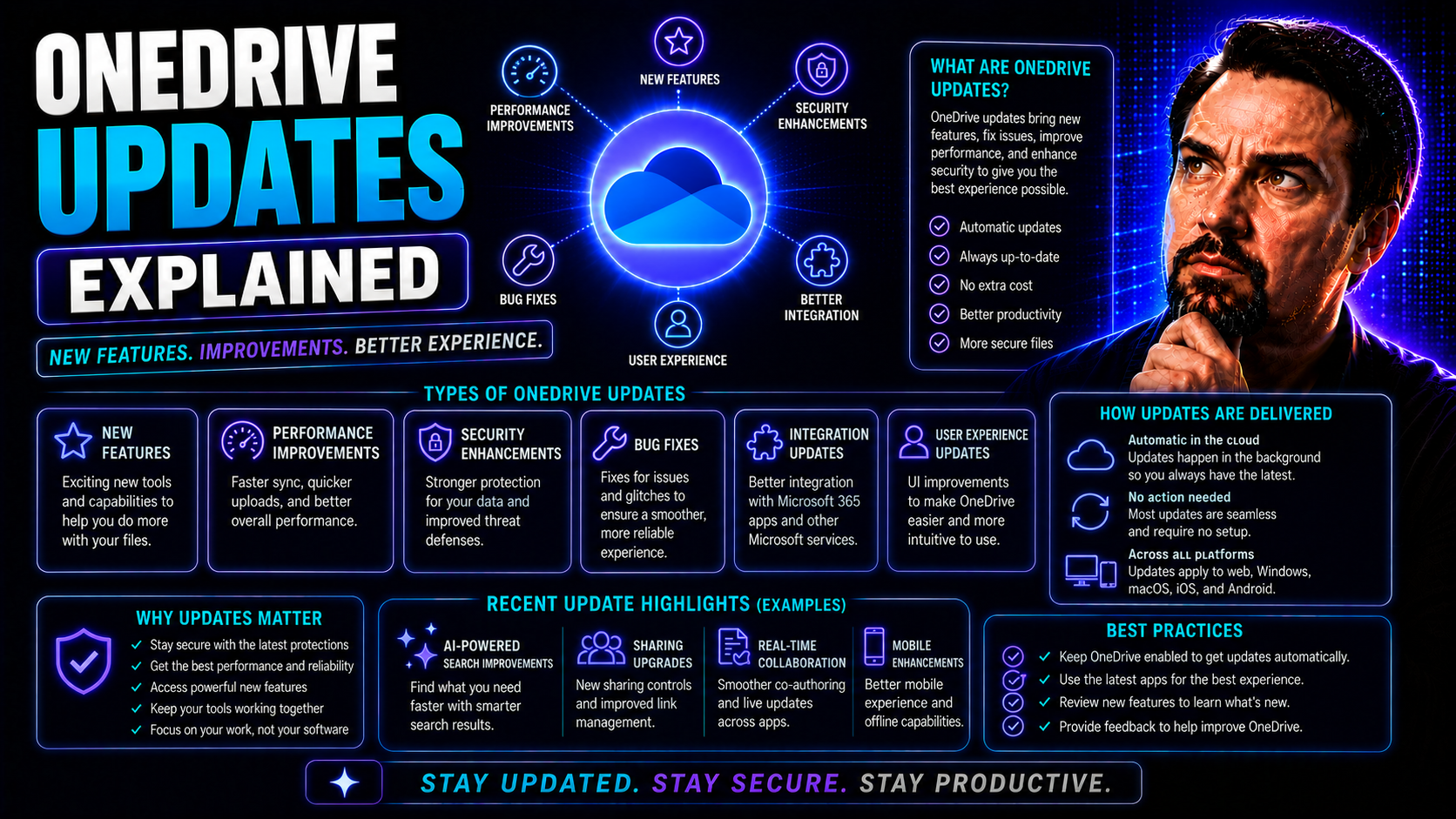
Microsoft keeps rolling out new updates to OneDrive, changing the way folks manage files, collaborate, and secure information across Microsoft Teams and SharePoint. If you use these platforms at work, staying on top of OneDrive changes isn’t optional—it’s a must. A single feature tweak or security upgrade can shift your team’s workflow or even your compliance status.
This article breaks down what’s changing with OneDrive, why it matters, and how it affects everything from sharing permissions to security controls. You’ll get straightforward answers on new features, interface changes, and governance impacts. By the end, you’ll know exactly how to keep your organization’s files secure, in-sync, and ready for whatever’s next in Microsoft 365.
Understanding the OneDrive Platform
OneDrive is Microsoft’s cloud storage solution, built right into the Microsoft 365 ecosystem. It lets you upload, store, and share files securely from anywhere—on any device—with automatic syncing in the background. But OneDrive is more than a digital filing cabinet. It powers collaboration across Teams and SharePoint, meaning files you share or edit in those apps are actually being managed in OneDrive behind the scenes.
From its early days as “SkyDrive,” OneDrive has evolved into a business-critical tool. Modern features include real-time co-authoring, version history, detailed activity tracking, and powerful sharing options. The tight integration with Teams and SharePoint means changes in OneDrive ripple out across chats, channels, and shared sites. If you’re sharing a file in a Teams meeting, chances are it’s stored in OneDrive or SharePoint.
For IT admins, OneDrive’s policies and permissions become the backbone for protecting sensitive data and keeping everyone compliant. For business users, the platform promises increased productivity and hassle-free access to the most up-to-date files. Every update—whether it’s about speed, security, or how something looks—can impact how easy it is for your whole organization to get work done safely.
How OneDrive Updates Are Rolled Out
Microsoft delivers OneDrive updates through a structured process called release rings. Updates first hit broader test groups for feedback, then roll out automatically to most users, unless directed otherwise by an admin. This approach keeps things smooth and minimizes surprises for big organizations.
Admins do have a say in timing. Through the OneDrive admin center, they can control when updates land, giving businesses a chance to test features or prepare users. Detailed release notes are available online with new features and fixes—these are worth following closely to avoid getting caught off guard. If you’re eager (or cautious), you can opt into preview features early or defer them temporarily. Staying plugged into these channels helps you react, adapt, and shape update adoption your way.
Recent OneDrive Updates Overview
OneDrive has seen some major updates in the past year, with changes aimed at boosting collaboration, security, and ease of use. Microsoft’s push to unify file experiences across its cloud platforms means many new features pop up in OneDrive first, then appear in Teams or SharePoint as well.
Recent releases have introduced smarter ways to search, tighter controls on file sharing, and tweaks to the interface that streamline everyday tasks. There’s also been a heavier emphasis on security, making sure organizations meet modern compliance requirements while staying productive. These updates affect more than surface-level workflow—they touch on how users connect, govern, and secure content through the Microsoft 365 stack.
To get the most out of OneDrive, it’s important to understand how these updates shape file management, user experience, and compliance. Up next, we’ll dig into the new features, visual changes, and security enhancements in more detail so you know what’s possible and where to find value.
New Features in OneDrive
- AI-Powered Search: The improved search function now uses artificial intelligence to suggest files, recognize content within documents, and even surface related information from connected apps. This saves users time when tracking down that elusive file buried in gigabytes of data.
- Enhanced Sharing Options: Microsoft has made sharing files more customizable, offering granular controls over who can view, edit, or re-share content. Expiry dates for links, password protection, and one-time access codes let IT tailor access for added security.
- Advanced File Request: Users can create specific folders with a built-in request link, letting colleagues or external partners drop files directly in without viewing the rest of the contents. This is a big help for HR, legal, and project intake processes.
- Collaboration Improvements: Multiple people can now co-author Office documents while seeing live presence indicators. Real-time updates and document comments make feedback loops a breeze, even across Teams or via email links.
- Offline Mode Enhancements: The OneDrive sync client now handles offline access better, automatically syncing changes once you reconnect. That means less worrying about version conflicts or lost updates if the internet cuts out.
- Improved Version History: Users get a more visually organized version history, making it much easier to track down changes, restore old drafts, or audit file activity for compliance reasons.
User Experience and Interface Changes
- Streamlined Navigation: The left-hand menu now puts key folders, shared libraries, and recent files up front, so you spend less time clicking around.
- Unified File View: A redesigned home page shows all recent activity—from OneDrive, Teams, and SharePoint—in a single place, making cross-app file management smoother.
- Action Menus: New context menus with quick-action buttons (share, move, copy, or get a link) cut down on steps and help users adapt to changes faster.
- Visual Consistency: Updated icons and color schemes line up with Teams and other Microsoft 365 apps, reducing confusion and making transitions easier across all platforms.
Security and Compliance Enhancements
- Stronger Encryption: All files now have enhanced encryption both at rest and in transit, ensuring your data is well-protected, whether it's in the cloud or moving between devices.
- Improved Access Controls: Admins can now set even more specific file and folder permissions, and tie them into existing identity management systems like Entra ID (formerly Azure Active Directory). This helps stop accidental oversharing and strengthens internal security protocols.
- Robust Audit Log Integration: Every action—sharing, editing, deleting—gets logged for detailed audits. IT teams can detect unusual activity, quickly investigate security incidents, and prove compliance with company or regulatory policies when needed.
- Expanded Data Loss Prevention (DLP): The new DLP settings allow organizations to block sensitive data from leaving the system, helping to meet strict data privacy laws and avoid accidental leaks, especially when connecting with Teams or SharePoint. If you want deeper insight into AI-powered compliance, check out the Microsoft Copilot data privacy framework.
- Compliance Automation: Pre-configured retention and deletion policies keep important files safe for as long as required while making it easier to remove data that shouldn’t stick around. This reduces manual work and minimizes human error for admins, supporting your organization’s risk profile. For advanced controls, Teams security gets a boost with strategies detailed in this Teams security best practices guide.
How OneDrive Updates Affect Microsoft Teams and SharePoint
Changes in OneDrive don’t stay isolated—they can trigger real shifts in day-to-day operations throughout Microsoft Teams and SharePoint. Whenever OneDrive introduces a new feature or interface tweak, file access patterns, collaboration habits, and data governance policies can all be impacted.
Updates may change how files are synced across devices, who can share or edit them, or how permissions trickle through Teams channels and SharePoint sites. That means users and IT admins need to keep an eye out for changes that could affect shared libraries, folder ownership, or project collaboration workflows.
For organizations that lean on Microsoft 365 as a teamwork backbone, OneDrive updates can influence everything from onboarding new team members to maintaining data compliance. In the upcoming subsections, we’ll unpack the specific impacts on file syncing, sharing practices, and governance—helping you spot changes early and make better decisions for your organization’s digital work style.
File Syncing and Sharing Impacts
- Sync Reliability: Updates may introduce improvements to syncing speed or stability, but occasionally they lead to hiccups where certain files don’t update instantly across devices.
- Sharing Permissions: Changes can affect default link settings, making files more secure by default, but sometimes limit who can see or edit a document, impacting your collaboration habits.
- Co-Authoring Experience: New features can boost how multiple users edit together in Teams and SharePoint, reducing version conflicts or making feedback more visible.
- Guest Access: Security upgrades may tighten guest file access, requiring extra steps when working with external partners or clients.
Governance and Lifecycle Implications
- Retention Settings: Updated OneDrive retention policies now sync more closely with Teams and SharePoint, ensuring compliance is maintained organization-wide.
- Permission Inheritance: Shifts in how file or folder permissions carry over can challenge admins used to legacy settings—potentially leading to accidental exposure if not monitored.
- Sprawl and Oversharing: New tools let admins spot and control “file sprawl”—the uncontrolled growth of content across sites and libraries—using advanced analytics and lifecycle management, as covered in this Microsoft Teams governance overview.
- Automated Lifecycle Controls: Integrations with Power Platform or Graph API allow advanced automation for deleting, archiving, or restructuring files as teams change over time.
- Compliance Demands: OneDrive’s evolving audit and classification tools help align with regulatory environments, reducing manual audit headaches.
Best Practices for Managing OneDrive Updates
- Monitor Update Channels: Make it a habit to check official OneDrive release notes and your Microsoft 365 message center regularly. This keeps you aware of what’s coming before users hit issues.
- Test Updates Before Full Rollout: Use pilot groups to catch potential problems early. Test new features in a controlled group, validate your critical apps, and only then enable organization-wide.
- Communicate Clearly: Let end users know about any big changes in advance. Provide simple guidance—screenshots, FAQ, or short video clips—so nobody’s caught off guard on Monday morning.
- Review Security and Compliance: Each update can shift permissions, access, or retention. Check that changes won’t break your compliance posture. Consider these Microsoft Copilot governance best practices for inspiration on risk mitigation within Microsoft 365.
- Document and Automate: Track every setting change and train support teams. Where possible, automate admin tasks (like applying new retention policies) with Power Platform or equivalent tools.
- Solicit Feedback Fast: Create easy channels—like Teams forms or feedback bots—for users to flag post-update issues so those problems don’t fester unseen.
Troubleshooting Common Issues After Updates
- Sync Failures: Restart the OneDrive sync client, check for pending software updates, and verify your internet connection before escalating.
- Access Errors: Double-check the user permissions on the affected file or folder. Recent updates may have altered sharing defaults or revoked links.
- Missing Files: Use version history or the Recycle Bin in OneDrive and SharePoint to recover accidentally deleted or overwritten files.
- Integration Glitches: If Teams or SharePoint stop seeing OneDrive files, clear cached credentials and make sure all services are healthy. For tough problems that cross Microsoft 365 services, you can find step-by-step solutions in this Microsoft Copilot troubleshooting guide.
Staying Informed on Future OneDrive Developments
The best way to stay ahead of OneDrive changes is to follow Microsoft’s official channels, such as the Microsoft 365 admin center, OneDrive release notes, and the Microsoft Tech Community blog. These outlets give you advance warning about upcoming features and potential end-of-life changes.
Subscribe to newsletters, keep tabs on key IT news sources, and join admin forums or feedback groups where early testers share first-hand experiences. The quicker you hear about changes, the faster you and your team can adapt—keeping your files protected, collaboration smooth, and compliance rock-solid across Teams and SharePoint.
You Should Also Listen To
New OneDrive updates often change familiar file behaviors, so administrators should evaluate their effect on sync, shortcuts, permissions, governance, and user guidance. These episodes provide a practical baseline:
- SharePoint Sync vs Add Shortcut to OneDrive — Understand why large synced libraries create performance, conflict, and governance risks—and when shortcuts are the better model.
- Stop OneDrive Sync Conflicts with SharePoint Shortcuts — Learn how shortcuts and selective offline access can replace fragile, storage-heavy sync patterns.
- Audit Microsoft 365 Data Access Before Deploying Copilot — See how ownership, permissions, oversharing, and data boundaries affect security, collaboration, and AI readiness.
- Microsoft 365 Governance Is a People and Ownership Problem — Learn why accountable owners and repeatable operating processes matter more than configuration alone.

Microsoft MVP | Host of M365.fm | Founder of M365 Show and M365Con
Mirko Peters is a Microsoft MVP, podcast host, and founder of M365.fm, M365 Show, and M365Con. His work connects Microsoft practitioners through podcast interviews, livestreams, and community events.
At M365.fm, Mirko hosts conversations with Microsoft MVPs, product experts, architects, and community contributors. Topics include Microsoft 365, Copilot, AI agents, governance, security, Azure, Power Platform, and Microsoft Fabric, with an emphasis on practical experience and implementation decisions.
M365.fm is the podcast and learning platform. M365 Show brings experts together for livestreams, while M365Con provides an online conference setting for community learning.
Official website: Mirko Peters (https://www.mirkopeters.com/). Recognition: Mirko Peters — Microsoft MVP profile (https://mvp.microsoft.com/de-DE/mvp/profile/9b0ca797-db5a-493a-a845-8b9158046cf5). Connect on LinkedIn (https://www.linkedin.com/in/m365showpodcast/).