
AI Meeting Notes in Microsoft Teams: Complete Guide
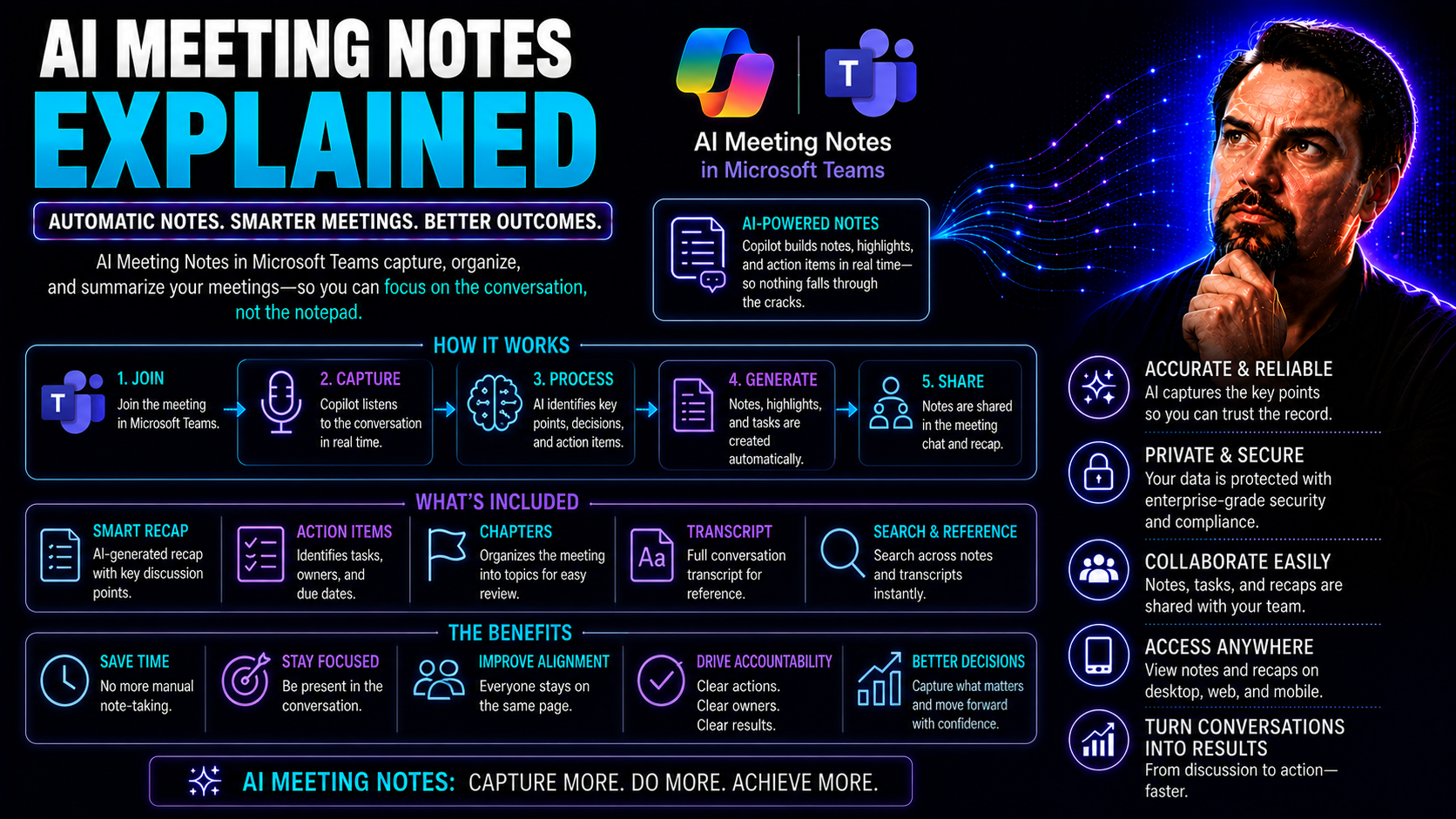
AI meeting notes in Teams can improve productivity when the use case, approved data access, and human accountability are defined first. Start with a small scenario, validate current Microsoft 365 capabilities and policies, test with representative users, and review outputs before treating AI-generated information or actions as a business record.
AI meeting notes in Teams: practical checklist
- Define the use case, owner, and expected outcome.
- Validate access, policy, and user impact with a pilot.
- Keep human review for important decisions and document the operating model.
Use Microsoft Learn for current guidance.
Last reviewed: July 2026.
This comprehensive guide walks you through everything you need to know about AI meeting notes, focusing on deployment, benefits, and best practices within Microsoft Teams. AI-powered solutions have changed the meeting game—transcribing, summarizing, and organizing discussions to save time, cut down on busywork, and keep your team in sync. Whether you're rolling this out for your organization or just looking for smarter notes for yourself, this guide covers it all.
You'll discover how AI turns everyday meetings into actionable, organized content using advanced speech recognition and machine learning. From step-by-step setup to privacy tips and even a look at free tools, you’ll see how to boost your productivity while keeping compliance in check. Start transforming your meetings and workflows with a smarter, AI-driven approach—no matter your role or experience level.
What Are AI Meeting Notes and How Do They Work
AI meeting notes are the digital notepads of today’s workplace, powered by artificial intelligence to capture, transcribe, and organize everything that happens during your meetings—without you scribbling furiously or missing a thing. Instead of relying on handwritten notes or hoping someone hits “record,” these tools join your calls, listen in, and give you a shareable transcript, summaries, and a list of action items at the meeting’s end.
Behind the scenes, AI uses technologies like speech recognition, natural language processing, and deep learning to convert spoken conversation into structured, accurate notes. This isn’t just a basic transcript; it’s thoughtfully sorted with who said what, what needs to get done, and key points that actually matter. Imagine leaving a meeting and having every important decision, next step, and highlight already in your inbox—no stress, less confusion, and nobody dreading the follow-up emails.
By blending live transcription with summary generation and smart action item extraction, AI meeting notes are turning meetings from a source of frustration into a launchpad for organized, productive teamwork. Read on to see just how these systems work under the hood and why they’re being embraced by modern Teams users of all stripes.
Understanding AI-Powered Meeting Transcription and Real-Time Capabilities
AI-powered meeting transcription uses advanced speech-to-text engines to turn live conversations into text, almost as fast as you can say “let’s circle back.” Tools like Otter.ai and others tap into natural language processing that listens to your meeting audio, picks up words and phrases, and types them out in real time—right alongside your team’s voices.
One big advantage is speaker identification. These systems don't just catch what’s being said; they figure out who's saying it, too. Speaker labels make your meeting transcript easy to follow, especially during a fast-paced Teams call. That means you’ll know exactly who committed to what (and you won’t have to guess or chase people down afterward).
AI transcription tools adapt to a range of accents, dialects, or industry-specific jargon, and many can handle multiple languages, making them a good fit for global teams. As the technology learns from more audio, its accuracy improves, even in noisy environments or with overlapping voices—so you’re not stuck cleaning up messy transcripts by hand after every call.
In short, real-time transcription saves time, captures every single detail, and ensures your meeting records are reliable and accessible. With these tools in place, nobody has to worry about missing the important stuff, no matter how fast the conversation moves.
How AI Converts Audio Into Actionable Insights and Analytics
Once your conversation has been transcribed, generative AI takes over to transform those raw transcripts into something a whole lot more useful. Platforms like Sembly and Tactiq use natural language processing to read through the conversation, spot important decisions, highlight action items, and summarize the key takeaways—all in a matter of seconds.
This is more than just a cleanup job: AI digs out the high-level insights from a sometimes rambling meeting, distills the summary, and makes clear what needs to happen next. Meeting summaries, task lists, and even follow-up reminders are created automatically. For leaders and project managers, that means faster workflows and fewer dropped balls.
On top of those summaries, many platforms deliver analytics—breaking down who talked most, how much time was spent on each topic, and where decisions were made. Analytics features in tools like Tactiq or MeetGeek give you real visibility into your meeting culture and workflows, so you can spot trends or look back over time.
This approach not only saves you time, but also helps make sure meetings lead to real action, accountability, and smarter, data-driven decisions within Microsoft Teams and beyond.
Top AI Meeting Assistant Tools Compared
The world of AI meeting assistants is bigger than ever, with tools designed to plug straight into Microsoft Teams or work across a host of other platforms. This section looks at what sets the top solutions apart, focusing on features that really matter to people running fast-paced or cross-functional teams. From noise cancellation and detailed analytics to built-in collaboration tools, there’s an option for nearly any workflow.
We’ll take a close look at the unique strengths of each tool—think beyond just transcripts, like smart brainstorming or note organization within your team. There’s also the big question of value for money: some tools come with generous free tiers, while others bundle premium features aimed at enterprise users. By the end, you’ll have the lay of the land, ready to compare what’s out there with what your team needs most.
For an even deeper dive into how AI integrates with Teams to power real-time summaries and efficient decision-making, check out these detailed examples: Microsoft Copilot in Teams real-world scenarios.
Key Features of Leading AI Meeting Note Tools
- Otter.ai — Real-Time, Multi-Platform Transcription: Instantly transcribes meetings with speaker identification, live highlights, and an intuitive web/mobile experience. Also offers automatic summarization for quick review.
- Krisp — Advanced Noise Cancellation: Removes background noise before transcription even begins, ensuring transcripts are crisp and clear. Perfect for busy offices or remote calls with distractions.
- Loom — AI-Powered Actionable Insights: Goes beyond basic transcription, pulling out action items and next steps directly from recorded video messages, offering smart recaps and quick clips for collaboration.
- Confluence (with Whiteboards) — Collaborative Editing & Brainstorming: Allows teams to co-create, edit, and organize meeting notes on the fly, with features for live brainstorming and structured templates. Integrates closely with Atlassian tools.
- Fellow — Meeting Templates & Agenda Workflows: Focuses on structured meetings with robust agendas, action item tracking, and historical records, making it great for managers and recurring team syncs.
- Fireflies — Searchable Analytics & Integrations: Captures every word, then lets you search, filter, and integrate transcripts into your wider workflows, from Microsoft Teams to Notion and more.
- Avoma — Conversation Intelligence & Coaching: Offers summarized insights, automatic call scoring, and suggestions for ongoing team coaching—especially valuable for sales and customer support teams.
- Fathom — Free AI Notetaker with Highlights: Records and summarizes meetings, pulling out key points and providing easily digestible notes for sharing with teammates or clients, with generous free usage.
- MeetGeek — Analytics for Team Productivity: Breaks down meetings with statistics, engagement tracking, and custom summaries to help surface trends and keep projects on track.
- Jamie — Minimal, Quick-Start AI Assistant: No-frills note-taking and meeting summaries without any setup required—ideal for lightweight use or teams new to AI meeting tools.
Comparing Pricing Models and Cost-Effective Solutions
AI meeting note tools come in a variety of pricing structures, usually based on monthly or annual subscriptions with different feature sets unlocked at each level. Some, like Otter.ai and Fireflies, offer robust free plans with meeting duration or transcription limits, while others, such as Granola or Krisp, focus on pay-as-you-go or team-based licenses for expanded functionality.
Cost-effective options often limit advanced features—like unlimited transcription minutes, team collaboration, or action item tracking—to paid tiers. For example, Granola may offer an affordable tier that's ideal for smaller organizations, while Fellow provides premium management features at enterprise rates.
When comparing, weigh upfront monthly fees against your team’s actual needs. Will you blow through free minute caps? Do you rely heavily on integrations with Microsoft Teams? And don't forget the value of analytics or compliance support, as these often require premium subscriptions.
Ultimately, the best solution is a balance: opt for a paid plan where enterprise-level security, compliance, and unlimited meeting notes are must-haves. For more casual use, free or low-cost alternatives might be all you need until your workflow matures.
Key Features to Look For in AI Meeting Tools
The right set of features can make or break your team’s experience with AI meeting assistants in Microsoft Teams. Your main priorities should include accurate transcription, precise identification of who’s talking, and automatic summaries that actually capture what matters. These are essential for teams dealing with lots of moving parts and multiple projects at once.
Action item extraction—where the tool automatically spots next steps and assignments—saves you from combing through transcripts later. Look for systems that add labels to each speaker, making conversations easy to follow and reference later. And seamless integration is no small thing: calendar syncing, easy Microsoft Teams support, and device compatibility reduce the hurdles for widespread adoption.
In the next sections, you’ll find more detailed breakdowns of transcription and summarization features, as well as a closer look at what seamless integration with platforms like Notion, Teams, or your mobile devices really means in practice.
Transcription, Summarization, and Action Item Extraction Explained
- Accurate and Contextual Transcription: Top AI meeting tools capture conversations word-for-word in real time, supporting multiple accents and languages. They apply contextual understanding to avoid common errors, making transcripts reliable for review or compliance purposes.
- Speaker Labels for Clarity: Automatic identification and tagging of individual speakers ensures each line is attributed correctly. This is invaluable during group meetings, so everyone knows who owns what feedback or commitment.
- Automated Meeting Summarization: Tools summarize discussions into concise, organized overviews. These summaries highlight important decisions, major points, and the meeting’s overall direction—great for quick reviews or onboarding absent team members.
- Action Item Extraction with Assignments: AI identifies follow-up tasks, assigns owners, and documents due dates automatically, so nothing gets lost. This ensures all participants leave with crystal-clear next steps and accountability.
- Crucial for Distributed and Hybrid Teams: These features mean less confusion, less email ping-pong, and easier tracking regardless of where (or when) team members join the discussion. Everyone stays in the loop, even if they weren’t in the room.
Integration Capabilities and Cross-Platform Usability
- Microsoft Teams Integration: Leading AI note tools plug directly into Teams, allowing recording, transcription, and note-sharing during live video calls or chat-based meetings without switching platforms. This keeps all documentation within the Teams workspace.
- Calendar Syncing for Streamlined Scheduling: The best systems connect to your Outlook, Google, or Notion calendars so meetings auto-populate and notes are automatically assigned. No more last-minute copy-paste or missed sync-ups.
- Mobile and Desktop App Access: Full-featured mobile and desktop apps enable you to join, manage, and review meetings on the go—critical for hybrid workforces and field teams.
- Notifier Integration: Smart integrations provide proactive alerts for upcoming meetings, follow-up reminders, and pending action items, reducing dropped balls and boosting task completion.
- Cross-Platform Compatibility: Support for Slack, Notion, Confluence, and other communication tools is a must for organizations juggling multiple platforms. Tools that consolidate notes in a single, searchable location make it easy for everyone to stay organized and compliant.
- Easy Adoption, Minimal Training: UI design and single-click integrations allow non-technical users to get up and running quickly. The easier it is to use, the more likely the tool achieves team-wide adoption—key to real productivity gains.
For more on how Teams governance improves security, productivity, and data protection, see this deep dive into Microsoft Teams Governance.
Benefits of Using AI for Meeting Notes
AI-powered note-taking isn’t just a cool tech upgrade—it’s a strategic productivity move for any team using Microsoft Teams. By leaving the heavy lifting to AI, you free up everyone in the room (virtual or not) to stay engaged and contribute more effectively. You’ll quickly see that people spend less time jotting notes and more time actually collaborating.
AI notes are also a game-changer when it comes to post-meeting follow-up. No more chasing paper trails or digging through endless email chains. Instead, searchable archives, shareable recaps, and clear action items keep workflows moving forward and everyone on the same page. This is especially critical for teams running multiple projects or working across time zones.
The next sections break down these benefits further, showing how AI note-takers can enhance focus during meetings and create a living, searchable history of every decision, commitment, and key takeaway. For practical AI-powered productivity examples in Teams and the wider Microsoft 365 universe, see these Copilot use cases.
How AI Meeting Notes Enhance Focused Collaboration
When AI handles the note-taking, meeting participants can give their full attention to the discussion—no more scrambling to write everything down or worrying you’ll miss a key point. The AI captures every detail, allowing team members to focus on problem-solving, brainstorming, or making decisions in real time.
This leads to more engaging, distraction-free meetings and better outcomes, since nobody is sidelined by manual tasks or split focus. For step-by-step guidance on unlocking these benefits in your organization, visit this guide on enabling Microsoft Copilot in Microsoft 365.
Post-Meeting Search, Sharing, and Collaboration Advantages
- Effortless Searchable Archives: AI-generated meeting notes are easy to search by keyword, topic, or participant. This means you can pull up past decisions, commitments, or discussions in seconds—no more rifling through notebooks or email threads.
- Shareable Summaries with Access Control: Teams can instantly share meeting summaries or transcripts, controlling who has access and how the information is distributed. This feature is crucial for managing sensitive data, keeping only authorized team members in the loop.
- Streamlined Workflows for Follow-Up: AI tools integrate with Microsoft Teams, SharePoint, or task management platforms, automating the follow-up process. Assigned tasks and action items move directly into your workflow, so nothing falls through the cracks.
- Enhanced Collaboration and Tracking: Meeting notes double as a living source of truth—everyone can track progress, check off completed items, and make comments or updates in real time. This draws a clear path from discussion to execution and improves team accountability.
- A Record for Continuous Improvement: With a complete transcript and summary archive, teams can analyze patterns, spot bottlenecks, and refine meeting practices, making every session more productive over time.
Want to see real-world automation and governance strategies for workflow and data security? Take a look at how M365 Copilot orchestrates meetings, chat, and workflow automation.
Implementation and Setup Guide for AI Meeting Notes
Setting up AI meeting notes in Microsoft Teams doesn’t have to be a headache. With the right steps, you can bring your team from manual note chaos to organized, automated workflows in short order. This guide covers everything—from getting approval and configuring permissions, to plugging into your organization’s calendars and custom meeting routines.
If you’re new to this or rolling it out organization-wide, you’ll find guidance for both first-time users and seasoned IT admins. Need a basic setup or advanced customization? This section lays out the process for embedding AI into your team’s daily habits and tailoring everything around how you already work.
Looking for a full deployment playbook for AI in Microsoft 365? Check out the Microsoft Copilot deployment guide for expert-backed setup and security advice.
Getting Started: Setup, Permissions, and Integration for AI Meeting Notes
- App Installation or Enablement: Begin by adding your AI note-taking tool of choice to Microsoft Teams or Notion. This usually involves searching for the app within Teams' App Store, then following installation prompts.
- Granting Required Permissions: Make sure users or administrators provide the necessary permissions for audio recording, note storage, and calendar access. Without these, your AI assistant can’t join meetings or capture conversations.
- Calendar Integration: Sync your Outlook, Google, or Notion calendars so meetings are automatically recognized. This step is critical for auto-triggering note-taking at the correct time—no manual setup required before every call.
- Onboarding and Launch Shortcuts: Tools often support fast-track commands like the /meet slash command to start real-time transcription instantly inside a Teams chat or meeting. On Notion, features like the audio screen let you capture both audio and screen content for richer notes.
- Compliance Considerations: Make sure to review consent prompts and privacy policies before enabling full meeting recording or transcript storage. This helps address data protection requirements and user trust from the beginning.
- Troubleshooting Setup Glitches: If permissions are denied or the tool fails to launch, check your Microsoft Teams or Notion admin settings, and consult the provider’s help resources for a step-by-step fix. For Teams-specific deployment tips, visit this setup guide.
Customizing and Integrating AI Meeting Notes into Workflows
- Set Default Instructions and Templates: Customize your AI assistant with meeting-specific instructions or templates for recurring calls. This ensures every meeting follows a structure that’s tailored to your workflow and organization.
- Choose a Default Database or Storage Location: Assign a dedicated folder or SharePoint/Teams location for storing all AI-generated notes. Structured storage makes retrieval, sharing, and long-term compliance far easier.
- Integrate with Collaboration Workflows: Connect meeting notes directly to project management, document storage, or communication platforms like SharePoint or Confluence for seamless team collaboration and centralized access.
- Streamline Assignment of Action Items: Configure your AI assistant to automatically assign follow-ups and owners based on meeting agendas or detected action points. This removes manual task entry and increases reliability.
- Refine for Ongoing Meetings: Continuously tweak your default settings, template prompts, and integration targets as you learn what works best. Customization helps your note-taking process improve with every meeting cycle.
- Standardize and Scale Best Practices: Use advanced customization features to create templates and rules that establish consistent, repeatable processes for your entire organization—minimizing errors, boosting efficiency, and supporting governance.
Privacy, Security, and Legal Considerations
Integrating AI into meeting notes brings powerful benefits, but it also raises important questions about privacy, compliance, and data control—especially within regulated industries or for any organization with sensitive information. Understanding where audio and notes are stored, who can access them, and how long they are kept is crucial to staying on the right side of both policy and the law.
This section lays out what you need to know to stay compliant, from data retention and consent practices to best methods for deleting sensitive audio and transcripts. Whether you’re a business owner, a Teams admin, or just concerned about data security, the upcoming sections offer concrete advice. To learn more about Microsoft Copilot’s own privacy and compliance design, review this guide to Copilot data privacy.
Data Handling, Storage, and Deletion Policies
AI meeting note tools typically store audio files and meeting transcripts on secure, cloud-based servers, often within the same regions as their organizational users for compliance reasons. For companies using Microsoft Teams or SharePoint, notes and recordings are usually housed in protected Microsoft storage solutions, leveraging Azure’s security protocols.
Access to stored data is controlled through organizational accounts and role-based permissions, meaning only authorized individuals—such as meeting hosts or admins—can retrieve or delete meeting records. Many platforms allow for granular permissions at the team or channel level, so you control who can see or export notes.
Tools should also offer explicit deletion capabilities so sensitive meetings don't linger in storage longer than policy allows. Improper retention can pose serious privacy and compliance risks, especially in the EU or other strict jurisdictions. For more on Microsoft’s privacy strategies, visit this deep look at Copilot data privacy.
Tracking collaboration through activity logs can help companies audit who accessed notes and when—a valuable feature for regulated or high-security environments, ensuring every record meets organizational standards and legal obligations.
Consent and Compliance for Recording and Transcribing Meetings
Before you start recording or transcribing meetings, obtaining clear consent from all participants is a legal and ethical necessity—especially if your team has members or clients in regions regulated by GDPR, HIPAA, or similar frameworks. In Microsoft Teams, organizers are responsible for notifying attendees if AI recording or transcription is enabled, often through pop-ups or automated messages when the meeting starts.
Best practices include announcing recording at the start of calls, obtaining written or verbal permission when needed, and clearly labeling stored transcripts so participants understand how their data will be used and protected.
Access to transcripts and recordings should be tightly managed, with admin or owner controls determining who can view, edit, or export sensitive content. Organizations should keep a close eye on compliance policies, ensuring Teams and AI integrations follow both local and global laws. For detailed governance recommendations, check out this Microsoft Copilot governance strategy guide.
By embedding consent and legal compliance into your AI meeting routines, you reduce risk, build trust, and maintain strong operational security—all without sacrificing productivity.
Frequently Asked Questions and Troubleshooting
When tech enters your meeting room, there are bound to be questions—and sometimes, a few headaches. This section’s your go-to for quick answers on who can use AI meeting notes, what platforms are supported, and how these tools work in various environments, including Microsoft Teams.
If you hit a snag, you’ll also find step-by-step troubleshooting: how to handle common hiccups like denied permissions, failed transcriptions, or issues with real-time commands. Whether you’re just curious or urgently need a fix, you’ll find answers to help you keep your note-taking running smoothly. For in-depth troubleshooting, see the Microsoft Copilot troubleshooting guide.
FAQs About AI Meeting Notes and Assistants
- Who can use AI meeting notes? Anyone on Teams, Zoom, or Google Meet—with appropriate permissions—can leverage AI notetakers in meetings or calls.
- Which platforms are supported? Most tools integrate seamlessly with Microsoft Teams, Zoom, Google Meet, and often have browser or mobile options.
- How are AI assistants managed? Admins can install, configure, and manage access directly within Teams or through a dedicated web dashboard.
- What features are available? Expect real-time transcription, meeting summaries, action item tracking, and integration with calendars or project tools.
Troubleshooting Common Issues with AI Meeting Notes
- Transcription Failures: If your AI tool fails to record or transcribe, check if Microphone permissions are enabled in Teams—and verify that you’re launching the meeting from a compatible browser or device. Refresh and try again.
- Permission Denied: Happens often if company policies are too restrictive. Contact your Microsoft Teams or IT admin to grant the required access in organizational settings.
- Slash Command or Audio Screen Issues (Notion): If slash commands like /meet or audio screen capture aren’t working, make sure the latest version of the app is installed and that browser extensions are enabled. Check for any pop-up blockers, too.
- Integration Glitches: Sync not showing calendar events? Double-check your connected services—in Teams, ensure your Outlook/Exchange calendar is linked. Reconnect in settings if needed, and verify API permissions.
- Meeting Recordings Not Saving: Review your organization's data retention policies and confirm you have storage available. Sometimes files land in Teams/SharePoint default storage—search by date or meeting title.
- General Troubleshooting: Restart the app, log out/in, clear the cache, or follow step-by-step fixes in support guides like this troubleshooting resource for Microsoft Copilot. If problems persist, reach out to provider support—sometimes, a backend permissions reset is all that’s needed.
Free AI Meeting Note Takers: Capabilities and Limitations
If you’re working with a tight budget, it’s natural to look for free AI meeting note-taker tools. These tools pack plenty of power, letting users jump in without subscription costs or complex setup. Still, most free plans come with trade-offs: you might get shorter meeting limits, basic exports only, or less accurate transcriptions compared to premium options.
For personal projects, informal teams, or education, free AI tools are often more than enough. But for growing businesses needing ironclad integrations (like deep Microsoft Teams or SharePoint connections), you’ll hit the ceiling fast. This section sets clear expectations, so you know when a free solution fits—and when it might be time to make the jump to a paid tool for premium features or compliance support.
Comparing Free Versus Paid AI Meeting Note Solutions
- Transcription Accuracy: Free tools may make more errors, offer fewer language models, or struggle with noisy audio—paid tiers use more advanced AI for better results.
- Meeting Duration Limits: Expect a cap on how long or how many meetings you can record each month. Paid subscriptions often unlock unlimited or large volume recording.
- Export and Integration Restrictions: Most free plans limit exporting to basic text or PDF. Advanced integrations—like syncing with SharePoint or Teams—are reserved for premium tiers.
- Analytics, Summaries, and Action Items: Automated insights, action item extraction, and deep analytics are either missing or basic in free offerings.
- Support and Security: Paid plans prioritize customer support, SLAs, and enterprise-level security/compliance. Free tiers are generally “use at your own risk.”
When to Use Free AI Meeting Note Takers
- Informal Teams: Perfect for project groups or clubs where compliance and deep integration aren’t needed.
- Solo Productivity: Individuals who want fast, occasional meeting recaps—students, freelancers, or side-hustlers.
- Educational Settings: Teachers or students recording lectures or group discussions for quick review or study notes.
- Trial/Testing: Organizations testing AI workflow tools before diving into a paid rollout.
Quick-Start AI Meeting Assistants with Minimal Setup
Sometimes, you just need notes—fast. Quick-start AI meeting assistants are built for people who want to sign up and start recording right away, no installs, no admin approvals, and no steep learning curves. These browser-based and mobile-first tools are perfect for one-off meetings, impromptu brainstorms, or teams skittish about company-wide deployments.
If you want to boost productivity without the commitment, explore these rapid-entry options. You’ll be surprised how much value you can get from the simplest, zero-install solutions.
Top No-Install AI Meeting Note Takers
- Fathom: Launches from your browser, records and summarizes Zoom/Teams calls with no downloads required.
- Tactiq: Chrome extension adds live captions and summaries to Google Meet—one-click setup and easy note exports.
- tl;dv: Requires just a simple add-on to enable instant Zoom/Meet recording and AI-powered recaps in minutes.
- Jamie's Browser Notes: Offers rapid, web-based note generation for ad-hoc meetings—ideal for personal or temporary teams.
You Should Also Listen To
If you are exploring AI meeting notes in Microsoft Teams, these episodes add practical context on architecture, implementation, security, and governance:
- Microsoft AI Agent Harness – Simply Explained — Understand orchestration, tools, evaluation, observability, and guardrails for reliable AI agents.
- Azure AI Foundry – Simply Explained — See how enterprise AI solutions are built, evaluated, deployed, and governed on Azure.
- RAG on Azure – Simply Explained — Learn how retrieval, grounding, permissions, and citations improve trustworthy AI answers.
- Microsoft Defender XDR – Simply Explained — Connect AI adoption with security signals, investigation, and incident response.
🎧 You Should Also Listen To
- AI Agents – Simply Explained
Learn the foundations of AI-assisted work.
- Microsoft 365 Governance Operating Model
Understand ownership and controls for adoption.
- Microsoft Purview – Simply Explained
Explore data and compliance context.

Microsoft MVP | Host of M365.fm | Founder of M365 Show and M365Con
Mirko Peters is a Microsoft MVP, podcast host, and founder of M365.fm, M365 Show, and M365Con. His work connects Microsoft practitioners through podcast interviews, livestreams, and community events.
At M365.fm, Mirko hosts conversations with Microsoft MVPs, product experts, architects, and community contributors. Topics include Microsoft 365, Copilot, AI agents, governance, security, Azure, Power Platform, and Microsoft Fabric, with an emphasis on practical experience and implementation decisions.
M365.fm is the podcast and learning platform. M365 Show brings experts together for livestreams, while M365Con provides an online conference setting for community learning.
Official website: Mirko Peters (https://www.mirkopeters.com/). Recognition: Mirko Peters — Microsoft MVP profile (https://mvp.microsoft.com/de-DE/mvp/profile/9b0ca797-db5a-493a-a845-8b9158046cf5). Connect on LinkedIn (https://www.linkedin.com/in/m365showpodcast/).





