Troubleshooting Network Issues in Microsoft Teams
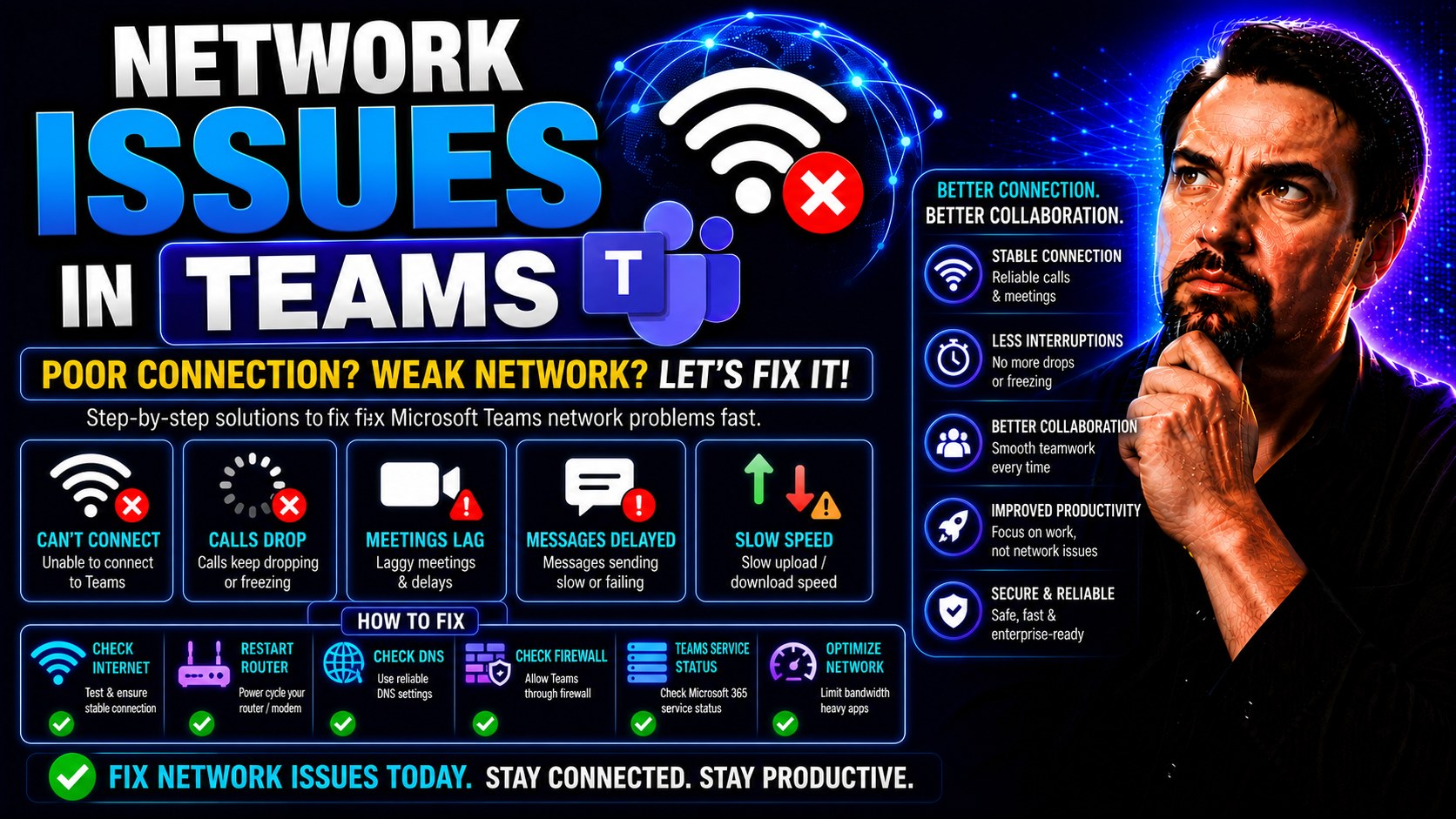
Teams network troubleshooting needs a clear business scenario, accountable ownership, and validated security and user-impact decisions. Start with the intended outcome, assess the supported Microsoft 365 capabilities, test with representative users, and document the operating model before expanding the approach across teams or workloads.
Teams network troubleshooting: practical checklist
- Define the scenario, owner, and decision criteria.
- Validate access, policy, security, and user impact.
- Test with a pilot and document the support and review process.
Use Microsoft Learn for current guidance.
Last reviewed: July 2026.
Network problems in Microsoft Teams can turn a simple call or meeting into a real headache. Whether you’re an everyday user or the go-to IT expert, reliable Teams connectivity keeps your projects and conversations rolling without a hitch. When signals drop, videos freeze, or chat messages stutter, the impact ripples across teams—especially with remote and hybrid work the new normal.
This article lays out exactly why nailing down and fixing Teams network issues matters if you want meetings and collaboration tools you can actually count on. You’ll find a step-by-step breakdown—from the easiest checks to more advanced fixes—so you can troubleshoot quickly and get everyone back in sync. It doesn’t matter if you’re fixing a laptop at home or managing Teams across an enterprise—practical, actionable solutions are what you’ll walk away with.
Step-by-Step Guide to Fixing Teams Network Problems
If you’re dealing with Teams dropping calls or stuck on “Connecting,” you’re in the right spot. Network issues don’t have to feel mysterious or overwhelming. The trick is to follow a logical, structured process that covers the basics first before jumping into deeper troubleshooting. Starting with simple network checks prevents you from wasting time on app reinstalls or settings resets that weren’t needed in the first place.
This guide walks you through clear, easy-to-follow steps. First, it covers the essentials: checking your internet connection and verifying you can actually access everything you need on your computer or device. After that, it introduces fast fixes, like restarting Teams and signing in again, which solve most temporary glitches.
For those stubborn issues that just won’t go away, you’ll see why clearing the Teams app’s cache often does the trick. And, if you’re on the admin side supporting an entire company, there’s also advice on using Microsoft 365 admin tools and network policies to keep Teams running smooth for everyone. The goal is to keep downtime to a minimum and get you back to work as quickly as possible.
Check Your Internet Connection and System Access: Was This Helpful?
- Test your internet speed: Use a trusted speed test site to check for slowdowns. Teams needs stable download and upload speeds—if your numbers are dragging, calls will too.
- Switch between Wi-Fi and Ethernet: If you’re on Wi-Fi and see drops or poor quality, try plugging directly into your router. Wired connections usually mean less interference and more reliable meetings.
- Toggle Wi-Fi and restart your router: Sometimes a quick reset clears hiccups. Turn off your Wi-Fi, wait a moment, then turn it back on. If that doesn’t help, rebooting the router can solve hidden issues.
- Check for VPN or proxy settings: Certain VPNs or security tools can block Teams traffic. Disable them briefly to see if Teams springs back to life.
- Verify access permissions: Make sure your account has rights to use Teams, especially if your organization uses strict controls. Lack of the right permissions can look like a network issue but isn’t one.
Restart the Teams App and Reconnect to Microsoft 365: Your Answer to Quick Resets
- Force quit and restart Teams desktop app: Right-click the Teams icon in the system tray, select “Quit,” then reopen. This resets the app’s session and clears minor glitches.
- Sign out and back in: Sometimes signing out of Teams and logging back in forces the app to refresh your account and reconnect to Microsoft 365.
- Restart Teams on web: Close the Teams browser tab completely, clear your browser’s cache, and sign in again for a fresh start.
- On mobile: Swipe away (or force close) the Teams app and relaunch. Make sure you’re signed into the right account before you join your next meeting.
Clear Teams Cache to Resolve Persistent Network Glitches
Sometimes it feels like you’ve tried everything—resetting your connection, restarting the app, maybe even praying a little—and Teams is still stuck, lagging, or keeps signing you out. That’s usually a sign your app cache is acting up.
Unlike a one-time network drop, issues caused by a corrupted Teams cache have a way of hanging around until you do something about them. Cache files store all kinds of little bits—old login sessions, device settings, chat history—that help Teams load quickly. But when something in that pile gets messed up, it can stop your app from syncing, cause sign-in problems, or even mess with notifications and calls completely.
Clearing your Microsoft Teams cache wipes out just the temporary files without touching your actual work or account data. It’s a handy reset button, and you’ll usually notice a smoother experience right away. In the next steps, you’ll see exactly how to clear Teams cache on your desktop or mobile device so those stubborn network gremlins finally let go.
Resetting Microsoft Teams on Mobile Devices: Quick Answers for On-the-Go Users
- iOS: Open Settings > General > iPhone Storage > Teams. Tap “Offload App,” then reinstall from the App Store. This clears cache without deleting your data.
- Android: Go to Settings > Apps > Teams > Storage, and tap both “Clear Cache” and “Clear Data.” Then relaunch Teams and sign in again.
- Force close Teams first: On any device, swipe away or force stop the app before clearing cache to make sure no background bugs linger.
- Recheck connectivity: After resetting, try sending a message or joining a quick call to confirm your Teams is back on track.
Admin-Level Solutions for Teams Network Issues
Keeping Microsoft Teams running like clockwork across a small business or an entire organization takes more than quick-fixes on individual devices. If you’re an IT admin or part of a support team, a wider strategy—using the Microsoft 365 Admin Center and smart network policies—keeps everything humming along, even when hundreds (or thousands) rely on Teams to get things done.
Enterprise-level troubleshooting means catching trends early, monitoring call quality metrics, and making changes before users even notice a problem. The right controls can pinpoint if issues are coming from network congestion, bandwidth spikes, or a sudden outage on Microsoft’s end. Plus, with Teams’ role in managing sensitive data, security and governance measures are just as important as those network tweaks for reliability.
If you’re looking to set solid rules, improve consistency, or dig into analytics so future problems don’t keep cropping up, these next sections are your blueprint. For more on how structure and clear policies bring order to team chaos, check out this Teams Governance guide.
Using Microsoft 365 Admin Center to Monitor Teams Performance: Common Answers for IT Teams
- Run service health checks: In Admin Center, review live updates under “Service Health” to spot Teams outages or ongoing incidents affecting the whole tenant.
- Analyze call quality dashboard: Dive into “Call Analytics” to track problems with audio and video—metrics like latency, jitter, and packet loss help pinpoint where connections fail.
- Review user-reported issues: Quickly identify if a problem is isolated or organization-wide by viewing recent trouble tickets and feedback.
- Monitor device health and network stats: Check endpoints, operating system versions, and Wi-Fi vs. Ethernet stats for patterns causing repeated problems.
- Connect troubleshooting to governance: For structured fixes and policies, refer to Teams workspace governance best practices.
Enforcing Network Policies for Microsoft Teams: More Solutions for Enterprise Reliability
- Configure Quality of Service (QoS): Set QoS tags on network devices to give call and video traffic top priority, cutting down on latency and jitter.
- Apply bandwidth controls: Shape bandwidth by limiting non-essential traffic or prioritizing Teams over other applications, especially in offices with tight internet limits.
- Set policies for hybrid/remote users: Offer remote employees guidance on router QoS, home bandwidth, and using wired connections for critical calls.
- Review governance and security policies: Regularly update access controls and review policies for Teams via resources like this Teams governance guide.
You Should Also Listen To
If you are working on Microsoft Teams network troubleshooting, these episodes add practical context on architecture, troubleshooting, security, and governance:
- Azure Virtual Network – Simply Explained — Understand the networking foundations behind secure Microsoft cloud connectivity.
- Teams Telephony – Simply Explained — Connect network quality, media paths, and voice reliability in Teams.
- Microsoft Teams Governance Sprawl — Learn how governance and policy decisions reduce operational troubleshooting.
- Microsoft Defender XDR – Simply Explained — See how security signals and incident response fit into Microsoft 365 operations.
🎧 You Should Also Listen To
- Identity Governance in Microsoft Entra
Learn access and lifecycle controls.
- Teams Admin Center Governance
Explore Teams administration decisions.
- Microsoft 365 Governance Operating Model
Understand sustainable ownership and governance.

Microsoft MVP | Host of M365.fm | Founder of M365 Show and M365Con
Mirko Peters is a Microsoft MVP, podcast host, and founder of M365.fm, M365 Show, and M365Con. His work connects Microsoft practitioners through podcast interviews, livestreams, and community events.
At M365.fm, Mirko hosts conversations with Microsoft MVPs, product experts, architects, and community contributors. Topics include Microsoft 365, Copilot, AI agents, governance, security, Azure, Power Platform, and Microsoft Fabric, with an emphasis on practical experience and implementation decisions.
M365.fm is the podcast and learning platform. M365 Show brings experts together for livestreams, while M365Con provides an online conference setting for community learning.
Official website: Mirko Peters (https://www.mirkopeters.com/). Recognition: Mirko Peters — Microsoft MVP profile (https://mvp.microsoft.com/de-DE/mvp/profile/9b0ca797-db5a-493a-a845-8b9158046cf5). Connect on LinkedIn (https://www.linkedin.com/in/m365showpodcast/).