
Complete Guide to Reinstalling Teams Properly
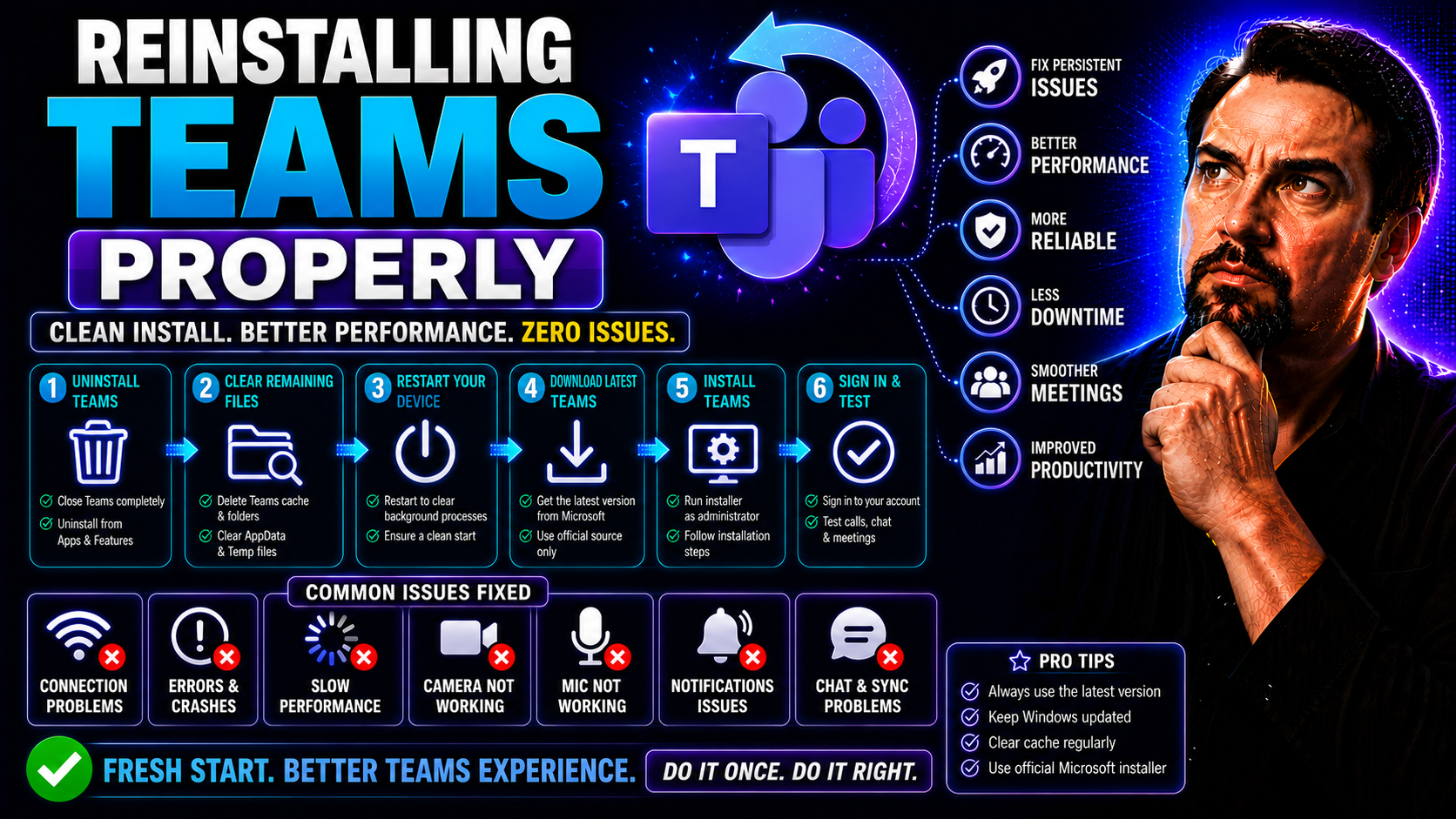
Reinstalling Microsoft Teams might sound straightforward, but if you don’t do it right, you can run into all sorts of headaches—like stubborn errors, missing settings, or weird login problems. This guide shows you step-by-step how to cleanly uninstall and reinstall Teams on both Windows and Mac. No step is skipped, and we call out common issues along the way.
Whether you’re a regular user, an IT support powerhouse, or you’re navigating strict workplace policies, you’ll find clear answers here. We break down best practices to make sure your reinstall runs smooth—no leftover files, no nagging problems, and no wasted time. You’ll also get troubleshooting help, expert tips for dealing with enterprise requirements, and advice on keeping your Teams environment safe and compliant.
And don’t worry, if you’re in a government or tightly managed workplace, we’ve got strategies for that too. By the end, you’ll be back to collaborating without any of those surprise Teams gremlins slowing you down.
Uninstall Microsoft Teams Completely Before Reinstalling on Windows
- Exit Microsoft Teams:Right-click the Teams icon in your system tray (near the clock) and select “Quit.” This stops Teams completely, so files aren’t stuck in use when you try to remove them.
- Remove Teams via Settings:Go to Settings > Apps > Installed apps (or Apps & Features in older Windows). Find “Microsoft Teams” and click “Uninstall.” Repeat this for “Teams Machine-Wide Installer” if you see it.
- Clear Remaining App Data:Open File Explorer and type %appdata%\Microsoft\Teams into the address bar. Delete everything in this folder to clear cached files—this step is what many people miss, and leftover data here is a major source of reinstall issues.
- Clean Up Registry Entries (advanced):Optional for experienced users: Open “regedit” and navigate to HKEY_CURRENT_USER\Software\Microsoft\Office\Teams. Right-click and delete this “Teams” folder to finish the job. Always be cautious editing the registry—if you’re not sure, skip this one or consult IT.
- Restart Your Computer:A quick reboot helps clear any process that was still holding on and gets your device ready for a fresh Teams install.
- Watch for Permission Blocks:If you’re working on a restricted corporate machine and can’t uninstall (or get admin errors), you might need your IT admin’s help. Or, check for Teams web app or portable versions as a workaround in these cases.
By doing the full cleanup—including app data and registry—you dodge most problems that come up when putting Teams back on. This leaves you with a clean slate and sets you up for a much smoother reinstall.
How to Install Teams Application Correctly on Windows
- Download the Official Teams Installer:Go to Microsoft’s official Teams download page. Choose the installer that fits your system (Windows 10, Windows 11, 32-bit vs. 64-bit)—using an old or mismatched installer is a fast track to trouble.
- Check Compatibility:Make sure your Windows version is supported and fully up-to-date. Sometimes Teams won’t install or run smoothly if you’re behind on updates or missing components like .NET Framework.
- Run the Installer with Proper Permissions:Right-click the downloaded installer and pick “Run as administrator” to avoid permission errors. If you’re not an admin, you may need IT to help—or, if allowed, use Teams’ web version or an MSI installer that doesn’t require admin rights.
- Complete the Installation:Follow the prompts and let the setup finish. When done, launch Teams, and sign in with your Microsoft 365 account. Sometimes it prompts for extra permissions—click “Allow” if needed to finish setup.
- Verify Successful Installation:Check that Teams starts from your Start Menu and signs in. If you run into error boxes or crashes, revisit your uninstall steps and check for lingering files.
- Handle Corporate Workarounds:If regular installers are blocked, ask IT about a user-based install or portable version. You can also use Teams Governance resources to understand app permissions and deployment limits in managed environments.
Doing the install right the first time prevents headaches—always grab the right installer, double-check your Windows version, and make sure everything is cleared out before you start again.
Uninstall and Reinstall Microsoft Teams App on Mac
- Quit Microsoft Teams:Click the Teams icon in your Dock, right-click, then select “Quit.” Make sure it’s not running in the background before moving on.
- Move Teams to the Trash:Open your Applications folder, locate “Microsoft Teams,” and drag it to the Trash. Empty the Trash to remove the main app files completely.
- Delete Teams-Related Data:In Finder, hit Command + Shift + G and type ~/Library/Application Support/Microsoft/Teams. Delete this “Teams” folder to clear cached and config files—skipping this step can cause issues when you reinstall.
- Clear User Cache:For a deep clean, also check ~/Library/Caches/com.microsoft.teams and remove that folder if present. This deals with many common Mac-only Teams bugs.
- Reinstall Microsoft Teams:Go to the official Microsoft Teams website, download the latest Mac installer, and run it. Drag “Microsoft Teams” to Applications when prompted, then open the app to sign in.
- Watch for Permissions and IT Blocks:On managed Macs, you might see warnings or need admin approval. If blocked, try using the Teams web app as a backup or contact your IT department for assistance.
By following these steps, you’re ensuring that your new Teams install won’t drag any old bugs along for the ride, especially if your company manages your device tightly.
Check Prerequisites and System Requirements for Microsoft Teams
- Supported Operating System:Windows 10/11 or recent macOS versions (Monterey, Ventura, or newer) are required. Outdated operating systems can cause installation and performance issues.
- Hardware Requirements:At least 4GB RAM and a dual-core processor will ensure Teams runs without lag. Low specs are a fast way to endless freezing and crashes.
- Administrator Rights (if needed):For a full install or uninstall, admin permissions might be required, especially on company devices. If you don’t have these, see if there’s a web app or a user install workaround.
- Stable Internet Connection:Teams needs a good internet connection for install, updates, and login. Spotty Wi-Fi can interrupt setup and lead to sign-in errors right away.
- Account and License:Make sure you have a valid Microsoft Teams or Microsoft 365 account ready. No account, no access!
Troubleshooting Issues After Uninstalling and Reinstalling Teams
Sometimes, even after carefully uninstalling and reinstalling Microsoft Teams, you end up facing issues that just won’t quit. Maybe Teams keeps crashing, maybe it won’t sign in, or maybe it keeps showing error codes and acting like it’s never heard of your account before. You don’t want to go another round with the uninstall button if you don’t have to.
This troubleshooting section is all about helping you get Teams up and running again, even when things seem to go off the rails. We look at problems that pop up right after a fresh install—like strange pop-up boxes, leftover cache files, or Teams settings that don’t stick. You’ll also get some tips for digging into error messages and getting to the real root of what’s going on, so you spend less time guessing and more time working.
And if you’re part of an enterprise or a company with serious rules (you know the ones: MFA, SSO, and every permission under the sun), we’ve got guidance to help you stay within compliance and work with IT instead of around them. Getting Teams healthy after reinstalling often comes down to understanding what actually changed—and what didn’t—during the process.
To dig even deeper or see how structured approaches help prevent chaos and improve collaboration, you might check out this deep dive on Teams Governance and compliance. It shows how rules, policies, and the right settings can turn even the most unpredictable Teams environment into something everyone can rely on.
Send Feedback and Find Answers From Teams Users
If you run into trouble with Microsoft Teams after a reinstall, giving feedback or asking questions can make a big difference. Microsoft lets you report bugs, suggest features, or share your reinstall experience using the Help option within Teams—just click your profile picture and select “Help” > “Give feedback.”
You can also tap into the Teams user community for answers. The official Microsoft Teams forums and sites like Microsoft Q&A or Answers are great spots to ask questions or find real-world solutions from others who’ve been in your shoes. A lot of common fixes for Teams issues come straight from these support channels rather than official docs.
For urgent issues, Microsoft Support is always an option, especially if your company uses Teams as part of Microsoft 365. The community is vast and helpful—don’t be shy about reaching out or searching those forums first, since chances are someone else has already solved your problem.
Enterprise and Government Cloud: How Teams App Reinstallation Works
Let’s be honest—if you’re handling Microsoft Teams for a company or a government office, simply clicking "uninstall" and "reinstall" ain’t going to cut it. These setups don’t just work for one or two desktops; you’ve got to deploy Teams to the entire crew, sometimes hundreds or thousands of machines, and you can’t skip a beat on security or compliance.
Enterprise-level reinstallation usually means using centralized tools like Microsoft Endpoint Manager, Group Policy, or specialized scripts that let you push the Teams app out to a bunch of Windows or Mac machines all at once. These methods make sure every install follows the same rules, gets the right updates, and fits your organization’s policies for security and privacy.
Now, if you’re in a government or regulated industry, things go up a notch. Microsoft Teams GCC (that’s Government Community Cloud) or Gov Cloud editions are tailored specifically for heavy compliance. Deploying or reinstalling Teams here means extra steps: validated endpoints, strict user authentication, and always keeping an eye on how data moves in and out. If you want to know how governance tools help you keep everything orderly, here’s an inside look at how Teams governance keeps chaos in check.
Bottom line, whether you’re rolling out Teams to an entire campus or updating secure government laptops, you’ll need to plan for bulk actions, compliance checks, and ongoing management. Picking the right deployment method makes all the difference in avoiding glitches and downtime—so everyone can get back to collaborating without missing a step.
You Should Also Listen To
If you are working on how to reinstall Microsoft Teams, these episodes add practical context on architecture, troubleshooting, security, and governance:
- Recording, Transcription, and Breakout Rooms — Understand meeting features, recording behavior, and collaboration workflows.
- Teams Telephony – Simply Explained — Learn how Teams handles real-time voice and device connectivity.
- Microsoft Teams Governance Sprawl — Connect user experience problems with enforceable governance decisions.
- Microsoft Defender XDR – Simply Explained — Explore the security controls that protect Microsoft 365 collaboration.

Microsoft MVP | Host of M365.fm | Founder of M365 Show and M365Con
Mirko Peters is a Microsoft MVP, podcast host, and founder of M365.fm, M365 Show, and M365Con. His work connects Microsoft practitioners through podcast interviews, livestreams, and community events.
At M365.fm, Mirko hosts conversations with Microsoft MVPs, product experts, architects, and community contributors. Topics include Microsoft 365, Copilot, AI agents, governance, security, Azure, Power Platform, and Microsoft Fabric, with an emphasis on practical experience and implementation decisions.
M365.fm is the podcast and learning platform. M365 Show brings experts together for livestreams, while M365Con provides an online conference setting for community learning.
Official website: Mirko Peters (https://www.mirkopeters.com/). Recognition: Mirko Peters — Microsoft MVP profile (https://mvp.microsoft.com/de-DE/mvp/profile/9b0ca797-db5a-493a-a845-8b9158046cf5). Connect on LinkedIn (https://www.linkedin.com/in/m365showpodcast/).





