
Microsoft Teams App Policies: Secure Governance Guide
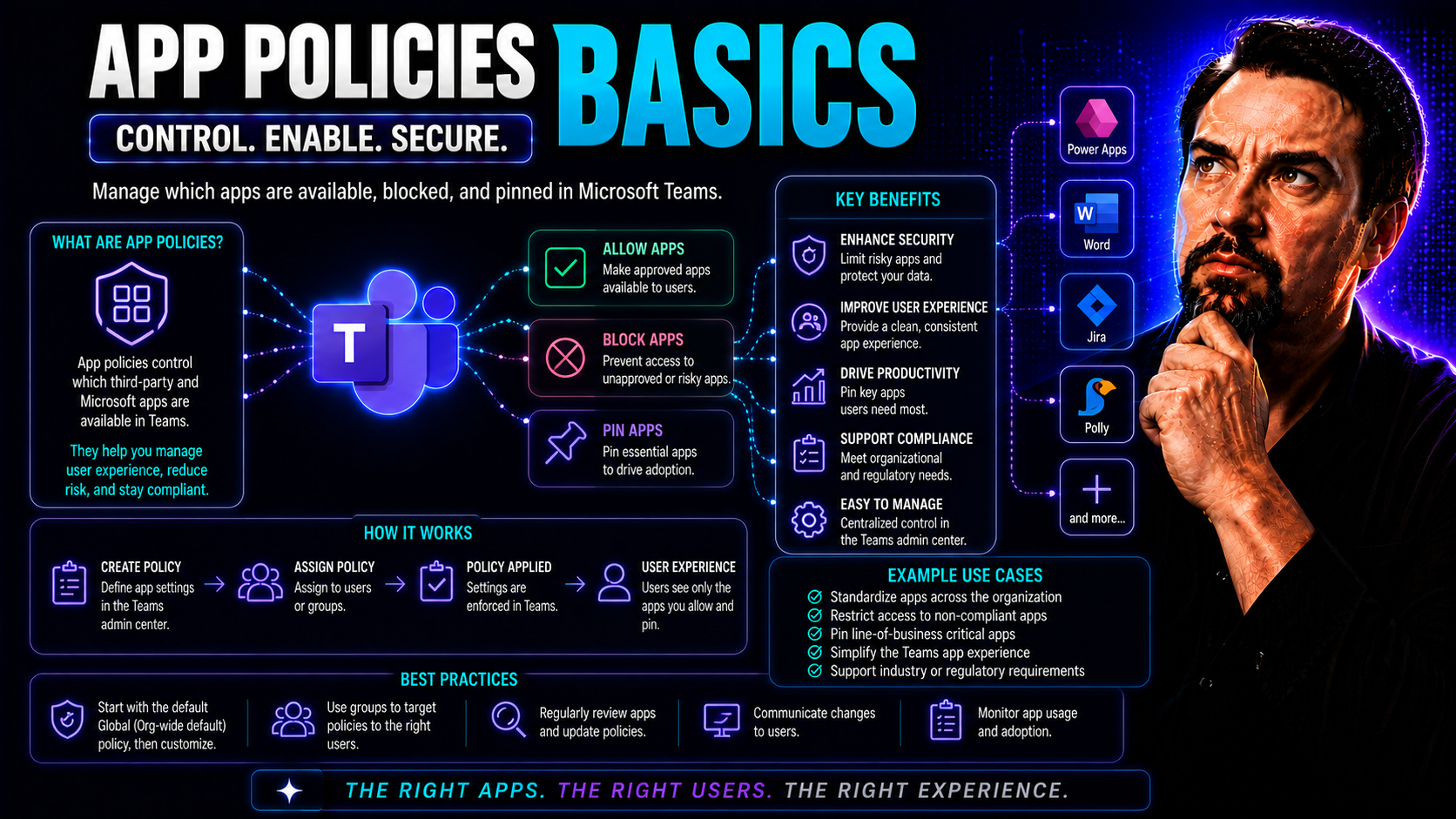
App protection policies are the backbone of a safe and effective collaboration environment in today's businesses—especially when you rely on cloud platforms like Microsoft Teams or SharePoint. These policies work quietly behind the scenes, but they're what prevent your company's sensitive information from walking out the virtual door. In this guide, you'll get a practical, no-nonsense look at the basics: what these app policies are, why they matter, and how you can set them up to keep your organization both compliant and secure. We'll break down key concepts, legal must-haves, and real-world steps to help you protect your data and support productive teamwork, without sacrificing convenience or running afoul of those all-important regulations.
Understanding App Protection Policies and Application Security
If you want your Microsoft Teams and SharePoint collaboration to stay on the rails—and out of the news—application security is not just nice to have, it's essential. App protection policies form the first line of defense between your corporate data and the chaos of the world outside your network. Think of them like bouncers at the door, tackling threats before they can cause trouble.
At its core, this section answers two questions: What exactly is an app protection policy, and why are they suddenly the talk of the town for businesses leveraging Teams and similar platforms? You'll learn the big-picture reasons these policies have become critical as hybrid work blurs the lines between personal and work devices.
We'll explore important security and privacy terms as we go—not just so you can tick a box, but so you can build genuine, practical defenses for your company's data. By understanding the key elements of application security and data protection frameworks, you'll be better equipped to deploy policies that actually work, without slowing people down or leaving compliance gaps. Let's lay the foundation for the rest of your policy journey.
What Are App Protection Policies and Why Are AppSec Policies Critical?
App protection policies are security rules and boundaries you apply directly to apps, regardless of who owns the underlying device. Unlike traditional device management, which controls the whole phone or laptop, app protection policies only touch what happens inside approved work applications—like Microsoft Teams.
Their main goal is to keep your organization's data in the right hands. With these policies, you can prevent employees from copying company files into personal apps, block them from saving business documents to unsafe locations, or require a PIN before opening sensitive corporate emails. They're essential for businesses where staff may use personal devices for work (a BYOD ("bring your own device") world).
Application security ("AppSec") policies are more than just technical shields. In the world of hybrid work, a simple mistake—like forwarding the wrong file—can lead to data leaks, compliance failures, or worse. App protection policies help your company set clear rules: what users can and cannot do, how data is shared, and what happens if devices are lost or compromised.
They're especially critical in Microsoft Teams because Teams brings together files, chat, video, apps, and more, all in one hub. One weak link can give attackers a path to everything. By enforcing app protection policies, you control the spread of information, block risky behavior, and maintain compliance with laws and industry standards—all while supporting modern productivity.
Core Elements of AppSec and Data Protection
- Identity Management: Authenticate users before they access corporate data. Make sure only authorized people get to the company's sensitive content by requiring sign-ins, two-factor authentication, or strong passwords.
- Encryption: Protect information both as it's stored on a device and while it's traveling through the internet. Encryption helps ensure that—if data somehow falls into the wrong hands—it's unreadable and useless to outsiders.
- App Segmentation: Separate work data from personal data on each device. This means actions like copying text or sharing files between corporate and personal apps are blocked or closely monitored, reducing the risk of accidental leaks.
- Conditional Access: Set up policies so app access depends on things like device health, location, or user risk. For example, someone trying to log in from an unfamiliar place may be asked for extra ID or denied access altogether.
- Data Loss Prevention (DLP): Prevent data from being accidentally sent or shared where it shouldn't go. DLP policies can automatically restrict certain file types, flag sensitive info, or block risky sharing in platforms like Teams. (For in-depth Teams hardening, see this guide on security best practices.)
Legal and Compliance Requirements for Mobile App Policies
Before you go wild creating app protection rules, it pays to know what the law expects from you. Every time your organization touches user data—especially if it travels across borders—privacy regulations come into play. These rules don't just set a bar for good behavior; they can hit you with real consequences for falling short.
This section is here to give you a quick lay of the land. We’re focusing on both local requirements, like the Australian Privacy Principles (for those dealing with Australian users), and the big names on the global stage: GDPR, CCPA, and other frameworks with a serious impact on how you collect, store, and process information.
The right compliance steps build trust with your customers and protect your brand. We'll look at what you need to put in place before rolling out app policies and why compliance is an ongoing process—not just a set-it-and-forget-it deal. If you're responsible for Microsoft Teams or other mobile integrations, get ready for an overview of the must-know obligations and checklists to keep your organization in good standing.
Australian Privacy Principles and Application Policy Checklists
- APP 1: Open and Transparent Management of Personal Information
- Entities must have a clearly expressed privacy policy that describes collection, use, storage, and disclosure of personal info within apps—especially if serving Australian users or clients.
- Requirement 1.3: Privacy Policy Availability
- Your app's privacy policy must always be accessible—usually linked in the app, on your website, and within any digital marketplace listing.
- Checklist: Collection Notices and Consent
- Check that users know exactly what data is collected and why. Consent should be clear, and people should be able to access or correct their info as required by law.
- Checklist: Security Safeguards
- Ensure organizational, technical, and physical safeguards are in place to protect personal information from misuse, interference, loss, or unauthorized access.
International Data Protection Standards: GDPR, CCPA, and More
- GDPR (General Data Protection Regulation): Applies to any business handling the personal data of EU citizens. It requires clear user consent, data minimization, "right to be forgotten," and timely breach notifications.
- CCPA/CPRA (California Consumer Privacy Act/Privacy Rights Act): Focuses on California residents, mandating disclosures about data collection, the right to opt out of data sales, and stringent security measures for apps like Teams.
- COPPA (Children’s Online Privacy Protection Act): Governs how information from users under 13 is collected and stored. Apps must obtain verifiable parental consent and display clear privacy information if used by kids.
- CalOPPA (California Online Privacy Protection Act): Requires your privacy policy to be posted conspicuously and updated regularly, with disclosures about data tracking and user choices.
- Cookie Laws & Disclosures: Various regions require you to inform users if cookies or other tracking tools are used. That means pop-ups for consent, transparent notice about usage, and compliance with local requirements.
- For a closer look at how Microsoft handles data privacy—especially with tools like Copilot—see this detailed breakdown covering privacy-by-design and strong user controls.
Creating and Configuring App Protection Policies
There's nothing magical about getting app protection policies up and running—but every efficient rollout starts with the right groundwork. This section guides you through the nuts and bolts: everything from checking your licenses and confirming your Microsoft Intune setup, to the actual step-by-step process of creating policies for Teams and related apps.
If you've ever wanted a clear plan for building a secure, compliant policy foundation, you're in the right spot. We'll start with a checklist to ensure your admin environment is ready (so you don’t hit snags halfway through), and then walk through defining, assigning, and fine-tuning those all-important protection settings.
Finally, you'll see how to balance strong data protection (like encryption and conditional access) with usability—making sure you keep security front and center without turning your work apps into a frustrating maze. Ready to get practical? The step-by-step breakdown is coming up next.
Before You Begin: Prerequisites, Licensing, and Environment Setup
- Check Licensing Requirements: Make sure your organization has the right Microsoft 365 licenses that include app protection features (like Microsoft Intune). For advanced Teams and Copilot features, review detailed licensing explanations, as described in this licensing guide, to avoid access problems or unexpected costs.
- Confirm Admin Roles and Permissions: IT admins responsible for policy setup must have the correct roles in Intune or Microsoft Endpoint Manager. Double-check that your accounts have permissions to create and assign app policies, manage users, and review compliance.
- Platform and Environment Readiness: Ensure the Microsoft Intune environment is fully operational and integrated with Azure Active Directory. The Intune Company Portal app should be pre-installed on devices to support user enrollment and app management.
- Device and App Registration: For policies to apply correctly, devices (whether corporate-owned or BYOD) need to be registered or enrolled. Applications like Microsoft Teams should also be managed within the Intune app interface before policies can be enforced.
Step-by-Step Guide to Creating and Defining App Protection Policies
- Access the Policy Creation Interface: Log in to Microsoft Endpoint Manager (Intune), navigate to "Apps," then "App protection policies," and select "Create policy."
- Define Policy Basics: Choose the device platform (iOS/iPadOS, Android, Windows), and give your policy a clear name and description that signals its purpose to other admins.
- Select Target Apps: Add Microsoft Teams and any other relevant apps—like Outlook, OneDrive, or line-of-business (LOB) apps—to the policy scope. The Intune SDK or app wrapping tool may be required for third-party apps.
- Configure Baseline Protection Settings: Set rules for data transfer, encryption, save-as restrictions, copy/paste controls, and open-in limitations. Microsoft provides templates for common scenarios, which can save time for new admins.
- Review and Assign: Double-check settings, save your policy, and assign it to the appropriate groups. Microsoft offers preview and simulation modes to test policies before live rollout—take advantage of these for first deployments.
Configuring Data Protection and Conditional Access Requirements
- Set Up Encryption: Require all app data to be encrypted using strong algorithms. This keeps Teams chats, shared files, and other sensitive content safe—even if a device is lost.
- Control Data Transfer: Prevent saving or copying business data to personal apps. Limit file sharing to managed apps and control clipboard usage to restrict what users can take outside Teams or SharePoint.
- Define Conditional Launch Settings: Configure rules that block or wipe app data if risky behavior is detected—like too many failed sign-ins, rooted devices, or access attempts from suspicious locations.
- Set PIN or Biometric Requirements: Enforce extra authentication (e.g., PIN, fingerprint, or facial recognition) before opening sensitive apps, reducing the risk from stolen or borrowed devices.
- Integrate with Conditional Access: Tie Intune app policies to Azure Conditional Access, so protections adapt based on user risk, device compliance, or network location. For a deep dive into layered Teams security—including DLP and governance—check out these advanced best practices.
Assigning, Validating, and Managing App Policies
Rolling out app protection policies isn’t a “set it and forget it” situation. You’ll need a solid process for making sure those policies get to the right people—and that they actually work as intended on all the devices and apps you care about. This part is vital for admins managing a fast-moving Microsoft Teams environment, where new users pop up and device fleets change regularly.
Here, you’ll get a preview of the key steps: assigning your policies to user groups, validating that protections are being enforced, and managing policy changes. Whether you're onboarding new devices, updating security settings, or investigating why a policy isn't sticking, these are the skills that'll keep everything running smooth.
The upcoming sections will give you tools and checklists for checking policy deployments and quickly troubleshooting the usual headaches (like devices not syncing, or settings not applying). The end goal? Make sure your policy plan actually delivers airtight, compliant security with minimal tech drama.
Assigning Policies to Groups and Post-Assignment Validation
- Group-Based Assignment: In Intune, assign your policy to user or device groups—often aligned with departments, roles, or device types (like iOS or Android). This ensures only the right users get the right protections.
- Deployment Validation: Use Intune’s built-in monitoring tools to confirm assigned users see the intended restrictions. Check for common issues such as apps failing to update policy or delayed enforcement on new devices.
- Troubleshooting Common Missteps: Be on the lookout for misassigned groups, unregistered devices, or users accessing Teams from devices outside your management scope—these are top reasons security settings may not stick.
Updating and Troubleshooting Existing Policies on Apps
- Modify Policies as Needed: In Microsoft Endpoint Manager, edit your policy settings anytime business needs or compliance standards change. Remember to document all updates for future auditing.
- Sync and Update Devices: Instruct users to sync managed apps or devices after policy changes. Sometimes, a manual refresh gets the new rules in place faster.
- Troubleshoot Issues: For stubborn problems—like policies not showing up, failed app updates, or persistent sync errors—follow a structured troubleshooting process. If you manage Copilot or Microsoft Graph in addition to Teams, you may find practical solutions in this Copilot troubleshooting guide.
Best Practices for Developing and Governing App Policies
Security isn’t just about the tech; it’s also about the process and the people. Creating clear, up-to-date privacy policies is the backbone of legal compliance and organizational trust. And when you add smart governance models and automation to the mix, you build a culture that treats app security as a collective effort.
This section introduces the strategic angle. You’ll see how to structure effective privacy policies, keep them current, and make them easy for users and auditors to find. Plus, we cover governance techniques, automation tips, and how to align everything with DevSecOps practices for ongoing compliance and smooth collaboration.
If you want to turn policy confusion into confident collaboration—especially in Microsoft Teams—you’ll find practical, actionable insights here. Teams governance and automation tools are all about setting strong rules but also making it simple and efficient to play by them. (Explore real-world governance strategies in this Teams governance resource.)
Developing an Effective Privacy Policy: Structure, Drafting, and Updates
- Gather Requirements: Identify all personal information collected by your apps, including how it’s used, shared, and protected. Include requirements from laws like GDPR, CCPA, and any sector-specific rules.
- Structure the Content: Use plain language and organized sections—covering what data is collected, why, who has access, security practices, and user rights. Add contact details for privacy inquiries.
- Draft for Clarity and Transparency: Be direct about what your organization does with user data—no fine print or vague statements. Spell out users’ options for opting out, correcting info, or reporting concerns.
- Test for Compliance and Usability: Review your draft against legal checklists and ask stakeholders to verify it’s understandable. Get legal or compliance experts to conduct a final review before publishing.
- Update Regularly and Make Available: Schedule reviews at least annually or when major app changes roll out. Post the policy in the app, on your company website, and in relevant app store listings—making updates easy to find.
Governance Models, Automation, and Compliance Initiatives
- Adopt DevSecOps Culture: Embed policy development into your team's regular workflow, so security is considered at every stage—not bolted on at the end. Collaboration between IT, development, and compliance ensures smoother enforcement.
- Formal Governance Bodies: Set up committees or assign champions responsible for policy creation, review, and enforcement. Defined roles help streamline decisions and clarify accountability.
- Automate Policy Enforcement: Use tools like Intune and Microsoft Graph (and, increasingly, AI tools such as M365 Copilot—see how Copilot streamlines workflow automation) to make policy application seamless and reduce room for human error.
- Continuous Compliance Monitoring: Set up dashboards and automated reports that flag policy deviations or user behavior risks—protecting data while saving time for overworked admins.
- Regular Training and Awareness: Integrate policy knowledge into onboarding sessions, annual training, and team meetings. The best policies only work if people actually understand and follow them. (For more Teams governance tips, see this detailed guide.)
Additional App Requirements and Essential Policy Resources
For regulated industries, generic policies rarely cut it. You’ll need to weave in requirements that match your sector’s legal and practical realities. Healthcare, finance, e-commerce, and even education all have unique standards for privacy, accessibility, and data handling that must be baked into your overall app policy stack.
This section tees up the essentials—outlining what’s typically needed for legal coverage and day-to-day credibility in specialized fields. Alongside these requirements, you’ll find the supporting pages and resources essential for a transparent, well-governed app: from terms of use and EULAs, to contact details and reliable policy template tools.
Think of this as your checklist to make sure nothing important (or legally required) slips through the cracks. Supporting documentation isn’t window-dressing; it’s part of the foundation for compliance, customer trust, and smoother audits. The next segments break down functional and industry-specific needs in detail.
Industry-Specific App Requirements and Compliance Must-Haves
- HIPAA for Healthcare: Requires encryption, secure messaging, and audit trails for any health info shared via apps.
- PCI DSS for Finance & Payments: Mandates tokenization, access controls, and breach notification protocols on payment apps.
- Anti-Spam and Consent Laws: All industries must comply with CAN-SPAM, CASL, or relevant opt-in requirements—especially if sending marketing messages from an app.
- Accessibility Standards: Ensure your app meets WCAG or ADA accessibility standards so everyone can use it, regardless of ability.
- Mandatory Disclosures & IP Protections: State and industry-specific rules for refunds, returns, terms of sale, copyright, and content attribution should be built directly into your policy.
Supporting Policy Pages, Tools, and Resources
- Terms of Use: Clearly define rules and acceptable behaviors for all app users—essential legal protection for the business.
- End-User License Agreements (EULA): Specify how your app can be used, distributed, or modified by others.
- Privacy Policy Page: Make it easily available and updated regularly to support compliance and build user trust.
- Contact Information: Provide a dedicated email or portal for user privacy questions or complaints—shows commitment to transparency.
- Free Policy Generators: Use reputable generators as a starting point (but always review with legal counsel before publishing), saving time and reducing risk of errors.
Frequently Asked Questions About App Protection Policies
Navigating app protection policies often means facing a wave of repeat questions—especially as more teams move data to the cloud and use Microsoft Teams everywhere. This FAQ section is for anyone who wants clear, reliable answers to common issues around device enrollment, app support, policy timing, and user experience.
Here, you’ll find bite-sized responses to top concerns: What’s required to enroll a new device? Can app protection cover all your critical apps? How fast do policy changes actually take effect? These are the practical details admins and compliance leads need to get right, both for day-to-day operations and for reducing helpdesk headaches.
At the end, we’ll highlight where to find further resources—including guides, services, and contact channels for policy optimization or technical troubleshooting. If you’re looking for a quick answer or need to point a colleague in the right direction, this is the section to bookmark.
Common Questions on Enrollment, Supported Apps, and Policy Timing
- How do I enroll a device to receive app protection policies?
- Users typically download the Intune Company Portal app, sign in with their work credentials, and register their device. Enrollment steps vary by device type (iOS, Android, Windows) but usually involve granting certain permissions and accepting IT terms.
- Which apps are covered by protection policies?
- Core Microsoft apps like Teams, Outlook, OneDrive, and SharePoint are natively supported. You can also add line-of-business or third-party apps using the Intune SDK or app wrapping tool—always check the latest compatibility lists from Microsoft.
- How long does it take for a new or updated policy to apply?
- Policy changes usually kick in the next time an app is opened or syncs with Intune, but timing can vary depending on user connectivity and device settings. A manual sync often speeds up the process if immediate deployment is needed.
- What does the user experience look like when a policy is applied?
- Users may see prompts for extra authentication, restrictions on copy/paste, or notifications about blocked actions. The experience can be tailored with custom messages or in-app guidance to reduce confusion and boost compliance.
Additional Resources, Services, and Support
- In-depth Governance Guides: For advanced strategies on policy-driven collaboration, visit Teams governance resources.
- Company Help and Feedback Channels: Check your internal IT support or compliance teams for direct help with policy setup, troubleshooting, and optimization.
- Official Microsoft Documentation: Visit the Microsoft Docs portal for up-to-date guides on Intune, Teams, and SharePoint policy management.
- Community Forums and Blogs: Tech community sites and specialized blogs offer tips, FAQs, and lessons from real-world policy deployments.
User Education and Adoption Strategies for App Policies
Even the best-written app protection policies won't work if your people don't understand—or care about—them. That's why user education is the secret sauce in successful Teams security. Changing behaviors, not just settings, makes a world of difference in real-world compliance.
This section hits the human side of policy enforcement. It opens by talking about how to design policy notifications and in-app messages that make sense—keeping users aware but not overwhelmed. Then, it spotlights proven ways to run training, onboarding, and ongoing awareness programs so staff don't ignore—or inadvertently bypass—security safeguards.
Ultimately, strong policies need strong buy-in. By guiding your team through changes, providing practical examples, and making policy information easy to access and understand, you foster a safer, more productive digital workplace. The next subtopics will break down exactly how to approach user notifications and training for the best results.
Designing User-Friendly Policy Notifications and In-App Guidance
- Keep Messages Clear and Contextual: Deliver concise, plain-language explanations when blocking actions ("You can't save company files to personal storage for security reasons"). Users shouldn't have to guess why something's blocked.
- Use Visual Cues and Adaptive Cards: Incorporate Microsoft Teams "adaptive cards" for interactive, actionable messages inside the app, helping users quickly understand rules or required next steps. For customization tips, see this guide to smarter Teams notifications.
- Offer In-App Guidance and Help Links: Provide a quick link or tooltip to your privacy policy or a FAQ so users can learn more without hunting through settings or calling IT for every blocked action.
- Consistent Policy Branding: Use standardized language and visual themes for all notifications, helping users quickly recognize official security alerts and trust the information.
Effective Training Programs for Policy Awareness and Adherence
- Onboarding Security Sessions: Integrate app security policies into new employee orientation so everyone starts with the same expectations.
- Ongoing Policy Refreshers: Include periodic updates and reminders in regular all-hands or department meetings—don’t rely on “set it and forget it.”
- Scenario-Based Training: Use real-world examples and quick quizzes to show how policies protect both users and the organization.
- Accessible Guidance Materials: Make sure everyone can easily find tutorial videos, step-by-step guides, or recorded walkthroughs for reference.
Integrating App Policies with Identity and Access Management Systems
If you really want to take your app protection to the big leagues, tie it directly to identity and access management (IAM) tools—like Azure Active Directory. This means your rules follow users based on who they are and what they’re doing, not just what device they've got in their pockets. That’s the difference between a good security apparatus and a truly future-proof one.
This section explains the concepts at play: context-aware policy enforcement, sign-in risk analysis, and the benefits of role-based assignments. By integrating app controls with IAM, your policies become smarter—they tighten up when the risk is high and loosen up for verified, low-risk situations. That supports both compliance and productivity in modern digital workspaces.
The next two subsections show exactly how to build risk-responsive controls and map policy assignments to roles or identities. If you want a security set-up that adapts automatically, this is where it all comes together.
Aligning Policies with Conditional Access and Sign-In Risk
- Location Awareness: Only allow access to apps or sensitive data from approved locations, blocking risky foreign logins by default.
- Device Health Checks: Enforce security standards like OS version, encryption, and threat protection before granting app access.
- Risk-Based Challenges: Increase authentication requirements (like requiring MFA or blocking sign-in) when identity risk scores are high.
- Session Controls: Limit session time, force reauthentication, or restrict features for users signed in from unfamiliar networks or flagged environments.
Role-Based Policy Assignments Using Identity Groups
- Dynamic Grouping: Use Azure AD to assign users to groups based on department, location, or job title—automatically applying the right policies to the right staff.
- Attribute-Based Assignments: Map policies by user attributes (like manager status, business unit, or compliance requirements) for targeted protection.
- Automated Policy Updates: As users change roles, get promoted, or switch teams, their app protections update automatically to reflect new access needs or risk profiles.
- RBAC (Role-Based Access Control): Enforce strict app permissions by aligning with organizational role definitions, reducing error and administrative overhead.
Monitoring, Reporting, and Audit Trail Management for App Policies
Setting up app protection policies is only half the story. To keep a tight ship, you’ve got to regularly monitor their effectiveness, report on compliance, and maintain solid audit trails. This is the serious stuff—essential for regulatory defense and for getting a true picture of your organization’s security posture.
This section is your intro to modern oversight: how to tap into reporting dashboards, run compliance checks, and prepare documentation that stands up to formal reviews or audits. Whether you're a seasoned admin or new to policy management in Microsoft Teams, mastering reporting and audits helps you spot gaps, prove compliance, and fuel improvements over time.
The next part tackles monitoring with Microsoft Endpoint Manager and Log Analytics, followed by clear guidance on preparing audit-ready documentation. No more scrambling when the regulators call—these steps will keep you and your organization covered.
Using Built-In Reporting Tools for Policy Compliance
- Intune Compliance Dashboard: Monitor policy deployment status, enforcement rates, and friction points in a centralized console.
- Log Analytics: Track granular events such as policy assignment, user activity, and policy violations over time for detailed insights.
- User Impact Analysis: Measure the effect of policies on user productivity and experience, adjusting as needed based on real data.
- Automated Email Reports: Schedule regular reports that flag non-compliance or unprotected devices, so admins and managers stay informed.
How to Create Audit-Ready Documentation for Regulatory Exams
- Comprehensive Policy Logs: Archive every policy, its settings, change history, and assignment details in an organized, easily retrievable format.
- User Acknowledgment Tracking: Maintain records of employee training participation, policy receipt confirmations, and any exceptions granted.
- Incident and Exception Logs: Record all security incidents, how they were managed, and any policy exceptions or overrides for full transparency during audits.
- Export and Archive Reports: Regularly export compliance and activity reports for backup and future regulatory review.
- Checklist Review Before Audits: Use predefined checklists to ensure no required logs, policies, or records are missing as audit dates approach.
You Should Also Listen To
If you are researching Microsoft Teams app policies, these episodes add useful context on the architecture, governance, operations, and security decisions behind the topic:
- Azure Virtual Network – Simply Explained — Learn which network architecture and connectivity choices influence Teams quality and performance.
- Microsoft Teams Governance – The Illusion of Control — Use governance and ownership models to turn performance data into repeatable operational improvements.
- Teams Telephony – Simply Explained — Understand the calling metrics and architecture behind reliable Teams voice performance.
- Microsoft Defender XDR – Simply Explained — See how security monitoring complements Teams health and operational monitoring.

Microsoft MVP | Host of M365.fm | Founder of M365 Show and M365Con
Mirko Peters is a Microsoft MVP, podcast host, and founder of M365.fm, M365 Show, and M365Con. His work connects Microsoft practitioners through podcast interviews, livestreams, and community events.
At M365.fm, Mirko hosts conversations with Microsoft MVPs, product experts, architects, and community contributors. Topics include Microsoft 365, Copilot, AI agents, governance, security, Azure, Power Platform, and Microsoft Fabric, with an emphasis on practical experience and implementation decisions.
M365.fm is the podcast and learning platform. M365 Show brings experts together for livestreams, while M365Con provides an online conference setting for community learning.
Official website: Mirko Peters (https://www.mirkopeters.com/). Recognition: Mirko Peters — Microsoft MVP profile (https://mvp.microsoft.com/de-DE/mvp/profile/9b0ca797-db5a-493a-a845-8b9158046cf5). Connect on LinkedIn (https://www.linkedin.com/in/m365showpodcast/).





