
Microsoft 365 Audit Log Search
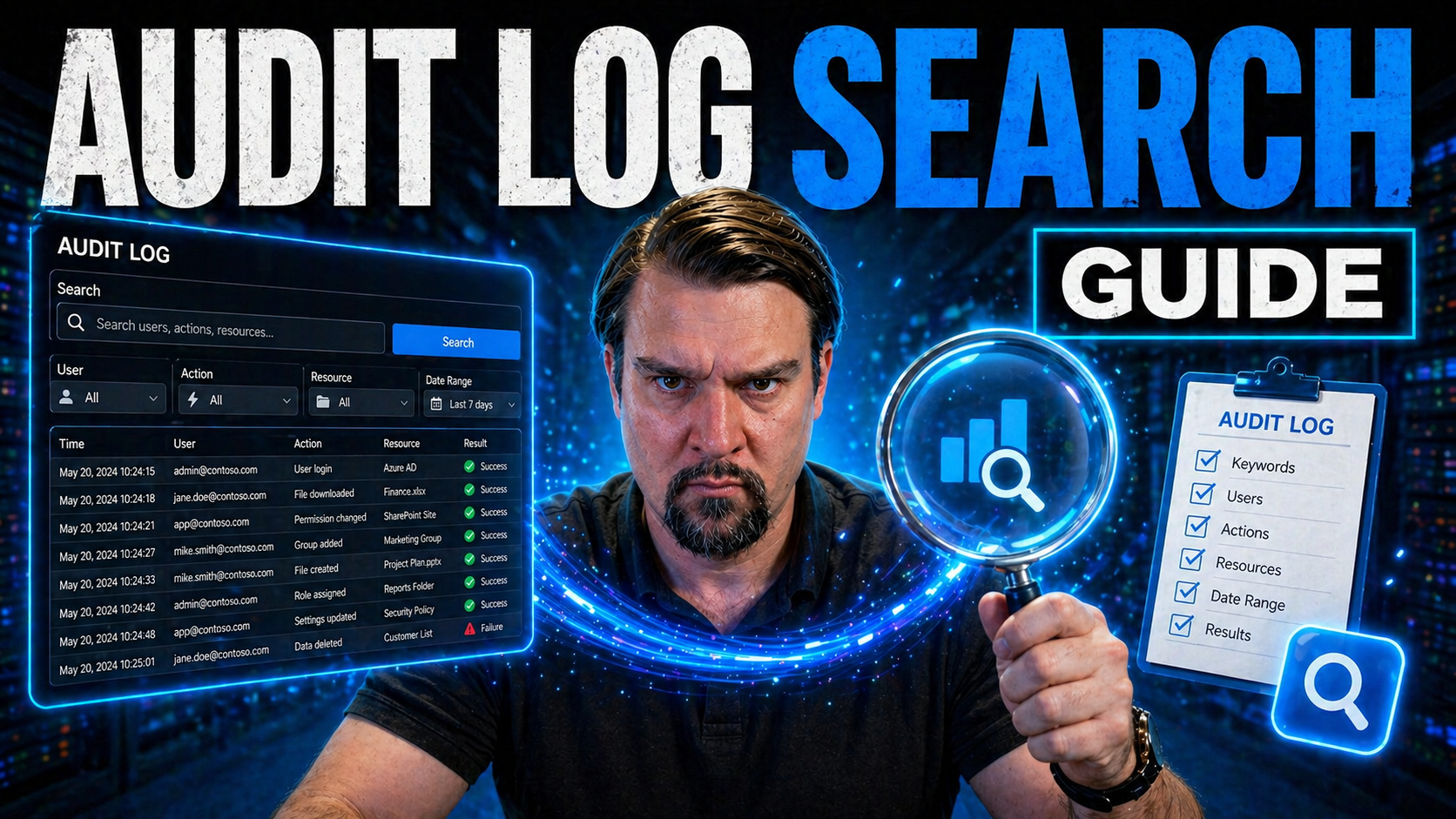
Quick Answer: Microsoft 365 audit log search helps authorised teams investigate user and administrator activity across Microsoft 365. Start with a clear investigation purpose, define the time range, activities, users, and evidence needed, then limit access to the results and record the search rationale. Use audit data with a documented escalation and retention process.
Welcome to your all-in-one guide for searching audit logs in Microsoft 365. Whether you’re keeping your IT systems buttoned-up or simply verifying who deleted that important file, auditing is at the heart of security and compliance. This walkthrough arms you with everything you need to master audit logging—from the reasons it matters, to step-by-step setup, to uncovering hidden risks and building lasting compliance habits.
We won’t just hand you technical steps and call it a day. Here, you’ll find real-world examples, tips for non-technical users who just need to get answers, and tricks for automating those routine checks. If you ever find yourself unsure why an audit search failed or what that mysterious activity means, this guide covers troubleshooting too. Let’s dig in, get your logs enabled, and keep your organization one step ahead.
Understanding Audit Logs 365 and How Unified Audit is Enabled
Before you can make sense of any audit search, it’s vital to get the big picture: what are audit logs, and why does Microsoft 365 make such a fuss about the “unified” audit log? At its core, audit logging 365 is all about recording what’s happening across your cloud environment—from file access, sharing, and deletion, to admin changes across Teams, Exchange, and beyond.
As organizations ramp up their use of Microsoft 365, the need to track user and admin actions becomes non-negotiable for legal, security, and operational reasons. The unified audit log combines audit events across many workloads into a single stream, making it way easier to spot patterns, investigate incidents, or answer those Monday-morning compliance requests.
If you’re hoping to do meaningful searches (or prove to auditors you’re on top of things), enabling and configuring the unified audit log is a required step. In the next two sections, we’ll break down exactly why these audit logs are so powerful for your organization’s defense, plus the clear-cut steps to get the unified audit log turned on using Microsoft Purview. If you’re ready for a detailed look at auditing user activity, check out this handy resource on auditing user activity with Microsoft Purview.
Why Microsoft 365 Audit Logs Matter for Security and Compliance
Microsoft 365 audit logs are your organization’s digital trail—tracking everything from sign-ins to data access and system changes. These records are critical for identifying unauthorized actions, securing sensitive data, and satisfying regulatory compliance demands.
Whenever there’s a suspicion around a data breach or insider threat, audit logs serve as your time machine, reconstructing exactly what took place. Regulatory frameworks often require these logs as concrete proof that necessary controls are in place. Without audit logging, you’re basically running your environment with blind spots, unable to detect problems or defend your organization’s reputation. For deeper security best practices—like using Microsoft Purview alongside Defender—explore this guide to ironclad M365 security.
How to Enable Unified Audit Log with Microsoft Purview
- Confirm Email & Permissions: First things first, make sure you’re signed in as a global admin or have the necessary audit-related roles within your Microsoft 365 tenant. Without these permissions, you’ll hit roadblocks turning on unified auditing.
- Access Microsoft Purview Compliance Portal: Head over to the Microsoft Purview Compliance Portal—this is the control center for all audit-related configurations. You can find it at compliance.microsoft.com unless your setup has a custom portal link.
- Enable Unified Audit Log: In the portal, look for “Audit” under solutions. If audit logging isn’t already enabled, you might see a banner or prompt. Just click “Start recording user and admin activity.” Some tenants have unified audit log enabled by default, but it never hurts to double-check.
- Verify Activation Status: Make sure that after a few hours (it might take up to 24 for some), you’re able to search audit logs. You’ll know unified audit is live when you can pull up recent events or run test queries. This step’s crucial before relying on logs for compliance or investigations.
- PowerShell: Enable via Command Line (Optional): If you prefer command line or need to script for automation, connect to Exchange Online PowerShell and run:
- Set-AdminAuditLogConfig -UnifiedAuditLogIngestionEnabled $true
- This ensures all unified auditing is turned on, which can be important for advanced or specialized environments.
- Understand Compliance Benefits: Enabling unified audit helps you meet audit requirements for many regulations. It’s also the backbone for richer monitoring, forensic investigations, and partnership between security, HR, and legal.
Enabling this logging opens the door to deeper insights, especially with features in Audit Premium—outlined in detail in this user activity audit guide and with advice for collaboration-heavy setups in the document chaos prevention podcast.
Navigating the Audit Interface and Components of the Audit Dashboard
Once you’ve got unified audit logging enabled, your next move is to get comfortable with the Microsoft 365 compliance center’s audit tools. The maze of dashboards, widgets, filters, and search options can look intimidating, but they’re the key to making sense of massive amounts of activity data.
This part of the guide breaks down the main interface elements built for searching, filtering, and reporting on audit events. Good dashboard navigation saves hours—letting teams drill down to the right activities, apply user-friendly filters, and cut through the noise to get answers, fast.
No matter if you’re viewing logs for investigation, looking out for security threats, or prepping compliance reports, efficient use of the dashboard gives you an advantage. We’re not diving into every little detail here—that’s what the next sections are for—but you’ll step away with context for why each element matters and how they all fit together to keep your audit efforts sharp.
How to Use the Audit Management Interface for Quick Results
- Dashboard Overview: The compliance center dashboard brings all your audit search tools and recent activity into one place, giving a top-level summary at a glance.
- Quick Access Toolbar: Use the left-hand menu for one-click navigation between Audit, Alerts, Reports, and Search Entry screens.
- Search Filters: Define who (user), what (activity), where (workload), and when (date) right from the dashboard. This trims out the noise fast.
- Results Panel: Log entries pop up instantly after you search—click any record to see its details in plain English, saving time on deeper dives.
- Export & Next Steps: Export chosen results to CSV for further digging, or jump straight from logs into alerts or case management workflows.
Key Features and Reporting in the Audit Dashboard
- Customizable Filters: Narrow your search by users, workloads, timeframes, or activities to return only what you need for your investigation or review.
- Interactive Widgets: Use dashboard widgets to quickly spot trends, identify high-activity periods, or visualize audit results for presentations.
- Data Export: Export reports and filtered search output to CSV so you can analyze data offline or provide evidence to compliance teams.
- Audit Reporting: Generate on-demand or scheduled reports highlighting key activities, security exceptions, or compliance metrics.
- Activity Trail Visualization: Track user journeys or see related events over time—excellent for tracing suspicious actions or validating legitimate workflows.
For perspective on how dashboard tools fit into broader compliance efforts—including potential pitfalls in retention—this compliance drift overview is a worthwhile listen.
Performing Effective Audit Log Searches in Microsoft 365
Now that you know your way around the dashboard, let’s roll up our sleeves and actually find what matters inside your audit logs. There are two main flavors: using the UI in the compliance center, or getting hands-on with PowerShell for more complex or repeatable searches.
The upcoming sections spotlight common pitfalls for new users (like missing records or overwhelming, unfocused search results), and move through both simple and advanced workflows. You’ll see exactly how to apply filters and search parameters to get more relevant data, whether you’re preparing for an audit, running a security investigation, or answering a routine access request.
For advanced automation, PowerShell unlocks searches at scale, making bulk exports easier and letting you cover scenarios that the portal interface might limit. Even if you’re not a scripting expert, just understanding how these tools work gives you a deeper grasp of audit capabilities in Microsoft 365.
Step by Step: Performing Effective Audit Log Searches 365
- Access the Audit Log Search Tool: Open the Microsoft Purview Compliance Portal and click "Audit" in the navigation. If you don’t see it, check that unified audit logging is enabled.
- Set Your Search Criteria: Filter by user, activity, workload (like SharePoint or Exchange), and date range. For example, type a specific username and pick “File accessed” activity to see who touched a document last week.
- Apply Filters for Narrow Results: Use filters to home in—even down to a specific file or mailbox. This stops you from drowning in irrelevant entries and keeps the search under the 5,000-record cap for portal results.
- Run the Search and Review Results: Click “Search” and wait a moment for results. Scan the main fields—date, user, activity, location—and click any entry to drill down to details.
- Export Data if Needed: Hit “Export” to download a CSV for offline analysis, compliance evidence, or sharing with stakeholders. Handy for investigations or proof of compliance.
- Watch for Common Pitfalls: If you see “no results,” double-check filters, the date range, and whether your license covers the selected workload. Give a little extra time for very recent events to appear.
These steps simplify the process so even non-IT staff—like compliance officers or legal teams—can run searches with confidence.
Searching the Unified Audit Log with PowerShell Commands
- Connect to Exchange Online PowerShell: Open your PowerShell terminal and run:
- Connect-ExchangeOnline -UserPrincipalName youradmin@domain.com
- Authenticate when prompted.
- Run the Search-UnifiedAuditLog Cmdlet: Use the Search-UnifiedAuditLog cmdlet, which allows more precise, large-scale, or automated queries compared to the UI.
- Customize Your Query: For example, search user sharing events in SharePoint over the past week:
- Search-UnifiedAuditLog -StartDate '2024-05-01' -EndDate '2024-05-07' -UserIds user@domain.com -RecordType SharePointFileOperation
- Export Results for Analysis: Pipe your search to export data, e.g.:
- Search-UnifiedAuditLog ... | Export-Csv -Path "C:\AuditResults.csv" -NoTypeInformation
- When to Use PowerShell: Choose PowerShell if you need to automate recurring searches, pull more than 5,000 results, or script alerts. It’s also a lifesaver for advanced filtering or exporting logs for third-party analysis.
- Troubleshooting Tips: If your PowerShell search returns nothing, check your query scope, permissions, and whether audit log retention covers your date range. Sometimes logs take a while to show up—patience pays off.
For those interested in PowerShell’s role in broader governance and automation, while there’s no direct overview in this redirecting PowerShell automation resource, you can catch related Microsoft 365 automation best practices via their podcast episodes.
Interpreting Results and Monitoring Application-Specific Activities
Pulling up audit log results is just half the battle. Making sense of those logs—knowing what the fields mean, how to tell normal from suspicious, or what’s worth escalating—is where your expertise makes all the difference.
In the next sections, you’ll get straightforward explanations for interpreting key log fields like timestamps, user actions, and workload sources. Then, we’ll dive into guidance for watching over high-value apps such as SharePoint, Exchange Online, Teams, and Power BI, ensuring you can spot anomalies and support investigations where it matters most.
When you understand what the results are really saying, it becomes possible to answer questions. Was the file shared externally? Did a mailbox get accessed outside business hours? With audit logs as your guide, you avoid guessing and back up your decisions with facts. For anyone tracking governance in SharePoint, Teams, or Dataverse, check out these in-depth looks at SharePoint governance and Teams governance illusions.
How to Interpret Audit Log Search Results Effectively
Each audit log record provides key fields: date and time (when the action happened), user (who did it), workload (where—like Exchange, SharePoint), activity (what exactly occurred), and object (what file, email, or resource was impacted).
Look for patterns—repeated failed logins, admin changes, or unexpected file downloads. Activity like “FileDeleted” or “MailboxAccessed” can be harmless or dangerous, depending on the context. Decoding these results quickly means you spend less time fretting and more time acting.
Monitoring SharePoint, Exchange, and Power BI Activities in Audit Logs
- SharePoint & OneDrive File Events: Filter for “File accessed,” “Shared,” or “Deleted” to track who’s touching sensitive docs. Critical for insider threat checks.
- Exchange Online Mailbox Actions: Look up “MailboxLogin” or “MessageSentAs” to catch unauthorized access or outbound communications from sensitive accounts.
- Power BI Data Access: Search logs for “Viewed report” or “Exported data” to monitor data exposure or who’s pulling analytics reports on sensitive dashboards. For securing Power BI, learn about row-level security.
Want to avoid a SharePoint governance crisis from wild data sprawl? See why Dataverse is often a safer backend than SharePoint Lists in this SharePoint vs Dataverse governance guide.
Audit Retention, Default Periods, and License Considerations
Even the most diligent audit log searches won’t help if you can’t access old logs when you need them. Understanding how long audit data is available—and how licensing upgrades or policies change the picture—prevents a world of pain down the road.
This part of the guide pulls back the curtain on default log retention, explains when you might want to extend that period, and what license levels unlock premium capabilities (hint: sometimes you need more than “out of the box”). You’ll see how to create and monitor retention policies for your O365 audit logs, plus avoid the compliance nightmare of missing historical evidence.
Get ahead of regulatory audits and investigations by knowing exactly what your retention and license setup covers. For more on Microsoft 365 data access and setting up sustainable ownership practices, check out this deep dive into M365 governance.
Retention Policies and License Requirements for O365 Audit Logs
- Default Retention: Audit logs are typically kept for 90 days on most O365 plans. After that window, the data’s gone unless you take extra steps.
- Extended Retention: With Microsoft 365 E5 (or Audit Premium), you can retain audit log data for up to 1 year or 10 years for select workloads—vital for regulated sectors.
- Set Up or Review Retention Policies: Go into the Purview Compliance Portal and configure your retention scope and duration based on legal and business requirements.
- Monitor Policy Coverage: Regularly check that workloads and accounts are covered by your policy—and watch for any licensing shifts that may impact logs.
- Checklist for Compliance: Document your audit settings, schedule policy reviews, and export critical logs before they expire. For a step-by-step, see M365 data governance best practices.
Audit Log Use Cases: Proof of Compliance, Investigation, and Business Insights
- Regulatory Compliance: Use audit logs as evidence that your access controls, data loss prevention, and reporting meet legal requirements. For detailed financial auditability, explore how auditable stacks enable VAT compliance.
- Incident Investigation: Trace actions leading to data leaks, privilege abuse, or cyberattacks by reconstructing sequences of user and admin activity.
- Finding Missing Documents: Track who deleted or moved business-critical files, aiding both operational recovery and dispute resolution.
- Business Process Monitoring: Validate workflow steps and ensure that sensitive transactions (like wire transfers or HR changes) follow proper controls.
- Cost Governance: Showback and cost optimization require audit trails to hold teams accountable, as discussed in this podcast on M365 accountability.
Best Practices and Advanced Audit Log Management Strategies
You’ve enabled audit logs, found your way around the interface, and know how to interpret the results. Now it’s time to look beyond the basics and focus on building a sustainable, secure audit framework. This means developing habits, checklists, and processes for long-term success—plus knowing when it makes sense to bring in third-party tools or automation to fill gaps.
In these final sections, you’ll find a handy checklist for routine audit tasks, ways to document and assign roles, and strategies for scheduling and monitoring log health. We’ll also touch on when to boost your security game with advanced solutions like SIEMs (Security Information and Event Management), Power BI analytics, or exporting logs for outside analysis.
Remember, simply enabling audit logs isn’t enough—you need to treat auditing as a living product, not a set-and-forget setting. For extra help on avoiding risky sharing and locking down your tenant, see this external sharing audit framework or brush up on platform governance methods for Power Platform in this power platform security guide.
Checklist: Best Practices for Audit Log Configuration and Management
- Enable and Test Logging: Confirm unified audit is active and catching the right workloads—don’t assume defaults cover everything.
- Assign Clear Roles: Document who manages audit policy, reviews results, and handles escalations. This keeps accountability on track.
- Schedule Regular Reviews: Set up monthly or quarterly check-ins to review audit settings, scan for anomalies, and update retention policies.
- Document Processes: Keep step-by-step guides within reach so staff and auditors know how to search, interpret, and export logs.
- Automate Where Possible: Use scripts or native scheduling—especially for monitoring things like risky sharing, as shown in this external sharing monitoring guide.
Extending Audit Capabilities with Third-Party Tools to Secure O365 Data
- When to Go Beyond Native Tools: If you need advanced alerting, longer-term data storage, or integration with SIEMs like Microsoft Sentinel, third-party solutions fill the gaps in native audit.
- SIEM Integration: Aggregate audit logs into platforms like Sentinel for real-time anomaly detection, compliance incident escalation, or correlating with non-365 sources.
- Power BI Analytics: Export logs to Power BI for custom dashboards, trend analysis, and visualizations—ideal for sharing insights with management or compliance auditors.
- Custom Alerts and Automation: Use Power Automate or API access to schedule recurring audits, email alerts, and tailored monitoring workflows, all without manual intervention.
- Specialized Reporting: Third-party tools often provide templates, business-friendly reports, and targeted risk dashboards, making it easy to respond to audits or executive requests.
Choosing these add-ons can drastically expand your oversight—especially in larger or more regulated O365 environments.
Conclusion: Building a Sustainable Audit Strategy for Security and Compliance Activities
Regular audit log review in Microsoft 365 isn’t just a box to check—it’s smart business. For administrators, it means you’re keeping tabs on admin activities and user behavior, spotting problems before they grow out of control. If someone changes permissions or deletes a pile of files, you’ll know about it fast and can react before it turns into a big mess.
Making audit log reviews a routine part of your security and compliance activities builds resilience. It lets you prove compliance, support investigations, and uncover trends that keep your organization safe and sound. For an even deeper dive, you can explore advanced strategies like data loss prevention and continuous monitoring with Microsoft Purview by checking out this guide on Copilot agent governance. Stay proactive, keep learning, and protect what matters most.
You Should Also Listen To
If you are researching Microsoft 365 audit log search, these episodes add practical context that helps connect governance, security, compliance, and AI concepts to real Microsoft environments.
- Microsoft Purview – Simply Explained — Clarify how classification, retention, compliance, and data governance fit together across Microsoft 365.
- Microsoft Defender XDR – Simply Explained — See how data-risk signals connect with detection, investigation, and coordinated response.
- Conditional Access – Simply Explained — Understand how identity, device, and risk context strengthens protection around sensitive data.
- Microsoft Teams Governance – Simply Explained — Explore the governance operating model needed to turn policies into consistent user behavior.
They are useful next steps when you want to move from a definition or framework to implementation decisions.
Run an audit log search with a defined scope
- Confirm the business purpose, owner, and intended users before acting.
- Use the least access and sharing needed for the scenario.
- Test the exact workflow with a representative user before wider rollout.
- Document exceptions, support ownership, and review dates for recurring use.
Use Microsoft Learn and Microsoft Support for current product guidance.
Frequently asked questions
What should I do when the expected option is unavailable?
Check the signed-in account, licence, client, policy, and permissions before changing settings or sharing a workaround.
🎧 You Should Also Listen To
- Teams Admin Center Governance explains the policy and ownership layer behind controlled Teams collaboration.
- Microsoft Purview – Simply Explained provides the compliance, audit, and information-protection context for safer Microsoft 365 work.
- Operating Model for Microsoft 365 Governance connects the technical steps to accountable operational ownership.
Last reviewed: July 2026. Microsoft 365 capabilities and user interfaces change frequently.

Microsoft MVP | Host of M365.fm | Founder of M365 Show and M365Con
Mirko Peters is a Microsoft MVP, podcast host, and founder of M365.fm, M365 Show, and M365Con. His work connects Microsoft practitioners through podcast interviews, livestreams, and community events.
At M365.fm, Mirko hosts conversations with Microsoft MVPs, product experts, architects, and community contributors. Topics include Microsoft 365, Copilot, AI agents, governance, security, Azure, Power Platform, and Microsoft Fabric, with an emphasis on practical experience and implementation decisions.
M365.fm is the podcast and learning platform. M365 Show brings experts together for livestreams, while M365Con provides an online conference setting for community learning.
Official website: Mirko Peters (https://www.mirkopeters.com/). Recognition: Mirko Peters — Microsoft MVP profile (https://mvp.microsoft.com/de-DE/mvp/profile/9b0ca797-db5a-493a-a845-8b9158046cf5). Connect on LinkedIn (https://www.linkedin.com/in/m365showpodcast/).





