
Microsoft Teams Workflow Automation: Productivity and Governance
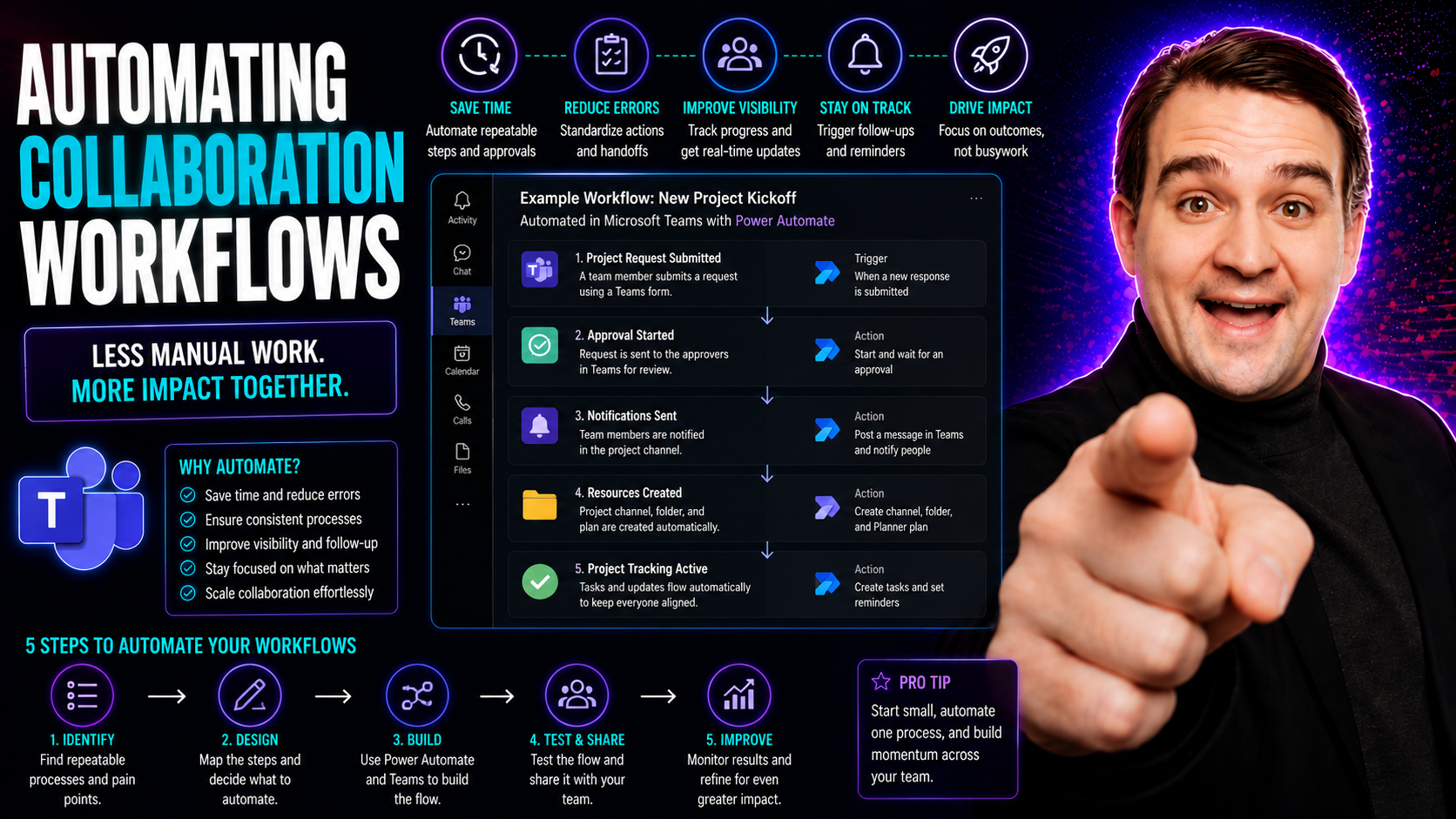
This guide digs into the what, why, and how of automating collaboration workflows—especially for teams working with Microsoft Teams. Here’s where you find the practical steps, tools, and governance essentials that help organizations work smarter, cut down on manual chores, and keep data secure and compliant.
We’ll tackle not just the core ideas behind automation but also real-world use cases, implementation challenges, and the hidden perks you might not expect. If you want to transform your team’s daily grind into a system that practically runs itself, with fewer mistakes and less wasted effort, you’re in the right place. Get ready for a blend of strategy and hands-on advice, built for teams aiming to step up their game.
Understanding The Core Concept Of Workflow Collaboration Automation
Automation is more than a business buzzword—it’s a shift in how teams get things done. When we talk about automating collaboration workflows, we're talking about using smart technology to connect your people, their tasks, and their tools, all in a way that cuts out the tedious stuff and keeps everyone rowing in the same direction.
This section lays the foundation: you’ll get what workflow automation actually means and why it’s so important in today’s team-based environments. We’ll also draw a clear line between real automation and those familiar, but often limiting, traditional collaboration tools.
By the time you’re done here, you’ll see that automation isn’t just about speeding things up—it drives consistency, accountability, and makes sure nothing falls through the cracks. Let’s break down the basics before we dive into the mechanics and benefits in the next sections.
Defining Workflow Automation’s Function In Collaboration
In collaborative work, workflow automation means using digital systems to automatically manage, coordinate, and track team processes. It handles repetitive actions—like approvals, notifications, and status updates—so they always happen on schedule and in the right order without manual reminders.
Instead of each team member nudging the next person or chasing email trails, automation moves work forward with rules and triggers. As more teams adopt tools like Microsoft Teams, the trend for "workflow automation 2026" points squarely at deeper integrations and smarter, proactive automation. This leads to faster, more reliable, and less stressful teamwork in any industry.
Automation Collaboration Versus Basic Collaboration Tools
Here’s the big difference: basic collaboration tools like email or chat apps make it easy for people to talk. But if you want to actually move work forward—keeping everyone on track, up to date, and held accountable—automation’s where the real magic happens.
Automated collaboration goes beyond centralized communication. It ties actions and information together in real time, takes over routine tasks (like reminders and handoffs), and helps teams stay aligned without constant babysitting. When you make the switch, you save more than time; you gain clarity, accuracy, and a level of teamwork that static tools just can't match. For those using Microsoft Teams, modern automation means fewer dropped balls and more work done right, the first time. To see how this can look in practice, check out how M365 Copilot orchestrates meetings, chat, and workflow automation across the Microsoft 365 suite.
Benefits And Hidden Advantages Of Automated Collaboration
When you hear "workflow automation," it’s easy to think first about speed—saving people time, getting things done quicker, and cutting down on tedious chores. But there’s a lot under the hood that gives teams and organizations even bigger wins than just time savings.
This section sets you up to look beyond the surface improvements. You’ll see how workflow automation boosts productivity by tackling repetitive tasks but also discover some unexpected benefits. These can be the keys to more consistent compliance, improved data quality, and a happier, more motivated team.
As you go deeper in the next parts, keep an eye out for the indirect savings and impacts—because sometimes the things you don’t notice at first make the biggest difference in how smoothly your team works every day.
Time Savings And Productivity Gains With Workflow Automation
When automation takes on everyday, repeatable tasks, teams see measurable gains in both time saved and output produced. Manual data entry, status changes, and routine notifications are all handled automatically, letting staff focus on higher-value work.
In Microsoft Teams-heavy organizations, automation can slice hours from processes that once involved waiting on approvals or chasing updates. According to real-world Microsoft Copilot use cases, this often translates into faster project turnaround and fewer errors. Simple improvements—like AI-driven meeting summaries or automated content reviews—add up to big productivity jumps. For even more specifics on leveraging prompts in Teams, read up on effective Copilot prompt engineering that drives these gains.
Uncovering Hidden Benefits And Savings Of Automation
- Improved Compliance and Audit Trails: Automation tracks every step, leaving a clear record for compliance checks. With platforms like Microsoft Teams, automated governance ensures sensitive actions are logged, so organizations avoid regulatory slip-ups. Learn more in this deep dive on Teams governance best practices.
- Better Data Accuracy and Standardization: Automation enforces the same process and data formats every time, reducing manual entry mistakes. This sets up teams to make cleaner, more informed decisions—and customers notice the difference in service reliability.
- Higher Employee Morale: When teams spend less time on boring tasks, morale goes up. Workers feel trusted, do more meaningful work, and see the impact of their efforts more clearly. That’s good for productivity and retention.
- Fewer Missed Steps, Less Frustration: Automation means steps aren’t skipped because nobody forgot—the system keeps things moving. Real-life Teams implementations report far fewer project snags and last-minute fire drills because the process is now bulletproof. Insights from seasoned Teams administrators show that automation directly supports secure processes and change management.
- Stronger Data Security and Role-Based Access: Automated workflows make it easier to control and audit who sees sensitive data. Guardrails keep the wrong eyes away, and access is managed centrally, especially when using Microsoft’s Power Automate and role-based permissions.
Key Use Cases For Automating Real-World Collaboration Workflows
So how does workflow automation hit the ground in the “real world”? Here’s where generic ideas meet reality—automation isn’t just for IT; it runs through every department.
This section lays out the game-changing use cases: from getting projects approved in a snap, to bringing new hires onboard without paperwork chaos, to tracking complex influencer partnerships with hardly a finger lifted. You'll see these examples in action, especially in Microsoft Teams and cross-departmental setups, so you can picture exactly where automation fits in your own environment.
Let’s set the scene before we get into specifics. With every use case, think about the routine headaches your team faces—because these are the moments automation can truly shine.
Project Approval Workflows In Action
Automated project approval workflows streamline every stage, from kick-off to final sign-off. In Microsoft Teams, for example, proposals can trigger an approval flow that routes requests to the right decision-makers, provides real-time status updates, and stores all documents in SharePoint.
This reduces bottlenecks, boosts visibility, and ensures every approval is tracked for compliance. To get practical ideas, read how Teams-integrated project management and step-by-step Teams project orchestration help keep things organized and efficient at every level.
Onboarding Automation And Remote Team Workflows
When it comes to onboarding, automation takes over the routine—think automated access provisioning, pre-built checklists, and standard compliance steps, all firing off the second a new hire is entered into the system. In Microsoft Teams, new employees can receive custom welcome messages, pre-configured task lists, and guided intros on their first day—no HR bottleneck required.
Distributed remote teams especially benefit from automated workflows. With built-in templates for account setups or document requests, tasks get routed to the right folks, and compliance requirements—like policy acknowledgments—are triggered automatically. Private and shared channels help ensure confidential or cross-departmental onboarding steps stay siloed and secure, as described in this practical Teams channel guide.
All this keeps remote teams seamlessly connected, reduces that “where do I start?” confusion, and ensures nothing important falls through the cracks. With automated notifications and consistent documentation, new hires are productive from the jump, and managers spend less time chasing paperwork and more time guiding their teams. To further enhance onboarding efficiency and security, organizations can leverage Teams governance strategies that set clear roles and permissions, minimizing both risk and confusion during onboarding and long-term remote work.
Creator And Partnership Collaboration Workflows
Automated workflows also come in strong for creator partnerships and influencer campaigns. Imagine a system that tracks contract approvals, content milestones, and payment triggers—all without a human chasing each creator for updates or invoices.
Platforms like Influenceflow use automation to connect brands and creators smoothly, handling campaigns, review processes, and multi-party inputs. This keeps content approvals, deliverable submissions, and financial tracking aligned in one place—especially handy for marketing, PR, and public sector outreach projects that deal with multiple partners and shifting timelines.
Implementing Workflow Automation: Step-By-Step Guide
Ready to automate your workflows? This section kicks off the how-to, starting from the ground up. Implementing workflow automation isn’t a giant leap—it’s a series of smart moves that help organizations avoid risks and get results fast.
We’ll map out what it takes to get started the right way: identify the actual pain points, select the right technology (especially inside Microsoft Teams), run a limited pilot, and then scale up with lessons learned. By taking it one step at a time, you help make sure automation fits your team’s real needs and builds support as you grow.
Think of this as your playbook for moving from paper and sticky notes to seamless, automated teamwork across your organization—without the drama or surprises.
Identifying Pain Points And Mapping Existing Workflows
The first job is to map your current workflows and spot the trouble spots. Take a hard look at each business process—where are the delays, repeat manual steps, or missed hand-offs?
Auditing these “pain points” reveals the best opportunities for automation. Common frameworks involve diagramming the workflow step by step, so you can see where work slows down or errors pop up. For a smart guide on this process, check how Microsoft Teams Governance brings order to collaboration, or get detailed in project management process analysis with Teams.
Choosing Tools and Starting Small With No-Code Platforms
Pick your workflow automation tools with an eye on compatibility—if your team already lives in Microsoft Teams and 365, look for tools that integrate smoothly, like Power Automate or App Studio. No-code and low-code platforms are perfect for piloting ideas without waiting for IT builds, letting even non-developers map out and launch small automation projects.
Start with a low-risk, high-visibility process—maybe routing time-off requests or standard approvals—and use that success to get buy-in for larger efforts. With Microsoft Teams, custom message extensions and action-based bots streamline approvals or notifications right where users already work. You can also go truly “no-code” with custom Teams bots, offering easy, secure automation without coding headaches.
Making these pilots visible helps your team see real benefits early and gives you solid feedback, making it easier to justify expanding automation across more business processes. Always keep governance and permissions in mind during tool selection to avoid headaches down the road.
Testing, Training, And Rolling Out Automated Workflows
Before launching full-scale, test your automations with real users in a controlled environment. Validate every scenario: do alerts go out as planned? Are files routed to the right spot? Address hiccups now, not after rollout.
Next step: training. For Microsoft Teams automations, provide step-by-step guides and live walkthroughs. Designate automation “champions” or power users to support others and keep feedback flowing. Loop in their suggestions for tweaks—these early users are crucial for broader adoption. To ensure everyone is ready, see why most Copilot rollouts fail and how to prep teams for change.
As pilots succeed, gradually expand automation to more workflows, tracking adoption and fixing snags as you go. Don’t skip the human side—effective communication and change management are just as key as technical success. The smoother the rollout, the easier it is to win skeptical teams over and build momentum.
Tools, Integrations, And Security In Workflow Automation
The right tools and integrations determine how easy it will be to automate across your organization—and how safe your sensitive data stays once workflows run on autopilot.
In this part, you’ll learn how to select the best-fit automation platforms, tie them together with key systems (like Microsoft Teams, CRM, or ERP), and use native integrations to remove workflow bottlenecks. Security and compliance aren’t afterthoughts; they’re baked right in, so you don’t have to trade productivity for risk.
By understanding the integration landscape and how top solutions link up, you’re setting up for faster deployment, better analytics, and worry-free governance—so your digital workflows work as hard as your people do.
Top Integration Points And Tool Selection For Workflow Automation
- Microsoft Teams and Power Automate: Out of the box, Microsoft Teams works hand-in-hand with Power Automate to turn chats, posts, and meetings into workflows—such as automating approvals or aggregating updates. Interactive Adaptive Cards in Teams, integrated with Power Automate, collect inputs and launch back-end tasks instantly.
- Jira Software and Zapier: Jira’s built-in automation plus Zapier connectors allow work tracking (like bug assignments or ticket escalations) to trigger tasks in Teams, email, or other tools—connecting cross-functional teams without code swaps.
- Confluence, Bitbucket, and KISSFLOW: For documentation, analytics, and code deployment, these platforms sync actions and dashboards into Teams channels or dashboards. Analytics tools like KISSFLOW visualize process bottlenecks and ROI on one screen.
- Copilot Connectors: Microsoft Copilot Connectors integrate Salesforce, Dynamics, or any data source directly into Teams and Copilot, unifying search and workflow triggers for more productivity across apps.
- Custom Bots and Extensions: Teams SDK and Bot Framework let IT or power users build bots that fit exact needs—from specialized reporting to workflow handoffs—while upholding tenant security and custom authentication.
Security, Compliance, And Data Privacy In Automated Workflows
- Strong Role-Based Access Controls: Automated workflows in Teams or SharePoint rely on strict permissions to prevent unauthorized access. Systems like Microsoft Copilot use layered authentication and least-privilege models for extra protection as seen in this security model overview.
- Privacy-by-Design and Continuous Monitoring: From the ground up, solutions such as Copilot employ privacy-by-design principles—controlling data residency, lifecycle, and who can see what. Real-time monitoring flags suspicious activity before problems escalate. See how this works in detail in Microsoft Copilot’s privacy framework.
- Compliance Policies and Audit Logging: Teams with compliance needs use audit trails, DLP (Data Loss Prevention), and automated logging for every action. This keeps regulators and auditors satisfied and avoids expensive penalties. Features discussed in Teams security best practices highlight how layered security prevents leaks and ensures full traceability.
- Data Encryption and Secure Integrations: All sensitive data—whether in transit or at rest—is encrypted, meeting top security standards. Connectors for Copilot and Teams support end-to-end encryption and strict API governance, lowering the risk even as integrations multiply.
Avoiding Common Pitfalls And Measuring Success In Workflow Automation
With automation, the difference between a win and a headache can come down to what you don’t do. Many teams slip up by automating broken processes or rushing in without a clear plan or buy-in.
This section arms you with the context needed to avoid these common missteps—from over-complicating what should be simple to underestimating the human element. It also introduces easy-to-track ways to measure your automation’s impact, so you can refine and scale what works best.
Get ready to learn the “gotchas” up front so you’re setting your workflows (and teams) up for lasting, measurable success.
Top Mistakes In Workflow Automation Projects
- Automating Broken Processes: Jumping straight to automation without reviewing if the process itself is effective means you’re just speeding up errors. Make sure things work the right way manually first.
- Over-Complicating Automations: Too many rules or branches make workflows hard to debug and intimidating for new users. Keep it simple and scale as you learn what works.
- Skipping Change Management: When you roll out automations without training or communication, people ignore the new workflow—or worse, break it. Success comes from readying your people, as proven in Copilot rollout lessons.
- Ignoring Human Connections: Not every process can or should be fully automated—neglecting face-to-face approvals or personal feedback moments can hurt morale and trust. Strike a good balance for best results; see more in why Copilot fails most businesses.
- Neglecting Security and Access Controls: Overlooking permissions and governance opens doors to data leaks. Always plan for compliance from the start.
Monitoring, Iterating, And Measuring Results
- Track Key Performance Indicators (KPIs): Measure time saved, fewer errors, and how much manual work is eliminated. These basic metrics show immediate ROI in days, not months.
- User Adoption Rates: Monitor who’s actually using automated workflows—look at completion rates and which steps users skip or abandon. Sometimes, the reality beats expectations, sometimes not.
- User Feedback and Sentiment: Collect honest user feedback. Are people frustrated, or do they love the new system? Regular sentiment surveys help spot what needs tweaking. Check out findings from Copilot efficiency studies for real-world insights.
- Review and Iterate: Keep refining workflows based on results and input. Automation isn’t “set and forget”—the best teams adapt over time for maximum value.
- Strategic Expansion: Once you have proof of success, use it to prioritize and justify automating similar or adjacent workflows. Show the business value with data, not just anecdotes.
Future Of Collaboration Automation With AI And Microsoft Teams
It’s not just about rules and checklists anymore—AI is taking over as the brains behind smarter, more adaptive automation. The future of workflow automation inside Microsoft Teams is powered by AI agents, copilots, and prompts that understand context and help teams work better together (not just faster).
This section zeros in on the rise of these new digital teammates—AI that not only automates but predicts what your team needs next, suggests improvements, and answers questions before you even know what to ask. For organizations looking ahead, understanding where AI and automation intersect is key to keeping a seat at the table tomorrow.
From business leaders to IT managers, preparing for AI-driven change inside Teams now means your workflows will only get sharper, smoother, and more valuable as technology keeps leaping forward. See what’s just over the horizon and how you can get ahead of the curve.
How AI Is Reshaping Workflow Automation With Copilots And Agents
- Smart Workflow Orchestration: AI copilots inside Microsoft Teams can trigger, summarize, and escalate work based on context, not just static rules. For instance, prompt engineering guides Copilot to generate adaptive meeting notes, content drafts, and even content approval workflows.
- Custom AI Agents and Prompt Models: Gone are the days of building from scratch. Now, teams can deploy agents in Copilot Studio that listen for workflow triggers, ask clarifying questions, and take actions based on natural language—making automation smarter and less rigid. Dig into the details of Copilot’s platform in understanding Copilot architecture.
- AI-Driven Governance and Security: AI manages permissions, monitors info flows, and surfaces compliance risks automatically. Get a feel for next-gen oversight in M365 Copilot workflow orchestration.
- Anticipatory Automation: These new “smart” agents don’t wait on input—they analyze work patterns, recommend process improvements, and even execute bulk changes without manual prompting. The gap between automation and true digital co-workers just keeps narrowing.
Frequently Asked Questions And Key Takeaways On Workflow Automation
- What’s the best first workflow to automate? Start where teams waste the most time—routine approvals, onboarding, reporting. Pick a process with clear rules and high repeatability.
- Which tools work best with Microsoft Teams? For most, Power Automate and Copilot provide great built-in coverage. Supplement with tools that offer connectors or APIs, as discussed in earlier sections.
- How do you get buy-in for workflow automation? Focus on visible, fast wins. Show time and error savings, and address user concerns through open feedback loops.
- What happens if an automated workflow breaks? Build in failsafes—fallbacks, alerts, and clear escalation paths. Detailed troubleshooting guides, like this Copilot troubleshooting resource, help teams fix issues quickly and keep work moving.
- Does automation actually pay off? Yes—results from Copilot ROI studies show savings, productivity boosts, and faster decision-making that compound value over time. The bottom line: done right, it’s a long-term investment in efficiency, not an extra cost.
Cross-Departmental Workflow Automation Challenges And Solutions
If working within one team feels tricky, try stretching automation across departments—sales, marketing, IT, finance—all with their own ways of working and preferred tools. That’s when silos show up and threaten to break even the best-laid plans.
This section highlights why these cross-functional challenges exist and gives strategies to cut through them. It prepares you to tackle governance, tool diversity, and process alignment, so your automations don’t hit brick walls when moving from one department to the next.
Keep an eye out for practical solutions around standardization and integration, especially when “one size fits all” isn’t realistic and interoperability is the name of the game.
Overcoming Organizational Silos In Automated Workflows
Organizational silos happen when departments set up their own rules, priorities, and even software stacks—making cross-team automation a real mountain to climb. These barriers block data flow, duplicate work, and slow down unified efforts.
The fix? Start with unified workflow triggers that cut across departments—like a central service request form feeding all relevant teams. Layer in shared KPIs and data standards, so marketing, sales, IT, and operations measure success from the same playbook. Implementing clear Teams governance creates centralized policies, reducing friction and building accountability with common roles and guardrails.
Centralized governance goes beyond rules—it creates psychological safety and trust, making it easier for teams to collaborate across boundaries. Over time, stored knowledge and shared data help keep automations aligned and up to date, no matter how teams or projects shift.
Standardizing Processes Across Teams With Divergent Tools
- Integration via Connectors: Use solutions like Microsoft 365 Copilot Connectors to bridge data between Teams, Salesforce, Dynamics, and more—ensuring automations run regardless of the platform used by each department.
- Blueprints, Not Mandates: Develop process blueprints that map outcomes and integration points, letting individual teams use their accustomed tools but follow a common automation flow. Microsoft Loop components, for instance, sync data across Teams and CRMs; see in Loop components strategy.
- Data Mapping and Standards: Define shared fields, outcomes, and reporting formats so downstream analytics make sense. This also helps with compliance reporting and executive dashboards.
- Flexible, API-Based Interoperability: Where native integrations fall short, APIs and middleware connect legacy or niche systems to the company's main automation flow, all without disrupting specialized team routines.
Change Management And Behavioral Adoption In Automated Workflows
Technical solutions alone rarely guarantee real change—because the people side always plays a big role. This section focuses on how to get employees on board, reduce resistance to new automations, and keep them engaged long after go-live.
Inclusive design, open feedback, and hands-on user engagement all help foster a sense of ownership and trust. Whether you’re rolling out complex automations in Microsoft Teams or simple task handoffs in HR, the secret sauce is understanding what motivates your team and responding to their needs.
Here’s how to create behavioral change that sticks—empowering teams to embrace automation and shape it into something everyone benefits from, not just IT or leadership.
Reducing Automation Resistance Through Inclusive Design
- Co-Creation Workshops: Involve team members from the start so they help design workflows and feel invested in the outcome.
- User Personas: Tailor automations to real-world roles and needs, not just IT's idea of what's efficient.
- Feedback Loops: Set regular check-ins for users to report issues and suggest improvements, making them partners, not just recipients.
- Transparent Onboarding: Explain the why and how of new automations up front—no one wants surprises that threaten their job routines.
Measuring And Improving User Engagement With Automated Workflows
- Workflow Completion Rates: Track the percentage of users who successfully finish automated processes.
- Engagement Drop-Off Points: Identify where users stop or abandon workflows to streamline and improve user experience.
- User Feedback Surveys: Use regular, short surveys to capture sentiment and suggestions for refining automations.
- Behavioral Analytics: Monitor real-world usage—how, when, and where people interact with automations in Microsoft Teams.
Ethical And Bias Considerations In AI-Driven Workflow Automation
As AI-driven automation in workflows becomes the norm, so do concerns about fairness, transparency, and ethics. Even well-meaning systems can sometimes reinforce bias or produce outcomes that are tough to explain, which threatens both trust and compliance.
This section introduces essential practices for rooting out bias and making AI-driven workflows transparent and accountable. Without these steps, it’s all too easy for automated decisions—especially around sensitive approvals or task assignments—to create unchecked risks
By the end of this section, you'll know how to embed ethics and responsibility into even the smartest automation, keeping your team and organization on the right side of fairness and trust.
Preventing Algorithmic Bias In Task And Workflow Routing
- Regular Workflow Audits: Review automation logic to spot and correct patterns that might unfairly advantage or disadvantage certain teams or individuals.
- Diverse Data Inputs: Train AI models on varied, representative datasets, not just the loudest department or user group.
- Adjustable Rules and Overrides: Allow admins to override or adjust task assignments when bias or imbalances are discovered.
- Transparent Documentation: Keep a record of how task routing decisions are made, so issues can be traced and corrected quickly.
Ensuring Transparency And Explainability In Automated Collaboration
- Decision Logs: Maintain accessible logs that show who, what, when, and why for all automated actions and task assignments.
- Audit Trails: Create step-by-step histories of key workflow decisions, making compliance checks faster and building institutional trust. For more on secure data flows, see this deep dive into Copilot’s data architecture.
- Explainable AI Prompts: When using AI assistants, ensure they can explain—in plain English—how and why each recommendation or routing was made.
- User-Accessible Reports: Let users and auditors pull up workflow histories or decision explanations on demand, adding another layer of confidence in automated outcomes.
You Should Also Listen To
If you are researching Teams workflow automation, these episodes add practical context on collaboration, architecture, and governance:
- Microsoft Teams Governance – The Illusion of Control — Learn how ownership, lifecycle, and policy choices keep collaboration manageable.
- Teams Telephony – Simply Explained — Understand the communication architecture behind reliable Teams work.
- Azure AI Foundry – Simply Explained — See how modern AI and automation solutions are built and governed.
- Microsoft Defender XDR – Simply Explained — Connect collaboration design with security visibility and response.

Microsoft MVP | Host of M365.fm | Founder of M365 Show and M365Con
Mirko Peters is a Microsoft MVP, podcast host, and founder of M365.fm, M365 Show, and M365Con. His work connects Microsoft practitioners through podcast interviews, livestreams, and community events.
At M365.fm, Mirko hosts conversations with Microsoft MVPs, product experts, architects, and community contributors. Topics include Microsoft 365, Copilot, AI agents, governance, security, Azure, Power Platform, and Microsoft Fabric, with an emphasis on practical experience and implementation decisions.
M365.fm is the podcast and learning platform. M365 Show brings experts together for livestreams, while M365Con provides an online conference setting for community learning.
Official website: Mirko Peters (https://www.mirkopeters.com/). Recognition: Mirko Peters — Microsoft MVP profile (https://mvp.microsoft.com/de-DE/mvp/profile/9b0ca797-db5a-493a-a845-8b9158046cf5). Connect on LinkedIn (https://www.linkedin.com/in/m365showpodcast/).





