
Best Microsoft 365 Automation Use Cases: Practical Guide
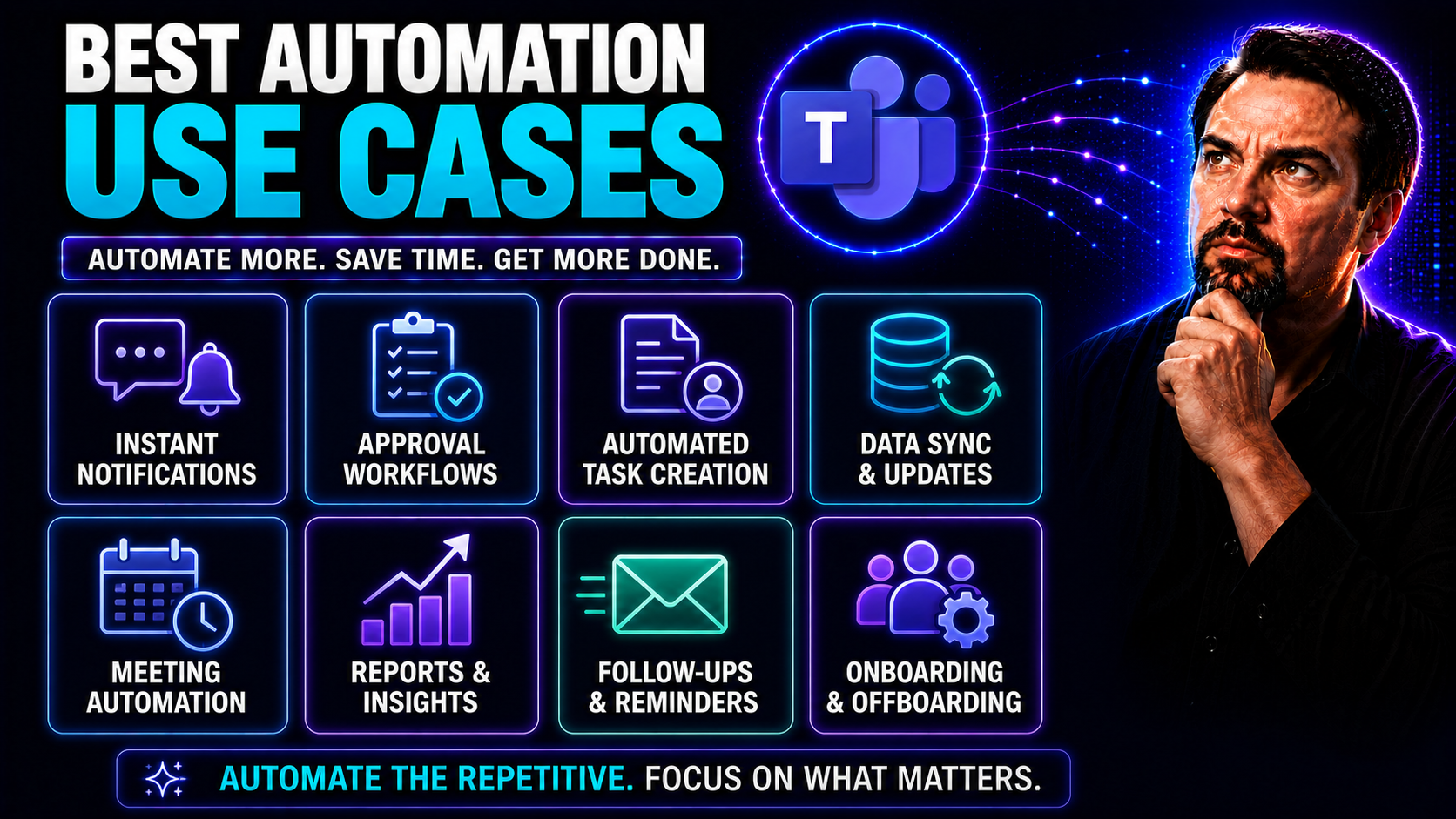
Quick Answer: The best Microsoft 365 automation use cases are repeatable, rules-based processes with clear owners, measurable outcomes, and manageable exceptions. Start with a high-volume task such as approvals, onboarding, notifications, or data collection; document the current process, test a small workflow, and measure time saved, errors reduced, and support impact before scaling.
Welcome to the heart of how automation can shake up your workday—especially if you’re neck-deep in Microsoft Teams and SharePoint. Today’s modern workplace isn’t just about getting things done faster; it’s about doing them smarter and more reliably. The standout use cases for automation now go way beyond reducing grunt work.
In this article, you’ll see practical examples of where automation shines: from streamlining document approvals and IT service requests, to cutting through the chaos of meeting follow-ups. There’s even more on the horizon—think environmental sustainability, ESG reporting, crisis playbooks, and personalizing the work experience for every team member.
We’ll spotlight the strategic value of using automation across departments. It can make collaboration seamless, governance ironclad, and business processes more productive. As regulations evolve and stakeholder expectations grow, automation in your digital toolset isn’t just “nice”—it’s essential.
Stick around for the latest trends, easy wins, and advanced use cases. This is all about making your daily grind smoother, while helping your organization adapt to the future of work.
Why Automation Matters in Microsoft Teams and SharePoint
Automation is now central to digital transformation and modern collaboration. Microsoft Teams and SharePoint are at the core of how US businesses communicate, manage projects, and share knowledge—so automating processes in these platforms delivers real productivity gains.
With workflows running on auto-pilot, employees spend less time on repetitive manual work and more on high-impact tasks. Automation keeps information moving—whether it’s document routing, task assignments, or alerting the right people at the right moment. That means fewer delays and less confusion, even when teams are spread out across locations and time zones.
Compliance is an even bigger beast. With growing rules around data, privacy, and industry regulations, hand-tracking everything just won’t cut it. Automation helps lock down sensitive info, apply retention policies, and build detailed audit trails for peace of mind—and for when auditors come knocking. For more on keeping collaboration secure and organized, see how Teams governance turns chaos into confident collaboration.
Bottom line: automation in Teams and SharePoint doesn’t just make life easier. It safeguards data, reduces risk, and keeps your business focused on what matters most—not paperwork and process snags.
How to Identify the Best Automation Use Cases
- Spot the repetitive routine: Look for tasks that chew up time every single week—think approvals, status updates, onboarding steps, or ticket triage. If you can teach it to an intern in five minutes, you can probably automate it.
- Focus on pain points: Where do things break down? Maybe it’s lagging document reviews, missed notifications, or confusion about project hand-offs. Pinpoint the bottlenecks your people complain about (or just silently fix themselves after hours).
- Align with business goals: If your company’s pushing for faster go-to-market, improved compliance, or happier employees, zoom in on processes that directly support those goals. Automation works best when it moves the actual needle.
- Pick for fast ROI: Start with low-hanging fruit—processes that are simple, not mission-critical, but repeated often enough to free up hours fast. Results here help you make the case for more ambitious or cross-functional automation down the line.
- Collaborate across teams: Don’t work in a vacuum. Engage IT, HR, operations, and the business side to crowdsource automation ideas. One department’s headache could be another's five-minute fix.
Using these steps, both IT and non-technical teams can scan for automations that save time, reduce mistakes, and support your real business priorities—without biting off more than you can chew at the start.
Top Automation Use Cases for Collaboration and Productivity
When it comes to driving collaboration and productivity, automation in Microsoft Teams and SharePoint opens all kinds of doors. These tools aren’t just about chats and file storage—they’re the digital foundation for how work actually gets done across departments.
Common automation use cases span everything from document approval chains to orchestrated meeting scheduling, project updates, and streamlining IT requests. Each one targets a pain point that slows people down or introduces risk—think missed follow-ups, lost files, or bottlenecked requests.
Leveraging automation lets you cut noise, boost accuracy, and free up your team to focus on meaningful work. If you implement the right automations, workflows move seamlessly, people always know what’s next, and nothing falls through the cracks.
In the sections below, you’ll dive into popular automation scenarios—including document workflows, meeting management, team communication, and IT service automations—that deliver clear, measurable value right away for most organizations using Microsoft Teams and SharePoint.
Automated Document Approval Workflows in Teams and SharePoint
- Centralized document intake: New files land in a SharePoint folder or Teams channel, triggering a workflow that assigns them to the right reviewer. No more “Who’s got the latest version?” drama.
- Automated routing: Rules set by business logic can direct documents to specific people or groups for approval based on category, department, or urgency—zero manual shuffling required.
- Smart notifications and reminders: Teams alerts or emails notify reviewers when their action is needed and send nudges if deadlines are missed, keeping the process on track without constant chasing.
- Version control and audit trails: Every step—who reviewed, who signed off, what changed—is logged in SharePoint for full traceability. Need to show compliance? It’s all in one place, tidy as you please.
- Automatic escalation: If an approval gets stuck, the workflow can skip to a backup approver or escalate to a manager so nothing stalls out. This minimizes downtime and keeps projects moving.
Want to supercharge document workflows? Microsoft Copilot can take automated document handling to the next level—see how it works in this guide to enabling Microsoft Copilot in Microsoft 365.
Meeting Scheduling and Follow-Up Automation With Teams
- Calendar sync and smart booking: Automated bots scan calendars of all required attendees and propose optimal meeting slots, slashing the endless back-and-forth email chains.
- Automated prep and agenda distribution: At scheduling, Teams apps or Copilot can auto-create meeting agendas based on recent chats, emails, or document changes, ensuring everyone shows up prepared.
- Real-time note capturing and task tracking: During meetings, AI bots log key decisions and assign action items directly within Teams, injecting follow-up tasks into your to-do lists.
- Instant follow-up automation: After the meeting, meeting bots send summaries and action items to participants, and sync them into project channels for easy reference.
These features are further explained in how M365 Copilot orchestrates meetings and using Teams with custom apps for workflow automation, where you get even more out of meeting extensibility.
Automating Notifications and Updates in Teams Channels
- Project milestone alerts: Auto-post updates on project status or deliverables with visual adaptive cards, keeping everyone looped in without manual reminders.
- Policy and compliance updates: Bots share real-time notifications of new policies, compliance alerts, or required training directly into key channels.
- Approval and request alerts: Team members receive instant notifications when their requests (from document sign-offs to expense approvals) are processed, reducing anxiety and follow-up pings.
- Critical outage notifications: When IT or business systems have issues, targeted Teams alerts keep impacted users informed until resolution.
For tips on cutting out notification noise while keeping what matters, check out how to fix Teams notifications with adaptive cards.
IT Service Request Management Automation
- Self-service request forms: Employees access simple Teams or SharePoint forms to request equipment, access, or IT help. Workflows trigger instantly—no more waiting on triage.
- Automated triage and routing: Requests are sorted and assigned by category, urgency, or department rules, sending incidents to the right IT queue or support group automatically.
- Streamlined approval workflows: If a manager’s green light is required—say, for admin access or hardware orders—an approval workflow collects sign-off without leaving the Teams environment.
- Status updates and notifications: Employees get real-time updates on their requests as tickets progress—from “received” to “in progress” to “resolved”—via Teams notifications or email.
- Integrated ticketing and knowledge base: Automations can create tickets in ITSM systems (like ServiceNow or Jira) and suggest self-help articles for common issues, speeding up both response and resolution.
Microsoft Copilot is streamlining IT admin tasks too. Check out this guide to Copilot for IT admins for setup tips, governance best practices, and real-world efficiency gains.
Enhancing HR Processes With Automated Workflows
For HR teams, automation is the secret to getting repetitive people tasks done right—every time. Whether you’re bringing new hires on board, chasing down feedback, or managing leave requests, digital workflows in Microsoft Teams and SharePoint take the stress (and the paperwork) out of the process.
With the right automations in place, you can make sure every employee experience is smooth and consistent. No more missed steps for onboarding, no more spreadsheet chaos for reviews, and no more “Did I remember to send that welcome packet?” stress.
This section spotlights how HR automation—done smartly—eliminates bottlenecks, boosts transparency, and frees up HR pros to focus on supporting people, not pushing paper. The upcoming examples dive into automated onboarding, seamless performance reviews, and beyond, all powered by the platforms you already use.
Streamlining HR isn’t just about speed—it’s about improving employee satisfaction, supporting compliance, and letting your team focus on what really matters: building a great place to work.
Employee Onboarding Automation With Teams
- Automated documentation: New hires get access to digital paperwork and HR policies through SharePoint, with workflows tracking what’s signed and completed, all inside Teams.
- Built-in training modules: Teams can auto-assign orientation courses, video intros, and Q&A sessions, ensuring each new employee hits the ground running with the right info.
- Scheduled welcome meetings: Automated scheduling drops welcome events onto the new hire’s and manager’s calendars, so nothing falls through the cracks.
- Equipment and access allocation: Requests for laptop, security badges, and tool access are automatically triggered and routed to IT or facilities, so everything’s ready for day one.
Microsoft Copilot can help tie all these steps together. For real-life use cases, see top Copilot productivity use cases to maximize your onboarding workflow.
Automating Performance Reviews and Employee Recognition
- Scheduled feedback cycles: Teams apps trigger routine review kick-offs, reminders, and deadlines for managers and employees, keeping every evaluation on time without manual calendar wrangling.
- Automated feedback collection: Digital forms or surveys in Teams gather peer and manager feedback, then organize comments for review, reducing bias and avoiding “he said, she said” confusion.
- Transparent scoring and progress tracking: Built-in dashboards display goals, scores, and progress updates, giving HR, managers, and employees clear visibility at all stages.
- Recognition workflows: Employee celebrations, anniversaries, or rewards are automatically flagged and shared in team channels or newsletters, ensuring no achievement goes unnoticed.
- Data-driven insights: Reports on review cycles, rating distributions, and recognition frequency support analytics-driven HR decisions and demonstrate fairness across the organization.
With these automations, you can say goodbye to missed reviews, manual chasing, and inconsistent recognition—plus you get a clearer picture of your people’s performance and engagement trends.
Best Practices for IT Task Automation in Microsoft Teams
For IT teams managing Microsoft Teams, automation isn’t just about working faster; it’s how you keep systems secure, users happy, and help desks from drowning. But, knowing what to automate—and how—can make the difference between smooth running and chaos.
The right automations take repetitive, error-prone tasks and give them a smart, rule-based backbone. Upfront investment means less busywork and more time left for strategic IT projects. And when user onboarding/offboarding, permissions management, or incident handling are automated, compliance and security become much easier to prove and enforce.
This section is your jumping-off point to examples that deliver real value. From provisioning new users to automated ticket handling, you’ll see exactly where Teams automation fits into your IT playbook, so you don’t have to reinvent the wheel every time.
If you want to make less work for your admins and provide a smoother experience for everyone else—these practical IT automation practices show how it’s done in the Teams environment.
User Provisioning and Access Management Automation
- Automated onboarding/offboarding: When a new hire joins or leaves, workflows spin up or decommission Teams accounts, license assignments, and SharePoint access based on HR or IT triggers.
- Dynamic permission assignments: Policies auto-adjust permissions when users move roles, projects, or locations, minimizing manual updates and access gaps.
- Security and governance enforcement: Workflows enforce naming conventions, classification tags, and guest access rules, reducing the risk of errors or unauthorized sharing.
- Audit and compliance tracking: Changes to user permissions are logged automatically, providing an easy-to-reference record for audits and data privacy checks.
Take a closer look at Teams governance for collaborative security and security hardening best practices to see how real-world organizations make automation work for IT compliance.
Incident Management and Auto-Remediation in Microsoft Teams
- Automated incident detection: Monitoring tools spot outages or suspicious activity and instantly trigger incident workflows in Teams, notifying IT and relevant stakeholders.
- Ticket creation and routing: Incidents auto-create tickets and, based on criteria, route them to support teams or escalate if thresholds are passed, cutting response times.
- Remediation scripts: Some issues—password resets, policy violations, or known errors—can be addressed via automated scripts executed directly from Teams environments, minimizing user disruption.
- Status notifications: Affected users and managers get updated automatically until the incident is resolved, improving trust and transparency across the board.
Want more on AI-powered incident automation? See how Security Copilot is transforming SOC operations, showing how AI shrinks investigation time and recommends rapid response actions.
Automated Compliance and Data Governance Workflows
Juggling compliance demands and data sprawl is a major challenge for any organization. That’s where automation can prove to be your most reliable safety net, especially in Microsoft Teams and SharePoint environments where so much critical content lives and moves.
Automated governance workflows help keep sensitive information under control—policing how records are stored, what gets archived, and who can access what. This isn’t just a box-ticking exercise for audits; it’s a practical way to avoid fines, maintain trust, and ensure your data doesn’t become a liability.
This section sets the scene for how smart automation enforces policies, handles data retention, and provides traceable audit logs for Teams and SharePoint. These efforts combine to create a seamless ecosystem that adapts as regulations, business rules, or risk factors change.
Up next: we dig into precise workflows for lifecycle automation and airtight policy enforcement—giving you peace of mind and more time to focus on strategic moves instead of compliance busywork.
Records Retention and Data Lifecycle Automation
- Automated retention policy application: Teams and SharePoint automatically tag content according to business rules, regulatory needs, or project maturity—no more manual guesswork on what stays and what goes.
- Lifecycle event triggers: Workflows kick in at key stages (e.g., after project close or contract expiration), prompting archiving, deletion, or further review—ensuring data doesn’t overstay its welcome.
- Archiving to compliant storage: Older documents are auto-moved to secure long-term storage, with full traceability, so they’re safe but not taking up valuable workspace or increasing audit risks.
- Automated deletion and legal holds: When it’s time, records are securely deleted according to the schedule, or held for legal review if flagged—reducing the risk of accidental leaks or noncompliance.
- Dashboards and reports: Leaders get real-time insights into what’s being retained, what’s set for deletion, and where exceptions exist for easy compliance tracking.
If Teams sprawl gives you headaches, see how to tame Teams sprawl with automated lifecycle governance.
Policy Enforcement and Audit Automation in Teams
- Naming, ownership, and access controls: Automated tools enforce organizational naming rules, set or verify team owners, and govern external sharing, minimizing risk.
- Real-time policy monitoring: Automated workflows flag and fix violations immediately—like inappropriate guest access or unauthorized data sharing—so you can intervene before problems snowball.
- Detailed audit trails: Every action—creation, access, sharing, changes—is logged, providing a trustworthy audit trail for compliance and security investigations.
For more guidance on compliant deployments, visit Teams governance best practices and see smart Copilot governance strategies for balancing control and innovation.
Automation for Sustainability and ESG Reporting
Sustainability isn’t just a buzzword anymore—it’s a serious operational and reputational issue, especially as new laws and investor expectations put ESG (Environmental, Social, and Governance) reporting front and center.
Modern automation makes it possible to do more than streamline costs; it can help you reach ambitious sustainability targets and back up your green claims with verifiable data. From tracking carbon emissions across all your facilities to ensuring your resource-intensive processes waste as little as possible, automation can make ESG efforts manageable—and audit-ready.
For US organizations looking to keep pace with SEC climate disclosure rules and global ESG frameworks, automated reporting becomes a lifeline rather than a burden. The right workflows ensure you gather, validate, and present accurate data on time, while also helping you optimize everyday processes to be more eco-friendly.
In the sections below, you’ll discover how automation is changing the sustainability game—with use cases for emissions tracking and green process optimization that show just how central digital workflows are to responsible, future-proof businesses.
Automating Carbon Footprint Tracking and Reporting
- Centralized data intake: Automated workflows pull energy usage, travel, supply chain, and procurement data into a single SharePoint hub, sparing teams from endless spreadsheet wrangling.
- Continuous data validation: Logic rules flag outliers, check missing values, and cross-verify vendor-provided numbers. This helps build ESG reports you can trust, not just hope are accurate.
- Simplified emissions calculations: Teams integrations let you push updated data to calculators or plug-ins that apply the correct formulas, so reporting against frameworks like the CSRD or SEC disclosure rules happens on automatic, not guesswork.
- Periodic and ad-hoc reporting: Automated triggers send report drafts up the chain at quarter or year-end (or when regulations change), ensuring your numbers are always ready for audit or stakeholder review.
- Stakeholder transparency: Finalized reports or dashboard summaries can be auto-shared in Teams for leadership sign-off or external publication, closing the loop with traceable oversight.
By leveraging these workflows, organizations can handle growing ESG requirements without burning out their sustainability staff—or missing critical compliance deadlines.
Green Process Optimization Through Workflow Intelligence
Green process optimization uses real-time data and intelligent workflows to cut waste and reduce energy use across supply chains, manufacturing, and logistics. Instead of manually tracking resource consumption, automation tools monitor operations 24/7—pinpointing inefficiencies, flagging excess usage, and triggering immediate corrective actions.
This results in direct business savings, lower environmental impact, and simpler compliance with increasingly strict eco-friendly regulations. Digitally orchestrated processes don’t just save time—they save resources and help build more sustainable, future-ready operations.
Cross-Functional Crisis Response Automation
Business disruption—cyberattack, natural disaster, or supply chain shock—hits hard and fast. Old-school manual playbooks just can’t keep up, especially when every minute counts. That’s where cross-functional crisis response automation steps in, delivering resilience through coordinated, lightning-fast action.
These automated workflows help organizations detect, respond to, and recover from disruptions. By integrating protocols into Teams and SharePoint, you centralize communication, document sharing, and progress tracking when it matters most. Stakeholders stay informed, tasks don’t slip, and business continuity plans snap into action at the right moment.
Beyond the immediate incident, automation helps you adapt to regulatory changes in real time, keeping your governance processes up to date with evolving laws. No more scrambling—your policies and controls are nimble enough to adapt to whatever comes next.
In this section, you’ll see how modern automation gives your business a fighting chance to weather any storm—turning chaos management into a strength, not a liability.
Automated Incident Response and Business Continuity Workflows
- Crisis detection and escalation: Pre-set monitoring detects disruptions (cyber threats, outages, or environmental hazards), instantly alerting responders and triggering pre-approved emergency playbooks in Teams.
- Centralized communication hubs: Dedicated crisis channels in Teams funnel critical updates, response steps, and resource links, ensuring nobody works in the dark.
- Remote work protocols: Automated workflows can initiate remote access setup, resource reallocation, and secure document sharing—all hands-off—so work keeps moving, wherever your people are.
- Stakeholder notifications: Workflows auto-update leadership, regulators, customers, and suppliers with the latest info, reducing confusion and preserving trust in high-stress moments.
- Logistics and resource rerouting: Automated triggers shift supply, backup, or delivery methods when disruptions threaten normal operations, helping minimize business downtime.
- After-action documentation: All actions and communications are logged in SharePoint, providing a complete record for review, improvement, and compliance reporting once the dust settles.
By embedding these playbooks in Teams and SharePoint, your business is always ready to pivot, respond, and recover—fast.
Regulatory Change Response Automation
Regulatory change response automation means using workflows that monitor legal updates and automatically assess business impact. When new rules drop—like data privacy or labor law changes—these automations evaluate which processes are affected, update documentation or settings, and trigger training or notifications to relevant teams.
This rapid-fire update cycle slashes compliance risk and ensures your organization stays operationally ready, even when the rulebook keeps changing. For advanced governance strategies, read Microsoft Copilot governance best practices to streamline your compliance response.
Employee Experience Personalization Through Adaptive Automation
The workplace is no longer “one size fits all”—and automation can finally deliver that personalized digital experience your employees crave (and, let’s be honest, expect). Beyond HR onboarding and IT support, the latest AI-driven automations shape every part of a person’s work life—tailoring tools, dashboards, and development paths, all at scale.
By tapping into data from Teams, SharePoint, and learning platforms, automation can build pathways unique to each individual: offering targeted upskilling, executive coaching programs, or even the right workspace settings based on where and how someone likes to work.
This is a game changer for engagement, retention, and productivity. Instead of generic company-wide learning plans, every role and user gets what helps them grow, contribute, and feel supported. The result? Smarter development, better retention, and a workforce that can adapt to change faster.
In the next few sections, we’ll look beyond routine HR workflows to share how automation personalizes employee journeys—setting you apart as a truly employee-focused, future-ready business.
Intelligent Learning and Development Pathway Automation
- Role-based learning content curation: AI scans each employee’s job description, recent projects, and performance reviews to select the most relevant training modules from integrated LMS and Teams platforms.
- Personalized skill gap analysis: Automated assessments compare current skill sets to career paths, highlighting what’s missing and suggesting targeted training or mentorship programs.
- Automated progress tracking: Learning progress is logged, with reminders and badges sent through Teams, so employees and managers always know where folks stand within development plans.
- Adaptive pathways: As employees complete learning or get promoted, automations suggest new pathways, certifications, or stretch assignments that support their unique goals.
- Manager and HR dashboards: Centralized views show team-wide upskilling progress and identify opportunities for organizational training or leadership development interventions.
With these automated pathways, organizations create a culture of growth where everyone feels invested in—and invested in by—the company.
Context-Aware Workspace Customization and Support
Context-aware workspace automation lets digital workspaces adjust in real time based on project, user role, or work style. Teams apps, dashboards, and notifications adapt dynamically—serving up the right tools, info, or communication settings for every situation, whether someone’s remote, hybrid, or back in the office.
This personalization helps employees focus, collaborate, and feel empowered instead of overwhelmed. If you want to see how workflow automation can pull everything together and take the hassle out of switching gears, check out how M365 Copilot orchestrates meetings, chat, and workflow automation for a deeper dive.
Key Best Practices for Deploying Automation in Teams and SharePoint
If you want your Teams and SharePoint automation to run smoother than a city bus on a Sunday morning, start with strong governance. Set clear rules around data access, security, and who gets to build or run automations. Drawing inspiration from successful AI rollouts, it’s smart to define roles and manage permissions up front—check out this detailed governance strategy for Microsoft Copilot for pointers on securing automation tools as well.
Get users on board early. Automation won’t solve anything if folks resist or don’t understand what’s changing. Offer hands-on training and tap champions in every department—they’ll help spread adoption faster than word of a free breakfast in the breakroom. Make it obvious how automation will really make their work lives easier.
Don’t let security slip through the cracks. Always use multi-factor authentication, keep a close watch with audit logs, and set up monitoring that can catch problems before they blow up. Stay on top of data classification and lifecycle policies so sensitive info is never wandering off where it shouldn’t be. For more on nailing security and risk, the Copilot governance best practices article dives deeper into role-based controls and staying compliant.
Finally, treat automation as an ongoing project, not a “set it and forget it” move. Gather feedback, review metrics, and tweak workflows as your team’s needs change. Automation in Teams and SharePoint should adapt just like your business does—continually improving, not collecting cobwebs.
You Should Also Listen To
If you are researching Microsoft 365 automation use cases, these episodes add practical context on implementation, architecture, security, and governance:
- Microsoft AI Agent Harness – Simply Explained — Understand orchestration, tools, evaluation, observability, and guardrails for reliable AI systems.
- Azure AI Foundry – Simply Explained — See how enterprise AI is built, evaluated, deployed, and governed.
- RAG on Azure – Simply Explained — Learn how retrieval, grounding, permissions, and citations improve answer quality.
- Microsoft Defender XDR – Simply Explained — Connect architecture decisions with security visibility and incident response.
Choose automation use cases that will last
- Prioritise frequent tasks with known pain points and a stable process.
- Define the business owner, exception path, data source, and support process.
- Do not automate an unclear process; simplify it first.
- Measure adoption, errors, and business outcome after release.
Use Microsoft Learn for Power Automate for current implementation guidance.
Frequently asked questions
What should not be automated first?
A process with unclear ownership, frequent unreviewed exceptions, or sensitive decisions without human accountability is a poor first candidate.
🎧 You Should Also Listen To
- AI Agents – Simply Explained explains when AI-driven work needs structured agents, controls, and observability.
- Operating Model for Microsoft 365 Governance connects technology choices with accountable ownership and support.
- Identity Governance in Microsoft Entra adds the permissions and lifecycle foundation for secure Microsoft 365 automation.
Last reviewed: July 2026.

Microsoft MVP | Host of M365.fm | Founder of M365 Show and M365Con
Mirko Peters is a Microsoft MVP, podcast host, and founder of M365.fm, M365 Show, and M365Con. His work connects Microsoft practitioners through podcast interviews, livestreams, and community events.
At M365.fm, Mirko hosts conversations with Microsoft MVPs, product experts, architects, and community contributors. Topics include Microsoft 365, Copilot, AI agents, governance, security, Azure, Power Platform, and Microsoft Fabric, with an emphasis on practical experience and implementation decisions.
M365.fm is the podcast and learning platform. M365 Show brings experts together for livestreams, while M365Con provides an online conference setting for community learning.
Official website: Mirko Peters (https://www.mirkopeters.com/). Recognition: Mirko Peters — Microsoft MVP profile (https://mvp.microsoft.com/de-DE/mvp/profile/9b0ca797-db5a-493a-a845-8b9158046cf5). Connect on LinkedIn (https://www.linkedin.com/in/m365showpodcast/).





