
Meeting Security Features: Complete Guide to Securing Virtual Collaboration
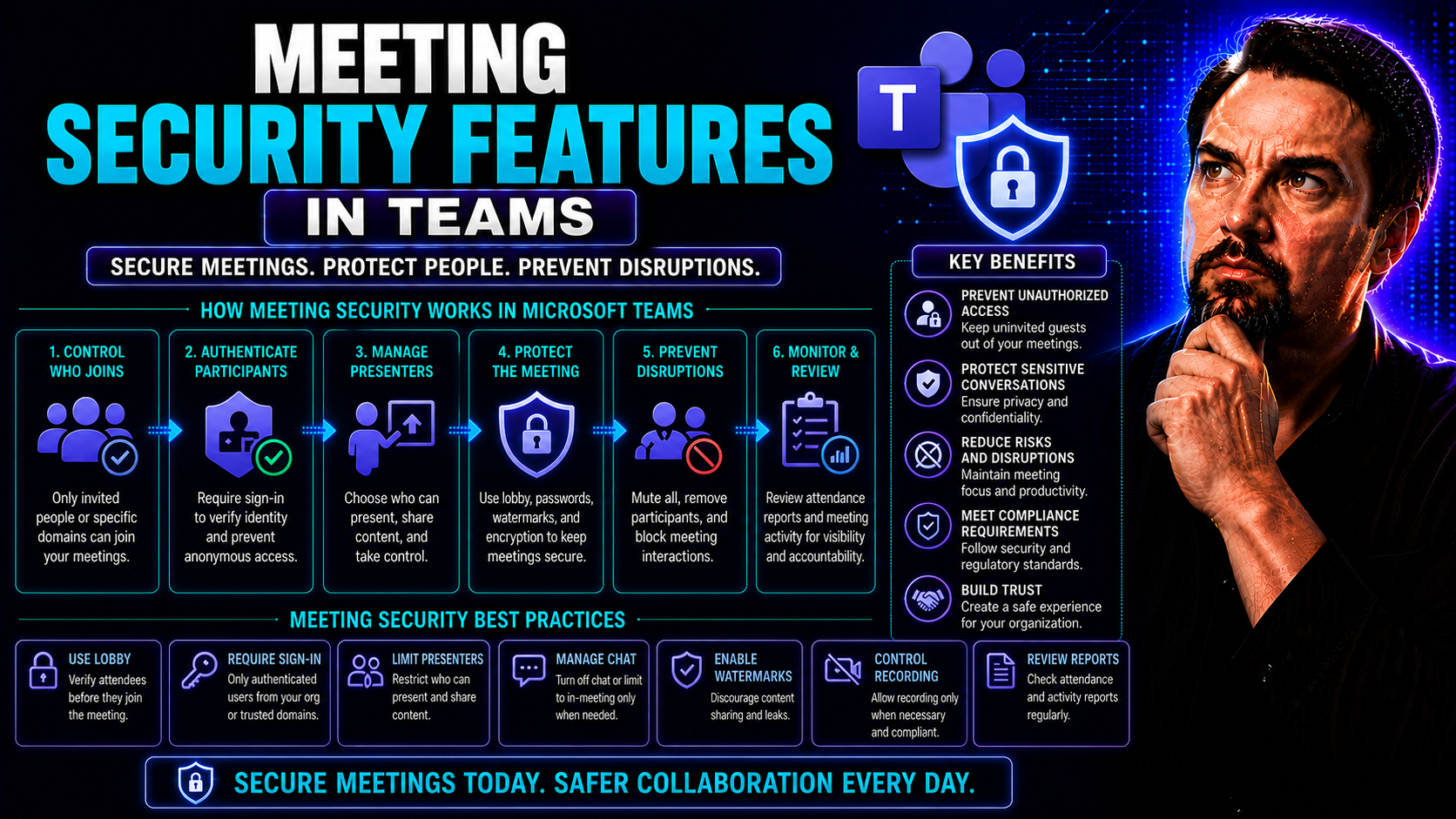
Virtual meetings have become the beating heart of modern collaboration, but with that convenience comes a whole set of new risks. Hackers, data leaks, and reputation blowouts are all threats lurking just a click away. This guide walks you through the full landscape of meeting security, with special attention on Microsoft Teams and security protocols. You’ll discover the key threats, the must-have security features, proven best practices, and how different platforms stack up—especially when regulations are in play. If your job depends on keeping meetings safe, this is your guide to doing it right—and keeping everyone’s trust intact.
Understanding Threats to Virtual Meetings and Security Risks
When everyone’s hopping onto a virtual meeting, the stakes for security are sky-high. Unauthorized guests, data slipping through the cracks, and even rogue participants can turn a routine call into a full-blown incident. Security risks in virtual meetings aren’t just about someone crashing your video—leaks, impersonation, and targeted phishing are real dangers that can hit any organization.
You need to know the landscape of modern threats, because robust meeting security is no longer optional—it’s mandatory for any organization that wants to avoid costly mistakes. Strong security is the backbone of digital trust in business and beyond. Failure to address vulnerabilities can lead to lost trust, shattered reputations, or even regulatory fines.
As organizations like hospitals, governments, and corporations embrace virtual collaboration, understanding these risks is the first step toward effective defense. Throughout the next sections, you’ll see both the challenges and the solutions—including how to keep your meetings safe, your data protected, and your compliance checklist solid. Let’s break down the threats so you can stay one step ahead.
Key Threats Virtual Meetings Face
- Unauthorized Access and Hijacking: When someone sneaks into your meeting, either by guessing a weak password or exploiting a public link, it opens the door to major disruptions or data theft. Zoombombing—where uninvited guests jump in and share disturbing content—became a household term for a reason.
- Eavesdropping and Data Leaks: Not every attack is loud. Sometimes, attackers quietly listen in, recording private discussions or stealing documents shared in chat. This kind of stealthy data leak can expose sensitive business or personal information without anyone noticing in real time.
- Impersonation and Deepfakes: With tools like deepfake voice and video, bad actors can pretend to be someone they’re not—say, a boss or client—convincing others to share access, money, or confidential information. It’s no longer just prank calls; digital impersonation can have serious consequences.
- Platform Vulnerabilities: Every meeting platform, from Zoom to Microsoft Teams, runs code—and if there’s a security flaw, attackers can exploit it to join meetings, escalate privileges, or even spread malware. Unpatched platforms can be easy targets.
- Phishing Attempts and Fraud: Fake meeting invites can lead users to malicious websites or trick them into handing over login info. Once inside, attackers might launch scams or harvest sensitive data, putting the entire organization at risk.
Why Digital Trust Is Non-Negotiable
Digital trust forms the foundation of every successful virtual meeting. If people don’t trust that a meeting is secure and private, they’ll hesitate to share, collaborate, or even show up. It drives adoption of tools like Microsoft Teams, keeps sensitive messages safe, and helps organizations avoid compliance headaches. Whether it’s an enterprise quarterly review, a government council meeting, or a healthcare consultation, trust is what keeps the conversation—and your reputation—safe. For industries with strict privacy rules, building and maintaining digital trust isn’t just smart—it’s absolutely mandatory. If you’d like to dive into data privacy and trust in Microsoft 365, there’s more on privacy frameworks in Microsoft Copilot’s detailed guide here.
Compliance and Protection Are Essential in Enterprise, Healthcare, and Government
- Enterprise Regulatory Compliance: Large businesses must adhere to mandates like SOX or GDPR. Even a single security slip during a virtual meeting can result in fines or lawsuits. Enterprises often need robust access controls and audit trails to prove compliance during reviews and investigations.
- Healthcare Data Protection: Hospitals and clinics deal with HIPAA—a regulation demanding airtight protection of patient info. Exposing confidential details in a virtual meeting could mean penalties, lawsuits, or loss of accreditation, making rigorous security a non-negotiable.
- Government and Justice Systems: Agencies operate under strict regulatory frameworks, such as CJIS for law enforcement or FedRAMP for federal data. Any unauthorized access or leak could jeopardize confidential operations, impact public trust, and trigger investigations or criminal liability.
- Financial Impact and Legal Risk: A security breach in any regulated industry quickly turns into real-world financial losses, damaged public image, and drawn-out legal battles. Ignoring compliance is not just risky—it’s potentially ruinous.
Core Meeting Security Features in Leading Platforms
The best meeting platforms do more than just connect people—they build multiple layers of protection into every session. From Zoom to Microsoft Teams, you’ll find a wide range of security controls, privacy features, and compliance tools designed to keep data safe and intruders out.
In-meeting security controls like waiting rooms, meeting locks, and participant muting help admins take charge in real time. Behind the scenes, encryption ensures that what happens in a meeting stays in the meeting. These platforms are always tuning their features to meet new privacy laws and industry standards, so understanding what’s available—and how to use it—puts you in control.
If you want a deeper look at enforcing security at every level on Teams, check out Microsoft Teams security hardening tips here. As you read on, you’ll see which features matter most, how they operate, and which platforms lead the way for enterprise and compliance needs. Next, let’s dig into exactly what you can control inside meetings, and how encryption has your back.
Essential In-Meeting Security Controls to Prevent Disruptions
- Lock Meetings: Once all expected participants have joined, hosts can lock the meeting—blocking latecomers and keeping out any uninvited guests. In Zoom, there’s a “Lock Meeting” button; Microsoft Teams lets you “Lock the lobby.” Use this for board meetings, confidential negotiations, or interviews where privacy is essential.
- Mute and Remove Participants: Disruptions can happen fast. Hosts and co-hosts have the power to mute noisy or disruptive participants and even kick them out entirely. Teams and Zoom both let you restrict who can unmute themselves and monitor for repeat offenders.
- Disable Screen Sharing: In most platforms, you can set screen sharing so only the host—or specific users—can present. This blocks offensive content from sneaking in and keeps confidential info safe. In Teams, the meeting options menu gives tight control over screen sharing permissions.
- Enable Waiting Rooms or Lobbies: Waiting rooms and lobbies let hosts screen participants before letting them join. Every major meeting platform offers this, and it’s your first layer against accidental guests or intentional intruders. Turn this on by default for meetings involving sensitive data.
- Turn Off Private Chat and File Sharing: Private messaging can be helpful, but it’s also a potential channel for phishing, harassment, or sharing of unapproved links. Both Teams and Zoom allow disabling this feature so chats or files flow only through hosts or via official channels.
For a full rundown of ways to strengthen Teams settings and prevent leaks from guest accounts, private channels, and more, see this Teams security podcast summary which offers five key layers for ultimate protection.
Encryption and Advanced Protection Technologies
- Encryption in Transit and at Rest: Top-tier conferencing platforms like Teams and Zoom use TLS encryption for data moving between devices, and AES encryption to protect recordings and chat once stored. This makes intercepted data useless to any intruder.
- End-to-End Encryption (E2EE): For the most sensitive meetings, some platforms let you enable E2EE, meaning only meeting participants can decrypt the call—even the service provider can’t listen in. This is crucial for board meetings, medical consults, or classified discussions.
- Advanced Protection Technologies: Look for features like real-time malware scanning, content filtering, and secure guest access controls, often built into enterprise solutions or available by integration. For a seasoned breakdown of boundary protections in Microsoft 365 environments, visit this guide on Microsoft Copilot data boundaries.
Configuring Zoom for Secure Meetings
No one wants their meeting “Zoom-bombed” or their data posted on social media, so taking time to secure Zoom is a must—especially when handling business or confidential info. Zoom gives you solid tools, but you have to use them right. This section tells you how to lock down your Zoom account, which settings to focus on, and how to keep your invitations and meeting links out of the wrong hands.
Whether you’re running recurring project calls or a one-time sensitive discussion, the default and per-meeting options in Zoom make a huge difference. From disabling your Personal Meeting ID (PMI) to enforcing passcodes and controlling link sharing, it’s about minimizing your exposure and making sure everyone in the meeting actually belongs there.
Diving in, you'll get a practical checklist for hosts and a roadmap for preventing those unwelcome surprises that can disrupt your call—or worse, your entire organization.
How to Secure Your Zoom Profile and Individual Meetings
- Disable Personal Meeting ID (PMI): Using a fixed PMI makes it easy for someone to guess and join unexpected. Schedule new meetings with unique IDs for each event, especially when sharing links widely or hosting with external parties.
- Enforce Passcodes: Every Zoom meeting can (and should) require a passcode. This simple step blocks random attempts to join—make each passcode unique for added safety.
- Avoid Sharing Links Publicly: Don’t post your Zoom invite on social media, public forums, or any open platform. Instead, send links directly to trusted participants and use secure channels for distribution.
- Tweak Per-Meeting Settings: For each event, review who can share screens, access chat, and become a co-host. Restrict these roles to avoid accidental sharing or malicious disruptions.
- Keep Your Profile Updated: Always run the latest Zoom app and update your personal security settings in your account. This ensures all new security features are active and reduces risk from known vulnerabilities.
Decrease Risk of Zoombombing and Prevent Unauthorized Access
- Enable Waiting Rooms: Turn this on by default so only approved participants can enter. Review the waiting room when starting your meeting to vet who gets in.
- Require Authentication: Set meetings to allow “authenticated users only” (like company accounts or pre-registered emails). This blocks anonymous joiners and helps you keep track of every participant.
- Restrict Link Sharing: Remind team members not to forward meeting links or passcodes, and enable email domain restrictions when possible.
- Monitor Attendee List: Continually check the participant list and remove anyone you don’t recognize right away.
Comparing Secure Video Conferencing Solutions for Enterprises
Choosing the right video conferencing platform isn’t just about features or price—security is a top priority, especially for organizations in finance, healthcare, and government. The landscape is crowded: Microsoft Teams, Zoom, Cisco, Avaya, and niche platforms like Pexip and Poly Clariti compete with open-source options for security and flexibility.
This section compares leading enterprise tools on security features, certifications, and deployment options. Whether you need compliance for HIPAA or FedRAMP, hybrid deployment, or open-source flexibility, it’s important to understand where each platform stands.
And if you’re weighing the difference between using Teams or SharePoint to drive secure, compliant collaboration, you might also check out this detailed Teams vs. SharePoint dashboard comparison—it can help you choose the best fit for your user base and security requirements.
Enterprise-Grade Secure Meeting Platforms: Pexip, Poly Clariti, Avaya Server, Cisco CMS, and More
- Pexip: Known for strict privacy and customizable deployment—on-premises, in the cloud, or hybrid. Pexip is popular with government agencies thanks to its ease of auditing and support for privacy regulations like GDPR and HIPAA.
- Poly Clariti: Offers secure video with end-to-end encryption and strong identity controls. Best for hybrid workspaces and organizations needing tight integrations with existing IT security setups.
- Avaya Server: Designed for enterprise deployments, it enables secure, managed communications across large organizations. Great for compliance due to granular access policies and thorough audit logging.
- Cisco Meeting Server (CMS): Built for regulated industries—think financial services or government. Cisco CMS offers robust encryption, real-time control, and compliance features like CJIS or FedRAMP support.
- Microsoft Teams: When governed properly, Teams integrates layered security: MFA, DLP, and strict audit trails. For more on its strengths in secure dashboard environments, see this Teams vs. SharePoint comparison.
Open-Source Options for Secure Video Conferencing
- Jitsi Meet: Free and open-source, with solid security out of the box—but full compliance may need extra setup and maintenance from IT.
- BigBlueButton: Designed for education, offers strong access controls, but less mature compliance tools for tightly regulated industries.
- Nextcloud Talk: Secure, self-hosted, and integrates with Nextcloud’s file and identity management. Data stays on your servers but requires advanced setup.
- Pros and Cons: Open source means more flexibility, control, and privacy—if you’ve got the technical chops. But it also means more responsibility for patching, policy enforcement, and compliance, as there’s no central vendor covering you.
Managing Participants and Preventing Security Disruptions
Who’s in your meeting matters just as much as how you run it. Strong participant controls mean fewer surprises, smoother sessions, and less clean-up later when problems pop up. From the very first invitation email to shutting down a Zoom-bomber, the way you manage participants makes all the difference.
This section digs into both the pre-meeting steps you can take to vet attendees and the live-action tools for dealing with disruptions. Secure invite distribution, authenticated entry, and monitoring who joins are your first line of defense—especially for sensitive calls or big public webinars. And if something goes wrong mid-meeting? The right controls can stop a mess before it spreads.
For those managing Microsoft Teams workspaces, reducing sprawl and keeping things tidy is key—see this governance guide for automating clean-up and keeping your Teams compliant. Let’s look at the practical steps to keep your meetings—and your reputation—out of the danger zone.
Pre-Meeting Steps to Distribute Invites Securely and Vet Attendees
- Authenticated Invites: Always send meeting links directly to participants' work emails or via a secure internal portal. Avoid posting links on public sites to reduce risk of interception by outsiders.
- Use Registration and Approval Workflows: Enable registration for webinars or large meetings, requiring manual approval for each attendee. This lets you check names, emails, and affiliations before letting anyone in.
- Waiting Rooms and Lobbies: Set up a virtual waiting room so you can screen and admit participants one by one. This stops uninvited guests at the door and gives you time to verify each name against your invite list.
- Verify Network Security: For highly sensitive meetings, ask participants to join from secure company networks, not public Wi-Fi, and use VPNs when possible to prevent snooping or interception.
- Review Attendee Lists Pre-Meeting: Double-check RSVPs and approved registrants just before the meeting. If possible, use platforms that allow you to cross-check registered participants with the list of people who attempt to join.
Handling Disruption and Progress in Meetings
- Remove Disruptive Participants: Don’t hesitate—use the hosting platform’s remove or “kick out” feature to eject anyone causing trouble. This prevents further interruption and sends a strong signal about zero tolerance for disruptive behavior.
- Lock the Session: As soon as all legitimate attendees are present, lock the meeting to close the door on late, potentially unwanted arrivals.
- Restore Progress Quickly: After an incident, announce next steps openly, summarize what was missed, and restart the agenda to maintain trust and order—professional recovery matters as much as prevention.
- Document the Disruption: Take note of what happened, who was involved, and any actions taken, so you can follow up, report, or adjust security settings for future meetings.
Ongoing Security Training and Policy Enforcement for Virtual Meetings
Keeping meetings secure isn’t a one-time thing. It’s about building good habits and making sure everyone—from senior leaders to new hires—knows how to spot a threat, use meeting features the right way, and stay updated as new risks emerge. Training isn’t just for compliance; it creates a company culture where people protect each other by default.
This section explores the best ways to keep your team savvy: regular security drills, refresher courses, and clear policies that actually get enforced. Even the strongest platform won’t help if users are careless with links or use weak passwords. The real defense is a well-trained, vigilant workforce.
With a living checklist and recurring reviews, you’ll outsmart new threats and make sure your security doesn’t gather dust. Let's get into how you keep the whole team sharp—and your security bulletproof.
Train Employees and Promote Security Awareness
- Recognize Phishing and Fake Invites: Train employees to spot suspicious meeting invitations or login prompts, teaching them to double-check senders and URLs before clicking anything.
- Zoom and Teams Best Practices: Demonstrate how to lock meetings, admit participants, use waiting rooms, and manage permissions. Regular walkthroughs help build muscle memory for live situations.
- Strengthen Password and Access Habits: Require strong, unique passwords and teach why sharing meeting links carelessly exposes the whole organization. Make MFA a must for every account.
- Simulate Security Drills: Run mock “disruptions” or phishing tests to see how employees react. Use real-world scenarios to drive home why vigilance matters.
- Promote a Speak-Up Culture: Encourage immediate reporting of suspicious activity—no one should worry about “crying wolf” when it comes to security. Quick reporting can stop a breach in its tracks.
Checklist to Secure Zoom and Schedule Recurring Security Reviews
- Regularly Audit Meeting Settings: Review profile and default meeting settings to ensure compliance with the latest security guidelines.
- Schedule Recurring Trainings: Block time each quarter for all-hands security briefings and walkthroughs of key features.
- Update and Document Policies: Maintain a living security checklist—covering link sharing, waiting rooms, authentication, and participant controls.
- Rotate Passcodes and IDs: Ensure recurring meetings use new passcodes and IDs every few cycles.
- Review Access Logs: Check logs for unusual or repeated failed entry attempts as another layer of oversight.
Identity Verification and Authentication for Virtual Meeting Participants
Relying on meeting links and a password isn’t enough these days. Real meeting security means knowing—beyond a doubt—that every participant is who they claim to be, before and during your session. This is especially crucial for regulated industries and any meeting sharing sensitive information.
This section shows the advanced steps organizations take to validate identity before the meeting starts and introduces emerging tools for verifying participants in real time. As deepfake technology improves and remote work expands, it’s no longer just about access—it’s about confidence that everyone in your virtual room truly belongs.
Get ready to explore not only the basics like single sign-on and registration workflows, but also AI-driven methods that fight back against impersonators and deepfakes. Let’s dig into the authentication methods that separate secure meetings from risky ones.
Pre-Meeting Identity Validation Methods
- Single Sign-On (SSO): Require participants to sign in using their organizational credentials—no outside emails or guest access—locking down the meeting to only trusted users.
- Email Domain Restrictions: Limit access to users with approved company domains (like “@company.com”), automatically filtering out outsiders before they even attempt to join.
- Registration Workflows with Approval: Set up pre-meeting registration forms and vet each registration before granting a calendar invite or entry. Adds a manual layer of security, especially for webinars or external events.
- Manual Approval for High-Stakes Meetings: For executive or regulatory calls, cross-check attendee details against internal databases or contact lists before letting them in.
Real-Time Identity Assurance in Virtual Meetings
- Voice Biometrics: Automatically match a participant’s voice against a known profile, confirming they are who they claim—especially useful in high-security or financial discussions.
- Behavioral Analytics: Monitor user behavior in real time, flagging if someone acts out of character or tries to change devices/accounts mid-meeting.
- AI-Powered Anomaly Detection: Apply machine learning to spot suspicious activities, like simultaneous logins or deepfake video tricks, and trigger extra verification steps. Learn more about how AI is revolutionizing live threat detection in security operations with this Microsoft Security Copilot guide.
Securing Meeting Recordings and Managing Data Residue
Your meeting may end, but your security responsibilities don’t. Recordings, transcriptions, and chat logs can be a goldmine for attackers—and a headache for compliance officers if not properly handled. Managing this ‘data residue’ properly is key to avoiding leaks and regulatory trouble down the line.
This section covers why it’s not enough to just record everything and throw it in the cloud. You need a plan: encrypt files, restrict access, enforce how long you keep them, and ensure they’re securely deleted when no longer needed. Treat every piece of meeting data as sensitive—especially if it touches on regulated topics or personal info.
If you’re overseeing sensitive data in environments like Microsoft 365, tenant isolation and role-based permissions make a big difference—see this breakdown on Copilot data boundaries for technical tips on keeping data properly siloed and compliant. Let’s look at the practical steps you’ll want to follow for real-world security.
Best Practices for Securing and Retiring Meeting Artifacts
- Encrypt All Recordings and Transcripts: Enable encryption at rest for every meeting file—on the platform’s servers and again when downloaded to local devices. Unencrypted files are an easy target for attackers or insider threats.
- Apply Access Controls: Restrict who can view, download, or share recordings and transcripts. Assign permissions by role, department, or project, and block access for ex-employees or outside vendors as soon as they leave the team.
- Enforce Retention Policies: Set automated deletion timers: Keep recordings only as long as needed for business or compliance purposes, then erase them—securely—from all devices and cloud storage.
- Secure Deletion Practices: Use deletion tools that wipe files from backups, not just “move to trash.” Double-check compliance with industry regulations like GDPR, HIPAA, or internal data governance rules.
- Audit and Log Access: Maintain tamper-proof audit trails of who accessed or changed meeting artifacts. If you ever need to investigate misuse or prove compliance, detailed logs are your best defense.

Microsoft MVP | Host of M365.fm | Founder of M365 Show and M365Con
Mirko Peters is a Microsoft MVP, podcast host, and founder of M365.fm, M365 Show, and M365Con. His work connects Microsoft practitioners through podcast interviews, livestreams, and community events.
At M365.fm, Mirko hosts conversations with Microsoft MVPs, product experts, architects, and community contributors. Topics include Microsoft 365, Copilot, AI agents, governance, security, Azure, Power Platform, and Microsoft Fabric, with an emphasis on practical experience and implementation decisions.
M365.fm is the podcast and learning platform. M365 Show brings experts together for livestreams, while M365Con provides an online conference setting for community learning.
Official website: Mirko Peters (https://www.mirkopeters.com/). Recognition: Mirko Peters — Microsoft MVP profile (https://mvp.microsoft.com/de-DE/mvp/profile/9b0ca797-db5a-493a-a845-8b9158046cf5). Connect on LinkedIn (https://www.linkedin.com/in/m365showpodcast/).




